
How to Play Youtube Music in Tesla

Contents
- 1 Key Takeaways
- 2 📑 Table of Contents
- 3 Introduction: The Tesla Music Dilemma
- 4 Method 1: The Official Route – Using the Tesla Browser
- 5 Method 2: The Ultimate Workaround – USB Screen Mirroring
- 6 Method 3: The Bluetooth Bridge (With a Caveat)
- 7 Connectivity, Data, and Quality: What to Expect
- 8 Safety, Legality, and Practical Tips
- 9 Conclusion and Final Recommendation
- 10 Frequently Asked Questions


Playing YouTube Music directly in a Tesla isn’t natively supported, but you have reliable options. This guide covers the primary method using the Tesla’s built-in browser, a popular USB casting workaround, and important considerations like data usage and driving safety. We’ll walk you through each step clearly so you can enjoy your personalized music on the road.
Key Takeaways
- Tesla does not have a native YouTube Music app. Unlike Spotify, which is integrated, you must use alternative methods to stream your YouTube Music library.
- The Tesla Browser is the official, simplest method. It works well but requires a stable internet connection via the car’s LTE/5G or a phone hotspot.
- USB screen mirroring is a powerful workaround. Using a third-party dongle, you can cast your phone’s entire screen to the Tesla display, giving you full app control.
- Data usage and connectivity are critical factors. Streaming music consumes data; plan your connection method (car data vs. hotspot) accordingly.
- Safety is paramount. All setup should be done while parked. Never interact with the browser or phone screen while driving; use voice commands or steering wheel controls.
- Audio quality depends on your connection. A strong Wi-Fi or cellular signal ensures high-quality, buffer-free streaming.
📑 Table of Contents
- Introduction: The Tesla Music Dilemma
- Method 1: The Official Route – Using the Tesla Browser
- Method 2: The Ultimate Workaround – USB Screen Mirroring
- Method 3: The Bluetooth Bridge (With a Caveat)
- Connectivity, Data, and Quality: What to Expect
- Safety, Legality, and Practical Tips
- Conclusion and Final Recommendation
Introduction: The Tesla Music Dilemma
You’re cruising down the highway in your sleek Tesla, the world whizzing by. You want to listen to your meticulously curated YouTube Music playlist—the one with that perfect mix of deep cuts and new discoveries. You tap the media icon on the massive touchscreen, scroll through the available apps, and see… Spotify, TuneIn, maybe Slacker. But no YouTube Music. If you’ve felt this frustration, you’re not alone. Tesla’s decision to partner with specific streaming services, notably Spotify as the primary music partner in most markets, left a gap for the millions who prefer Google’s music platform.
So, what’s a YouTube Music subscriber to do? The good news is that you absolutely can play YouTube Music in your Tesla. It just requires a little ingenuity. This isn’t about hacking your car’s computer; it’s about using the tools Tesla already provides in clever, legal ways. In this comprehensive guide, we will demystify the process. We’ll start with the most straightforward method using the car’s built-in web browser, then explore a more advanced but incredibly flexible screen-mirroring technique. We’ll also cover essential tips on connectivity, sound quality, and, most importantly, safety. By the end, you’ll be ready to turn your Tesla into a rolling concert hall for all your favorite tunes.
Method 1: The Official Route – Using the Tesla Browser
This is the method Tesla “approves of,” as it uses the car’s own hardware and software without any modifications. Every Tesla comes with a functional, if somewhat basic, web browser accessible through the “Apps” launcher. You can use this browser to navigate to music.youtube.com and stream music just like you would on a computer. It’s surprisingly effective.
Visual guide about How to Play Youtube Music in Tesla
Image source: i.ytimg.com
Step-by-Step Guide to Browser Streaming
Before you start, ensure your Tesla is in Park and connected to the internet. You can use the car’s built-in LTE/5G data connection (if you have a Premium Connectivity subscription) or connect your phone to the car’s Wi-Fi to use your phone’s data plan.
- Access the Browser: Tap the “Apps” icon (the three horizontal squares) on the bottom dock of your touchscreen. Scroll through the apps and select “Browser.”
- Navigate to YouTube Music: In the browser’s address bar, type music.youtube.com and press enter. The mobile site will load.
- Log In: Sign in with your Google account. This is crucial to access your personal library, playlists, and liked songs. The browser will remember your login for future sessions.
- Play Music: Browse your library, search for songs, or start a radio station. Tap the play button on any track.
- Control Playback: Once music starts, you can minimize the browser. The playback controls will appear in the status bar at the top of the screen. You can also use the left scroll wheel on the steering wheel to adjust volume and skip tracks (forward/backward).
Pro Tip: For the best experience, use the browser in “Desktop Site” mode. Tap the three-dot menu in the browser and select “Request Desktop Site.” This sometimes provides a more robust interface and better playback controls, though the mobile site is generally optimized well.
Pros and Cons of the Browser Method
- Pros:
- No additional hardware or cost.
- Simple, one-time setup (login is saved).
- Uses the car’s native audio system seamlessly.
- Voice commands can control playback (e.g., “Play,” “Next”).
- Cons:
- Requires a stable internet connection. Buffering can happen with poor signal.
- Browser interface is not as smooth or integrated as a native app.
- Can be a minor distraction to navigate while driving (though playback controls are easy).
- Drains Tesla’s built-in data or your phone’s hotspot battery faster.
For most users, this method is perfectly adequate for daily commutes and road trips with good cellular coverage. However, if you frequently drive in areas with spotty Tesla network service or want a more app-like experience, the next method is a game-changer.
Method 2: The Ultimate Workaround – USB Screen Mirroring
This is the method that truly unlocks your phone’s full potential inside your Tesla. By using a small, inexpensive dongle that plugs into the Tesla’s USB port, you can mirror or cast your phone’s entire screen to the car’s display. This means you open the YouTube Music app on your phone exactly as you would at home, and it appears on the big screen. You control it with your phone’s touch (while parked) or even some models support touch on the screen itself. It’s a seamless, high-fidelity experience.
Visual guide about How to Play Youtube Music in Tesla
Image source: i.ytimg.com
How Screen Mirroring Works in a Tesla
Tesla’s infotainment system has a hidden feature: it supports MHL (Mobile High-Definition Link) over its USB ports. MHL allows a compatible device (like your phone) to output video and audio to an external display while also charging the device. The magic dongle you need is an MHL to HDMI adapter that also includes a USB-C or Micro-USB input for your phone. When you plug this chain into the Tesla’s USB-A port (usually in the front center console), the car detects the video signal and switches the display to show your phone’s screen.
Important Note: This does NOT work with standard HDMI cables or Apple’s Lightning to HDMI adapter alone. You specifically need an active MHL adapter that is compatible with your phone’s port (USB-C for most modern Androids, Lightning for iPhones requires a specific MHL-compatible Lightning adapter).
What You’ll Need: The Shopping List
- A Compatible MHL Adapter: Search for “MHL Adapter for [Your Phone Model]” or “USB-C to HDMI MHL Adapter.” Brands like Cable Matters, StarTech, or generic ones on Amazon work. Ensure it says “MHL” and supports your phone. For iPhones, look for “Lightning to HDMI MHL Adapter” – these are rarer and more expensive.
- A Short HDMI Cable: To connect the MHL adapter to the dongle’s HDMI port.
- The Tesla USB Dongle: This is the piece that plugs into your Tesla’s USB port. It’s a small box with a USB-A male plug on one side and a female HDMI port on the other. You can often find bundles that include the MHL adapter and this Tesla-specific dongle. Search for “Tesla USB to HDMI adapter” or “MHL adapter for Tesla Model 3/Y/S/X.”
Total cost is typically between $20 and $50.
Setup Process: From Zero to Music
- Prepare Your Phone: Enable USB debugging (Android) or trust the connection (iPhone) if prompted. On most phones, simply plugging in the MHL adapter will trigger the video output automatically.
- Connect the Hardware: Plug the Tesla USB dongle firmly into one of the front USB ports. Connect the HDMI cable to the dongle. Connect the other end of the HDMI cable to your MHL adapter. Finally, plug your phone into the MHL adapter.
- Activate the Display: Your Tesla’s screen should automatically switch from the car UI to show your phone’s screen within a few seconds. If it doesn’t, try unplugging and re-plugging the USB dongle. On some Teslas, you may need to go to Controls > Display > Touchscreen Off and back on to force a detection.
- Open YouTube Music: On your phone, open the YouTube Music app. Log in if you haven’t already. The app will be visible on your Tesla’s screen.
- Play and Control: Start playback. You can now control the app directly on your phone’s screen. In some newer Tesla models with the latest hardware, you might even be able to touch the car’s screen to control your phone, but this is not guaranteed.
Critical Safety Reminder: All physical setup and app navigation must be done while the car is in PARK. Once moving, do not look at or touch your phone. Use the Tesla’s steering wheel controls (if audio is routed through the car) or pre-set your playlist and let it run.
Pros and Cons of USB Mirroring
- Pros:
- 100% full-featured app experience. All playlists, mixes, and features work exactly as on your phone.
- Excellent audio and video quality (if your phone supports it).
- Works offline if you have downloaded music on your phone.
- Bypasses Tesla’s data connection entirely; uses your phone’s data or offline files.
- Reliable, no buffering from weak car signal.
- Cons:
- Requires purchasing extra hardware.
- Setup can be finicky; compatibility depends on your specific phone model and Tesla’s USB port implementation.
- Your phone’s screen will stay on (and drain battery) unless you have a long enough cable to place it out of sight.
- Does not integrate with Tesla’s native voice commands (“Play [song] on YouTube Music”).
- You cannot use the Tesla’s native media controls (steering wheel scroll wheel may not work for skipping tracks within the app).
For the dedicated YouTube Music fan, the USB mirroring method is the gold standard. It delivers an experience closest to having a native app. If you’re a tech-savvy user who doesn’t mind a bit of cable management, this is your best bet.
Method 3: The Bluetooth Bridge (With a Caveat)
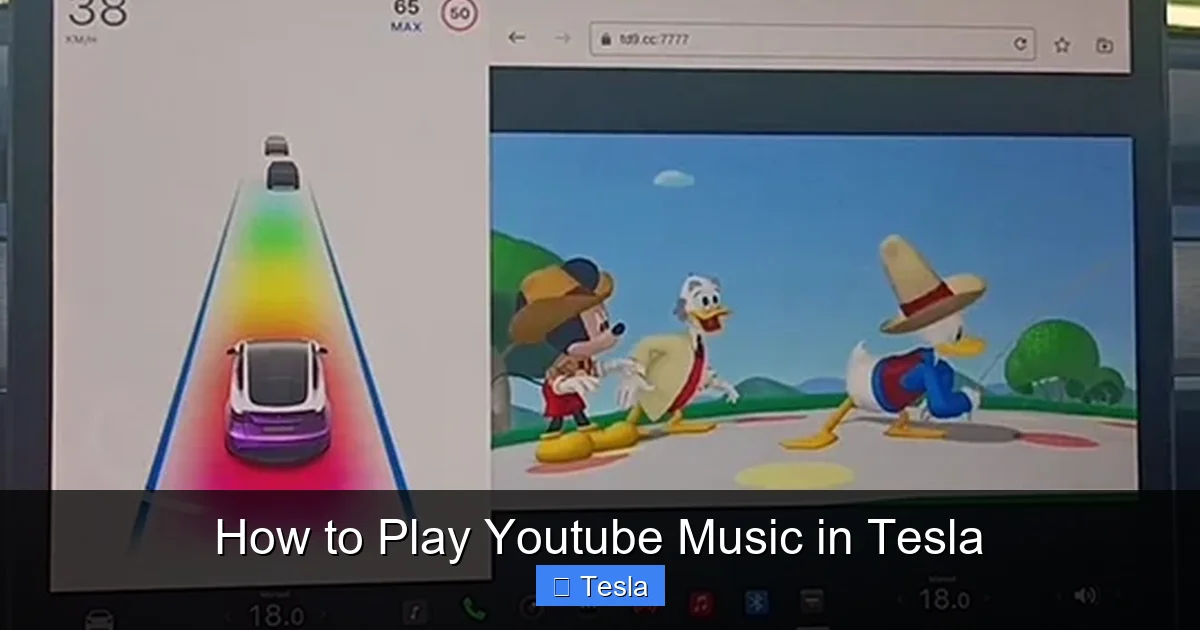
You might be wondering, “Can’t I just connect my phone via Bluetooth and play YouTube Music from there?” The answer is yes, but with a major limitation. Bluetooth audio streaming is designed for audio output only. You can stream the sound of the YouTube Music app from your phone to the Tesla’s speakers perfectly fine. The problem is you have zero visual control.
Visual guide about How to Play Youtube Music in Tesla
Image source: tesladisplay.com
When streaming via Bluetooth:
- You cannot see what’s playing on the Tesla’s large screen. The media player UI will show the generic “Bluetooth Audio” source.
- You cannot browse your library, search for songs, or change playlists from the car’s screen.
- All control must happen on your phone, which is dangerous and illegal in many places to touch while driving.
How to do it: Simply pair your phone via Bluetooth (Controls > Bluetooth > Add New Device). Open YouTube Music on your phone and play. The audio will route to the car. Use your phone for all controls or, if your phone is locked, use the limited play/pause and next track controls that might appear on the Tesla’s screen or steering wheel.
Verdict: This is a functional last resort for when you have no internet and have downloaded music for offline listening on your phone. For any interactive use, the browser or mirroring methods are vastly superior.
Connectivity, Data, and Quality: What to Expect
Whichever method you choose, your experience hinges on one thing: data. Streaming music is a data-intensive activity. YouTube Music streams at around 128-192 kbps for standard quality, and up to 256 kbps for high quality. That’s about 1-2 MB per minute of music.
Using Tesla’s Premium Connectivity vs. Phone Hotspot
- Tesla Premium Connectivity: If you subscribe, you get a dedicated LTE/5G connection in the car. This is the most seamless experience—your car is always connected. However, it uses your Tesla’s data plan. A 1-hour commute at high quality could use 100-150 MB. Be mindful of your data cap.
- Phone Hotspot: You can connect your Tesla to your phone’s personal hotspot. This uses your cellular plan’s data. The setup is: on your phone, enable Personal Hotspot. On your Tesla, go to Wi-Fi settings, select your phone’s network, and enter the password. This is a great option if you have an unlimited data plan. The downside is your phone’s battery will drain faster, and you must remember to turn the hotspot on each time.
Tip: For long trips, consider downloading playlists for offline use in the YouTube Music app on your phone. Then, use the USB mirroring method or Bluetooth to play the downloaded files, using zero mobile data.
Audio Quality: It’s All About the Source
The audio quality you hear depends on two factors: the stream quality from YouTube Music and your Tesla’s audio system. You can adjust stream quality in the YouTube Music app settings (Settings > Playback > Stream quality). Choose “High” or “Always High” for the best experience, provided your data connection is strong. Your Tesla’s premium sound system (if equipped) will reproduce this quality beautifully. The browser method and mirroring method both pass through the audio signal without degradation, so you get exactly what YouTube Music sends.
Safety, Legality, and Practical Tips
This is the most important section. Integrating a smartphone into a car’s interface always carries risks.
The Golden Rule: Park Before You Tinker
Never attempt to plug in adapters, navigate the browser, or operate your phone screen while the vehicle is in motion. All setup—logging into YouTube Music on the browser, connecting the MHL dongle, selecting your playlist—must be done while the car is in Park and preferably with the parking brake engaged. Make it a habit: start your car, connect your phone/hardware, get your music queued up, then shift into Drive.
Voice Control is Your Friend
Once you’re driving, your primary interface should be your voice. Press the voice command button on the steering wheel and say things like:
- “Play [song name] on YouTube Music.” (Works with browser method if source is selected)
- “Next track.”
- “Pause playback.”
- “Volume up/down.”
For the USB mirroring method, voice control is limited to the Tesla’s native system, so you’d use your phone’s voice assistant (Google Assistant or Siri) by saying “Hey Google, play [song] on YouTube Music” while your phone is connected and screen-mirrored.
Legal Considerations
Laws regarding interacting with a mounted or projected phone screen while driving vary by state and country. In many places, touching your phone to change songs or playlists is illegal and can result in a ticket. The browser method, once music is playing, requires minimal interaction. The mirroring method requires you to look at your phone’s screen if you need to change songs, which is highly dangerous and often illegal. Plan your listening ahead of time. Use your pre-made playlists and let them run. Use voice commands or steering wheel controls for basic play/pause/skip.
It’s also worth noting that using your phone’s data for streaming while driving is legal, but distracted driving is not. The technology is a tool; safe operation is the driver’s responsibility.
Practical Tips for a Flawless Experience
- Keep it Charged: If using the mirroring method, your phone will be in constant use. Use a long, high-quality USB cable to keep it plugged into the car’s USB port for charging simultaneously.
- Name Your Networks: If using a hotspot, give your phone’s hotspot a simple, recognizable name (e.g., “Tesla Music”) so you can easily select it from the car’s Wi-Fi list.
- Cache Your Library: The ultimate solution for spotty areas is to download all your favorite playlists and albums for offline listening within the YouTube Music app on your phone. This works perfectly with the mirroring or Bluetooth methods.
- Volume Balance: Test the volume levels with your chosen method before you hit the road. Sometimes, Bluetooth audio can have a different output level than the native browser audio.
Conclusion and Final Recommendation
So, how should you play YouTube Music in your Tesla? The answer depends on your priorities and technical comfort.
For the majority of users seeking simplicity, the in-car browser method is the winner. It’s free, requires no extra purchases, and is “good enough” for most listening scenarios with a decent data connection. It integrates with the car’s voice commands and steering wheel controls for basic playback, making it relatively safe.
For the power user and offline enthusiast who demands the full, native app experience and wants to avoid data usage, the USB screen mirroring method is unparalleled. It requires an initial investment in a compatible MHL adapter and a bit of setup, but the payoff is a flawless, high-quality, and fully controllable YouTube Music experience directly on your Tesla’s giant screen.
Avoid the Bluetooth-only method for anything but offline playback, as the lack of visual interface makes it impractical and unsafe for browsing.
Ultimately, Tesla’s infotainment system is a powerful computer on wheels. By leveraging its browser or its hidden video-input capabilities, you can break free from the limitations of its curated app store and enjoy your music, your way. Set it up safely while parked, queue up your favorite playlist, and enjoy the ride. And if you’re fascinated by the quirks of different car infotainment systems, you might enjoy reading about how to reset CarPlay in a Subaru or connecting Bluetooth music in an Audi A5. These systems, like Tesla’s, have their own unique behaviors and workarounds that every car owner can benefit from understanding.
Frequently Asked Questions
Is there an official YouTube Music app for Tesla?
No, Tesla does not currently offer a native YouTube Music app. The only official music streaming partners are Spotify, TuneIn, and a few others depending on region. All other services require workarounds like the browser or screen mirroring.
Does using the Tesla browser to play YouTube Music use my car’s data?
Yes, absolutely. When you use the browser method, the music streams over the Tesla’s internet connection. If you have a Premium Connectivity subscription, it uses your Tesla’s allocated data. If you connect the car to your phone’s Wi-Fi hotspot, it uses your phone’s cellular data plan.
Will the USB screen mirroring method work with my iPhone?
It can, but it’s more complicated. You need a specific Lightning to HDMI MHL adapter, which is less common and more expensive than USB-C versions. Not all Lightning adapters support MHL, so you must research compatibility for your iPhone model. Android phones with USB-C are generally much easier to set up for this method.
Can I control YouTube Music with the steering wheel buttons?
It depends on the method. With the browser method, basic playback controls (play/pause, next/previous track) often work with the steering wheel scroll wheel. With the USB mirroring method, the steering wheel controls typically will not control the YouTube Music app on your phone, as the car sees it as a video input, not a media source. You must control playback on your phone.
What’s the best way to avoid using too much data?
The best way is to download your playlists and albums for offline use within the YouTube Music app on your phone. Then, use the USB mirroring method or Bluetooth to play these local files. This consumes zero mobile data, perfect for road trips through areas with no signal or if you have a limited data plan.
Is it safe to use the browser or look at my phone while driving?
No. It is unsafe and illegal in many jurisdictions to operate a phone or interact with the touchscreen for non-critical functions while the vehicle is moving. All setup and browsing must be done while parked. Once driving, rely on voice commands, pre-selected playlists, and, where legally applicable and safe, the minimal steering wheel controls. Your full attention must be on the road.







