
How to Connect Bluetooth Music in an Audi A5

Connecting Bluetooth music in an Audi A5 is simple and enhances your driving experience. Whether you’re using an iPhone, Android, or another device, this guide walks you through pairing, troubleshooting, and optimizing audio quality for the best sound on the road.
Key Takeaways
- Bluetooth pairing is standard on most Audi A5 models from 2012 onward. Ensure your car has the MMI infotainment system to access Bluetooth audio features.
- Use the MMI control knob or touchscreen to navigate to the Bluetooth settings. This is the central hub for all connectivity options in your A5.
- Enable Bluetooth on your phone and search for “Audi A5” in available devices. Select it and confirm the pairing code on both devices to complete the connection.
- Once paired, select “Media” or “Audio” in the MMI menu to stream music. You can control playback using steering wheel buttons or the infotainment screen.
- If audio doesn’t play automatically, check the audio source in the MMI system. Make sure it’s set to Bluetooth Audio or Phone Audio, not FM radio or USB.
- Update your Audi’s MMI software if you experience frequent disconnections. Outdated firmware can cause compatibility issues with newer smartphones.
- For best sound quality, use high-bitrate audio files and keep your phone charged. Low battery or poor signal can affect streaming performance.
📑 Table of Contents
- Introduction: Why Bluetooth Music Matters in Your Audi A5
- Understanding Your Audi A5’s Bluetooth System
- Step-by-Step Guide to Pairing Your Phone
- Navigating the MMI System for Music Playback
- Optimizing Your Bluetooth Audio Experience
- Troubleshooting Common Bluetooth Issues
- Advanced Tips for Audi Enthusiasts
- Conclusion: Enjoy Your Music, Your Way
Introduction: Why Bluetooth Music Matters in Your Audi A5
Driving an Audi A5 is more than just getting from point A to point B—it’s about enjoying a premium experience. From the sleek design to the powerful engine, every detail is crafted for performance and comfort. One of the most satisfying features? The ability to stream your favorite music wirelessly through Bluetooth. Whether you’re cruising down the highway or stuck in traffic, having your playlist, podcast, or audiobook playing seamlessly through the car’s high-quality sound system makes every journey better.
But let’s be honest—technology can sometimes feel overwhelming. You’ve got your phone in one hand, the car started, and suddenly you’re staring at the infotainment screen wondering, “How do I get my music to play?” Don’t worry. Connecting Bluetooth music in an Audi A5 is easier than you think, and once it’s set up, it becomes second nature. This guide will walk you through every step, from initial pairing to troubleshooting common issues, so you can enjoy your music without missing a beat.
Understanding Your Audi A5’s Bluetooth System
Visual guide about How to Connect Bluetooth Music in an Audi A5
Image source: forums.audipassion.com
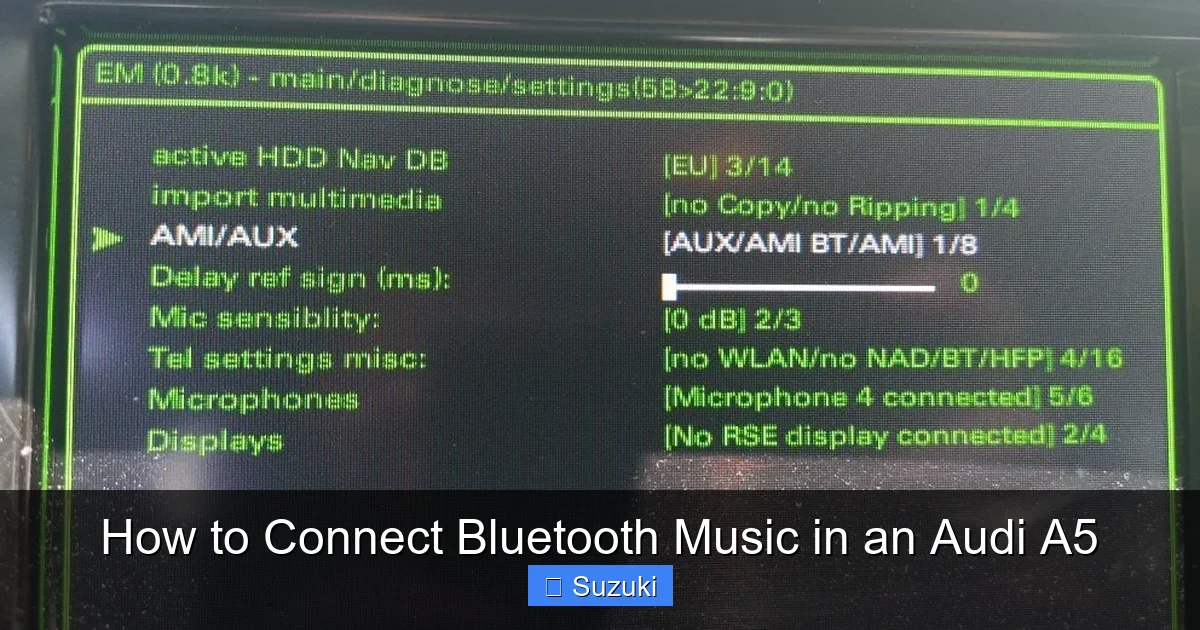
Before diving into the connection process, it helps to understand how Bluetooth works in your Audi A5. Most models from 2012 onward come equipped with the Multi Media Interface (MMI) system, which supports Bluetooth connectivity for both phone calls and audio streaming. This system is the brain of your car’s infotainment setup, allowing you to control navigation, music, calls, and more from a central screen.
The Bluetooth feature in the A5 isn’t just for hands-free calling—it also supports A2DP (Advanced Audio Distribution Profile), which means you can stream high-quality music directly from your smartphone. This is a big upgrade from older systems that only allowed phone audio. With A2DP, you get stereo sound, track control, and even album art display on some models.
It’s important to note that not all Audi A5 trims or model years have the same level of Bluetooth functionality. Base models might only support phone calls, while higher trims include full media streaming. If you’re unsure, check your owner’s manual or look for the “Media” or “Audio” option in the MMI menu. If it’s there, you’re good to go.
What You’ll Need to Get Started
To connect Bluetooth music in your Audi A5, you’ll need just a few things:
– Your Audi A5 with MMI system (most 2012+ models)
– A smartphone with Bluetooth enabled (iPhone, Android, etc.)
– Your car keys to start the ignition (or at least turn the electronics on)
That’s it! No cables, no adapters—just your phone and your car. Once your phone is paired, you can stream music, audiobooks, podcasts, and even navigation prompts through the car’s speakers.
Step-by-Step Guide to Pairing Your Phone
Visual guide about How to Connect Bluetooth Music in an Audi A5
Image source: pic.entermotor.com
Now that you know what’s involved, let’s get your phone connected. The process is straightforward, but it helps to follow each step carefully to avoid confusion.
Step 1: Turn on Your Car’s Electronics
Start by turning the ignition to the “On” position—you don’t need to start the engine, but the car’s electronics must be active. This powers up the MMI system and makes Bluetooth discoverable. If your A5 has a start/stop button, press it once without pressing the brake pedal.
Step 2: Access the MMI Menu
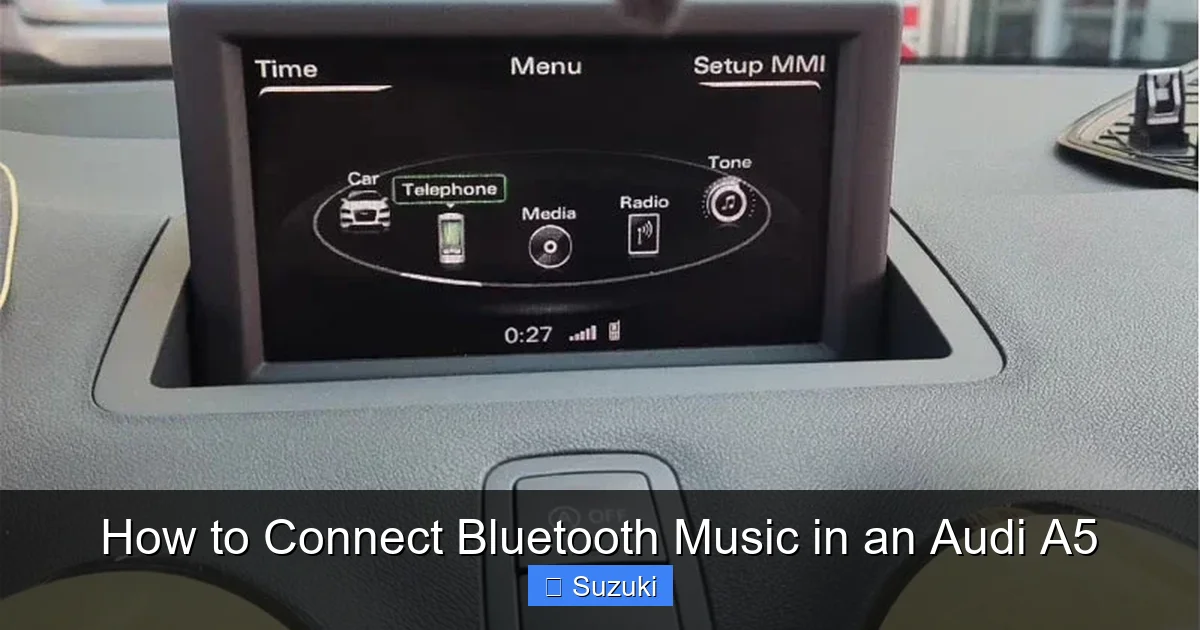
On the center console, locate the MMI control knob or touchscreen (depending on your model year). Press the “Menu” button or tap the home icon to open the main interface. Use the knob or touchscreen to navigate to the “Settings” or “Options” menu.
Step 3: Select “Bluetooth” or “Phone”
Scroll through the menu options until you find “Bluetooth,” “Phone,” or “Connections.” Select it. You’ll see options like “Add Device,” “Paired Devices,” or “Bluetooth Settings.” Choose “Add Device” to begin pairing.
Step 4: Enable Bluetooth on Your Phone
Now, grab your smartphone and go to Settings > Bluetooth. Turn Bluetooth on if it’s not already active. Your phone will start scanning for nearby devices. Within a few seconds, you should see “Audi A5” or a similar name appear in the list of available devices.
Step 5: Pair the Devices
Tap on “Audi A5” on your phone. The car’s MMI screen will display a 6-digit pairing code. Confirm that the code matches the one shown on your phone, then tap “Pair” or “Connect” on both devices. This step ensures a secure connection and prevents unauthorized access.
Step 6: Confirm Audio Access
After pairing, your phone may ask if you want to allow the car to access your media audio. Select “Yes” or “Allow.” This gives the MMI system permission to stream music from your device.
Step 7: Test the Connection
Open your favorite music app—Spotify, Apple Music, YouTube Music, etc.—and play a song. The audio should now come through your car’s speakers. If it doesn’t, don’t panic—we’ll cover troubleshooting in a later section.
Visual guide about How to Connect Bluetooth Music in an Audi A5
Image source: cimg3.ibsrv.net
Once your phone is paired, the real fun begins. The MMI system lets you control your music in several ways, giving you flexibility depending on your preference.
Using the Touchscreen or Control Knob
If your A5 has a touchscreen, simply tap the “Media” or “Audio” icon on the home screen. From there, select “Bluetooth Audio” or “Phone Audio” as the source. You’ll see a list of recently played tracks or your current playlist. Use the on-screen controls to play, pause, skip, or adjust volume.
For models with the classic MMI knob, press the “Media” button on the console. Turn the knob to scroll through audio sources until you find “Bluetooth Audio.” Press the knob to select it, then use the side buttons to navigate tracks.
Steering Wheel Controls
One of the best features of the Audi A5 is the steering wheel audio controls. You can play/pause, skip tracks, and adjust volume without taking your hands off the wheel. Look for buttons labeled with musical notes or arrows. These work seamlessly with Bluetooth audio once the connection is active.
Voice Commands (If Available)
Some newer A5 models support voice control through the MMI system. Press and hold the voice command button on the steering wheel (usually marked with a microphone icon) and say something like, “Play music from Spotify” or “Skip to next song.” This is especially handy when you’re driving and want to keep your focus on the road.
Optimizing Your Bluetooth Audio Experience
Just because your music is playing doesn’t mean it’s playing at its best. Here are some tips to get the most out of your Bluetooth audio in the Audi A5.
Use High-Quality Audio Files
Bluetooth streaming quality depends on both your phone and the audio file. Streaming from Spotify in “High” or “Very High” quality (320 kbps) will sound much better than low-bitrate files. If you use downloaded music, opt for MP3s at 256 kbps or higher, or even lossless formats like FLAC if your phone supports them.
Keep Your Phone Charged
Bluetooth uses battery, and streaming music can drain your phone faster than usual. Consider using a car charger or wireless charging pad (if your A5 has one) to keep your device powered during long drives. A low battery can cause audio interruptions or disconnections.
Update Your Phone and Car Software
Software updates often include Bluetooth stability improvements. Make sure your smartphone’s operating system is up to date. For your Audi, check for MMI software updates through your dealer or the Audi website. Outdated firmware can cause pairing issues or audio lag.
Minimize Interference
Bluetooth operates on the 2.4 GHz frequency, which can be crowded with Wi-Fi, microwaves, and other devices. If you notice audio cutting out, try moving your phone closer to the center console or turning off other wireless devices in the car.
Use One Device at a Time
The Audi A5 typically connects to one phone at a time for media streaming. If you have multiple devices paired, only the most recently connected one will stream audio. To avoid confusion, disconnect unused devices or use the “Forget Device” option in your phone’s Bluetooth settings.
Troubleshooting Common Bluetooth Issues
Even with the best setup, things don’t always go smoothly. Here are some common problems and how to fix them.
Music Won’t Play After Pairing
If your phone connects but no sound comes out, check the audio source in the MMI system. It might still be set to FM radio, USB, or CD. Go to “Media” and manually select “Bluetooth Audio.” Also, ensure your phone’s volume is up and not muted.
Frequent Disconnections
This is often caused by outdated software or interference. Update your phone and MMI system. If the problem persists, try unpairing and re-pairing the devices. Sometimes a fresh connection resolves glitches.
Audio Sounds Choppy or Delayed
This could be due to a weak Bluetooth signal or low phone battery. Move your phone closer to the MMI unit (usually under the center console) or charge it. Also, close background apps that might be using bandwidth.
Phone Doesn’t Appear in Bluetooth List
Make sure Bluetooth is enabled on your phone and that it’s not in “Airplane Mode.” Also, ensure your car’s Bluetooth is in pairing mode. Restart both devices if needed.
Pairing Code Doesn’t Match
If the codes on your phone and car don’t match, cancel the pairing and try again. Sometimes the system generates a new code on retry. Never force a connection with mismatched codes—it won’t work.
Advanced Tips for Audi Enthusiasts
If you’re a tech-savvy driver or just want to get the most out of your A5, here are some advanced tips.
Use Audi Connect (If Equipped)
Some A5 models come with Audi Connect, a subscription service that includes internet access, real-time traffic, and app integration. With Audi Connect, you can stream music directly through the car’s system without using your phone’s data. This is great for long trips or areas with poor cellular coverage.
Sync Multiple Devices for Family Use
While only one device can stream audio at a time, you can pair multiple phones to the car. This is useful for families or couples who share the car. Each person can pair their phone, and the system will remember the last connected device.
Explore Third-Party Apps
Apps like Spotify, Pandora, and Tidal work well with Bluetooth. Some even support offline playback, so you can download playlists when you have Wi-Fi and listen later without using data.
Consider an Aftermarket Upgrade
If your A5 is an older model without full Bluetooth audio, you might consider an aftermarket MMI upgrade or a Bluetooth adapter that plugs into the auxiliary port. While not as seamless as built-in Bluetooth, it’s a cost-effective solution.
Conclusion: Enjoy Your Music, Your Way
Connecting Bluetooth music in an Audi A5 is a simple process that opens up a world of audio possibilities. Whether you’re listening to your favorite playlist, catching up on a podcast, or enjoying a high-fidelity audiobook, wireless streaming enhances every drive. With the MMI system’s intuitive controls and your smartphone’s vast library, you have everything you need for an immersive listening experience.
Remember, the key to a smooth connection is preparation and patience. Follow the steps carefully, keep your devices updated, and don’t hesitate to troubleshoot if something goes wrong. Once everything is set up, you’ll wonder how you ever drove without it.
So the next time you slide into the driver’s seat of your Audi A5, start the engine, pair your phone, and let the music play. Whether you’re commuting to work or taking a weekend road trip, your soundtrack is just a Bluetooth connection away.
Frequently Asked Questions
Can I connect multiple phones to my Audi A5 via Bluetooth?
Yes, you can pair multiple phones to your Audi A5, but only one device can stream audio at a time. The system will automatically connect to the last device used for media playback.
Why isn’t my music playing even though my phone is connected?
This usually happens when the audio source isn’t set to Bluetooth. Go to the MMI menu, select “Media,” and choose “Bluetooth Audio” as the source. Also, check that your phone’s volume is up and not muted.
Does the Audi A5 support Bluetooth audio on all model years?
Most Audi A5 models from 2012 onward support Bluetooth audio streaming. Earlier models may only support hands-free calling. Check your owner’s manual or look for the “Media” option in the MMI menu to confirm.
How do I update the MMI software in my Audi A5?
Visit your local Audi dealership or check the Audi website for software updates. Some updates can be downloaded via USB, while others require dealer installation. Keeping your MMI system updated improves Bluetooth performance.
Can I use voice commands to control music in my Audi A5?
Yes, if your A5 has voice control functionality, you can use commands like “Play music” or “Skip song” by pressing the voice button on the steering wheel. This feature varies by model year and trim level.
What should I do if my phone won’t pair with the car?
First, ensure Bluetooth is enabled on both devices. Restart your phone and car, then try pairing again. If it still fails, unpair any existing connections and start fresh. Updating your phone’s software may also help.