
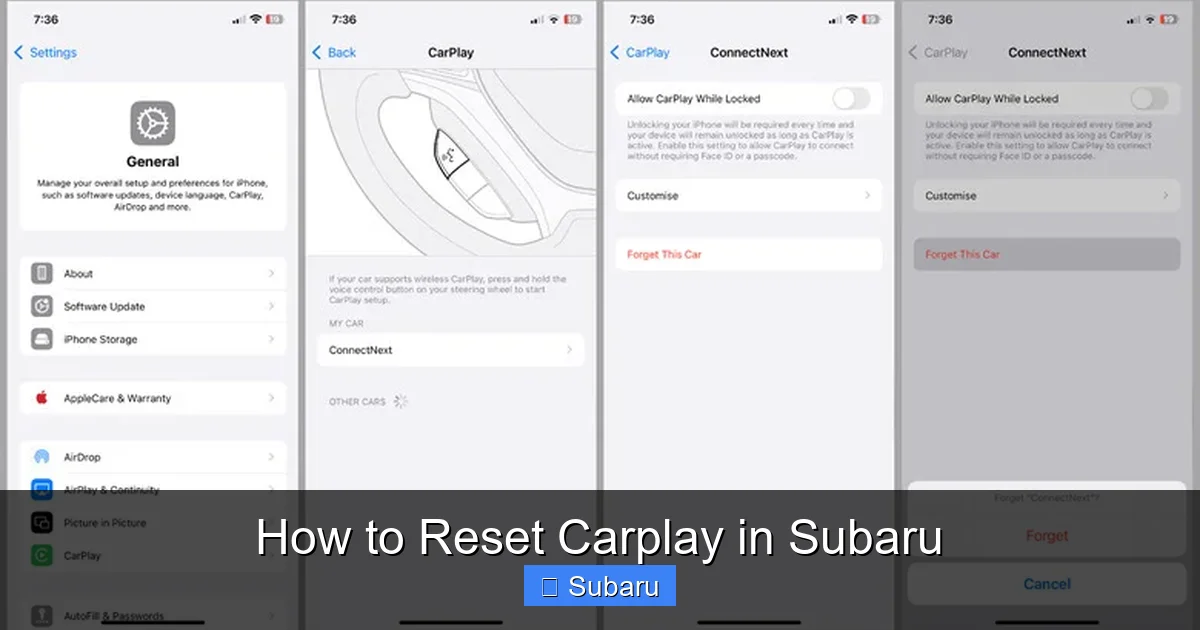
How to Reset Carplay in Subaru

Resetting CarPlay in your Subaru can solve common connectivity and performance issues. Whether you’re dealing with a frozen screen, failed pairing, or audio glitches, a proper reset restores smooth functionality. This guide walks you through every method—from soft resets to full system restores—so you can get back on the road with seamless Apple integration.
Key Takeaways
- Soft Reset Fixes Minor Glitches: A simple restart of the infotainment system often resolves temporary CarPlay issues like lag or unresponsiveness.
- Factory Reset Restores Default Settings: When problems persist, a full system reset clears corrupted data and reverts settings to factory defaults.
- Re-pair Your iPhone After Reset: Always reconnect your iPhone to CarPlay after a reset to ensure proper authentication and functionality.
- Check for Software Updates: Outdated Subaru or iOS software can cause compatibility issues—always update both systems.
- USB Cable Matters: Use a certified Apple Lightning or USB-C cable; faulty cables are a common cause of CarPlay failures.
- Location Services Must Be Enabled: CarPlay requires location access on your iPhone for navigation and voice commands to work properly.
- Try Different USB Ports: Some Subaru models have multiple ports—test each one to find the one that supports data transfer for CarPlay.
📑 Table of Contents
- Why Resetting CarPlay in Your Subaru Might Be Necessary
- Understanding How CarPlay Works in Subaru Vehicles
- Soft Reset: The First Step to Fix CarPlay
- Factory Reset: When a Soft Reset Isn’t Enough
- Reconnecting Your iPhone After a Reset
- Troubleshooting Common CarPlay Problems in Subaru
- Preventing Future CarPlay Issues
- When to Visit a Subaru Dealer
- Conclusion
Why Resetting CarPlay in Your Subaru Might Be Necessary
If you own a Subaru with Apple CarPlay, you’ve likely experienced the convenience of having your iPhone seamlessly integrated into your vehicle’s infotainment system. From hands-free calls and messages to turn-by-turn navigation and your favorite playlists, CarPlay transforms your driving experience. But like any technology, it’s not immune to hiccups. You might notice that your phone won’t connect, the screen freezes, apps crash, or voice commands stop working. When these issues arise, knowing how to reset CarPlay in Subaru can save you time, frustration, and even a trip to the dealership.
Resetting CarPlay isn’t about fixing a broken system—it’s about refreshing the connection between your iPhone and your Subaru’s Starlink infotainment system. Over time, software glitches, outdated firmware, or corrupted settings can interfere with performance. A reset clears these temporary problems and re-establishes a clean, stable link. Think of it like restarting your computer when it starts acting slow—it’s a simple fix that often works wonders.
In this guide, we’ll walk you through every method to reset CarPlay in your Subaru, from quick soft resets to full factory restores. Whether you drive a 2020 Outback, a 2023 Forester, or an older model with CarPlay capability, these steps apply across most Subaru vehicles. We’ll also cover troubleshooting tips, common mistakes to avoid, and how to prevent future issues. By the end, you’ll be equipped to handle any CarPlay problem with confidence.
Understanding How CarPlay Works in Subaru Vehicles

Visual guide about How to Reset Carplay in Subaru
Image source: cdn.shopify.com
Before diving into the reset process, it helps to understand how CarPlay integrates with your Subaru. Apple CarPlay is not built into the car itself—it’s a projection system that mirrors a simplified version of your iPhone’s interface onto the vehicle’s touchscreen. This allows you to use apps like Maps, Messages, Music, and Podcasts safely while driving, all controlled via touch, voice (Siri), or steering wheel buttons.
Subaru uses its Starlink infotainment system to host CarPlay. Depending on your model year, you’ll have either a 6.5-inch, 8-inch, or 11.6-inch display. Newer models (2020 and later) typically feature larger screens with improved processing power, but the underlying connection process remains similar. CarPlay connects via a wired USB cable—wireless CarPlay is not currently supported in any Subaru model as of 2024.
When you plug in your iPhone, the Starlink system detects it and launches CarPlay automatically—if everything is working correctly. The system communicates with your phone using a combination of USB data transfer and Bluetooth for calls and audio. This dual connection ensures smooth operation, but it also means there are more points where things can go wrong.
Common issues include:
– iPhone not recognized by the system
– CarPlay screen freezing or going black
– Apps crashing or failing to load
– Audio cutting in and out
– Siri not responding
– Navigation maps not updating
These problems often stem from software conflicts, outdated firmware, or physical connection issues. A reset helps clear these conflicts and re-establish a clean handshake between your phone and the car’s system.
Soft Reset: The First Step to Fix CarPlay
Visual guide about How to Reset Carplay in Subaru
Image source: slashgear.com
The soft reset is the easiest and least disruptive way to reset CarPlay in your Subaru. It’s like giving your infotainment system a quick nap—enough to clear temporary glitches without losing your saved settings. This method works for minor issues like lag, unresponsiveness, or apps not loading.
How to Perform a Soft Reset
To perform a soft reset, follow these steps:
1. **Turn off your Subaru** completely. Remove the key or press the power button until the engine and all electronics shut down.
2. **Wait 30–60 seconds.** This allows the infotainment system to fully power down and clear its memory.
3. **Restart the vehicle.** Turn the ignition back on and let the system boot up normally.
4. **Reconnect your iPhone.** Plug in your phone using a certified Apple cable.
5. **Wait for CarPlay to load.** Give it 30–60 seconds to initialize.
In many cases, this simple restart resolves the issue. The system refreshes its connection to your phone, clears temporary cache, and re-establishes communication.
When a Soft Reset Works Best
A soft reset is ideal for:
– CarPlay freezing after a long drive
– Apps taking too long to load
– Touchscreen becoming unresponsive
– Audio skipping or cutting out briefly
For example, if you’ve been using CarPlay for navigation during a road trip and the screen suddenly goes blank, a soft reset often brings it back. It’s also useful after a software update on your iPhone—sometimes the car’s system needs a reboot to recognize the new iOS version.
Tips for Success
– Always use the original or MFi-certified (Made for iPhone) cable. Cheap third-party cables often fail to transmit data properly.
– Try a different USB port if your Subaru has more than one. The front console port is usually the primary one for CarPlay.
– Make sure your iPhone is charged above 20%. Low battery can affect performance.
If the soft reset doesn’t work, don’t worry—there are more advanced options ahead.
Factory Reset: When a Soft Reset Isn’t Enough

Visual guide about How to Reset Carplay in Subaru
Image source: motorbiscuit.com
When a soft reset fails to fix persistent CarPlay problems, a factory reset may be necessary. This is a more thorough method that wipes the infotainment system’s settings and restores it to its original state. It’s like reinstalling the operating system on a computer—everything is cleared, including saved Bluetooth pairings, Wi-Fi networks, and user preferences.
How to Perform a Factory Reset on Subaru Starlink
The exact steps vary slightly by model year and screen size, but here’s a general guide:
1. **Turn on your Subaru** and ensure the infotainment system is fully powered.
2. **Go to the Home Screen.** Tap the “Settings” icon (usually a gear or wrench symbol).
3. **Navigate to System Settings.** Look for options like “System,” “General,” or “Reset.”
4. **Select “Factory Reset” or “Restore Defaults.”** You may see a warning message—confirm that you want to proceed.
5. **Enter the security code if prompted.** Some models require a 4-digit code (often 0000 or 1234—check your owner’s manual).
6. **Wait for the system to restart.** This can take 2–5 minutes. The screen may go black and reboot multiple times.
7. **Set up the system again.** You’ll need to reconfigure language, time, Bluetooth, and other preferences.
After the reset, reconnect your iPhone and set up CarPlay from scratch.
What a Factory Reset Fixes
A factory reset is effective for:
– CarPlay failing to connect after multiple attempts
– System crashes or frequent reboots
– Corrupted app data or settings
– Persistent audio or display issues
– Failed software updates
For instance, if your Subaru’s screen freezes every time you plug in your iPhone, a factory reset can clear the corrupted profile causing the conflict.
Important Considerations
– **You will lose saved settings.** This includes paired phones, radio presets, and navigation favorites. Back up important data if possible.
– **Re-pair all devices.** After the reset, you’ll need to reconnect your iPhone, Bluetooth headphones, and any other paired devices.
– **Update software afterward.** Once the system is restored, check for any available Starlink updates via Subaru’s website or your dealer.
Reconnecting Your iPhone After a Reset
After performing any type of reset, reconnecting your iPhone properly is crucial. CarPlay requires a secure handshake between your phone and the car’s system, and skipping steps can lead to failed connections.
Step-by-Step Reconnection Guide
1. **Unlock your iPhone** and ensure it’s on the home screen.
2. **Plug in the USB cable** to the designated CarPlay port (usually labeled or located in the center console).
3. **Wait for the prompt.** Your iPhone should display a message asking if you want to connect to CarPlay. Tap “Allow.”
4. **Enable Siri if prompted.** CarPlay requires Siri to be active for voice commands.
5. **Check the car’s screen.** CarPlay should load within 10–30 seconds. If not, try unplugging and reconnecting.
Common Reconnection Issues and Fixes
– **“CarPlay Not Available” Message:** This usually means the USB port isn’t transmitting data. Try a different port or cable.
– **iPhone Charges but Doesn’t Connect:** The cable may only support charging, not data. Use an Apple-certified cable.
– **Siri Not Working:** Go to iPhone Settings > Siri & Search and ensure “Listen for ‘Hey Siri’” and “Press Side Button for Siri” are enabled.
– **Location Services Disabled:** CarPlay Maps won’t work without location access. Enable it in Settings > Privacy & Security > Location Services.
Pro Tip: Trust This Computer
The first time you connect after a reset, your iPhone may ask, “Trust This Computer?” Always tap “Trust” to allow full access. If you accidentally tap “Don’t Trust,” you’ll need to reset the connection or restart your phone.
Troubleshooting Common CarPlay Problems in Subaru
Even after a reset, some CarPlay issues may persist. Here’s how to tackle the most common problems.
CarPlay Won’t Connect at All
If your iPhone isn’t recognized:
– **Check the USB port.** Some ports only charge—use the one labeled for data or media.
– **Try a different cable.** Borrow an Apple-certified cable to test.
– **Restart both devices.** Turn off the car and restart your iPhone.
– **Update iOS.** Go to Settings > General > Software Update on your iPhone.
– **Update Subaru software.** Visit Subaru’s official website and enter your VIN to check for Starlink updates.
CarPlay Screen Freezes or Lags
This often happens with older iPhones or after iOS updates:
– **Close background apps** on your iPhone before connecting.
– **Reduce screen brightness** on your phone to improve performance.
– **Avoid using multiple apps** simultaneously in CarPlay.
– **Reset network settings** on your iPhone (Settings > General > Transfer or Reset iPhone > Reset > Reset Network Settings).
Audio Cuts Out or Sounds Distorted
Audio issues can stem from Bluetooth conflicts:
– **Disconnect Bluetooth** temporarily. Sometimes the system tries to route audio through Bluetooth instead of USB.
– **Check audio source.** Make sure the car is set to “USB” or “CarPlay” mode, not “Bluetooth Audio.”
– **Adjust volume levels.** Set your iPhone volume to 50% and use the car’s volume control.
Navigation Maps Not Updating
If Maps shows outdated routes:
– **Enable Location Services** for Maps (Settings > Privacy & Security > Location Services > Maps > While Using the App).
– **Allow Background App Refresh** for Maps.
– **Ensure cellular data is on** if you’re not on Wi-Fi.
Siri Not Responding
If Siri doesn’t activate:
– **Check microphone access.** Ensure Siri can use the mic (Settings > Privacy & Security > Microphone > Siri & Dictation).
– **Speak clearly and close to the mic.** Subaru’s mic is usually near the rearview mirror.
– **Disable “Hey Siri” temporarily** and use the steering wheel button instead.
Preventing Future CarPlay Issues
Once you’ve reset CarPlay and restored functionality, take steps to avoid repeat problems.
Keep Software Updated
– **Update your iPhone regularly.** Apple releases iOS updates that improve CarPlay compatibility.
– **Check for Subaru updates.** Visit Subaru’s support page or contact your dealer for Starlink firmware updates.
Use Quality Accessories
– **Invest in a certified cable.** Apple’s Lightning to USB-A or USB-C cables are reliable. Avoid cheap knockoffs.
– **Consider a cable organizer.** Prevent wear and tear by securing the cable in the console.
Maintain Your iPhone
– **Clear storage space.** A full phone can slow down CarPlay performance.
– **Close unused apps.** Background apps consume memory and processing power.
– **Restart your iPhone weekly.** This clears cache and refreshes system processes.
Be Mindful of Temperature
Extreme heat or cold can affect both your iPhone and the car’s electronics. Avoid leaving your phone in direct sunlight or freezing conditions for long periods.
Know Your Model’s Limits
Not all Subaru models support the latest CarPlay features. Older systems may not support newer iOS versions. Check Subaru’s compatibility chart before updating your iPhone.
When to Visit a Subaru Dealer
Most CarPlay issues can be resolved with a reset or troubleshooting. However, if problems persist after multiple attempts, it may be time to seek professional help.
Visit your Subaru dealer if:
– The infotainment system won’t turn on
– The screen is cracked or unresponsive
– CarPlay fails on multiple iPhones
– You suspect a hardware issue (e.g., faulty USB port)
Dealers have diagnostic tools to check for software bugs, firmware corruption, or hardware failures. They can also perform over-the-air updates or replace components under warranty.
Conclusion
Resetting CarPlay in your Subaru doesn’t have to be complicated. Whether you’re dealing with a frozen screen, failed connection, or audio glitches, a soft or factory reset often restores smooth operation. Start with the simplest fix—turning the car off and on—then move to more advanced steps if needed.
Remember to use certified cables, keep your software updated, and re-pair your iPhone after any reset. With these tips, you’ll enjoy reliable, frustration-free CarPlay every time you drive.
By understanding how CarPlay works and knowing how to reset it, you take control of your in-car technology. No more guessing, no more dealership visits for minor issues. Just plug in, drive, and enjoy the seamless integration of your iPhone and Subaru.
Frequently Asked Questions
How do I reset CarPlay in my Subaru?
To reset CarPlay, start with a soft reset by turning off your Subaru, waiting 30–60 seconds, and restarting. If that doesn’t work, perform a factory reset through the Starlink settings menu. Always reconnect your iPhone afterward.
Why won’t my iPhone connect to CarPlay in my Subaru?
Common causes include a faulty USB cable, outdated software, or a corrupted connection. Try using an Apple-certified cable, updating iOS and Subaru firmware, and performing a soft reset.
Can I reset CarPlay without losing my settings?
A soft reset won’t erase your settings, but a factory reset will. Only use a factory reset if the soft reset fails, and be prepared to reconfigure Bluetooth, Wi-Fi, and other preferences.
Does wireless CarPlay work in Subaru?
No, as of 2024, no Subaru model supports wireless CarPlay. All connections must be made via a wired USB cable.
What should I do if CarPlay keeps freezing?
Freezing can result from software conflicts or low phone performance. Try a soft reset, close background apps on your iPhone, and ensure your iOS is up to date. If problems persist, consider a factory reset.
How often should I update my Subaru’s infotainment system?
Check for updates every 6–12 months or after major iOS updates. Visit Subaru’s official website and enter your VIN to see if a Starlink software update is available.
