
Why Is My Tesla Not Charging at a Supercharger?

Your Tesla might not charge at a Supercharger due to account/payment issues, adapter incompatibility, a faulty station, a vehicle error, or extreme temperatures. Start by checking the Tesla app for errors and ensuring your payment method is valid. Verify you’re using the correct, undamaged adapter for your specific Tesla model and the station’s connector. If those are fine, try another stall or station to rule out a local outage. Most charging failures have a simple fix—let’s diagnose yours systematically.
You pull up to a Supercharger station, heart sinking as you see the empty stalls. You plug in, the lights on the connector do their little dance, and then… nothing. No charging icon on your screen. Or worse, an error message flashes. That familiar wave of frustration hits. “Why is my Tesla not charging at a Supercharger?” It feels like a betrayal from the very network designed to make long-distance electric travel effortless. Take a deep breath. This is almost always a solvable problem, not a catastrophic failure. In this complete guide, we’ll walk through every possible reason, from the ridiculously simple to the more complex, so you can get back on the road with a full battery.
Key Takeaways
- Account & Payment First: An expired card, account hold, or app glitch is the most common reason for immediate charge failure. Always check your Tesla app first.
- Adapter Accuracy is Critical: Using the wrong adapter (e.g., a third-party CCS1 for a Model S/X that needs a NACS to CCS) or a damaged one will prevent charging.
- It’s Often the Station, Not You: A single malfunctioning stall or a site-wide power issue is frequent. Try a different stall or nearby Supercharger location.
- Vehicle Errors Require a Reset: Software glitches or a triggered safety mode (like after a low battery warning) can halt charging. A full vehicle reboot often clears it.
- Temperature Matters: Extreme cold can drastically slow charging, while extreme heat may cause the car or station to throttle or stop for safety.
- Check the Obvious: Ensure the connector is fully clicked into your charge port and that any charge port cover is fully open and unobstructed.
📑 Table of Contents
- 1. The Usual Suspects: Account and Payment Problems
- 2. Adapter Accuracy: Are You Using the Right One?
- 3. Supercharger Station Malfunctions: It’s Not Always Your Car
- 4. Tesla Vehicle-Specific Charging Errors and Safety Modes
- 5. Environmental and External Factors
- 6. What To Do When Nothing Else Works
- Conclusion: You’ve Got This
1. The Usual Suspects: Account and Payment Problems
Before we even look at hardware, let’s talk about the digital gatekeeper: your Tesla account. The Supercharger network is seamlessly integrated with your Tesla profile, and if there’s a financial or account hiccup, the system will politely (or not so politely) refuse to start the flow of electrons. This is the first place you should look.
Payment Method Issues
The most frequent culprit is an invalid payment method. This could be an expired credit card, a bank that has declined the transaction, or even a temporary hold placed by your bank for a large, unusual charge (some banks flag the first Supercharger transaction). The Tesla app will typically show a notification if your primary payment method fails. Open the app, go to ‘Account’ > ‘Payment Methods,’ and ensure your card is valid, not expired, and has sufficient funds/credit. Try removing and re-adding the card to refresh the connection.
Account Holds or Billing Disputes
If you have an overdue balance from a previous charging session or a disputed charge, Tesla may place a hold on your account’s ability to Supercharge. You would likely have received an email about this. Check your Tesla app notifications and your registered email for any billing alerts. Resolving the outstanding balance is the only way to clear this hold.
App and Connectivity Glitches
Sometimes, the problem is a temporary software glitch between your car, the Supercharger post, and Tesla’s servers. Your phone’s Bluetooth or cellular connection might be spotty, or the Tesla app itself might need a restart. Force-close the Tesla app and reopen it. Ensure your phone has a good signal. If you’re in a remote area with poor connectivity, the initial handshake can fail. A quick toggle of your phone’s Airplane mode can sometimes reset the network connection and resolve the issue. This is a classic first-step fix that works surprisingly often.
2. Adapter Accuracy: Are You Using the Right One?
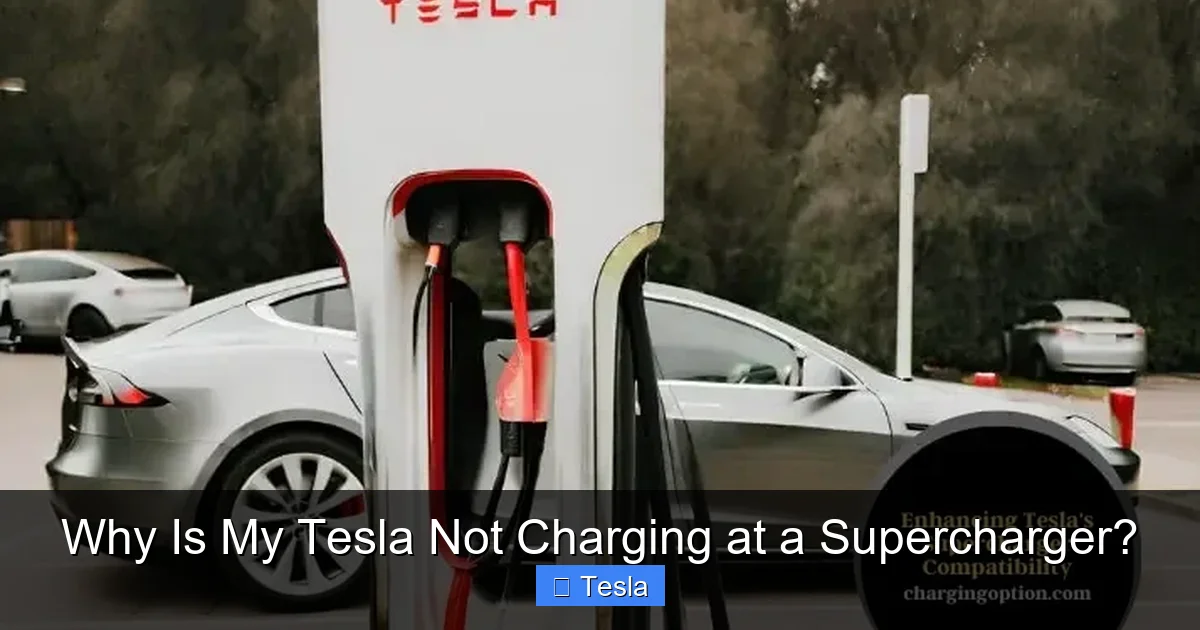
This section is absolutely critical, especially for owners of older Tesla models or those who travel internationally. The physical adapter you use to connect your car to the Supercharger post must be the correct, functioning one for your specific vehicle model and the region’s connector type.
Visual guide about Why Is My Tesla Not Charging at a Supercharger?
Image source: chargingoption.com
Understanding Connector Types: NACS vs. CCS
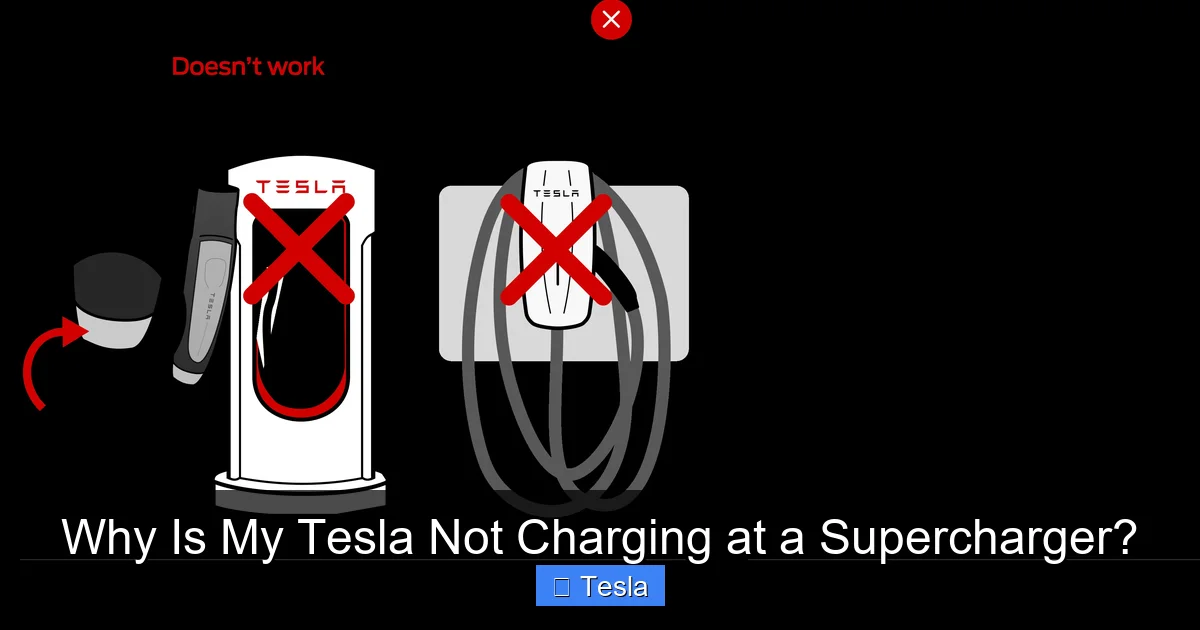
In North America, all new Tesla vehicles (Model 3/Y post-2021 refresh, all new Model S/X) and all Superchargers use the native North American Charging Standard (NACS) connector. These cars plug in directly with no adapter needed. However, older Model S and Model X vehicles (pre-2021 refresh) and some early Model 3/Y have a proprietary Tesla connector that requires a CCS Combo 1 (CCS1) adapter to use the newer NACS-equipped Superchargers. In Europe and other markets, Superchargers use the CCS Combo 2 (CCS2) connector, and all Teslas sold there have a native CCS2 port. If you’re traveling with a North American car to Europe, you need a specific CCS2 adapter.
Using the wrong adapter is a guaranteed “no charge.” A CCS1 adapter on a post-2021 Model 3 won’t fit. A NACS-to-CCS1 adapter (the kind you might use at third-party CCS stations) is useless at a Tesla Supercharger. You must have the adapter that converts your car’s port to the station’s NACS plug. When in doubt, consult your owner’s manual or the Tesla website for your vehicle’s exact adapter requirements.
Third-Party vs. Tesla OEM Adapters
While Tesla sells its official adapters, many third-party companies make compatible ones. This is generally fine, but quality varies. A poorly made third-party adapter can have loose pins, poor internal connections, or incompatible firmware that prevents the crucial communication handshake between the car and the charger. If your official Tesla adapter is lost or broken, invest in a reputable third-party brand with good reviews. Inspect any adapter for physical damage—bent pins, cracked housing, or debris in the connector can break the connection. A quick visual and tactile check can save you hours of frustration.
The “Adapter Not Detected” Error
If your car recognizes an adapter is plugged in but then says “Adapter not detected” or fails to initiate charging, the fault could lie with the adapter itself, the charge port on your car, or the Supercharger post. This is where the process of elimination comes in. If you have access to another compatible adapter or another Tesla that uses the same adapter, try swapping them. This helps isolate whether the problem is the adapter or the car’s charge port. Issues with the car’s charge port are rarer but can involve a misaligned latch or a faulty electronic lock mechanism that doesn’t secure the connector properly.
3. Supercharger Station Malfunctions: It’s Not Always Your Car
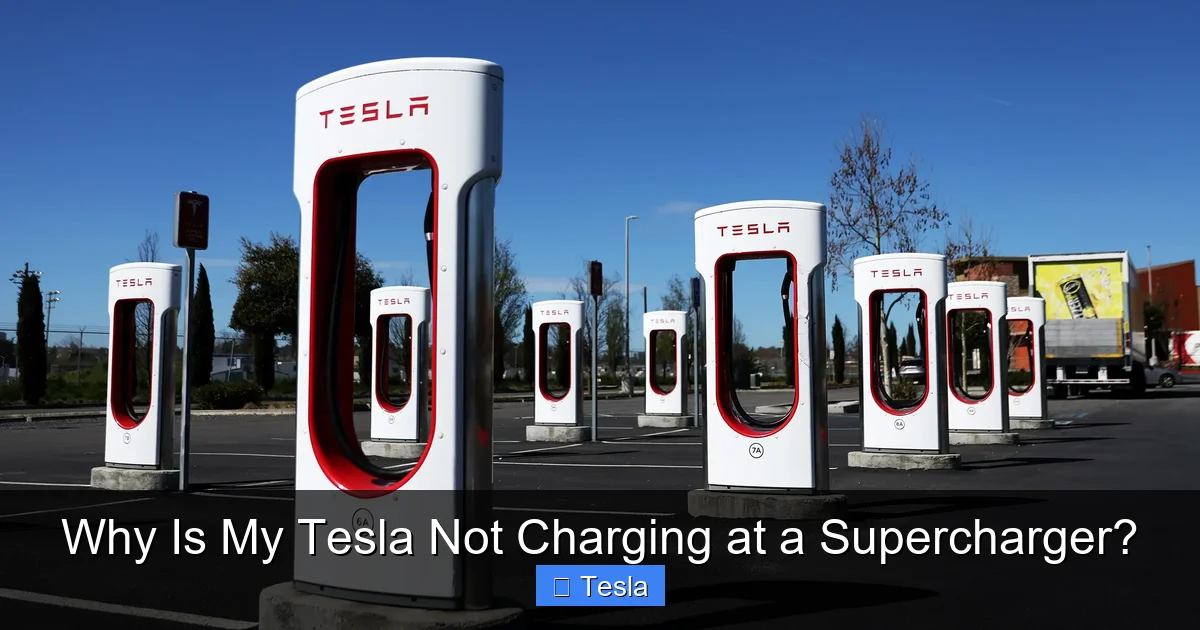
It’s easy to assume the problem is with your vehicle, but Supercharger stalls, like any piece of technology, can and do fail. A single post can be out of service, or the entire site could be experiencing a power issue.
Visual guide about Why Is My Tesla Not Charging at a Supercharger?
Image source: media.wired.com
Identifying a Bad Stall
Supercharger sites have multiple stalls (often 8-12 or more). It’s very common for one or two stalls to be inoperative due to a hardware fault, while the others work perfectly. If your chosen stall doesn’t work, simply unplug, move to the next available stall, and try again. Do not assume the whole station is down. The Tesla app’s map often shows stall availability in real-time (a green checkmark for working, a red ‘X’ for out of service), but this info can lag. A physical check is the best test.
Site-Wide Power Outages or Grid Issues
Sometimes, the entire Supercharger location loses power or is operating on a limited, degraded mode due to grid demand, storms, or construction. You might see all stalls dark, or some lights on but no charging. Check the Tesla app’s map for a grayed-out icon or an “outage” note on that specific location. Calling the station’s listed support number (if available) can also confirm. If the site is down, your only option is to find the next closest Supercharger on your route. Planning ahead with the app’s navigation, which shows real-time stall availability, is your best defense against this surprise.
Firmware Mismatches Between Car and Charger
Both your Tesla and the Supercharger post run on software (firmware). Very rarely, a firmware update on one side might not be fully compatible with the other’s latest version, causing a communication failure that prevents charging. This is a known but uncommon edge case. The fix is usually for Tesla to push a minor update to either the car or the charger fleet. If you suspect this is the issue (you try multiple stalls at a working site with no luck), the only recourse is to contact Tesla Support. They can check backend logs and potentially push an update to your vehicle or flag the site for maintenance.
4. Tesla Vehicle-Specific Charging Errors and Safety Modes
Your Tesla is a smart computer on wheels with multiple safety systems that can intentionally stop a charge if they detect something amiss. Understanding these error messages is key.
Visual guide about Why Is My Tesla Not Charging at a Supercharger?
Image source: ak-content-us-east-public.s3.amazonaws.com
Common On-Screen Error Messages
When charging fails, your car’s touchscreen or the Tesla app will often display a specific error code or message. Pay close attention! “Charge cable error,” “Charge port error,” or “Check charge port” points to a physical connection problem with the cable or your car’s port. “Power limit reduced” or “Charge rate reduced” is often due to temperature (more on that later) or battery state of charge (charging naturally slows as you approach 100%). A more severe message like “Charging stopped – service required” indicates a fault that needs a Service Center visit. Write down or screenshot any error message. It’s the single most valuable piece of information for troubleshooting.
12-Volt Battery and Low Voltage Warnings
Your Tesla has a standard 12-volt battery (like a regular car) that powers all the computers, screens, and door locks. If this 12V battery is weak or failing, it can cause all sorts of strange behavior, including an inability to initiate or maintain a high-power DC fast charge like Supercharging. The car’s systems may go into a low-power state and refuse the high-energy connection as a safety precaution. If you see a 12V battery warning on your screen, that’s likely your culprit. This is a common issue across many EV and conventional vehicles—a weak auxiliary battery can cause major problems. You might see parallels to issues like a sizzling noise from a car battery, which also indicates a serious battery problem needing immediate attention.
Software Glitches and the Need for a Reboot
Just like your smartphone, your Tesla’s computer can have a temporary software glitch. The charging process involves a complex digital handshake. A minor bug in that process can cause a failure. The classic fix is a soft reboot: Press and hold both scroll wheels on the steering wheel until the screen goes black and the Tesla logo reappears. Do this while the car is in ‘Park’ and the charge cable is unplugged. After the reboot, plug back in and try again. For more persistent issues, a “hard reboot” (sitting in the car, pressing the brake, and holding both scroll wheels for 10-15 seconds) can be more effective. This simple step resolves a surprising number of seemingly random electronic failures.
5. Environmental and External Factors
Nature and your vehicle’s own state can play a significant role in charging performance and success.
Extreme Cold Weather Impacts
Cold is the arch-nemesis of EV charging speed and, in extreme cases, can prevent charging initiation. When the battery is very cold (typically below freezing), the chemical processes inside are sluggish. To protect the battery from damage, the car’s Battery Management System (BMS) will drastically limit or even refuse DC fast charging until the battery is warmed up. You might see a message like “Charge rate reduced – battery cold.” The solution is preconditioning. Before you arrive at the Supercharger, use your Tesla app’s ‘Climate’ controls to turn on cabin heating or, more effectively, enable ‘Scheduled Departure’ or ‘Precondition for Charging’ in the ‘Charging’ settings. This tells the car to use battery power to warm the battery pack while you’re driving to the station, ensuring it’s at an optimal temperature for fast charging. Without this, you might get a very slow trickle charge or none at all.
Extreme Heat and Thermal Management
Conversely, extreme heat can also cause issues. The Supercharger itself and your car’s charging system generate significant heat. In very hot ambient temperatures (e.g., 100°F+), both the charger and the vehicle’s Battery Management System will actively throttle the charging speed to keep components within safe operating temperatures. In the worst case, if things get too hot, charging will pause entirely until they cool down. You might see the charge rate drop from 150 kW to 50 kW rapidly. Parking in the shade (if possible) and ensuring your car’s cooling systems are in good shape helps. This is a safety feature, not a malfunction.
Charge Port Obstructions and Alignment
A simple physical check can save you. Look into your charge port. Is there any debris, snow, ice, or a forgotten charge port cover (on some models) blocking the connector? Ensure the connector is pushed in firmly until you hear or feel a distinct click. The latch should engage and hold it securely. If the latch doesn’t lock, the car won’t allow high-power charging. Gently wiggle the connector to ensure it’s fully seated. Sometimes, the alignment can be slightly off. Try removing the connector, inspecting both ends, and reinserting it carefully. A misaligned pin can prevent the critical communication pins from making contact.
6. What To Do When Nothing Else Works
You’ve checked your app, tried a different stall and adapter, rebooted the car, and the weather is fine. Now what?
Contacting Tesla Support
When all else fails, it’s time to escalate. Use the Tesla app’s ‘Support’ tab to request roadside or charging assistance. Be prepared to provide: your vehicle’s VIN (found in the app or on the windshield), the exact Supercharger station name and stall number, the time of the failure, and any error messages you saw. Tesla’s remote support team can often see diagnostic data from your car and the charger in real-time. They can sometimes reset the charger session remotely, identify a network issue, or determine if your vehicle needs a service appointment. Have patience; during peak times, response can take a while.
Roadside Assistance and Towing
If your car has a critically low state of charge (below ~5-10%) and cannot charge at all, you risk being stranded. Tesla’s roadside assistance (included with new cars for a period, or via subscription) can often provide a mobile charger (a portable Level 2 charger) to give you enough juice to reach the next station or a destination charger. In dire situations, they can arrange a flatbed tow to a Service Center or a working charger. This is the last resort, but it’s there as a safety net. It’s always wise to monitor your battery percentage closely and plan charging stops with a comfortable buffer.
Prevention for Future Trips
The best strategy is to prevent the problem before it happens. Always precondition your battery for cold weather charging. Keep your Tesla app updated and your payment methods current. Carry your official Tesla adapters in the car at all times. Before a long trip, check the Supercharger map for any known outages on your route. Familiarize yourself with the location of alternative charging networks (like Electrify America or EVgo) as a backup, though adapter compatibility will vary. Proactive planning turns a potential crisis into a minor inconvenience.
Conclusion: You’ve Got This
A Tesla not charging at a Supercharger can feel like a major roadblock, but it’s almost always a temporary, fixable situation. The key is a methodical approach: start with the simplest digital checks in your app, verify your physical adapter and connection, test a different stall, and reboot your vehicle. Most problems fall into the categories we covered—account issues, adapter mismatch, a bad charger stall, or a vehicle software glitch. Environmental factors like extreme cold are also common and have clear solutions like preconditioning.
Remember, the Supercharger network is incredibly reliable overall. A single failed session doesn’t mean your car is broken or the network is failing. It’s just a puzzle to solve. By understanding these common failure points, you empower yourself to diagnose and resolve the issue quickly, minimizing downtime and stress on your journey. Keep your adapters organized, your account updated, and your wits about you. Happy (and charged) travels.
Frequently Asked Questions
Can I use a third-party adapter at a Tesla Supercharger?
Yes, but with caution. Reputable third-party adapters designed specifically for your Tesla model (e.g., CCS1 for older Model S/X) generally work. However, poor-quality adapters can fail the communication handshake. Always ensure the adapter is in perfect condition with no bent pins.
Why does my Tesla say “Payment Method Failed” at the Supercharger?
This is an account issue, not a car problem. Your primary credit card on file with Tesla may be expired, declined, or flagged for fraud. Open the Tesla app, go to ‘Account’ > ‘Payment Methods,’ and resolve the issue there. You must fix this before charging can resume.
What should I do if the entire Supercharger station seems dead?
First, check the Tesla app’s map for an outage report on that location. If none, try a different stall. If all stalls are unresponsive, the site likely has a power or network issue. Your only option is to navigate to the next closest working Supercharger on your route.
My car shows “Charge Rate Reduced” even though it’s not cold. Why?
This can happen for several reasons: the battery is already near full (charging naturally slows above 80%), the Supercharger is sharing power with other cars (especially at busy stations), or the charger/car is throttling due to high ambient temperatures. It’s usually normal and not a failure to charge.
Can a low 12-volt battery prevent Supercharging?
Yes. A weak or failing 12V battery can cause the car’s systems to malfunction, including the high-voltage charging system. If you see a 12V battery warning on your screen, get it checked/replaced immediately, as it can lead to being unable to charge or even a complete vehicle shutdown.
My Tesla was charging and then stopped suddenly with no error. What happened?
This is often a thermal protection event. Either the Supercharger or your car’s battery got too hot and paused the session for safety. It should automatically resume when cooled. If it doesn’t, unplug, wait a minute, and try again. If it repeatedly stops, contact Tesla Support as there may be a cooling system issue.
