
How to Turn on Headlights in a Tesla Model Y

Turning on headlights in a Tesla Model Y is primarily automatic, but you have full manual control via the touchscreen or steering wheel stalk. The system intelligently adjusts based on light conditions, and you can customize settings or use the Tesla app for remote activation. Understanding these features ensures optimal visibility and safety during nighttime or poor weather driving.
Hey there, Tesla owner or future owner! So you’re wondering how to turn on the headlights in your Tesla Model Y. First, take a breath. Unlike old-school cars with a physical knob you twist, your Model Y is a smart, software-defined machine. Its headlight system is mostly automatic, which is actually a fantastic safety feature. But don’t worry—you have complete manual control when you need it. Think of it as having a super-smart assistant that handles the basics, but you’re always the boss. In this guide, we’ll walk through every single way to manage your Model Y’s lights, from the effortless defaults to the precise manual overrides. We’ll even cover what to do if things go wrong. By the end, you’ll be a headlight ninja, confident in any driving condition.
Before we dive into the “how,” let’s appreciate the “why.” Tesla designed the Model Y’s lighting system to be both intuitive and fail-safe. It uses sensors, cameras, and clever software to decide when lights are needed. This reduces driver workload and prevents you from driving at night with lights off—a common mistake in traditional cars. But Tesla never sacrifices control. Every function is accessible through the iconic touchscreen or physical stalks. So whether you’re a tech-lover who wants to tweak every setting or someone who just wants to see the road, this article has you covered. We’ll keep it simple, practical, and packed with tips you can use today.
Key Takeaways
- Automatic Default: Your Model Y headlights turn on automatically when ambient light is low, requiring no manual intervention for most drives.
- Manual Override: You can manually activate or deactivate headlights anytime through the touchscreen under Controls > Lights, or use the steering wheel stalk for high beams.
- App Control: The Tesla mobile app allows you to turn on headlights remotely, useful for safety when approaching your parked car in the dark.
- Auto High Beams: The vehicle automatically toggles high beams on dark roads but can be manually controlled or have sensitivity adjusted in settings.
- Troubleshooting: If headlights fail, check the 12V battery, fuse, or perform a touchscreen reboot; persistent issues require Tesla service.
- Customization: Settings allow you to fine-tune auto-high beam behavior and headlight activation thresholds to match your preferences.
- Aftermarket Options: Owners often explore headlight protection films or wraps; for full vehicle customization, refer to our Tesla Model Y wrapping cost guides.
📑 Table of Contents
- Understanding Your Tesla Model Y Headlight System
- How to Turn On Headlights Manually: The Step-by-Step
- How Autopilot and Traffic-Aware Cruise Control Interact with Headlights
- Headlight Settings in the Tesla Mobile App
- Troubleshooting Common Headlight Issues
- Customizing Headlight Behavior and Aftermarket Considerations
- Conclusion: You’re in Control, But the Car Has Your Back
Understanding Your Tesla Model Y Headlight System
Your Tesla Model Y doesn’t have a simple “headlight switch” like cars from 20 years ago. Instead, it uses a sophisticated, integrated system. The core principle is automation for safety. The car’s front camera and light sensor constantly monitor ambient brightness. When you drive into a tunnel, at dusk, or during heavy rain, the system automatically powers on the low-beam headlights. It also turns them off when you park in a bright garage. This is standard behavior and works incredibly well. But understanding the components helps you know where to intervene.
The Two Main Modes: Automatic and Manual
Think of the headlight system as having two personalities. The default is Automatic mode. Here, the car decides. You’ll see a small headlight icon on your touchscreen’s status bar (top of the screen). It will illuminate automatically. You generally never need to touch anything. The second personality is Manual mode. You take control. This is useful if you want headlights on during the day for extra visibility (like in a thick fog), or if you want to ensure they are off while parked to save a tiny bit of battery (though the drain is negligible). Switching between these modes is the first key skill.
Headlight Components and Symbols
Your Model Y uses LED headlights for both low and high beams. There are no halogen bulbs to replace. The system controls several functions:
- Low Beams: The standard lights for normal nighttime driving. They illuminate the road without blinding oncoming traffic.
- High Beams: Also called “brights.” They provide a longer, more intense light beam for dark, unlit roads. They automatically deactivate when sensing oncoming traffic or a vehicle ahead.
- Automatic High Beams: The feature that toggles high beams on and off by itself. It’s part of the Autopilot camera system.
- Daytime Running Lights (DRL): These are the distinctive LED lights that are always on when the car is in Drive and moving. They are not your main headlights and cannot be turned off manually (a safety regulation).
On your touchscreen, look for the headlight icon in the top status bar. A solid icon means lights are on. A dim or outlined icon means they are off. A blue icon with lines indicates high beams are active.
How to Turn On Headlights Manually: The Step-by-Step
Okay, let’s get practical. You want the headlights on now, and you want to be in control. There are two primary methods, plus a third for high beams. All are simple once you know where to look.
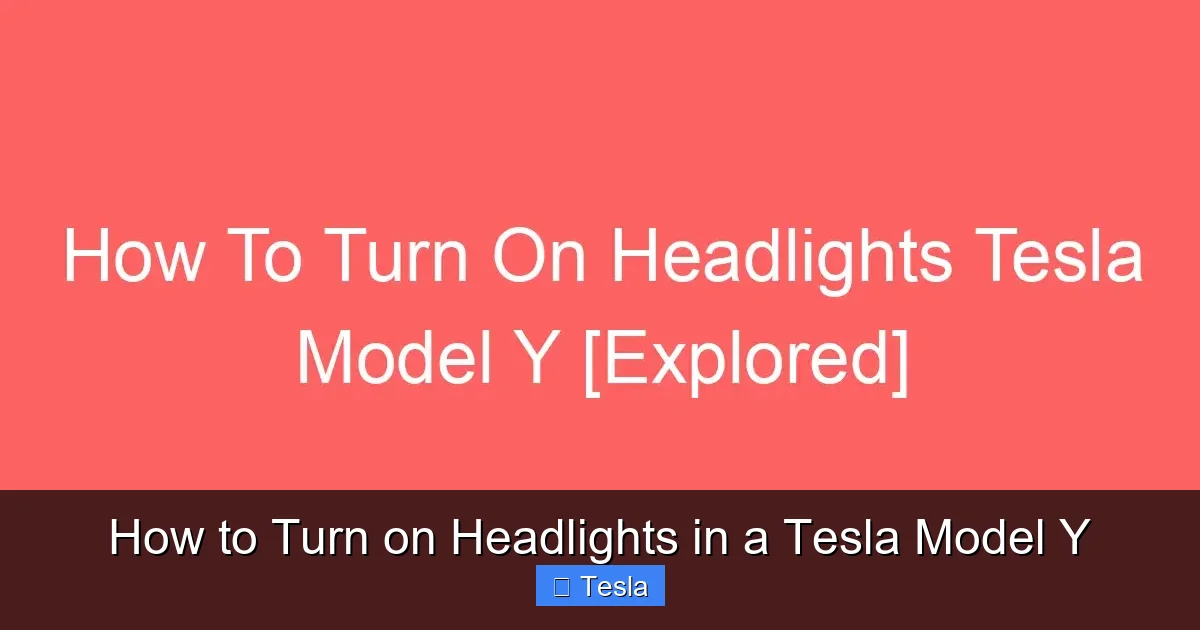
Visual guide about How to Turn on Headlights in a Tesla Model Y
Image source: automotiveglory.com
Method 1: The Touchscreen (The Primary Control)
This is your main hub for all light settings. While driving, a quick glance at the bottom-center of the screen shows a car icon. Tapping it opens the quick controls. But for headlights, you go to the main menu.
- Locate the Controls Menu: Tap the “Controls” icon (the car silhouette) on the bottom-left corner of the touchscreen.
- Navigate to Lights: In the Controls menu, you’ll see a list of categories. The third one down is usually “Lights.” Tap it.
- Toggle the Headlights: You’ll see a large switch for “Headlights.” It will show “Off” or “On.” Tap it to toggle. The switch will turn blue when On. You’ll immediately see the headlights activate and the icon on the status bar change.
Pro Tip: You can also access this same “Lights” screen by swiping down from the top-right corner of the touchscreen to open the shortcut panel, then tapping the headlight icon. This is faster while driving.
Method 2: The Steering Wheel Stalk (For High Beams & Temporary Override)
Your steering wheel has a physical stalk on the left side. This is mainly for turn signals, but it also controls the headlights in a specific way.
- To flash high beams: Pull the stalk gently towards you (towards the steering wheel) and release. This momentarily activates the high beams, even if they are set to Auto. It’s a great way to signal to another driver or quickly illuminate a sign. The high beams will turn off automatically after a second.
- To enable manual high beams: Push the stalk away from you (forward) and it will click into place. This locks the high beams on. The blue high beam icon will appear on your touchscreen and instrument cluster. Push or pull the stalk again to turn them off and return to low beams (or auto mode).
Important: The stalk does not turn on the low-beam headlights from an “Off” state. That control is only on the touchscreen. The stalk is purely for high beam management and flashing.
What About the “Off” Setting?
You might wonder, “Can I turn the headlights completely off?” Yes, via the touchscreen toggle. However, there are important caveats. First, if you put the car in Drive, the headlights will automatically turn on after a few seconds, regardless of the manual setting. This is a non-negotiable safety feature. Second, if you exit the car while it’s in Park and the headlights are manually “Off,” they will stay off. But if you lock the car, they will turn off automatically anyway. So manual “Off” is really only relevant for when the car is parked but still on (like while charging or sitting in the car with accessories on).
How Autopilot and Traffic-Aware Cruise Control Interact with Headlights
This is where Tesla’s integration shines. Your headlights aren’t isolated; they’re part of the Autopilot suite. The same forward-facing camera that reads speed limit signs and monitors other cars also controls the automatic high beams.
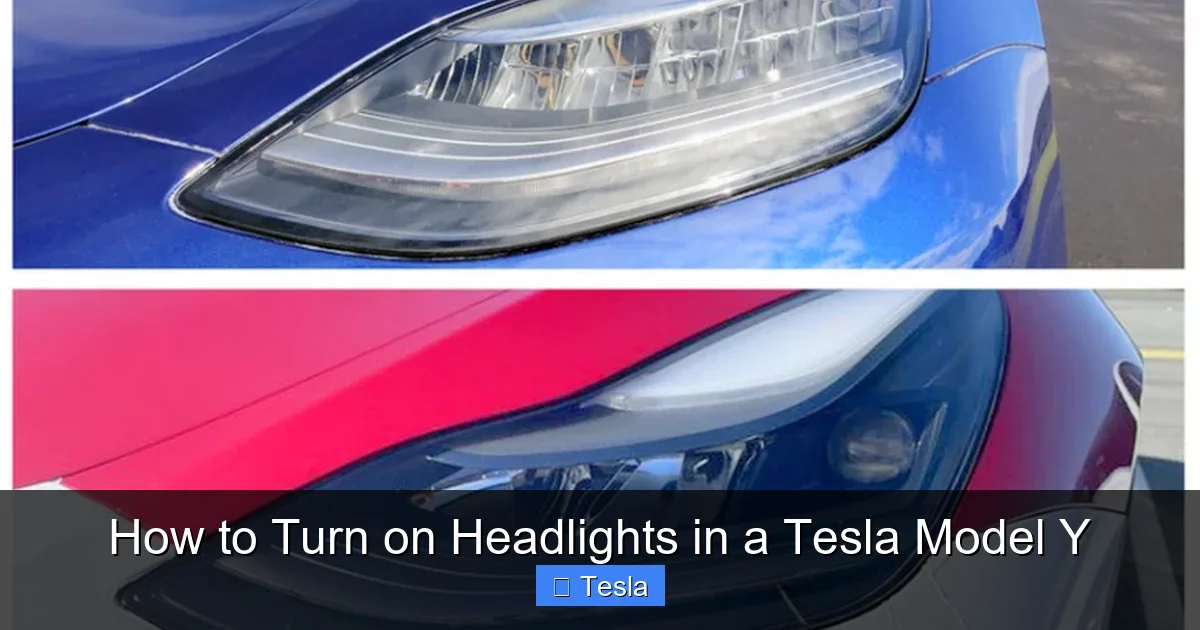
Visual guide about How to Turn on Headlights in a Tesla Model Y
Image source: linktesla.com
Automatic High Beams: How They Really Work
When your headlights are set to “Auto” (the default), the car automatically engages high beams on dark, open roads. The camera detects the headlights or taillights of vehicles ahead and the ambient light from streetlights. It will dip the high beams to low before you blind an oncoming driver or the driver in front of you. This happens seamlessly, often before you even notice the other car. It’s a huge convenience on rural highways.
Can You Disable Automatic High Beams?
Yes, but we don’t recommend it for safety. To disable:
- Go to Controls > Lights.
- Find the “Automatic High Beams” toggle and switch it to Off.
Now, your high beams will only activate when you manually push the steering wheel stalk forward. You must remember to dip them yourself for oncoming traffic. This is a personal preference setting, but for most, keeping Auto High Beams on is the smarter, safer choice.
Impact on Autopilot and Traffic-Aware Cruise Control
When you activate Autopilot (either on a highway with lane lines or with Full Self-Driving capability), the headlight system continues to operate independently. However, the system’s awareness of other vehicles is even more critical. The automatic high beam dip function works flawlessly while Autopilot is engaged. There is no separate Autopilot headlight setting; it uses the same camera and logic. This integration means you can trust the car to manage lighting even when you’re not actively steering.
Headlight Settings in the Tesla Mobile App
Your Tesla app is a powerful remote control. One of its handiest features is the ability to manage lights from your phone. This is perfect for walking to your car in a dark parking lot.
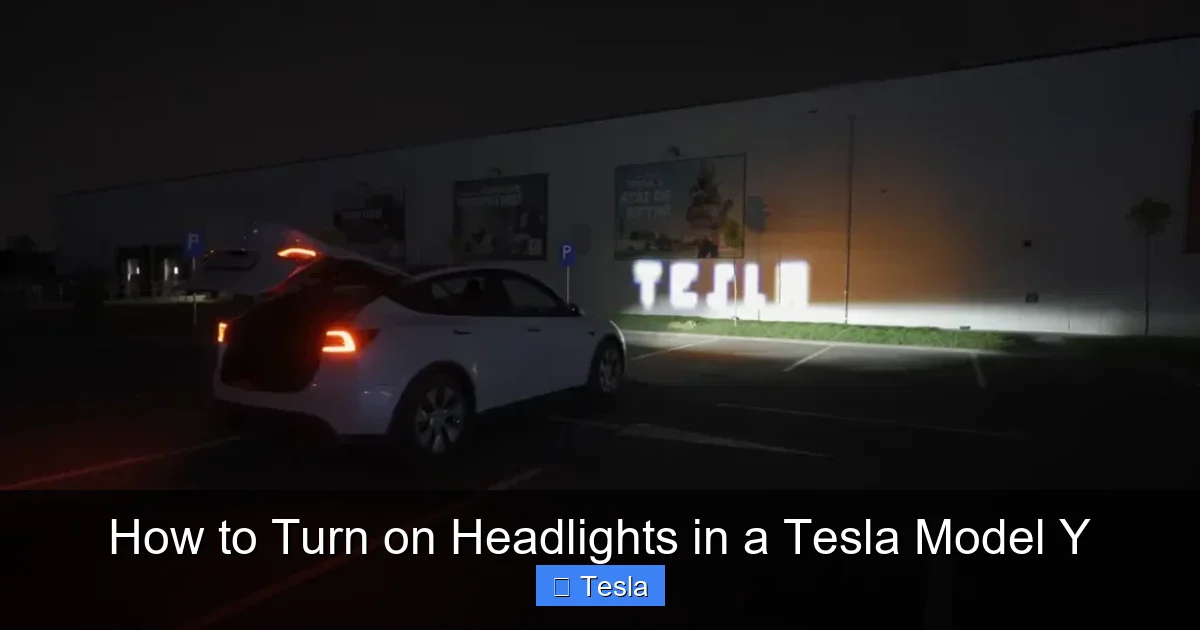
Visual guide about How to Turn on Headlights in a Tesla Model Y
Image source: evseekers.com
Turning On Headlights Remotely
Here’s how to use the app:
- Open the Tesla app and ensure your phone is connected to the internet and the car is within range (Bluetooth or cellular).
- On the main vehicle control screen, tap the “Lights” icon (it looks like a headlight).
- You’ll see a toggle for “Headlights.” Switch it On.
The car’s headlights will illuminate immediately. You can also flash the lights using the “Horn & Lights” section in the app. This is a great security feature—you can flash the lights to locate your car in a crowded garage.
Scheduling and Sentry Mode Integration
While the app doesn’t let you schedule headlights to turn on at a specific time like home lights, it works perfectly with Sentry Mode. When Sentry Mode is active (the car’s surveillance system), the headlights will flash if a threat is detected, drawing attention. More importantly, if you’re using the “Dog Mode” or “Camp Mode” features, the headlights will remain off unless manually turned on via the app or touchscreen. The app gives you that final layer of remote control when you’re not in the driver’s seat.
Limitations of App Control
The app can turn headlights on and off, but it cannot adjust the high beam sensitivity or change the automatic behavior. Those are touchscreen-only settings. Also, the app command will only work if the car is awake (not in a deep sleep state). If the car is asleep, the app will wake it first, which can take 30-60 seconds. So for immediate lighting, the physical controls are faster.
Troubleshooting Common Headlight Issues
Tesla’s headlight system is very reliable due to its simplicity (no bulbs, just LEDs). But software gremlins or rare hardware faults can happen. Here’s what to do if your headlights aren’t behaving.
Symptom: Headlights Won’t Turn On Manually
If the touchscreen toggle is grayed out or does nothing when you tap it:
- First, check the automatic sensor. Is it daytime and very bright? The system may prevent manual activation if it senses sufficient light. Try covering the light sensor (located on the windshield near the rearview mirror) with your hand and try again.
- Perform a soft reboot. Hold down both scroll wheels on the steering wheel until the Tesla logo appears on the screen. This restarts the infotainment system (MCU) and often resolves temporary software glitches. The car’s drive systems remain active during this reboot.
- Check the 12V battery. A weak or dead 12V battery can cause various electrical anomalies, including lighting issues. The main high-voltage battery does not power the headlights directly; it charges the 12V system. If your car has difficulty starting or shows other 12V-related warnings, this is the culprit.
Symptom: Automatic Headlights Not Engaging
If your headlights never come on automatically in the dark:
- Verify the setting. Go to Controls > Lights and ensure the “Headlights” toggle is set to “Auto.” It might have been accidentally switched to “Off.”
- Clean the light sensor. The sensor is a small, dark square on the windshield. If it’s covered in dirt, bugs, or a dashboard mat, it can’t read light levels properly. Clean it gently with a microfiber cloth.
- Check for software updates. Tesla occasionally refines the automatic lighting logic. Ensure your car is connected to Wi-Fi and has the latest software installed.
Symptom: Error Message or Headlight Icon Flashing
A warning light on the touchscreen or a flashing headlight icon indicates a fault. This is often a communication error between the headlight assembly and the car’s computer.
- Note the exact message. Take a photo. It might say “Headlight System Malfunction” or “Reduce Speed Due to System Issue.”
- Perform the soft reboot again. Many transient errors clear after a restart.
- Contact Tesla Service. If the error persists after a reboot, it’s likely a hardware issue—perhaps a faulty LED module or wiring problem. This requires professional diagnosis and repair. Do not ignore it, as it may affect your visibility and safety.
Customizing Headlight Behavior and Aftermarket Considerations
While Tesla keeps core functions simple, there are settings to personalize your experience. And if you’re the type who likes to modify your car, headlights are a popular area—but with important caveats.
Adjusting Auto High Beam Sensitivity
Some drivers find the automatic high beams too aggressive or not aggressive enough. You can tweak this:
- Go to Controls > Lights.
- Scroll down to “Automatic High Beams.”
- Here, you might see options like “Sensitivity” (High, Standard, Low) depending on your software version. “High” makes the car more likely to keep high beams on longer before dipping. “Low” makes it more conservative.
Experiment to find what works for your typical driving routes. If you do a lot of city driving, “Low” might be best. For remote backroads, “High” provides more continuous illumination.
Understanding the “Headlight Delay”
When you turn off the car and exit, the headlights stay on for a short, set period (about 30 seconds) to light your path to your front door. This delay is not user-adjustable in current Tesla software. It’s a fixed convenience feature.
Aftermarket Modifications: Proceed with Extreme Caution
You might see discussions online about “modifying” Tesla headlights. Here’s the reality:
- LED replacements are not needed. Your factory LEDs are already top-tier. “Upgraded” LED bulbs are not a thing; the entire assembly is sealed.
- Headlight wraps/films: Some owners apply clear protective films or tint films to the headlight lenses to prevent stone chips and yellowing. This is generally safe if done with high-quality, automotive-grade film that doesn’t obscure light output. However, any tint that reduces brightness is illegal in many areas and can impair safety.
- Full headlight assembly replacement: The only real “upgrade” is swapping the entire housing for a different design (e.g., from a higher trim). This is complex, expensive, and may trigger software errors or fail inspections. It’s not recommended.
Critical Warning: Never attempt to open or modify the sealed headlight assembly. You will destroy it, void any warranty, and likely create moisture ingress issues. If you want a different look, consider a full vehicle wrap instead, which changes the car’s color without touching the lights. For those interested in wrapping, our detailed guide on how much it costs to wrap a Tesla Model Y breaks down materials, labor, and long-term maintenance. A wrap is a reversible way to personalize your Tesla’s appearance while keeping the factory lighting system intact and safe.
Furthermore, if you’re already considering a wrap, you might also think about window tinting for improved privacy and reduced glare. Our companion article on Tesla Model Y tinting costs covers legal limits, film types, and professional installation tips. Both wrapping and tinting are popular customizations that, when done correctly, complement your vehicle’s factory features like the exceptional headlights.
Conclusion: You’re in Control, But the Car Has Your Back
So, there you have it. Turning on headlights in a Tesla Model Y is less about a physical switch and more about understanding a smart system. The default automatic mode is brilliantly effective for 95% of your driving. You can almost forget about it. But when you need to take the wheel—manually turning them on for a daytime safety boost, flashing high beams to say “thank you,” or remotely lighting your way from the app—you have the tools. The touchscreen is your primary command center, the steering wheel stalk is your high-beam lever, and the app is your remote control.
Remember the troubleshooting steps: a simple reboot fixes most software hiccups, and any persistent warning light means a trip to Tesla Service. And if you’re thinking about customizing your Model Y’s look, focus on safe, reversible options like vinyl wraps or tinting, rather than tampering with the critical lighting system. Your headlights are your eyes on the road at night—trust them, know how to use them, and they’ll serve you well for years. Now, go enjoy your drive, confident that whether it’s dusk, dawn, or a sudden thunderstorm, your Tesla Model Y will see and be seen.
Frequently Asked Questions
Do Tesla Model Y headlights turn on automatically?
Yes, they are designed to do so. The car uses a light sensor to automatically activate low-beam headlights when ambient light is insufficient, such as at dusk, in tunnels, or during heavy rain. This is the default and recommended setting for safety and convenience.
How do I manually activate high beams on my Model Y?
To temporarily flash high beams, gently pull the left steering wheel stalk towards you. To lock them on, push the stalk away from you until it clicks. The blue high beam icon will appear on your display. Push or pull the stalk again to return to low beams.
Can I disable the automatic headlight feature entirely?
Yes. Go to Controls > Lights and toggle the “Headlights” setting from “Auto” to “Off.” However, note that the headlights will automatically turn on again if you shift the car into Drive, as this is a mandatory safety feature. Manual “Off” only works while parked.
Why won’t my Tesla Model Y headlights turn on manually?
First, ensure the setting is not on “Auto” and that it’s dark enough for the system to allow manual activation (try covering the light sensor on the windshield). If that fails, perform a soft reboot by holding both steering wheel scroll buttons until the Tesla logo appears. If problems persist, a 12V battery issue or hardware fault may require service.
How do I reset my headlight settings to default?
There’s no single “reset” button for headlights. To return to factory defaults, go to Controls > Lights and set “Headlights” to “Auto” and “Automatic High Beams” to “On.” If you’ve changed sensitivity settings, adjust them back to “Standard.” A full vehicle reboot (touchscreen and car) can also clear any software glitches affecting operation.
What does a flashing headlight warning symbol on the screen mean?
A flashing or persistent headlight icon with an exclamation point indicates a system malfunction. This could be a communication error with the headlight assembly or a failed LED module. Perform a soft reboot first. If the warning remains, schedule a service appointment with Tesla for diagnosis, as it may impact lighting performance and safety.