
How to Use a Tesla Model Y Key Card

The Tesla Model Y key card is a sleek, credit-card-sized backup that uses NFC technology to unlock and start your vehicle without a traditional key fob. Simply tap it against the door pillar or center console to activate your car. While most owners primarily use the phone key, the key card remains an essential, reliable backup for emergencies, lending your car, or when your phone’s battery dies. Understanding its functions ensures you’re never locked out and can maximize your Tesla ownership experience.
So, you’ve got your stunning new Tesla Model Y. The minimalist interior, the silent drive, the tech-forward experience—it’s all incredible. But then you reach into your pocket for a key, and… there’s nothing. No bulky fob, no traditional key. Instead, you find a thin, white rectangle that looks more like a hotel key card than a car key. This is your Tesla Model Y key card, and it’s your gateway to the entire vehicle. If you’re feeling a little puzzled, don’t worry. This guide will walk you through everything you need to know, from the very first tap to advanced troubleshooting. We’ll break it down into simple, friendly steps so you can use your key card with confidence and never miss a beat.
Key Takeaways
- NFC Technology: The key card uses Near Field Communication, requiring physical contact with designated reader spots on the car to work.
- Essential Backup: It is your guaranteed failsafe if the phone key fails, the phone battery dies, or you need to grant temporary access.
- Simple Activation: You must pair and activate each key card with your Tesla’s onboard system before first use.
- Multi-Card Support: You can program up to 19 key cards, perfect for family members or valet services with restricted access.
- No Battery to Replace: Unlike key fobs, the key card has no battery; it’s powered by the car’s NFC reader field when tapped.
- Security Through Encryption: Each tap transmits a unique, encrypted code that changes every time, preventing signal replay theft.
- Physical Durability: It’s water-resistant and robust, but avoid bending it or exposing it to strong magnets that could damage the NFC chip.
📑 Table of Contents
Understanding Your Tesla Model Y Key Card
Before we start tapping things, let’s get to know this little slab of technology. The Tesla Model Y key card isn’t just a spare; it’s a core component of Tesla’s keyless entry system. It represents a complete shift from the key fobs we’re all used to.
What Exactly Is NFC?
The magic inside your key card is a technology called NFC, or Near Field Communication. You’ve probably used it for contactless payments with your phone or credit card. NFC requires the two devices—in this case, your key card and your car—to be very close, usually within a few centimeters. This is a huge security benefit. A thief can’t just amplify the signal from your key card sitting in your house to steal your car (a technique called relay theft). They’d need physical possession of the card and be right up against the car. When you tap the card to the designated spot, the car’s reader emits a small radio field. This field both powers the chip in the card (so it needs no battery) and initiates a secure, encrypted handshake. Your car recognizes the unique code from that specific card and grants access.
Key Card vs. Phone Key vs. Key Fob
It’s helpful to understand the three ways you can “open” your Model Y. First is the Phone Key, which uses Bluetooth. Your paired smartphone acts as the primary key, automatically unlocking the car as you approach. This is the most convenient method for daily driving. Second is the Key Card, our star of the show, which uses NFC and requires a deliberate tap. Third is the optional Key Fob (sold separately), which is a more traditional remote with buttons and also uses NFC for the tap-to-start function. The key card comes standard with the car and is your reliable, battery-free backup. Think of the phone key as your daily wallet, and the key card as the solid, dependable cash you keep in a secret compartment for emergencies.
What Comes in the Box?
When you get your Model Y, you should find two identical key cards in the center console. You’ll also find a small, simple plastic holder—this is a key card holder that can attach to a keyring. Many people skip this and just keep the card in their wallet. You’ll also find a spare emergency key blade hidden inside one of the key cards (more on that later). It’s a good idea to store one key card in your wallet and the other in a secure, known location at home, like a drawer or with other important documents.
First-Time Setup and Activation
You can’t just start tapping your new key card on the car and expect it to work. Tesla requires you to go through a simple pairing process to tell your car, “This card is authorized.” This is a one-time step for each new card you want to use.
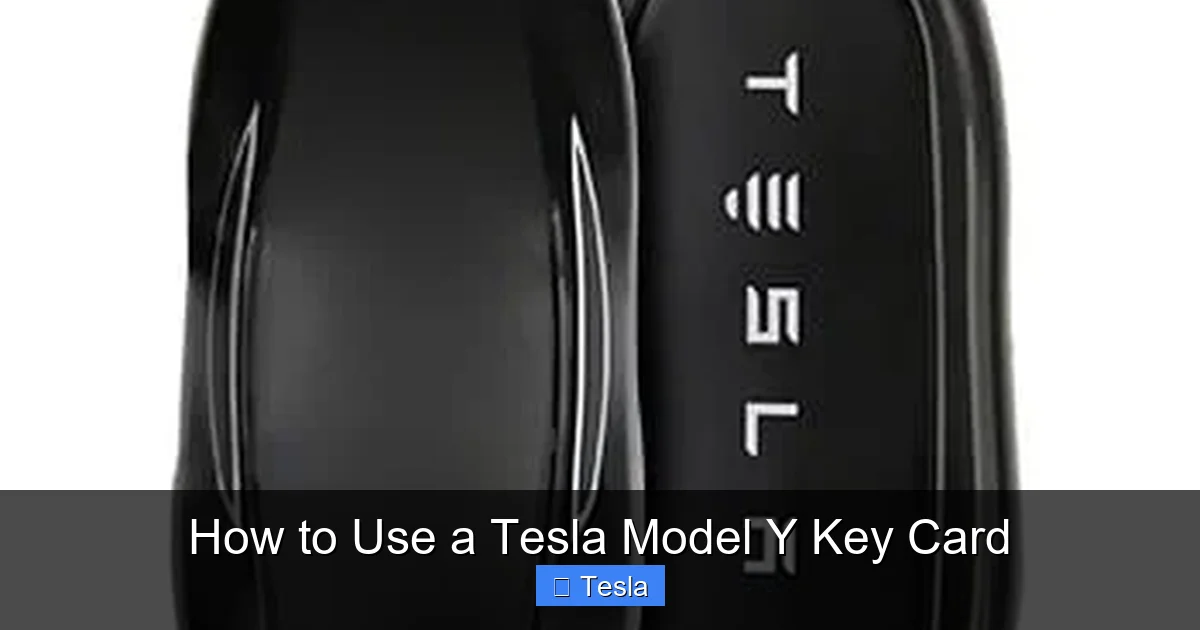
Visual guide about How to Use a Tesla Model Y Key Card
Image source: dev-srv.tlkeys.com
The Activation Process: Step-by-Step
1. Enter the Car: You’ll need to use an already authorized method to get inside first. This could be your phone key (if it’s paired) or the other key card that came pre-activated from the factory.
2. Navigate to Controls: On the touchscreen, tap the ‘Controls’ icon (the car shape) in the bottom left corner.
3. Go to Locks: Select ‘Locks’ from the menu.
4. Add Key: Tap the ‘+’ icon next to ‘Key Card.’ The screen will prompt you with instructions.
5. Tap to Activate: It will say something like “Tap key card to center console reader.” You’ll need to physically place the key card (the white side with the Tesla ‘T’ logo facing up) directly on the center console storage area, just behind the cupholders. There’s a subtle outline or symbol there showing where to tap. Hold it there for a second or two until you hear a confirmation chime and see a message on the screen.
6. Name Your Key: The screen will ask you to name the key. Choose something descriptive like “Spare Key Card” or “Valet Key.” This name will appear in your locks menu, so you can manage or delete it later.
That’s it! Your key card is now paired. Repeat this process for the second card if desired. You can have up to 19 keys (phone keys, key cards, and key fobs combined) paired to a single vehicle.
Pairing Your Phone as a Primary Key (Highly Recommended)
While this article is about the key card, it’s the perfect time to set up your phone key, which will make the key card a true backup. Go to Controls > Locks > ‘+’ > ‘Add Phone Key.’ Follow the instructions, which involve placing your phone on the center console reader. Once set up, your phone will automatically unlock and lock the car as you approach and walk away. This is the seamless, modern Tesla experience. The key card is there when your phone is charging, out of battery, or in the hands of a friend.
Everyday Operations: Unlock, Lock, and Start
Now for the fun part—using the card! The process is intentionally physical and simple, which many people find reassuring.
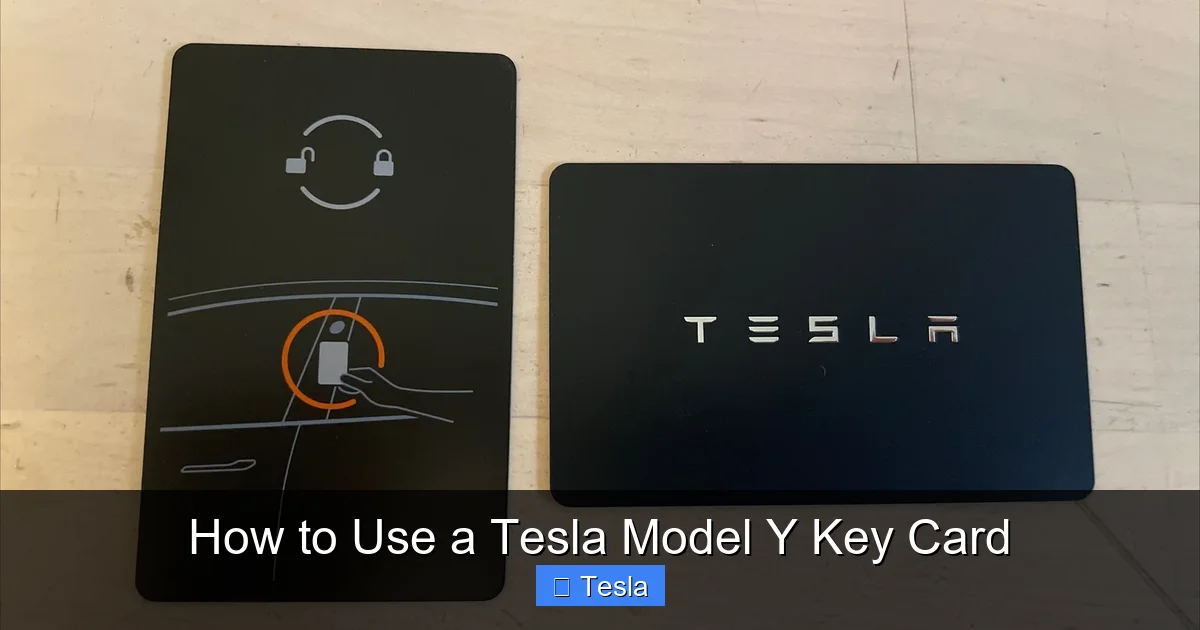
Visual guide about How to Use a Tesla Model Y Key Card
Image source: i.ebayimg.com
Unlocking and Locking the Doors
To unlock the driver’s door (or all doors, depending on your settings), simply tap the key card firmly against the B-pillar. That’s the vertical post between the front and rear doors, just behind the door handle. Look for a small, rectangular outline with the Tesla ‘T’ logo on the pillar. A single tap will unlock the doors, the trunk, and the front trunk (frunk). You’ll hear the familiar unlock chime and see the door handles pop out. To lock the car, you can either tap the same spot again, use the Tesla app, or walk away after setting your phone key. A handy tip: if your hands are full, a quick tap with the card (or even the back of your phone if it’s an NFC-enabled model) on the B-pillar is faster than fiddling with an app.
Opening the Trunk and Frunk
You don’t need a separate tap for the trunks. Once the car is unlocked (via key card tap or phone proximity), you can press the physical trunk button on the key card itself! Yes, that’s right. Press the button on the key card, and it will send a signal to pop the trunk or frunk, just like a traditional fob. Alternatively, use the dedicated trunk and frunk buttons inside the car or in the Tesla app. This physical button on the card is very useful when your arms are full of groceries.
Starting and Driving the Car
This is where the key card feels most different. To start the Model Y, you don’t turn a key or press a start button. You must tap the key card to the center console reader area (the same spot you used for activation) while pressing the brake pedal. The car will recognize the card, the brake pedal press will engage “drive mode,” and you’re ready to go. The touchscreen will power on if it was off. To shift into Park, just press the ‘P’ button on the screen or the gear selector on the steering wheel stalk. The car will shut down, but you can still use accessories. To restart, tap the card and press the brake again. Important: if you try to drive without tapping the card (or having your phone key present), you’ll get a warning on the screen and the car won’t accelerate.
Daily Use Tips and Best Practices
Now that you know the basics, let’s optimize your experience. The key card is simple, but a few habits will make it even more reliable.
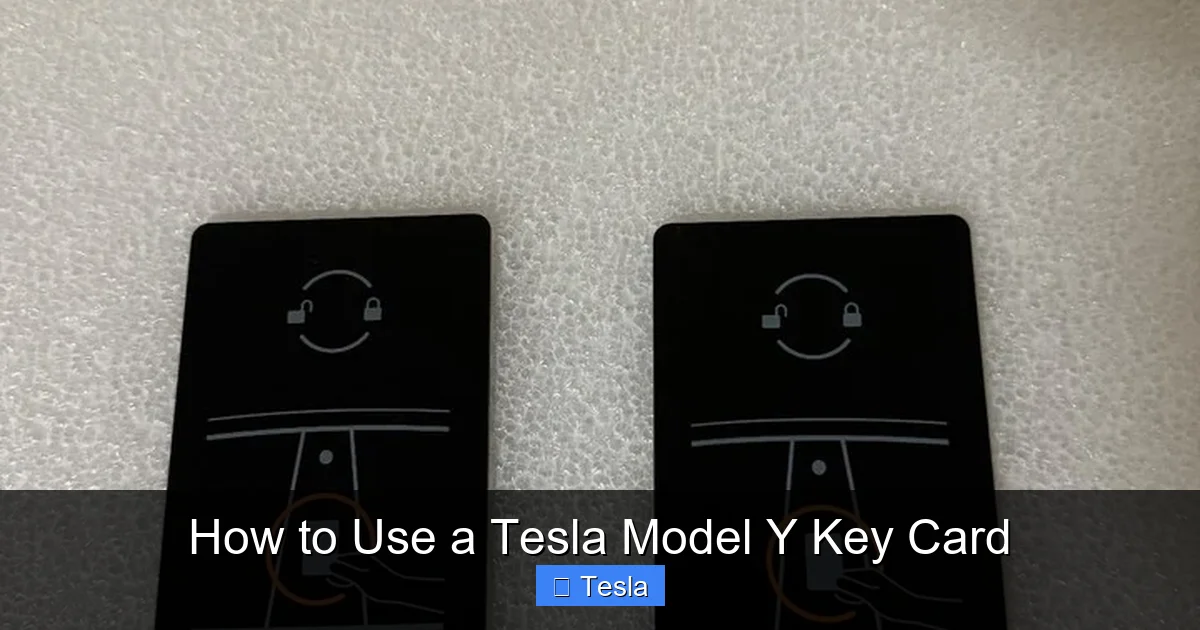
Visual guide about How to Use a Tesla Model Y Key Card
Image source: i.ebayimg.com
Where to Carry Your Key Card
The most common question is, “Where should I keep it?” The short answer: in your wallet. The NFC signal can penetrate most thin materials like leather, fabric, or plastic wallet compartments. You don’t need to take it out. Just tap your wallet directly against the B-pillar or center console. This is incredibly convenient. Avoid keeping it in a thick, metal-surrounded wallet or a RFID-blocking sleeve, as these can interfere with the NFC signal. If you carry a slim wallet or cardholder, you’re golden. Some people attach it to their keyring using the provided plastic holder, but then you have another bulky keyring to carry. Storing it flat in a wallet pocket is usually the best bet.
Using Multiple Key Cards and Drivers
You can activate both key cards that came with the car. This is perfect for couples. Each person can carry one. The car doesn’t care which authorized card you use; it will recognize the driver and may apply their saved seat, mirror, and steering wheel settings if you’ve set up driver profiles. You can also create additional key cards for valet parking or teenage drivers. When you add a new key, you can give it a name like “Valet Key.” Later, if you need to revoke access (e.g., you sold the car or lost a card), you can delete that specific key from the Locks menu without affecting your other keys.
Integrating with Your Phone Key
The system is designed for the phone key to be primary and the key card to be backup. Here’s the ideal workflow: your phone is in your pocket, automatically unlocking the car as you walk up. You get in, tap the brake, and drive. No card needed. If your phone dies, you grab your wallet, tap the card to the B-pillar to unlock, then tap it to the console to start. If your phone is charging at home and you need to run out, you use the card. This synergy is the core of Tesla’s keyless philosophy.
Cold Weather and Extreme Conditions
The key card is very durable, but extreme cold can sometimes affect NFC performance slightly. If you’re in sub-zero temperatures and a tap doesn’t work immediately, try pressing the card more firmly against the reader spot for a second. The physical connection helps. Also, ensure the reader spot and the card itself aren’t caked with ice or snow. Wipe them off. The card is water-resistant, so a little snow or rain won’t hurt it, but salt and grime can build up on the car’s reader area over years. A quick wipe with a dry cloth keeps the connection strong.
Troubleshooting and Backup Solutions
Even with its simplicity, you might encounter a hiccup. Here’s how to handle common issues.
“Key Card Not Detected” Message
If you tap the card and see a message on the screen that it wasn’t detected, don’t panic. First, make sure you’re tapping the correct spot. The B-pillar for doors, the center console for starting. The spots are clearly marked with the Tesla ‘T’ logo. Second, ensure you’re holding the card correctly. The white side with the ‘T’ logo should be facing the car’s surface. Third, press firmly and hold for 1-2 seconds. A light, quick brush often won’t trigger the reader. Fourth, check that the card isn’t physically damaged—deep bends or cracks can break the internal NFC antenna. If problems persist, try the other key card. If the second card works, the first may be damaged. If neither works, there may be an issue with the car’s NFC reader, which requires a service visit.
Lost or Stolen Key Card
This is the big one. Since the key card has no tracking, if you lose it, you must assume it’s gone forever. The immediate step is to delete it from your car’s system. You’ll need to do this from the touchscreen while inside the car with an authorized key (your phone or the other key card). Go to Controls > Locks, find the lost key in the list, and tap ‘Delete.’ This renders that specific card useless. Anyone who finds it will not be able to unlock or start your car. Now you need a replacement. You must order a new key card from Tesla. This can be done through your Tesla app or online account. You’ll have it shipped to you, and then you’ll need to activate it using the same process we described earlier. It’s a good idea to keep the spare key card in a very secure, known place at home so losing one doesn’t leave you stranded.
Emergency Key Blade: What It’s For
Remember that tiny metal key blade hidden inside one of your key cards? That’s for a very specific emergency: a dead 12V battery. If your main high-voltage battery is fine but the small 12V battery (which powers all the computers and locks) is completely dead, the car’s NFC system won’t work. You won’t be able to unlock the doors with the key card or phone. In this scenario, you use the emergency key blade to manually unlock the driver’s door. There’s a small, round cover on the door handle that pops off, revealing a keyhole. Insert the blade, turn, and the door will unlock. Once inside, you can jump-start the 12V battery or call for service. This is a rare situation, but knowing it exists is part of being a prepared Tesla owner.
Security Features and Peace of Mind
You might worry that a simple card is less secure than a modern key fob with rolling codes. Actually, Tesla’s system is exceptionally secure, arguably more so than many traditional systems.
Dynamic Encryption and Unique Codes
Every single time you tap your key card, it generates a brand new, unique encrypted code. The car and the card have synchronized algorithms to create these codes. This means a criminal can’t simply record one tap and replay it later to open the car—the code will be rejected because it’s already been used. This is the same principle used in high-security access systems. The physical requirement of tapping the card to the car also eliminates any possibility of long-range signal relay attacks that plague some key fob systems.
PIN to Drive: An Extra Layer
For ultimate security, especially if you use valet frequently or live in a high-theft area, enable PIN to Drive. This is a 4-digit PIN you must enter on the touchscreen before you can drive the car, even after unlocking it with a key card or phone. You can find this setting under Controls > Safety & Security > PIN to Drive. If someone somehow obtains your key card, they still can’t drive the car without the PIN. It’s a brilliant feature that adds a significant barrier against theft.
Managing Access and Visibility
Because you can see all paired keys in your car’s menu, you have full visibility. If you sell your car, you must perform a factory reset (Controls > Safety & Security > Scroll down to ‘Factory Reset’). This wipes all personal data and deletes all paired keys. The new owner must then pair their own keys. Always do this before handing over the car. Also, be mindful of where you leave your key card. Since it needs to be tapped on the car, leaving it on the driver’s seat or in the center console isn’t a risk—someone would still need to physically tap it to the reader to start the car, and they’d be inside the locked vehicle already.
Conclusion: Your Key to Confidence
The Tesla Model Y key card is a masterpiece of minimalist engineering. It strips away the unnecessary—buttons, batteries, bulk—and leaves only the essential function: secure, authenticated access. By understanding that it uses NFC, requires a deliberate tap on specific spots, and must be activated in the car first, you’ve mastered 90% of its use. Remember your daily workflow: rely on your phone key for seamless convenience, keep your key card safely in your wallet as a failsafe, and know the emergency procedures for a lost card or a dead 12V battery. This tiny card is your guarantee that you will always, without exception, be able to access and drive your Tesla. It’s not a downgrade from a key fob; it’s a smarter, more secure, and more integrated solution that perfectly complements the high-tech nature of your Model Y. Now, go enjoy the drive—your key is right there in your wallet.
While you’re getting familiar with every aspect of your Model Y, you might also be thinking about personalizing its appearance. Protecting that beautiful paint job is a great next step. If you’re curious about aesthetic modifications, we have detailed guides that break down the costs and processes for popular options. For instance, our article on how much it costs to wrap a Tesla Model Y explores full vehicle wraps, while another dives into the specifics of tinting a Tesla Model Y. Even if you own a different Tesla model, the principles are similar, as covered in our piece on tinting a Tesla Model 3. These customizations can protect your car’s finish from everyday wear and enhance its look, complementing the cutting-edge technology you already enjoy.
Frequently Asked Questions
Can I use my Tesla Model Y key card if my phone key battery is dead?
Absolutely. That is its primary purpose. Simply tap the key card on the B-pillar to unlock, then tap it on the center console while pressing the brake pedal to start the car. Your phone key is for convenience; the key card is for reliability.
How do I replace the battery in my Tesla key card?
You don’t. The Tesla Model Y key card has no battery. It is powered by the NFC radio field from the car when you tap it, making it a maintenance-free device. This is a key advantage over traditional key fobs.
What should I do if my Tesla key card is lost or stolen?
Immediately delete it from your car’s system via the touchscreen (Controls > Locks). Then order a replacement key card through your Tesla app or online account. Once received, activate it using the standard in-car pairing process. Always keep your spare key card in a secure, known location at home.
Can I lock my Tesla Model Y with the key card?
Yes. After unlocking, you can lock the car by tapping the same key card on the B-pillar again. You’ll hear the locks engage. You can also lock it via the Tesla app or by walking away if your phone key is active and set to lock automatically.
Is the Tesla key card as secure as a traditional key fob?
It is more secure. It uses dynamic encrypted codes that change with every tap and requires physical proximity (contact). This eliminates the risk of long-range relay attacks that can compromise many modern key fobs. For added security, enable the PIN to Drive feature.
How many Tesla key cards can I pair to my Model Y?
You can pair up to 19 total keys to your vehicle. This includes any combination of phone keys, key cards, and optional key fobs. This allows for multiple drivers, valet keys, and spares without compromising security.
