
How to Start a Tesla Without a Key Card

Losing your Tesla key card doesn’t mean you’re stranded. Tesla’s advanced keyless system is designed primarily around your smartphone as the primary key. You can start and drive your Tesla without the physical key card by using the Bluetooth-enabled Phone Key feature or the remote commands through the Tesla mobile app. For true emergencies, Tesla Roadside Assistance or a Service Center can provide verified help. Understanding these digital and contingency solutions is crucial for every Tesla owner.
Picture this: you walk up to your Tesla, reach into your pocket or bag, and your heart sinks. The key card is gone. Maybe it fell out at the last store, or it’s buried somewhere in your home. That familiar wave of panic hits—”I’m locked out of my own car!” But before you imagine the costly tow truck, take a deep breath. The revolutionary nature of Tesla’s keyless system means that losing the small plastic card is rarely a true emergency. The car was quite literally designed to start without it. This guide will walk you through every legitimate method to start your Tesla without a key card, from the everyday solutions you can use yourself to the official help channels for the rare, true lockout.
We’ll demystify the technology, provide step-by-step instructions, and give you the confidence to handle this situation calmly. Whether your phone battery is dead, the Bluetooth is acting up, or you’ve simply misplaced the card, you have options. Let’s get into it.
Key Takeaways
- Your smartphone is your primary key: The Tesla Phone Key, using Bluetooth Low Energy (BLE), is the intended and most convenient way to start and drive your car without the physical card.
- The Tesla mobile app is your remote lifeline: Even if your phone’s Bluetooth is off or the Phone Key fails, you can use the app over cellular/internet to unlock, climate control, and start the car remotely.
- The physical key card is a backup, not the main key: Its primary purpose is for initial setup and as a failsafe if your phone is completely unavailable or broken.
- Bluetooth range and phone battery are critical: Your phone must have sufficient charge and be within close proximity (a few feet) for the Phone Key to work automatically.
- True “no-phone” scenarios require Tesla verification: If you have no working phone and no key card, only Tesla personnel (Roadside Assist or Service) can digitally verify ownership and enable the car to start.
- Security is paramount: Tesla’s system is encrypted. Never rely on unofficial “hacks” or tutorials claiming to bypass the system, as they are scams and can compromise your vehicle.
- Prevention is the best strategy: Always ensure your phone’s Bluetooth is on, the Tesla app is logged in, and you know how to use the app’s remote start function before you ever need it.
📑 Table of Contents
- Understanding Tesla’s Keyless Ecosystem: It’s All About the Phone
- Method 1: The Standard Way – Using Your Phone Key
- Method 2: The Remote Lifeline – Using the Tesla Mobile App
- Method 3: The True Emergency – When You Have No Working Phone
- Method 4: Using a Borrowed or Secondary Phone
- Security Best Practices and What to Avoid
- Conclusion: Peace of Mind Through Knowledge
Understanding Tesla’s Keyless Ecosystem: It’s All About the Phone
First, it’s essential to shift your mindset. In a traditional car, the physical key or key fob is the master tool. In a Tesla, the physical key card is intentionally the least important part of the key set. Tesla’s philosophy is that your smartphone—an item you almost never leave home without—should be your car key. This is achieved through a combination of Bluetooth Low Energy (BLE) and the Tesla mobile app.
The Role of Bluetooth and the “Phone Key”
When you set up your Tesla for the first time, you pair your smartphone via Bluetooth. The car and your phone constantly exchange encrypted, ultra-low-power signals. When you approach the vehicle (typically within 1-3 meters), the car recognizes your specific phone’s unique signal. The touchscreen will wake up, the door handles will pop out (on Model S/X with retractable handles), and you can simply open the door and get in. There is no button to press. The car knows it’s you because of that digital handshake.
To start the car, you get in, press the brake pedal, and select Drive. The system verifies the paired phone is inside the cabin via Bluetooth proximity. No key insertion, no button press on a fob. This seamless experience is the “Phone Key” in action. Therefore, if you have your phone with you, you have your key. The key card is a redundant, physical backup for this digital system.
Key Card vs. Phone Key: A Clear Hierarchy
The key card uses RFID (Radio-Frequency Identification) technology. It’s a simple, low-tech card that must be tapped on the door pillar to unlock and on the center console to enable driving. It’s reliable but clunky compared to the Phone Key. Think of the key card as the emergency spare key for your house—it works, but you hope you never have to use it. Your smartphone, with its constant connectivity and powerful chip, is the primary, preferred method. This hierarchy is why starting a Tesla without a key card is not only possible but is actually the standard operating procedure for most owners every single day.
Method 1: The Standard Way – Using Your Phone Key
This is the method you’ll use 99% of the time if you simply misplaced your card. If your phone is with you, charged, and has Bluetooth enabled, your Tesla will start as normal.
Visual guide about How to Start a Tesla Without a Key Card
Image source: tesla-outfitters.com
Step-by-Step: The Walk-Up and Drive
- Ensure Bluetooth is ON: This is non-negotiable. Go to your phone’s settings and confirm Bluetooth is enabled. The Tesla app can sometimes turn it off to save power, but the Phone Key requires it.
- Have the Tesla App Installed and Logged In: The app must be installed, and you must be logged into the same Tesla account that owns the vehicle. The app facilitates the initial pairing and maintains the secure connection.
- Approach the Car: Walk up with your phone in your pocket or bag. The car should automatically wake, unlock (if your settings are for passive entry), and present the door handles.
- Enter and Start: Get in, press the brake pedal, and select Drive or Reverse. The car will start. If it doesn’t, ensure your phone is on the passenger seat or in a cup holder—sometimes being too deep in a bag can weaken the signal.
Troubleshooting a Faulty Phone Key Connection
If your phone is right there but the car isn’t responding, don’t panic. Try these steps in order:
- Restart Bluetooth: Toggle Bluetooth off and back on in your phone’s settings.
- Restart Your Phone: A simple reboot clears many temporary software glitches.
- Check the Tesla App: Open the app. Does it show your car as “Online”? Can you see its location and control climate? If the app works, your phone has a data connection to Tesla’s servers, which is a good sign. Sometimes, the app can re-establish the Bluetooth handshake.
- Remove and Re-add the Phone Key: In the car, go to Controls > Locks > Phone Key. Remove your phone from the list. Then, follow the on-screen prompts to pair it again from scratch. This often resolves persistent pairing issues.
- Check for Interference: Are you near a strong Wi-Fi router, power lines, or a large metal object? Extreme interference can block the Bluetooth signal. Move a few feet away.
If none of this works, your phone’s Bluetooth chip might be faulty, or there could be a deeper issue with the car’s Bluetooth module. This leads us to the next method.
Method 2: The Remote Lifeline – Using the Tesla Mobile App
Here’s where Tesla’s connected technology truly shines. The mobile app communicates with your car via the cellular network (LTE/5G), not Bluetooth. This means you don’t need to be standing next to the car. You can be inside a building, across a parking lot, or even in a different city (with permission) and still control your vehicle.
Visual guide about How to Start a Tesla Without a Key Card
Image source: koala.sh
Unlocking and Starting Remotely via App
This method is perfect if your Phone Key isn’t working due to Bluetooth issues, or if your phone’s battery is critically low but still has enough charge to run the app briefly.
- Open the Tesla App. Ensure it’s connected to the internet (cellular or Wi-Fi).
- Select your vehicle if you have more than one.
- Tap “Controls.”
- Tap “Unlock” or “Lock.” This will unlock all doors.
- To start the car: You cannot “start” the engine remotely like a remote starter on a gas car. Instead, you must:
- Unlock the car via the app.
- Physically open a door (the handles will pop if unlocked).
- Get inside.
- Press the brake pedal. The car will now start and be drivable, even if the Phone Key Bluetooth connection is not active. The car recognizes you entered via a method it authorized (the app unlock) and will allow driving once the brake is pressed.
App Pre-Conditioning: A Helpful Side Benefit
While you’re in the app, you can also turn on the climate control (A/C or heat). This doesn’t start the drivetrain, but it makes the cabin comfortable before you get in. It’s a great feature to use while you’re troubleshooting your entry method.
Important Note: The car requires an active internet connection on both your phone and the car’s side. If your car is in a location with no cellular service (a deep underground garage, a remote area), this method will fail. Also, for security, after you start driving, the car will monitor for the presence of a paired phone key inside. If it doesn’t detect one after a short distance or time, it will put the car in Park and shut down. So, you still need to eventually get your Phone Key working or have a key card present for a long drive.
Method 3: The True Emergency – When You Have No Working Phone
This is the scenario you’re likely most worried about: your phone is dead, broken, lost, or you simply don’t have it with you, and you also don’t have the key card. In this case, you cannot start the car yourself. Tesla has built a secure system that prevents random people from driving your $50,000+ vehicle. You must prove your identity to Tesla.
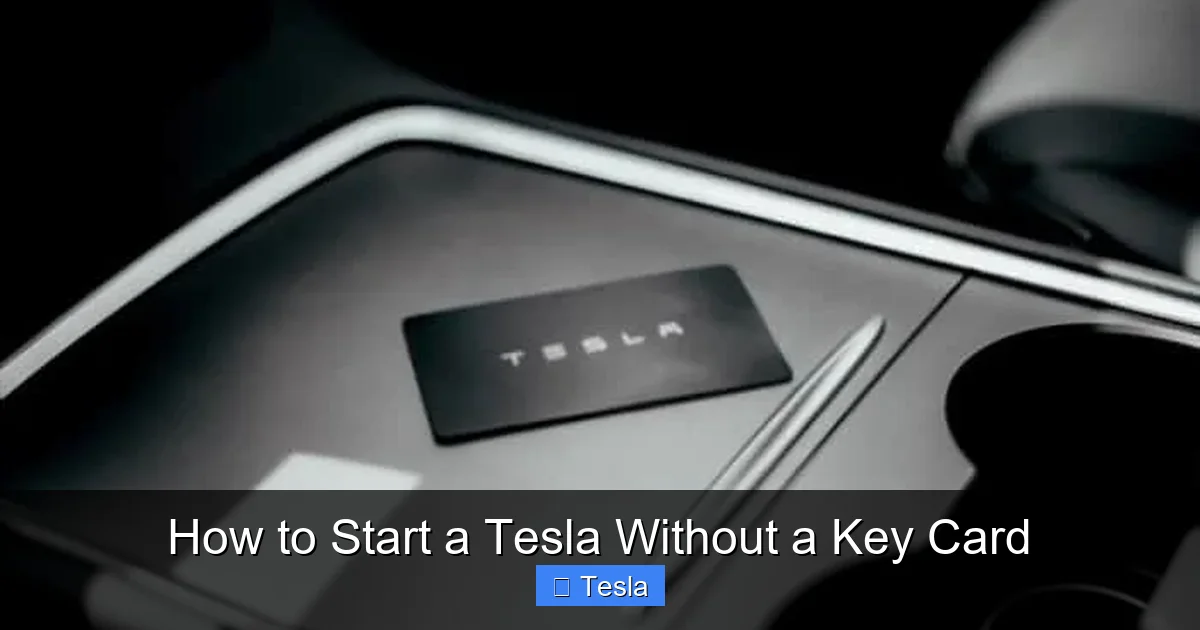
Visual guide about How to Start a Tesla Without a Key Card
Image source: revolar.com
Calling Tesla Roadside Assistance
This is your official, safe, and recommended path.
- Call Tesla Roadside Assistance: The number is in your Tesla app under Service > Roadside Assistance or in your owner’s manual.
- Verify Ownership: You will need to provide your Vehicle Identification Number (VIN), which is on your insurance card, registration, or visible through the windshield at the bottom of the driver’s side. You’ll also need to verify your identity and account ownership.
- The Process: A Tesla representative will remotely verify your account and ownership. They can then send a temporary digital authorization signal to your car, which will allow it to be driven for a limited time (usually 24-48 hours) or until a new key is programmed. They will instruct you on the exact steps, which often involve having the car unlocked via the app (if you have another phone) or them guiding you to a location where you can receive a signal.
- Physical Key Card Replacement: Roadside Assist can also help you order a replacement key card, which will need to be programmed to your car at a Service Center.
Visiting a Tesla Service Center
If you’re near a Service Center, you can tow or drive (if you managed to get in via another method) the car there. They will verify your ownership (title, registration, ID) and program a new key card or phone key for you. This is not a quick roadside fix but a permanent solution.
Why There Is No “Secret” Manual Override
You might search online and find videos claiming to show a hidden mechanical key slot or a sequence of button presses to start a Tesla without any key. These are fake. Teslas do not have a traditional ignition lock cylinder. There is no physical slot for a metal key. The system is entirely digital for security and design reasons. Any method claiming otherwise is misinformation. For context, some older conventional cars have emergency manual start procedures, which you can read about in articles like how to start a Dodge Dakota without a key, but these rely on a physical ignition system that Teslas simply do not possess.
Method 4: Using a Borrowed or Secondary Phone
If your primary phone is unavailable but you have access to another smartphone (a friend’s, a family member’s, even an old spare you keep in the glovebox), you can use it as a temporary key.
Setting Up a Temporary Phone Key
This is not a permanent solution but excellent for a one-time emergency.
- Log into the Tesla App: On the borrowed phone, download the Tesla app and log in using your Tesla account credentials (email and password). Do not use your friend’s Tesla account if they have one.
- Enable Bluetooth: Make sure Bluetooth is turned on in the borrowed phone’s settings.
- Pair as a New Phone Key: Walk to the Tesla with the borrowed phone. The car should recognize a new, unpaired device. On the car’s touchscreen, a prompt will appear asking if you want to add a new phone key. Tap “Yes” and follow the instructions, which will involve tapping your existing key card on the center console to authorize the new pairing.
- Use It: The borrowed phone now has full Phone Key functionality. You can unlock, start, and drive the car normally. When you get your own phone back, simply remove the borrowed phone from the Controls > Locks > Phone Key list in the car.
Important Security Caveat
This method requires you to trust the person whose phone you’re borrowing, as you are logging into your Tesla account on their device. They would have temporary access to your car’s controls, location, and charging data through the app. Only do this with someone you know well. Log out of the app on their phone as soon as you’re done.
Security Best Practices and What to Avoid
Your Tesla’s keyless system is secure by design, but your habits can strengthen or weaken that security.
Protecting Your Digital Keys
- Use a Strong Tesla Account Password: This is the master key to your car. Use a unique, complex password and enable two-factor authentication in your Tesla account settings.
- Be Wary of Bluetooth Jamming: While rare, a malicious person could use a Bluetooth jammer to prevent your Phone Key from working. If you experience persistent, unexplained Bluetooth failures in one specific location, this could be the cause. The app remote method would still work.
- Remove Old Phones: If you sell your phone or give it away, always first remove it from your Tesla’s Phone Key list in the car’s settings. Otherwise, the new owner could potentially unlock and start your car if they keep your Tesla account logged in (but they wouldn’t have your account password).
- Keep Your Phone Secure: Use a passcode, Face ID, or fingerprint on your phone itself. If your phone is lost or stolen, you can remotely log out of the Tesla app from another device via Tesla’s website, revoking its access.
What NOT To Do: Scams and “Hacks”
You may find websites or YouTube videos titled “Start Tesla Without Key ANY CAR” or similar. These are always scams. They either:
- Try to phish your Tesla account credentials.
- Sell useless “universal key” devices.
- Demonstrate a method that only works on very old, non-Tesla vehicles (like those with a traditional ignition coil trick, similar to some procedures for starting a car without a key fob in certain models).
There is no legitimate, official way to start a modern Tesla without an authorized key (Phone Key, paired device, or key card) or Tesla’s remote authorization. Do not attempt to pry open panels or tamper with wiring. You will cause damage and void warranties.
Conclusion: Peace of Mind Through Knowledge
Losing your Tesla key card is a minor inconvenience, not a major crisis. The core takeaway is this: your smartphone is your car’s true key. By ensuring your phone’s Bluetooth is on, your Tesla app is logged in, and you understand how to use the app’s remote controls, you are fully prepared for almost any situation. The key card serves its purpose as a simple, durable backup for setup and rare emergencies.
If you ever find yourself truly without any key—no phone, no card—your single, correct call is to Tesla Roadside Assistance. They are the only entity that can securely verify you and grant your car temporary permission to drive. This system, while different from the physical keys of the past, offers incredible convenience and robust security. Take a moment now to check your phone’s Bluetooth and open your Tesla app. Familiarity with these tools is your best defense against panic. You’ve got this.
Frequently Asked Questions
Can I start my Tesla if my phone’s battery is completely dead?
No, if your phone has zero battery, the Bluetooth Phone Key will not work. However, if you have access to another smartphone, you can log into your Tesla app on it and use the remote unlock/start method. If you have no other phone and no key card, you must call Tesla Roadside Assistance.
What if my phone’s Bluetooth is turned off but the Tesla app is open?
The Phone Key requires Bluetooth to be actively on to communicate with the car. The app alone, without Bluetooth, cannot function as a key when you are physically at the vehicle. You must enable Bluetooth. You can still use the app’s remote controls (unlock, climate) over the cellular network if you are not right next to the car.
Can I use someone else’s Tesla app on their phone to start my car?
No. Each Tesla app is tied to a specific Tesla account. Your friend’s app, logged into their account, has no authorization to control your vehicle. You would need to log into your own Tesla account on their device and then pair their phone as a new Phone Key (requiring your physical key card for authorization).
Is there a way to start a Tesla if I’m in an area with no cell service?
If you are in a location with no cellular service, the remote app commands will fail. Your only option is the Bluetooth Phone Key. Ensure your phone’s Bluetooth is on and try restarting it. If Bluetooth also fails due to interference or a malfunction, you are effectively locked out and will need to move the car to an area with service or call for a tow to a location where Tesla can remotely assist.
How long does it take Tesla Roadside Assistance to respond to a “no key” callout?
Response times vary greatly by your location, time of day, and current service demand. It could be 30 minutes to several hours. They do not typically carry key cards with them. Their primary solution is to remotely enable your car for a limited period so you can drive it to a Service Center. Always have your VIN, registration, and ID ready to speed up the verification process.
If I get a new phone, how do I make it my primary Tesla key?
First, remove your old phone from the car’s Phone Key list (Controls > Locks > Phone Key > Remove). Then, with your new phone (Bluetooth on, Tesla app installed and logged in) near the car, the touchscreen will prompt you to add it as a new Phone Key. Follow the on-screen instructions, which will involve tapping your key card on the center console to authorize the new pairing. Your new phone is now the primary key.
