
How to See How Many Miles Are Left on Tesla

Knowing exactly how many miles you have left in your Tesla is simple and multi-layered. You primarily check the “Miles” or “Energy” display on the central touchscreen, which provides a real-time, dynamic estimate based on your recent driving. The Tesla mobile app also shows this information remotely. For trips, the built-in navigation system offers the most accurate “to destination” and “to next charge” projections, factoring in elevation and speed. Understanding that this number is an estimate, not a fixed tank, is key to confident electric driving.
One of the most common questions for new Tesla owners, and a core piece of “range anxiety” for anyone considering an electric vehicle, is simple: How do I see how many miles are left on my Tesla? It’s a fundamental shift from the familiar, static gas tank gauge to a more intelligent, dynamic system. This guide will walk you through every method, from the quickest glance to advanced trip planning, ensuring you always know your Tesla’s remaining energy with confidence.
Key Takeaways
- The primary display is on the touchscreen: Your Tesla’s main “miles left” estimate is prominently shown on the center console display, typically in the top status bar or within the Energy app.
- It’s a dynamic, real-time projection: Unlike a gas gauge, Tesla’s range number constantly recalculates based on your recent driving efficiency, climate control use, and terrain.
- The Navigation system gives the most accurate trip data: For any planned journey, always use the in-car navigation. It calculates precise “miles to destination” and “miles to next Supercharger” estimates.
- Your mobile app shows the same data remotely: You can check your Tesla’s current estimated range from your smartphone using the official Tesla app, which syncs with the car.
- Many factors influence the estimate: Speed, outside temperature, wheel size, and climate settings can cause the projected miles to fluctuate significantly moment-to-moment.
- “Rated Range” vs. “Projected Range”: The car’s official EPA-rated range is a fixed number. The live “miles left” you see is your *projected* range based on current conditions.
- Plan with a buffer: Always add a 10-20% safety buffer to your projected range when planning trips to account for unexpected changes and maintain peace of mind.
📑 Table of Contents
- The Primary Display: Your Touchscreen is the Dashboard
- Factors That Influence Your Tesla’s Range Estimation
- Leveraging the Tesla Mobile App for Remote Range Checks
- Navigation-Assisted Range Planning: The Most Accurate Method
- Best Practices to Maximize Range Accuracy and Efficiency
- Troubleshooting: When the Range Display Seems Off
- Conclusion: Confidence Through Understanding
The Primary Display: Your Touchscreen is the Dashboard
Forget looking for a traditional gauge cluster behind the steering wheel. In a Tesla, your central 15-inch (or 17-inch in older Model S/X) touchscreen is your command center and primary information display. The estimated remaining range is always front and center.
Finding the “Miles Left” on the Status Bar
The simplest and fastest way is to look at the top status bar of your touchscreen, which is visible on almost every screen. You’ll see a number followed by “mi” (or “km” if your units are set to metric). This is your car’s live projected range based on your recent driving. It updates constantly. If you don’t see it there, it might be hidden. Tap the small car icon in the bottom left corner of the status bar to toggle the display between different pieces of information like battery percentage, miles, and temperature.
Diving Deeper with the Energy App
For more context, tap the “Energy” icon (a battery with a wave) on your bottom app launcher. This opens the dynamic Energy graph. The top of this screen prominently displays your current projected range. The real value here is the visualization: you see a live graph of your energy consumption (Wh/mi or kWh/100km) and how your driving style—acceleration, braking, speed—is directly impacting that range number in real-time. It’s like a fitness tracker for your battery. If you see the range dropping faster than expected, a quick glance at this graph will usually show you’ve been driving more spiritedly or using maximum climate control.
Factors That Influence Your Tesla’s Range Estimation
Understanding why the number changes is as important as reading it. Tesla’s algorithm is sophisticated. It doesn’t just look at battery state of charge (SOC); it analyzes your last 30 miles of driving to predict future efficiency. This means the number is a projection, not a guarantee.
Visual guide about How to See How Many Miles Are Left on Tesla
Image source: koala.sh
Driving Habits and Speed
This is the biggest variable. Aggressive acceleration and high highway speeds (above 65 mph) drastically increase energy consumption. If you’ve been driving at 80 mph on the highway, your projected range might be 20-30% lower than the EPA-rated range. Conversely, gentle, city driving at lower speeds can cause the projection to rise above the rated number. The car learns and adapts.
Climate Control: The Silent Range Drain
Using the heater in winter is the single biggest range reducer for any EV, Tesla included. The resistive heater draws significant power. Using the seat heaters and steering wheel heater is much more efficient for personal warmth. In summer, the A/C also has an impact, though typically less severe than winter heating. Pre-conditioning the cabin while the car is still plugged in (using the app’s “Schedule” or “Climate On” feature) is the best way to minimize this impact on your drive. You can see the exact energy draw from climate control on the Energy graph.
Terrain and Weather Conditions
Driving uphill requires more energy, and the projection will drop accordingly. Going downhill can temporarily increase the projected range as the car regenerates power. Cold air is denser, increasing aerodynamic drag. Strong headwinds have a similar effect. The car’s navigation system, when active, accounts for elevation changes along your route, which is why its estimates are often more accurate for a specific trip than the general status bar number.
Leveraging the Tesla Mobile App for Remote Range Checks
You don’t even need to be near your car to know its status. The official Tesla app on your smartphone is a powerful remote tool.
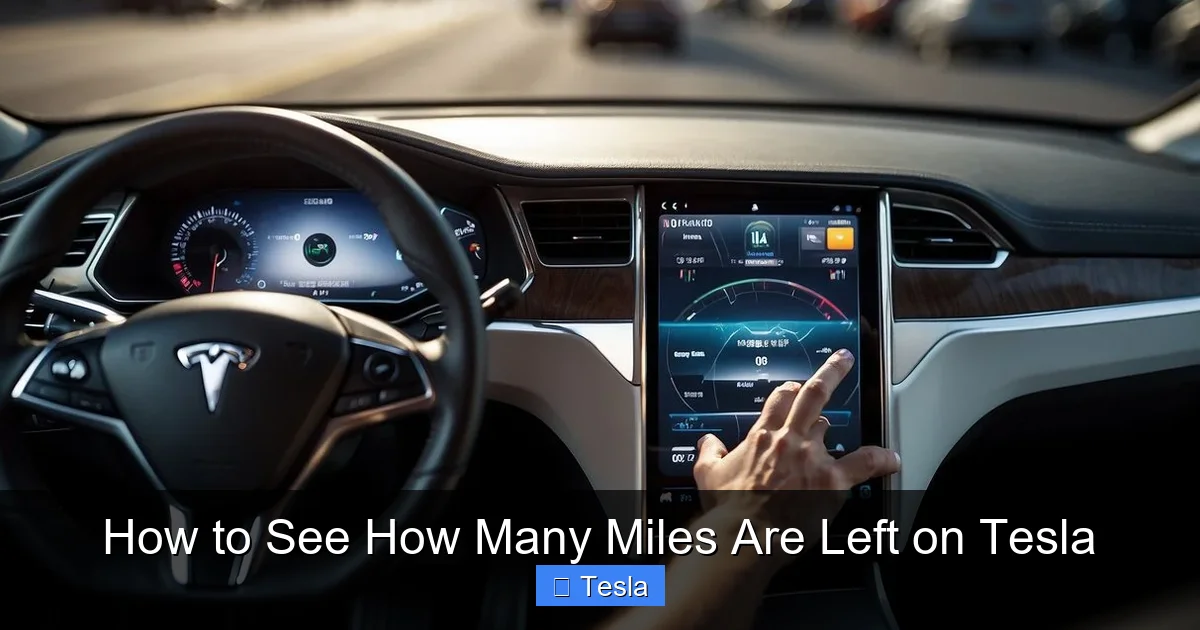
Visual guide about How to See How Many Miles Are Left on Tesla
Image source: koala.sh
Checking Range from Your Phone
Open the Tesla app and select your vehicle. The main screen immediately shows the battery percentage and the estimated miles (or km) remaining. This number is the same as what’s displayed on the car’s status bar—it’s a live sync. This is incredibly useful for checking if your car is sufficiently charged before you walk out to it, or for peace of mind if someone else is driving it.
Additional App Insights
The app also shows you the charging state, whether it’s plugged in, and the charging limit set. You can see the current location and even a live speedometer if you grant permission. For charging, the app provides detailed charging graphs and estimates to full. This remote visibility transforms the ownership experience, eliminating the “did I lock the door?” and “how much charge is left?” anxieties.
For any journey beyond your daily commute, the Tesla navigation system is your best friend for range estimation. It provides the most accurate and useful data.
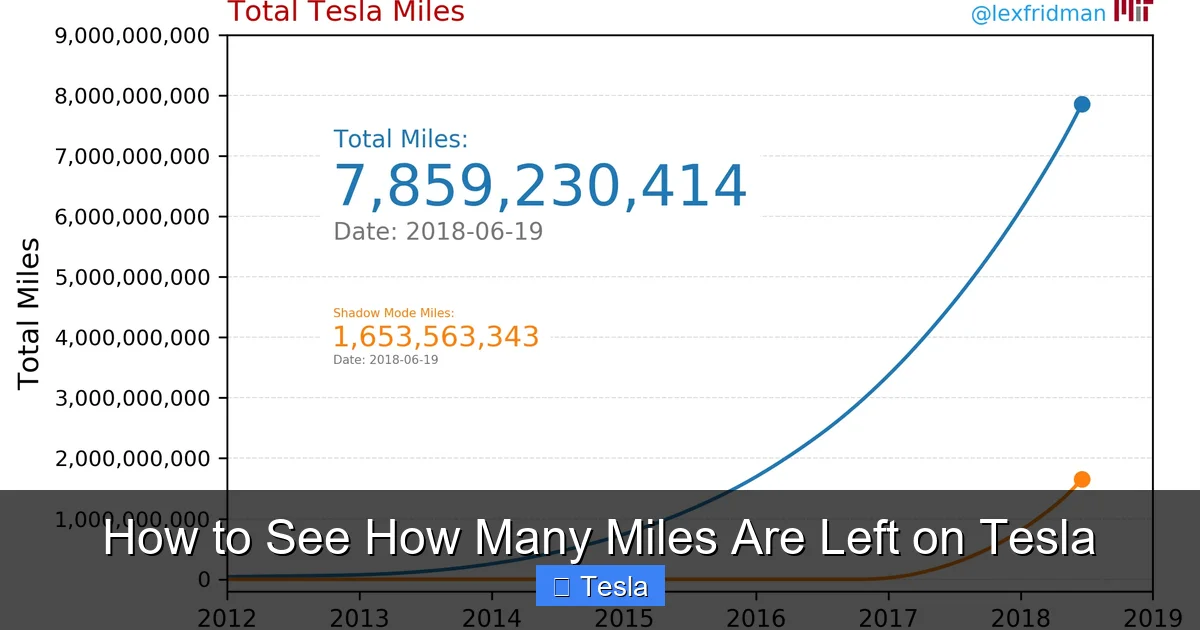
Visual guide about How to See How Many Miles Are Left on Tesla
Image source: electrek.co
How Trip Planning Works
Enter your destination via voice command or the touchscreen. Once the route is calculated, look at the bottom left corner of the map screen. You’ll see two critical numbers: “Miles to Destination” and “Miles to Next Charge” (if a Supercharger stop is required). The “Miles to Destination” estimate factors in your route’s specific elevation profile, average speed limits, and your car’s typical efficiency on similar past trips. It’s far more reliable than the general status bar number for a planned trip.
Supercharger Stops and Buffering
The navigation will automatically calculate necessary Supercharger stops. The “Miles to Next Charge” figure tells you how much range you’ll have left when you arrive at the recommended charger. Tesla builds in a buffer (usually 10-15% SOC) at each stop to account for inaccuracies and ensure you arrive with a comfortable margin. It also shows the expected charging time to reach your desired SOC for the next leg. This system is designed to make long-distance travel seamless and stress-free, effectively making range planning automatic. It’s a level of integrated trip planning you simply don’t get with gasoline cars, where you might manually check how many miles you can drive when the gas light comes on in a Toyota Camry—a static, fixed number that doesn’t adapt to your specific route or driving style.
Best Practices to Maximize Range Accuracy and Efficiency
You can help the system give you the best possible estimate and, more importantly, maximize your actual real-world range.
- Drive Consistently for Accurate Calibration: The projection is based on your last 30 miles. If you’ve been hypermiling in perfect conditions, the number will be optimistic for a fast highway trip. Try to drive in a manner representative of your upcoming trip for a while before relying on the estimate.
- Use Pre-Conditioning: Always precondition the cabin while the car is still plugged in before you depart, especially in extreme cold or heat. This uses grid power instead of your battery, preserving your range for driving.
- Maintain Proper Tire Pressure: Under-inflated tires increase rolling resistance, reducing efficiency. Check your tire pressures monthly and adhere to the door jamb sticker recommendations (not necessarily the max on the tire sidewall). Proper inflation is a simple, free way to boost range, similar to how checking tire pressure on a Honda Civic 2019 is a basic maintenance task that improves fuel economy.
- Minimize Excess Weight and Drag: Remove unnecessary cargo from the car. At highway speeds, using the stock aero wheels (if you have aftermarket wheels) and keeping windows closed can improve efficiency.
- Trust the Navigation for Trips: For any non-trivial trip, always use the in-car navigation from start to finish. Don’t rely on the status bar number. The navigation’s calculation is tailored to your exact route.
Troubleshooting: When the Range Display Seems Off
Occasionally, you might notice the projected range seems unusually low or high. Here’s what to do.
Perform a “Calibration Drive”
If you suspect the estimate is consistently off, do a full charge to 100% (or at least 90%) and then drive normally for 30-50 miles without trying to hypermile. Try to include a mix of city and highway driving. This gives the car a fresh, representative sample of your driving efficiency to base its projections on. After this drive, the number should stabilize to a more realistic figure.
Check for Software Glitches
Very rarely, a software bug can cause display errors. A simple restart of the car’s infotainment system (hold down both scroll wheels on the steering wheel until the screen goes black and reboots) often resolves transient display issues. Ensure your car is running the latest software version via the “Software” menu.
Understand the Difference Between Rated and Projected Range
Your car’s window sticker and settings menu show the EPA-rated range (e.g., 358 miles for a Long Range Model 3). This is a static, controlled-test number. The live number you see is your *projected* range based on current conditions. It is perfectly normal for your projected range to be 50 miles below the rated number on a cold winter day with the heater on, or 20 miles above it on a cool, calm day with gentle driving. Don’t compare the live number to the sticker; compare it to your own historical averages for similar conditions.
Conclusion: Confidence Through Understanding
Seeing how many miles are left on your Tesla is effortless once you know where to look and what the number means. The central touchscreen status bar provides your at-a-glance projection. The Energy app shows you the “why” behind that number. The mobile app keeps you connected remotely. And the integrated navigation system removes all guesswork for trips, dynamically calculating your energy needs with stunning accuracy. By understanding that this is a smart, adaptive projection—not a simple fuel gauge—and by employing best practices like pre-conditioning and proper tire inflation, you transform range from a source of anxiety into a well-understood metric. You gain the confidence to drive anywhere, knowing your Tesla is giving you the most informed estimate possible, second by second, mile by mile. This intelligent approach to range management is a core part of the modern EV ownership experience, making every journey predictable and planned.
Frequently Asked Questions
Does the Tesla “miles left” number include a safety buffer?
No, the projected range shown on the status bar is a direct calculation based on your recent consumption. It does not include an automatic safety buffer. It’s the driver’s responsibility to add their own margin, typically 10-20%, especially for long trips.
Why does my Tesla’s estimated range drop so much when I turn on the heater?
Electric vehicle heaters, especially resistive heaters like in most Teslas, are significant power consumers. Using the cabin heater can increase energy consumption by 30-50% or more in very cold weather, which the car’s projection algorithm accounts for immediately, causing the miles-left estimate to fall rapidly.
Is the range shown on the Tesla app the same as the one in the car?
Yes, the range displayed in the Tesla mobile app is a live sync of the number shown on the car’s touchscreen status bar. It reflects the car’s current projected range based on its last known state and recent driving data.
Should I trust the navigation’s “miles to destination” estimate?
Absolutely. For a specific trip, this is the most accurate estimate the car provides. It factors in your exact route’s elevation changes, speed limits, and your car’s historical efficiency on similar drives. It’s the primary tool you should use for trip planning.
Can I reset or calibrate the range estimator?
You cannot manually reset it. The system continuously calibrates itself based on your last 30 miles of driving. If you believe it’s inaccurate, perform a “calibration drive” by driving 30-50 miles normally after a full or partial charge to give it fresh, representative data.
How does Tesla’s range display compare to a traditional gas gauge?
A gas gauge shows a roughly linear depletion of a fixed tank. Tesla’s display is a dynamic projection that can go up or down based on your driving efficiency. It’s more informative but requires understanding that it’s an estimate, not a direct measurement of a fixed container’s contents. This is a fundamental difference from how you might check how many miles a Toyota Sienna can go on empty, which relies on a fixed fuel tank size and average MPG.
