
How to Save Tesla Dash Cam Footage

Saving your Tesla dash cam footage is crucial for insurance claims, evidence, and memories. You need a properly formatted USB drive, the Tesla mobile app, and knowledge of manual save triggers. This guide covers everything from setup to troubleshooting, ensuring you never lose important recordings.
Imagine you’re driving down the highway, and suddenly, the car in front swerves erratically. Or maybe you’re parked at the mall and return to find a new dent on your Tesla’d bumper. In moments like these, your Tesla’s built-in dash cam isn’t just a novelty—it’s your silent witness. But that witness doesn’t do you any good if you don’t know how to save the footage. The system is designed to loop and overwrite old recordings automatically. That perfect clip of the hit-and-run? It could be gone in an hour unless you take action. This guide will walk you through every single method to save Tesla dash cam footage, from the simple to the advanced. We’ll talk USB drives, the Tesla app, manual saves, and even how to organize everything so you can find that crucial clip when you need it most. Let’s get started.
Key Takeaways
- USB Drive is Essential: A correctly formatted (exFAT or FAT32) USB 3.0 drive with at least 64GB is the core requirement for storing dash cam footage.
- Tesla App is Your Remote Control: The Tesla mobile app allows you to view, save, and share footage directly from your phone, making it the most convenient method.
- Manual Saves Prevent Overwrites: Actively saving clips by honking or tapping the touchscreen locks them from the automatic loop, preserving critical moments.
- Organization is Key: Footage is stored in dated folders; regularly transferring files to a computer or cloud storage frees up space and prevents loss.
- Sentry Mode Needs Setup: To capture incidents while parked, you must enable Sentry Mode in the car’s settings and have a powered USB drive inserted.
- Troubleshooting Saves Time: Common issues like a “No USB” error often involve reformatting the drive, checking the port, or ensuring the Tesla app is updated.
- Footage is Time-Limited: Without manual saves, the oldest clips are automatically deleted as new footage records, typically after about 1-2 hours of driving.
📑 Table of Contents
- Understanding Your Tesla’s Dash Cam & Sentry Mode System
- Choosing and Preparing the Right USB Drive
- Saving Footage Through the Tesla Mobile App (The Easiest Method)
- Manual Save Methods: Honk, Touch, and Save
- Managing, Organizing, and Backing Up Your Footage
- Advanced Tips and Troubleshooting Common Problems
- Conclusion: Make Saving a Habit
Understanding Your Tesla’s Dash Cam & Sentry Mode System
Before we dive into saving, it helps to understand what you’re working with. Tesla’s system is elegant but has specific rules. It uses the car’s eight cameras (front, side, rear, and cabin) to record a 360-degree view. There are two primary modes: Dash Cam (for driving) and Sentry Mode (for parked surveillance). Both record to the same USB drive but are triggered differently.
How Continuous Recording Works
Once you insert a compatible USB drive into one of the front center console ports, the system starts recording. It creates a continuous loop. The footage is saved in short clips, usually one minute each, organized into folders by date. As the drive fills up, the oldest files are automatically deleted to make room for new ones. This is great for always having recent footage, but terrible if you see something important happen and don’t save it right away. The system has no idea what’s “important” without your input.
Sentry Mode: The Parked Protector
Sentry Mode turns your Tesla into a vigilant security guard. When enabled (via the touchscreen under Safety & Security), it uses the cameras to monitor the surroundings while the car is parked and locked. If it detects a threat—like someone leaning on the car or a nearby collision—it goes into an “Alert” state, saving that specific clip and sounding the alarm. However, for Sentry Mode to work at all, you must have a powered USB drive inserted before you lock the car. If the drive isn’t there, Sentry Mode simply won’t activate. This is a common point of failure.
Now that you know the basics, let’s get your storage ready.
Choosing and Preparing the Right USB Drive
This is the most critical step. A bad USB drive means no footage, corrupted files, or constant errors. Tesla is particular about format and speed.

Visual guide about How to Save Tesla Dash Cam Footage
Image source: dashcamdiscount.com
Specs That Matter: USB 3.0, exFAT/FAT32, and Capacity
You need a USB 3.0 (or higher) drive. It’s usually blue inside the connector port. USB 2.0 is too slow and will cause dropped frames or failures. In terms of format, Tesla requires exFAT (for drives larger than 64GB) or FAT32 (for 64GB or smaller). The car’s system cannot read NTFS. Capacity-wise, start with at least 64GB. A 128GB or 256GB drive gives you much more recording time before loops begin. For context, 64GB might give you about 1-2 hours of total 360-degree footage, depending on drive quality.
How to Format Your USB Drive Correctly
Formatting is simple but must be done on a computer, not the Tesla.
- Plug the USB drive into your Mac or PC.
- For Windows: Right-click the drive in File Explorer, select “Format.” Choose “exFAT” (for drives >64GB) or “FAT32” (for 64GB). Allocation size can be default. Check “Quick Format.” Click Start.
- For Mac: Open Disk Utility. Select the USB drive. Click “Erase.” Name it (e.g., “TeslaDashCam”). Format: “exFAT” or “MS-DOS (FAT)” for FAT32. Scheme: “GUID Partition Map.” Click Erase.
Pro Tip: After formatting, create a folder named “Tesla” on the root of the drive. Some owners report this helps the car recognize it immediately. Also, avoid using USB hubs or excessively long cables; plug directly into the front center console port.
Recommended USB Drives for Teslas
Not all drives are equal. Look for reputable brands known for high write speeds and durability (temperature resistance matters in a hot car). Popular choices include the Samsung BAR Plus, SanDisk Extreme Pro, or the Tesla-branded USB drive (which comes pre-formatted). If you want a cleaner look, consider a short USB-C to USB-A cable connected to a high-quality flash drive tucked away. Just ensure the connection is secure. A loose connection is a top reason for “No USB” errors.
Saving Footage Through the Tesla Mobile App (The Easiest Method)
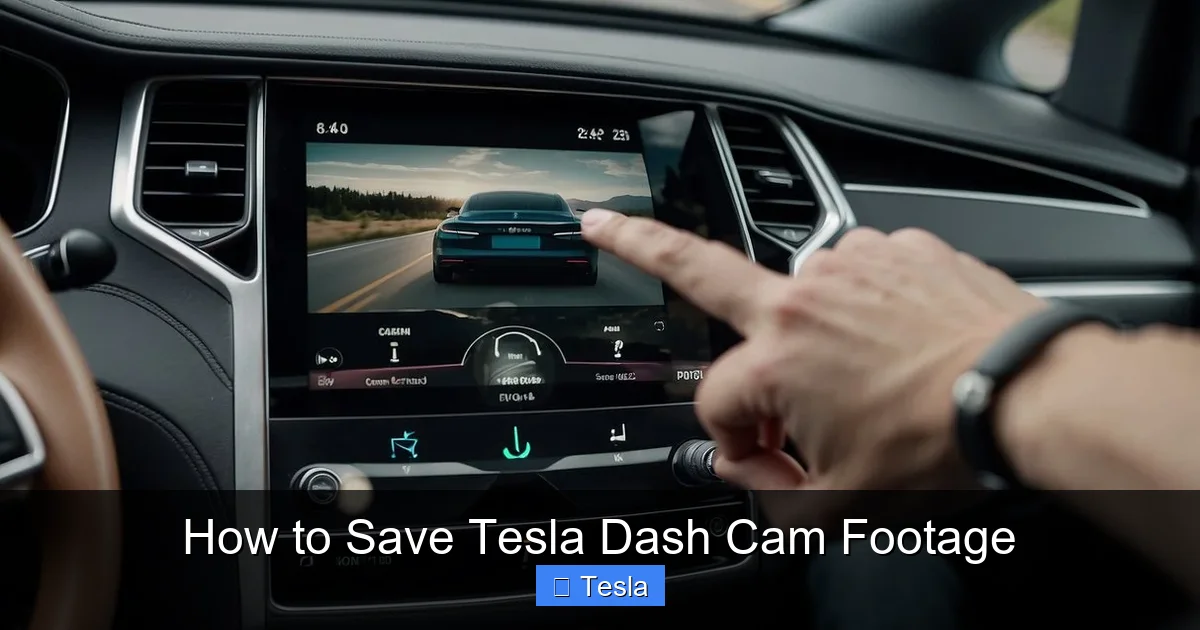
This is the go-to method for most Tesla owners. It’s fast, wireless, and lets you save clips directly to your phone’ gallery with one tap. But it requires a few prerequisites.
Visual guide about How to Save Tesla Dash Cam Footage
Image source: koala.sh
Prerequisites: App, Connectivity, and Account
First, you must have the official Tesla mobile app installed on your iPhone or Android device and be logged into the same Tesla account linked to your car. Your phone must have Bluetooth enabled and be within range of the car (or the car must have cellular connectivity). The car itself needs a stable internet connection (either Wi-Fi or Tesla’s premium connectivity) to communicate with the app. If you’re in a location with poor signal, saving via the app might fail or be slow. You can learn more about managing your Tesla’s connected features in our guide on how to add apps to your Tesla.
Step-by-Step: Saving a Clip in 10 Seconds
1. Open the Tesla App. Make sure it’s connected to your car (the car icon should be active).
2. Tap “Security & Safety.”
3. Select “View Dash Cam.” This will pull up a live view and a timeline of saved clips.
4. Find your clip. The footage is organized by date and time. You can scroll through the timeline.
5. Tap the clip you want to save. A preview will appear.
6. Tap the download/save icon (usually a box with a downward arrow). The app will transfer the clip from the car’s USB drive to your phone’s camera roll.
Important: The clip remains on the USB drive until it’s overwritten by the loop. Saving it to your phone is a copy. You should still eventually transfer the original file from the USB to a computer for permanent, high-quality backup.
Sharing Directly from the App
Once saved to your phone, you can share the clip via text, email, or social media right from your photo gallery. This is perfect for quickly sending evidence to an insurance adjuster or sharing a fun moment with friends. The app-compressed version is lower resolution than the original file on the USB, but for most purposes (like showing a near-miss), it’s perfectly adequate.
Manual Save Methods: Honk, Touch, and Save
What if you don’t have your phone handy? The car itself has physical ways to save the current minute of footage. These are invaluable during an incident when you need to lock the clip immediately.

Visual guide about How to Save Tesla Dash Cam Footage
Image source: cdn.shopify.com
The Honk-and-Save Feature
This is the most famous manual trigger. While the car is in Drive or Reverse, simply press the horn. The system interprets this as a request to save the last minute of footage from all cameras. You’ll hear a chime and see a notification on the touchscreen: “Dash Cam Saved.” The clip is saved to a special “SavedClips” folder on your USB drive and is protected from the automatic loop. It’s a one-tap (or honk) operation. However, be aware that in a very stressful situation, you might forget to honk. Practice once so it’s instinctive.
Saving via the Touchscreen
You can also save footage from the touchscreen while parked or driving.
1. Go to the “Safety & Security” menu.
2. Tap “Dash Cam.&br>3. You’ll see a live view with a timeline at the bottom.
4. Scrub through the timeline to find the moment you want.
5. Tap the “Save” button (a save icon). The selected minute will be saved to the “SavedClips” folder.
This method is less intuitive while driving, so the horn is preferred for in-moment saves.
Sentry Mode Automatic Saves
When Sentry Mode detects an event and enters the “Alert” state, it automatically saves that specific clip to the “SentryClips” folder on your USB drive. You don’t need to do anything. However, you must still regularly check this folder and transfer files, as it too is subject to the drive’s space limits. If your car is in a busy parking lot, you might get many “false positive” alerts from people walking by, so check and clear this folder often.
Managing, Organizing, and Backing Up Your Footage
Saving is only half the battle. If you never take the files off the USB drive, they will eventually be overwritten. You need a system.
Understanding the Folder Structure
On your USB drive, you’ll see folders named with dates (e.g., “2024-05-27_14-30-00”). Inside each date folder are subfolders: Front, Back, Left, Right, and sometimes Front_Cabin. Each contains individual video files (usually .mp4 or .ts format). Manually saved clips go into “SavedClips” or “SentryClips” at the root level. Knowing this structure helps you find specific angles later.
The Transfer Process: From USB to Computer
1. Eject the USB drive safely from the Tesla (via the touchscreen option) to prevent corruption.
2. Plug it into your computer.
3. Navigate to the dated folders. Copy the entire date folder (or specific clips) to a designated location on your hard drive or an external backup drive.
4. Organize by creating a master folder like “Tesla Dash Cam Backups” and subfolders by year/month.
5. Once files are safely copied, you can format the USB drive again (or just delete the old folders) to start fresh.
Never edit or rename files directly on the USB drive while it’s in the Tesla. Always work on copies on your computer.
Cloud Storage and Long-Term Archiving
For truly important clips (accidents, scenic drives), upload them to a cloud service like Google Drive, Dropbox, or OneDrive. This protects them from local disasters (fire, theft, drive failure). You can also use services like Tesla Cloud (third-party) that automatically sync footage, but they often require a subscription and additional hardware. For most, manual cloud upload of key clips is sufficient.
If you’re storing footage for insurance or legal purposes, keep the original, unedited files. Do not compress or alter them until you have multiple backups.
Advanced Tips and Troubleshooting Common Problems
Even with perfect setup, things can go wrong. Here’s how to fix the most common issues.
“No USB” or “USB Error” Message
This is the #1 problem. First, check the physical connection. Unplug and firmly re-plug the USB drive. Try a different front USB port. If that fails, the drive likely needs reformatting. Reformat it on your computer as exFAT (for >64GB) or FAT32. If the problem persists, the drive itself may be faulty or too slow. Try a different, known-good USB 3.0 drive. Also, ensure the drive isn’t nearly full; a completely full drive can malfunction.
Footage is Choppy or Missing Angles
Choppy video usually means the USB drive’s write speed is too slow. You need a drive with a high sustained write speed (look for “90 MB/s” or higher in specs). Missing camera angles (e.g., no rear camera) can happen if the USB drive is slow and can’t keep up with all four video streams simultaneously. Again, a faster drive solves this. Also, check that all cameras are clean; dirt or snow can cause a camera to disable itself.
Why Can’t I See My Saved Clips in the App?
Saved clips (from honking or the touchscreen) go to the “SavedClips” folder. The Tesla app’s “View Dash Cam” feature sometimes only shows the latest continuous loop footage, not the manually saved clips. To view saved clips, you often need to physically remove the USB drive and plug it into a computer, or use the touchscreen’s Dash Cam viewer (Safety & Security > Dash Cam > View Saved Clips). The app’s functionality varies by Tesla software version.
Protecting Your Investment: Beyond the Dash Cam
While your dash cam records the outside world, don’t forget about your car itself. A clear windshield is crucial for optimal camera performance. If you’re considering tinting your Tesla Model 3 windows, know that high-quality ceramic tint can reduce glare and heat, potentially improving camera clarity in sunny conditions. Similarly, if an incident does cause damage, your dash cam footage is invaluable for insurance claims for window replacement. Having that footage can speed up the process and ensure you’re not blamed.
Conclusion: Make Saving a Habit
Your Tesla dash cam is an incredible tool, but it’s a passive one. It records everything, but it’s up to you to capture and keep what matters. The process is straightforward: get a good USB 3.0 drive, format it correctly, and keep it plugged in. Use the Tesla app for daily convenience, but master the horn-and-save method for those split-second moments. Most importantly, treat your USB drive like a temporary buffer, not a permanent archive. At the end of each day or after a notable drive, take two minutes to transfer the important clips to your computer or cloud storage. Form that habit, and you’ll never be left wishing you had saved that footage. Now, go plug in that drive and hit the road with confidence.
Frequently Asked Questions
Why isn’t my Tesla dash cam saving footage?
Most often, the USB drive is improperly formatted, too slow (USB 2.0), or faulty. Reformat it to exFAT/FAT32 on a computer and try a different, high-quality USB 3.0 drive. Also, ensure Sentry Mode is enabled if you want parked recordings.
How long does Tesla dash cam footage stay saved?
Without manual saves, footage is stored in a continuous loop and typically lasts about 1-2 hours of total driving time before the oldest clips are automatically deleted. Manually saved clips (via honk or touchscreen) are protected from the loop but still use the same drive space, so transfer them off the USB drive to keep them permanently.
What is the best USB drive for a Tesla dash cam?
Look for a USB 3.0 drive (blue connector) with high write speeds (90 MB/s or higher) and a capacity of at least 128GB. Brands like Samsung (BAR Plus, FIT Plus) and SanDisk (Extreme Pro) are reliable. For a cleaner install, use a short USB-C cable with a high-speed flash drive.
Can I save dash cam footage without a USB drive?
No. A physical USB drive inserted into the car’s front port is mandatory for both Dash Cam and Sentry Mode to function. The Tesla mobile app only lets you save a copy of footage already on the USB drive to your phone; it does not replace the need for the drive.
Where are saved clips stored on the USB drive?
Manually saved clips (from honking or the touchscreen) go into a folder named “SavedClips” at the root level of the USB drive. Sentry Mode event clips go into “SentryClips.” Continuous loop footage is organized by date in folders like “2024-05-27_14-30-00” with subfolders for each camera angle.
Does Sentry Mode drain the Tesla battery?
Yes, but minimally. Sentry Mode uses about 1-2 miles of range per hour. With a 75 kWh battery, that’s a very small percentage. The bigger risk is leaving the USB drive plugged in and full for weeks, which can cause the car to not enter deep sleep and drain the 12V battery over a very long period. Regularly clearing the USB drive helps prevent this.
