
How to Add Apps to Tesla: A Step-by-Step Guide to Unlocking Hidden Features

Introduction: Can You Really Add Apps to Tesla?
Owning a Tesla isn’t just about driving—it’s about stepping into a smart, connected ecosystem that feels more like a tech device than a traditional car.
But here’s the big question most Tesla owners ask:
Can you actually add apps to a Tesla like a smartphone?
The answer is a bit different than you might expect.
Unlike Android or iPhone, Tesla doesn’t allow free app installation from an open app store. However, that doesn’t mean you’re stuck with limited features. In fact, Tesla offers a powerful mix of built-in apps, web-based tools, and third-party integrations that can significantly expand what your car can do.
From streaming music and watching Netflix to finding charging stations and syncing your calendar—your Tesla can become a fully personalized digital hub.
In this step-by-step guide, you’ll learn:
- How Tesla apps actually work
- The real ways to “add” apps
- Hidden features most users miss
- And how to unlock the full potential of your Tesla
Let’s break it down.
Quick Answer: You cannot install apps on Tesla like Android or iPhone. Tesla only supports built-in apps, web apps, and third-party integrations to expand features.
Understanding Tesla’s App Ecosystem: How It Really Works
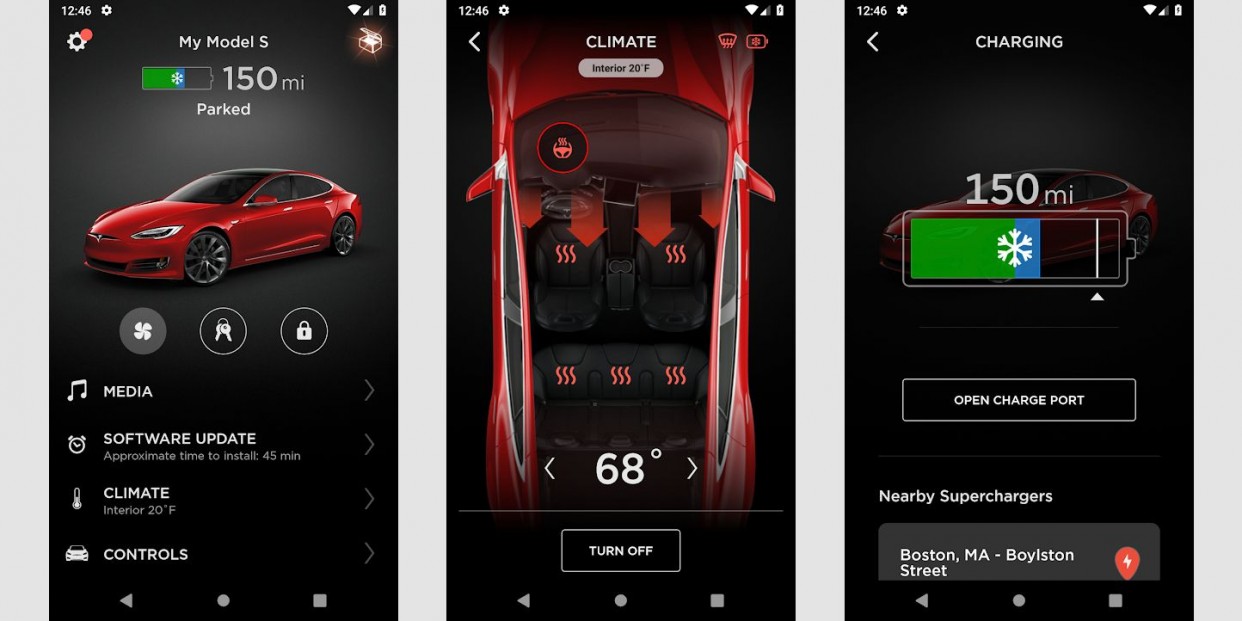
Tesla vehicles are often described as “computers on wheels”, and for good reason. Each Tesla runs on its own custom operating system that evolves through regular over-the-air (OTA) updates.
Think of this system as your car’s brain—constantly improving, learning, and adding new features over time.
However, there’s one key difference compared to smartphones:
Tesla does NOT have a traditional app store like Android or Apple. Tesla official software update page.
Instead, Tesla controls its ecosystem tightly to ensure:
- Driver safety
- System stability
- Smooth performance
- Data security
So how do apps actually work in Tesla?
Tesla apps come from three main sources:
✔ Built-in Apps
These are pre-installed and include apps like:
- Spotify
- Netflix
- YouTube
- Navigation system
✔ Web-Based Apps (via Browser)
You can access websites directly through Tesla’s browser, such as:
- YouTube
- Gmail
- Third-party tools
✔ Third-Party Integrations
Apps like:
- TeslaFi
- IFTTT
- Smart home integrations
These don’t install directly on your car but connect through your Tesla account.
So when people say “adding apps to Tesla,” it usually means activating, accessing, or integrating these features—not installing like a phone.
Using the Tesla Mobile App: Your Remote Control Hub

Before interacting with your car’s screen, everything starts with the Tesla mobile app—your main control center.
This app connects your smartphone directly to your Tesla and allows you to:
- Lock/unlock doors
- Check battery status
- Pre-condition climate
- Monitor charging
- Control various smart features
Important Reality Check
The Tesla mobile app does NOT function like an app store
You cannot browse and install new apps from it.
Instead, it helps you:
- Manage integrations
- Sync services (like calendar or music accounts)
- Control how apps behave in your vehicle
Step-by-Step: How to Set Up and Manage App Features
- Open the Tesla mobile app
Log in using your Tesla account credentials - Connect your services
Link accounts like:- Spotify
- Calendar
- Streaming platforms
- Adjust settings and permissions
Customize how your Tesla interacts with these services - Sync with your vehicle
Your car will automatically update these changes when connected - Keep your app updated
Always use the latest version to avoid syncing issues
Pro Tip
If something doesn’t sync properly:
- Restart the Tesla app
- Reconnect your account
- Ensure your car software is updated
By using the Tesla mobile app correctly, you’re not “installing apps”—
you’re unlocking and controlling the ecosystem behind your Tesla.
Using Tesla’s In-Car Display: Where Everything Comes Together

One of the most impressive features of a Tesla is its large touchscreen display. This is where all your apps, controls, and features come together in one place.
It’s not just an infotainment system—it’s the central command hub of your vehicle.
From here, you can:
- Access built-in apps
- Use entertainment features
- Control settings
- Customize your layout
How to Access Apps on Tesla Screen
- Park your vehicle safely
- Tap the App Launcher icon
- Browse available apps
- Open and use instantly
No installation needed—everything is already integrated or enabled via updates.
Mobile App vs In-Car Display
| Feature | Mobile App | In-Car Display |
|---|---|---|
| Access | Remote (phone) | Inside vehicle |
| Function | Control & sync | Direct usage |
| Installation | Not available | Not required |
| Best Use | Management | Real-time interaction |
When you combine both, you get a complete ecosystem:
- Control from anywhere
- Experience everything inside the car
Compatible Apps for Tesla: What You Can Actually Use
One of the biggest misconceptions about Tesla is that you can install any app like a smartphone.
But the reality is different.
Tesla only supports optimized and approved apps designed specifically for its system. This ensures better performance, stability, and safety while driving.
Popular App Categories Available in Tesla
1. Music and Entertainment
These are among the most commonly used apps:
- Spotify
- TIDAL
- TuneIn Radio
You can stream music directly without needing your phone.
2. Navigation and Location Services
Tesla already includes a powerful navigation system, but it also integrates with:
- Real-time traffic updates
- Location-based services
- Parking and charging locators
3. Charging and Energy Apps
These are essential for electric vehicle users:
- PlugShare
- ChargePoint
These apps help you find nearby charging stations with real-time availability.
4. Productivity and Calendar Integration
- Google Calendar sync
- Automatic navigation to scheduled events
Your Tesla can guide you directly to your next appointment.
5. Weather and News Apps
- Live weather updates
- News feeds displayed on your dashboard
Important Limitation
Tesla does not allow:
- Android apps
- iOS apps
- APK installations
Instead, it works with:
- Built-in apps
- Web apps via browser
- Secure third-party integrations
This controlled system ensures the car remains stable, fast, and secure.
Customizing Your Tesla Experience: Make It Truly Yours
Adding apps is only part of the experience. The real advantage comes from customization.
Tesla allows you to personalize how apps behave and how your interface looks, making the experience more efficient and tailored to your needs.
Ways to Customize Your Tesla Apps
Rearrange your apps
Place frequently used apps in easily accessible positions on your dashboard.
Adjust settings and preferences
You can control:
- Sound settings
- Auto-play behavior
- Display preferences
Use driver profiles
Each driver can have:
- Different app layouts
- Separate preferences
- Personalized settings
Real-Life Example
When properly set up, your Tesla can create a seamless experience:
- Your music starts automatically
- The cabin is pre-conditioned
- Navigation is ready for your destination
- Your calendar reminders appear instantly
This level of automation turns your Tesla into a smart, responsive system.
Over-the-Air Updates
Tesla frequently releases over-the-air updates that:
- Introduce new features
- Improve existing apps
- Enhance system performance
Keeping your system updated ensures you always have access to the latest capabilities.
Why Tesla Restricts App Installation (And Why It’s Beneficial)
Many users wonder why Tesla does not allow open app installation like Android Auto or Apple CarPlay.
While it may seem restrictive, there are important reasons behind this approach.
Safety Considerations
Tesla prioritizes minimizing driver distraction.
Allowing unrestricted apps could increase:
- Driver distraction
- System instability
- Unsafe usage while driving
Optimized Performance
Every app in Tesla is:
- Tested
- Optimized
- Fully compatible
This ensures:
- Smooth operation
- Minimal lag
- Reliable performance
Data Security and Privacy
Tesla vehicles store sensitive data such as:
- Location history
- Driving behavior
- Linked accounts
A controlled app environment helps protect against:
- Malware
- Unauthorized access
- Data breaches
Simple Comparison
Android offers an open ecosystem with flexibility but less control.
Tesla follows a controlled approach with fewer apps but higher quality and reliability.
Final Takeaway
Tesla’s restricted app ecosystem provides:
- Better safety
- Stable performance
- A more reliable user experience
While you may not get full app freedom, you gain a system that is carefully designed to work seamlessly inside your vehicle.
Keeping Your Tesla Software Updated: The Key to New Features
If you want to unlock new apps and features in your Tesla, one thing matters more than anything else: software updates.
Tesla continuously improves its vehicles through over-the-air (OTA) updates. These updates are not just minor fixes—they often introduce entirely new features, improve existing apps, and expand compatibility.
Why Software Updates Are Important
Access to new apps and features
Some apps and functionalities only become available after specific updates.
Better performance and stability
Updates fix bugs and improve how apps run on your system.
Improved security
Security patches help protect your data and prevent vulnerabilities.
How to Check for Updates
- Go to Controls on your Tesla screen
- Tap Software
- Select Check for Updates
You can also enable automatic updates to ensure your system stays current without manual checks.
Best Practice
Always install updates when your car is connected to Wi-Fi and parked. This ensures a smooth installation without interruptions.
Exploring Advanced Customization: Go Beyond the Basics
Once you understand how Tesla apps work, you can take things further by using advanced customization features.
Tesla’s system is designed to be simple, but it also offers deeper control for users who want more efficiency and automation.
Advanced Features You Can Use
Voice commands for apps
You can control apps hands-free by using voice commands. For example:
- Play music
- Navigate to a location
- Adjust settings
Auto-launch behavior
Some apps can start automatically based on your usage patterns.
Browser bookmarks
You can bookmark frequently used web apps in the Tesla browser for faster access.
App organization
Arrange apps based on priority so your most-used features are always accessible.
Why It Matters
These small adjustments can significantly improve your daily driving experience by:
- Saving time
- Reducing manual interaction
- Making the system feel more intuitive
Practical Example
Instead of manually opening apps every time, your Tesla can:
- Start your preferred music automatically
- Open navigation when you begin a trip
- Provide quick access to frequently used tools
Using Third-Party Integrations: Expanding Tesla’s Capabilities
Although Tesla limits direct app installation, it still allows certain third-party integrations that expand functionality beyond the built-in system.
These integrations work through Tesla’s official API and connect external services to your vehicle.
Popular Third-Party Tools
TeslaFi
Tracks driving data, energy usage, and trip history.
IFTTT (If This Then That)
Automates actions such as:
- Locking your car when you leave home
- Sending alerts based on vehicle activity
Smart home integrations
You can connect your Tesla with:
- Google Home
- Amazon Alexa
This allows voice control and automation between your home and vehicle.
How These Integrations Work
- They connect through your Tesla account
- No direct installation inside the car
- Data sync happens securely in the background
Security Tips
When using third-party tools:
- Use trusted services only
- Avoid sharing login credentials directly
- Prefer OAuth or secure authentication methods
Key Benefit
These integrations allow your Tesla to become part of a larger digital ecosystem, connecting your car with your home, routines, and daily life.
App Safety Tips Every Tesla Owner Should Know
Tesla vehicles are highly connected systems that store and process important data. Because of this, maintaining app security is essential.
Even though Tesla provides strong built-in protection, user awareness plays a major role in keeping everything safe and reliable.
Best Practices for App Safety
Use only trusted and approved apps
Always rely on Tesla-supported apps or well-known third-party integrations.
Avoid unauthorized modifications
Do not attempt to install unofficial software or bypass system restrictions.
Review permissions carefully
Before connecting any service, check what data it can access.
Keep software updated
Updates often include security patches that protect your system.
Enable two-factor authentication
Adding an extra layer of security to your Tesla account reduces risk.
Why This Matters
Your Tesla may store:
- Location history
- Driving patterns
- Connected account details
Protecting this information ensures both privacy and system reliability.
Tesla App Store: What to Expect in the Future
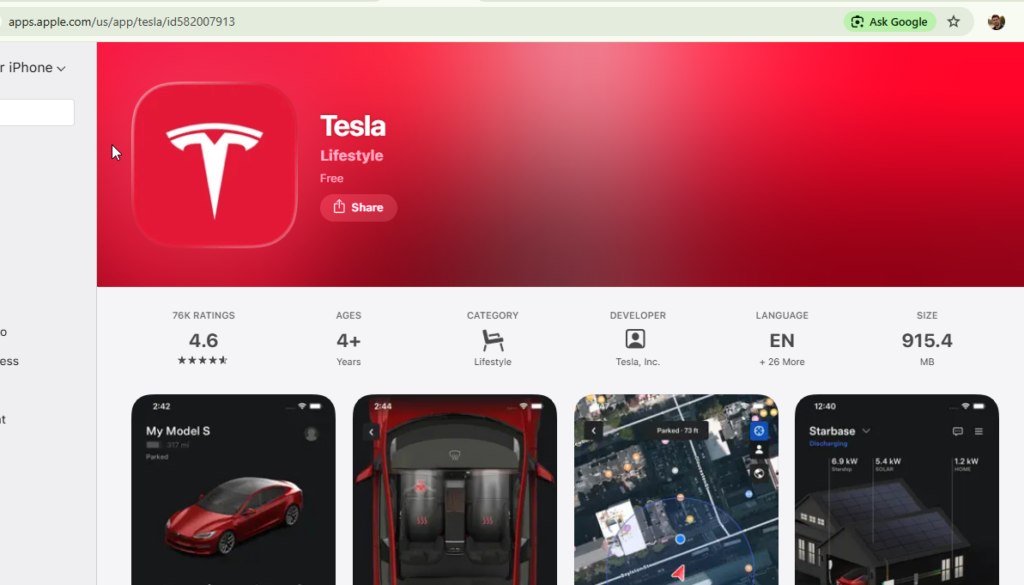
Tesla has not officially launched a full app store yet, but there are strong expectations that it may happen in the future.
As Tesla continues to evolve its software ecosystem, expanding app availability is a natural next step.
Possible Future Improvements
More third-party apps
A wider selection of verified apps could become available.
Simplified installation process
Users may be able to add apps more easily through a dedicated interface.
Better customization options
Greater control over how apps behave and interact with the system.
What It Means for Users
If Tesla introduces an app store, it could:
- Increase flexibility
- Expand functionality
- Improve personalization
However, it will likely remain a controlled environment to maintain safety and performance.
Tesla Accessories That Enhance App Experience
While apps improve the digital side of your Tesla, accessories can enhance the physical experience.
Combining both creates a more efficient and comfortable driving environment.
Common Accessories and Their Benefits
| Accessory Type | Purpose | Example |
|---|---|---|
| Wireless Charger | Convenient phone charging | Center console charger |
| Screen Protector | Protects touchscreen | Tempered glass |
| Organizer Kit | Keeps storage tidy | Console trays |
| All-Weather Mats | Protects interior | Floor mats |
| Dashcam Storage | Stores video footage | USB drive or SSD |
Why Accessories Matter
Accessories help:
- Improve usability
- Protect your vehicle
- Complement app functionality
For example, a wireless charger ensures your phone stays powered while using Tesla integrations.
Common Issues When Adding Apps and How to Fix Them
Even with Tesla’s smooth system, users may occasionally face issues when accessing or syncing apps.
Most problems are simple and can be fixed quickly.
Common Problems and Solutions
App not syncing
- Restart your Tesla app
- Ensure you are logged into the correct account
- Check internet connection
Missing app options
- Update your Tesla software
- Check regional availability
App freezing or crashing
- Restart the system
- Reopen the app
- Install the latest update
Connectivity issues
- Switch to a stable Wi-Fi connection
- Check mobile data signal
General Tip
Regular updates and basic troubleshooting steps usually resolve most issues without needing technical support.
Frequently Asked Questions
Can you install apps on Tesla like a smartphone?
No, Tesla does not allow open app installation. Only built-in and approved apps are supported.
Does Tesla have an app store?
Currently, Tesla does not have a traditional app store, but it may be introduced in the future.
Can you use Android Auto or Apple CarPlay in Tesla?
No, Tesla uses its own software ecosystem instead of supporting these platforms.
What apps can I use in Tesla?
You can use music, navigation, charging, productivity, and web-based apps.
Do you need Wi-Fi to use apps?
Wi-Fi is recommended for updates and streaming, but some features may work with mobile data.
Can I remove apps I don’t use?
Some apps can be hidden or removed depending on system settings.
Will adding apps affect warranty?
Using official apps does not affect warranty, but unauthorized modifications may.
How often does Tesla add new features?
Tesla releases updates regularly, often monthly or quarterly.
Conclusion: Making the Most of Your Tesla
Understanding how apps work in Tesla allows you to unlock the full potential of your vehicle.
Even though Tesla does not support traditional app installation, its ecosystem offers powerful alternatives through built-in features, integrations, and continuous updates.
By combining apps, customization, and accessories, your Tesla becomes more than just a car—it becomes a connected, intelligent system designed around your daily life.
Staying updated and using the right tools ensures you get the best possible experience from your Tesla.
