
How to Remove Agent Tesla

Agent Tesla is a sophisticated keylogger and information-stealing malware that silently captures your passwords, banking details, and personal data. Removing it requires a systematic approach using reputable antivirus tools, manual system cleaning, and changing all your passwords. This guide provides a step-by-step removal process and crucial prevention strategies to secure your system.
Imagine someone silently watching everything you type on your computer—every password, every bank login, every private message. That’s the reality of an Agent Tesla infection. This isn’t just a simple virus; it’s a powerful, commercially sold spyware designed for one purpose: to steal your most valuable digital information and send it straight to criminals. Finding out you’re infected is a scary moment, but don’t panic. Removing Agent Tesla is absolutely possible with a clear, methodical approach. This guide will walk you through every step, from confirming the infection to thoroughly cleaning your system and securing your digital life afterward. Think of this as your definitive battle plan against this intrusive malware.
Key Takeaways
- Agent Tesla is a serious threat: It’s a commercial-grade spyware that records keystrokes, steals credentials, and captures screenshots, sending all data to attackers.
- Use trusted antivirus for initial removal: A full system scan with a reputable, updated antivirus or antimalware program is the first and most critical step to eliminate the core infection.
- Manual cleanup is often necessary: The malware may leave behind registry entries, scheduled tasks, and malicious files that automated tools can miss, requiring careful manual checks.
- Password reset is non-negotiable: After removal, you must change passwords for all accounts (email, banking, social media) from a clean device to prevent ongoing theft.
- Prevention is your best defense: Avoid suspicious email attachments, untrusted downloads, and keep your OS and software updated to block initial infection.
- Professional help may be needed: For persistent infections or if you handle highly sensitive data, consulting a cybersecurity professional is a wise investment.
📑 Table of Contents
- Understanding Your Enemy: What Exactly is Agent Tesla?
- Step 1: Confirming the Infection
- Step 2: The Automatic Removal – Using Your Antivirus as Your Primary Weapon
- Step 3: The Manual Cleanup – Hunting Down Remnants
- Step 4: The Post-Removal Imperative – Securing Your Digital Life
- Step 5: Fortifying Your Defenses to Prevent Re-infection
- Conclusion: Vigilance is Key
Understanding Your Enemy: What Exactly is Agent Tesla?
Before you can effectively fight Agent Tesla, you need to understand what you’re dealing with. It’s classified as a “remote access trojan” (RAT) and a “keylogger,” but its capabilities go far beyond that. It’s a .NET-based malware, meaning it’s written in a common programming language, which can make it slightly easier for security researchers to analyze but no less dangerous for you.
What Does It Do?
Once installed on your PC—often via a phishing email attachment or a malicious download—Agent Tesla hides in the background. Its main jobs include:
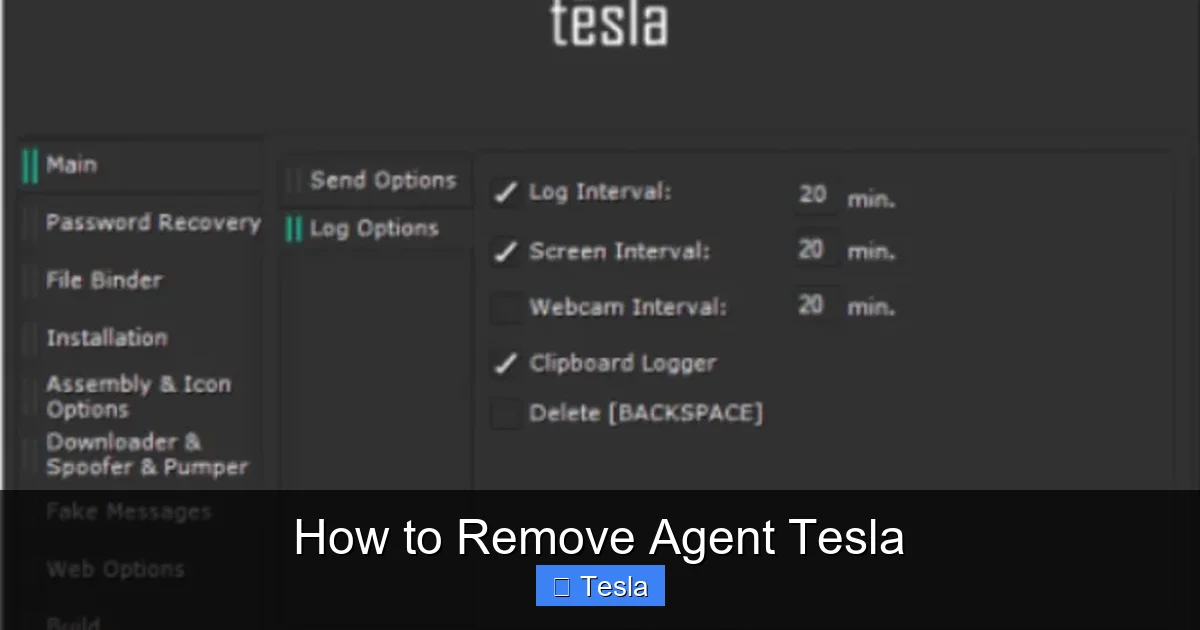
- Keystroke Logging: It records every single key you press. This means usernames, passwords, credit card numbers, and chat messages are all captured.
- Credential Harvesting: It specifically targets stored credentials in web browsers (Chrome, Firefox, Edge) and FTP clients.
- Clipboard Monitoring: It steals anything you copy and paste, which is a common way to temporarily store passwords.
- Screenshot Capture: It can periodically take screenshots of your desktop, giving attackers visual context of your activities.
- File & System Information Theft: It gathers data about your system, installed software, and can even steal specific file types.
- Data Exfiltration: All this stolen information is packaged up and sent to a command-and-control (C2) server controlled by the hacker.
The scary part? It’s often sold as a “legitimate” monitoring tool on hacker forums, which means it’s constantly updated to evade detection. Its primary goal is financial gain through identity theft, banking fraud, and selling your data on the dark web.
Step 1: Confirming the Infection
You might suspect Agent Tesla is on your system due to strange behavior, but how can you be sure? While definitive confirmation usually requires security software, there are common red flags.
Visual guide about How to Remove Agent Tesla
Image source: bugsfighter.com
Symptoms of an Agent Tesla Infection
Look for these tell-tale signs that something is wrong with your computer’s security:
- Unusual System Slowdown: The malware runs constantly in the background, consuming CPU and memory resources.
- Unexpected Pop-ups or Browser Redirects: Your browser might start showing weird ads or redirecting you to unfamiliar sites.
- Passwords Suddenly Stop Working: If legitimate passwords for your email or bank accounts are rejected, it could mean they’ve been changed by a thief who stole them via the keylogger.
- Unfamiliar Programs in Task Manager: Press Ctrl+Shift+Esc to open Task Manager. Look for processes with random names (like “svch0st.exe” instead of “svchost.exe”) or names you don’t recognize running from unusual locations.
- Antivirus Disabled: Some malware, including variants of Agent Tesla, will try to turn off your existing security software to avoid detection.
If you see several of these signs, it’s time to take action. The most reliable confirmation will come from a deep scan with your security tools in the next step.
Step 2: The Automatic Removal – Using Your Antivirus as Your Primary Weapon
Your installed antivirus or antimalware suite is your first and strongest line of defense. Modern security programs have signatures and heuristics designed to detect Agent Tesla and its many variants.
Visual guide about How to Remove Agent Tesla
Image source: 2-spyware.com
Performing a Deep, Effective Scan
Simply running a quick scan isn’t enough. You need to be thorough:
- Update Your Security Software: Before scanning, ensure your antivirus definitions are 100% up-to-date. Open the program and look for an “Update” button.
- Disconnect from the Internet: This prevents the malware from communicating with its C2 server or downloading additional payloads while you’re trying to remove it. Unplug your Ethernet cable or turn off Wi-Fi.
- Boot into Safe Mode with Networking: Restart your computer and boot into Safe Mode. This loads Windows with a minimal set of drivers and services, preventing most malware (including Agent Tesla) from starting. To do this, hold the Shift key while clicking Restart in the Start Menu, then navigate to Troubleshoot > Advanced Options > Startup Settings > Restart, and press 5 for Safe Mode with Networking.
- Run a Full System Scan: In Safe Mode, launch your antivirus and perform a FULL SYSTEM SCAN. This examines every file and folder on your computer. This scan will take a while—be patient.
- Quarantine or Delete All Threats: When the scan finishes, review the results. Your antivirus should identify Agent Tesla files, registry entries, and related components. Set the action to “Quarantine” or “Delete” for all detected items and apply the actions.
Important: If your primary antivirus didn’t detect anything but you’re still suspicious, use a powerful second-opinion scanner like Malwarebytes or HitmanPro. Run it in Safe Mode as well. These tools use different detection engines and can find what others might miss. This layered scanning approach is critical for stubborn infections.
Step 3: The Manual Cleanup – Hunting Down Remnants
Automated tools are great, but sophisticated malware like Agent Tesla can sometimes leave behind traces. A manual inspection helps ensure complete removal. This step requires caution.
Visual guide about How to Remove Agent Tesla
Image source: 2-spyware.com
Checking Startup Locations
Malware often sets itself to run automatically when you log in. We need to check these locations:
- Task Manager (Startup Tab): Press Ctrl+Shift+Esc, go to the Startup tab. Disable any unfamiliar or suspicious entries. Research the publisher name if you’re unsure.
- System Configuration (msconfig): Press Win+R, type
msconfig, and hit Enter. Go to the Startup tab and uncheck suspicious items. - Startup Folder: Press Win+R, type
shell:startup, and hit Enter. Delete any shortcuts to unknown programs.
Inspecting Scheduled Tasks
Agent Tesla often uses Windows Task Scheduler to run itself periodically.
- Press Win+R, type
taskschd.msc, and hit Enter. - Browse through the Task Scheduler Library on the left pane.
- Look for tasks with random names, strange descriptions, or that point to executable files (.exe) in temporary folders (like
C:\Users\[YourName]\AppData\Local\Temp\) or with random names. - Right-click on any suspicious task and select Disable, then Delete.
Cleaning Temporary Files and Downloads
The initial installer file is often lurking in your temp folders.
- Press Win+R, type
%temp%, and hit Enter. Select all files (Ctrl+A) and delete them. You may not be able to delete some in-use files; that’s okay. - Do the same for your actual Downloads folder (
C:\Users\[YourName]\Downloads). - Also, clear your browser cache and download history.
Reviewing Browser Extensions
Go to your browser’s extensions or add-ons page (chrome://extensions, edge://extensions, about:addons for Firefox). Remove any extensions you don’t recognize or remember installing. Some info-stealers install malicious browser extensions to aid in data theft.
Checking the Registry (Advanced Users)
Warning: Editing the registry incorrectly can break Windows. Only proceed if you’re comfortable. Press Win+R, type regedit, and hit Enter. Navigate to these common persistence keys and look for suspicious entries (random names, values pointing to .exe files in Temp folders):
HKEY_CURRENT_USER\Software\Microsoft\Windows\CurrentVersion\RunHKEY_LOCAL_MACHINE\Software\Microsoft\Windows\CurrentVersion\Run
If you find something dubious, right-click and delete the key or value. After manual cleanup, restart your computer normally (not in Safe Mode).
Step 4: The Post-Removal Imperative – Securing Your Digital Life
You’ve run the scans and cleaned the system. The malware is gone from your PC. But the criminals who controlled it have your passwords. This is the most critical phase. You must assume all passwords typed on the infected machine are compromised.
Changing Passwords from a CLEAN Device
Do not use the infected computer to change passwords! The keylogger could still be active or you could be phished again. Use a different, known-clean device (a friend’s computer, your phone, or a freshly reinstalled PC) to change passwords.
Start with the most critical accounts:
- Primary Email Account: This is the master key to reset all other passwords. Secure it with a strong, unique password and enable two-factor authentication (2FA).
- Banking & Financial Accounts: Contact your bank directly to report potential compromise. They may flag suspicious activity or issue new cards.
- Social Media & Major Accounts (Google, Microsoft, Apple): Change these next. Enable 2FA everywhere it’s offered.
- All Other Sites: Go through your password manager (if you have one on a clean device) and systematically update passwords for shopping sites, forums, work accounts, etc.
Use a password manager like Bitwarden, 1Password, or Dashlane on your clean device to generate and store strong, unique passwords for every site. This prevents a breach on one site from compromising all others.
Monitoring for Fraud
After a credential theft, you must be vigilant:
- Check your bank and credit card statements daily for unauthorized transactions.
- Consider placing a fraud alert or credit freeze with major credit bureaus (Experian, Equifax, TransUnion).
- Be extra suspicious of phishing emails and texts in the weeks following an infection, as you may be targeted more aggressively.
Step 5: Fortifying Your Defenses to Prevent Re-infection
Removing Agent Tesla is a cure, but prevention is a lifelong habit. Harden your system against future attacks.
Essential Security Hygiene
- Keep Everything Updated: Enable automatic updates for your Windows OS, all software (especially browsers, Adobe products, Java), and your antivirus. Unpatched vulnerabilities are the #1 entry point for malware.
- Practice Extreme Email Caution: Never open attachments or click links in unsolicited emails, even if they appear to be from someone you know. Verify with the sender through a separate channel if something seems odd. This is the most common infection vector.
- Download from Official Sources Only: Avoid pirated software, cracks, and keygens. These are bundled with malware like Agent Tesla more than 90% of the time. Only download programs from the official vendor’s website.
- Use a Standard User Account: Do not use your main Windows account with Administrator privileges for daily browsing and email. Create a separate standard user account for these tasks. This can often block malware from installing system-wide.
- Enable Your Firewall: Ensure Windows Defender Firewall (or a third-party firewall) is always active. It blocks unauthorized inbound and outbound connections.
Advanced Protective Measures
- Use a Secondary Scanner: Consider running a lightweight, real-time antimalware scanner like Malwarebytes alongside your main antivirus for a second layer of defense.
- Application Whitelisting: For high-security needs, use Windows AppLocker or similar tools to only allow approved programs to run.
- Regular Backups: Maintain a regular, automated backup of your important files to an external drive or cloud service. In the worst-case scenario of a severe infection, you can wipe and reinstall without losing data.
If you find the manual process overwhelming or the infection persists after multiple scans, do not hesitate to seek help from a qualified computer technician or cybersecurity expert. Your data’s security is worth the professional investment.
Conclusion: Vigilance is Key
Dealing with Agent Tesla is a serious undertaking because the stakes are so high—your identity, finances, and privacy are on the line. The removal process isn’t just about deleting a few files; it’s a complete security incident response. You must combine powerful automated scans with meticulous manual checks, followed by the mandatory step of credential rotation from a clean device. Remember, the malware itself is just the tool; the real damage is done by the criminal who now has your data. By following this guide, you can evict the spy from your computer and take back control. More importantly, adopt the prevention habits outlined here to make your system a far less attractive target. In today’s digital world, proactive security isn’t optional—it’s essential.
Frequently Asked Questions
Can Agent Tesla be removed completely?
Yes, Agent Tesla can be completely removed from your system using a combination of full scans with updated antivirus/antimalware software and careful manual cleanup of startup items and scheduled tasks. Persistence is key to ensuring all components are eradicated.
Do I need to reinstall Windows to remove Agent Tesla?
A full Windows reinstall (or “reset this PC”) is the most guaranteed way to remove any malware, including Agent Tesla, as it wipes everything. However, it’s often not strictly necessary if you follow the thorough automatic and manual removal steps outlined in this guide. Reinstallation should be considered if the infection is extremely persistent or if you want absolute certainty.
Will changing my passwords stop Agent Tesla from stealing new ones?
Changing passwords is absolutely essential after removal, but it only works if you change them from a clean, uncompromised device. If you change passwords on the still-infected computer, the keylogger will capture your new passwords immediately, rendering the change useless.
What is the most common way people get Agent Tesla?
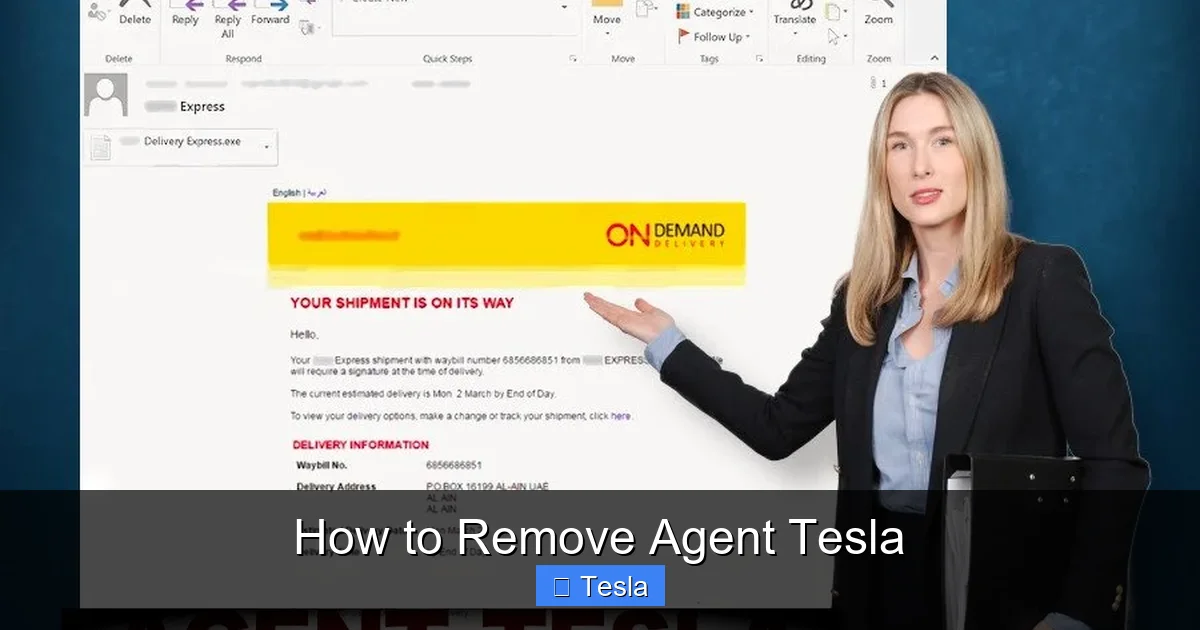
The most common infection vector is through phishing emails containing malicious attachments (often disguised as invoices, shipping notices, or documents) or links to compromised websites. Downloading pirated software (“cracks”) from unofficial sources is another major source.
Is Agent Tesla a virus or a Trojan?
Agent Tesla is classified as a Trojan horse, specifically a Remote Access Trojan (RAT) and a keylogger. Unlike a virus, it does not replicate itself to spread. Instead, it disguises itself as a legitimate file to trick users into installing it, then performs malicious actions in the background.
Can Windows Defender remove Agent Tesla?
Modern versions of Windows Defender (Microsoft Defender) have the capability to detect and remove many strains of Agent Tesla. However, due to the malware’s frequent updates and variants, relying solely on built-in protection is not recommended. Using a dedicated, reputable third-party antivirus or antimalware program in addition to Defender provides a much stronger, layered defense.
