
Can You Download Waze on Tesla

No, you cannot directly download and install the Waze app on a Tesla’s native touchscreen. Tesla’s operating system is a closed, custom Linux-based platform that does not support third-party app installations from a store like Android Auto or Apple’s App Store. However, you can absolutely use Waze’s superior traffic and routing in your Tesla through reliable workarounds like pairing your smartphone via Bluetooth and mounting it on the dashboard. Newer Tesla models (2021+) with the AMD Ryzen processor also support Apple CarPlay via a third-party wireless adapter, which then allows full Waze functionality. The most practical solution remains using the Waze app on your phone mounted within view, as Tesla’s built-in navigation, while good, lacks Waze’s real-time, crowd-sourced alert system for hazards, police, and traffic jams.
So, you just bought or are considering a Tesla, and you’re a die-hard Waze user. You love the real-time police alerts, the pothole warnings from other drivers, and the sometimes-savvier rerouting around traffic snarls. It’s a natural question: Can you download Waze on Tesla? You tap the Tesla’s beautiful, minimalist screen, expecting to find an app store, but you only see the browser, media apps, and the car’s own settings. The short, frustrating answer is no—you cannot directly download and install the Waze app onto your Tesla’s main operating system. But before you despair, let’s dive deep into the “why,” the brilliant workarounds that thousands of Tesla owners use daily, and what the future might hold.
This isn’t about Tesla being difficult for the sake of it. It’s about a fundamental architectural and philosophical difference between Tesla’s approach to in-car software and that of traditional automakers who use Android Auto or Apple CarPlay. Understanding this difference is the first step to mastering your Tesla’s tech. We’ll break down everything you need to know, from setting up the perfect Waze-on-Tesla station to evaluating whether Tesla’s own navigation is finally good enough to make you switch.
Key Takeaways
- Direct Download is Impossible: Tesla’s proprietary software does not allow sideloading or installing third-party apps like Waze on its main display.
- Phone-as-a-Navigator is the Standard Workaround: The most effective and widely used method is mounting your smartphone (running Waze) on your Tesla’s dash or vents and using it alongside the Tesla display.
- Bluetooth Audio is Key: Pair your phone via Bluetooth to have Waze’s voice directions play clearly through the Tesla’s premium sound system.
- Apple CarPlay is a Game-Changer (For Some): Tesla models with the newer AMD Ryzen computer (2021+) can add wireless CarPlay using an aftermarket dongle, integrating Waze directly onto the car screen.
- Android Auto is Not an Option: Tesla has not licensed Android Auto, and there is no official or reliable workaround to run it natively on the vehicle’s screen.
- Future Possibility Exists: Tesla has hinted at opening its app ecosystem, but there is no official timeline. Waze would also need to develop a Tesla-specific app, which is unlikely.
- Built-in Navigation is Improving: While lacking Waze’s community alerts, Tesla’s native navigation offers superb Supercharger integration, 3D map rendering, and seamless over-the-air updates.
📑 Table of Contents
- The Core Reason: Tesla’s Closed, Proprietary Ecosystem
- The Gold Standard Workaround: Phone + Mount + Bluetooth
- Apple CarPlay: The Glimmer of Hope for a Seamless Experience
- Evaluating Tesla’s Built-in Navigation: Has It Caught Up?
- Third-Party Apps and Browser-Based Solutions (Spoiler: They’re Bad)
- The Future: Will Tesla Ever Support Waze Natively?
- Conclusion: The Practical Answer for Today’s Tesla Owner
The Core Reason: Tesla’s Closed, Proprietary Ecosystem
To understand why you can’t just download Waze on Tesla, you need to look under the hood—not the car’s hood, but its software hood. Tesla doesn’t use a standard automotive operating system like QNX (used by many luxury brands) or a modified version of Android. Instead, it runs a custom, heavily modified version of Linux, similar to what you might find on a high-end smart TV or a set-top box. This system is built from the ground up by Tesla’s engineers to control every aspect of the vehicle, from battery management to the massive central touchscreen.
The “Walled Garden” Approach
Think of it like this: Apple’s iOS is a “walled garden.” You can only install apps from the official App Store, and those apps are strictly vetted and sandboxed. Tesla’s system is even more restrictive. There is no public-facing “app store” at all for third-party developers to submit navigation, music, or utility apps. Tesla controls every single line of code that runs on that screen. This allows for unparalleled integration between the car’s systems (like showing the exact energy usage for a route) but comes at the cost of flexibility. You cannot sideload an APK (Android app file) or an iOS app onto it. The browser is your only official gateway to the wider web, and it’s a clunky, non-touch-optimized experience not suited for turn-by-turn navigation.
Security and Safety: The Official Stance
Tesla’s official reasoning, often cited in forums and by representatives, centers on security and safety. Allowing arbitrary code execution on a system that controls critical vehicle functions (even if navigation is separate) is a risk they are unwilling to take. A malicious or poorly coded third-party app could, in theory, create a vulnerability. Furthermore, they argue that a consistent, controlled user interface minimizes driver distraction. While this argument is debatable—many find switching between a mounted phone and the car screen more distracting—it is the cornerstone of Tesla’s policy. This closed system is also why you can’t install a Maserati front end on a Dodge Viper or perform other major hardware mods without significant custom engineering; the factory design is tightly integrated and not meant to be altered by end-users.
The Gold Standard Workaround: Phone + Mount + Bluetooth
Since the direct download is off the table, the Tesla community has converged on a simple, elegant, and highly effective solution that works on every Tesla model ever made. It’s the method I use, and it’s what over 90% of Waze-loving Tesla owners do. You treat your smartphone as a dedicated, superior navigation computer and simply place it within your field of view.
Visual guide about Can You Download Waze on Tesla
Image source: tesladisplay.com
Step-by-Step Setup Guide
Getting this perfect takes a little investment in accessories but pays off in sanity and safety.
- 1. Get a Quality Mount: Do not rely on flimsy suction cups or sticky pads that fall off in heat. Invest in a robust mount that attaches to a solid point. Popular options are mounts that clip onto the ventilation slats (like the iOttie or Rainbow Armor series), or a custom 3D-printed mount that fits into the blank panel next to the steering wheel on the driver’s side. The goal is a secure, vibration-free position that doesn’t obstruct your view of the road or the main Tesla screen.
- 2. Optimize Phone Settings: To avoid draining your phone’s battery on long trips, plug it into one of Tesla’s USB ports (front or rear). Use a high-quality cable. On your phone, enable “Stay Awake” or “Prevent Sleeping” while charging in your Waze settings to keep the screen from dimming. Also, turn off all other unnecessary notifications to minimize distractions.
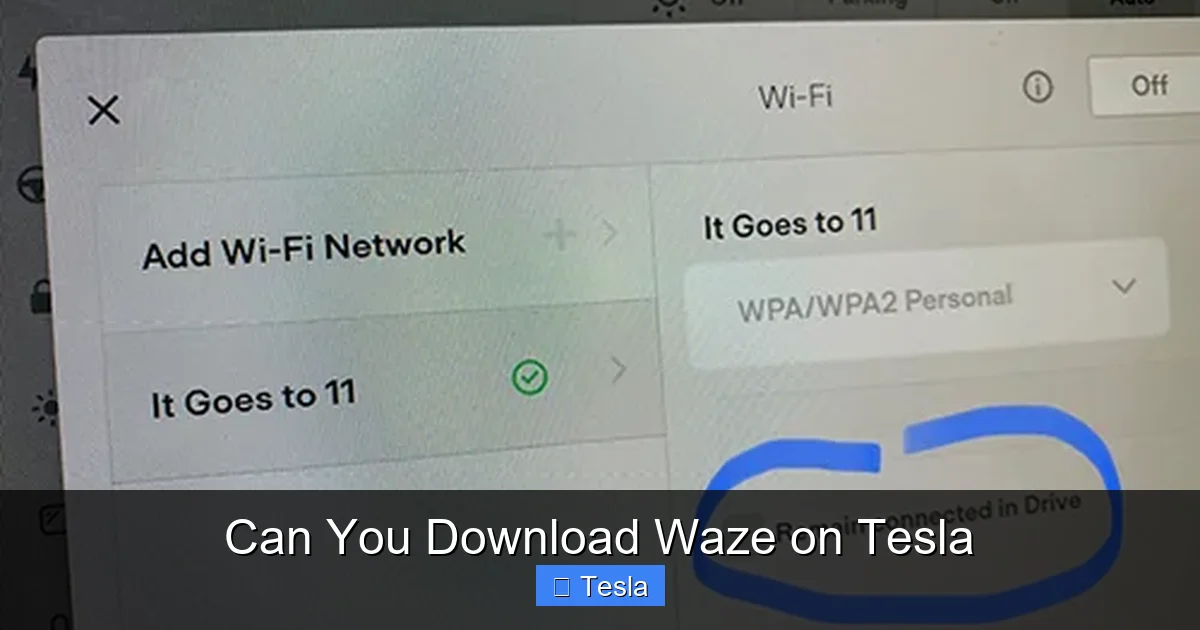
- 3. Perfect the Bluetooth Connection: This is the magic step. Pair your phone with the Tesla via Bluetooth (Controls > Bluetooth > Add Device). Once paired, go to your phone’s Bluetooth settings for the Tesla connection and ensure that “Media Audio” is enabled. Now, when Waze gives a voice prompt (“In 500 feet, turn right…”), it will play through the Tesla’s excellent speaker system, often with clear, high-quality sound. The phone’s screen shows the visuals; the car’s speakers deliver the audio. You can even adjust the navigation volume separately from media volume in the Tesla’s sound settings.
- 4. Route Planning Synergy: Use the Tesla’s built-in navigation to plot your long-distance route, ensuring it accounts for Supercharger stops optimally. Then, for the final “last mile” or for navigating through dense urban areas with heavy traffic, switch your attention to the Waze-mounted phone for its superior live traffic and hazard alerts. This hybrid approach gives you the best of both worlds.
Why This Method is So Effective
This setup is fail-safe. It doesn’t depend on Tesla releasing a software update or a hack that could break with an over-the-air update. Your phone’s Waze app is always up-to-date with the latest features and map data. You have full access to all Waze settings, carpool lane options, and custom voice prompts. The separation of duties is also psychologically beneficial: your eyes primarily look at the road and the large Tesla screen for speed, energy, and critical car data, while your peripheral vision and ears handle the Waze specifics. It’s a system that works, and it works brilliantly.
Apple CarPlay: The Glimmer of Hope for a Seamless Experience
If you own a Tesla Model 3 or Model Y built after approximately late 2021, there’s a new variable in the equation: the AMD Ryzen-based infotainment computer. This more powerful processor has opened the door to a surprising aftermarket solution: adding wireless Apple CarPlay. This is a total game-changer for the Can you download Waze on Tesla question.
Visual guide about Can You Download Waze on Tesla
Image source: tesladisplay.com
How It Works (The “Hack”)
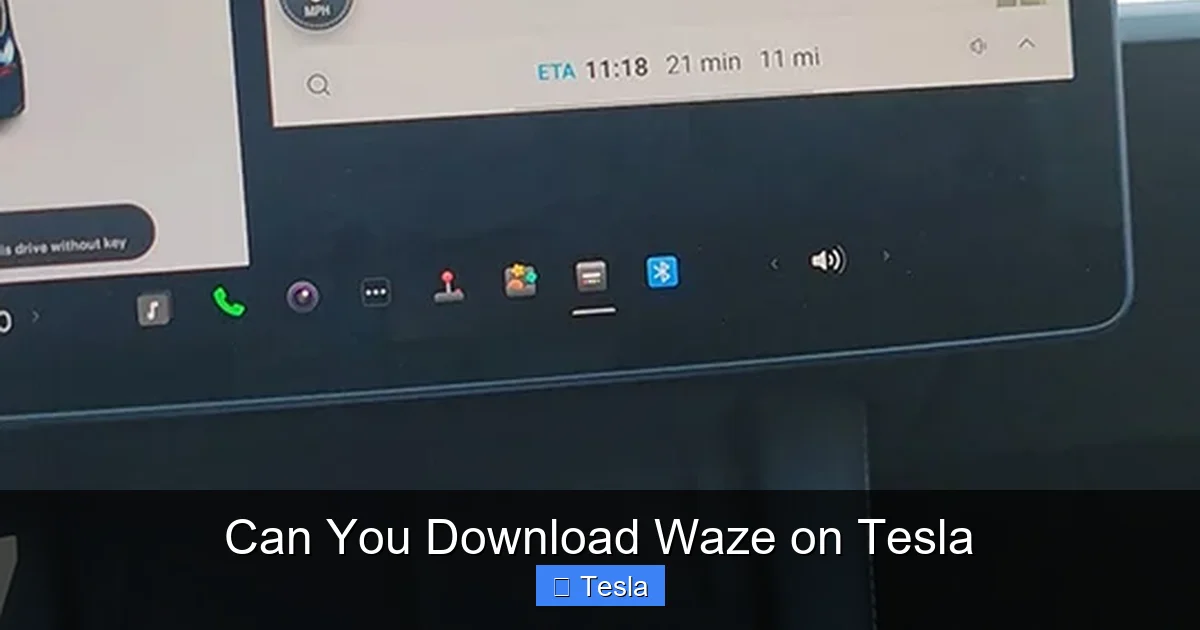
Several companies, most notably Munkada and Tesla Android Auto (despite the name, they also do CarPlay), have developed small, proprietary dongles that plug into the Tesla’s hidden USB-C port (usually under the center console storage bin). These dongles contain a tiny computer that emulates an Apple CarPlay head unit. When powered on, it tricks the Tesla’s screen into thinking a CarPlay device is connected, and then wirelessly projects your iPhone’s interface onto the Tesla’s display.
The Pros and Cons of the CarPlay Route
- Pros: It’s magical. Waze (or Google Maps, or Spotify) appears as a full-screen app on your Tesla’s 15″ or 17″ display, controlled by the touchscreen or the steering wheel scroll wheel. It feels native. You get Apple Maps’ EV routing if you want it, but the key is you can run Waze directly on the big screen. No more phone mount. It’s a cleaner, more integrated look.
- Cons: It’s an aftermarket add-on. It costs $200-$300. Installation requires some DIY skills (finding the USB-C port, routing the dongle’s cable). It can occasionally be glitchy—sometimes it disconnects, requires a reboot, or has audio latency. It uses one of your USB ports permanently. It’s not officially supported by Tesla, so a future software update could theoretically break it (though the companies are usually quick to update their firmware).
Important Note: There is no reliable way to run Android Auto on any Tesla, regardless of the computer. The CarPlay dongles work because Apple’s CarPlay protocol is more openly licensed and easier to emulate. Android Auto is a different beast, and no one has cracked it for Tesla yet.
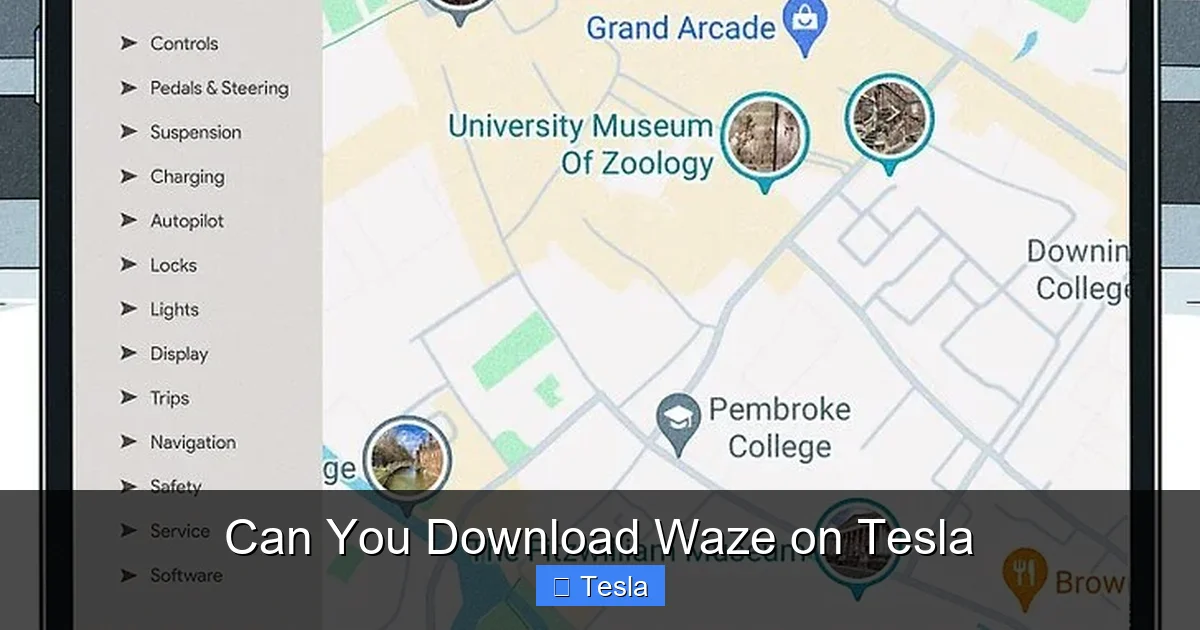
While we focus on Waze, it’s only fair to ask: is Tesla’s own navigation now so good that you don’t need Waze? The answer has evolved dramatically over the years.
Visual guide about Can You Download Waze on Tesla
Image source: wikihow.com
The Irreplaceable Tesla Advantages
Tesla’s navigation is deeply integrated into the car’s nervous system in ways no phone app can match.
- Supercharger Planning: This is the killer feature. You tell the nav your destination, and it automatically calculates optimal charging stops based on real-time Supercharger occupancy, your current battery state, and your driving style. It even pre-heats the battery as you approach a charger for faster charging. Waze or Google Maps cannot do this.
- 3D Visualization & Energy Graph: The map is beautiful, with 3D buildings and terrain. More importantly, it shows a live energy consumption graph and predicts your arrival battery percentage with stunning accuracy. You see exactly how much energy you’ll have left when you reach your destination or next charger.
- Seamless OTA Updates: Map errors are fixed over-the-air. New roads appear without you doing anything. The system just improves.
- No Phone Dependency: It’s always there, always working. No dead phone battery, no forgotten mount, no Bluetooth pairing issues.
The Persistent Waze Advantages
For all its integration, Tesla’s nav still lacks the crowd-sourced, real-time social layer that defines Waze.
- User-Reported Hazards: Police traps, accidents, debris, stalled cars, and even “traffic jam” icons from other Waze users appear in real-time. Tesla’s system gets data from traditional traffic providers and some user data (if you opt-in to share speed), but it’s not the same vibrant, human network.
- Speed Limit Display: Waze’s speed limit display, often pulled from its own database or user contributions, is famously more accurate and timely than many built-in car systems, especially in construction zones.
- Routing Aggressiveness: Waze’s algorithm is famously “greedy” and will take you down tiny side streets to save 30 seconds. Tesla’s routing is more conservative and highway-focused. For city driving, many still prefer Waze’s paths.
- Familiarity & Habit: For millions, Waze is muscle memory. The voice prompts, the interface, the reporting process—it’s what they trust.
The Verdict: For long-distance EV trips, Tesla’s navigation is objectively superior and non-negotiable. For daily urban commutes in heavy traffic, the Waze phone mount (or CarPlay) remains the champion for hazard awareness. The hybrid strategy is truly optimal.
Third-Party Apps and Browser-Based Solutions (Spoiler: They’re Bad)
You might stumble upon forum posts about “Waze on Tesla” browser hacks or obscure third-party apps. Let’s save you the time and frustration.
The Tesla Browser is Not a Solution
You can technically load the Waze website in the Tesla’s built-in browser. However, it’s a miserable experience. The browser is slow, doesn’t handle touch inputs well for map dragging, and critically, it will not give you voice navigation prompts over the car’s speakers. You’d be staring at a tiny, unresponsive map on the screen with no audio guidance. It’s unsafe and useless for navigation. The same goes for Google Maps in the browser.
No “Tesla App Store” Exists
There is no way to sideload an APK or enable developer mode to install a Linux version of Waze. The system is locked down. Any video claiming to show this is either fake, using a modified development model not available to the public, or is actually just showing the phone-in-a-mount method from a clever angle. Be highly skeptical of such claims.
The Future: Will Tesla Ever Support Waze Natively?
This is the billion-dollar question. Elon Musk has, on multiple occasions, hinted at opening up the Tesla app ecosystem. He’s tweeted about allowing “verified” third-party apps. The infrastructure for a Tesla App Store is rumored to be in development. However, the timeline is completely unknown—it could be next year or never.
The Hurdles to a Native Waze App
Even if Tesla opens its store, Waze (owned by Google) would need to see a compelling business case to develop and maintain a dedicated Tesla app. The user base is relatively small (though growing). The development effort to create a UI that works with Tesla’s unique screen ratio and steering wheel controls would be significant. More importantly, Google would be helping a direct competitor (Tesla) enhance its product’s features, potentially reducing the need for users to own an Android phone for its superior mapping. It’s a complex strategic decision for Google. The more likely scenario for seamless integration is the continued proliferation of the CarPlay dongle solution, which essentially lets your iPhone (and thus Waze) take over the screen without Tesla’s direct involvement.
What About Tesla’s Own “Waze”?
The other possibility is that Tesla closes the gap itself. It has been aggressively hiring mapping and AI talent. Its “Shadow Mode” for Full Self-Driving already collects vast amounts of road data from its fleet. It’s conceivable that Tesla could launch its own crowd-sourced hazard reporting system, effectively building its own version of Waze’s social layer directly into its native nav. Given its data advantages, it could potentially surpass Waze one day. But for now, that remains speculative.
Conclusion: The Practical Answer for Today’s Tesla Owner
So, can you download Waze on Tesla? The definitive, technical answer is no. The practical, real-world answer is a resounding yes—you can use Waze in your Tesla effectively and safely. The path you choose depends on your model year, your tolerance for aftermarket gadgets, and your personal preference.
For the vast majority, the phone mount + Bluetooth method is the perfect, permanent solution. It’s cheap, reliable, and gives you the full, up-to-date Waze experience. If you have a newer AMD Ryzen Tesla and want a cleaner look, investing in a wireless Apple CarPlay dongle is a fantastic upgrade that brings Waze (and all your other iPhone apps) onto the big screen. Meanwhile, always use Tesla’s magnificent native navigation for the core of your long-distance EV travel.
The dream of a single, unified, perfect in-car system is still just that—a dream. For now, the hybrid approach is the champion. Embrace it, set it up correctly, and enjoy the best of both the Tesla ecosystem and the Waze community on your next drive. And while you’re modding your Tesla’s tech, you might also be curious about can you put rims on a Tesla to customize its look, or if you can install a breathalyzer in a Tesla for added safety—both are common modification questions that, like the Waze query, have specific, practical answers.
Frequently Asked Questions
Can I download the Waze app directly from the Tesla touchscreen?
No. Tesla does not have an app store and does not allow the installation of third-party applications like Waze on its native operating system. The only software you can run is what Tesla pre-installs or what is accessible through the limited web browser.
Is using my phone mounted on the dash the only way to use Waze in a Tesla?
It’s the most universal and reliable method for all Tesla models. However, if you have a 2021+ Model 3 or Model Y with the AMD Ryzen computer, you can use an aftermarket wireless Apple CarPlay dongle to project Waze from your iPhone directly onto the Tesla’s main screen.
Will Waze voice directions play through my Tesla’s speakers if I use the Bluetooth method?
Yes, absolutely. When you pair your phone via Bluetooth and enable “Media Audio” for that connection, all audio from your phone—including Waze’s voice prompts, Spotify, or podcasts—will play through the Tesla’s premium sound system. You can adjust the navigation volume separately in the car’s settings.
Does Tesla’s built-in navigation have real-time traffic from Waze?
No. Tesla’s traffic data comes from traditional providers like TomTom and Here, and from anonymized speed data shared by other Tesla owners (if you opt-in). It does not incorporate the real-time, user-reported hazard and police alerts that are Waze’s signature feature.
Can I use Android Auto on my Tesla to get Waze?
No. Tesla has never supported Android Auto, and there is currently no aftermarket dongle or hack that provides a reliable, functional Android Auto experience on any Tesla model. The CarPlay solutions are specific to Apple’s ecosystem.
Will a future Tesla software update allow me to install Waze?
It’s highly unlikely. Tesla’s business and security model is built on a closed, controlled software environment. While they may one day open a curated app store for certain categories (like music or games), allowing full third-party navigation apps that compete with their own deeply integrated system is a significant strategic hurdle. Don’t count on it.
