
How to Turn Off Tesla Radio

Turning off the radio in your Tesla is a straightforward process done entirely through the central touchscreen or with voice commands. Unlike traditional cars, there is no physical power button for the audio system. You can select ‘Off’ as an audio source to stop all sound or use the mute function for temporary silence. The system’s software-based design means controls are always accessible but can sometimes require a reboot if unresponsive.
So, you’re cruising in your Tesla, enjoying the serene electric drive, and suddenly you need a moment of quiet. Maybe you’re on an important call, or perhaps you just want to hear the road and the world around you. Turning off the radio in a Tesla isn’t like flipping a switch in an older car. There’s no big, satisfying knob to twist. Instead, you’re interacting with one of the most advanced computer systems on four wheels. It’s simple once you know where to look, but that first time can be a little puzzling. Don’t worry—by the end of this guide, you’ll be a master of your Tesla’s audio environment, able to command silence with a tap or a word.
This article will walk you through every method, from the basic touchscreen taps to voice commands and even what to do if things go sideways. We’ll also explore why Tesla did it this way and how it differs from the cars you might be used to. Whether you have a Model S, Model 3, Model X, or Model Y, the principles are the same across all modern Tesla vehicles. Let’s dive in and demystify your car’s sound system.
Key Takeaways
- Primary Method: The main way to turn off the Tesla radio is by tapping the audio icon on the touchscreen and selecting ‘Off’ as the audio source.
- Voice Control: You can also use the voice command button and say “turn off radio” or “mute audio” for hands-free control.
- Temporary Mute: For quick silence, press the steering wheel mute button or use the volume slider to zero, which pauses audio without changing the source.
- No Physical Button: Tesla’s design integrates everything into the screen, so there is no dedicated hardware power switch for the radio.
- System Reboot: If the audio interface freezes, a soft reboot of the touchscreen (holding both scroll wheels) often resolves the issue.
- Source Matters: ‘Turning off’ the radio stops all audio, while muting only lowers volume; Bluetooth or other sources may still show as active.
📑 Table of Contents
- Understanding Tesla’s Unique Audio Interface
- Method 1: Turning Off the Radio via the Touchscreen
- Method 2: Using Voice Commands for Hands-Free Control
- Method 3: The Quick Mute – Temporary Silence Solutions
- How Tesla’s System Differs from Traditional Car Radios
- Troubleshooting: What to Do If the Radio Won’t Turn Off
- Advanced Tips and Best Practices for Audio Management
- Conclusion: Mastering Your Tesla’s Soundscape
Understanding Tesla’s Unique Audio Interface
Before we get to the “how,” it helps to understand the “why.” Tesla’s approach to the radio and all infotainment is fundamentally different from traditional automakers. Everything lives on the massive central touchscreen—a single, powerful computer that controls not just audio, but climate, navigation, and vehicle settings. There are no physical buttons for the radio because, in Tesla’s philosophy, software is more flexible and updatable. This means the interface can change with over-the-air updates, and features can be added or refined long after you’ve bought the car.
The Central Touchscreen: Your Command Center
The 15-inch (or 17-inch in older Model S/X) display is the heart of the operation. At the bottom of the screen, you’ll always find a dock or taskbar with core app icons. One of these is always the music or media player—usually represented by a musical note or a “Media” label. Tapping this opens the full audio interface. This is your starting point for any audio control, including turning everything off. Because it’s a software layer, the “radio” isn’t a single device; it’s a function that can play from multiple sources like FM/HD radio (where available), streaming services (Spotify, Tidal), Bluetooth audio from your phone, or even USB inputs.
Why There’s No “Power” Button
In a conventional car, the radio often has a dedicated power button that cuts all sound immediately. In a Tesla, the concept of “off” is handled at the software level. The audio system is always technically powered as long as the car is awake (which is almost always when you’re in it or near it). The “Off” function is really just a command to stop playback and silence all outputs. This design allows for seamless transitions—like pausing your podcast when you get a phone call and resuming it automatically afterward. It’s a smarter, more integrated system, but it does mean the method to silence it is a little less intuitive at first glance.
Method 1: Turning Off the Radio via the Touchscreen
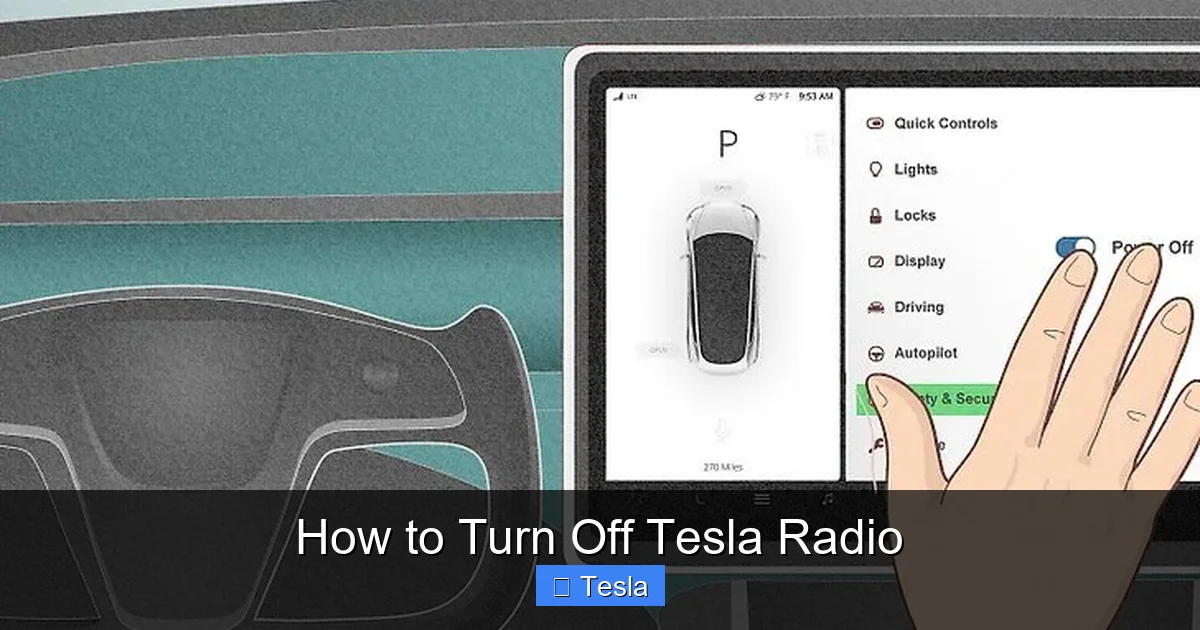
This is the most direct and universal method. It works regardless of what audio source you’re using—FM radio, Spotify, or Bluetooth. The goal is to navigate to the media player and select the ‘Off’ source. It might feel counterintuitive to select “Off” as a “source,” but that’s exactly how Tesla’s software architecture works.
Visual guide about How to Turn Off Tesla Radio
Image source: wikihow.com
Step-by-Step Touchscreen Navigation
First, make sure your car is on and the touchscreen is active. Look at the bottom of the screen for the app dock. You should see an icon for “Media” or a musical note. Tap it. This opens the currently active media player. If you were listening to the radio, you’ll see the radio interface with station information, frequency, and playback controls like play/pause, skip, and volume. At the top of this media window, you’ll see the current source highlighted—it might say “FM,” “Spotify,” “Bluetooth,” etc.
Tap on that source name (e.g., “FM”). This action opens a list or menu of all available audio sources. Scroll through this list. You’ll see options for your paired phones, streaming apps, and at the very bottom, you’ll find an option simply labeled “Off”. Tap “Off.” Instantly, the audio will cease. The media player will still be open, but it will show that the source is Off, and no sound will emit from the speakers. This is the true “turn off” state. To resume listening, just tap any other source like “FM” or “Spotify” again.
Visual Confirmation and What to Expect
After you tap “Off,” look for visual cues. The volume slider will usually show a muted state (often with a line through the speaker icon). The now-playing information will clear or show a placeholder. It’s important to note that selecting “Off” does not close the media app; it just changes its source to a silent one. This means if you tap the play button, nothing will happen—which is exactly what you want. This method is foolproof and works every single time, making it the recommended approach for a complete shutdown of audio.
Method 2: Using Voice Commands for Hands-Free Control
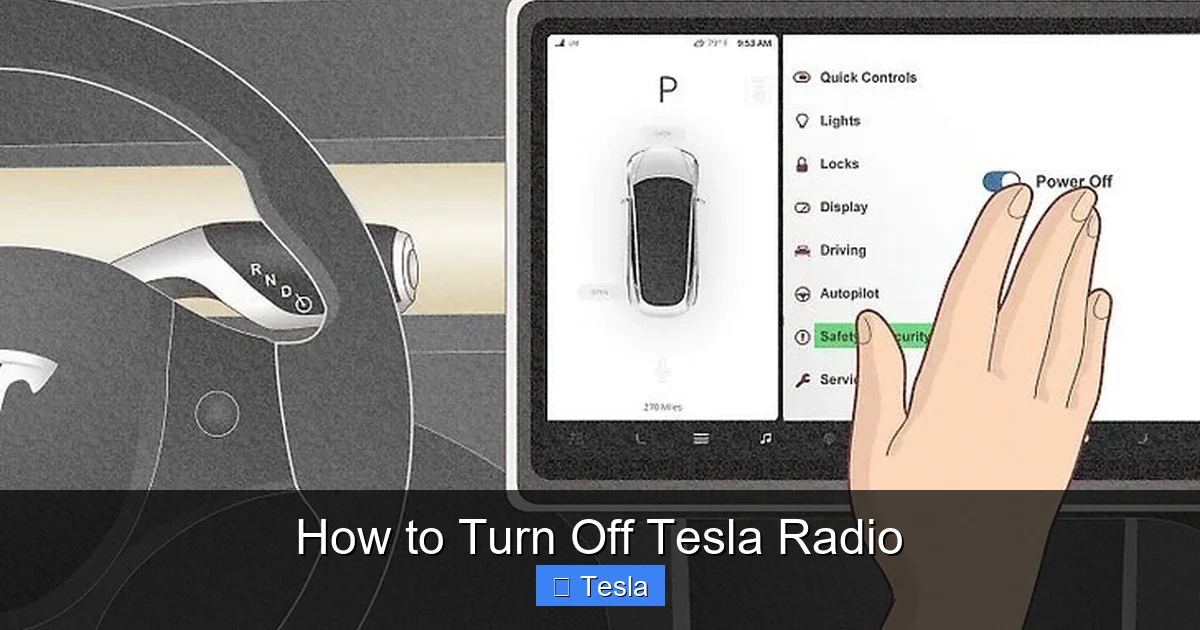
Your Tesla comes equipped with a very capable voice control system. This is arguably the fastest way to turn off the radio if your hands are on the wheel and your eyes are on the road. It’s a true safety feature for making quick adjustments without looking away.
Visual guide about How to Turn Off Tesla Radio
Image source: wikihow.com
Initiating the Voice Command System
On the right-side steering wheel stalk (the one you normally use for turn signals and cruise control), there is a button with a microphone icon. Press and hold this button. You’ll hear a chime, and a microphone icon will appear on the touchscreen, indicating the car is listening. Now, speak your command clearly.
The Exact Phrases to Use
You have a couple of effective phrases. The most direct is: “Turn off the radio.” The Tesla voice system is smart and understands natural language. It will typically respond with a confirmation like “Turning off media” and the audio will stop immediately. Alternatively, you can say “Mute audio” or “Mute the sound.” This will lower the volume to zero but keep the current source active. The difference is subtle: “Turn off” changes the source to Off, while “Mute” just sets volume to zero. For a complete stop, “turn off” is better. If you just need a quick silence for a few seconds, “mute” is perfect. To restore sound after a mute, you can say “unmute audio” or simply adjust the volume with the wheel or screen.
Why Voice Commands Are a Game-Changer
This method is not just convenient; it’s a major safety advantage. Fumbling with a touchscreen while driving, even at a stoplight, is risky. With voice, you keep your hands at 9-and-3 and your eyes forward. The system works reliably in most driving conditions, though extreme cabin noise might require you to speak a bit louder. It’s also a great way to impress passengers with your car’s tech prowess. Practice saying “Turn off the radio” a few times to get the cadence right, and you’ll use it instinctively.
Method 3: The Quick Mute – Temporary Silence Solutions
Sometimes you don’t want to fully turn off the radio; you just need a quick moment of quiet. Maybe you’re asking for directions or having a brief conversation. For these instances, Tesla provides even faster methods than navigating menus or using voice.
Visual guide about How to Turn Off Tesla Radio
Image source: wikihow.com
The Steering Wheel Mute Button
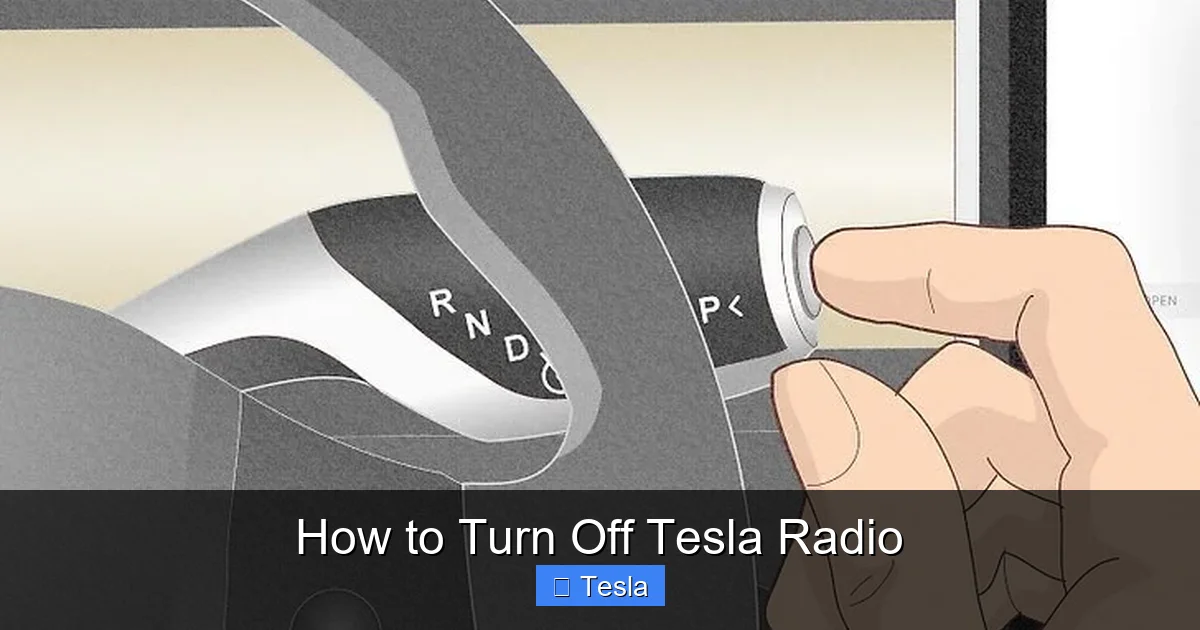
This is the fastest button on your steering wheel for audio control. On the left-side steering wheel stalk (the one with the cruise control buttons), look for a button with a speaker icon and a line through it—the universal symbol for mute. Press this button once. The audio will instantly drop to zero. The source remains active (you’ll still see the radio station or song on the screen), but it’s silent. Press the button again to restore the previous volume level. This is perfect for temporary pauses. It’s a tactile, no-look solution that works instantly. If your steering wheel doesn’t have a dedicated mute button (some early models or configurations might differ), this function is often combined with the volume up/down buttons—a long press on the volume down button might mute, but check your owner’s manual for your specific model year.
Using the Touchscreen Volume Slider for Instant Mute
Even without leaving the current screen, you can mute. When the media player is open, you’ll see a large volume slider on the right side of the screen (or sometimes at the bottom). Drag this slider all the way to the left, to the very minimum. As you approach zero, the system will often show a mute icon. Dragging it to the absolute leftmost position typically engages mute. This is slightly less convenient than the steering wheel button but is always available on the screen. The key difference from the “Off” source is that the audio engine is still running in the background, ready to blast back at the last set volume as soon as you adjust the slider or if an incoming call prompts it.
How Tesla’s System Differs from Traditional Car Radios
If you’re coming from a car with a physical radio knob and power button, Tesla’s method can feel alien. Understanding these differences helps manage expectations and prevents frustration.
No Physical Power Switch Exists
You will not find a button that says “PWR” or a knob you can turn to click the radio off. The entire audio system is a software application running on the main vehicle computer (MCU). Its state is saved and managed like an app on your smartphone. You “close” it by changing its state to “Off,” not by cutting power. This is why the car doesn’t have a “radio memory” feature in the traditional sense—when you select “Off,” it forgets the last station or playlist, and when you select “FM” again, it may default to a preset or the last station you were on, depending on the software version.
Always-On Connectivity and Its Implications
Because the infotainment system is always on (it wakes up when you approach with the key fob or open a door), the radio *could* be on when you get in, depending on your last state. If you turned the car off with the radio playing, it might resume when you start the car again. This is a software setting that can sometimes be adjusted in the vehicle settings menu under “Safety & Security” or “Driver Profile,” but it’s not always user-configurable. The always-on nature also means that turning it “off” is a software command, not a hardware power cut. This is why, in rare cases of a system freeze, the radio might seem stuck on—the software isn’t responding to your “Off” command, necessitating a reboot.
Integration with Other Systems
In a Tesla, the radio isn’t isolated. It’s tied to your driver profile, your phone key, and even the climate system. For example, if you’re listening to a podcast and you park and get out, the audio might continue for a bit if you have “Keep Climate On” or “Media Player” settings enabled for Dog Mode or Camp Mode. Turning off the radio manually is still required to stop that sound. Also, phone calls automatically pause the radio, demonstrating the deep integration. This interconnectedness is a hallmark of modern EVs but takes some getting used to.
Troubleshooting: What to Do If the Radio Won’t Turn Off
While rare, you might encounter a situation where tapping “Off” or using voice commands doesn’t silence the audio. The screen might be responsive, but the sound keeps playing. Don’t panic; this is usually a minor software glitch that’s easy to fix.
Performing a Soft Reboot of the Touchscreen
The first and most effective step is to restart the main touchscreen. This is like force-quitting and relaunching an app on your phone. It won’t harm your vehicle or erase any data. Here’s how: Press and hold both scroll buttons on the steering wheel (the two buttons you use to scroll through menus on the screen) simultaneously. Hold them for about 10-15 seconds. You will see the Tesla “T” logo appear on the screen, and it will go black. After a few moments, the screen will reboot, showing the Tesla logo again and then returning to the main interface. Once the screen is back, try turning off the radio again using your preferred method. This simple reboot resolves the vast majority of temporary software hiccups, including unresponsive audio controls.
Check the Active Source and Volume
Sometimes, what you think is the “radio” might actually be a different source. For instance, if your phone is connected via Bluetooth and a music app is playing, you might be muting the wrong thing. Make sure you’ve selected the correct source tab in the media player. Also, verify the volume slider isn’t just very low but actually muted. A tiny volume can sound like it’s off in a quiet car. Additionally, check if any other audio source is active, like a navigation prompt or a security alert. These system sounds can occur even if the main media is off.
When to Contact Tesla Service
If a soft reboot doesn’t work, and the radio is stuck on at full volume (a very rare but alarming scenario), you may need to perform a harder reset. This involves powering down the entire vehicle: go to Controls > Safety > Power Off and wait a few minutes before opening the door to wake the car. If the problem persists after both a soft and hard reboot, it could indicate a deeper software bug or, extremely rarely, a hardware issue with the audio unit. In this case, you should schedule a service appointment through the Tesla app. Be sure to note the software version (found under Controls > Software) and describe the steps you’ve already taken. Often, a service technician can push a remote software update or diagnose a faulty component.
Advanced Tips and Best Practices for Audio Management
Now that you know the basics, let’s level up your Tesla audio game. These tips will help you manage sound more effectively and avoid common pitfalls.
Creating a “Silent” Driver Profile
If you always want your car to start with the audio off, you can set this preference in your driver profile. Go to Controls > Driver Profile (select your profile). Look for an option related to “Media Player” or “Audio.” In some software versions, there is a setting called “Remember last media source” or “Auto-play media.” If you turn this off, the car will not automatically resume playing audio when you start it. Instead, it will start with the media source set to “Off” by default. Combine this with always using the “Off” source when you park, and you’ll ensure a silent start every time. This is great for commuters who don’t want sudden blast of music when they begin their drive.
Using “Do Not Disturb” for Calls and Navigation
When you’re on a phone call via Bluetooth, Tesla usually does a good job of ducking or pausing the radio. But if you want to be absolutely sure no media plays over your conversation, manually select “Off” or mute before the call. Similarly, for navigation, you can adjust the volume of voice prompts separately from media volume. Go to Controls > Sound and adjust the “Navigation Volume” slider. You can set this low or high independently, so your directions are clear even if your music is playing quietly. This separation is a powerful feature for customizing your audio environment.
Managing Streaming Services and Data Usage
Remember that turning off the radio also stops data consumption from streaming apps like Spotify or Tidal. If you’re concerned about your Tesla’s cellular data usage (or using a personal hotspot), using the “Off” source is an easy way to guarantee no background streaming. Some users have reported that even with the source on “Off,” a very small amount of data might be used for system checks, but it’s negligible compared to active streaming. For complete data peace of mind, you can also disable cellular data for media apps in Settings > Network > Data Usage, but that’s a broader setting beyond just turning off the sound.
Conclusion: Mastering Your Tesla’s Soundscape
Turning off the radio in your Tesla is a simple task once you understand the software-driven design. You have three primary tools: the touchscreen (tap Media > Source > Off), voice commands (hold the mic button and say “turn off radio”), and the steering wheel mute button for quick pauses. The absence of a physical power button is a deliberate design choice that reflects Tesla’s vision of a unified, updatable digital cockpit. While it can be a minor adjustment, the flexibility it offers—like seamless source switching and integration with calls and navigation—ultimately provides a more intuitive and connected experience once you’re accustomed to it.
If you ever encounter a stuck audio system, remember the soft reboot trick: hold both steering wheel scroll buttons. And consider tweaking your driver profile to prevent auto-play if you prefer a silent start. Your Tesla’s audio system is a powerful piece of tech, and taking a few minutes to master these controls will make every drive more peaceful and personalized. So go ahead, tap that screen, say those words, and enjoy the quiet electric moment you’ve earned. Your Tesla is ready to be as loud or as quiet as you decide.
Frequently Asked Questions
Can I turn off the Tesla radio while the car is off?
No, the infotainment system and radio are only active when the car is powered on (either in “Drive,” “Park,” or “Accessory” mode). When the car is completely off and you’re not in it, the touchscreen is dark and no audio plays. You must have the car awake to control the radio.
What’s the difference between muting and turning off the radio?
Muting (via steering wheel button or volume slider to zero) lowers volume to silence but keeps the current audio source active and loaded. Turning off (selecting “Off” as the source) stops playback entirely and resets the media player to a blank state. Muting is for temporary silence; turning off is for a complete stop.
Does turning off the radio save battery?
The energy savings are negligible. The infotainment system’s power draw is relatively small and constant when the car is on, whether audio is playing or not. The main battery savings come from reducing climate control usage or driving more efficiently, not from turning off the radio.
Will my phone’s Bluetooth music still play if I turn off the Tesla radio?
Yes, if your phone is connected and a music app is playing, the audio will continue to stream to the car. You must either pause/stop the music on your phone or use the Tesla’s “Off” source command to interrupt the Bluetooth audio stream. Simply muting the Tesla volume only silences the car’s speakers; the phone will keep playing.
Do I need a Tesla service update to fix a radio that won’t turn off?
Not usually. First, perform a soft reboot by holding both steering wheel scroll buttons. If that fails, try a full power cycle via Controls > Safety > Power Off. If the problem persists after both resets, it may indicate a software bug that could be fixed by a pending over-the-air update, or less commonly, a hardware issue requiring service.
Can I assign a shortcut to turn off the radio?
Currently, Tesla does not support user-customizable hardware buttons or touchscreen shortcuts for specific functions like “Turn Off Radio.” You must use the standard methods: touchscreen navigation, voice command, or the steering wheel mute button. Some drivers use the “Favorites” bar on the touchscreen to pin the Media app for quick access, but the “Off” source still requires one extra tap.
