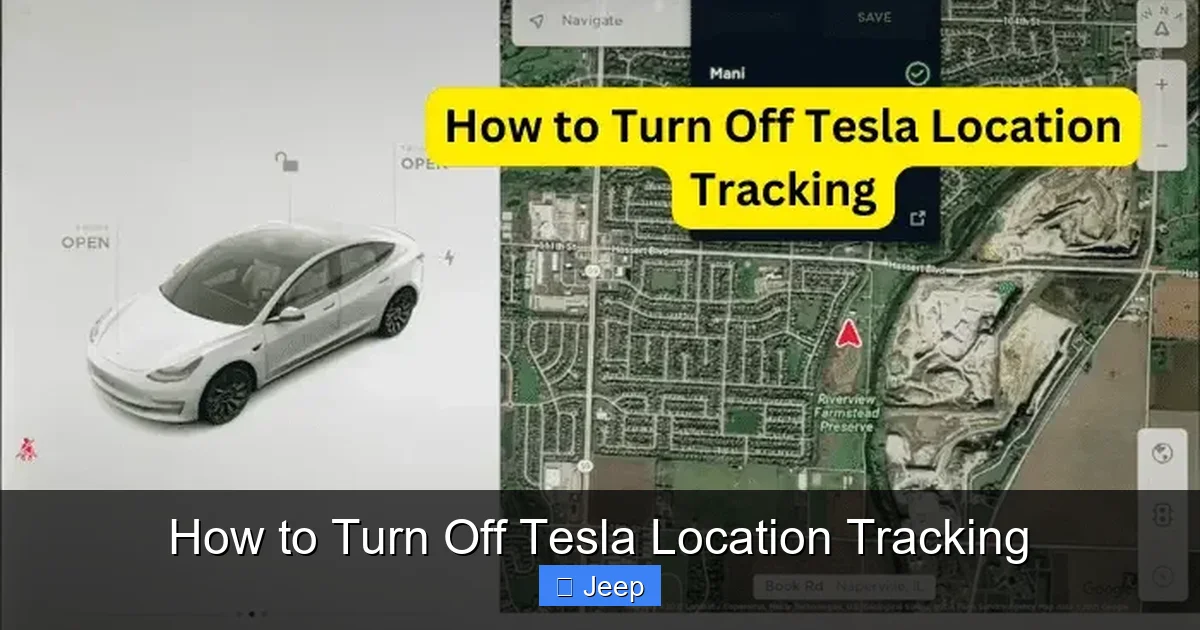
How to Turn Off Tesla Location Tracking

Contents
- 1 Key Takeaways
- 2 📑 Table of Contents
- 3 Understanding Tesla’s Location Tracking Ecosystem
- 4 Method 1: Disabling Tracking From Inside Your Tesla
- 5 Method 2: Controlling the Tesla Smartphone App
- 6 Method 3: Adjusting Your Tesla Account Privacy Settings
- 7 Important Considerations and Inherent Limitations
- 8 Step-by-Step Checklist for Maximum Privacy
- 9 The Bigger Picture: Privacy in the Age of the Connected Car
- 10 Conclusion: Taking Control of Your Tesla’s Digital Footprint
- 11 Frequently Asked Questions


Turning off Tesla location tracking involves managing three main areas: the vehicle’s internal settings, the Tesla smartphone app permissions, and your Tesla account privacy preferences. While you can significantly reduce location data collection, some limited tracking for safety and service purposes may persist. This guide provides detailed, step-by-step instructions for each method to help you maximize your privacy.
Key Takeaways
- Multiple Tracking Systems: Tesla vehicles use GPS, cellular networks, and the smartphone app to determine and share location data for various features.
- In-Car Settings are Primary: The most direct control is through the vehicle’s touchscreen under Safety & Security settings, where you can disable “Allow Mobile Access” and “Location Tracking.”
- App Permissions Matter: On your phone’s OS level, you must revoke the Tesla app’s location permission (Always or While Using) to prevent it from sending your phone’s location.
- Account Controls Add a Layer: Your Tesla account profile has privacy toggles that can limit data sharing for marketing and analytics, though core safety features may still require minimal location data.
- Complete “Off” is Complex: Due to safety systems (like emergency services), firmware updates, and cellular connectivity, a 100% permanent block is often not feasible without physically removing modules.
- Trade-offs Exist: Disabling location tracking will turn off Sentry Mode, remote climate control, honk/horn, flash lights, and other convenience features reliant on connectivity.
- Regular Review is Key: Tesla updates can change menu paths and default settings, so periodically check your vehicle and app settings after software updates.
📑 Table of Contents
- Understanding Tesla’s Location Tracking Ecosystem
- Method 1: Disabling Tracking From Inside Your Tesla
- Method 2: Controlling the Tesla Smartphone App
- Method 3: Adjusting Your Tesla Account Privacy Settings
- Important Considerations and Inherent Limitations
- Step-by-Step Checklist for Maximum Privacy
- The Bigger Picture: Privacy in the Age of the Connected Car
- Conclusion: Taking Control of Your Tesla’s Digital Footprint
Understanding Tesla’s Location Tracking Ecosystem
If you own a Tesla, you own one of the most connected cars on the planet. This connectivity powers amazing features like real-time navigation, over-the-air updates, and the legendary Sentry Mode. But this hyper-connectivity comes with a trade-off: your vehicle constantly knows where it is, and Tesla’s servers often know where your car is too. For many owners, the question isn’t if the car is tracked, but how to turn off Tesla location tracking to reclaim their privacy.
The first step to taking control is understanding how Tesla tracks your vehicle. It’s not a single switch but a combination of systems working together. Your Tesla has a built-in GPS module for navigation. It has a cellular modem (like a smartphone) that connects to Tesla’s network for software updates, remote app commands, and diagnostics. And critically, the Tesla app on your phone also reports your phone’s location, which Tesla can use to approximate the car’s location or your proximity to it. To effectively disable tracking, you need to address each of these data streams. This is more complex than simply turning off a “tracking” button, as some data collection is baked into essential safety and service functions.
The Three Pillars of Location Data
Think of Tesla’s location data collection in three layers. First, the vehicle itself uses GPS for navigation and may store trip history locally. Second, the cellular connection is the highway that sends data from your car to Tesla. Third, the mobile app acts as a remote control and a personal location beacon. Disabling tracking means putting up roadblocks on each of these pillars. It’s a process of elimination and setting management rather than a single action. Many users are surprised to find that even after changing car settings, their phone’s app permissions can continue to leak location information. A comprehensive approach is mandatory for true privacy.
Method 1: Disabling Tracking From Inside Your Tesla
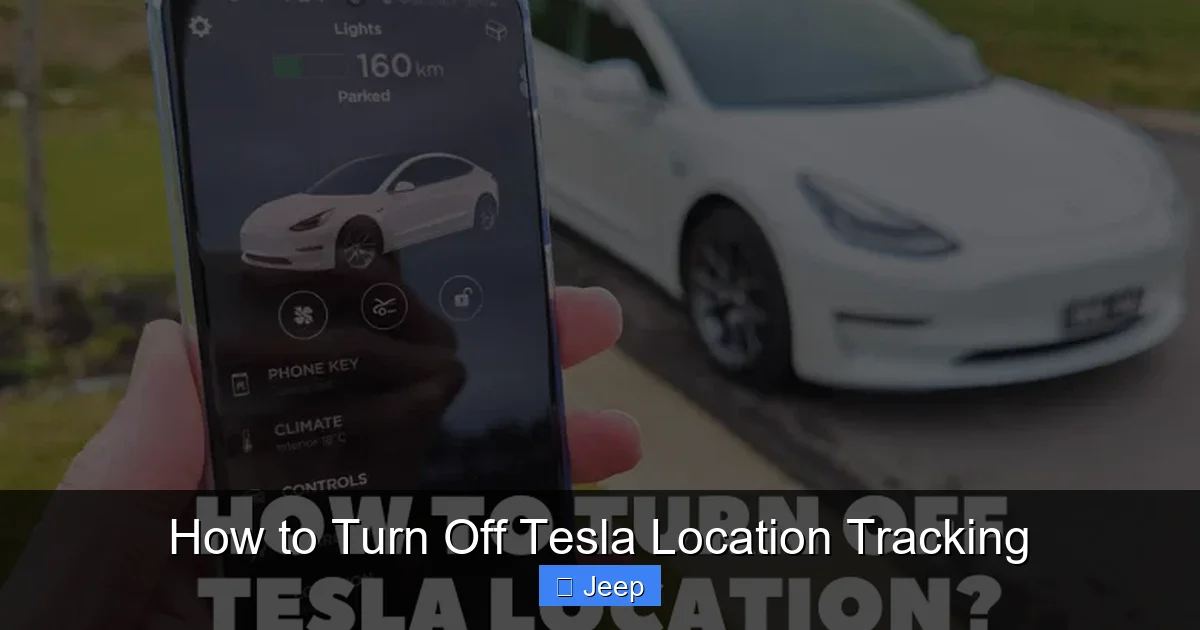
The most straightforward place to start is inside your car, at the large central touchscreen. This controls the vehicle’s internal willingness to share its location via the cellular modem. The primary setting here is often called “Allow Mobile Access” or “Mobile App Access.” When this is turned OFF, your car will no longer accept remote commands from the Tesla app—no honking, flashing, pre-conditioning, or checking charge status from your phone. It also severs the constant ping from the car to Tesla’s servers that reports its precise location and status. This is the single most effective step for stopping Tesla from actively tracking your car’s parked location.
Visual guide about How to Turn Off Tesla Location Tracking
Image source: mechanictesla.com
To find this, navigate to Safety & Security on the touchscreen. The exact menu path can vary slightly by model and software version (e.g., Controls > Safety & Security > Allow Mobile Access). Toggle it off. You will likely see a warning that this will disable all app-based remote functions. Confirm you understand. This action does not affect your car’s ability to use GPS for onboard navigation; you can still plug in a destination and get turn-by-turn directions. It only stops the car from reporting its location outward to Tesla’s servers and from receiving remote commands.
What This Setting Actually Does (And Doesn’t Do)
Turning off “Allow Mobile Access” is a powerful privacy tool. It means Tesla cannot see your car’s location in real-time from their back-end systems for that specific vehicle. It also means you cannot use the app to find your car in a crowded parking lot. However, it’s crucial to understand what this does not stop. Your car’s built-in navigation system still uses GPS, but that data typically stays on the car’s local system for route calculation and is not continuously uploaded. Furthermore, this setting does not stop the car from making emergency calls (like automatic crash notifications) if an airbag deploys, as that is a mandated safety feature that uses the cellular connection. It also doesn’t prevent Tesla from receiving diagnostic data during a service visit or a scheduled update if the car connects to Wi-Fi.
The “Location Services” Toggle
In some software versions, particularly newer ones, there is a separate toggle explicitly named “Location Services” or “Share Location Data” within the Privacy or Safety menu. This is a more granular setting that might allow you to keep Mobile Access on (for remote features) while blocking the sharing of your vehicle’s precise location for other purposes like traffic prediction or fleet learning. If you see this option, it’s worth exploring. Disabling it should stop the car from sending its GPS coordinates to Tesla for non-essential purposes, but it’s not always clear what “non-essential” encompasses. Your safest bet for maximum privacy is to disable both “Allow Mobile Access” and any explicit location sharing toggle. Always read the on-screen descriptions carefully, as Tesla occasionally renames these options.
Method 2: Controlling the Tesla Smartphone App
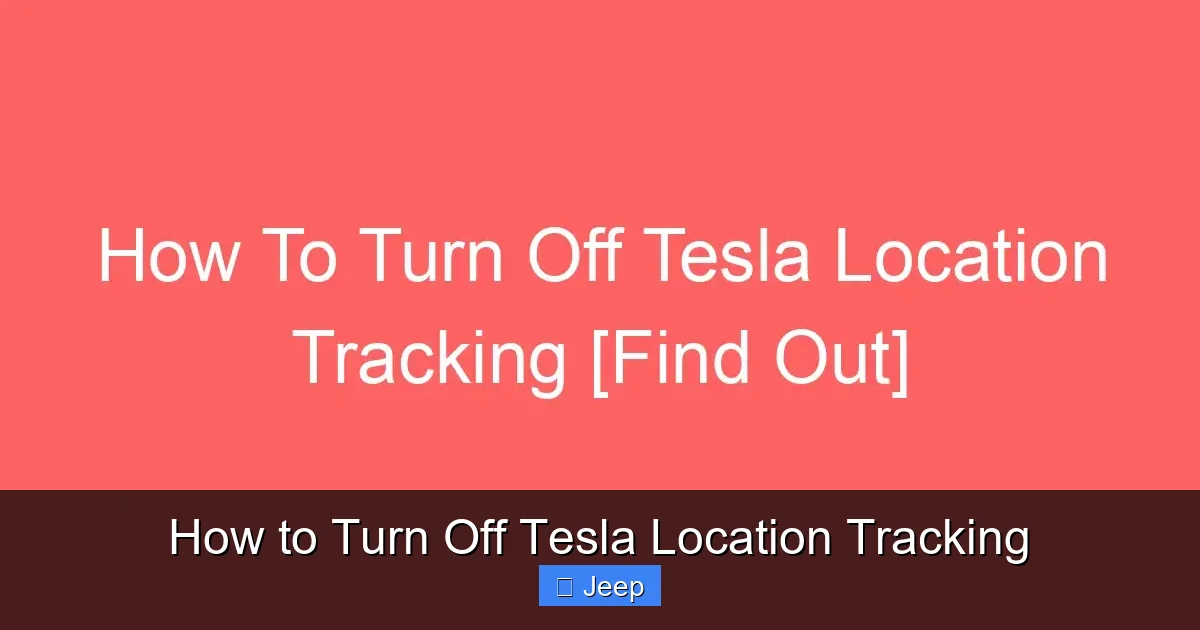
Even if you’ve disabled mobile access from the car, your phone’s Tesla app itself might be a source of location data. The app, by default, often requests “Always” or “While Using” location permission from your phone’s operating system (iOS or Android). This allows the app to see your phone’s location, which Tesla can use to infer your location and, by extension, potentially your car’s location if they are near each other. To close this loop, you must revoke the Tesla app’s location permission at the operating system level.
Visual guide about How to Turn Off Tesla Location Tracking
Image source: automotiveglory.com
For iPhone (iOS): Go to Settings > Tesla. Under “Allow Tesla to Access,” you will see “Location.” Tap it and select “Never”. This is the most restrictive and private option. You can also choose “While Using the App,” but “Never” is the only way to guarantee the app isn’t getting location data in the background. Be aware that setting this to “Never” will break some app features that rely on your phone’s location, like automatically showing the nearest Supercharger or finding your car via the “Summon” feature if you’re on foot.
For Android: The path is similar: Settings > Apps > Tesla > Permissions > Location. Select “Deny” or “Don’t Allow.” Android versions vary, but the principle is the same. You are telling your phone’s operating system to block the Tesla app from ever accessing your device’s GPS or network-based location. This is a critical step often missed by users who only change settings within the car. The app on your phone is a persistent potential data source, and your phone’s OS permissions are the master switch for that.
App-Specific Features That Will Break
Revoking location permissions will cripple several convenient app features. The “Phone as Key” function, which uses Bluetooth and sometimes location to unlock the car as you approach, may become unreliable or stop working entirely. The “Find Your Car” feature, which uses your phone’s location relative to the car’s last known ping, will not function. The automatic Supercharger navigation based on your current location will require manual entry. You must weigh these convenience losses against your privacy goals. For many, the trade-off is worth it. Remember, you can always temporarily grant permission when you need a specific feature and then revoke it again.
Method 3: Adjusting Your Tesla Account Privacy Settings
Beyond the car and the app, your online Tesla account (the one you use on a web browser to view your vehicle, schedule service, or manage orders) has its own set of privacy preferences. These settings control how Tesla uses the data they collect from your vehicle for purposes beyond direct vehicle operation, such as marketing, research, and product development. While these settings don’t directly turn off the flow of location data to Tesla’s operational servers (that’s controlled by the in-car settings), they can limit how that data is used and shared internally or with partners.
Visual guide about How to Turn Off Tesla Location Tracking
Image source: koala.sh
Log into your account at tesla.com. Navigate to your vehicle’s details page. Look for a section labeled “Privacy & Data Sharing” or “Data Preferences.” Here you will likely find toggles for options like “Share Vehicle Data for Research & Development” or “Allow Tesla to send me marketing communications based on my vehicle usage.” Turn these OFF. Tesla’s privacy policy outlines what data is collected for these purposes, and location history is almost certainly a component. Disabling these opt-ins prevents Tesla from using your specific driving patterns, including your location data, to improve their algorithms or target you with ads. It’s a layer of protection against the secondary use of your data.
The Limits of Account-Based Controls
It is vital to understand that these account-level privacy settings are not a kill switch for location tracking. They do not stop the car from pinging the network for software updates or for critical safety systems. They primarily govern “secondary use.” Tesla, like all automakers, is required by law in many regions to collect certain data for warranty, safety recall, and emissions compliance purposes. Location data might be part of a diagnostic report. Therefore, while you should absolutely adjust these account settings, they are a supplement to, not a replacement for, the in-car and app-level disabling methods. Think of it as telling Tesla, “You can have the data you need to keep my car running and safe, but you cannot use it to build profiles on me or sell insights.”
Important Considerations and Inherent Limitations
Before you flip every switch, you need to understand the practical and technical limitations of turning off Tesla location tracking. Complete, 100% anonymity while using a modern, connected Tesla is a significant challenge, and for some owners, an impossible one. The car’s fundamental design is to be a node on a network. Here are the hard truths you must accept.
Safety & Regulatory Requirements: Your Tesla is equipped with systems that may need to report location in emergencies. If your car’s airbags deploy, it will likely attempt to automatically call emergency services and transmit its location via the cellular modem, regardless of your “Allow Mobile Access” setting. This is a non-negotiable safety feature mandated in many countries. Similarly, if Tesla initiates a safety recall that requires a software update, they may need to push it to your car, which requires a network connection. You can disconnect the SIM card physically, but that also disables all connectivity, including navigation updates and radio (if it uses streaming).
Firmware and Service Visits: During a service appointment at a Tesla Service Center, technicians will almost certainly reconnect the vehicle to Tesla’s network to run diagnostics, download logs, and install updates. Any privacy settings you have enabled may be reset to defaults during a major software update. You must re-check your settings after each update. It’s an ongoing maintenance task for the privacy-conscious owner.
Physical Disconnection: The Nuclear Option
The only guaranteed way to stop all cellular-based tracking is to physically disable the car’s cellular modem. This is often located in a module under the rear trunk floor or in the front fender. Disconnecting it or removing the SIM card will indeed stop all outbound data transmission. However, this is extremely discouraged. It will brick many core features: you will lose all real-time traffic data for navigation, SiriusXM (if applicable), software updates, the ability to use the Tesla app at all, and potentially the phone-as-key function. It may also trigger fault codes and warnings on your dashboard. This is the automotive equivalent of cutting your internet cable at home—it works, but you lose everything the connection provides. This should only be considered by experts for specific, temporary purposes.
Comparing to Other Brands: It’s interesting to note that disabling certain tracking or data-sharing features is a common concern across modern vehicles. For instance, learning how to turn off the tire pressure light on a Honda Civic involves understanding the TPMS sensor data, which is another form of vehicle data collection. Similarly, the steps to turn off lane departure warning on a Honda Civic deal with driver-assist data. While the interfaces and specific features differ, the underlying principle of managing what your car reports is universal. Tesla’s system is simply more comprehensive and integrated due to its all-electric, software-defined nature.
Step-by-Step Checklist for Maximum Privacy
Now that you understand the systems and the trade-offs, here is a consolidated, actionable checklist to minimize Tesla location tracking. Perform these steps in order, and remember to re-check after any software update (which often happens automatically when your car is on Wi-Fi).
Step 1: In-Vehicle Touchscreen
– Go to Controls > Safety & Security (or similar).
– Locate and toggle OFF “Allow Mobile Access” or “Mobile App Access.”
– Look for any additional toggle labeled “Location Services,” “Share Location Data,” or “Vehicle Location” and set it to OFF.
– Confirm your choice in any pop-up warnings.
Step 2: Smartphone App Permissions (Do this for every phone paired)
– iOS: Settings > Tesla > Location > Select “Never.”
– Android: Settings > Apps > Tesla > Permissions > Location > Select “Deny.”
– Also check if the app has permission for “Precise Location” and disable it if possible.
Step 3: Tesla Account Settings (Web Browser)
– Log into tesla.com.
– Navigate to your vehicle’s page.
– Find “Privacy & Data Sharing” or similar.
– Turn OFF all options for data sharing for research, development, and marketing.
Step 4: Test and Verify
– After completing steps 1-3, try using the Tesla app. Most remote functions should fail.
– Use the app’s “Honk” or “Flash Lights” feature. It should time out or error.
– Check the car’s touchscreen. The “Phone” icon for connectivity should show a disconnected state or no signal bars for mobile.
– Understand that the car’s built-in navigation will still work, as it uses local GPS.
What to Expect After Completing the Checklist
Once these steps are done, your Tesla will be in a highly isolated state. It will not report its location to Tesla’s servers unless it connects to Wi-Fi (for updates) or a critical safety event occurs. You will have effectively turned off the vast majority of proactive, remote location tracking. The car will be a “dumb” terminal for navigation, using its local GPS but not broadcasting its position. You will lose all the “magic” of the connected car experience—no more preconditioning the cabin from your office, no more checking the charge level from your couch, and no more using the app to locate your vehicle. This is the price of privacy in this context. Your driving data, including location history from trips where navigation was used, may still be stored locally on the car’s USB drive or internal storage, but it is not being sent to Tesla.
The Bigger Picture: Privacy in the Age of the Connected Car
Your journey to turn off Tesla location tracking is part of a larger, growing movement for digital privacy in automobiles. Tesla is often at the forefront of this debate because of its aggressive data collection for Full Self-Driving (FSD) development. The data they collect—including video, location, and driver inputs—is the fuel for their autonomous driving algorithm. By disabling tracking, you are opting out of this data pool. This is a personal choice with implications for the future of technology. Some argue that contributing data helps improve the system for everyone; others see it as an unacceptable surrender of personal privacy.
This concern isn’t unique to Tesla. Nearly every new car with connectivity collects data. Disabling a Subaru’s EyeSight system or Nissan’s automatic emergency braking might involve different steps, but the principle is the same: you are choosing to limit the flow of information from your vehicle to the manufacturer. Understanding how to manage these settings is becoming a fundamental literacy for modern car owners. The settings we discussed for your Tesla are your primary tools. Use them wisely, understand their consequences, and check them regularly, as the digital landscape and your car’s software will continue to evolve.
Conclusion: Taking Control of Your Tesla’s Digital Footprint
Learning how to turn off Tesla location tracking empowers you to make an informed choice about your privacy. It’s a multi-step process that requires diligence across your vehicle’s settings, your phone’s app permissions, and your online account preferences. There is no single “off” switch, but by methodically disabling “Allow Mobile Access,” revoking the app’s location permission, and tightening account data-sharing preferences, you can successfully sever the vast majority of outgoing location data streams from your Tesla.
Be prepared for the loss of remote convenience features. Your car will feel less like a smartphone on wheels and more like a traditional automobile—still incredibly capable, but not constantly whispering its whereabouts to a distant server. Remember that some tracking for safety and regulatory compliance may still occur, and software updates can reset your preferences. Make checking these settings part of your routine after any update. In an era where our movements are increasingly monetized, taking these simple steps in your Tesla is a meaningful act of reclaiming your personal space, one toggle at a time.
Frequently Asked Questions
Will turning off location tracking disable my Tesla’s navigation?
No. Disabling mobile access and location sharing stops the car from sending its location to Tesla’s servers. The built-in GPS navigation will continue to work perfectly for plotting routes and giving turn-by-turn directions, as that uses local satellite signals without needing to report your location outward.
Can Tesla still see my car’s location if I turn off all settings?
In most normal driving scenarios, no. With mobile access and location sharing disabled, Tesla cannot actively track your car’s real-time location. However, in the event of a severe accident triggering airbag deployment, the car may still use its cellular connection to automatically call emergency services and transmit its location, as this is a critical safety mandate.
Does disabling tracking affect my car’s warranty or ability to get software updates?
It should not affect your warranty. However, to receive over-the-air software updates, your car must connect to the internet, typically via Wi-Fi or cellular. If you have disabled mobile access, you will need to manually connect to a Wi-Fi network to download and install updates. Failing to keep your software updated could potentially impact certain features or security over time.
What is the difference between disabling “Allow Mobile Access” and just deleting the Tesla app?
>Deleting the app only removes your ability to send commands. It does not stop the car from reporting its location to Tesla if “Allow Mobile Access” is still enabled in the car. “Allow Mobile Access” is the car-side permission to communicate with Tesla’s servers. You must disable this setting in the vehicle to stop the outgoing data flow, regardless of whether the app exists on your phone.
Will Sentry Mode still work if I turn off location tracking?
No. Sentry Mode is a feature that relies entirely on the car’s constant cellular connection to Tesla’s servers to stream video alerts and report its precise location when a threat is detected. If you disable “Allow Mobile Access,” Sentry Mode will be completely deactivated and cannot be enabled.
Is there any way to permanently and completely block all tracking without physical modifications?
No. Due to mandatory safety systems (like eCall for emergencies) and the need for occasional software updates, Tesla designs the vehicle to maintain a minimal, controlled level of connectivity. The steps outlined provide maximum privacy for normal operation, but they cannot override legally required safety communications or prevent Tesla from re-enabling connectivity during a service visit or major update. Complete physical disconnection of the cellular modem is the only surefire method, but it renders many core features inoperable.