
How to Read Text Messages on Tesla Model 3

Reading text messages on your Tesla Model 3 is a seamless, hands-free feature that enhances convenience and safety. By pairing your smartphone via Bluetooth and enabling notification permissions, you can have incoming SMS messages read aloud through the car’s premium audio system using voice commands. This guide covers the complete setup process, how to use the feature, troubleshooting common problems, and essential safety tips to maximize this integrated technology without distraction.
Imagine you’re cruising down the highway in your sleek Tesla Model 3, the world a blur outside your window, when a text message pings on your phone. In a traditional car, you’d have to glance away from the road, fumble for your device, and risk a moment of dangerous distraction. But in your Model 3, a simple voice command can have that message read aloud through your crisp stereo system, keeping your eyes on the road and your hands on the wheel. This isn’t just a cool tech trick; it’s a fundamental piece of Tesla’s philosophy to integrate your digital life into the driving experience safely and intuitively. Knowing how to read text messages on Tesla Model 3 transforms how you stay connected, turning a potential hazard into a seamless, controlled interaction. This guide will walk you through every step, from the initial setup to advanced tips, ensuring you master this feature with confidence.
We’ll start by understanding why this feature matters so much in a modern EV. Then, we’ll dive into the essential prerequisites—what you need before you even start. The core of the article is a detailed, step-by-step setup guide for both iPhone and Android users. After setup, we’ll cover the actual usage: the precise voice commands, how the system responds, and what you can expect to hear. No feature is perfect, so we’ll tackle common troubleshooting issues head-on. Crucially, we’ll discuss the profound safety implications and legal considerations of using any in-car tech. Finally, we’ll share some advanced tips and answer burning questions in our FAQ section. By the end, you’ll be a pro at using your Tesla as a safe, connected cockpit.
Key Takeaways
- Prerequisite: Your phone must be an iPhone or Android with Bluetooth connectivity and SMS messaging capability; third-party app notifications (like WhatsApp) are not supported.
- Setup is Key: You must grant Tesla’s mobile app “Notifications” permission on your phone and pair it via Bluetooth in the car’s settings for the feature to work.
- Voice-Activated: Use the steering wheel scroll wheel button or the voice command button to say “Read my messages” or “Read last message” to hear texts aloud.
- Safety First: The system is designed to minimize distraction; you cannot view full message content on the screen while driving, only hear it read.
- Troubleshooting: If messages don’t read, check Bluetooth connection, phone notification settings, app permissions, and ensure your Tesla software is updated.
- Limitations: Only standard SMS/MMS texts are supported; group messages may have sender names read but not all participants’ replies automatically.
- Privacy: Messages are processed locally; Tesla does not store your message content, but your phone’s notification history may be accessible.
📑 Table of Contents
- Why Reading Texts in Your Tesla Model 3 is a Game-Changer
- Essential Prerequisites: What You Need Before You Start
- Step-by-Step Setup: Pairing Your Phone and Granting Permissions
- How to Actually Read the Text Messages: Commands and Process
- Troubleshooting: Why Your Texts Aren’t Reading and How to Fix It
- Safety and Legal Considerations: Driving Focused
- Advanced Tips and Best Practices
- Conclusion: Driving Smarter and Safer
Why Reading Texts in Your Tesla Model 3 is a Game-Changer
Before we get into the nuts and bolts, let’s talk about the “why.” The ability to have text messages read aloud is more than a convenience; it’s a critical safety tool. Distracted driving is a leading cause of accidents. According to the National Highway Traffic Safety Administration (NHTSA), reading a text takes your eyes off the road for an average of 5 seconds. At 55 mph, that’s like driving the length of a football field blindfolded. Tesla’s voice-activated text reading eliminates that visual distraction entirely.
Beyond safety, it’s about the seamless ecosystem Tesla has built. The Model 3’s minimalist interior has no physical buttons for most functions, placing everything on the large central touchscreen or through voice. Integrating your smartphone’s core function—messaging—into this interface is a logical step. It reduces the need to handle your phone, which can also be a legal violation in many jurisdictions with hands-free laws. For professionals, parents, or anyone who needs to stay reachable, it provides peace of mind without compromise. You can know if a message is urgent (a family emergency) or can wait (a promotional email) without ever taking your focus from driving. This feature exemplifies how technology, when implemented thoughtfully, can enhance both productivity and safety.
Essential Prerequisites: What You Need Before You Start
Success with this feature hinges on meeting a few simple but non-negotiable requirements. Skipping a prerequisite is the most common reason for failure, so let’s get this checklist clear.
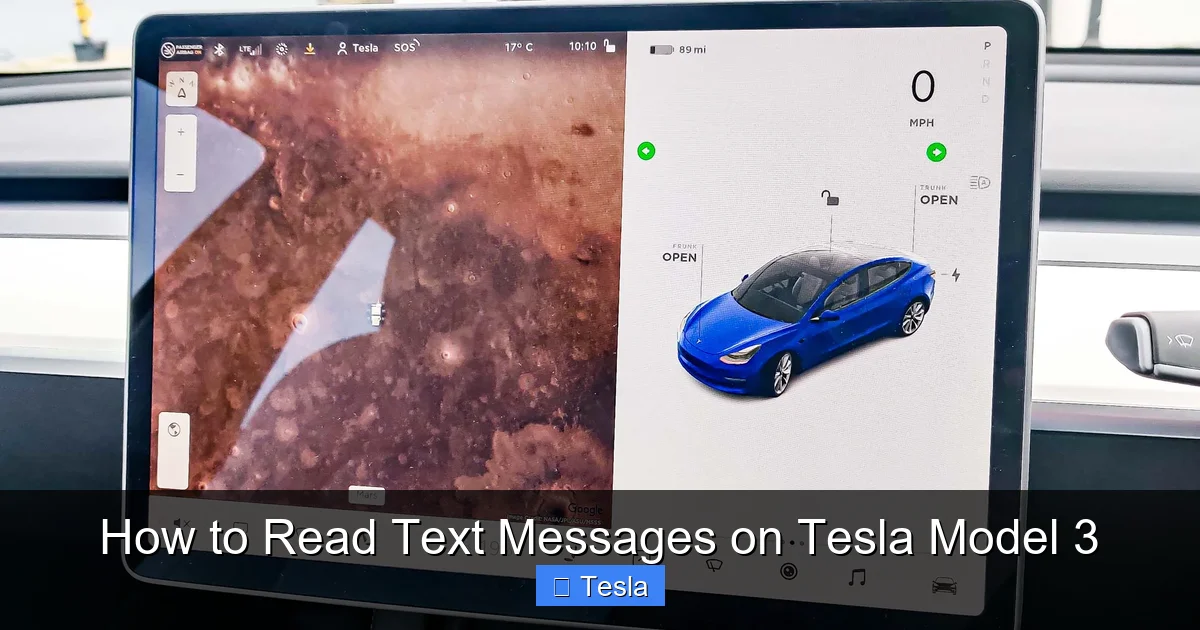
Visual guide about How to Read Text Messages on Tesla Model 3
Image source: cdn.mos.cms.futurecdn.net
Phone Compatibility & Software
Your smartphone must be relatively recent. For iPhones, you need iOS 13 or later. For Android, Android 8.0 or later is required. Your phone must also have standard SMS/MMS text messaging capability. This means messages sent via your carrier’s default messaging app (Messages on iPhone, Messages on Google Pixel/Samsung, etc.). Critically, third-party messaging apps like WhatsApp, Facebook Messenger, Telegram, or Signal are NOT supported by Tesla’s system. It only reads notifications from your phone’s native SMS service. This is a platform limitation, not a setting you can change. If your primary texting is done on these apps, you’ll need to switch to SMS for this feature to work, or you will not receive any notifications in the car.
Bluetooth and Tesla Mobile App
Your phone’s Bluetooth must be turned on. More importantly, you must have the official Tesla mobile app installed and be logged into your Tesla account. The app acts as the bridge for notification permissions. You cannot grant these permissions directly through your phone’s Bluetooth settings; it must be done within the Tesla app. Ensure your Tesla app is updated to the latest version from the App Store or Google Play.
Tesla Vehicle Software
Your Model 3 needs a recent version of Tesla’s software. While text reading has been available for many years, older software versions (several years back) may have a slightly different menu structure. It’s best practice to keep your car’s software updated. Go to Controls > Software > Check for Updates on your car’s touchscreen. If an update is available, install it while parked and connected to Wi-Fi for the fastest, most reliable download.
Once you’ve confirmed your phone is compatible, Bluetooth is on, the Tesla app is installed and updated, and your car’s software is current, you’re ready to proceed.
Step-by-Step Setup: Pairing Your Phone and Granting Permissions
This is the most critical phase. Setup involves two main parts: pairing your phone with the car via Bluetooth and then granting the Tesla app permission to access your notifications. We’ll separate the steps for iPhone (iOS) and Android, as the permission process differs slightly.
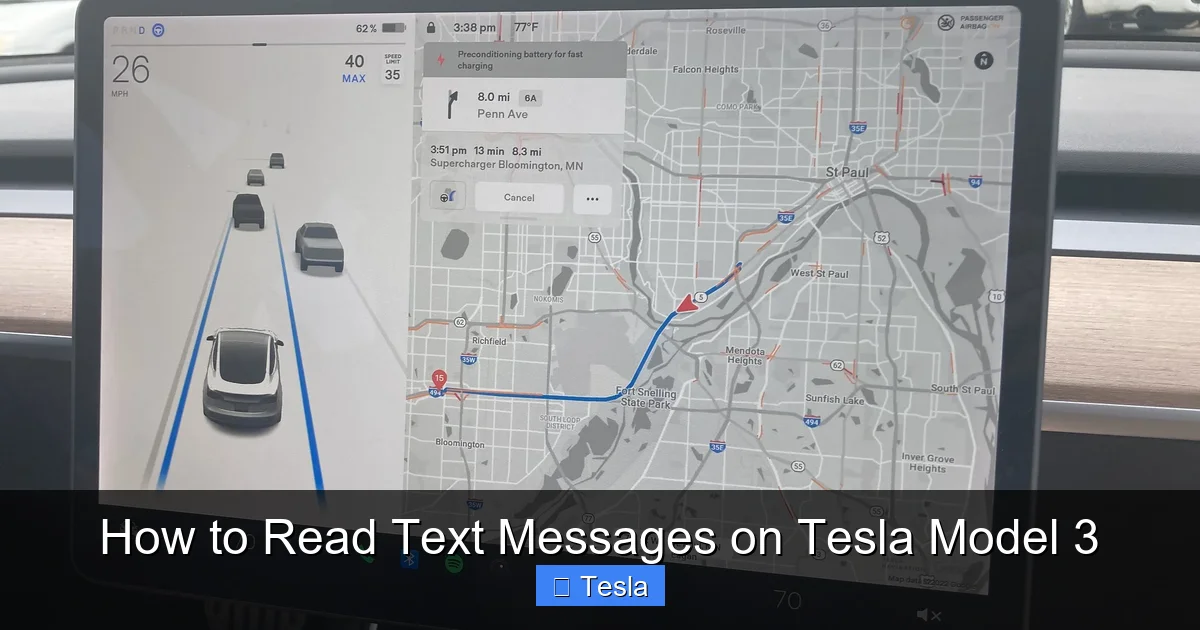
Visual guide about How to Read Text Messages on Tesla Model 3
Image source: victoryandreseda.net
Part 1: Pair Your Phone with the Tesla (Same for iOS & Android)
First, your phone must be Bluetooth-paired with your Model 3. If you’ve already paired it for music or phone calls, you can skip to Part 2.
- In your Model 3, park the car and ensure it’s on (touchscreen awake).
- On the touchscreen, tap the Bluetooth icon (looks like the classic “B” symbol) in the top status bar or go to Controls > Connectivity > Bluetooth.
- Set the Bluetooth toggle to ON.
- On your smartphone, open Settings > Bluetooth and ensure it’s turned on.
- Your Tesla will appear as “Tesla Model 3” or a similar name in the list of available devices. Tap it.
- A pairing code may appear on both the car screen and your phone. Confirm they match and accept/pair on your phone.
- The Tesla screen will show your phone as “Connected” and may also show “Connected for Phone and Media.”
At this point, you can make calls and play music. But for texts, we need the app permissions.
Part 2: Granting Notification Permissions (The Crucial Step)
This is where many people get stuck. You must allow the Tesla mobile app to access your phone’s notifications. The process is different for iPhone and Android.
For iPhone (iOS) Users:
- On your iPhone, open the Settings app.
- Scroll down and tap Tesla (the app).
- Tap Notifications.
- Ensure the toggle next to Allow Notifications is turned ON (green).
- Also, ensure the toggles for Alerts (Lock Screen, Notification Center, Banners) are all ON.
- Go back to the Tesla app settings in your iPhone and tap Siri & Search.
- Toggle Listen for “Hey Siri” and Allow Siri When Locked to ON. This is often required for the Tesla app to fully process notifications in the background.
- Finally, open the Tesla app on your phone. It may prompt you to allow notification access. If so, grant it.
For Android Users:
- On your Android phone, open the Settings app.
- Go to Apps & Notifications (or just Apps).
- Find and tap Tesla from the list of installed apps.
- Tap Notifications.
- Toggle the main Notifications switch to Allow (or ON).
- You may also see categories like “Messages” or “General.” Ensure they are allowed.
- Additionally, on some Android versions (especially Samsung), you must disable battery optimization for the Tesla app to ensure it runs in the background. In the Tesla app’s settings page, tap Battery and set it to Unrestricted or No restrictions.
- Open the Tesla app to confirm it’s logged in.
Part 3: Verify in the Car
After completing both parts, get in your Model 3 with your phone nearby (Bluetooth on).
- On the touchscreen, go to Controls > Security & Drivers > Driver Profile (or sometimes under Controls > Phone & Bluetooth). Look for a section called Notifications or Message Notifications.
- You should see an option like “Allow Notifications from Tesla Mobile App” or a toggle for Text Messages. Ensure this is turned ON.
- Some software versions show a list of paired phones. Tap your phone’s name and ensure Notifications is enabled for that device.
Your setup is complete! To test, have someone send you a standard SMS text message from another phone. You should see a small bell icon appear briefly in the top status bar of your Tesla screen and potentially hear a subtle chime if your volume is up. The message will be queued for reading via voice command.
How to Actually Read the Text Messages: Commands and Process
With setup done, using the feature is refreshingly simple. Tesla’s voice command system is context-aware. When a new text arrives, the system knows it’s there.
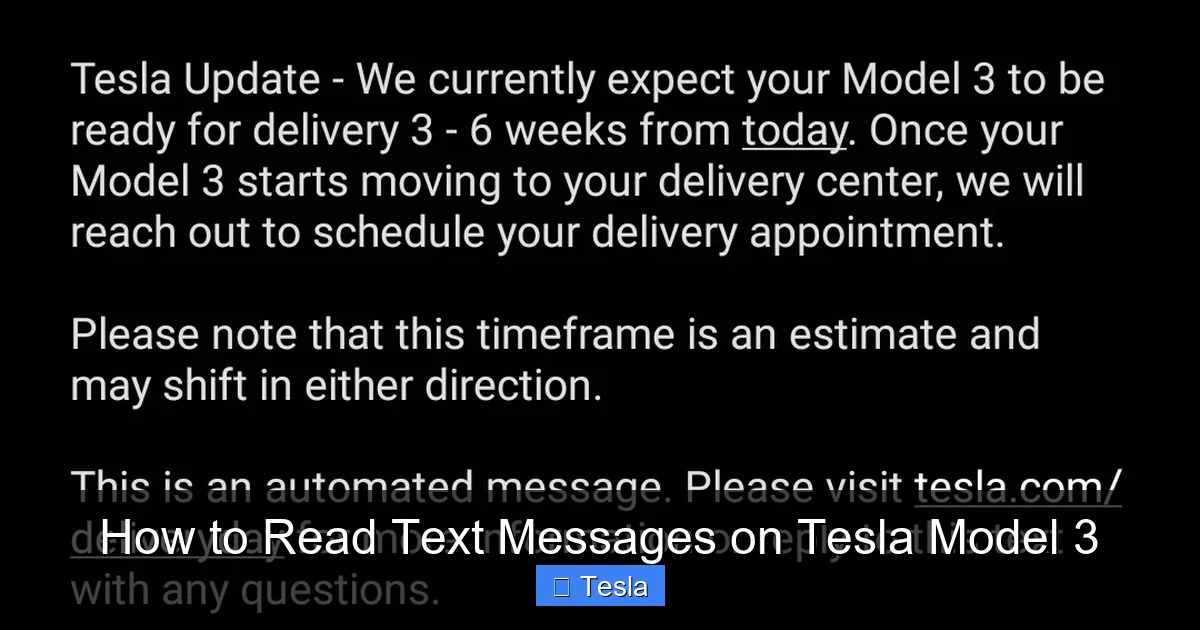
Visual guide about How to Read Text Messages on Tesla Model 3
Image source: i.redd.it
The Standard Voice Command
There are two primary ways to activate voice command for messages:
- Steering Wheel Button: Press the right scroll wheel button on your steering wheel (the one you use to adjust volume). A microphone icon will appear on the touchscreen and you’ll hear a chime.
- Touchscreen Button: Tap the microphone icon on the bottom center of the touchscreen (or sometimes the top bar, depending on software version).
Once the microphone is active, say one of these phrases clearly:
- “Read my messages.” – This will read all unread text messages in your queue, typically in chronological order.
- “Read my last message.” or “Read the last message.” – This will read only the most recent one.
- “Read new messages.” – Similar to “read my messages.”
The system will respond with “Reading messages” and then begin. The sender’s name (from your phone’s contacts) and the message content will be read aloud through the car’s speakers. The reading speed is calibrated to be clear and at a moderate pace.
What to Expect During and After Reading
While the message is being read, the touchscreen will typically show a small overlay or the main screen may dim slightly, but you will not see the full text of the message on the screen while the car is in Drive. This is a deliberate safety design by Tesla to prevent you from looking at the screen. You will only hear it. Once the message finishes, the system may ask: “Would you like to reply?” If you say “Yes” or “Reply,” you can then dictate a reply using voice-to-text. The system will transcribe your spoken words and send them as an SMS text back to the sender. You can also say “Call [sender name]” to initiate a phone call if their number is in your contacts.
If you have multiple messages, after one is read, you can say “Next” to hear the following one, or “Stop” to cancel. The system will also automatically move read messages out of the queue.
Troubleshooting: Why Your Texts Aren’t Reading and How to Fix It
It’s frustrating when the feature doesn’t work. Don’t worry; 95% of issues are fixed with these steps, in order.
1. The Basic Checks: Bluetooth and Connection
First, confirm your phone is actually connected to the car. Look at the top of the Tesla screen for the Bluetooth icon and your phone’s name. If it says “Not Connected” or shows a phone with a line through it, re-pair your phone. Turn Bluetooth off and on on your phone, and toggle Bluetooth off and on in the car’s settings. Forget the device on both ends and re-pair from scratch.
2. Notification Permission (The Usual Suspect)
This is the #1 culprit. Go back to your phone’s settings and double-check:
- iPhone: Settings > Tesla > Notifications – Is “Allow Notifications” ON? Are all alert styles ON?
- Android: Settings > Apps > Tesla > Notifications – Is the main toggle ON? Is battery optimization disabled for the Tesla app?
Also, check your phone’s main system notification settings for the default “Messages” app. If you have “Do Not Disturb” or “Focus Mode” (iOS) / “Do Not Disturb” (Android) active on your phone, it may be blocking notifications from reaching the Tesla. Temporarily disable these modes to test.
3. Tesla App and Software
Update the Tesla mobile app from your app store. Then, on the car’s touchscreen, go to Controls > Software and check for updates. Install any available updates. Sometimes a software update resets permissions, so you may need to re-grant notification access in your phone’s settings after a major Tesla update.
4. Phone-Specific Quirks
Some Android phones, particularly those with aggressive battery savers (like some Samsung, Xiaomi, or OnePlus models), kill background apps relentlessly. You may need to set the Tesla app as a “Protected App” or disable battery optimization specifically for it. Search online for “[Your Phone Model] disable battery optimization for Tesla app” for precise steps. For iPhones, ensure “Low Power Mode” is off, as it can restrict background activity.
5. Test with a Different Phone/Message
If possible, have a friend send you a text from a different number or use a different phone to pair with your Tesla. This isolates whether the issue is with your specific phone, your Tesla, or the sender’s number/app. Also, ensure the test message is a standard SMS, not an iMessage (blue bubble) if you’re on iPhone. While iMessages are converted to SMS when sent to non-Apple users, there can be delivery quirks. Try sending a plain text from an Android phone to your iPhone to test.
Safety and Legal Considerations: Driving Focused
This feature is designed for safety, but it’s still vital to use it correctly. The goal is to minimize cognitive and visual distraction.
Never look at the touchscreen to read a message. The audio readout is your only output while moving. If you need to see the full conversation history or a complex message with links or emojis, you must park the car first. The system is intentionally limited in this way.
Be mindful of your voice command timing. Don’t activate voice command in a high-stress driving situation (heavy traffic, complex intersections). Wait for a calm moment on the highway or at a stoplight. Saying “Read my messages” requires you to listen, which is an auditory distraction. Ensure you’re in a driving situation where you can afford that mental bandwidth.
Know your local laws. Many states and countries have hands-free laws that prohibit holding a phone but allow voice-activated functions. Using this Tesla feature is almost always legal under such laws, as you are not holding a device. However, laws vary. It’s your responsibility to know the regulations where you drive. The safest and most legal practice is to let non-urgent messages wait and only use the read function for critical communications.
Use the “Do Not Disturb” feature wisely. If you’re on a long, focused drive, consider enabling a focus mode on your phone that silences all but critical notifications, or simply tell your Tesla to ignore messages by not activating the voice command. You are in control.
Advanced Tips and Best Practices
Once you’ve mastered the basics, these tips will enhance your experience.
Optimize Your Contact List
The system reads the sender’s name as stored in your phone’s contacts. If you get a text from “Mom” but it’s saved as “Mother,” it will say “Mother.” Ensure your key contacts have clear, recognizable names. For unknown numbers, it will read the phone number, which can be hard to remember. Save important numbers (like your kid’s school, a client) with descriptive names.
Manage Your Notification Queue
The car queues all unread SMS notifications it receives while connected. If you receive a flood of texts (a group chat explosion), saying “Read my messages” will read them all in order. This can be tedious. Be selective. Use “Read my last message” for the most recent one. Remember that once a message is read via the car, it’s considered “seen” and won’t be read again, even if you didn’t fully hear it. If you miss something, you’ll need to look at your phone later.
Integrate with Your Driving Routine
Make it a habit. When you get in the car and start driving, your first instinct might be to check your phone. Replace that with: “OK, Tesla, read my messages.” This creates a safe ritual. Similarly, when you’re stopped at a long red light, you can quickly catch up on messages hands-free.
Privacy Note: What Tesla Sees
It’s important to understand the privacy architecture. Tesla’s system does not store your message content on its servers. The text data is pulled from your phone via Bluetooth and processed locally in the car’s computer for audio playback. Tesla does not have a log of your conversations. However, your phone itself may keep a notification history. The primary privacy concern is the same as with any Bluetooth pairing: your phone’s data is accessible to the car while connected. The feature is designed with privacy in mind, but absolute security is a shared responsibility. For highly sensitive communications, consider using encrypted apps (which, as noted, won’t work with this feature anyway) or simply wait to read them privately.
Exploring Related Tesla Customization
While you’re optimizing your Model 3’s tech functionality, consider enhancing its aesthetics and comfort. Many owners explore paint protection film or wraps to keep their Tesla’s finish pristine. If you’re curious about the cost to wrap a Tesla Model 3, it varies based on material and coverage but offers excellent scratch and chip protection. Similarly, how much to tint a Tesla Model 3 is a common question, as window tinting significantly reduces glare and cabin heat, improving comfort for those long drives where you’re using features like text reading. Both are popular modifications that complement the high-tech interior by protecting and personalizing the exterior.
Conclusion: Driving Smarter and Safer
Learning how to read text messages on Tesla Model 3 is a small but powerful step in mastering your electric vehicle. It’s a feature that perfectly encapsulates Tesla’s approach: leveraging software to create a safer, more integrated user experience. The setup requires careful attention to Bluetooth pairing and, most importantly, notification permissions on your phone. Once configured, the operation is blissfully simple—a quick voice command brings your messages to you audibly, keeping your focus where it belongs: on the road.
Remember the limitations: it’s for standard SMS/MMS only, not third-party apps. Embrace the safety design of audio-only playback while moving. And always use your best judgment; no feature justifies driving while distracted. This tool is for managing communication, not for engaging in lengthy text conversations. Use it to triage: “Is this urgent?” If yes, pull over safely or use a hands-free call. If no, let it wait.
As you become comfortable with this and other Tesla features, you’ll appreciate the thoughtful integration of your digital life into the driving experience. It’s not just about reading texts; it’s about reducing anxiety, staying informed without risk, and enjoying the drive with one less worry. So set it up today, test it safely in a parking lot, and then hit the road with your new, safe, and connected superpower.
Frequently Asked Questions
Can I read WhatsApp or Facebook Messenger texts on my Tesla Model 3?
No. Tesla’s system only supports notifications from your phone’s native SMS/MMS messaging app (Apple Messages or Google Messages). Third-party messaging apps are not integrated, so their notifications will not appear in the car’s queue for reading.
Why am I getting no sound or the “Reading messages” prompt but nothing happens?
This usually means your phone’s notification permission for the Tesla app is incorrect or the Bluetooth connection is unstable. Double-check the notification settings on your phone (Settings > Tesla on iPhone, Settings > Apps > Tesla on Android). Ensure “Allow Notifications” is on and battery optimization is disabled for the Tesla app. Also, confirm your phone is properly paired and connected in the car.
Can I view the full text on the screen while driving?
No. For safety reasons, Tesla intentionally does not display full message content on the touchscreen when the car is in Drive. You can only hear the message read aloud. To view the full conversation, you must park the car and look at your phone.
What happens with group text messages?
The system will read the sender’s name (if in your contacts) and the message content of each individual SMS in the group thread. However, it will not automatically announce which participant in the group sent each subsequent message unless that person’s number is saved in your contacts with a name. It may just read the phone number.
Does this work in all languages?
The voice command (“Read my messages”) and the text-to-speech engine support the primary languages available in your Tesla’s system settings (Controls > Display > Language). The accuracy of reading non-English messages depends on your phone’s language and the Tesla’s TTS capabilities for that language.
Is my message data stored by Tesla or shared?
No. Tesla states that message content is processed locally in the vehicle and is not stored on Tesla servers or used for any purpose other than immediate audio playback. The data flow is between your phone and the car via Bluetooth. Your phone’s own notification history is separate.
