

How to Lock a Tesla with a Key Card

Contents
- 1 Key Takeaways
- 2 📑 Table of Contents
- 3 Introduction: Your Essential Tesla Backup
- 4 What Exactly Is the Tesla Key Card?
- 5 Step-by-Step: How to Lock Your Tesla with the Key Card
- 6 Auto-Lock Features and Settings: Going Beyond the Manual Tap
- 7 Security Features: Why Key Card Locking Is So Safe
- 8 Troubleshooting: When the Key Card Doesn’t Work
- 9 Key Card vs. Other Tesla Key Methods: A Clear Comparison
- 10 Best Practices and Pro Tips for Key Card Use
- 11 Conclusion: Embrace the Simple Security
- 12 Frequently Asked Questions

OBD2 Scanner Tool

Bluetooth FM Transmitter

Car Storage Net

Parking Sensor Kit
Locking your Tesla with a key card is a simple, secure process that serves as a reliable backup to your smartphone key. Just tap the card against the door pillar to engage the locks, and the car will confirm with a light or sound. This method works independently of phone batteries or Bluetooth connectivity, offering peace of mind. Understanding the auto-lock features and security benefits ensures you get the most out of this RFID-based tool.
Key Takeaways
- The Tesla key card is a passive RFID device: It requires no battery and works by tapping it near the vehicle’s door pillar sensor, making it inherently reliable.
- Locking is a two-tap process: One tap unlocks the door; a second tap (or using the lock icon on the screen after entry) locks all doors and the trunk securely.
- Auto-Lock enhances convenience: You can enable “Walk-Away Lock” in settings to automatically lock the car when you walk away with your authenticated phone or key card.
- Key card locking is highly secure: It uses encrypted RFID communication, eliminating the risk of relay attacks common with traditional key fob signals.
- Troubleshooting is straightforward: If the card isn’t recognized, ensure it’s held flat against the correct sensor area, check for physical damage, or re-pair it via the car’s touchscreen.
- It’s a universal backup: The key card works on all Tesla models (Model S, 3, X, Y) and is essential if your phone key fails or the battery dies.
- Physical placement matters: The card must be tapped within 1-2 inches of the B-pillar (the vertical post between front and rear doors) on the driver’s side.
📑 Table of Contents
- Introduction: Your Essential Tesla Backup
- What Exactly Is the Tesla Key Card?
- Step-by-Step: How to Lock Your Tesla with the Key Card
- Auto-Lock Features and Settings: Going Beyond the Manual Tap
- Security Features: Why Key Card Locking Is So Safe
- Troubleshooting: When the Key Card Doesn’t Work
- Key Card vs. Other Tesla Key Methods: A Clear Comparison
- Best Practices and Pro Tips for Key Card Use
- Conclusion: Embrace the Simple Security
Introduction: Your Essential Tesla Backup
Imagine you’re rushing to catch a flight, phone in hand, only to realize it’s dead. Or perhaps you’re at the beach, sand in your pocket, and your phone’s Bluetooth is acting up. In these moments, the humble Tesla key card—that slim, credit-sized piece of plastic in your wallet—becomes your best friend. While Tesla’s smartphone key is incredibly convenient, relying solely on it can be risky. Knowing how to lock a Tesla with a key card is a crucial skill for every owner, ensuring you’re never left stranded or worrying about security.
This guide will walk you through everything, from the basics of what the key card is to advanced tips for seamless use. We’ll cover the exact tapping motion, how the car responds, and how to integrate it with your daily routine. Whether you’re a new Tesla owner or a seasoned driver who’s always used their phone, mastering the key card adds a layer of reliability and peace of mind.
What Exactly Is the Tesla Key Card?
Unlike the bulky key fobs from traditional gasoline cars, Tesla’s key card is a study in minimalist design. It’s a thin, plastic card that fits in your wallet alongside your credit cards. But don’t let its simplicity fool you—it’s a sophisticated piece of technology.
Visual guide about How to Lock a Tesla with a Key Card
Image source: safetyfic.com
The Technology Inside: Passive RFID
The key card uses Radio-Frequency Identification (RFID). It has no battery of its own. Instead, when you tap it against the car’s door pillar, the car’s sensor emits a low-power radio signal that activates the chip in the card. The card then transmits a unique, encrypted code back to the car. If the code matches a paired card, the car unlocks or locks. This passive design means the card will never die on you—a huge advantage over battery-powered key fobs. You don’t need to change a Nissan key fob battery or worry about signal strength; it just works.
Which Teslas Use a Key Card?
All modern Tesla vehicles—Model S, Model 3, Model X, and Model Y—come standard with key card support. It’s the primary physical key provided at delivery. Even if you primarily use your phone as a key, the card is your mandatory backup. Older Model S and X vehicles (pre-2021) often came with a traditional key fob, but the key card is now the universal standard across the lineup.
Step-by-Step: How to Lock Your Tesla with the Key Card
Locking with the key card is intuitive, but the motion is specific. Here’s the exact process, broken down for clarity.

Visual guide about How to Lock a Tesla with a Key Card
Image source: safetyfic.com
Step 1: Locate the Correct Sensor Area
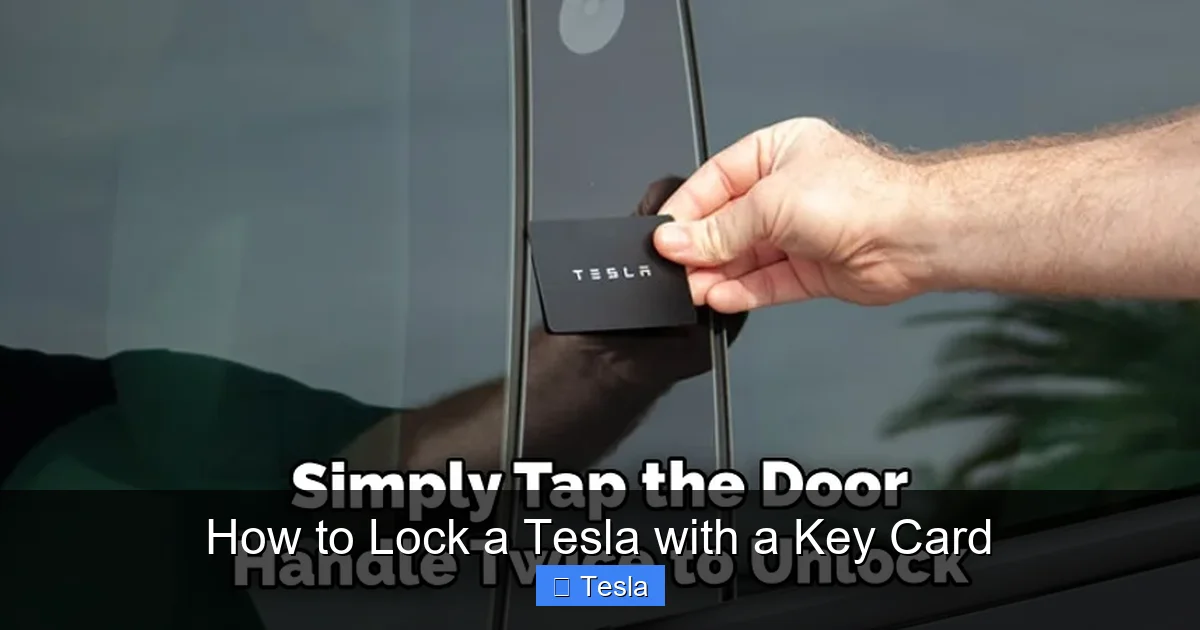
You must tap the card on the driver’s side B-pillar. This is the vertical structural post between the front and rear doors. On Model 3 and Model Y, look for a small, dark-colored rectangular area about the size of the card itself, roughly halfway up the pillar. On Model S and X, the sensor is similarly located on the B-pillar but may be slightly higher due to the different door design. The area is often marked with a subtle Tesla logo or a faint outline. If you’re unsure, open the driver’s door and feel for a slightly textured spot—that’s usually it.
Step 2: The Tapping Motion
Hold the key card flat against the sensor area. You don’t need to press hard, but you must make firm contact. A gentle tap or a brief hold (1-2 seconds) works. Think of it like tapping a credit card on a contactless payment terminal. Ensure the entire card is flush with the car’s surface. If you tap too lightly or at an angle, the sensor may not read it. A good test: practice unlocking first (which uses the same motion) to get a feel for it.
Step 3: Confirm the Lock
After tapping, you’ll see a visual and audible confirmation. The side mirror lights will blink rapidly once, and you’ll hear a distinct horn chirp or a chime from inside the car. The touchscreen will also briefly show a lock icon. If you don’t see or hear these, the tap didn’t register—try again. To lock all doors and the trunk/frunk, you must perform this tap while outside the car. If you’re inside, you can tap the card on the center console’s card reader (if equipped) or simply use the lock button on the screen. For full security, always verify by trying the driver’s door handle after walking away—it should not open.
Practical Example: Locking at the Grocery Store
You’re loading groceries into the trunk. Your phone is in the bag inside the car. You take the key card from your wallet, tap it firmly on the B-pillar, hear the chirp, see the mirror flash, and walk away. The car is locked. Simple. This is the scenario the key card excels in—quick, no-fuss locking when your hands are full or your phone is inaccessible.
Auto-Lock Features and Settings: Going Beyond the Manual Tap
While the manual tap is reliable, Tesla offers automated locking features that work in tandem with your key card or phone key.

Visual guide about How to Lock a Tesla with a Key Card
Image source: safetyfic.com
Walk-Away Lock: The Set-and-Forget Feature
This is perhaps the most convenient feature. When enabled (Controls > Locks > Walk-Away Lock), your Tesla will automatically lock all doors and the trunk within about 30 seconds of you walking away with an authenticated device (phone key or key card) that has moved out of range. You don’t need to tap anything. It’s perfect for busy days. However, note that if you leave the key card inside the car, it won’t trigger the lock—the car knows an authorized device is still inside.
Speed-Lock and Other Triggers
Your Tesla can also lock when you shift into Drive or when the vehicle reaches a certain speed. These are enabled by default and add another layer of security. If you’re concerned about accidentally locking the card inside, remember: the car won’t lock if it detects the key card is inside. You can test this by placing the card on the center console, closing all doors, and trying to lock via the app or touchscreen—it will fail.
Disabling Auto-Lock for Specific Situations
Sometimes you might want the car to stay unlocked, like when you’re washing it or loading/unloading with frequent trips in and out. You can temporarily disable Walk-Away Lock via the touchscreen, but it will re-enable after you drive or restart the car. There’s no permanent “always unlocked” setting for safety reasons.
Security Features: Why Key Card Locking Is So Safe
One of the biggest advantages of the key card over traditional key fobs is its resistance to modern theft techniques.
No Remote Signal to Intercept
Traditional key fobs constantly emit a radio signal that can be amplified by thieves using relay devices to trick your car into unlocking from inside your house. The Tesla key card emits zero signal when not in use. It’s completely passive. The only time it communicates is when you deliberately tap it against the sensor, making relay attacks impossible. This is a fundamental security benefit you don’t get with many other vehicles. For example, understanding how to unlock a Dodge Challenger with the key inside might involve different protocols, but Tesla’s RFID system is inherently more secure against remote capture.
Encrypted, Unique Codes
Each tap generates a new, encrypted code. Even if someone could intercept that code (which is extremely difficult due to the short range), it’s a one-time use and cannot be replayed. The car and card share a secret cryptographic key that changes with each use.
Pairing and De-authorization
You can pair up to 19 keys (phone or card) to a single Tesla. If a key card is lost or stolen, you can immediately delete it from the car’s system via the touchscreen (Controls > Locks > Delete Key). The lost card will instantly become useless. This is far simpler than dealing with a lost traditional fob, which might require a dealer visit to reprogram.
Troubleshooting: When the Key Card Doesn’t Work
Even with its simple design, occasional hiccups can happen. Here’s how to diagnose and fix common issues.
Issue: “Card Not Detected” Message or No Response
Solutions:
- Check your tap technique: Hold the card flat and firmly against the sensor for 1-2 seconds. Ensure you’re tapping the driver’s side B-pillar, not the rear door or trunk.
- Inspect the card: Look for cracks, deep scratches, or water damage. The RFID chip is embedded; physical trauma can break it. If damaged, you’ll need a replacement card from Tesla.
- Check the car’s sensor: Ensure the B-pillar area is clean and free of dirt or debris that might insulate the card from the sensor.
- Restart the car: Sometimes a simple restart (Controls > Safety > Power Off, wait 2 minutes, then open door or press brake) can reset the system.
Issue: Key Card Works Intermittently
If it works sometimes but not others, the card or sensor might be misaligned. Try removing any thick wallet or case that could be interfering. The card should be the only item between your hand and the car. Also, ensure you’re not tapping near the edge of the sensor area—center it.
Issue: Card Was Working, Now It’s Not (After Phone Use)
This is often a pairing conflict. If you have both a phone key and key card active, the car might default to the phone. Try locking/unlocking with the phone first, then immediately tap the card. If that fails, you may need to re-pair the card: go to Controls > Locks > Delete the card, then add it again by tapping it on the card reader when prompted.
When to Use Your Phone Key as a Backup
If the key card fails and you need to lock the car urgently, open the Tesla app on your phone (with Bluetooth on) and use the lock button. This works as long as your phone has some battery and Bluetooth is enabled. It’s a great secondary backup. For situations where your phone is dead, the key card is your only option.
Key Card vs. Other Tesla Key Methods: A Clear Comparison
Tesla offers three main ways to lock/unlock: key card, phone key, and (in older models) a key fob. Understanding their roles helps you use each effectively.
Phone Key: The Primary, Convenient Choice
Your smartphone (via Bluetooth) is the most convenient key. It works automatically as you approach. However, it depends on phone battery and Bluetooth being on. The key card is the essential, battery-free backup. We recommend always carrying the card when your phone battery is low or you’re traveling to a new location.
Key Fob (If Equipped): Button-Based Convenience
Some early Model S and X vehicles came with a traditional key fob with lock/unlock buttons. If you have one, it works similarly to the key card but from a distance. The fob has a battery that will eventually need replacing—a process different from the battery-free key card. For owners of other brands, learning how to roll down windows with a Dodge key fob or how to turn on a Nissan with a key remote involves button presses, not tapping. Tesla’s approach is more streamlined.
Physical Emergency Key (Older Models)
Very early Teslas had a hidden physical key inside the fob for emergencies. This is not present in current models. If you drive an older Tesla and need to use the emergency key, you’d follow a process similar to how to start a Dodge Charger with the emergency key—manually inserting it into a hidden lock cylinder. But for all current Teslas, the key card is the sole physical key.
Best Practices and Pro Tips for Key Card Use
To make your key card experience flawless, follow these expert tips.
Carry It Separately from Your Phone
Keep the key card in a different pocket or compartment than your phone. If both are in the same tight wallet, the phone’s case or other cards might block the card’s RFID chip from making contact with the sensor.
Use an RFID-Blocking Wallet Sleeve
While the key card only activates when tapped, some owners worry about accidental scanning. An inexpensive RFID-blocking sleeve or wallet pocket ensures the card can’t be read unless you intentionally remove it. This is a smart security practice, much like protecting traditional key fobs from relay attacks.
Label Your Key Card
If you have multiple key cards paired (e.g., for family members), put a small sticker or label on each to identify whose is whose. The cards look identical, and deleting the wrong one from the car can cause confusion.
Know the Replacement Process
If you lose your key card, you can order a replacement through your Tesla account. It costs around $20-$30 and arrives in a few days. You can pair it yourself via the touchscreen. There’s no need to visit a service center unless you’ve lost all keys. This is simpler than the process for many other vehicles, where you might need to start a Dodge Dakota without a key in an emergency and then get a whole new fob programmed by a dealer.
Practice the Tap Before You Need It
Don’t wait until your phone dies to figure out the tapping motion. When you first get your Tesla, practice locking and unlocking with the key card a few times. Muscle memory will serve you well in stressful situations.
Conclusion: Embrace the Simple Security
Locking your Tesla with a key card is one of the most straightforward yet powerful features of your electric vehicle. It’s a fail-safe method that requires no batteries, no complex buttons, and no reliance on external signals. By understanding the correct tapping technique, the car’s confirmation signals, and the supporting auto-lock features, you ensure your Tesla is always secure. Remember, the key card isn’t just a backup—it’s a primary key that exemplifies Tesla’s minimalist, secure approach to access. Keep it in your wallet, practice the motion, and enjoy the confidence that comes with knowing you can always lock your car, no matter what.
Frequently Asked Questions
Can I lock my Tesla with the key card if my phone key is also set up?
Yes, absolutely. The key card works independently. You can tap it to lock/unlock even if your phone is nearby and connected. The car will recognize whichever authenticated device you use first.
Does the Tesla key card have a battery that needs replacing?
No. The key card is a passive RFID device with no internal battery. It will last for years without any maintenance. This is a major advantage over traditional key fobs that require battery changes.
What if I accidentally lock the key card inside the Tesla?
The car’s sensors will detect the key card is inside, preventing it from auto-locking via Walk-Away Lock. If you manually lock the doors with the card inside, you can still unlock the car using your phone key or by calling Tesla Roadside Assistance if you have no other access method.
Can I use the key card to lock the trunk or frunk separately?
No. Tapping the key card on the B-pillar locks or unlocks all doors and the trunk/frunk simultaneously. There is no separate control for just the trunk via the key card.
Is the key card more secure than a traditional key fob?
Yes, because it uses passive RFID that only activates on a deliberate tap. It emits no remote signal that thieves can intercept and amplify (a relay attack). Traditional key fobs constantly emit a signal, making them vulnerable to such thefts.
Where exactly do I tap the key card on a Model 3?
On the driver’s side B-pillar (the post between the front and rear doors). Look for a small, dark rectangular area about halfway up the pillar. Hold the card flat against it for 1-2 seconds. You’ll see the side mirror lights blink and hear a chirp.







