How to Listen to Audiobooks in Tesla

Contents

Microfiber Car Cleaning Cloth

OBD2 Scanner Tool

Brake Cleaner Spray

Magnetic Car Phone Mount
Listening to audiobooks in your Tesla is easy and enhances your driving experience. You can stream via Bluetooth, play from a USB drive, or use the built-in browser for online services. This guide covers all methods, setup steps, and tips for optimal sound quality and convenience.
How to Listen to Audiobooks in Tesla
Tesla vehicles are more than just electric cars; they’re rolling entertainment hubs. One of the best ways to enhance your driving experience is by listening to audiobooks. Whether you’re stuck in traffic or cruising on the highway, a good audiobook can make the time fly by. But how exactly do you listen to audiobooks in a Tesla? The good news is that Tesla’s infotainment system provides multiple ways to enjoy your favorite titles. You can stream wirelessly from your smartphone, play files from a USB drive, or even use the built-in web browser. In this comprehensive guide, we’ll walk you through each method step by step, share practical tips, and help you troubleshoot common issues. By the end, you’ll be all set to dive into captivating stories and knowledge right from your driver’s seat.
Before we dive into the specifics, it’s helpful to understand what makes Tesla’s audio system unique. Unlike many cars that rely on Apple CarPlay or Android Auto, Tesla uses its own proprietary interface. This means you won’t find those familiar apps on the screen. Instead, you’ll work with Tesla’s native Media app and Bluetooth connectivity. Don’t worry—it’s still very user-friendly. We’ll cover everything you need to know, from pairing your phone to optimizing sound settings. So, let’s get started!
Key Takeaways
- Multiple Methods: You can listen to audiobooks in Tesla via Bluetooth, USB drive, or streaming through the browser.
- Bluetooth Streaming: Pair your phone to stream from apps like Audible, Spotify, or Apple Books directly.
- USB Playback: Transfer audiobook files to a USB drive for offline playback without using phone data.
- Browser Limitations: Tesla’s browser can access some streaming sites but may have compatibility issues; using phone as source is more reliable.
- Sound Optimization: Adjust Tesla’s audio settings, including equalizer and balance, for the best listening experience.
- Bookmarking: Use app-specific bookmarks or Tesla’s resume feature to keep your place in audiobooks.
- Hands-Free Control: Use voice commands to control playback, making it safe while driving.
📑 Table of Contents
Understanding Tesla’s Audio System
To make the most of audiobooks in your Tesla, it’s important to know how the audio system works. Tesla’s infotainment is a large touchscreen that controls all media, navigation, and vehicle settings. The audio subsystem is robust, supporting various formats and offering customizable sound profiles.
Tesla’s Infotainment Overview
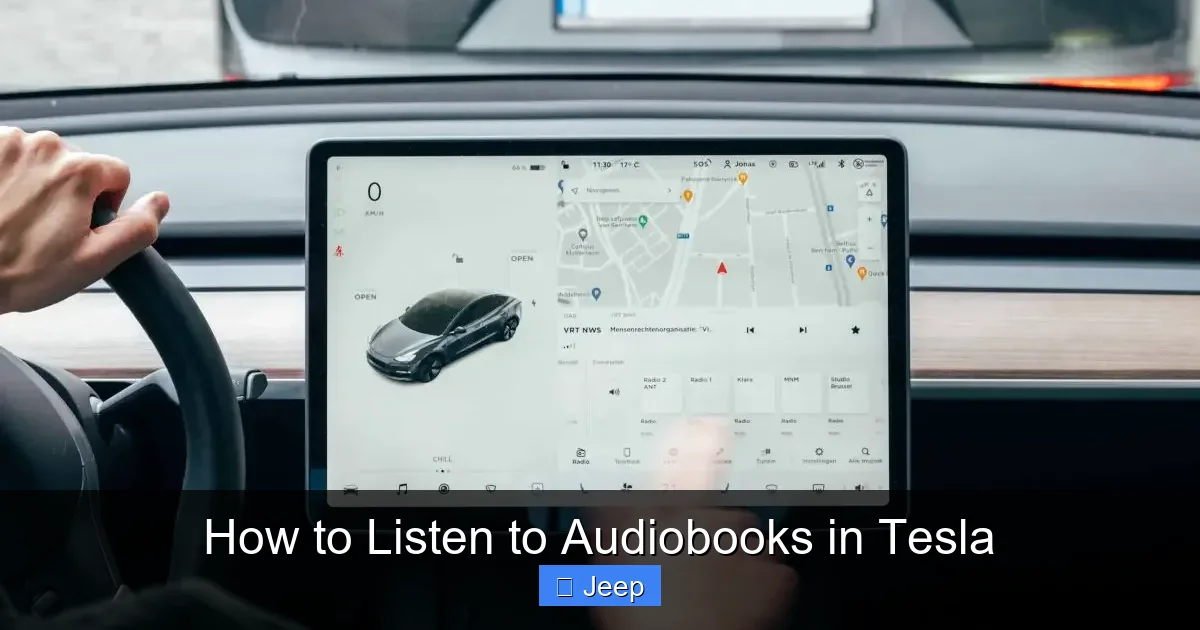
The heart of Tesla’s media experience is the Media app. You can access it from the bottom dock or the main menu. From here, you can choose between sources like Bluetooth, USB, or the built-in browser. The interface is clean and intuitive, with playback controls at the bottom of the screen. You can also use voice commands by pressing the scroll wheel on the steering wheel or saying “Hey Tesla” (if enabled). The system remembers your last played track and can resume from where you left off, which is perfect for audiobooks.
Beyond audiobooks, the Media app also handles music streaming services like Spotify, Tidal, and TuneIn radio, as well as FM/AM radio (where available). But for audiobooks, we’ll focus on Bluetooth and USB sources. One thing to note: Tesla does not have native apps for Audible, Libby, or other audiobook services. So you cannot download those apps directly to the car. Instead, you use your phone as the source via Bluetooth, or you load files onto a USB drive. This design keeps the infotainment uncluttered but requires a bit of setup.
Supported Audio Formats
Tesla’s USB media player supports a wide range of audio codecs, including MP3, AAC, WAV, and FLAC. This means you can play high-quality lossless files if you have them. For Bluetooth streaming, the system uses the A2DP profile, which typically handles AAC and SBC codecs. Most smartphones will automatically switch to a compatible codec when connected. Keep in mind that some audiobook files, especially those from Audible, are protected by DRM (Digital Rights Management). These files (.aa or .aax) will not play directly from a USB drive because Tesla cannot decrypt them. However, you can stream Audible content over Bluetooth since the Audible app handles decryption on your phone and sends the audio signal to the car. For USB playback, you’ll need DRM-free audiobooks, such as those from public domain sources or libraries via Libby (after download).
It’s also worth noting that Tesla can play M4B files (common for iTunes audiobooks) if they are not DRM-protected. M4B is essentially an AAC audio file with chapter metadata. Tesla may not display chapters, but the audio will play. If you encounter issues, converting M4B to MP3 or AAC is straightforward with free tools like iTunes or HandBrake. Always test a sample file before converting a whole book.
Audio Output Options
Tesla vehicles come with premium sound systems, often with multiple speakers and a subwoofer. You can adjust the audio output through the Sound settings, which include bass, treble, midrange, and balance/fade controls. There’s also an equalizer with presets like “Rock,” “Pop,” and “Spoken Word.” For audiobooks, the “Spoken Word” preset is a great starting point as it emphasizes vocal clarity. You can also manually tweak the settings to your liking. The system allows you to set different sound profiles for each media source, so you can have a custom EQ for Bluetooth streaming and another for USB playback.
Additionally, Tesla offers an “Immersive Sound” or “Surround” mode (depending on model and audio package). This creates a wider soundstage, which can be nice for music but might disperse the narrator’s voice too much. For audiobooks, a focused stereo image is often better. Experiment with these settings while an audiobook is playing to find what suits your ears. Remember, you can always reset to defaults if you get lost.
Method 1: Streaming Audiobooks via Bluetooth
Bluetooth streaming is the most popular way to listen to audiobooks in a Tesla. It’s wireless, easy to set up, and works with virtually any smartphone. With Bluetooth, you can stream directly from audiobook apps like Audible, Libby, Apple Books, or Google Play Books. The audio signal is sent from your phone to the car, and you control playback using the Tesla’s touchscreen, steering wheel buttons, or voice commands.

Visual guide about How to Listen to Audiobooks in Tesla
Image source: evehiclepro.com
Pairing Your Phone with Tesla
Pairing your phone is a one-time process. Here’s how to do it:
- On your Tesla’s touchscreen, go to Settings (the car icon) and select Bluetooth.
- Toggle Bluetooth On if it isn’t already.
- Tap Add New Device.
- On your phone, enable Bluetooth and set it to discoverable mode.
- Your Tesla should appear in the list of available devices on your phone. Select it.
- A PIN may appear on both screens; confirm that they match and accept the pairing request.
Once paired, your phone will automatically connect to the Tesla whenever you’re in the car and Bluetooth is on. You can pair multiple phones and switch between them in the Bluetooth settings. If you ever need to remove a device, just select it and tap “Forget Device.”
The pairing process is similar to connecting Bluetooth in a Nissan Altima, though the menu names and layout might differ slightly. The principle is the same: enable Bluetooth on both devices, search, and confirm. If you’ve ever paired a phone in any car, you’ll feel right at home.
After pairing, you might see two entries for the same device: one for “Phone” and one for “Media.” Ensure both are enabled if you want to stream audio and take calls. You can toggle these by tapping the “i” icon next to the device. If you only want to use Bluetooth for audio, you can disable the phone function to avoid accidental call routing.
Choosing the Right Audiobook App
After pairing, you’ll want to use an app that provides audiobooks. The most common choices are:
- Audible: Amazon’s audiobook service with a huge library. Requires a subscription, but you can purchase books individually. The app syncs your position across devices, offers adjustable playback speed, and includes Whispersync for Voice (if you also own the Kindle version). To use, simply open Audible, sign in, and play a book. The audio will route to Tesla via Bluetooth. You can download books for offline listening, which saves data and ensures smooth playback even in areas with poor reception.
- Libby/OverDrive: Free service through your local library. You borrow digital copies, which you can download for offline listening. Libby’s downloads are typically MP3 files stored within the app, and they play over Bluetooth just fine. The borrowing period is usually 2-3 weeks, but you can renew if there’s no waitlist. This is a cost-effective way to access bestsellers.
- Apple Books: Built into iOS devices; you can purchase audiobooks directly. Purchased titles are stored in the app and sync via iCloud. Streaming via Bluetooth works seamlessly.
- Google Play Books: Android’s counterpart, with a large library of audiobooks for purchase. The app includes a built-in player that works over Bluetooth.
- Spotify: While primarily a music service, Spotify now includes a number of audiobooks in some regions (often as part of a premium subscription). If you have access, you can find titles and stream them. The playback experience is similar to music, with basic controls.
- Other apps: Services like Chirp (DRM-free MP3 purchases), Bookmate, or Scribd (subscription) also work. As long as the app can output audio, Bluetooth will carry it to Tesla.
When choosing an app, consider factors like cost, library integration, and offline download capability. For frequent travelers, offline download is essential to avoid data overages. Most apps allow you to download entire books over Wi-Fi before you hit the road. Also, look for apps that support Bluetooth A2DP properly—some older or niche apps might have compatibility issues, but the major ones are solid.
Managing Playback and Controls
Once an audiobook is playing, you have several ways to control it without picking up your phone:
- Tesla Touchscreen: Open the Media app. If Bluetooth is the active source, you’ll see the current track with a play/pause button and a progress bar. You can tap to pause or skip (usually forward/backward in 30-second increments). However, the on-screen controls may not show chapter information or allow you to jump to specific chapters—that’s usually done within the phone app.
- Steering Wheel Buttons: The left scroll wheel controls volume (rotate) and can be pressed to play/pause. Pressing the right side of the scroll wheel skips forward; pressing the left side skips backward. These controls work universally for any Bluetooth audio source, so they’re perfect for quick adjustments while driving.
- Voice Commands: Press the right scroll wheel (or say “Hey Tesla” if enabled) and say commands like “Pause,” “Resume,” “Skip forward 30 seconds,” or “Volume up.” You can also ask “What’s playing?” to hear the title. Voice commands are the safest way to interact while keeping your eyes on the road.
One thing to remember: when streaming via Bluetooth, the Tesla’s screen may not show the full library of your audiobook app. To browse your collection or select a different book, you’ll need to use your phone. That’s why it’s a good idea to queue up your next book before you start driving, or have a passenger help. Some users place their phone in a mount for easy access, but always prioritize safety—adjust selections while parked.
Additionally, many audiobook apps have their own bookmarking and chapter navigation features. For example, Audible lets you add bookmarks at any point and jump between them. These features are accessed through the phone app, not the Tesla interface. So while the car handles the audio output, the app handles the content logic. This separation is seamless once you get used to it.
Method 2: Playing Audiobooks from a USB Drive
If you prefer not to use your phone while driving, or if you want to save on data usage, a USB drive is an excellent alternative. You can load your audiobook files onto a flash drive and plug it into your Tesla’s USB port. The car will read the files and play them directly. This method is also great for DRM-free audiobooks that you’ve downloaded from libraries or purchased in a supported format.
Visual guide about How to Listen to Audiobooks in Tesla
Image source: evehiclepro.com
Preparing Your Audiobook Files
The first step is getting your audiobook files onto your computer in a format Tesla can read. As mentioned, Tesla supports MP3, AAC, WAV, and FLAC over USB. If your files are in another format, you’ll need to convert them. Common scenarios:
- Audible .aa/.aax files: These are encrypted. To play them from USB, you’d have to remove the DRM, which is a legal gray area for personal use but technically possible with tools like Audible’s official “Audible Download Manager” (which can produce MP3s for some older books) or third-party software like “AAX to MP3” converters. However, this is not officially supported by Audible and may violate their terms of service. For most users, it’s easier to stream Audible via Bluetooth.
- iTunes M4B files: Many iTunes audiobooks are in M4B format, which is essentially an AAC audio file with chapter metadata. Tesla can play AAC, so M4B might work directly. However, sometimes the file extension confuses the system. Renaming .m4b to .aac or .mp3 may help, but you might lose chapter info. Alternatively, use a tool like “M4B to MP3” converter to split into individual MP3s per chapter.
- Library downloads (Libby/OverDrive): When you borrow an audiobook through Libby, you can download the entire book as a series of MP3 files. These are already in the correct format and DRM-free. Simply locate the downloaded files (usually within the Libby app’s storage or in a folder on your computer) and copy them.
- Public domain (Librivox): Librivox offers free audiobooks that you can download as a single ZIP containing MP3 files. Extract and use those directly.
Once you have the files in a supported format, you’re ready to organize them. It’s a good idea to listen to a short sample on your computer to ensure quality and correct order before copying to the USB drive.
Formatting and Organizing USB Content
Take your USB flash drive and connect it to your computer. If it’s new, you may need to format it. Tesla prefers FAT32 or exFAT. FAT32 has a 4GB file size limit, which is fine for MP3s but could be an issue for large lossless files. exFAT removes that limit and is widely supported. To format:
- Windows: Right-click the drive in File Explorer, select “Format,” choose FAT32 or exFAT, and click Start. If FAT32 is grayed out for large drives, use a third-party tool like FAT32 Format.
- Mac: Open Disk Utility, select the drive, click Erase, choose MS-DOS (FAT) or exFAT, and erase.
After formatting, create a folder structure that makes sense. A simple approach is a top-level folder called “Audiobooks,” and inside, subfolders for each author or series. Inside each book folder, place the audio files. Name the files with leading numbers to ensure correct playback order, e.g., “01-Chapter1.mp3”, “02-Chapter2.mp3”. Avoid special characters that might not display correctly. If your audiobook is a single long file, that’s fine too—Tesla will play it continuously. Some users prefer splitting books into chapters for easier navigation, but remember Tesla’s resume works per file.
Copy the entire folder structure to the USB drive. Eject the drive safely before unplugging. It’s wise to keep a master folder on your computer so you can easily add or remove books later.
Connecting and Navigating USB Playback
Now, plug the USB drive into one of your Tesla’s USB ports. The car will recognize it within a few seconds. Open the Media app; you should see a new source labeled with the drive’s name (e.g., “USB Drive”). Tap it, and you’ll see a list of folders. Navigate to your audiobook folder and tap on an audio file to start playback.
Once playing, Tesla will automatically continue to the next file in the same folder (alphabetical order). So if your files are named sequentially, the book will play straight through. The on-screen controls work similarly to Bluetooth: play/pause, skip forward/backward (usually 30 seconds), and a progress bar for the current file. However, note that the skip buttons move within the current file, not to the next file. To jump to the next chapter, you can either let the current file finish or use the next track button on the steering wheel (right scroll wheel press right). That will skip to the next file in the folder.
One quirk: Tesla’s resume feature remembers the last position for each individual file. If your book spans multiple files and you stop in the middle of file 03, when you return, it will start at the beginning of file 03, not where you left off in the overall book. To avoid losing your place, you could combine all chapters into one long MP3 file, but then you lose the ability to skip to specific chapters easily. Some third-party apps can generate a single large file with chapter markers, but Tesla’s player doesn’t support chapter navigation, so that’s not helpful. The best approach is to use an app that syncs progress (like Audible over Bluetooth) for multi-file books. For single-file books, USB is perfect.
If you have multiple audiobooks on the same drive, you can switch between them by navigating back to the folder list and selecting a different book’s first file. Tesla will remember the last played position for each file, so you can have several books in progress without confusion.
Method 3: Using Tesla’s Browser for Online Streaming
Tesla’s built-in web browser opens up possibilities, but when it comes to audiobooks, it’s more of a novelty than a practical solution. Still, let’s examine how it works and why it’s generally not recommended.

Visual guide about How to Listen to Audiobooks in Tesla
Image source: viwizard.com
Accessing Audiobook Websites
To use the browser, tap the “Browser” icon on the main screen (or find it under Apps). You’ll get a simple address bar and navigation controls. Type in the URL of an audiobook service—for example, audible.com, librivox.org, or your library’s OverDrive site. Log in with your credentials. Once logged in, you should see your library or the catalog. Some sites have a “Listen” or “Play” button that launches an HTML5 audio player. If you tap that, the audio might start playing through the car’s speakers. You can adjust volume via the car’s system.
Limitations and Workarounds
The Tesla browser is not a full-featured Chrome or Safari. It’s based on an older version of Chromium and lacks support for many modern web standards. This leads to several issues:
- Compatibility: Many audiobook websites use advanced JavaScript that simply doesn’t run correctly. Buttons may be unresponsive, layouts may break, or the page may not load at all.
- DRM: Services like Audible use encrypted streams that require a licensed player. The browser cannot handle this, so even if you log in, you won’t be able to play protected content.
- Controls: The browser’s audio player is basic. You might get a play/pause button and a progress bar, but no chapter navigation, speed control, or bookmarking. Also, the browser does not integrate with Tesla’s steering wheel controls or voice commands; you have to use the touchscreen, which is unsafe while driving.
- Session persistence: The browser may log you out after a short time, requiring you to re-enter credentials—a hassle while on the move.
There are some workarounds. For public domain audiobooks from Librivox, the site is simple and often works. You can browse categories, select a book, and press the “Play” button. The audio streams fine, and you can even download the entire book to the USB drive for offline use (which is a better approach). For library services like OverDrive, the website may have a “Listen in browser” option that uses a basic HTML5 player; sometimes it works, but often it’s flaky. The most reliable browser-based method is to use a service that provides direct MP3 downloads, which you can then play by navigating to the file URL—but that’s essentially the same as putting the file on a USB drive.
Why Phone Streaming is Often Better
Given these limitations, the browser method is not ideal for regular audiobook listening. Your smartphone’s apps are purpose-built for audiobooks, with robust DRM handling, syncing, bookmarks, and chapter navigation. They also integrate with Bluetooth automatically, so you get a seamless experience with the car’s controls. The browser might be okay for a quick listen to a public domain book in a pinch, but for anything else, stick to Bluetooth or USB. Save the browser for checking email or looking up a quick fact while parked.
Tips and Tricks for the Best Audiobook Experience
Now that you’re equipped with the methods, let’s elevate your audiobook game with these pro tips. From sound tweaks to power management, these insights will make your listening experience even better.
Optimizing Sound Quality
Tesla’s audio system is capable of studio-quality sound, but audiobooks are all about clarity. Here’s how to fine-tune:
- Use the “Spoken Word” EQ preset: This boosts midrange frequencies where the human voice lives, making narration clear and present.
- Manual adjustment: If presets aren’t available, try these starting points: Bass -2 to -3, Midrange +2 to +4, Treble +1 to +2. Adjust to taste. Too much bass can cause muddiness, while a slight treble boost adds crispness to consonants.
- Balance and fade: Ensure the sound is centered and balanced for all seats. If you’re alone, you might set balance slightly toward the driver’s seat for a more direct sound.
- Volume level: Set a comfortable volume that allows you to hear clearly without distortion. Remember that road noise increases with speed, so you may need to raise volume on highways.
- Compression: Audiobooks are usually compressed (MP3 at 64-128 kbps) and don’t need extreme fidelity. However, if you have high-bitrate files (256 kbps or FLAC), you’ll notice a cleaner sound, especially in the highs.
- Speaker calibration: Some Tesla models have a sound calibration feature (under Settings > Sound > Calibrate). Running this can optimize the output for your specific vehicle’s acoustics.
Spend a few minutes tweaking these settings while an audiobook is playing. The difference can be night and day. Also, consider the environment: if you have a lot of road noise, you might need to boost the midrange even more to cut through.
Managing Bookmarks and Progress
Keeping your place across multiple listening sessions is crucial. Here’s how each method handles it:
- Bluetooth streaming (app-based): This is the winner. Apps like Audible, Libby, and Apple Books automatically sync your position to the cloud. If you stop at chapter 5 on your phone in the car, then later open the app on your tablet at home, it will resume from chapter 5. This works even if you switch between Bluetooth and the phone’s speaker. The sync is instant and reliable.
- USB drive: Tesla stores a “resume” point for each audio file individually. If your book is one file, it works perfectly. If it’s split into multiple files, you’ll need to remember which file you were on. For example, if you stop in the middle of “03-Chapter3.mp3”, the next time you play that file, it starts from the beginning of that file, not from the exact second you paused. To mitigate this, you could combine all files into one long MP3, but then you lose the ability to skip to specific chapters easily. Some users create a simple text file on the USB with notes like “Book X: currently at file 03, time 12:34”. That’s low-tech but effective.
- Browser streaming: Unreliable. Most sites don’t save your position, or they save it only within that browser session. Not recommended for long books.
Our advice: if you value seamless progress syncing, use Bluetooth with a reputable app. If you prefer the simplicity of USB and your books are single files, USB is fine. For multi-file USB books, consider merging them into one file using a tool like Audacity or online MP3 joiner, but be aware that you’ll lose chapter separation.
Using Voice Commands Safely
Safety is paramount while driving. Tesla’s voice command system lets you control audiobooks without taking your hands off the wheel. Here’s how to make the most of it:
- Activation: Press the right scroll wheel on the steering wheel (it will beep) or say “Hey Tesla” if you have that feature enabled (Settings > Voice Commands > “Hey Tesla” toggle). The screen will show a listening indicator.
- Basic commands: “Play,” “Pause,” “Resume,” “Stop,” “Volume up/down,” “Next track,” “Previous track.”
- Time-based skipping: “Skip forward 30 seconds,” “Skip back 15 seconds.” You can adjust the default skip interval in Settings > Voice Commands > “Skip Forward/Backward” if you prefer different increments.
- Query: “What’s playing?” will announce the current track title and author (or book title and author).
- Limitations: Voice commands for Bluetooth audio are generally limited to playback control. You cannot ask to play a specific book by title unless the phone’s voice assistant (Siri or Google Assistant) is integrated, which it isn’t directly. However, you can activate your phone’s voice assistant via Bluetooth by pressing and holding the steering wheel’s voice button (if configured). For example, on iPhone, you can say “Hey Siri” after pressing the button, then “Play [book] on Audible.” That’s an extra step but works.
Practice these commands while parked to build muscle memory. The goal is to keep your eyes on the road and hands on the wheel as much as possible. Also, note that voice command accuracy can vary; speak clearly and in a normal tone.
Power Considerations and Data Usage
Bluetooth streaming relies on your phone’s battery and data connection. Here’s what to watch for:
- Battery drain: Streaming audio, keeping the screen on, and maintaining a Bluetooth connection can consume significant power. On long trips, your phone might run out of juice if not charged. Tesla’s USB ports provide power (5V/2.4A typically), so plug in a charger. Use a good quality cable; cheap cables may charge slowly or not at all. Consider a high-quality USB-C to USB-A cable if your phone uses USB-C.
- Data usage: If you’re streaming over cellular (not Wi-Fi), audiobooks can eat up data. A typical audiobook at 64 kbps (standard quality) uses about 28 MB per hour. At 128 kbps (high quality), it’s about 56 MB per hour. A 10-hour book could be 280-560 MB. If you have a limited data plan, download books over Wi-Fi before your trip. Most apps have a “download” button that saves the entire book to your phone’s storage. Once downloaded, Bluetooth streaming uses no data because the audio plays from local storage.
- USB playback: This method uses zero phone battery and zero data. The only power draw is from the Tesla’s USB port, which is negligible. If you have a large audiobook collection, USB is the most efficient.
- Storage: Phones have limited storage. If you have a huge library, you might need to manage space. USB drives can hold terabytes these days, so you can bring your entire collection. A 128GB USB drive can store hundreds of audiobooks in MP3 format.
Bottom line: for daily use, Bluetooth with offline downloads is convenient. For marathon trips or if you’re worried about data, USB is king. Also, consider using a power bank to charge your phone if the Tesla’s USB ports are occupied by other devices.
Troubleshooting Common Issues
Even with the best setups, occasional glitches happen. Here are solutions to common problems:
- Bluetooth won’t pair or connect: Ensure Bluetooth is on in both devices. Delete the existing pairing on both sides and re-pair. Restart your phone and reboot the Tesla’s infotainment (hold both scroll wheels on the steering wheel until the screen goes black and restarts). This is similar to resetting Uconnect in a Dodge Challenger when facing connectivity issues—both involve a system reboot to clear temporary glitches. Also, check that your phone’s software is up to date; sometimes updates fix Bluetooth bugs.
- Audio stuttering or dropping: Keep your phone close to the car’s Bluetooth antenna (usually near the center of the dashboard). Avoid other wireless devices that might cause interference. If using USB, try a different port or reformat the drive to FAT32. Also, check that the audio files are not corrupted. On Android, disable any battery saver modes that might throttle Bluetooth.
- No sound from USB: Verify the USB drive is properly inserted and recognized (you should see it in the Media app). Check that the volume is up and not muted. Try a different audio file to rule out file corruption. If the drive shows up but no audio plays, it might be an unsupported format—convert to MP3 or AAC.
- USB drive not recognized: Some USB drives draw too much power or are not compatible. Try a different drive, preferably one that’s known to work with cars (simple, no extra software). Also, ensure the drive is formatted as FAT32 or exFAT, not NTFS. Tesla’s system is picky about file systems.
- Audiobook app controls not showing on Tesla screen: This is normal for Bluetooth streaming from third-party apps. The car only receives the audio stream, not the app’s UI. Use your phone or voice commands.
- Phone calls interrupt audiobook: When a call comes in, the audiobook will pause automatically. After the call, it should resume. If it doesn’t, manually press play.
- Bluetooth disconnects randomly: This can happen if the phone’s battery saver mode turns off Bluetooth. Disable battery optimization for the audiobook app and Bluetooth system. On Android, go to Settings > Apps > [App] > Battery > Unrestricted. On iPhone, ensure “Low Power Mode” is off while listening.
- Voice commands not working: Check that voice commands are enabled in Settings > Voice Commands. Also, ensure your language is set correctly. Sometimes, background noise can interfere; speak clearly.
If problems persist, consult Tesla’s owner manual or online forums for model-specific advice. Often, a simple reboot fixes many issues. You can also try resetting the Bluetooth module by turning Bluetooth off and on in Settings. In some vehicles, phone integration might rely on a USB cable rather than Bluetooth, such as connecting your phone to Uconnect in a Dodge. However, Tesla’s approach is fully wireless, which is more convenient for everyday use. You simply pair once and forget about it.
By now, you should have a solid understanding of how to listen to audiobooks in your Tesla. Whether you choose the wireless freedom of Bluetooth, the reliability of USB, or experiment with the browser, the key is finding what works for your habits. Don’t be afraid to try multiple methods—you might use Bluetooth for daily commutes and USB for long road trips. With these tools, every drive becomes an opportunity to learn, be entertained, or escape into another world. So plug in, pair up, and enjoy the ride!
Frequently Asked Questions
Can I listen to Audible audiobooks in my Tesla?
Yes, you can listen to Audible books in Tesla via Bluetooth streaming. Pair your phone, open the Audible app, and play a book. The audio will route to the car’s speakers. Note that Audible’s DRM-protected files cannot be played directly from a USB drive.
What audio formats does Tesla support for USB playback?
Tesla supports MP3, AAC, WAV, and FLAC formats over USB. For best compatibility, use MP3 or AAC. Avoid DRM-protected files like Audible’s .aa/.aax, as they won’t play. Ensure your USB drive is formatted as FAT32 or exFAT.
How do I pair my phone with Tesla Bluetooth?
Go to Settings > Bluetooth on your Tesla, enable it, and tap “Add New Device.” On your phone, turn on Bluetooth and select your Tesla from the list. Confirm any PIN that appears. Once paired, the phone will connect automatically when in range.
Can I use Tesla’s browser to stream audiobooks?
You can try, but it’s not reliable. The Tesla browser has limited compatibility with modern websites and often cannot handle DRM-protected streams. For a smooth experience, use Bluetooth streaming from your phone’s audiobook app instead.
How do I keep my place in an audiobook when using a USB drive?
Tesla remembers the last position for each individual file. If your book is one file, it resumes exactly where you left off. If it’s split into multiple files, you’ll need to remember which file you were on, as each file restarts from the beginning. For seamless syncing, use Bluetooth with an app like Audible.
How can I control audiobook playback safely while driving?
Use Tesla’s voice commands by pressing the right scroll wheel or saying “Hey Tesla.” Commands like “Pause,” “Skip forward 30 seconds,” and “Volume up” let you control without taking your hands off the wheel. You can also use the steering wheel buttons for play/pause and skipping.