
How to Connect a Tesla Model Y to Wi-fi

Contents
- 1 Key Takeaways
- 2 📑 Table of Contents
- 3 Why Wi-Fi Matters for Your Tesla Model Y
- 4 Before You Begin: Prerequisites and Preparation
- 5 Step-by-Step: Connecting to a Wi-Fi Network
- 6 Troubleshooting Common Connection Issues
- 7 The Tangible Benefits of a Persistent Wi-Fi Connection
- 8 Advanced Tips and Scenarios for Power Users
- 9 Conclusion: Your Connected Tesla Awaits
- 10 Frequently Asked Questions


Connecting your Tesla Model Y to a Wi-Fi network is essential for receiving critical over-the-air software updates, accessing streaming entertainment, and utilizing premium navigation features. This guide provides a clear, step-by-step process to connect your vehicle, troubleshoot common issues, and maximize the benefits of a stable internet connection. Follow these simple instructions to ensure your Tesla stays current and fully functional.
Key Takeaways
- Wi-Fi is non-negotiable for software updates: Your Tesla Model Y relies on a Wi-Fi connection to download and install essential updates that improve performance, add features, and patch security vulnerabilities.
- The process is simple and done via the touchscreen: You connect directly from the car’s central display by navigating to Network Settings, selecting your SSID, and entering the password.
- Mobile hotspots work but have caveats: You can use your phone’s hotspot for connectivity, but be mindful of data limits and potential stability issues compared to a dedicated home network.
- Signal strength and network type matter: For best results, connect to a 2.4 GHz network (most common) with a strong signal. Avoid 5 GHz networks if your Model Y has connectivity issues, as older hardware may prefer 2.4 GHz.
- Troubleshooting often involves simple steps: Rebooting the vehicle’s touchscreen, double-checking the password, and ensuring your router is functioning correctly resolve most connection problems.
- A stable connection unlocks the full Tesla experience: Beyond updates, Wi-Fi enables Spotify/Apple Music streaming, live traffic visualization, Sentry Mode video uploads, and in-car browser functionality.
📑 Table of Contents
- Why Wi-Fi Matters for Your Tesla Model Y
- Before You Begin: Prerequisites and Preparation
- Step-by-Step: Connecting to a Wi-Fi Network
- Troubleshooting Common Connection Issues
- The Tangible Benefits of a Persistent Wi-Fi Connection
- Advanced Tips and Scenarios for Power Users
- Conclusion: Your Connected Tesla Awaits
Why Wi-Fi Matters for Your Tesla Model Y
Think of your Tesla Model Y not just as a car, but as a sophisticated computer on wheels. Its entire user interface, driving aids, and even core functionality are governed by software. Just like your smartphone or laptop needs the internet to stay current, your Tesla needs a Wi-Fi connection to fulfill its potential. Without it, you’re missing out on the very updates that make Tesla ownership a continuously improving experience.
Connecting your Tesla Model Y to Wi-Fi is the single most important maintenance task you can perform. It’s the pipeline for Tesla’s revolutionary over-the-air (OTA) updates. These aren’t just minor bug fixes; they are substantial upgrades that can add new features (like a games library or Dog Mode), enhance battery management, improve Autopilot capabilities, and even increase horsepower or range. A car that never connects to Wi-Fi is a car that slowly becomes obsolete, missing out on the innovations that define the Tesla brand.
The Lifeline of Over-the-Air Updates
OTA updates are Tesla’s killer feature. While traditional automakers require a dealership visit for major software changes, Tesla pushes them directly to your car. But this magic only happens when your Model Y is connected to a stable Wi-Fi network. The update files can be large, often several gigabytes. Attempting to download them over LTE cellular data (which Tesla provides for basic connectivity) is possible but not recommended, as it can consume your vehicle’s included data plan quickly and is much slower. A home Wi-Fi network is the ideal, efficient conduit for these massive downloads, ensuring your car gets the latest software overnight while parked.
Furthermore, some updates require a Wi-Fi connection to initiate or complete. You might see a notification on your touchscreen that an update is “Ready to Install,” but it won’t proceed until the car connects to Wi-Fi. This makes establishing that connection a mandatory step in your Tesla ownership routine.
Entertainment, Navigation, and Beyond
Beyond critical updates, Wi-Fi powers the fun and convenience features. It enables high-quality audio streaming from services like Spotify, Apple Music, and TuneIn directly through your car’s premium sound system. Without Wi-Fi, you’re limited to Bluetooth audio from your phone, which often has lower bitrates. The built-in browser, while limited for safety (it only works when parked), also requires an internet connection to load webpages. For navigation, while basic maps work offline, live traffic visualization, Supercharger availability, and route planning that considers current conditions all depend on a data connection. While Tesla’s included cellular LTE handles some of this, a strong Wi-Fi signal provides a more reliable and faster experience, especially in areas with weak cellular coverage.
Before You Begin: Prerequisites and Preparation
Before you dive into the settings menu, a little prep work ensures a smooth connection process. Rushing in without checking these items is the most common cause of frustration.
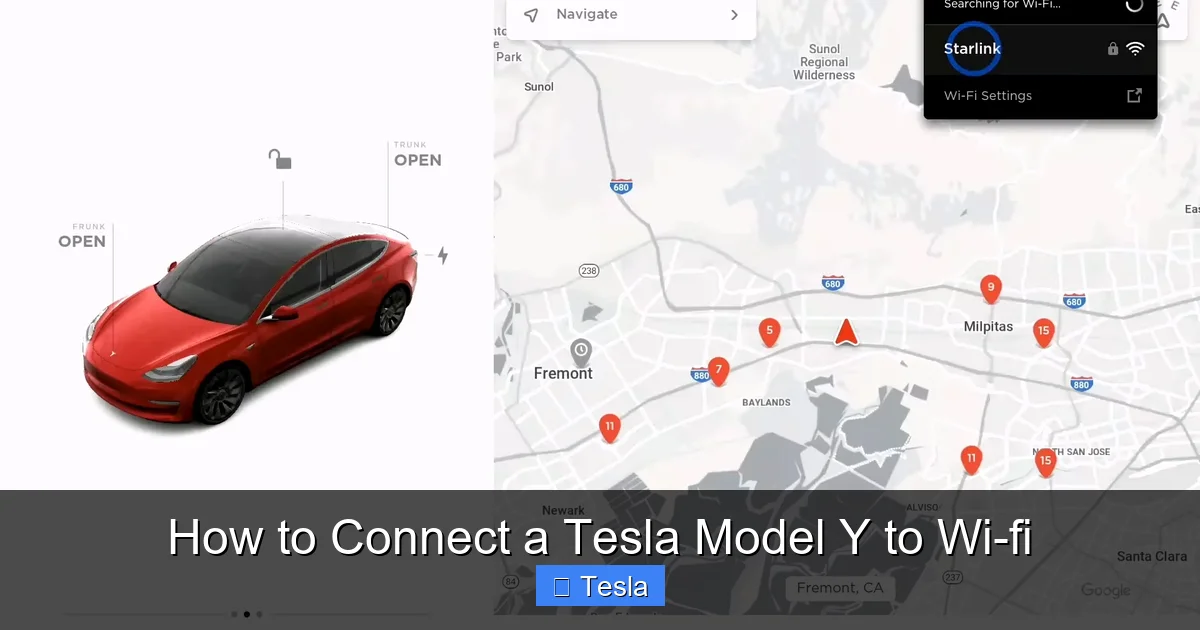
Visual guide about How to Connect a Tesla Model Y to Wi-fi
Image source: dolubatarya.com
Network Requirements and Compatibility
Your Tesla Model Y’s Wi-Fi chip is designed for standard modern home networks. It supports WPA2 and WPA3 security protocols, which are used by virtually all contemporary routers. It is compatible with both 2.4 GHz and 5 GHz frequency bands. However, there’s a key nuance: the 2.4 GHz band generally offers better range and penetration through walls, while the 5 GHz band is faster but has a shorter range. If you have a dual-band router broadcasting both SSIDs (network names), try connecting to the 2.4 GHz network first for better stability, especially if your car is parked farther from the router. Some early Model Y units had known issues with certain 5 GHz channels, so if 5 GHz fails, switch to 2.4 GHz.
Ensure your router is functioning correctly and that other devices can connect to it. A simple test: can your phone or laptop connect to the same Wi-Fi network in the same location as your parked Tesla? If not, the issue is with your router or ISP, not your car.
Gather Your Information
You’ll need two pieces of information from your Wi-Fi network:
- The SSID (Network Name): This is the name you see in your phone’s Wi-Fi list. Be careful, as it is case-sensitive.
- The Password (Network Key): Also case-sensitive. If you’ve changed the default password, use the new one. If you don’t remember it, check the sticker on your router or log into your router’s admin interface via a web browser.
For hidden networks (where the SSID broadcast is disabled), you’ll need to manually enter the SSID in your Tesla’s settings, which is an advanced step covered later.
Ensure Your Tesla Is in the Right State
The Wi-Fi settings are accessible only when the vehicle is in Park (P) and the touchscreen is on. You do not need to be plugged in, but being on power can help with large update downloads. Make sure the car is awake—the screen should be active. If the screen is dark, tap it or press a button on the steering wheel to wake the system.
Also, ensure your Tesla has a basic cellular connection. The car uses its built-in LTE modem for initial communication with Tesla’s servers. If you’re in a dead zone with no cellular signal at all, the Wi-Fi setup menu might be slow to load or unavailable. You need at least a minimal cellular “handshake” to access the network settings.
Step-by-Step: Connecting to a Wi-Fi Network
Now, let’s get connected. The process is straightforward and takes less than a minute once you know where to go.

Visual guide about How to Connect a Tesla Model Y to Wi-fi
Image source: 1a-1791.com
Navigating to the Wi-Fi Settings
- Start in Park: Ensure your Model Y is parked and the touchscreen is active.
- Tap the ‘Controls’ icon: This is the car icon located in the lower-left corner of the screen (or bottom center on newer UI versions).
- Go to ‘Network’: In the Controls menu, scroll down and select the ‘Network’ option. You might see a Wi-Fi symbol next to it.
- Select ‘Wi-Fi’: This will take you to the Wi-Fi configuration screen. If Wi-Fi is off, you’ll see a toggle switch at the top. Turn it ON.
Once enabled, the car will automatically scan for available networks. You’ll see a list of SSIDs appear, along with a signal strength indicator for each.
Selecting and Joining Your Network
- Find your network: Scroll through the list and tap on your home Wi-Fi SSID.
- Enter the password: A keyboard will pop up. Carefully type in your Wi-Fi password. Pay attention to uppercase/lowercase letters and any special characters. You can tap the ‘eye’ icon to show the password for verification.
- Connect: Tap the ‘Connect’ button.
The Tesla will attempt to join the network. You should see a spinning icon or “Connecting…” message. Within a few seconds, it should change to “Connected” and show an IP address. The top status bar of your touchscreen will also display a solid white Wi-Fi icon, indicating a successful connection.
Saving and Managing Networks
Your Model Y will remember the network. If you park in the same location regularly, it will automatically reconnect to that saved network whenever it’s in range and Wi-Fi is enabled. This is perfect for your home garage or regular parking spot.
You can manage saved networks in the same Wi-Fi settings menu:
- Forget a Network: Tap on the name of a connected or saved network, then select ‘Forget This Network.’ This is useful if you move or change your home password.
- Priority: The car will connect to the strongest available saved network. If you have multiple networks at home (e.g., a main router and a mesh extender), it will choose the one with the best signal.
- Wi-Fi Toggle: You can turn Wi-Fi off entirely from the main Network settings screen. This is useful if you don’t want the car to constantly search for networks or if you’re using only cellular data for a period.
For those with a hidden network (SSID broadcast disabled), tap the ‘+’ icon at the bottom of the network list to manually enter the SSID and password.
Troubleshooting Common Connection Issues
Even with the best instructions, things can go wrong. Don’t panic—most Wi-Fi problems with a Tesla Model Y have simple fixes.
Visual guide about How to Connect a Tesla Model Y to Wi-fi
Image source: evseekers.com
“Incorrect Password” or Authentication Failures
This is the most frequent error. The password you entered does not match what the router expects.
- Double-check for typos: Re-enter the password carefully. Watch for accidental spaces before or after the password.
- Check for special characters: Ensure you’re using the correct symbol (e.g., ! vs. I, 0 vs. O).
- Router security type: Ensure your router is using WPA2-Personal (AES) encryption. Older WEP or WPA (TKIP) are not supported and will cause failures. You may need to log into your router’s admin panel (usually via 192.168.1.1 or similar) to change the security mode.
- MAC Filtering: If your router has MAC address filtering enabled, you must add your Tesla’s Wi-Fi MAC address (found in Settings > Software > Additional Vehicle Information) to the allowed list.
Connection Drops or “Limited Connectivity”
The car connects but then loses the signal or shows a yellow exclamation mark.
- Signal Strength: Move the car closer to the router. Concrete walls, metal, and large appliances can severely weaken Wi-Fi signals. A Wi-Fi extender or mesh system may be necessary if your parking spot is far from the router.
- Router Overload: Too many devices on your network can cause instability. Reboot your router by unplugging it for 30 seconds.
- IP Address Conflict: Your router’s DHCP server may have assigned the same IP to another device. Rebooting the router usually resolves this. As a last resort, you can set a static IP for your Tesla in the network settings (Advanced).
- Interference: Other wireless devices (baby monitors, cordless phones, adjacent Wi-Fi networks on the same channel) can interfere. Try changing your router’s channel via its admin interface (use channel 1, 6, or 11 for 2.4 GHz to avoid overlap).
The Network Isn’t Showing Up in the List
Your SSID is completely absent from the scan list.
- Hidden SSID: If you intentionally hide your network, you must manually add it using the ‘+’ button.
- 5 GHz Only: If your router is broadcasting a 5 GHz network only, and your Model Y (especially earlier builds) is having trouble seeing it, enable the 2.4 GHz band on your router.
- Router Issues: Reboot the router. Ensure the Wi-Fi radio is enabled.
- Car Reboot: Sometimes the car’s Wi-Fi radio needs a reset. With the car in Park, press and hold both scroll wheels on the steering wheel until the screen goes black and the Tesla logo reappears. This is a soft reboot of the touchscreen and vehicle systems.
Connected But Can’t Download Updates
You see the Wi-Fi icon, but the software update notification never appears, or it says “Downloading…” but never finishes.
- Check Data Usage: If you’re using a mobile hotspot, you may have hit your carrier’s data cap, causing throttling or disconnection.
- Time of Day: Tesla often schedules large updates for overnight delivery. If it’s daytime, the update may be queued for later.
- Server Issues: Rarely, Tesla’s update servers may be down or experiencing high load. Check Tesla community forums or the official Tesla app for any known outage reports.
- Insufficient Storage: Very rarely, if your car’s flash storage is nearly full, it may not have space for a new update. This is uncommon but can happen after accumulating many games and media files.
The Tangible Benefits of a Persistent Wi-Fi Connection
Connecting once and forgetting about it is a mistake. Making Wi-Fi a permanent part of your Tesla’s environment pays constant dividends. Let’s explore what you gain.
Never Miss a Critical Update Again
This is the paramount benefit. OTA updates fix bugs, improve efficiency, and add features. A famous example was an update that increased the Model Y’s range by a few miles through improved battery thermal management. Another added the ability to play games like Cuphead or Atari titles. Security patches protect against potential vulnerabilities. By having your car on a dedicated home Wi-Fi network, these updates download automatically in the background. You wake up to a car that is subtly but meaningfully better than the day before. This is a level of post-purchase support no other automaker offers at this scale.
Unlock Premium Entertainment On-Demand
While Bluetooth audio is fine, streaming via Wi-Fi or a robust mobile hotspot is superior. The difference in sound quality between a compressed Bluetooth stream and a high-bitrate Spotify stream over Wi-Fi is noticeable, especially in a quiet cabin with a premium sound system. You get access to full libraries, playlists, and podcast feeds without draining your phone’s battery or dealing with occasional audio dropouts. The Tesla Theater experience, with apps like YouTube, Netflix, and Hulu (when parked), is entirely dependent on a solid internet connection.
Enhanced Navigation and Real-Time Data
Google Maps-powered Tesla navigation is excellent, but it truly shines with live data. A stable connection ensures you see real-time traffic flow, accurate Supercharger stall availability, and dynamic routing that avoids jams. It also enables features like “Navigate on Autopilot” which uses real-time map data for lane changes and highway exits. Without consistent data, you’re essentially using a basic GPS from the early 2000s.
Sentry Mode and Dashcam Footage Upload
Sentry Mode, Tesla’s 360-degree security system, saves footage to a USB drive when it detects a threat. But with a Wi-Fi connection, you can enable “Sentry Mode Live Camera Access” via the Tesla app, allowing you to view the live camera feed remotely from your phone. More importantly, you can set up the car to automatically upload saved Sentry Mode and Dashcam clips to your Tesla account over Wi-Fi when you’re home. This means critical security footage is safely backed up to the cloud without you needing to manually remove the USB drive.
Advanced Tips and Scenarios for Power Users
Once you’ve mastered the basic connection, these advanced strategies will optimize your experience.
Using a Mobile Hotspot as a Primary Connection
If you don’t have a home Wi-Fi network (e.g., you live in an apartment without a dedicated parking spot or a personal router), your smartphone’s mobile hotspot is a viable alternative. The process is identical—just select your phone’s hotspot SSID from the list and enter the password.
Critical Considerations: First, check your cellular plan’s data limits. OTA updates can be 2-5 GB, and streaming video consumes data rapidly. You could exhaust a 50GB monthly plan in a few days. Second, hotspot stability can vary. Some phones aggressively turn off hotspots to save battery. Keep your phone plugged in and nearby. Third, ensure your hotspot is set to “Maximum Compatibility” or “2.4 GHz” mode if you encounter connection issues, as some phones default to 5 GHz-only for hotspots.
Setting Up a Dedicated Network for Your Tesla
For the ultimate setup, consider creating a separate Wi-Fi network just for your Tesla. Many modern routers allow you to set up a “Guest Network” with its own SSID and password. The benefits are twofold:
- Security: Your Tesla connects to a network isolated from your main home devices (laptops, smart TVs). If Tesla’s software (which is essentially a web browser) had a theoretical vulnerability, it couldn’t access your personal files or network.
- Management: You can apply specific rules to this guest network, like setting a static IP address for your Tesla or prioritizing its bandwidth for overnight updates.
Simply log into your router’s admin page, enable the guest network, give it a name (e.g., “Tesla_Network”), set a strong password, and connect your Model Y to it. You can even hide this SSID for a cleaner main network list, connecting via manual entry if needed.
Wi-Fi and Home Charging: A Perfect Pair
If you have a Tesla Wall Connector or a third-party home charger, Wi-Fi connectivity on your Model Y enables smart charging features. While the charger itself may have its own Wi-Fi for remote control, your car’s connection allows it to communicate with the charger and your home energy system. You can schedule charging to start during off-peak electricity hours directly in the car’s settings or via the Tesla app. A stable home network ensures these schedules execute flawlessly. For those interested in the installation of a dedicated 240V outlet for charging, understanding the electrical requirements is key—resources like our guide on how much it costs to install a 220V outlet for Tesla can provide valuable context for the entire home charging ecosystem.
Customization and Third-Party Apps
A connected Tesla is a more fun Tesla. While the official Tesla app store is limited, a Wi-Fi connection is necessary for any unofficial modifications or third-party apps that enhance functionality. For instance, some owners use third-party tools to add Spotify lyrics to the UI or customize the browser. These tools typically require the car to be on the same local network as a computer running the companion software. Furthermore, if you’re interested in personalizing your Tesla’s appearance, a wrap is a popular option. While wraps don’t affect Wi-Fi signals, researching options like how much it costs to wrap a Tesla Model Y is a great next step for owners looking to make their connected car uniquely theirs.
Conclusion: Your Connected Tesla Awaits
Connecting your Tesla Model Y to Wi-Fi is not a complicated tech chore; it’s a fundamental step in activating your car’s true potential. It’s the key that unlocks a continuously evolving vehicle, one that gets better with time through software updates. The process—navigating to Controls > Network > Wi-Fi, selecting your SSID, and entering the password—takes less than 60 seconds. The benefits, however, last for the life of the car: essential security patches, exciting new features, seamless entertainment, and intelligent navigation.
Don’t let your Tesla be the only smart device in your home that’s offline. Make it a habit to ensure it’s connected to your home network whenever it’s parked. troubleshoot any initial hiccups with the simple steps outlined—reboot the screen, check the password, verify signal strength. Once that solid white Wi-Fi icon appears in your status bar, you can rest easy knowing your Tesla is receiving the care and updates it deserves, keeping it at the forefront of automotive technology. Your connected journey starts with that single click.
Frequently Asked Questions
Can I use my phone’s mobile hotspot to connect my Tesla Model Y?
Yes, you can. Your Tesla treats a mobile hotspot like any other Wi-Fi network. Go to Settings > Network > Wi-Fi and select your phone’s hotspot SSID. However, be extremely mindful of your cellular data plan, as large software updates and streaming can consume gigabytes quickly, potentially exceeding your monthly limit.
Why does my Tesla Model Y keep disconnecting from my Wi-Fi network?
This is usually due to a weak signal or router interference. Ensure your car is parked within good range of your router. Try rebooting both your router (unplug for 30 seconds) and your Tesla’s touchscreen (hold both steering wheel scroll wheels). Also, check if other devices are experiencing drops, which points to a router issue. Switching from a 5 GHz to a 2.4 GHz network connection can also improve stability for some Model Y units.
Do I need Wi-Fi to use Bluetooth or the Tesla app?
No. Bluetooth for phone pairing and the Tesla app’s basic functions (lock/unlock, climate control, check charge) use the car’s built-in cellular LTE connection, not Wi-Fi. Wi-Fi is specifically required for large software updates, streaming media apps, and the in-car web browser.
My network isn’t showing up in the list. What should I do?
First, confirm your router is broadcasting the 2.4 GHz band, as some older Model Y Wi-Fi modules struggle with 5 GHz-only networks. If you hide your SSID (network name), you must manually add it by tapping the ‘+’ icon at the bottom of the Wi-Fi list and entering the name and password exactly. A simple reboot of your router and the car’s touchscreen can also force a fresh network scan.
Is it safe to connect my Tesla to my main home Wi-Fi network?
Yes, it is generally safe. Tesla’s software is designed with security in mind. However, for maximum security peace of mind, you can create a separate “Guest” Wi-Fi network on your router exclusively for the car. This isolates it from your personal devices (laptops, smart home gadgets) on your primary network, containing any potential risk.
How long does a typical software update take to download over Wi-Fi?
It varies dramatically by update size and your home internet speed. A minor update might be a few hundred megabytes and take 5-10 minutes. A major update with new features can be 2-5 GB and may take 30 minutes to over an hour on a standard home connection. It’s best to initiate downloads overnight when you don’t need the car.







