
How Do I Update My Bmw Navigation Maps for Free

Updating your BMW navigation maps for free is absolutely possible, but it depends entirely on your vehicle’s model year and equipped technology. Most BMWs from 2014 onward with the iDrive 5.0 or newer system can download map updates directly via the BMW ConnectedDrive app or a simple USB drive at no cost. The process involves checking your VIN for eligibility, downloading the correct files from BMW’s official website, and following a straightforward installation routine. Always use official BMW sources to avoid malware and ensure map accuracy.
Let’s be honest: getting turn-by-turn directions that actually know about that new roundabout or recently opened highway is a beautiful thing. Stale navigation maps in your BMW are more than a minor inconvenience; they can lead to frustration, wasted time, and even unsafe detours. The big question that plagues every BMW owner is, “How do I update my BMW navigation maps for free?” The great news is that for a vast majority of recent BMW models, the answer is simpler and more cost-effective than you might think—often involving no dealer visit and no out-of-pocket expense. This guide will walk you through every official, free method step-by-step.
Key Takeaways
- Free updates are model-dependent: Your BMW’s eligibility for free map updates is determined by its production year (typically 2014+) and the specific iDrive system version it has.
- The USB method is the most common free approach: For compatible models, you can download map files from BMW’s official website, transfer them to a formatted USB drive, and install them yourself in the car.
- ConnectedDrive enables over-the-air updates: Vehicles with a connected services subscription and newer iDrive systems can often download and install map updates directly via the car’s Wi-Fi or cellular connection.
- Never use unofficial “cheap map” websites: Sites selling inexpensive map DVDs or files are often scams, contain malware, or provide incorrect data that can brick your system.
- Your VIN is the key to eligibility: The only surefire way to know what updates your BMW qualifies for is to enter your 17-digit Vehicle Identification Number on the official BMW map update portal.
- Patience is required: The update process, especially via USB, can take 30 minutes to over an hour. Ensure your car’s battery is healthy or use a trickle charger to prevent interruption.
📑 Table of Contents
- Why Updating Your BMW Navigation Maps Matters
- Understanding BMW’s Free Map Update Policy: It’s All About Your VIN
- The USB Method: Your Primary Free Update Pathway
- Using BMW ConnectedDrive for Over-the-Air (OTA) Updates
- Troubleshooting Common Update Issues
- Model-Specific Considerations and Final Tips
Your BMW’s navigation system is a sophisticated piece of technology. It’s not just a pretty screen; it’s a safety and convenience tool. Road networks are dynamic. New roads are built, old ones are reconfigured, traffic patterns change, and points of interest (like that great new coffee shop) pop up constantly. Using an outdated map database means your trusted co-pilot is working with old information.
The Real Cost of Outdated Maps
Beyond the annoyance of a “recalculating” loop, outdated maps can have tangible consequences. They can lead to missed appointments due to longer, incorrect routes, increased fuel consumption from inefficient navigation, and in worst-case scenarios, directing you onto roads with weight or height restrictions your BMW isn’t suited for. For a premium driving machine, this is an unacceptable compromise. Regularly updating your maps ensures your BMW’s intelligence matches its performance.
Understanding BMW’s Free Map Update Policy: It’s All About Your VIN
Before you download a single file, you must understand BMW’s policy. The company does not offer a blanket “free updates for life.” Instead, eligibility is tied to your vehicle’s specific hardware and software configuration, which is uniquely identified by your Vehicle Identification Number (VIN). This is your starting point.
Visual guide about How Do I Update My Bmw Navigation Maps for Free
Image source: bimmernavigation.com
How to Check Your Eligibility
1. Find Your VIN: It’s on your registration, insurance card, or visible through the windshield at the driver’s side dashboard. It’s also in the iDrive menu under Vehicle Info.
2. Visit the Official BMW Map Update Portal: Go to bmw.com/navigationupdate (or your regional BMW site, like bmwusa.com).
3. Enter Your VIN: The portal will decode your VIN and display exactly which map update is available for your specific BMW. It will state if the update is free or if there is a cost. This step is non-negotiable. Guessing your system version can lead to downloading the wrong files, which can cause installation failures.
Generally, BMW’s policy is that for the first few years after a model’s production, map updates are provided free of charge as part of the vehicle’s initial specifications. After a certain period or for certain older system generations (like iDrive 4.0 or earlier), updates may become paid services. The “free window” typically applies to models from the 2014/2015 model year onward equipped with iDrive 5.0, 6.0, 7.0, or 8.0.
The USB Method: Your Primary Free Update Pathway
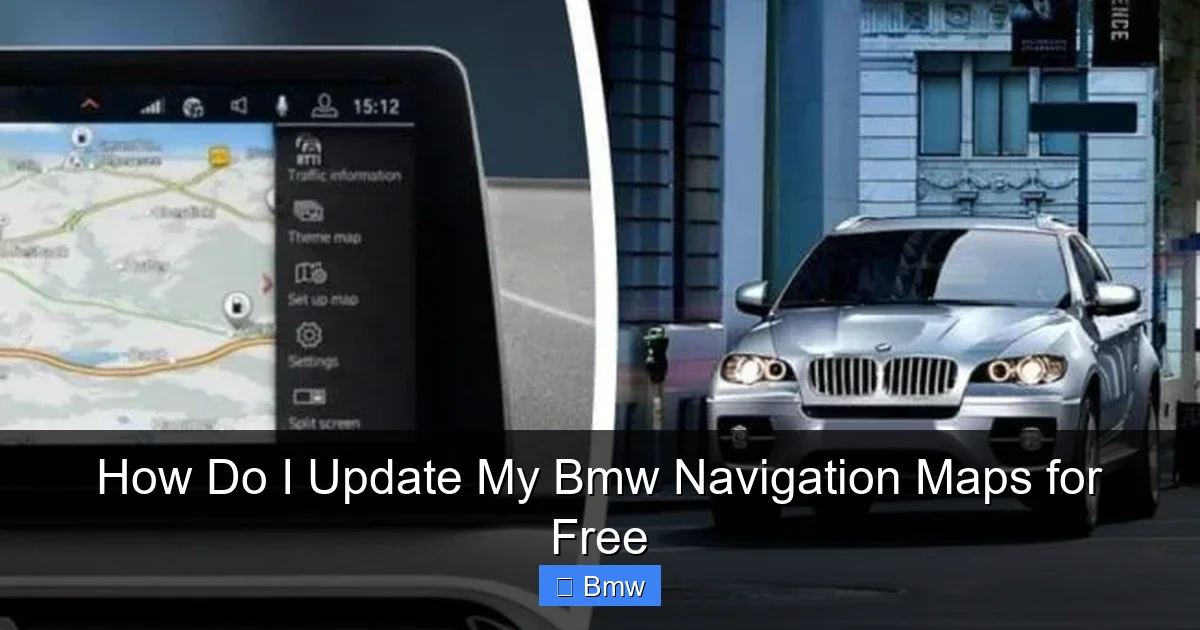
For the majority of compatible BMWs that don’t have over-the-air capability, the USB drive method is the standard, free, DIY route. It sounds technical, but it’s a very methodical process. Think of it as giving your car a large, important software file on a flash drive.
Visual guide about How Do I Update My Bmw Navigation Maps for Free
Image source: bimmernavigation.com
Step-by-Step USB Update Guide
Step 1: Preparation & Download
After confirming eligibility on BMW’s website, you will download a large compressed file (often 20-40 GB). This requires a stable, high-speed internet connection. The download may take several hours. Save the file to your computer desktop for easy access.
Step 2: Prepare the USB Drive
This is the most critical technical step. You need a high-quality USB drive. Recommendation: Use a new, empty USB 3.0 drive with at least 32 GB of capacity. Older or smaller drives often fail. You must format the drive as FAT32. Windows and macOS have built-in formatting tools. Do not use exFAT or NTFS. The BMW system is particular. Right-click the USB drive in your file explorer, select “Format,” and choose FAT32. This will erase everything on the drive.
Step 3: Transfer the Files
Extract the downloaded map files (they will likely be in a .zip or .rar archive). You must copy the entire extracted folder structure directly to the root directory of your formatted USB drive. Do not nest it inside another folder. The structure should look like: (USB Drive Letter):\BMW\…\files…. If you see an error about file size during copy, it means your USB isn’t properly FAT32 formatted.
Step 4: The Installation in Your BMW
1. Start your BMW. The ignition should be on, but you don’t necessarily need to start the engine. A strong battery is crucial.
2. Insert the USB drive into the port in your center console. Note: Use the correct port—often there are multiple USB ports, but only one (usually labeled for media) is for updates.
3. The iDrive system should automatically detect the update. A prompt will appear on the screen asking if you want to install the map update. Accept the terms.
4. DO NOT REMOVE THE USB DRIVE OR TURN OFF THE CAR. The process will begin, showing a progress bar. It will take 30-90 minutes. The car may reboot a few times. Let it finish completely. When it returns to the normal menu, the update is done. Eject the USB drive safely.
For owners of other brands, the process can be similar. You might find parallels when reading about how to update a Subaru navigation system, which also commonly uses a USB download method.
Using BMW ConnectedDrive for Over-the-Air (OTA) Updates
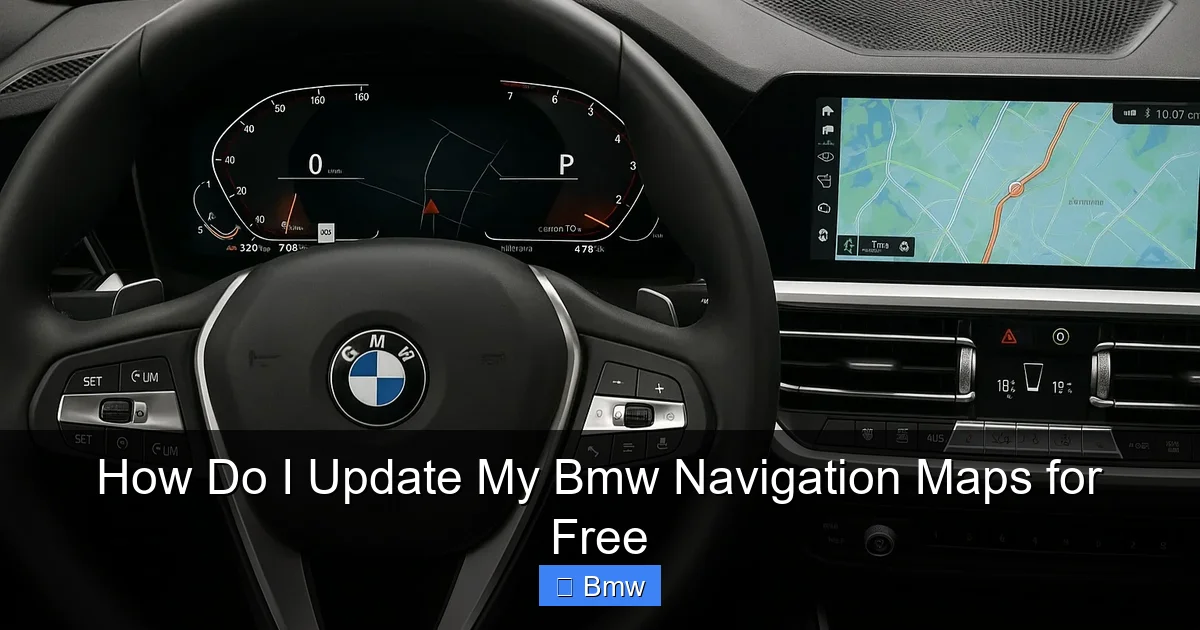
If your BMW is newer (roughly 2018+ with iDrive 6.0/7.0/8.0) and has an active ConnectedDrive services subscription (often included for the first few years), you may have the easiest path: over-the-air updates. This method requires no USB drive and no computer.
Visual guide about How Do I Update My Bmw Navigation Maps for Free
Image source: bimmernavigation.com
How OTA Updates Work
Your BMW, when connected to the internet via its built-in SIM card or a paired smartphone’s hotspot, can communicate directly with BMW’s servers. If a map update is available for your VIN, the system will notify you. You’ll see a message in the iDrive menu under Settings > Software Update or a pop-up alert. You can then choose to download the update over Wi-Fi or cellular data (be mindful of data caps if using a phone hotspot) and install it at your convenience. The car must be parked and the ignition on during installation, but it’s a truly seamless process. This is the future of vehicle software updates and is currently the most convenient free method where available.
Troubleshooting Common Update Issues
Even with careful steps, things can go wrong. Here’s how to handle the most frequent hiccups.
“No Update Found” After Inserting USB
This is the most common error. Causes are almost always:
– Incorrect FAT32 formatting: Re-format the drive.
– Wrong folder structure: The files must be in the root directory, not inside a folder named “BMW_Maps.”
– Wrong files downloaded: You may have downloaded the update for a different region or system version. Double-check your VIN on the BMW portal.
– Faulty USB port: Try a different port in the car.
Update Fails or Gets Stuck
If the progress bar freezes or the installation aborts:
– Battery voltage drop: A weak car battery is the prime suspect. Use a battery charger or jumper cables during the process.
– Corrupted download: Delete the files, re-download them from BMW’s site.
– Incompatible USB drive: Try a different brand/model of USB stick.
If problems persist, your car’s software may be too old. You might first need to perform a “software update” (not the map update) via USB or ConnectedDrive to bring the iDrive system to a version that can accept the new maps. These base software updates are also typically free.
Model-Specific Considerations and Final Tips
While the process is universal for eligible models, a few nuances exist.
Early iDrive 5.0 vs. Later Systems
Models from 2014-2016 with the first iteration of iDrive 5.0 often require a two-step process: first updating the “Head Unit Software” (the car’s operating system), then the maps. Later versions of iDrive 5.0 and all iDrive 6.0/7.0/8.0 usually handle the map update as a single package. Your BMW’s specific instructions on the download portal will clarify this.
The Importance of Regional Maps
BMW sells maps by region (e.g., North America, Europe). When you check your VIN, it will specify which regional map your car is coded for. You must download the update for that exact region. If you frequently travel internationally, you may need to purchase an additional region’s map from a dealer, as free updates are typically only for your vehicle’s primary coded region.
When “Free” Isn’t an Option
If your VIN check reveals a paid update, you have choices. You can pay the dealer or BMW’s online store. Alternatively, for older systems, consider a modern aftermarket solution like a Raspberry Pi running Android Auto, which gives you live, always-updated Google Maps. This is a more involved project but a popular permanent fix. For other luxury brands, the update landscape differs. For instance, Lexus navigation system updates often require a paid DVD or dealer installation, making BMW’s free USB policy relatively owner-friendly in comparison.
Frequently Asked Questions
Is updating my BMW navigation map really free?
Yes, for most BMWs from the 2014 model year onward with iDrive 5.0 or newer, BMW provides the map update files for free. You only pay for a USB drive and your time. Always verify your specific VIN on BMW’s official website first.
How long does the USB map update take?
The entire process—from downloading the large file (which can take hours on a slow connection) to installing it in the car—can take 2-4 hours. The in-car installation itself typically takes 30 to 90 minutes. Ensure your car’s battery is in good condition or use a charger to prevent interruption.
What if my BMW doesn’t have a USB port in the center console?
Older models may have a different port, like in the glovebox. Consult your owner’s manual for the exact “update” or “media” USB port location. For very early iDrive systems without a suitable USB port, free updates may not be available, and a dealer-installed update might be the only option.
Can I use any USB flash drive for the update?
No. You must use a USB 3.0 drive with at least 32 GB capacity, formatted as FAT32. Cheap, small, or old USB drives frequently fail. It’s best to use a new, reputable brand drive dedicated solely to this purpose.
How often does BMW release free map updates?
BMW typically releases major map updates once per year, often in the fall. Smaller “quarterly” updates for specific regions may also be available. Your ConnectedDrive system or the BMW update portal will notify you when a new version for your VIN is ready.
What should I do if the update fails and my navigation is now broken?
Do not panic. First, try the update again with a different USB drive. If that fails, you can usually recover by reinstalling the previous map version (if you saved it) or by visiting a BMW dealer, who can reinstall the factory software. Always back up your old system if the process allows it.
