
Why Is My Tesla Phone Key Disconnected

Experiencing frequent disconnections with your Tesla phone key? This is often due to Bluetooth interference, app glitches, or software issues. Most problems can be resolved with simple troubleshooting steps like restarting your phone or re-pairing. Understanding the root causes helps you maintain a reliable connection and avoid being locked out.
Key Takeaways
- Bluetooth interference from other devices or physical obstacles is a leading cause of disconnections.
- Phone settings like battery saver modes or incorrect app permissions can block the Tesla app from functioning.
- Outdated software on your phone, Tesla app, or vehicle often triggers connectivity problems.
- Re-pairing your phone with the vehicle is an effective first-step troubleshooting method.
- Hardware faults in your phone’s Bluetooth or the car’s module are rare but require professional diagnosis.
- Preventive measures like optimizing phone placement and keeping software updated reduce future disconnections.
- Always carry a backup key card in case your phone key fails unexpectedly.
📑 Table of Contents
Why Is My Tesla Phone Key Disconnected? A Frustrating Modern Problem
You tap your Tesla app to unlock your car, but nothing happens. You try again, walking around the vehicle, and still—no response. That familiar feeling of dread sets in. Your Tesla phone key has disconnected, leaving you stranded or late for your appointment. This isn’t just an inconvenience; it’s a disruption to the seamless, app-based experience Tesla owners love. But why does this happen? The truth is, your phone key relies on a delicate dance of Bluetooth signals, software permissions, and app communication. When one step falters, the connection drops. The good news? Most causes are fixable without a service center visit. Let’s break down exactly why your Tesla phone key disconnects and what you can do about it.
How Tesla Phone Key Technology Works
Before diving into problems, it helps to understand the system. Your Tesla phone key isn’t magic—it’s Bluetooth Low Energy (BLE) technology paired with the Tesla app. When your phone’s Bluetooth is on and the app is installed, your phone broadcasts a unique cryptographic key. Your Tesla’s built-in Bluetooth module constantly scans for this signal. When it recognizes your authorized phone, it allows unlocking, starting, and other functions. This all happens wirelessly and automatically, but it requires clear communication between three things: your phone’s hardware, the Tesla app, and your car’s software. A break in any link causes a disconnection.
Visual guide about Why Is My Tesla Phone Key Disconnected
Image source: thecrier.net
Bluetooth Low Energy (BLE): The Invisible Wire
BLE is designed for low-power, short-range communication. It’s perfect for key fobs because it sips battery. But BLE has limitations. It operates in the 2.4 GHz band, a crowded space shared by Wi-Fi, microwaves, and other Bluetooth devices. Interference here can weaken or block your phone’s signal. Physical barriers like metal in your car’s frame, your phone case, or even your body can absorb or reflect BLE signals. The typical effective range is about 30 feet, but real-world conditions often reduce this. If you step too far away or put your phone in a signal-blocking bag, the connection drops.
The Tesla App: More Than Just a Remote
The Tesla app isn’t just a pretty interface. It’s the security bridge between your phone and car. It stores your cryptographic credentials and handles authentication. When you approach your car, the app wakes up, communicates with the vehicle via Bluetooth, and verifies your identity. If the app is force-closed, running in the background with restricted permissions, or has a corrupted cache, it won’t respond. The car sees no valid signal and assumes the key is disconnected. Think of the app as a vigilant guard; if it’s asleep or deaf, it won’t let you in.
Top Reasons Your Tesla Phone Key Disconnects
Now, let’s get to the root causes. Based on owner reports and technical analysis, these are the most common reasons your Tesla phone key disconnects unexpectedly.
Visual guide about Why Is My Tesla Phone Key Disconnected
Image source: zevfacts.com
Bluetooth Interference and Signal Issues
This is the #1 culprit. Modern environments are RF-saturated. If you’re in a parking garage with lots of other cars’ Bluetooth, near a Wi-Fi router, or even near a running microwave, interference can disrupt your signal. Physical obstructions matter too. Keeping your phone in a metal briefcase, a thick wallet, or a bag with a RFID-blocking layer can shield the BLE signal. Even your car’s design plays a role—some models have better antenna placement than others. If you notice disconnections only in specific locations (like your office parking lot), it’s likely localized interference.
Phone Operating System and App Permissions
Smartphone OS updates can silently change how apps run in the background. Both iOS and Android have battery optimization features that may “sleep” the Tesla app to save power, breaking its ability to constantly scan for the car. Similarly, if the app lacks permission for Bluetooth, Location Services (required for BLE on Android), or Background App Refresh, it won’t function as a key. This often happens after a phone update resets permissions. A quick settings check can reveal if the Tesla app is being restricted.
Tesla App Glitches and Outdated Software
Like any app, the Tesla app can have bugs. A recent update might introduce a glitch that affects Bluetooth communication. Corrupted app cache or data can also cause erratic behavior. On the vehicle side, outdated firmware might have compatibility issues with newer phone OS versions. Tesla frequently patches these in updates, so running old software on either end increases disconnection risk. It’s a two-way street: your phone and car must speak the same protocol version.
Vehicle Software Updates and Temporary Bugs
After a major Tesla software update, some owners report temporary key disconnections. This is usually a bug in the new version that affects Bluetooth stack management. These are often resolved in subsequent “point” updates (e.g., 2023.32.1 to 2023.32.2). If disconnections started immediately after an update, it’s likely a software bug. Checking Tesla forums for your specific version can confirm if it’s a known issue.
Hardware Problems with Phone or Vehicle
This is rare but possible. Your phone’s Bluetooth module could be failing—try pairing with other BLE devices to test. In the car, the Bluetooth antenna or module might be faulty, especially after a collision or water exposure. A hardware fault usually presents as complete non-detection, not intermittent drops. If all phones fail to connect consistently, the car’s hardware may need service.
Interestingly, similar key detection issues plague other brands. For example, Why Does My Car Keep Saying Key Not Detected explores common reasons for that error message, which often overlap with Tesla’s “Phone Key Disconnected” alert. The underlying technology—whether Bluetooth or RFID—faces similar challenges with interference and permissions.
Step-by-Step Troubleshooting Guide
Don’t panic. Follow these steps in order, from simplest to more involved. Most disconnections are resolved in the first few steps.
Visual guide about Why Is My Tesla Phone Key Disconnected
Image source: zevfacts.com
1. Basic Checks: Bluetooth and App Restart
Start with the basics. Turn your phone’s Bluetooth off and back on. This resets the radio. Then, force-close the Tesla app and reopen it. If that fails, restart your phone entirely. This clears temporary glitches. Also, ensure your phone isn’t in Airplane Mode or a “Battery Saver” mode that restricts background activity. These simple actions fix a huge percentage of disconnection issues.
2. Re-pair Your Phone with the Vehicle
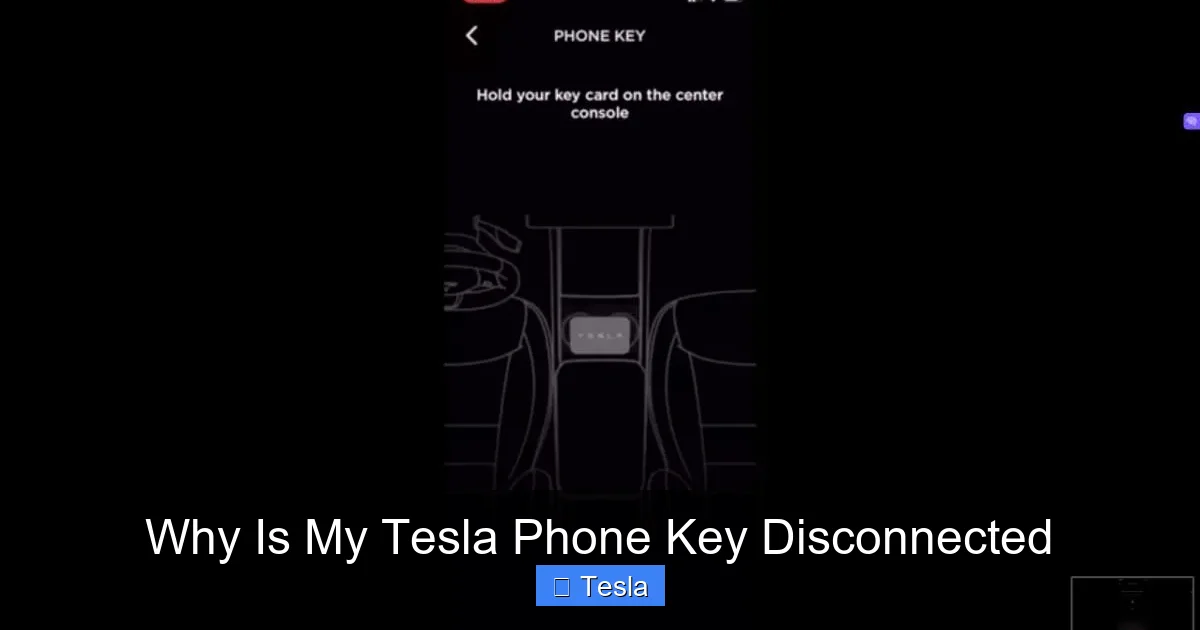
If restarting doesn’t work, re-pairing often does. Open the Tesla app, go to “Security & Drivers,” and remove your phone key. Then, physically sit in the car with your phone, and use the app to add it again. The car will prompt you to place your phone on the center console to complete pairing. This re-synchronizes the cryptographic keys and Bluetooth link. After re-pairing, test by locking and unlocking the car via the app.
3. Check for Software Updates
Update both your Tesla app (via App Store or Google Play) and your vehicle’s software (via the car’s touchscreen under Controls > Software). Install any available updates. Tesla often includes Bluetooth stability fixes. After updating, re-pair your phone key to ensure the new protocols are matched.
4. Reset or Reinstall the Tesla App
If the app itself is corrupted, clearing its cache and data can help. On Android: Settings > Apps > Tesla > Storage > Clear Cache/Data. On iOS: delete and reinstall the app. Note: You’ll need to log in again and re-pair your phone key. This step resolves many mysterious app-related disconnections.
5. Contact Tesla Support for Hardware Issues
If you’ve tried all the above and the phone key still disconnects consistently across multiple phones, it’s likely a hardware problem with the car’s Bluetooth module. Schedule a service appointment through the Tesla app. A technician can run diagnostics and replace faulty components. Also, if your phone is very old or has known Bluetooth issues, test with a different device to rule out your phone as the culprit.
When troubleshooting, remember that key issues aren’t unique to Tesla. For instance, Why My Car Key Is Not Working covers general key fob problems, many of which (like battery issues or signal interference) apply to phone keys too. It’s worth a read if you suspect the problem is more fundamental.
Preventing Future Disconnections
Once you’ve restored connectivity, take steps to keep it stable. A few adjustments can save you future headaches.
Optimize Phone Settings for Reliability
Go into your phone’s settings and ensure the Tesla app has:
- Bluetooth permission (always allowed)
- Location Services (required for BLE on Android; set to “Always” on iOS)
- Background App Refresh enabled
- Battery optimization disabled for the Tesla app (so it isn’t force-slept)
These settings vary by OS, but they’re critical. After a phone update, double-check them as updates can revert permissions.
Keep Software Updated
Enable automatic updates for the Tesla app and your phone’s OS. For your car, keep it connected to Wi-Fi at home to download over-the-air updates promptly. Tesla’s updates often include Bluetooth improvements that enhance key reliability. Staying current prevents known bugs from affecting you.
Best Practices for Phone Placement
Where you keep your phone matters. Avoid putting it in:
- Signal-blocking cases (especially those with metal or thick RFID shields)
- Deep pockets with lots of clothing layers
- Metal containers or bags with foil lining
Instead, keep it in a front pocket, a cloth bag, or on the passenger seat. When approaching the car, hold it up briefly if the door won’t unlock—this gives the BLE signal a clear path. Also, avoid placing your phone directly on the car’s metal surface; the antenna is optimized for proximity, not contact.
The Future of Tesla Key Technology
Tesla is always improving the phone key experience. Future updates may include Ultra-Wideband (UWB) technology, which offers more precise location tracking and stronger resistance to interference. UWB is already in some iPhone and Android models and could make phone keys even more reliable and secure. Additionally, Tesla may integrate more deeply with phone OS key stores (like Apple’s Wallet), reducing reliance on the Tesla app running in the background. These advancements should minimize disconnection events, but for now, understanding the current system is your best defense.
Conclusion
Your Tesla phone key disconnecting is almost always a software or signal issue, not a catastrophic failure. By understanding the three pillars—Bluetooth, app permissions, and software versions—you can methodically troubleshoot. Start with simple restarts, then re-pair, update everything, and check phone settings. Keep your key card as a reliable backup, but don’t let disconnections ruin your Tesla experience. With a few adjustments, your phone key will work as seamlessly as intended, unlocking your car with a tap and a smile. If problems persist, Tesla support is just an app message away. Drive on, confidently.
Frequently Asked Questions
Why does my Tesla phone key disconnect randomly?
Random disconnections are usually caused by Bluetooth interference from other devices, phone battery-saving settings restricting the Tesla app, or temporary software glitches. Moving away from the car or placing your phone in a signal-blocking case can also trigger drops.
How do I reconnect my Tesla phone key?
First, ensure Bluetooth is on and the Tesla app is running. Restart your phone and the app. If that fails, remove the phone key from the app and re-pair it by placing your phone on the center console. This re-synchronizes the connection.
Is a disconnected phone key a sign of a serious Tesla problem?
Rarely. Most disconnections are due to minor software or settings issues that you can fix yourself. A serious hardware problem with the car’s Bluetooth module is unlikely unless all phones fail to connect consistently after troubleshooting.
Can I use my Tesla without a phone key?
Yes. Every Tesla comes with a physical key card that you can tap on the driver’s door pillar to unlock and on the center console to start the car. Keep it as a backup in your wallet or purse.
Does my phone model affect Tesla phone key reliability?
All modern smartphones with Bluetooth 4.0 or later should work. However, some phones have more aggressive battery optimization that can interfere with background app operation. Checking and adjusting app permissions can mitigate this.
Should I contact Tesla if my phone key keeps disconnecting?
If you’ve tried all troubleshooting steps—restarting, re-pairing, updating software, and checking permissions—and the issue persists across multiple phones, then yes. Schedule a service appointment. A technician can diagnose if there’s a hardware fault with the car’s Bluetooth antenna or module.
