
How to Turn on Radio in Tesla Model Y

Turning on the radio in a Tesla Model Y is straightforward but different from traditional cars. The primary control is the central touchscreen, but you can also use voice commands or connect your phone via Bluetooth for audio. This guide explains every method in detail, plus tips for streaming and troubleshooting, so you can enjoy music and podcasts seamlessly on every drive.
Key Takeaways
- The touchscreen is your main hub: All radio and audio functions are controlled through the large central display, with no physical buttons or knobs for the radio.
- Voice commands offer hands-free control: Use the steering wheel button or the voice icon on the screen to change stations, adjust volume, or play specific songs without taking your hands off the wheel.
- Streaming apps are the primary source: The Tesla “radio” is internet-based, using services like TuneIn, Spotify, and Apple Music; traditional AM/FM broadcast isn’t available without an adapter.
- Bluetooth connects your phone’s audio: Pair your smartphone to play music, podcasts, or navigation audio directly through the car’s speakers, bypassing the built-in radio apps.
- An internet connection is essential: For streaming radio and apps, you need either Tesla’s Premium Connectivity subscription or a Wi-Fi hotspot from your phone.
- Troubleshooting often involves connectivity: Common issues like no sound or frozen apps usually stem from internet problems, software glitches, or audio output settings.
- Customization enhances your experience: Save favorite stations as presets, adjust sound settings per audio source, and explore equalizer options for the best sound quality.
📑 Table of Contents
- Introduction: Welcome to the Digital Dashboard
- Understanding Tesla’s Audio System: It’s Not Your Granddad’s Radio
- Method 1: Turning On Radio via the Touchscreen (The Primary Way)
- Method 2: Using Voice Commands for Hands-Free Radio
- Method 3: Streaming Music Services (Spotify, Apple Music, etc.)
- Method 4: Connecting via Bluetooth for Phone Audio
- Method 5: USB Connection for Audio Playback
- Troubleshooting: When the Radio Won’t Turn On or Play
- Conclusion: Your Tesla, Your Soundtrack
Introduction: Welcome to the Digital Dashboard
So, you’ve just stepped into your shiny new Tesla Model Y, and you’re ready to crank up some tunes for the drive home. You reach for a traditional radio knob or button, but… nothing. The minimalist interior is sleek and futuristic, but where’s the radio switch? If you’re feeling a little puzzled, don’t worry—you’re not alone. One of the most common questions new Tesla owners ask is, “How do I turn on the radio in a Tesla Model Y?”
The answer is both simple and profound: you don’t turn on a “radio” in the traditional sense. Tesla replaced the old AM/FM tuner with a fully digital, internet-connected media system. This means your “radio” is actually a suite of streaming apps, Bluetooth connectivity, and voice commands, all managed through the massive central touchscreen. It’s a shift from spinning a dial to swiping a screen, but once you get the hang of it, it’s incredibly powerful and flexible. This guide will walk you through every single method, from the basics to pro tips, so you can master your Model Y’s audio system in minutes.
Understanding Tesla’s Audio System: It’s Not Your Granddad’s Radio
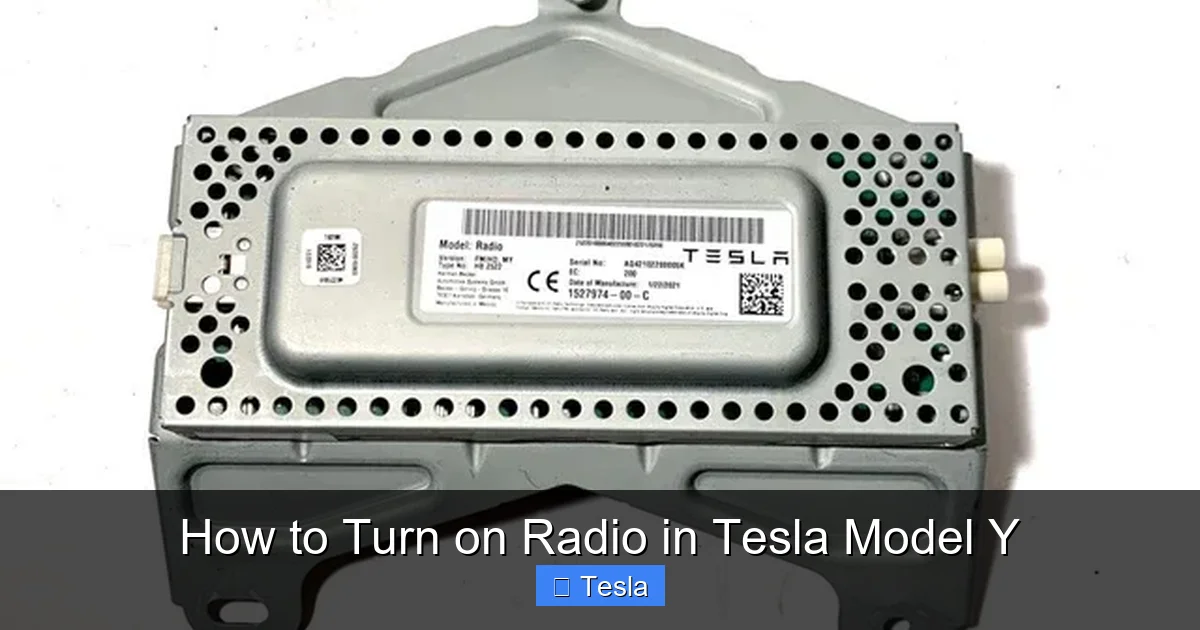
Before we dive into the “how,” let’s quickly understand the “what.” The Tesla Model Y does not have a built-in AM/FM radio tuner like conventional cars. Instead, it’s designed as a streaming-first multimedia hub. This approach has huge advantages: access to thousands of live stations worldwide, on-demand podcasts, and music services, all with crystal-clear digital sound. But it also means you need an internet connection for the full experience.
Visual guide about How to Turn on Radio in Tesla Model Y
Image source: picclickimg.com
No Traditional AM/FM Tuner
Forget scanning through static-filled frequencies. Tesla removed the hardware for traditional broadcast radio to simplify manufacturing and push users toward modern streaming. If you absolutely need local AM/FM news or sports, you’ll need to use your smartphone’s radio app (if it has one) and connect via Bluetooth or USB. But for most drivers, the streaming options are more than sufficient.
Streaming-First Approach
The heart of the system is the Media app, accessible from the bottom toolbar on the touchscreen. Inside, you’ll find tabs for services like TuneIn (for live radio), Spotify, Apple Music, and more. You’ll also see options for Bluetooth and USB audio. Your Tesla uses its cellular connection (or Wi-Fi) to stream this content directly, just like your phone does.
Internet Connection Requirement
To use any streaming service, your Model Y needs an active internet connection. This comes from Tesla’s built-in cellular modem. Basic connectivity is free and allows for navigation, software updates, and limited media streaming (like TuneIn’s basic tier). For higher-quality, ad-free streaming on services like Spotify, you’ll need a Premium Connectivity subscription. Alternatively, you can connect your phone’s Wi-Fi hotspot to the car.
Method 1: Turning On Radio via the Touchscreen (The Primary Way)
This is the most direct and common method. The touchscreen is the command center for everything in the Model Y, and the radio is no exception. Here’s a step-by-step breakdown.

Visual guide about How to Turn on Radio in Tesla Model Y
Image source: automotiveglory.com
Step 1: Access the Media Player
When you start your Model Y, the main display will light up. At the bottom of the screen, you’ll see a row of icons: Music, Media, Camera, etc. Tap the Music note icon (or “Media” depending on your software version). This opens the media player interface.
Step 2: Select Your Audio Source
At the top of the media screen, you’ll see tabs for different sources: Radio, Spotify, Apple Music, Bluetooth, USB. For traditional “radio” feel, tap “Radio”. This typically opens TuneIn, which aggregates thousands of live internet radio stations. You can browse by category (News, Sports, Music) or search for a specific station call sign or frequency.
Step 3: Tune and Play
Once you select a station, it should start playing immediately. You can adjust the volume using the scroll wheel on the steering wheel or the on-screen volume slider (tapping the speaker icon). To change stations, you can swipe left/right on the now-playing screen or go back to browse.
Practical Example: Saving Your Favorite Station
Let’s say you love listening to 98.7 KLOS in Los Angeles. In the Radio app, search for “98.7 KLOS.” Once it’s playing, look for a heart icon or “Add to Favorites” button. Tap it. Now, go to the “Favorites” tab within the Radio app, and your station is saved for one-tap access next time. You can also add stations to the “Quick Bar” at the top of the media screen for even faster access.
Pro Tip: If you have Premium Connectivity, explore TuneIn’s premium content for ad-free listening. If you’re using the free tier, expect some ads between songs.
Method 2: Using Voice Commands for Hands-Free Radio
Safety first! While driving, you shouldn’t take your eyes off the road to fiddle with the touchscreen. That’s where Tesla’s excellent voice control system shines. You can play almost any audio without touching a button.

Visual guide about How to Turn on Radio in Tesla Model Y
Image source: cdn.motor1.com
Activating Voice Control
There are two ways: Press and hold the right scroll wheel button on the steering wheel, or tap the microphone icon on the touchscreen (usually top-center or in the Media app). The screen will show a listening animation, and a chime will sound.
Voice Commands for Radio & Audio
Once activated, speak naturally. The system understands a wide range of commands. For example:
- “Play jazz radio.” (Will search TuneIn for a jazz station)
- “Play 98.7 FM.” (If available on TuneIn)
- “Play the latest Taylor Swift song.” (Uses your connected Spotify/Apple Music)
- “Turn up the volume.” or “Volume 50%.”
- “Pause the music.” or “Resume playback.”
- “Switch to Bluetooth audio.”
Why Voice Commands Are a Game-Changer
Voice control is arguably the fastest and safest way to change audio while moving. You can keep your eyes on the road and hands on the wheel. The system is surprisingly accurate, even with accents or background noise. It’s also great for discovering new music—just say “Play something upbeat” or “Play music from the 80s.”
Remember: Voice commands require an internet connection for searching stations or songs via streaming apps. If you’re offline, basic playback control (play/pause/volume) still works for the current source.
Method 3: Streaming Music Services (Spotify, Apple Music, etc.)
For many, the “radio” is less about live stations and more about on-demand music. Tesla integrates popular streaming services directly into the car.
Supported Apps and Setup
In the Media app, you’ll see tabs for Spotify and Apple Music (if your region supports it). To use them:
- Tap the service tab.
- You’ll be prompted to log in. You can either scan a QR code with your phone (which opens a browser to log in securely) or enter credentials on the touchscreen (not recommended while driving).
- Once logged in, your personal playlists, library, and search functions are available right in the car.
Using Streaming Services
It works just like your phone: browse your library, search for songs/artists/albums, and play. You can also use voice commands: “Play my ‘Road Trip’ playlist on Spotify.”
Important Considerations
- Premium Connectivity Required: Streaming music from Spotify or Apple Music over the car’s cellular connection requires a Premium Connectivity subscription. Without it, you can only stream when connected to Wi-Fi (like at home) or via your phone’s hotspot.
- Data Usage: Streaming music uses data. If you have a limited data plan on your phone’s hotspot, be mindful.
- Account Limits: Spotify’s terms typically allow one stream at a time. If you’re playing in the car, it may pause playback on your phone.
Pro Tip: Download playlists for offline listening on your phone, then connect via Bluetooth or USB. This avoids data usage and works even without Premium Connectivity, but you lose the integrated Tesla interface.
Method 4: Connecting via Bluetooth for Phone Audio
Bluetooth is the universal fallback. Pair your smartphone, and you can play any audio app from your phone through the Tesla’s speakers. This is how you’ll use your phone’s own radio app, podcasts apps, or audiobooks.
Pairing Your Phone
- Ensure Bluetooth is on in your phone.
- In the Model Y, go to Settings > Bluetooth.
- Toggle Bluetooth On if it isn’t already.
- On your phone, select your Tesla (it will appear as something like “Tesla Model Y” followed by a few digits).
- A PIN may appear on both screens; confirm they match and accept the pairing request.
Playing Audio via Bluetooth
Once paired, your phone will automatically connect when you start the car (if Bluetooth is on). To play audio:
- Open any app on your phone that plays audio (e.g., your phone’s built-in radio app, a podcast app, YouTube Music).
- Start playback on your phone.
- The audio should automatically route to the car’s speakers. You can control volume via the steering wheel.
- On the touchscreen, you might see a “Bluetooth” source active in the Media app. You can often see track info here if your phone supports it (A2DP metadata).
Limitations of Bluetooth Audio
While convenient, Bluetooth has downsides compared to native apps:
- Higher Latency: There can be a slight delay between your phone and the car, making video sync poor (but audio is fine).
- No Integrated Controls: You can’t browse your phone’s music library from the Tesla screen; you must use your phone.
- Voice Command Limits: Voice commands for specific songs/artists may not work as seamlessly as with native apps.
- Dependence on Phone Battery: Your phone does all the streaming work, draining its battery faster.
Best Use Case: Bluetooth is perfect for playing music from your personal library, podcasts from apps not supported natively in Tesla, or using your phone’s own radio app for local AM/FM.
Method 5: USB Connection for Audio Playback
Don’t forget the good old USB port! You can plug in a flash drive with music files or connect your iPhone/Android for wired audio and CarPlay/Android Auto (on newer models).
Using a USB Flash Drive
- Format a USB drive as FAT32 (exFAT may work, but FAT32 is safest).
- Create a folder named “Music” at the root of the drive.
- Copy your MP3, AAC, FLAC, etc., files into that folder (subfolders are supported).
- Plug the USB drive into one of the front USB-C ports (or USB-A if your Model Y has them).
- The Media app should automatically detect it and show a “USB” source. Tap it to browse and play.
Connecting Your iPhone (CarPlay) or Android (Android Auto)
Starting with 2021-2022 Model Ys (and via software updates on older ones), Tesla added support for Apple CarPlay and Android Auto via a third-party app or in some regions natively. If your car supports it:
- Connect your iPhone via USB cable to the front port.
- A CarPlay prompt should appear on the touchscreen. Accept it.
- You can now use Apple Maps, Apple Music, Podcasts, etc., through the Tesla display with full Siri voice control.
For Android Auto, the process is similar with a compatible phone and cable. Check your car’s software version and Tesla’s official guides for current support.
Why Use USB?
USB playback doesn’t require an internet connection at all—perfect for areas with poor cellular coverage. It also offers lossless audio quality (FLAC files) and doesn’t use your phone’s data. Plus, with CarPlay/Android Auto, you get a familiar interface with all your phone’s apps.
Troubleshooting: When the Radio Won’t Turn On or Play
Even with a system this sleek, glitches happen. Here’s how to diagnose common audio problems.
Issue: No Sound at All
Check:
- Volume level: Use the steering wheel scroll wheel or on-screen slider. Make sure it’s not muted (speaker icon with a line through it).
- Audio output source: Look at the bottom-left of the touchscreen. Is it set to “Phone,” “USB,” “Radio,” or “Bluetooth”? Make sure it matches what you’re trying to play.
- Bluetooth connection: If using Bluetooth, is your phone connected? Check Settings > Bluetooth. Try forgetting the device and re-pairing.
- Mute button: The steering wheel has a mute button (microphone with a line). Make sure it’s not accidentally pressed.
Issue: Streaming Apps Won’t Load or Keep Buffering
Check:
- Internet connection: Look at the top of the screen for the cellular signal bars. No bars? You’re offline. Try moving to a better area, connecting to Wi-Fi, or using your phone’s hotspot.
- Premium Connectivity: If you’re trying to stream Spotify without Premium, it won’t work over cellular. You’ll see a message prompting you to subscribe or connect to Wi-Fi.
- Software updates: Outdated software can cause app crashes. Go to Settings > Software and check for updates.
Issue: Touchscreen Unresponsive or Frozen
Sometimes the entire screen may lag or freeze, making it impossible to change the radio.
- Soft Reboot: Hold down both scroll wheels on the steering wheel for about 10 seconds until the screen goes black and the Tesla logo reappears. This restarts the system without affecting driving.
- Hard Reboot: If that fails, park the car, power it off (through the touchscreen: Safety > Power Off), wait 2 minutes, then get back in. This is more drastic but often fixes persistent glitches.
Issue: Poor Sound Quality or Distortion
Check:
- Sound settings: Tap the Settings (gear) icon in the Media app. Here you can adjust the Equalizer (Bass, Treble, etc.) for different audio sources. Try resetting to default.
- Source quality: Streaming over a weak connection can reduce audio bitrate. Ensure a strong signal.
- Speaker issues: If distortion persists across all sources and volumes, it could be a hardware problem. Schedule a service appointment through the Tesla app.
Pro Tip: Many audio issues are simply due to the wrong source being selected. Always double-check the source icon in the bottom-left corner of the Media app.
Conclusion: Your Tesla, Your Soundtrack
Mastering the radio in your Tesla Model Y is really about mastering its digital interface. While it might feel alien at first compared to a traditional car radio, the flexibility is unparalleled. You have three main pathways: the touchscreen for full control, voice commands for safety and convenience, and Bluetooth/USB for leveraging your phone’s apps. Remember, an internet connection—either via Premium Connectivity or your hotspot—is key for the full streaming experience.
Don’t be afraid to experiment. Save your favorite stations, explore Spotify’s vast library, and use voice commands while driving to stay focused. If you hit a snag, a simple reboot often does the trick. And if you’re considering customizing your Model Y’s interior for an even better audio environment, check our guide on how much it costs to tint a Tesla Model Y—tinting can reduce screen glare, making those audio controls easier to see on sunny days. For those looking to personalize the dashboard area where you interact with the media system, our article on Tesla Model Y wrap costs offers insights into protecting or changing the interior surfaces.
Ultimately, your Tesla’s audio system is a portal to endless entertainment. Whether you’re catching up on podcasts, vibing to a curated playlist, or listening to a live baseball game from another state, it’s all at your fingertips—or your voice. Now go ahead, turn on that radio, and enjoy the ride.
Frequently Asked Questions
Do I need a Premium Connectivity subscription to listen to radio?
You need Premium Connectivity to stream music services like Spotify and Apple Music over Tesla’s built-in cellular connection. For TuneIn radio, basic stations are available for free, but premium ad-free tiers require Premium. You can also use your phone’s Wi-Fi hotspot or connect via Bluetooth/USB without Premium.
Can I listen to traditional AM/FM radio?
The Tesla Model Y does not have a built-in AM/FM tuner. To listen to local broadcast radio, you must use your smartphone’s radio app (if available) and connect via Bluetooth or USB cable. Alternatively, many local stations stream online via TuneIn or other apps.
How do I adjust the sound quality or equalizer?
While audio is playing, tap the Settings (gear) icon in the Media app. This opens the equalizer where you can adjust Bass, Midrange, Treble, and Balance/Fader separately for different sources (Radio, Spotify, Bluetooth, etc.). You can also select predefined sound profiles like “Jazz” or “Rock.”
Why isn’t my voice command working for radio?
Voice commands require an active internet connection. Check your cellular signal bars at the top of the screen. If you’re offline, voice searches for stations or songs won’t work. Basic playback commands (play, pause, volume) may still work locally. Ensure you’re speaking clearly after the chime, and try rephrasing, e.g., “Play CNN on TuneIn” instead of just “Play CNN.”
Can I play audio from my phone without using data?
Yes. If you have music files downloaded locally on your phone (e.g., in Apple Music library or Spotify offline playlists), you can play them via Bluetooth or USB without using cellular data. The phone plays the file directly, and the Tesla just receives the audio stream.
What should I do if the radio screen is frozen or unresponsive?
Perform a soft reboot: Press and hold both scroll wheels on the steering wheel for about 10 seconds until the screen goes black and the Tesla logo reappears. This restarts the media system without affecting driving. If that fails, park the car, use Settings > Safety > Power Off, wait 2 minutes, then restart the car.
