
How to Turn Off the Tesla Radio

Contents
- 1 Key Takeaways
- 2 📑 Table of Contents
- 3 Understanding Tesla’s Audio System: It’s All Digital
- 4 The Primary Method: Mastering the Touchscreen Controls
- 5 Steering Wheel Controls: Quick Mute and Volume
- 6 Voice Command: The Hands-Free Solution
- 7 Advanced Scenarios and Troubleshooting
- 8 Best Practices for Managing Tesla Audio
- 9 Conclusion: It’s Simpler Than It Seems
- 10 Frequently Asked Questions




Turning off the Tesla radio is primarily done through the central touchscreen interface, with variations between model years. You can also use steering wheel controls or voice commands for quick muting. The process is straightforward but differs from traditional cars with physical buttons, requiring a brief learning curve to master Tesla’s digital ecosystem.
Key Takeaways
- The main control is the touchscreen’s Media app: All Tesla models use the central touchscreen to manage audio sources and power, accessed via the bottom or app launcher.
- Model year matters: Older models (pre-2021 refresh) have a dedicated “Radio” app, while newer ones integrate media into a unified “Media” app with different layouts.
- “Mute” is not the same as “Off”: The steering wheel scroll wheel mute button silences audio instantly but keeps the system active; true power-off requires the touchscreen.
- Voice command offers a hands-free option: Saying “Turn off the radio” or “Mute audio” uses Tesla’s voice recognition for quick control without looking away from the road.
- Bluetooth and USB sources behave differently: Disconnecting a phone or removing a USB drive may stop playback but doesn’t necessarily power down the radio module itself.
- Software updates can change interfaces: Tesla’s over-the-air updates occasionally modify menu structures, so your 2023 Model 3 might look different from a 2021.
- Understanding “Sleep Mode” is key: The car’s main computer enters a low-power state, but the radio can remain active if a source is selected; turning it off manually saves a small amount of battery.
📑 Table of Contents
- Understanding Tesla’s Audio System: It’s All Digital
- The Primary Method: Mastering the Touchscreen Controls
- Steering Wheel Controls: Quick Mute and Volume
- Voice Command: The Hands-Free Solution
- Advanced Scenarios and Troubleshooting
- Best Practices for Managing Tesla Audio
- Conclusion: It’s Simpler Than It Seems
Understanding Tesla’s Audio System: It’s All Digital
Welcome to the world of Tesla, where the traditional dashboard of buttons and knobs is replaced by a sleek, powerful touchscreen. If you’re coming from a car with a physical radio knob, the question “How do I turn this thing off?” is completely normal. In a Tesla, the radio—or more accurately, the media playback system—is a software application running on the main computer (the MCU, or Media Control Unit). There is no single, dedicated “power” button on the console. Instead, you navigate menus, just like you would on a tablet or smartphone. This digital architecture offers incredible flexibility and integration with streaming services, but it does mean the method for turning off the audio is less intuitive at first glance.
The system controls all audio sources: AM/FM/Satellite radio (in markets where it’s available), Bluetooth streaming from your phone, USB playback, and internet-based streaming services like TuneIn, Spotify, or Apple Music (with a Premium Connectivity subscription). The goal is to stop audio playback and, ideally, put the media system into a low-power state. This guide will walk you through every method, for every major Tesla model, and explain the nuances so you can confidently command your car’s soundscape.
The Primary Method: Mastering the Touchscreen Controls
This is the universal, reliable method that works on every Tesla model, from the original Model S to the latest Highland-equipped Model 3. The interface has evolved, so we’ll break it down by generation.
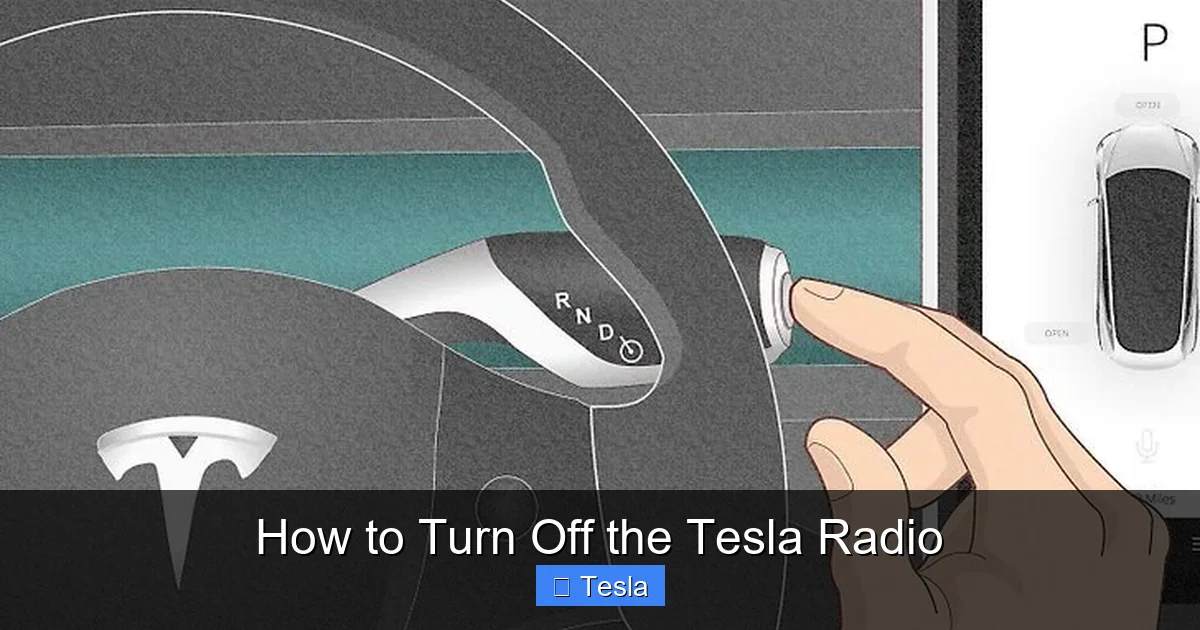
Visual guide about How to Turn Off the Tesla Radio
Image source: wikihow.com
For Models with the “Radio” App (Pre-2021 Refresh Models)
In older Model S and Model X vehicles, and early Model 3s, you’ll find an app icon labeled “Radio” on the bottom app launcher bar (the row of icons at the bottom of the screen). Tap it to open the radio interface.
To turn it off, you have two primary options within this app:
- Change the Source to “Off”: Look at the top of the Radio app screen. You’ll see the current source highlighted (e.g., “FM,” “Spotify,” “Bluetooth”). Tap that source name. A dropdown or list of all available sources will appear. Scroll to the very bottom of this list and select “Off.” This immediately halts all audio playback and deactivates the radio tuner. The screen may show a blank or “No Source Selected” message.
- Use the Universal “Pause” Button: In the center of the Radio app screen, there is a large play/pause button. Tapping it will pause the current track or station. While this stops the sound, the system remains “on” in the background, ready to resume. For true power-off, the “Off” source method is best.
For Models with the Unified “Media” App (2021+ Refresh and Newer Models)
Starting with the 2021 refresh for Model S and Model X, and on all newer Model 3 and Model Y vehicles, Tesla consolidated media controls into a single “Media” app. The layout is more streamlined. The “Radio” app is gone, replaced by a unified player.
Here’s how to turn it off in the new interface:
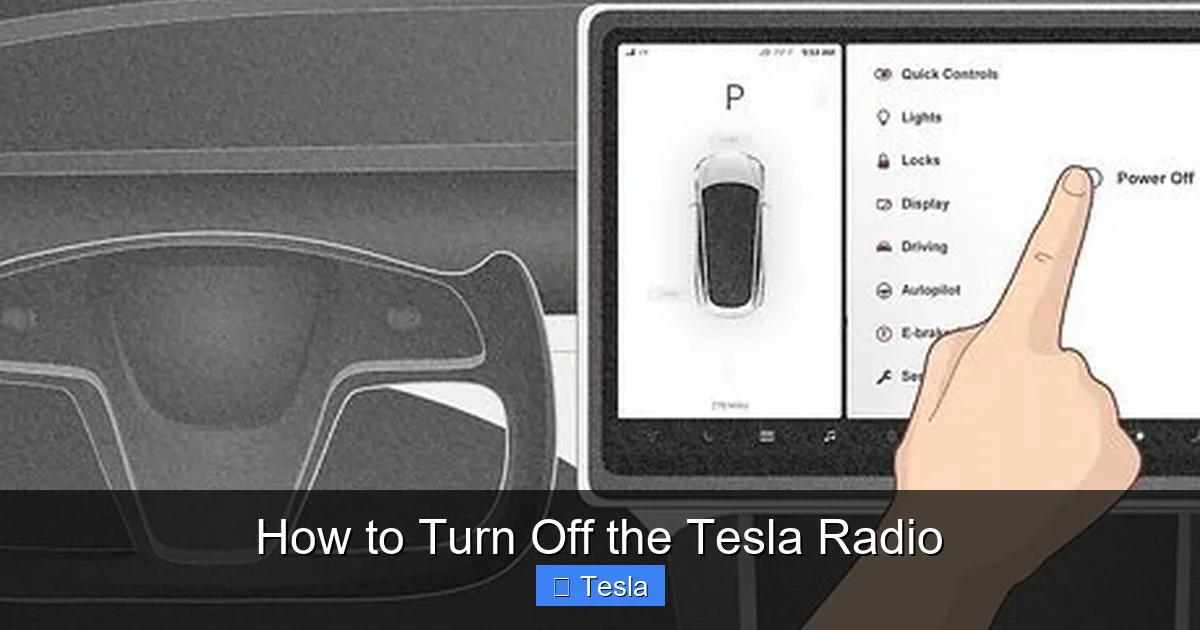
- Access the Media Player: Tap the “Media” icon on the bottom app launcher. The player will appear, showing the current song, station, or podcast.
- Find the Source Selector: Look at the top-left or top-center of the Media player window. You’ll see the name of the current source (e.g., “Spotify,” “FM,” “Bluetooth – John’s iPhone”). Tap this source name.
- Select “Off”: A list of all available sources will slide out or appear. Scroll to the very bottom of this list. You will find an option labeled simply “Off.” Tap it. The music stops, the player display will clear, and the system is effectively off. This is the direct equivalent to the old method.
Pro Tip: In the new Media app, if you simply want to stop sound immediately without navigating menus, tapping the large play/pause button in the center of the screen works instantly. But remember, it’s a pause, not a power-off. If you want to ensure no audio surprises later, use the “Off” source.
Steering Wheel Controls: Quick Mute and Volume
Your Tesla’s steering wheel has physical controls that provide the fastest way to silence the audio, though with a caveat.
Visual guide about How to Turn Off the Tesla Radio
Image source: wikihow.com
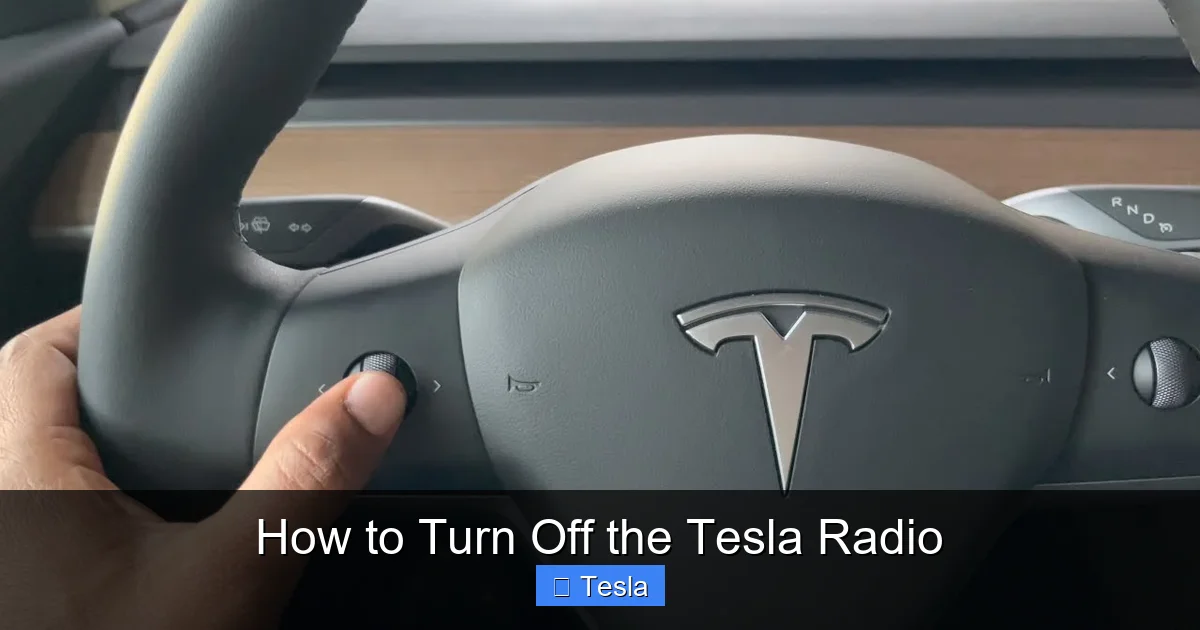
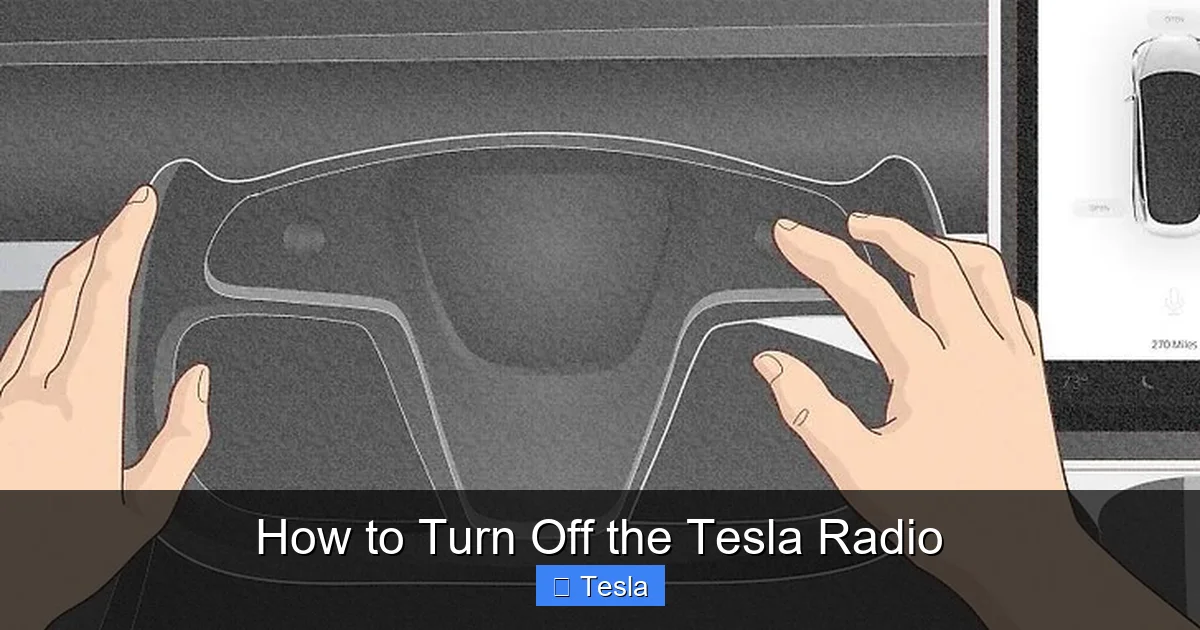
- The Scroll Wheel (Left or Right): On the steering wheel, there is a scroll wheel (often used for volume and steering wheel adjustments). Pressing this scroll wheel inward once will mute or unmute the audio instantly. This is a toggle. It’s perfect for quickly silencing a loud ad or taking a phone call. However, this is a mute function, not a power-off. The radio system remains active on its last source. If you change the source via touchscreen or a phone connects via Bluetooth, audio could start playing again unexpectedly. Think of it as a “shush” button, not an “off” switch.
- The Volume Buttons: The buttons next to the scroll wheel (usually marked with “+” and “-“) adjust volume. Holding the volume-down button will eventually reach zero volume, which has the same practical effect as muting. But again, the system is still powered and ready.
When to use this: Use the steering wheel mute for temporary silence during a conversation or to quickly quiet an incoming notification. Use the touchscreen “Off” method when you are parking the car for the night or want to guarantee no audio will play later.
Voice Command: The Hands-Free Solution
Tesla’s voice command system, activated by the steering wheel button or the center scroll wheel press (depending on model settings), is a surprisingly effective tool for this task.
Visual guide about How to Turn Off the Tesla Radio
Image source: wikihow.com
To use it:
- Press the voice command button on your steering wheel (or say “Hey Tesla” if you have that feature enabled in settings).
- When you hear the chime, clearly say “Turn off the radio” or “Turn off the media” or “Mute the audio.”
- The system will typically respond with “Okay” or “Muted” and the audio will stop.
How it works: The voice command for “turn off” generally triggers the same function as selecting “Off” from the source list—it stops playback and deactivates the source. The command “mute” will likely trigger the steering wheel mute function. It’s a great option when your hands are on the wheel or you’re carrying something and don’t want to touch the screen. It works reliably across all models and software versions.
Advanced Scenarios and Troubleshooting
Sometimes, the standard methods don’t seem to work, or you encounter specific situations. Let’s address them.
“The Radio Won’t Stay Off! It Keeps Coming Back On.”
This is a common frustration and usually has one of two causes:
- Bluetooth Auto-Connect: If your phone’s Bluetooth is on and set to “auto-connect,” as soon as the Tesla’s Bluetooth system (which stays in a low-power listening mode) detects your phone, it may automatically connect and resume playback from the last-used app. Solution: Either turn off Bluetooth on your phone before exiting the car, or go to Controls > Settings > Bluetooth and disconnect your phone, or disable “Auto-Connect” for that device if the option is available.
- USB Device Interference: A USB drive left plugged in can sometimes cause the system to wake up and attempt playback. Solution: Remove USB drives when not in use.
What About the “FM” Button on the Screen?
In older models, there was a physical “FM” button on the screen bezel (the frame around the touchscreen). This button was a shortcut to open the Radio app directly to the FM band. It did not function as a power button. Pressing it would simply turn the radio on to FM if it was off, or switch to FM if another source was active. It cannot be used to turn the system off.
Does Putting the Car in “Park” Turn Off the Radio?
No. The car’s “Park” gear state is separate from the infotainment system power. The media system will remain on with whatever source was last selected until you manually change the source to “Off” or mute it. This is by design, so passengers can continue listening after the driver exits (in a ride-share scenario, for example).
Will Turning Off the Radio Save Significant Battery?
The energy draw of the infotainment system (MCU) is relatively small compared to the main battery pack, but it’s not zero. In a Tesla, the 12V battery is charged by the main high-voltage battery. If the main battery is very low (below ~10%), the car will eventually go into a deep sleep to conserve energy, which powers down almost everything, including the MCU. However, manually turning off the radio when you park for an extended period can save a tiny amount of energy over time, but it’s not a critical practice for daily driving. The bigger battery drain comes from features like Sentry Mode or cabin overheat protection. For comparison, understanding how to manage auxiliary systems is important in all cars; for instance, knowing how to keep the radio on when a Toyota is off involves a completely different, accessory-power-based system.
The Nuclear Option: Reboot the MCU
If your touchscreen is frozen, unresponsive, or the radio controls seem buggy, a reboot of the Media Control Unit can help. This is like restarting your computer.
- Soft Reboot: While the car is in Park, press and hold both scroll wheels on the steering wheel until the screen goes black and the Tesla logo appears. This restarts the MCU without affecting driving functions.
- Hard Reboot (Full Power Cycle): If a soft reboot fails, you can power cycle the car. Put the car in Park, exit, and lock it. Wait 5 minutes. The car will enter a deeper sleep state and power down the MCU completely. Unlocking and entering will restart it. This can clear persistent glitches. Note: This is different from procedures for other brands; for example, resetting the radio in a Dodge Durango often involves specific button sequences or fuse pulls, highlighting the simplicity of Tesla’s software-based approach.
Best Practices for Managing Tesla Audio
Now that you know how to turn it off, here are some tips for a better overall experience.
- Set a Default “Off” Source: Make it a habit to manually select “Off” from the source list when you park. It’s the most definitive action.
- Use Driver Profiles: If multiple people drive the car, set up individual driver profiles. Each profile can have its own audio preferences, including the last-used source. When you switch to your profile, the radio will default to your settings, which could be “Off.”
- Be Mindful of Auto-Resume: Some streaming apps (like Spotify) have a setting to “Autoplay” similar songs. If you pause a song and then turn the source “Off,” this setting won’t trigger. But if you only mute, and the source stays active, autoplay could start the next track after the current one finishes, which might be surprising.
- Understand the “Sleep” State: When your Tesla is parked and locked, the main computer eventually enters a sleep mode to conserve power. The touchscreen goes black. Waking the car (by approaching with key or pressing a handle) powers everything back on, and the media system will return to its last state (source and volume). If you want it silent upon re-entry, you must have turned it to “Off” before locking. This is a key behavioral difference from many gasoline cars where the radio simply turns off with the ignition. Think of it more like a modern smartphone—it remembers its state.
Managing vehicle systems across different brands requires learning new paradigms. Just as you might research how to turn off shipping mode on a Nissan Altima to deactivate a dealer-specific setting, mastering Tesla’s media controls is about understanding its digital-first design philosophy.
Conclusion: It’s Simpler Than It Seems
Turning off the Tesla radio boils down to one core action: navigating to the Media app (or Radio app on older models) and selecting “Off” from the source list. The steering wheel mute button is a fantastic shortcut for temporary silence, and voice command provides a hands-free alternative. The key is to move beyond the expectation of a physical power button and embrace the touchscreen as your command center. With a little practice, toggling your audio becomes second nature. Remember the troubleshooting tips for auto-reconnect issues, and don’t hesitate to reboot the system if things feel glitchy. By understanding these methods, you take full control of your Tesla’s in-car environment, ensuring peace and quiet exactly when you want it. This digital control is just one aspect of Tesla’s innovative approach; other manufacturers handle similar functions in entirely different ways, whether it’s disabling lane assist on a Subaru via a physical button or navigating deep menus in a luxury sedan. In the Tesla, the power—quite literally—is at your fingertips on the screen.
Frequently Asked Questions
Why won’t my Tesla radio turn off even after selecting “Off”?
The most common reason is an auto-reconnecting Bluetooth device. Your phone may be reconnecting and resuming playback. Disconnect the phone via Bluetooth settings or turn off your phone’s Bluetooth. A software glitch could also be the culprit, which a steering wheel scroll wheel reboot may fix.
Can I turn off the radio while the car is driving?
Yes, absolutely. All methods—touchscreen, steering wheel mute, and voice command—are fully functional while driving for safety and convenience. The touchscreen “Off” function is always available.
Is there a way to turn off the radio automatically when I park?
Not natively. Tesla does not have a setting to automatically power off the media system upon exiting the vehicle. You must manually select “Off” or rely on the car eventually entering a deep sleep state, which may take several minutes to hours depending on settings and battery level.
Does turning off the radio save my Tesla’s battery?
It saves a very small amount of energy, but it’s negligible for daily use. The infotainment system’s power draw is minor compared to the main battery. Significant battery drain while parked is usually caused by features like Sentry Mode, not the radio being on. For context, managing auxiliary systems is different in all vehicles; knowing how to turn off the maintenance light on a Toyota relates to a service reminder, not power consumption.
My Tesla’s touchscreen is frozen and I can’t turn off the radio. What do I do?
Perform a soft reboot: While the car is in Park, press and hold both scroll wheels on the steering wheel until the screen turns black and the Tesla logo reappears. This restarts the Media Control Unit and should restore responsiveness. If that fails, a full power cycle (locking the car for 5+ minutes) is the next step.
Do software updates ever change how to turn off the radio?
Yes, occasionally. Tesla’s over-the-air updates can refresh the user interface. While the core function of selecting “Off” from a source list has remained consistent, the location of the source selector and the layout of the Media app have changed between major updates (e.g., the shift from the “Radio” app to the unified “Media” app). Always refer to your current on-screen layout.







