

How to Tell If a Tesla Is Locked on the App

Contents
- 1 Key Takeaways
- 2 📑 Table of Contents
- 3 Introduction: Your Tesla, Your Digital Fortress
- 4 Getting Started: The App’s Home Screen & Lock Icon Basics
- 5 Beyond the Icon: Notifications and Real-Time Alerts
- 6 Manual Verification: The Physical Check & App Sync
- 7 Troubleshooting: When the App Lies (Or You’re Confused)
- 8 Security Deep Dive: Layers Beyond the App Lock
- 9 Best Practices for Absolute Confidence
- 10 Conclusion: Embrace the Confidence
- 11 Frequently Asked Questions


Knowing if your Tesla is locked through the app is crucial for security and convenience. The Tesla mobile app provides a clear, real-time visual indicator of your vehicle’s lock status, along with notification alerts. Understanding these signals, along with manual verification methods and basic troubleshooting for connectivity issues, ensures you always have accurate information about your car’s security state.
Key Takeaways
- The App Icon is Your Primary Indicator: A solid, closed lock icon means your Tesla is securely locked. An open lock icon means it is unlocked. The icon updates in near real-time.
- Notifications Provide Proactive Alerts: You can set the app to notify you if your car is left unlocked or if doors/hood open unexpectedly, adding a layer of automated security.
- Manual Verification is a Reliable Backup: You can always confirm lock status by attempting to open a door handle or trunk, or by using your key card/fob. The car will not allow unlocking if it is already locked.
- Connectivity is Key: The app’s ability to show accurate status depends on your phone’s Bluetooth/Wi-Fi and the car’s cellular connection. Poor connectivity can cause delays or incorrect status displays.
- Security is Multi-Layered: App lock status is just one part. Always enable “PIN to Drive” for maximum theft protection, especially if you frequently use the app for locking.
- App Glitches Happen: If the status seems wrong, try force-closing and reopening the app, or restarting your phone’s Bluetooth. A car reboot can also resolve temporary software hiccups.
- Trust but Verify: While the app is highly reliable, developing the habit of a quick manual check (e.g., a door handle press) in high-risk situations is a smart, zero-cost security practice.
📑 Table of Contents
- Introduction: Your Tesla, Your Digital Fortress
- Getting Started: The App’s Home Screen & Lock Icon Basics
- Beyond the Icon: Notifications and Real-Time Alerts
- Manual Verification: The Physical Check & App Sync
- Troubleshooting: When the App Lies (Or You’re Confused)
- Security Deep Dive: Layers Beyond the App Lock
- Best Practices for Absolute Confidence
- Conclusion: Embrace the Confidence
Introduction: Your Tesla, Your Digital Fortress
One of the most revolutionary aspects of owning a Tesla is the seamless blend of physical and digital control. The days of fumbling for keys are over, replaced by the silent confidence of your smartphone. But with this new power comes a new kind of question: “Is it actually locked?” Relying on memory or a quick glance at a physical key fob is a thing of the past. Now, your primary source of truth is the Tesla mobile app.
Understanding how to definitively tell if your Tesla is locked on the app isn’t just about convenience; it’s a core component of your vehicle’s security. A false sense of security can be as risky as having no security at all. This guide will walk you through every aspect of the app’s lock status system, from the basic iconography to advanced troubleshooting and best practices. We’ll turn you from a casual user into a confident master of your Tesla’s digital security state.
Getting Started: The App’s Home Screen & Lock Icon Basics
Before we dive deep, let’s establish the foundation. Open your Tesla app. The very first screen you see—the home or “control” screen—is your command center. Dominating the top section, usually above the climate controls and charging status, is the most important visual for this topic: the lock icon.

Visual guide about How to Tell If a Tesla Is Locked on the App
Image source: wonderfulengineering.com
Decoding the Lock Icon
The icon is beautifully simple and intentionally mimics a traditional deadbolt. Here’s exactly what it means:
- Solid, Closed Lock (🔒): This is the “all clear” signal. Your vehicle is fully secured. All doors, the frunk, and the trunk are locked. The car will not allow any external handles to open. This is the status you want to see before walking away.
- Open Lock (🔓): This means your vehicle is currently unlocked. At least one door, the frunk, or the trunk is not secured. The car is in a state where a simple pull on a door handle will open it.
- Greyed-Out or Spinning Icon: This is not a lock status, but a connectivity status. It means your phone is not currently communicating with the car. The app is trying to connect via Bluetooth or cellular. You cannot trust the lock state shown until the icon becomes solid and colored (usually blue or black).
Pro Tip: The icon updates automatically. You don’t need to refresh the screen. If you lock or unlock the car via the app, the icon should change within 1-3 seconds, provided you have a good connection. If you use the physical key card or a door handle to lock the car, the app will receive the update and change the icon shortly thereafter.
Beyond the Icon: Notifications and Real-Time Alerts
Relying solely on opening the app to check status is reactive. The true power of the connected car is proactive alerts. The Tesla app can be configured to notify you about security-relevant events, making it an active guard for your vehicle.
Visual guide about How to Tell If a Tesla Is Locked on the App
Image source: notateslaapp.com
Setting Up Security Notifications
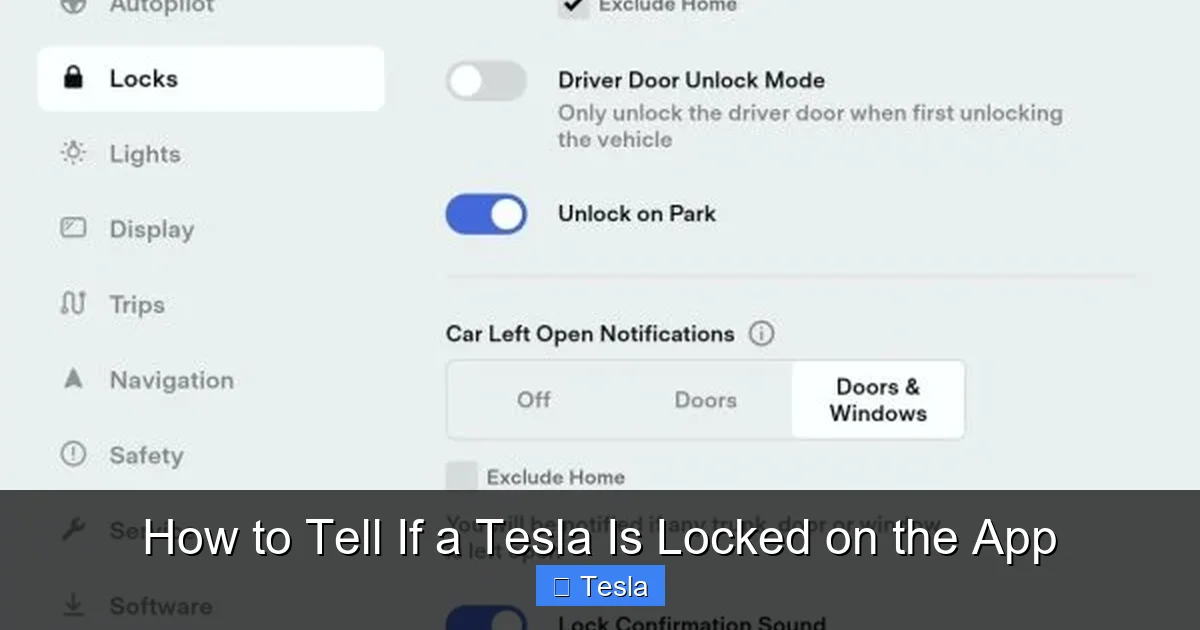
To enable these:
- Go to Menu (three horizontal lines in the top corner).
- Tap Notifications.
- Under Vehicle, ensure the following are toggled ON:
- “Car Left Unlocked”: This is the holy grail. If you walk away and the car remains unlocked for more than a minute or two (the exact timing can vary by software version), your phone will get a push notification. This is your safety net for moments of distraction.
- “Door Open” / “Frunk Open” / “Trunk Open”: These alert you if a compartment is opened while the car is parked and presumably locked. This is a major security red flag.
With these active, your phone becomes a silent watchdog. You might get a notification minutes after walking away, giving you peace of mind or prompting you to take action (like locking it remotely). This is far superior to wondering later, “Did I lock it?”
Manual Verification: The Physical Check & App Sync
The app is fantastic, but it’s a digital representation. The ultimate source of truth is the physical state of the car. Knowing how to manually verify and understand how it syncs with the app is key.
The “Door Handle Press” Test
This is the simplest, most universal manual check. Approach your parked Tesla and gently press the door handle. The behavior tells you everything:
- If the handle extends and you can pull it open: The car is unlocked. Your app icon should show an open lock. If it shows a closed lock, there’s a sync or connectivity issue.
- If the handle does not extend and feels stiff/requires a firm press: The car is locked. This is Tesla’s way of preventing accidental opening. Your app icon should show a closed lock.
This physical interaction is 100% reliable. It works even if your phone’s battery is dead, the app is deleted, or there’s no cellular signal. It’s a great habit to develop, especially in unfamiliar or high-crime areas, as a final confirmation before you walk away.
The Trunk/Frunk Button
Similarly, you can press the touch-sensitive button on the trunk or frunk lid. If it opens, the car is unlocked. If nothing happens (or you get a horn honk if the car is in Park), it’s locked. This also serves as a reminder to ensure these compartments are secure, as they are sometimes forgotten.
Troubleshooting: When the App Lies (Or You’re Confused)
Occasionally, the status displayed in the app may not match reality. This is almost always a connectivity issue, not a car malfunction. Here’s your systematic troubleshooting guide.
Visual guide about How to Tell If a Tesla Is Locked on the App
Image source: lh7-us.googleusercontent.com
Scenario 1: Icon is Grey/Spinning or Shows “Asleep”
Problem: The app can’t reach the car. The icon is grey, spinning, or says “Asleep.”
Causes & Fixes:
- Bluetooth Range: You’re too far from the car (typically >30-50 feet with obstructions). Simply walk closer. The app uses Bluetooth for proximity features.
- Phone Bluetooth Off: Check your phone’s settings. Ensure Bluetooth is on. The Tesla app requires it for local communication.
- Car “Asleep”: Teslas enter a deep sleep mode to save the 12V battery. The car may not wake up instantly to respond to the app. Try tapping the “Wake” button in the app (if available) or simply wait 30-60 seconds. The car will wake on its own if you approach with your phone or if there’s a scheduled charge/other event. Note: A car with a very low 12V battery might struggle to wake, which can also cause connectivity issues. This is similar to how a dying car battery in a traditional car can cause all sorts of electronic glitches. If you suspect this, you may need to jump-start the 12V system or have it serviced.
Scenario 2: Icon Shows “Unlocked” But Car is Physically Locked
Problem: The app says 🔓, but the door handles are stiff (locked).
Causes & Fixes:
- Stale Data: The app’s last update was when the car was unlocked. Since then, you locked it manually (with key card, another phone, or from inside the car). The app hasn’t refreshed yet. Wait 10-20 seconds. The car will send the new status.
- App Glitch: Force-close the Tesla app and reopen it. This forces a fresh connection request.
- Phone/Software Glitch: Restart your phone. This clears any temporary Bluetooth stack issues.
Scenario 3: Icon Shows “Locked” But Car is Physically Unlocked
Problem: The app says 🔒, but the door handles extend easily (unlocked).
Causes & Fixes:
- Most Common: Recent Unlock Event: You or someone else unlocked the car (via app, key card, or another phone) but the app’s display hasn’t refreshed from the previous “locked” state. Wait a moment or pull down to refresh if your app version supports it.
- App Using Cached Data: Similar to above. Force-close and reopen the app.
- Car Software Glitch: Rare, but possible. A simple car reboot can fix it. Put the car in Park, press and hold both scroll wheels on the steering wheel until the screen goes black and the Tesla logo reappears (about 30-60 seconds). This restarts the car’s main computer (MCU) and will reset all status displays.
Golden Rule: When in doubt, trust the physical door handle test. The app is an incredibly useful tool, but it is a secondary communication channel. The car’s physical state is the primary truth.
Security Deep Dive: Layers Beyond the App Lock
Relying solely on the app’s lock status is like having a sturdy front door but no alarm system. Tesla provides additional, critical security layers that work in tandem with the lock status.
PIN to Drive: Your Essential Second Factor
This is the single most important security feature after physical locking. “PIN to Drive” requires you to enter a 4-digit PIN on the touchscreen before the car will drive. This prevents someone from simply unlocking your car (via a compromised phone, a stolen key card, or even a broken window) and driving it away.
- How to Enable: Go to Controls > Safety & Security > PIN to Drive. Set a PIN (do not use your birth year or 1234!).
- Why it Matters for App Users: If you use your phone as the primary key, losing your phone or having it cloned is a risk. PIN to Drive makes the car useless to a thief even if they gain entry. It’s a mandatory setting for any Tesla owner concerned about security. Think of it as the “steering wheel lock” for the digital age.
Sentry Mode & Camera-Based Awareness
Sentry Mode uses the car’s external cameras to monitor its surroundings when parked. If it detects a threat (someone leaning on the car, a break-in attempt), it goes into an “Alert” state, displaying a message on the screen and sounding the alarm. This is a powerful deterrent. While not directly tied to the lock icon, a locked car is a prerequisite for Sentry Mode to activate (it won’t turn on if the car is unlocked and someone is inside). The app will notify you of a Sentry Mode alert, which is a separate and more urgent notification than a simple “unlocked” alert.
The Importance of a Strong Phone Passcode
Your Tesla app is only as secure as your phone. If someone gains physical access to your unlocked phone, they can open the Tesla app and unlock your car. Always use a strong passcode, biometric lock (Face ID/Touch ID), and enable remote wipe capabilities for your phone.
Best Practices for Absolute Confidence
Integrating these habits into your routine will eliminate doubt and maximize security.
- The 10-Foot Walk-Away Check: After locking via the app or key card, take 3-4 steps away from the car. Look back. The door handles should be retracted (flush with the body). This visual confirmation is faster than pulling out your phone.
- Enable All Relevant Notifications: As mentioned, turn on “Car Left Unlocked” and all compartment open alerts. These are your automated safety net.
- Know Your Connectivity: Be aware of where your car is parked relative to your home/office Wi-Fi. If your car is on Wi-Fi (e.g., in a garage with your home network), app communication is instant. If it’s on cellular only, there might be a slight delay depending on signal strength.
- Regularly Check App & Car Software: Keep both updated. Tesla frequently improves app responsiveness and security features. An outdated app might have bugs affecting status reporting.
- Use Key Cards/Fobs as a Backup: Never rely 100% on your phone. Always carry your key card or key fob in your wallet or purse. If your phone dies or is lost, you still have a way to lock/unlock and drive (with PIN to Drive enabled).
By combining the instant visual feedback of the app, the proactive power of notifications, the reliability of manual checks, and the critical backup of PIN to Drive, you create a robust, multi-layered security system. You’ll never have to wonder, “Is it locked?” again.
Conclusion: Embrace the Confidence
The Tesla app’s lock status feature is a masterpiece of user-centric design. It transforms a mundane action—checking if your car is locked—into a seamless, glanceable piece of information. By understanding the iconography, setting up proactive notifications, mastering manual verification, and troubleshooting common connectivity quirks, you unlock the full potential of this feature. Remember, this digital lock is just one part of a comprehensive security strategy. Pair it with PIN to Drive, Sentry Mode, and good phone security habits, and you have a security posture that traditional cars can only dream of. So walk away from your Tesla with your head high, phone in pocket, and absolute confidence that your digital fortress is secure. You’ve got this.
Frequently Asked Questions
What does a grey or spinning lock icon mean in the Tesla app?
A grey or spinning icon indicates your phone is not currently connected to the car. This is due to being out of Bluetooth range, having Bluetooth turned off on your phone, or the car being in a deep sleep. Move closer to the vehicle or wait for it to wake up for an accurate status.
Can the Tesla app show a locked status if the car is actually unlocked?
Yes, but it’s usually a temporary sync issue. If you recently unlocked the car manually (with a key card or by pulling a handle), the app may still show the old “locked” status until it refreshes. Waiting a few seconds, force-closing the app, or restarting your phone will resolve this.
Is the app lock status reliable if my car is on cellular only, not Wi-Fi?
It is generally reliable, but there can be slight delays (a few seconds) depending on cellular signal strength. The app uses a combination of Bluetooth (for proximity) and Tesla’s cellular network (for remote access). A weak cellular signal in your parking spot might cause occasional lag in status updates.
What should I do if my car is locked but the app shows it’s unlocked?
First, perform the manual check: try to open a door handle. If it’s stiff, the car is locked—trust the physical state. Then, troubleshoot the app: force-close and reopen it, check your phone’s Bluetooth, or restart your phone. The app display should correct itself.
Does enabling “Sentry Mode” affect the lock status in the app?
Sentry Mode requires the car to be locked and parked to activate. If the car is unlocked, Sentry Mode will not turn on. However, the lock icon in the app functions independently. You’ll see the standard lock status, and you’ll receive separate Sentry Mode alerts (like a “Sentry Mode Alert” notification) if a threat is detected.
If I lose my phone, can someone else use the Tesla app to unlock my car?
Only if they also know your Tesla account password and have your phone’s passcode/biometrics to access the app. The app itself is password-protected. However, this is why “PIN to Drive” is critical. Even if someone unlocked your car via a compromised phone, they could not drive it without the PIN. Always use a strong, unique password for your Tesla account and a secure lock on your phone.







