
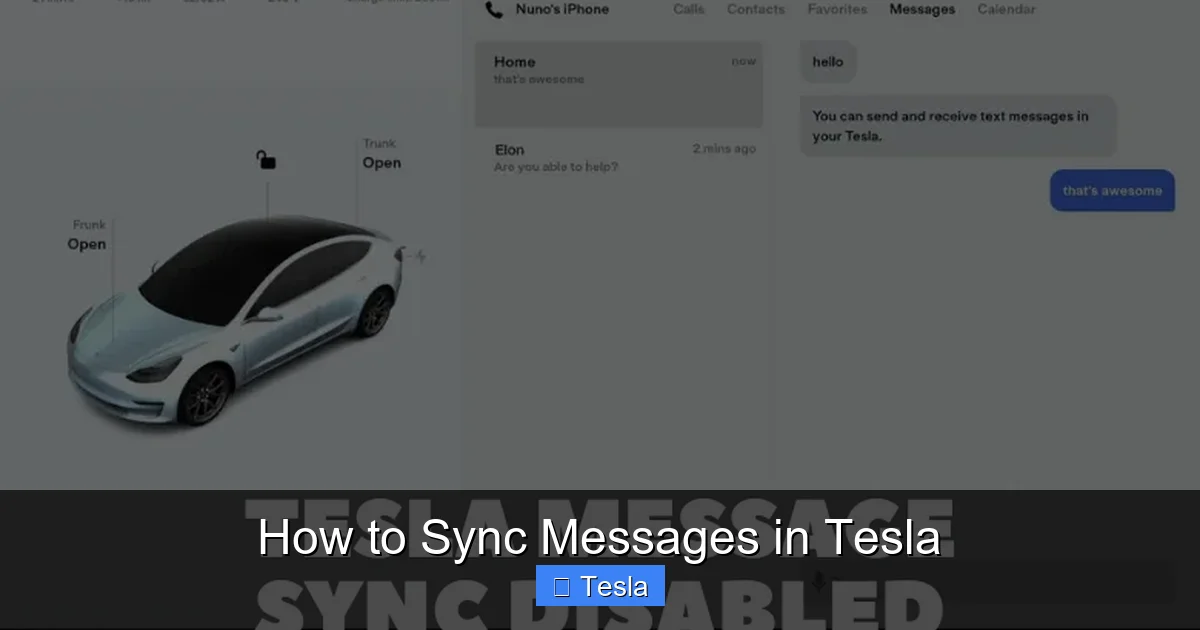
How to Sync Messages in Tesla

Contents
- 1 Key Takeaways
- 2 📑 Table of Contents
- 3 Understanding How Tesla Message Syncing Actually Works
- 4 Step-by-Step: Syncing Messages on an iPhone (iOS)
- 5 Step-by-Step: Syncing Messages on an Android Phone
- 6 Troubleshooting: Why Your Messages Aren’t Syncing
- 7 Advanced Tips and Best Practices for Reliable Syncing
- 8 What About Other “Messages” in Your Tesla?
- 9 The Future of In-Car Messaging and Final Thoughts
- 10 Frequently Asked Questions

Portable Air Pump

Car GPS Navigator

Microfiber Car Cleaning Cloth

Windshield Washer Fluid
Syncing messages in your Tesla allows you to safely view and reply to texts using voice commands. The process primarily relies on Bluetooth pairing between your smartphone and the car’s infotainment system. While straightforward, compatibility depends on your phone’s operating system and Tesla model year. This guide covers setup steps for both iPhone and Android, common sync issues, and practical solutions to ensure your messages are always accessible.
So, you’ve just stepped into your Tesla, the sleek minimalist interior greeting you. You start the car, the giant touchscreen awakens, and you think, “This is the future.” Then, your phone buzzes in your pocket. A text. Naturally, you want to check it, but you know the golden rule: eyes on the road, hands on the wheel. This is where your Tesla’s message syncing feature becomes your best friend. It’s not magic, but a clever use of Bluetooth technology that pipes your SMS and certain messaging app notifications right to your car’s display, ready to be read aloud by the car’s voice assistant. But getting it to work reliably? That’s where many owners hit a snag. This guide will walk you through everything, from the absolute basics to advanced troubleshooting, ensuring your conversations are safely at your fingertips (or rather, your voice) whenever you’re on the road.
Key Takeaways
- Bluetooth is the Core: Message syncing in Teslas works exclusively via Bluetooth; there is no cellular or Wi-Fi direct message integration.
- Phone OS Matters: iPhone integration is generally more seamless due to Apple’s ecosystem, while Android support varies by manufacturer and OS version.
- Permissions are Crucial: You must grant Tesla’s app specific notification access on your phone; without this, no messages will appear on the screen.
- Model Differences Exist: Older Teslas (pre-2021) may have more limited messaging features compared to newer models with updated MCU hardware.
- Troubleshooting is Often Simple: Most sync issues are resolved by re-pairing the device, checking phone notification settings, or restarting the car’s infotainment system.
- Safety is Paramount: The system is designed for voice-activated reading and simple replies; complex typing is disabled while the car is moving.
[FEATURED_IMAGE_PLACEHOLDER]
📑 Table of Contents
- Understanding How Tesla Message Syncing Actually Works
- Step-by-Step: Syncing Messages on an iPhone (iOS)
- Step-by-Step: Syncing Messages on an Android Phone
- Troubleshooting: Why Your Messages Aren’t Syncing
- Advanced Tips and Best Practices for Reliable Syncing
- What About Other “Messages” in Your Tesla?
- The Future of In-Car Messaging and Final Thoughts
Understanding How Tesla Message Syncing Actually Works
Before we dive into button presses, it’s essential to understand what’s happening under the hood. Tesla does not have its own cellular plan for your personal messages. It doesn’t connect to your phone’s SMS database over the internet. Instead, it uses a classic Bluetooth link as a dedicated data pipe. Think of it like a very focused, secure walkie-talkie between your phone and the car.
The Bluetooth Bridge: It’s All About the Pair
When you pair your phone via Bluetooth, you’re establishing a two-way communication channel. Your phone agrees to send specific types of data—namely, notifications for SMS messages and supported third-party apps—to the Tesla. The car’s infotainment system (the Media Control Unit or MCU) receives these notifications and displays them in a simplified, driver-focused format. This is why the feature is called “Sync” in the settings; it’s synchronizing notification data, not the messages themselves. The actual message content stays on your phone. This architecture has a critical implication: if the Bluetooth connection drops, is out of range, or is turned off on either device, message syncing ceases instantly. It also means your phone’s battery might drain slightly faster, as it’s actively pushing notifications to the car.
The Role of the Tesla App and Phone Permissions
Here’s the step many people miss. Simply pairing your phone in the car’s Bluetooth menu is not enough. The Tesla mobile app on your phone acts as the intermediary that filters and formats your notifications for the car’s screen. For this to work, you must grant the Tesla app permission to access your phone’s notifications. This is a security and privacy feature built into both iOS and Android. Without this explicit permission, the app is blind to your incoming texts, and therefore, the car receives nothing. This permission is usually requested the first time you open the Tesla app after installation, but you can also check and enable it manually in your phone’s settings. On an iPhone, you go to Settings > Notifications > Tesla App and ensure “Allow Notifications” is on. On Android, the path is typically Settings > Apps > Tesla > Notifications.
Step-by-Step: Syncing Messages on an iPhone (iOS)
If you own an iPhone, you’re in the luckiest bracket. Apple’s tight integration between iOS and third-party accessories generally makes this process the smoothest. Follow these steps meticulously.
Visual guide about How to Sync Messages in Tesla
Image source: evseekers.com
Prerequisites: Update Everything
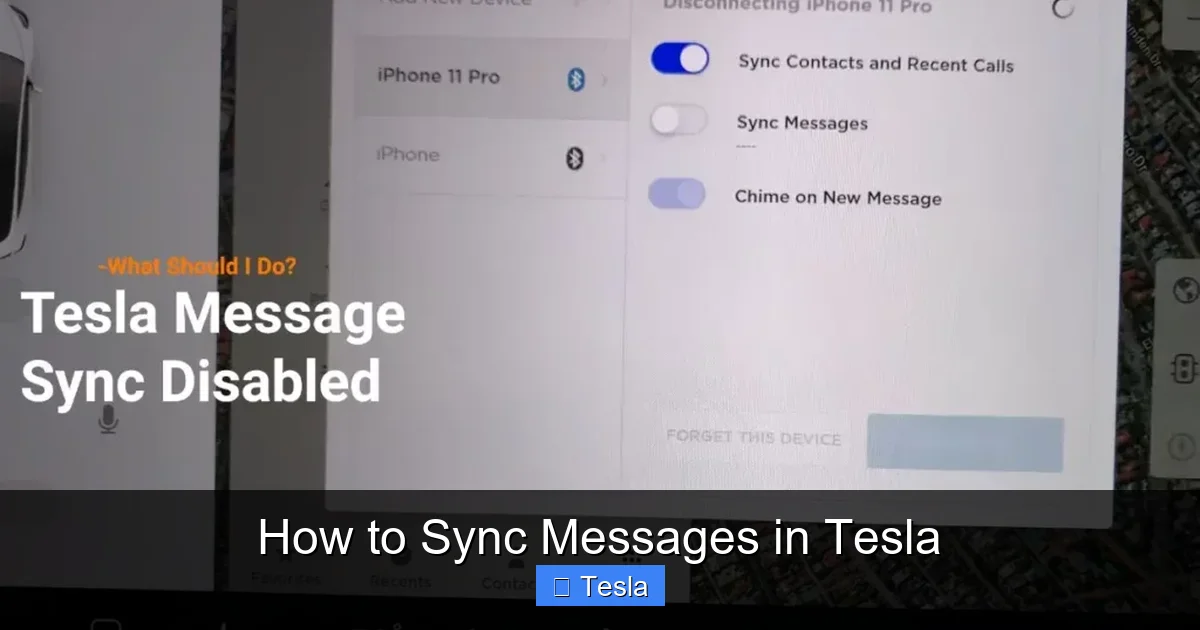
First, ensure your Tesla’s software is up to date. Go to Controls > Software on the touchscreen and check for updates. An outdated MCU can have bugs that affect Bluetooth functionality. Similarly, update your iPhone to the latest version of iOS and update the Tesla mobile app from the App Store. Compatibility is a moving target, and manufacturers regularly fix connection quirks in updates.
The Pairing Process: From Phone to Car
1. Start with the Car: On your Tesla touchscreen, tap Controls (the car icon) > Bluetooth > Add New Device. The car will now be discoverable.
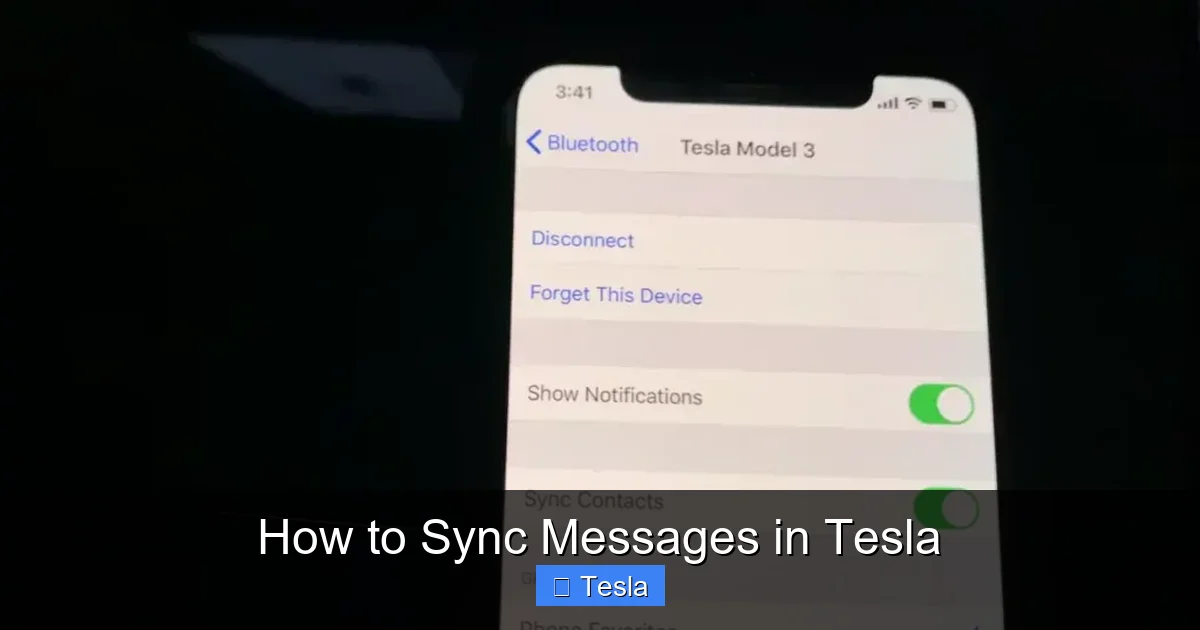
2. Find the Car on Your Phone: On your iPhone, go to Settings > Bluetooth. You should see your Tesla’s name (e.g., “Tesla Model 3”) appear under “Other Devices.”
3. Pair and Confirm: Tap the Tesla name on your phone. A 6-digit PIN will appear on both the phone screen and the Tesla touchscreen. Verify they match and confirm the pairing on your phone. The Tesla will now show as “Connected” in its Bluetooth list and your phone’s Bluetooth list.
4. Enable Notifications for the Tesla App: This is the critical step. On your iPhone, navigate to Settings > Notifications. Scroll down and tap on Tesla. Toggle Allow Notifications to the ON (green) position. Ensure the styles (Lock Screen, Notification Center, Banners) are set as you prefer.
5. Grant Additional Permissions (if prompted): When you next open the Tesla app, iOS might ask for permission to “Allow Tesla to access your messages.” This is a more specific permission for iMessage. You should allow this for full functionality.
6. Test It: Have a friend send you a standard SMS text (not an iMessage, to test both). After a few seconds, a notification should pop up on your Tesla’s bottom center screen. Tap the notification or say, “Hey Tesla, read my messages” to hear it.
Step-by-Step: Syncing Messages on an Android Phone
Android presents more variables because of the vast ecosystem of manufacturers (Samsung, Google, OnePlus, etc.) and their customized versions of the OS. The core steps are similar, but permission paths differ.
Visual guide about How to Sync Messages in Tesla
Image source: evseekers.com
The Universal Starting Point
Just like with iPhone, begin by ensuring your Tesla’s software and the Tesla Android app are updated to their latest versions from the Google Play Store.
Pairing and The All-Important Notification Access
1. Pair via Car Bluetooth: On your Tesla, go to Controls > Bluetooth > Add New Device. On your Android phone, open Settings > Bluetooth, scan for devices, and select your Tesla. Confirm the PIN on both devices.
2. Finding Notification Access: This is where Android gets tricky. The setting is not in the main Bluetooth menu. Go to your phone’s Settings. The exact name varies: look for “Apps & notifications,” “Apps,” or “Applications.” Tap it.
3. Locate the Tesla App: Find and tap on the Tesla app from the list.
4. Enable Notifications: Inside the Tesla app’s settings, tap on Notifications. Ensure the master toggle for “Allow notifications” is ON. You may see options for different notification channels; ensure the one for “Messages” or “Sync” is also enabled.
5. The “Notification Access” Service (Critical): Some Android versions, especially Samsung’s One UI, require an additional permission. In your phone’s main Settings, search for “Notification Access” or go to Settings > Apps & notifications > Special app access > Notification access. Find the Tesla app in the list and ensure the toggle is enabled. This grants the app the deep system permission it needs to read incoming SMS notifications.
6. SMS Permission: For reading standard SMS texts, the Tesla app may also need direct SMS permission. In the same “Special app access” or app settings area, look for “SMS” permission and ensure Tesla has it.
7. Test Thoroughly: Send a standard SMS to your Android phone. Some manufacturers (like Samsung) use their own messaging app by default. If syncing fails, try setting Google’s “Messages” app as your default SMS app temporarily to see if that resolves it, as some custom skins interfere with notification broadcasting.
Troubleshooting: Why Your Messages Aren’t Syncing
So you followed the steps, but the notification still isn’t popping up on your screen. Don’t panic. This is the most common point of frustration, and the solution is usually one of a few things.

Visual guide about How to Sync Messages in Tesla
Image source: teslord.com
Issue 1: “Bluetooth Connected, But No Messages”
This is almost always a permissions problem on your phone. Return to your phone’s settings and double-check:
- iOS: Settings > Notifications > Tesla App > Allow Notifications is ON. Also, check Settings > Tesla > Messages is allowed.
- Android: Settings > Apps > Tesla > Notifications is ON. AND Settings > Apps & notifications > Special app access > Notification Access > Tesla is ON. AND Settings > Apps > Tesla > Permissions > SMS is allowed.
After changing any permission, it’s a good practice to force-close the Tesla app and reopen it.
Issue 2: Intermittent Connection or Drops
If messages work sometimes but not always, the Bluetooth link is unstable.
- Forget and Re-pair: On your Tesla, go to Controls > Bluetooth, tap the ‘i’ icon next to your phone, and select “Forget Device.” On your phone, forget the Tesla from its Bluetooth list. Then, perform the full pairing process from scratch.
- Reduce Interference: Other Bluetooth devices (headphones, fitness trackers) in the car can sometimes cause conflicts. Try turning them off temporarily.
- Phone Battery Saver: Aggressive battery optimization settings on Android can kill the Tesla app’s background activity. Go to Settings > Battery > Battery Optimization, find the Tesla app, and set it to “Don’t optimize” or “No restrictions.”
Issue 3: Model-Specific or Software Glitches
Sometimes, the bug is in the car.
- Reboot the Infotainment: The Tesla equivalent of turning it off and on again. Hold down both scroll wheels on the steering wheel until the screen goes black and the Tesla “T” logo reappears (about 10-15 seconds). This restarts the MCU without affecting driving.
- Power Cycle the Car: Put the car in “Park,” exit, lock it with the key card or phone key, wait 2 minutes, and unlock and re-enter. This performs a deeper system reset.
- Check Known Issues: Visit Tesla’s official forums or subreddits (r/teslamotors). Search for your specific model year (e.g., “2021 Model 3 message sync bug”). Sometimes, a specific software version introduces a regression, and the only fix is waiting for the next OTA update.
Advanced Tips and Best Practices for Reliable Syncing
Beyond basic setup, these practices will make your message syncing a rock-solid feature.
Designate a Primary Device
Your Tesla can remember multiple paired phones. However, it will typically connect to the last device it was paired with that is within range and has Bluetooth on. If you and a passenger both have phones paired, the car might connect to the “wrong” one for messages. To avoid this, in your Tesla’s Bluetooth menu (Controls > Bluetooth), tap the ‘i’ next to your phone and toggle “Connect automatically” OFF. Then, manually connect to your phone from the touchscreen each time you drive. It’s one extra tap, but it guarantees the right device is syncing.
Manage Third-Party Messaging Apps
The Tesla system natively supports SMS/MMS and iMessage. For apps like WhatsApp, Telegram, or Signal, support is experimental and inconsistent. These apps often use different notification protocols that the Tesla system may not read correctly. If you rely on a third-party app, test it thoroughly. You may see a generic “New message” alert without the sender or content. Your best bet for reliability is to encourage important contacts to use standard SMS or iMessage when you’re driving.
The “Do Not Disturb While Driving” Connection
Your phone’s own “Do Not Disturb While Driving” (DNDWD) feature can sometimes conflict with Tesla’s system. DNDWD might silence notifications before they ever reach the Tesla app. Consider setting your phone’s DNDWD to “Manual” or “Auto-reply only” while using Tesla message sync, or add the Tesla app to your DNDWD exceptions list if your phone OS allows for app-specific exceptions. This is a subtle but common point of failure.
What About Other “Messages” in Your Tesla?
It’s important to clarify what “messages” we’re talking about. The sync feature is for incoming text-based communications from your phone. It does not sync:
- Your Tesla’s own vehicle alerts and status messages. These are generated by the car itself (e.g., “Tire Pressure Low,” “Service Required”). They appear automatically in the top corner of the screen and in the “Service” tab. You cannot sync these to your phone; they live solely in the car.
- Calendar appointments. Tesla does have a Calendar app that can show events from your phone’s calendar if you enable it in the Tesla app settings. This is a separate sync process from messages.
- Emails. There is no native email client in the Tesla that syncs with your phone or accounts.
So, when we say “sync messages,” we are specifically referring to SMS/MMS and iMessage notifications from your smartphone. If you’re seeing a warning light or icon on your dash, that’s a vehicle system message, and you’ll need to consult your owner’s manual or use the in-car “Service” menu to understand it. For general car maintenance guidance that isn’t Tesla-specific, resources like our guide on how to change an air filter in a Honda Civic can be useful, as the principles of cabin air filter maintenance are similar across many vehicles.
The Future of In-Car Messaging and Final Thoughts
Tesla’s current message syncing is functional but feels a generation behind the deep integration seen in some newer vehicles from other brands. The reliance on Bluetooth means it’s fundamentally a passthrough of your phone’s capabilities. Rumors and patent filings suggest Tesla is working on a built-in cellular modem with its own messaging service, potentially with end-to-end encryption. Until that arrives, the Bluetooth method is what we have.
Mastering it requires patience and attention to the permission settings on your phone—a place many of us never venture. Remember the core triad: Updated Software, Correct Bluetooth Pairing, and Explicit Notification Permissions for the Tesla App. If you have an Android, add “SMS Permission” and “Notification Access Service” to that list. With those boxes checked, your Tesla will become a safer, more connected extension of your digital life, letting you stay in the loop without ever taking your eyes off the road. The technology is there to serve you; it just needs to be set up correctly. Now, go pair that phone and enjoy the seamless, voice-controlled conversation.
Frequently Asked Questions
Why does my Tesla say “No new messages” when I know I have texts?
This is almost always a permissions issue on your phone. Re-check that the Tesla app has explicit “Allow Notifications” permission (iOS) or “Notification Access” and “SMS” permissions (Android). Also, ensure your phone isn’t in a deep sleep mode that restricts background activity.
Can I sync WhatsApp or Telegram messages in my Tesla?
Limited support exists, but it’s unreliable. The Tesla system is primarily designed for standard SMS/MMS and iMessage. Third-party apps may only show a generic “New Message” alert without content or sender info. For best results, use native messaging for important communications while driving.
Does message syncing work with Android Auto or Apple CarPlay?
No. Tesla has its own proprietary infotainment system and does not support Android Auto or Apple CarPlay. Message syncing is handled solely through the Tesla mobile app and Bluetooth connection, as described in this guide.
My messages synced yesterday but not today. What changed?
Most likely, your phone didn’t automatically reconnect to the car’s Bluetooth. Check your phone’s Bluetooth settings to see if it’s connected to your Tesla. Also, a recent phone OS update may have reset app permissions. Re-verify the Tesla app’s notification permissions.
Can passengers see my synced messages on the touchscreen?
Yes, any notification that appears on the bottom center of the screen is visible to all occupants. The system is designed for the driver to initiate voice playback (“Hey Tesla, read my messages”), but the text preview is not private. Use discretion.
Will syncing messages drain my car’s battery or my phone’s battery?
The impact is minimal. The Bluetooth Low Energy (BLE) connection uses very little power from the car’s 12V battery. Your phone may see a slight increase in battery usage due to maintaining the active connection and processing notifications, but it is not significant for typical daily driving. If you’re concerned about your phone’s battery, ensure you’re not using an aggressive battery saver mode that kills background apps.







