
How to Remove a Bluetooth Device from a 2020 Honda Civic

Removing an old or unwanted Bluetooth device from your 2020 Honda Civic is a simple process that takes less than a minute through the infotainment system’s settings. You’ll navigate to the Bluetooth menu, select the device you want to delete, and confirm its removal. This helps declutter your paired device list, prevents accidental connections, and can resolve pairing issues with your primary phone.
So, you’re sitting in your trusty 2020 Honda Civic, ready to hit the road. You press the voice command button or reach for the phone icon on the steering wheel, and instead of connecting instantly, the system presents you with a list of names: “John’s iPhone,” “Sarah’s Android,” “Old Work Phone.” It’s a common little annoyance. Over time, your car’s memory fills up with devices from friends, family, past rentals, or phones you’ve upgraded from. The good news is that cleaning up this list is a straightforward task you can handle yourself in under a minute. This guide will walk you through exactly how to remove a Bluetooth device from your 2020 Honda Civic’s infotainment system, ensuring a seamless connection to your primary device every time.
Understanding how your car’s Bluetooth system works is the first step. The 2020 Civic uses Honda’s infotainment system, which stores pairing information for up to a certain number of devices (typically around 5-10). When you delete a device, you’re telling the car to forget the unique “handshake” or security key it uses to communicate with that specific phone or audio player. This is a safe, reversible action (you can always pair it again later) and is a key part of managing your in-car tech. Whether you’re troubleshooting a connection problem, selling your car, or just tidying up, knowing this process is essential for any Civic owner.
Key Takeaways
- Access the Bluetooth settings via the “Settings” or “Phone” menu on your Civic’s infotainment screen. The exact path may vary slightly but is always within the connectivity options.
- You must select the specific device name from the paired list to initiate the deletion process. You cannot delete all devices at once; each must be removed individually.
- Deleting a device only removes its pairing information from the car. It does not affect the device (your phone) itself or any other car it’s paired with.
- If a device won’t delete, a full system reboot of the infotainment unit can often resolve the glitch. This is a common troubleshooting step.
- Regularly cleaning your paired device list is good maintenance. It ensures your primary phone connects quickly and reliably without presenting multiple options.
- The process is nearly identical across most 10th-generation Honda Civics (2016-2021 models). If you have a different year, the steps are very similar, as detailed in our guide for a 2016 Honda Civic.
📑 Table of Contents
Understanding Your 2020 Civic’s Infotainment System
Before diving into the button presses, it helps to know your way around the dashboard. The 2020 Honda Civic comes with either a 7-inch or an available 9-inch touchscreen display, running Honda’s software. The physical controls include a knob/controller on the center console and buttons on the steering wheel. For Bluetooth management, you’ll primarily use the touchscreen interface.
Locating the Bluetooth Menu
The Bluetooth settings are housed within the main “Settings” menu. You can access this in one of two primary ways. The most direct method is to press the “HOME” button on the touchscreen (or the physical home button below the screen) and then tap the “Settings” gear icon. Alternatively, you can often find a dedicated “Phone” or “Bluetooth” icon on the home screen itself. The system is designed to be intuitive, so look for icons that represent connectivity or a phone. Once inside the Settings menu, you’ll see categories like “System,” “Clock,” “Wireless,” and “Bluetooth.” You want to select “Bluetooth.”
What You’ll See: The Paired Devices List
Upon entering the Bluetooth menu, the first screen typically shows the status of the connection (e.g., “Connected to [Device Name]”) and a list of all devices currently stored in the system’s memory. This list is what you need to manage. Each entry will show the device name as it was labeled on the phone (e.g., “Jane’s iPhone 11”) and sometimes its type (Phone, Audio Player). This is your control panel for adding new devices and, importantly, removing old ones.
Step-by-Step: The Standard Deletion Process
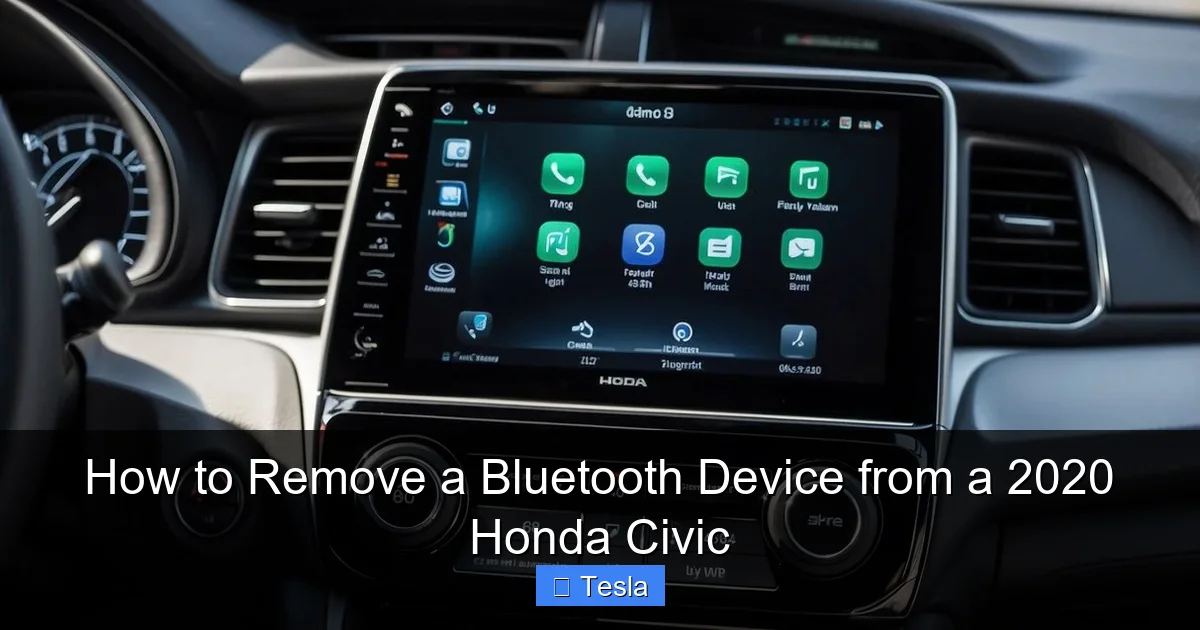
This is the core method, applicable to the vast majority of 2020 Civic trims (LX, Sport, EX, EX-L, Touring). The process is logical and follows a consistent pattern.
Visual guide about How to Remove a Bluetooth Device from a 2020 Honda Civic
Image source: koala.sh
Step 1: Power On and Access the Menu
Ensure your car is in the “ON” or “ACC” position (the dashboard lights should be on). You don’t need the engine running, but the infotainment system must be powered. Start by pressing the “HOME” button on the touchscreen. Then, tap the “Settings” icon (it looks like a gear). From the Settings menu, select “Bluetooth.” You should now see your paired devices list.
Step 2: Select the Device to Remove
Carefully scan the list. Find the exact name of the device you wish to delete. Tap on that device name once. This action should open a sub-menu or details page for that specific device.
Step 3: Choose the Delete/Remove Option
On the device details screen, you will see options like “Connect,” “Disconnect,” and, crucially, “Delete” or “Remove.” The wording is usually clear. Tap on “Delete.” The system will almost always ask you to confirm this action with a pop-up message like “Are you sure you want to delete [Device Name]?” This is a safety feature to prevent accidental removal.
Step 4: Confirm and Verify
Tap “Yes” or “Confirm” on the pop-up. The device name should instantly vanish from your paired list. You will be returned to the main Bluetooth menu, and the list will now be one item shorter. To verify, you can try to pair the device again—it should appear as a new, unknown device rather than automatically connecting. If your primary phone was connected, it might have disconnected momentarily and should reconnect automatically if it’s still the only or the preferred device. If you need to pair a new phone, you would now select “Add Device” from this same menu.
Alternative Methods and Special Cases
While the touchscreen method is standard, there are nuances depending on what you’re trying to achieve.
Visual guide about How to Remove a Bluetooth Device from a 2020 Honda Civic
Image source: vehiclewisdom.com
Using Steering Wheel Controls (Limited)
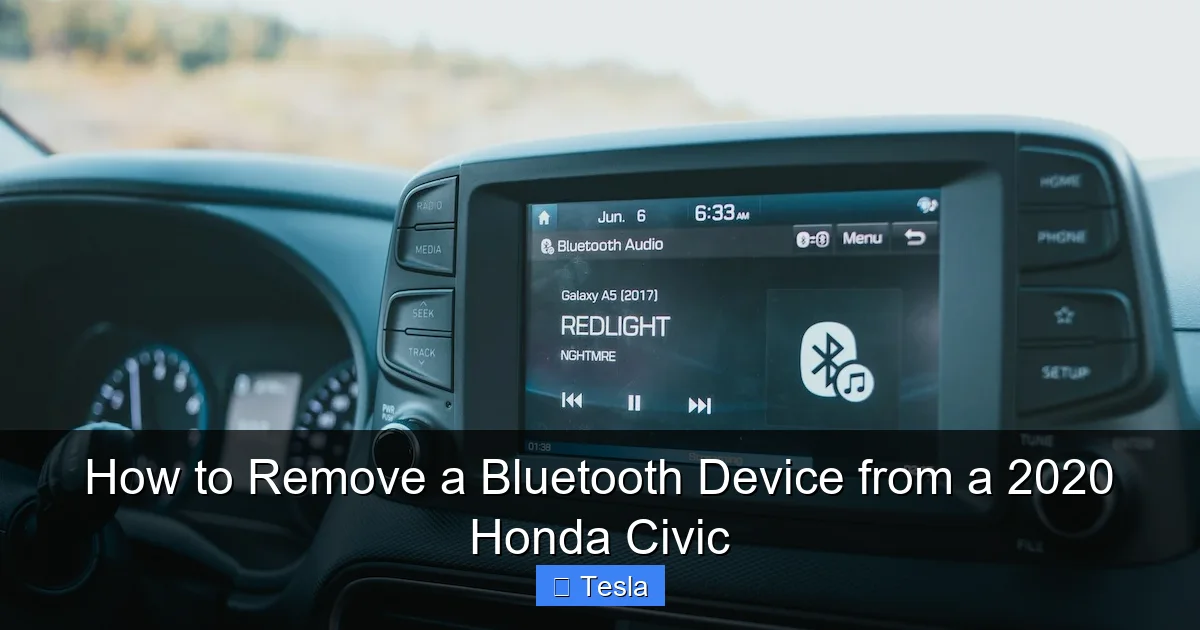
Some Honda systems allow you to access a simplified Bluetooth menu via the steering wheel voice command button. You might be able to say “Bluetooth” or “Phone settings” to bring up a basic list. However, deletion is rarely supported through this voice-only interface. It’s primarily for answering calls or initiating pairing. For deletion, the touchscreen is almost always required.
Resetting the Entire System
What if you want to remove *all* Bluetooth devices at once? Or what if a rogue device is stuck in the list and won’t delete through the normal method? In these cases, you can perform a full reset of the infotainment system’s settings. This is more drastic. Go to “Settings” > “System” > “Reset” or “Master Reset.” Warning: This will erase all personalized settings—radio presets, navigation favorites (if equipped), and all paired Bluetooth devices. It’s like starting fresh. Use this only if individual deletion fails or if you’re preparing the car for a new owner. For a simple deletion, stick to the Bluetooth menu method. You can find a general guide on resetting various Civic systems, including infotainment, which covers this process in more detail.
Dealing with “Ghost” or Unresponsive Devices
Occasionally, a device name might appear grayed out, or the “Delete” option might be unselectable. This is a software glitch. The first troubleshooting step is to power cycle the infotainment system. Hold down the “POWER/VOLUME” knob (or the physical power button if present) for about 10 seconds until the screen goes completely black and then reboots. After it restarts, go back to the Bluetooth menu and try the deletion process again. This reboot clears temporary memory and often resolves such hiccups.
Troubleshooting Common Problems
Even with clear instructions, you might hit a snag. Here’s how to handle the most frequent issues.
Visual guide about How to Remove a Bluetooth Device from a 2020 Honda Civic
Image source: hondatheotherside.com
Problem: I Can’t Find the Bluetooth Menu
First, double-check you’re looking under “Settings,” not “Audio” or “Radio.” The icon is a gear ⚙️. If your screen layout seems different, it’s possible your vehicle has an older or base-model head unit. The process is fundamentally the same, but menu names might be “Phone Setup” instead of “Bluetooth.” Consult your owner’s manual—the index will point you to “Bluetooth Setup” or “Pairing a Device.” The manual is the ultimate authority for your specific VIN’s configuration.
Problem: The Delete Option Isn’t There
This is unusual but can happen. Ensure you are tapping on the device name itself from the main list, not on a “Connect” button next to it. Tapping the name should lead to a details page. If tapping the name does nothing, try a long press (press and hold for 2-3 seconds) on the device name in the list. Some systems use a long-press to bring up a context menu with “Delete” as an option.
Problem: The Device Reappears After Deletion
If you successfully delete a device but it mysteriously returns the next time you start the car, there are two likely culprits. One: the phone itself is set to automatically reconnect to the last known car. On your phone, go to Bluetooth settings, find the Civic’s entry (e.g., “Honda Civic”), and choose “Forget This Device” or “Unpair.” Then, re-pair if desired. Two: there’s a deeper system glitch requiring the master reset mentioned earlier. Start with the phone-side forget, as it’s the simpler fix.
Best Practices for Managing Your Bluetooth Devices
Removing old devices isn’t just a one-time chore; it’s part of a healthy maintenance routine for your car’s tech.
Why Regular Clean-Up Matters
A cluttered paired list causes confusion. If you have 8 devices stored, your phone might not auto-connect because the system is trying to offer you a choice. It also increases the chance of your phone connecting to the wrong Civic if you’re around multiple Honda vehicles. Furthermore, if you’re troubleshooting a poor connection or audio dropout, removing all devices and starting fresh with a clean slate is a classic IT fix that often works wonders. Think of it like clearing your browser cache—it helps the system run smoother.
Naming Your Devices Clearly
When you pair a new phone, the system defaults to your phone’s name (e.g., “Samsung Galaxy S21”). If you have multiple similar devices, consider renaming your phone’s Bluetooth name to something unique like “John’s Civic Phone.” This makes identification in the car’s list instant and eliminates guesswork. You can change your phone’s Bluetooth name in its settings (usually under Settings > Bluetooth > tap the “i” next to your device name).
The “One Phone” Rule for Simplicity
If the car is primarily driven by one person, aim to have only that person’s primary phone paired. Remove any guest phones as soon as they’re no longer needed. This simplifies everything. The system will connect automatically on startup, voice commands will work without ambiguity, and you’ll never have to manually select a device from a list. It’s the most hassle-free setup. For households with two primary drivers, having two devices paired is perfectly fine.
When to Seek Further Help
While Bluetooth deletion is a user-level task, there are rare instances where the problem lies deeper.
Persistent System Errors
If your infotainment screen freezes during the process, shows error messages, or the Bluetooth menu itself is inaccessible, you may have a software bug. Check for available software updates for your infotainment system. Honda sometimes releases updates that can be installed via USB or over Wi-Fi (if equipped). Instructions are on the Honda owner’s portal or your dealer can assist. A persistent, non-functional Bluetooth module would require a dealer diagnosis, as it may need a hardware replacement or a deeper software reflash.
Understanding System Limits
Your 2020 Civic’s Bluetooth system has a finite memory for paired devices. The exact number isn’t always published, but it’s typically between 5 and 10. If you hit this limit, you must delete an old device to pair a new one. This is why managing the list is so important. If you’ve deleted devices but the system still claims the memory is full, a master reset is the guaranteed way to clear all hidden or corrupted entries.
Conclusion: A Simple Skill for a Better Drive
Taking a few moments to remove outdated Bluetooth devices from your 2020 Honda Civic is a small action that yields a big payoff in daily convenience. You’ll experience faster, automatic connections to your phone, a cleaner dashboard interface, and fewer frustrating moments fumbling with menus while trying to make a call or play a podcast. The process is entirely within your control—no mechanic or dealership visit required. Remember the simple path: Settings > Bluetooth > Select Device > Delete > Confirm. Bookmark this guide for future reference, and don’t hesitate to perform this quick maintenance task whenever your paired list starts to look crowded. Your future self, rushing to get to work with music already playing, will thank you.
Frequently Asked Questions
Can I delete a Bluetooth device while my car is moving?
For safety, Honda’s infotainment system often locks certain menus while the vehicle is in motion. You typically need to have the car in “Park” or at least stopped with the brake applied to access and change Bluetooth settings. It’s best to perform this task when parked.
Will deleting a device from my car also delete it from my phone’s Bluetooth list?
No. Deleting a device from your Honda Civic only removes the car’s memory of your phone. Your phone will still show “Honda Civic” in its Bluetooth paired devices list. To remove it from your phone, you must go to your phone’s Bluetooth settings and “Forget” or “Unpair” the car there. The two lists are independent.
What’s the maximum number of Bluetooth devices I can pair with my 2020 Civic?
The system can store information for approximately 5 to 10 devices, depending on the specific infotainment hardware. Once this limit is reached, you must delete an existing device before you can pair a new one. Regularly cleaning your list prevents you from hitting this limit unexpectedly.
I deleted my phone, but now it won’t pair again. What do I do?
First, make sure your phone’s Bluetooth is turned on and discoverable. On the phone, go to Bluetooth settings and “Forget” the Honda Civic if it’s still listed. Then, in your Civic, go to “Add Device” or “Pair” in the Bluetooth menu. The car should now appear as an available device on your phone. Select it and follow any on-screen prompts, which may include confirming a PIN code displayed on both devices.
Is there a way to delete all paired devices at once without a master reset?
No, the standard interface does not have a “Delete All” function. You must remove each device one by one through the individual device’s delete option. If you need to wipe everything, the “Master Reset” or “Factory Reset” option in the System Settings menu is the only one-click solution, but it erases all other personal settings too.
Does deleting a Bluetooth device affect my saved radio stations or other car settings?
No. Deleting a device from the Bluetooth menu is isolated to the connectivity system. It will not delete your AM/FM radio presets, climate control settings, seat memory positions, or navigation data (if equipped). Those are stored in separate system memories. Only a full “Master Reset” would affect those other settings.