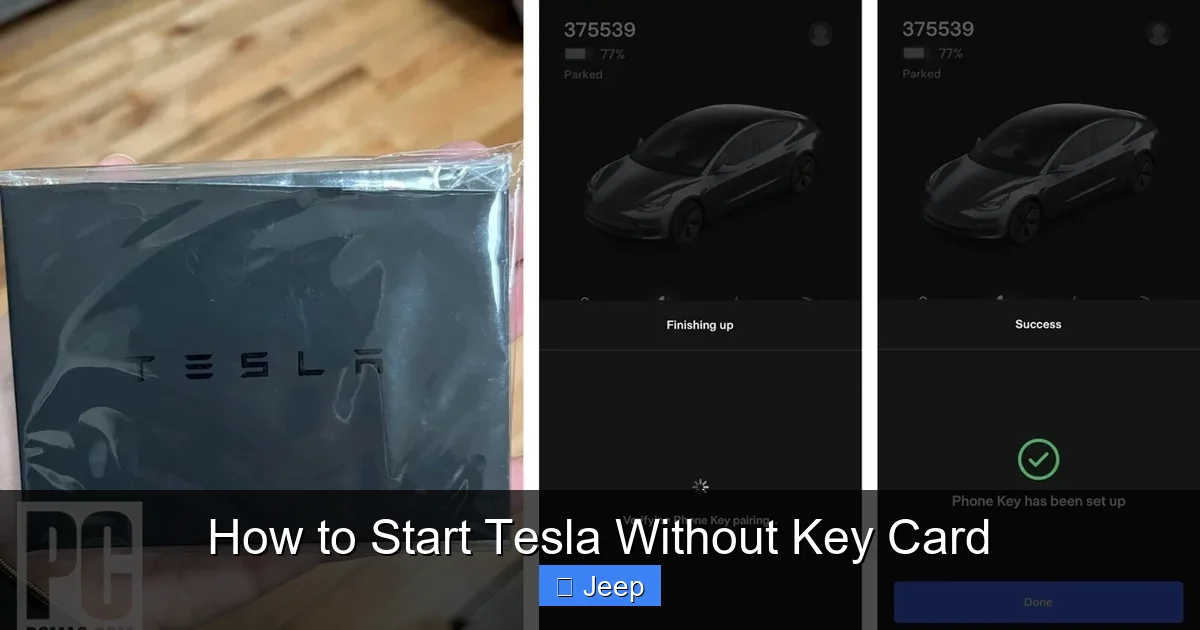
How to Start Tesla Without Key Card

Contents
- 1 Key Takeaways
- 2 📑 Table of Contents
- 3 Understanding Tesla’s Keyless Ecosystem
- 4 Method 1: Your Smartphone as the Ultimate Backup (Phone Key)
- 5 Method 2: The Lifesaver – PIN to Drive
- 6 Method 3: Proper Use of the Physical Key Card
- 7 What NOT To Do: Avoiding Damage and Security Triggers
- 8 The Last Resort: Tesla Roadside Assistance and Service
- 9 Conclusion: Embracing the Digital Key
- 10 Frequently Asked Questions


Starting a Tesla without its key card is possible through Tesla’s built-in backup systems, not by hot-wiring. Your smartphone as a Phone Key is the primary alternative, while the PIN to Drive feature acts as a digital spare key. Understanding these official methods is crucial for safety and to avoid damaging your vehicle’s sophisticated electronics.
So, you’ve misplaced your Tesla key card. Or maybe the battery in your phone is dead, and you’ve got that sinking feeling. Panic is the natural first reaction. After all, with a traditional car, you might think about finding a slim jim or calling a locksmith. But a Tesla? It’s a computer on wheels. How do you even start a Tesla without key card?
First, take a breath. Tesla anticipated this scenario. The company designed its vehicles with multiple layers of backup systems specifically to handle lost or dead key situations. There is no secret, mechanical override hidden under the dashboard. Instead, you’ll use a combination of software features and official tools. This guide will walk you through every legitimate method, step-by-step. We’ll cover the Phone Key, the critical PIN to Drive feature, and the proper use of the physical card itself. Forget everything you know about starting a car; this is a new, digital frontier.
Key Takeaways
- Phone Key is Primary: Your smartphone, once set up, is the main and most convenient way to start and operate a Tesla without the physical key card.
- PIN to Drive is Your Digital Spare: This 4-digit code, enabled in settings, allows you to drive after entering it on the touchscreen, bypassing key authorization entirely.
- Physical Card is for Emergencies: The key card itself can unlock and start the car if your phone fails, but you must know the exact procedure involving tapping it on the specific sensor.
- No Traditional “Hot-Wiring”: Teslas have no mechanical ignition cylinder; attempting to force-start it will trigger security systems and cause damage.
- Prevention is Key: Always carry your phone, ensure it’s charged, and memorize your PIN to Drive to avoid being locked out of your own vehicle.
- Call Tesla Roadside: In a total electronic failure, Tesla’s own roadside assistance can remotely authenticate your vehicle for a limited time.
📑 Table of Contents
- Understanding Tesla’s Keyless Ecosystem
- Method 1: Your Smartphone as the Ultimate Backup (Phone Key)
- Method 2: The Lifesaver – PIN to Drive
- Method 3: Proper Use of the Physical Key Card
- What NOT To Do: Avoiding Damage and Security Triggers
- The Last Resort: Tesla Roadside Assistance and Service
- Conclusion: Embracing the Digital Key
Understanding Tesla’s Keyless Ecosystem
Before we dive into solutions, it’s vital to understand what you’re working with. A Tesla does not have a traditional metal key or a key fob with a remote. Instead, it uses a system of encrypted Bluetooth Low Energy (BLE) signals to authenticate your identity. Your primary “key” is a cryptographic token stored either in the Tesla app on your smartphone (Phone Key) or in the plastic key card. The car’s internal computer is constantly listening for these authorized signals.
The Three Authentication Methods
Tesla provides three official ways to authenticate yourself to the vehicle:
- Phone Key: This is the intended primary method. After setup, your phone automatically unlocks and starts the car when you approach and press the brake pedal.
- Key Card: The physical card provided in the glovebox. It’s a backup for when your phone is unavailable. It requires active tapping on the card reader located on the driver’s side B-pillar.
- PIN to Drive: A 4-digit number you create. This is a software-based override. When enabled, after any valid key (phone or card) unlocks the car, you must enter this PIN on the touchscreen before you can shift into Drive.
The system is designed so that losing one component doesn’t strand you. The key is knowing which component to use and how. This philosophy of layered backups is common in modern automotive security. You can see a similar, though less sophisticated, concept in older systems like how to start a car with the key fob, where the fob is primary but a hidden mechanical key is the backup.
Method 1: Your Smartphone as the Ultimate Backup (Phone Key)
If you have your smartphone with you and it has battery, this is your best and easiest solution. The Phone Key feature is what makes Tesla ownership so seamless. But what if you’ve never set it up, or it’s not working?
Visual guide about How to Start Tesla Without Key Card
Image source: tesla-outfitters.com
Setting Up Phone Key for the First Time
If you still have your key card, setting up Phone Key is simple:
- Ensure Bluetooth is ON on your phone and the Tesla app is logged in to your account.
- Place the key card on the center console as instructed by the on-screen prompt.
- Go to Controls > Locks > + on the touchscreen.
- Follow the prompts, which typically involve holding your phone near the center console. The car will detect the phone’s BLE signal and pair it.
Once set up, you can delete the key card from the system if you wish, though Tesla recommends keeping it as a physical backup.
What If Phone Key Isn’t Working?
Common issues and fixes:
- Phone Battery Dead: This is the most common problem. A completely dead phone cannot broadcast the Bluetooth signal. The solution is to charge your phone or use another method.
- Bluetooth Off: Make sure Bluetooth is enabled on your phone. Some phones also have “Battery Saver” modes that disable Bluetooth; turn this off for your Tesla app.
- App Not Running: The Tesla app must be running in the background (not force-closed). On iPhones, ensure “Location Services” for the app are set to “Always.”
- Multiple Phones: If you have the app on multiple phones, the car might be “confused.” Try removing all but one phone from the car’s key list in Controls > Locks and re-pairing.
If your phone has a tiny bit of battery but won’t connect, try placing it directly on the center console (where the wireless charger is) for a moment to wake up the connection. For users transitioning from other keyless systems, the principle is similar to how to start a Nissan Xterra without a key, but Tesla’s implementation is entirely Bluetooth-based and more integrated.
Method 2: The Lifesaver – PIN to Drive
This is arguably the most important feature to understand. PIN to Drive is a software-based security layer that acts as your ultimate backup key. Even if you lose both your phone and your key card, knowing your PIN can get you on the road.
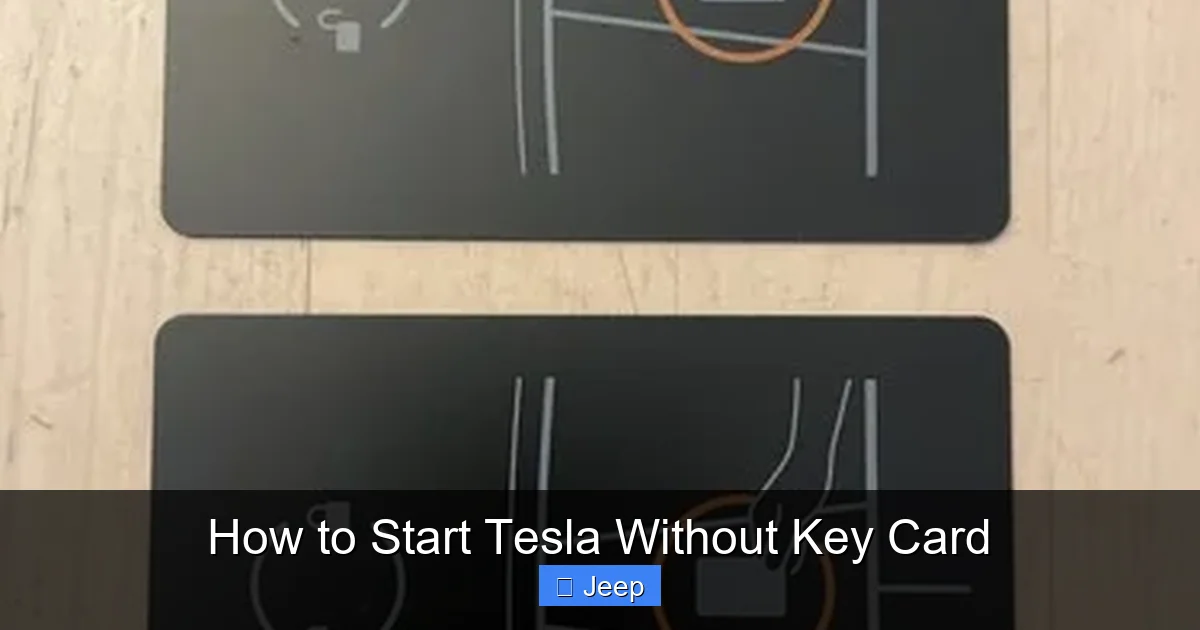
Visual guide about How to Start Tesla Without Key Card
Image source: i.ebayimg.com
How to Enable and Use PIN to Drive
You must set this up before you lose your keys. Do it now:
- On the touchscreen, go to Controls > Safety & Security > PIN to Drive.
- Toggle it ON.
- Enter a 4-digit PIN you can remember (not your birthday or 1234).
- Confirm the PIN.
Once enabled, the operation changes slightly:
- Use any valid key (Phone Key or Key Card) to unlock and enter the car.
- Press the brake pedal to wake the touchscreen.
- Before you can shift into Drive or Reverse, a keypad will appear on the screen.
- Enter your 4-digit PIN.
- The car is now ready to drive.
Critical Note: The PIN to Drive screen will appear for about 2 minutes after the car is authenticated and woken up. If you take too long, you’ll need to re-authenticate with your key (phone or card) and enter the PIN again.
Why This is Your Secret Weapon
PIN to Drive bypasses the need for any physical or Bluetooth key for the *driving authorization* step. It only requires that the car initially recognizes an authorized key to unlock and wake up. This means:
- If your phone is dead but you have the key card, you can use the card to unlock and wake the car, then enter your PIN to drive.
- If you have neither phone nor card, but you can somehow get into the car (e.g., a very slim window opening, though this is not recommended), you might still be able to wake the screen via internal controls. However, the car will almost certainly require the PIN to shift. Without the PIN, you are locked out of driving.
- It protects against relay attacks, where thieves amplify your key’s signal from outside your house to steal the car.
Think of it as the master password to your Tesla’s operating system. Memorize it. This feature is unique to Tesla and represents a shift from physical key-based security to knowledge-based security. It’s more reliable than trying to start a Dodge Charger with the emergency key, which still relies on a physical object.
Method 3: Proper Use of the Physical Key Card
It’s called a “key card,” but its operation is not intuitive like tapping a hotel room card. There is a specific, correct way to use it.
Visual guide about How to Start Tesla Without Key Card
Image source: koala.sh
Locating the Card Reader
The card reader is a small, rectangular, dark-colored area on the driver’s side B-pillar (the structure between the front and rear doors). It’s about the size of the card itself, often with a subtle Tesla “T” logo or outline. You must tap the card directly onto this surface.
The Correct Tapping Procedure
- Unlock: With the card in hand, approach the driver’s door. Tap the card firmly and quickly against the entire reader area on the B-pillar. You should hear a confirmation chime and see the side mirrors unfold or the door handles pop out. If not, adjust the angle and try again. A slow, dragging motion does not work.
- Enter and Start: Get in the car. Place the card on the center console (the flat area near the wireless charger). Press the brake pedal. The car will authenticate the card via NFC (Near Field Communication) from its resting spot and start up. You do not need to tap the card again inside.
If the car doesn’t start, make sure the card is lying flat on the console, centered over the charging pad area. Sometimes a case on the card can interfere; remove it if needed.
Common Card Problems
- Card Damaged: A cracked or severely bent card may have a broken internal antenna. You’ll need to order a replacement through your Tesla account.
- Reader Sensor Dirty: Clean the B-pillar reader area with a soft, dry microfiber cloth.
- Low Battery (in the card?): The key card has no battery. It’s a passive RFID/NFC chip. It draws power from the reader’s field, so it never needs charging.
Remember, the card is a backup. Relying on it daily is less convenient than Phone Key. Its main purpose is to get you in and started when your phone fails. For those used to traditional keys, the process is more deliberate than simply inserting and turning, but it becomes second nature quickly.
What NOT To Do: Avoiding Damage and Security Triggers
This section is critical. Your Tesla is not a 1995 Honda Civic. There are no wires to touch under the steering column. Attempting to force-start it will lead to expensive problems.
The Myth of “Hot-Wiring” a Tesla
It cannot be done. There is no ignition switch to bypass. The entire power-up and drive authorization sequence is controlled by the vehicle’s main computer (the MCU) and a separate security computer (the FSD/HW computer). They must communicate and verify cryptographic keys before allowing the high-voltage battery to power the drive units. Physically tampering with any wiring will:
- Trigger the alarm and immobilizer.
- Potentially cause a high-voltage safety shutdown.
- Void your warranty.
- Require a tow to a service center and a costly diagnostic/repair.
Do not, under any circumstances, try to drill holes, cut wires, or access the front trunk (frunk) to reach anything. Those methods are for older, completely different vehicles and are irrelevant here.
Don’t Rely on “Sentry Mode” or App Access Alone
Sentry Mode records activity but does not unlock or start the car. The Tesla app can honk the horn or flash lights, but it cannot start the vehicle without an active, authenticated key present inside. Some owners mistakenly believe they can use the app’s “Start” button remotely to begin a drive; it does not work that way. The car must have a key authorized and detected inside before the drive unit will activate.
Similarly, don’t try to open a Honda Civic trunk without a key as a comparison point—those are mechanical latch systems, completely unlike Tesla’s electronic latches that require key authorization to release.
The Last Resort: Tesla Roadside Assistance and Service
If you are truly stranded with no phone (dead/lost), no key card (lost/damaged), and you do not know your PIN to Drive, your options are limited but exist.
Using Tesla’s Official Channels
- Tesla App Support: If you have access to the Tesla app on another device (a friend’s phone, a tablet), log into your account. The app can sometimes remotely “unlock” the car, but it will not start it. This might allow you to retrieve something from the interior, but you still cannot drive.
- Call Tesla Roadside Assistance: This is your best official recourse. Explain your situation. In some cases, they can send a technician with a master key card or, in certain regions, they may have a tool that can temporarily override the system for a short drive to a service center. This is not guaranteed and may involve a fee if out of warranty.
- Tow to Service Center: Ultimately, you may need a tow. The service center can manufacture a new key card or pair a new phone using their master diagnostic tools once they verify ownership.
Prevention: Your Action Plan Now
Don’t wait for a crisis. Take these steps today:
- Set up Phone Key on your primary smartphone and test it thoroughly.
- Enable and memorize your PIN to Drive. Write it down and store it separately from the car (like in a wallet).
- Keep the physical key card in a consistent, known location (e.g., a dedicated purse pocket, a glovebox organizer—but not inside the car if you lock it!).
- Ensure your phone’s “Find My” or location services are enabled for the Tesla app.
- Consider a small, portable power bank to keep in the car for emergency phone charging.
By layering these solutions—Phone Key (convenience), Key Card (physical backup), PIN to Drive (knowledge backup)—you create a robust system that makes being locked out of your Tesla an extremely rare event.
Conclusion: Embracing the Digital Key
The question of how to start a Tesla without key card reveals the fundamental shift in automotive access control. There is no mechanical fail-safe because there is no mechanical ignition. Your solutions are digital and logical: use your phone, enter your PIN, or tap the card correctly. This system is actually more secure against theft than traditional keys, which can be copied or relayed.
The core takeaway is preparation. Spend 10 minutes now to enable PIN to Drive and confirm your Phone Key works. That small investment protects you from a major inconvenience later. Treat your Tesla’s key system like your online banking password—have a primary method (phone), a backup device (card), and a recovery secret (PIN). If you ever find yourself without all three, the only legitimate path is contacting Tesla directly. The age of digging around the steering column is over; welcome to the age of encrypted Bluetooth and PIN pads.
Frequently Asked Questions
Can I start my Tesla if my phone is completely dead and I don’t have the key card?
No, you cannot start or drive the car. A dead phone provides no Bluetooth signal. Without the physical key card or another paired phone, you cannot authenticate the vehicle to wake its systems. Your only option is to charge your phone or obtain a replacement key card from Tesla.
Is the PIN to Drive required every time I start the car?
No. You only need to enter the PIN after the car has been authenticated by a valid key (Phone Key or Key Card) and you attempt to shift into Drive or Reverse. It’s a one-time entry per drive session. If you park and return within a few minutes, you may not need to re-enter it.
What if my key card is lost or stolen? Can someone drive my Tesla with it?
No. If you have PIN to Drive enabled, a stolen key card alone is useless. The thief could unlock the car, but they would be prompted for your PIN on the touchscreen before they could drive. You should immediately remove the lost card from your Tesla account via the mobile app (Security & Drivers > Remove) and add a new one.
Does the Tesla app’s “Start” button remotely turn on the car for driving?
No. The “Start” button in the app is for pre-conditioning (heating/cooling) the cabin while the car is parked and locked. It does not enable the drive units or allow shifting. You must have a physical or phone key inside the car to drive.
Can I use an Apple Watch or other wearable as a Phone Key?
Yes. The Tesla app supports Apple Watch. You can pair your watch as a separate key. The process is similar to pairing a phone. This can be a convenient backup, but ensure your watch is charged and has Bluetooth enabled.
My key card reader on the B-pillar seems unresponsive. What do I do?
First, clean the reader area with a dry microfiber cloth. Ensure you are tapping the card firmly and quickly directly on the sensor. Try removing any case from the card. If it still fails, there may be a fault with the reader module, and you should schedule a service appointment through the Tesla app.