

How to Put Tesla in Service Mode

Contents
- 1 Key Takeaways
- 2 📑 Table of Contents
- 3 Understanding Tesla’s Hidden Diagnostic Gateway
- 4 Why Would You Need Service Mode? The Legitimate Use Cases
- 5 How to Enter Service Mode: The Model-Specific Secret Handshakes
- 6 The Critical Precautions: What Could Go Wrong?
- 7 What’s Actually Inside? A Tour of the Service Menu
- 8 Service Mode vs. Regular Menu: It’s Not the Same as Sport Mode
- 9 The Exit Strategy: How to Leave Service Mode Safely
- 10 Conclusion: Knowledge is Power, But Restraint is Wisdom
- 11 Frequently Asked Questions


Tesla Service Mode is a powerful, hidden diagnostic tool designed for technicians, not daily drivers. Accessing it requires a specific, model-dependent sequence of steps using the vehicle’s touchscreen and physical controls. Entering this mode grants deep access to the car’s systems but carries significant risks, including potential damage and warranty voiding if misused. This guide details the precise activation methods for Model S, X, 3, and Y, outlines what you can and cannot do inside Service Mode, and emphasizes that this feature should only be used by those with proper training or under direct guidance from Tesla Support.
Key Takeaways
- Service Mode is for professionals: This is a technician-grade diagnostic interface, not a user feature for everyday adjustments like changing driving modes.
- Access varies by model and year: The button sequence to enter Service Mode differs between older Model S/X and newer Model 3/Y, and even within model generations.
- Misuse can cause serious harm: Incorrect actions in Service Mode can disable critical safety systems, damage components, and will almost certainly void your vehicle’s warranty.
- It provides deep system access: Inside, you can read sensor data, perform calibrations, check battery health at a cell level, and reset certain modules—tasks not possible in the standard owner interface.
- You must know how to exit: Failing to properly exit Service Mode can leave the car in a limited, unusable state, often requiring a Tesla technician to recover it.
- Not a substitute for service: While useful for preliminary diagnostics, Service Mode does not replace a professional inspection. Use it to gather information before visiting a service center.
- Safety first: Always ensure the vehicle is in Park, parked safely, and you understand the risks before attempting to enter any service interface.
📑 Table of Contents
- Understanding Tesla’s Hidden Diagnostic Gateway
- Why Would You Need Service Mode? The Legitimate Use Cases
- How to Enter Service Mode: The Model-Specific Secret Handshakes
- The Critical Precautions: What Could Go Wrong?
- What’s Actually Inside? A Tour of the Service Menu
- Service Mode vs. Regular Menu: It’s Not the Same as Sport Mode
- The Exit Strategy: How to Leave Service Mode Safely
- Conclusion: Knowledge is Power, But Restraint is Wisdom
Understanding Tesla’s Hidden Diagnostic Gateway
Imagine you could peek under the digital hood of your Tesla, not just to see the engine—because there isn’t one—but to monitor every sensor, check the health of each battery cell, and run calibrations on the cameras and radar. That’s the world of Tesla Service Mode. It’s a deeply embedded, password-protected software environment that bypasses the standard, user-friendly interface. Think of your car’s normal touchscreen as the dashboard of a commercial airliner, showing you speed, altitude, and route. Service Mode is the cockpit where pilots (in this case, certified technicians) monitor engine performance, system redundancies, and run pre-flight checks. It is not designed for the average owner to toggle settings for a sportier drive feel, unlike the Sport Mode in a Toyota Camry which simply remaps throttle response. This is a raw, unfiltered look at the vehicle’s operational data and control systems.
The existence of Service Mode speaks to Tesla’s unique architecture. As a software-defined vehicle, most of its functions are governed by code. While this allows for incredible over-the-air updates and feature additions, it also means that troubleshooting often requires a software-based diagnostic tool. Service Mode is that tool, built directly into the car. It can be accessed through a series of hidden taps on the touchscreen, often combined with pressing the steering wheel scroll wheels or brake pedal in a specific order. This secret handshake ensures that curious owners don’t accidentally stumble into a menu where a wrong tap could, for example, initiate a battery pack rebalancing procedure that should only be done on a lifted, secured vehicle.
Why Would You Need Service Mode? The Legitimate Use Cases
Before we dive into the “how,” we must firmly establish the “why.” For the vast majority of Tesla owners, the answer is: you don’t. The standard menus are more than sufficient for adjusting climate, setting speed limits, and enabling Autopilot. However, there are niche, advanced scenarios where accessing Service Mode can be valuable, often as a first step before a service visit.
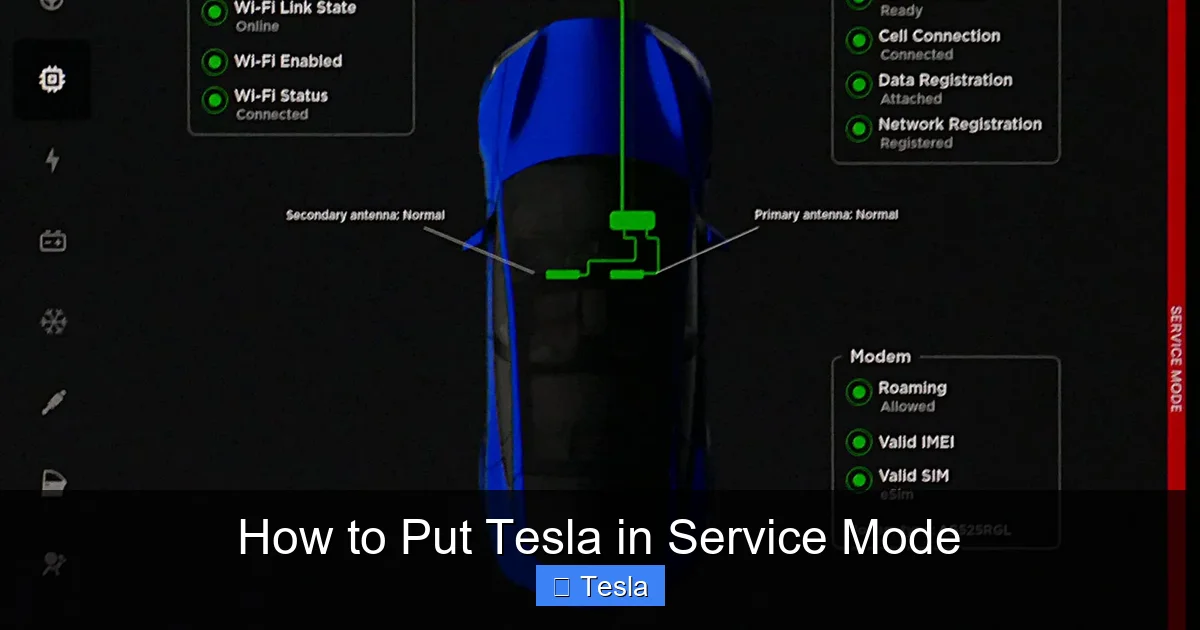
Visual guide about How to Put Tesla in Service Mode
Image source: teslatap.com
Advanced Diagnostics and Data Logging
The primary function of Service Mode is diagnostics. If you’re experiencing a vague issue—a strange noise from the front, a intermittent warning light, a perceived drop in range—Service Mode allows you to pull real-time data streams. You can watch high-voltage battery pack temperatures, individual cell voltages, coolant pump speeds, and motor inverter temperatures. This data can be invaluable when describing a problem to Tesla Service. Instead of saying “the car feels weird sometimes,” you can provide logs showing a specific sensor spiking or a module resetting. It turns a subjective complaint into an objective data point. You might compare this to checking engine codes in an older car with a diagnostic scanner, but Tesla’s system is far more comprehensive and integrated.
Camera and Sensor Calibration
Your Tesla’s Autopilot and Full Self-Driving (FSD) capabilities rely on a suite of cameras, radar (on older models), and ultrasonics. After a windshield replacement, a minor collision, or even sometimes after a software update, these sensors may need recalibration to ensure their alignment is perfect. Service Mode contains the tools to initiate these calibration procedures. For instance, you can start a “Camera Calibration” routine that instructs the car to drive on a clear, well-marked road at specific speeds while it aligns its vision systems. Performing this correctly can save you a trip to the service center for what might be a simple, user-initiated process. However, it requires careful attention to the prerequisites, like a clean windshield and specific driving conditions.
Checking Battery Health and Cell Statistics
While the main screen shows you an estimated range and a simple battery percentage, Service Mode can reveal the granular health of the battery pack. You can see the state of health (SOH) for the entire pack and sometimes even for individual modules or cells. This is the closest you can get to a professional-grade battery analysis without specialized equipment. If you’re concerned about degradation—perhaps your 2018 Model 3 isn’t holding charge like it used to—checking these stats can provide peace of mind or concrete evidence of a potential issue warranting a warranty claim. It’s like having a detailed report on your car’s heart, rather than just a general “pulse” reading.
How to Enter Service Mode: The Model-Specific Secret Handshakes
This is the core of your question, but it comes with a massive caveat: these sequences are subject to change with software updates. Tesla does not publish official documentation for Service Mode entry for owners. The following methods are compiled from owner forums, technician training materials, and previous software versions. They may not work on your specific vehicle’s current software build. Proceed with extreme caution and the understanding that you are exploring unsupported territory.

Visual guide about How to Put Tesla in Service Mode
Image source: cdn.teslanorth.com
For Model S (2012-2021) and Model X (2015-2021) – The “Legacy” Method
On these older models with the portrait-oriented center screen, the access sequence is relatively consistent but requires precise timing. It’s often called the “Service Menu” or “Diag Menu” access.
- Step 1: Ensure the vehicle is in Park, turned on (foot on the brake or touch “On” on the screen), and all doors are closed.
- Step 2: On the main touchscreen, navigate to Controls > Safety & Security > Settings (the exact path may vary). You are looking for a hidden area.
- Step 3: The critical sequence: Tap the “Settings” icon (the gear) in the top corner of the screen 7 times rapidly. Some versions require tapping the version number at the bottom of the Settings page multiple times.
- Step 4: If successful, a pop-up will appear asking for a password. The default or common passwords are often “admin” or “service,” but these can be changed by Tesla and may be unique to the vehicle’s VIN or region. Without the correct password, you cannot proceed.
- Step 5: Once in, you will see a stark, text-based menu with options like “Vehicle Info,” “Battery,” “Sensors,” etc. Navigation is via the touchscreen.
Important Note: On some newer refresh versions of Model S/X (2021+ with the horizontal screen), the method may be more similar to the Model 3/Y process below, involving the steering wheel buttons.
For Model 3 and Model Y (All Years) – The Steering Wheel Button Combo
The minimalist interior of the Model 3 and Y means no physical gear selector or hidden buttons on the dash. The access method cleverly uses the steering wheel controls, which are always present.
- Step 1: Vehicle in Park, powered on. Sit in the driver’s seat with all doors closed.
- Step 2: Press and hold the left scroll wheel button (the one used for volume and scrolling) on the steering wheel.
- Step 3: While holding the left button, press the right scroll wheel button (used for volume and scrolling on the right) three times.
- Step 4: Release both buttons. The center screen should flicker or a new menu option may appear in the bottom bar or under “Controls > Service.”
- Step 5: Tap the new Service icon. You will again be prompted for a password. As with older models, this password is not publicly standardized and may require Tesla internal tools to set or retrieve.
There are also anecdotal reports of accessing a precursor “Diagnostic” screen by holding both scroll wheels for several seconds, which then offers a path to the full Service Mode after a password. The exact UI flow can change with each major software update.
The Critical Precautions: What Could Go Wrong?
Reading this, you might be tempted to try the button sequence on your parked car right now. Stop. Understanding the risks is not just a suggestion; it’s a necessity. Entering Service Mode is like opening the server rack of your car’s brain. It’s not a sandbox.

Visual guide about How to Put Tesla in Service Mode
Image source: tparts.com
Risk of Disabling Critical Systems
Within Service Mode, you have the ability to reset, reconfigure, or disable individual electronic control units (ECUs). These are the computers that run your brakes, steering, power steering, airbags, and high-voltage system. A misplaced tap on “Reset” for the wrong module could, for example, deactivate your power steering assist, making the car dangerously hard to steer. It could confuse the brake control module, leading to unpredictable pedal feel. It could disable the high-voltage interlock system, creating a lethal shock hazard. These are not hypotheticals; they are documented mistakes made by untrained individuals.
Bricking Your Infotainment System
The main touchscreen computer (the MCU) is a complex piece of hardware. Service Mode allows for low-level software operations on it. An interrupted process, an incompatible software version attempt, or a corrupted command can render the MCU unbootable. This results in a “black screen of death.” While not disabling the drivetrain, it makes the car largely inoperable—you lose all climate controls, media, navigation, and most vehicle settings. Recovery often requires a technician to connect a laptop and reflash the MCU software, a process that takes hours and is not covered under warranty if caused by owner misuse.
Voiding Your Warranty and Liability
Your Tesla warranty is a contract. It covers defects in materials and workmanship. If you enter Service Mode and subsequently have a failure in any system you accessed, Tesla will almost certainly deny warranty coverage. They can, and do, examine log files that record when Service Mode was accessed and what commands were run. If they see you initiated a battery cell balancing procedure or a motor calibration, and then the battery or motor fails, they will point to your action as the cause. Furthermore, if your unauthorized tinkering leads to an accident, you assume full legal and financial liability. Your insurance may deny a claim if the accident is linked to a known, deliberate modification of safety-critical systems.
What’s Actually Inside? A Tour of the Service Menu
Assuming you have the correct password and have successfully entered, what do you see? The interface is sparse, text-heavy, and utilitarian. It’s designed for efficiency, not aesthetics. While the exact layout varies, common sections include:
- Vehicle Info: VIN, software versions for every ECU, hardware part numbers, build date.
- Battery: Detailed pack voltage, current, state of charge (SOC), state of health (SOH), temperatures for various sections, and often a cell voltage imbalance readout.
- Drivetrain: Motor temperatures, inverter status, gear shifter position status, torque readings.
- Brakes: Brake pad wear sensors (if equipped), hydraulic pressures, ABS/ESC module status.
- Sensors: Camera and radar alignment status, ultrasonic sensor readings, GPS accuracy.
- HVAC: Compressor speeds, coolant pump status, cabin temperature sensor readings.
- Controls: The most dangerous section. Allows you to manually actuate components: open/close the charge port, honk the horn, flash lights, move windows, activate the wipers, and even put the car into “Service Mode” for towing (a different, specific procedure that disables Autopark and other systems for safe flat-bed loading).
There are also options for “Factory Reset,” “Software Update” (bypassing the OTA queue), and “Logging” where you can start a detailed diagnostic capture to download later. The “Calibrate” section is where you’d find the camera and radar alignment routines. Navigating this requires a Tesla service manual or extensive forum knowledge. Clicking the wrong thing can have immediate consequences. For example, manually opening the charge port while it’s raining might not seem bad, but if the port is already open and you command it to “open” again, it could stress the mechanism. More critically, commanding a 12V battery reset while the car is on can cause a sudden loss of all systems.
Service Mode vs. Regular Menu: It’s Not the Same as Sport Mode
A common misconception is that Service Mode is like the “Sport Mode” in a Toyota Camry or the “Eco Mode” in a Nissan Rogue. This is completely wrong. Those are preset, manufacturer-approved driving profiles that adjust throttle mapping, transmission shift points (in automatics), and climate control efficiency for a desired feel or economy. They are safe, reversible, and intended for every owner to use daily. Service Mode is not a driving mode at all. It is a backstage pass to the car’s engineering guts. You don’t use it to make your Tesla accelerate faster or feel more responsive. You use it to see why a warning light is on or to align a camera. The confusion is understandable because both involve “modes,” but their purpose, risk level, and intended audience are universes apart. One is a feature; the other is a tool.
Similarly, the process of putting a traditional car into neutral for towing—like the steps to put a Dodge Charger in neutral—is a physical, mechanical procedure with a clear, safe outcome (free-wheeling). Entering Tesla Service Mode is a software state change with ambiguous, system-wide implications. It’s the difference between putting a car in neutral and re-wiring its transmission control module. The former is routine; the latter is for experts only.
The Exit Strategy: How to Leave Service Mode Safely
Getting in is only half the battle. Getting out correctly is just as important. There is usually a dedicated “Exit” or “Reboot” button within the Service Mode menu. The proper procedure is:
- Navigate to the main Service Mode menu.
- Look for an option like “Exit Diag,” “Reboot MCU,” or “Return to Normal.”
- Select it. The screen will typically go black and restart the main user interface.
- After the Tesla logo and startup sequence, verify that all normal functions are restored. Check that the gear selector shows “P,” “R,” “N,” “D.” Test the turn signals, wipers, and climate control.
- Do not simply turn the car off and on. While that often works, it’s not the cleanest exit and can leave some modules in an ambiguous state. Always use the in-menu exit if available.
If the car appears frozen, the screen remains black, or you cannot shift out of Park after a reboot, you have a problem. The car may be stuck in a diagnostic state. The only recourse is a hard reset: hold down both steering wheel buttons for 10+ seconds to force a power cycle of the MCU. If that fails, you may need to disconnect the 12V battery (located in the front trunk) for a few minutes to fully power down all computers. Warning: Disconnecting the 12V battery in a Tesla can also cause issues with the high-voltage system and requires specific procedures to avoid airbag deployment or system errors. This is a clear sign you need professional help.
Conclusion: Knowledge is Power, But Restraint is Wisdom
Knowing how to put a Tesla in Service Mode is like knowing the combination to a safe containing both a priceless treasure and a live grenade. The treasure is unparalleled insight into your vehicle’s health and the ability to perform advanced maintenance. The grenade is the very real potential to disable your car, void your warranty, and create a dangerous situation. For 99% of owners, this knowledge should be purely academic. You will never need to use it. Your Tesla’s regular menus and the Tesla mobile app provide all the safe, supported controls you’ll ever need. If you encounter a problem, the correct first step is to schedule a service appointment through the Tesla app. Use the Service Mode data-gathering tips only if explicitly advised by a Tesla service advisor to help them diagnose remotely. Treat this hidden menu with the respect it demands. Your car is a marvel of modern engineering, and with that complexity comes a responsibility to leave the deepest system controls to those trained to wield them. The goal is a reliable, safe, and enjoyable driving experience—not becoming an accidental software engineer for your own vehicle.
Frequently Asked Questions
Is it legal for me to put my Tesla in Service Mode?
Yes, it is legal to access the built-in diagnostic menu of your own vehicle. However, using it to make unauthorized changes to safety-critical systems could violate terms of service and void your warranty. It is intended for trained personnel.
Will putting my Tesla in Service Mode delete my personal data or settings?
No, simply entering and exiting Service Mode does not reset your car’s settings, delete saved profiles, or clear your dashcam footage. However, performing a “Factory Reset” from within that menu would erase all personal data and return the car to its original software state.
Does the method to enter Service Mode work on all Tesla models?
No. The access sequence is different for Model S/X (typically involving tapping the screen) versus Model 3/Y (using steering wheel scroll wheel buttons). Furthermore, Tesla frequently updates software, which can change or remove these hidden access paths without notice.
Can I damage my Tesla battery by using Service Mode?
Yes, absolutely. Service Mode allows you to initiate battery cell balancing, deep discharge cycles, and other high-voltage operations. Doing these incorrectly, or at the wrong time (e.g., in extreme temperatures), can cause permanent damage to battery cells or the battery management system.
What should I do if I get stuck in Service Mode and can’t exit?
First, look for an “Exit” or “Reboot” button in the Service menu. If the screen is unresponsive, perform a hard reset by pressing and holding both steering wheel scroll buttons for 10-15 seconds. If that fails, you may need to consult Tesla Roadside Assistance or a service center, as the car may be in a locked diagnostic state.
Should I use Service Mode to diagnose a problem before calling Tesla Service?
It can be helpful to note any specific error codes or sensor readings you see in Service Mode to report to the service advisor. However, do not attempt to fix or reset anything yourself unless specifically guided by a Tesla technician. Your role should be data collection, not intervention.







