
How to Get Waze on a Tesla

Contents
- 1 Key Takeaways
- 2 📑 Table of Contents
- 3 Why Tesla Doesn’t Natively Support Waze (And Likely Never Will)
- 4 Method 1: The Phone Mount Solution (The Simple, Reliable Champion)
- 5 Method 2: Third-Party Apps and Solutions (The Screen-Mirroring Approach)
- 6 Method 3: Android Auto (The Ghost of Christmas Future)
- 7 Limitations and Considerations of Each Method
- 8 The Future: Will Tesla Ever Integrate Waze Natively?
- 9 Conclusion: The Verdict and Your Best Path Forward
- 10 Frequently Asked Questions


While Tesla’s built-in navigation is robust, many drivers prefer Waze for its real-time crowd-sourced alerts. Unfortunately, Tesla doesn’t natively support Waze, but there are workarounds. This guide explores the most effective methods to get Waze on your Tesla, including phone mounts and third-party apps, weighing their pros and cons for safety and convenience.
Let’s be honest: Tesla’s built-in navigation is pretty fantastic. It’s sleek, integrates beautifully with the car’s giant touchscreen, and even shows you Supercharger locations automatically. But for many of us, there’s something irreplaceable about Waze. That real-time, crowd-sourced alert for a cop hiding around the bend, a pothole that just opened up, or a traffic jam five miles ahead? It’s a game-changer. So, when you buy a Tesla—a car that feels like a rolling smartphone—you might naturally assume you can just head to the Tesla app store and download Waze. You can’t. And that initial frustration is a common thread among new Tesla owners.
This guide is your definitive roadmap (pun intended) to getting Waze on a Tesla. We’ll cut through the noise and explain exactly why Tesla doesn’t offer Waze natively. Then, we’ll dive deep into every practical workaround available today, from the dead-simple phone mount to the more complex third-party app solutions. We’ll compare them, give you step-by-step setup advice, and highlight the critical safety and technical considerations you need to know. By the end, you’ll know exactly which method is best for your driving style and your specific Tesla model.
Key Takeaways
- No Native Support: Tesla’s infotainment system does not include Waze or allow direct app installation like a smartphone.
- Phone Mount is King: Using a secure phone mount is the simplest, most reliable, and safest method to use Waze in your Tesla.
- Third-Party Apps Exist: Solutions like Turo or Tesla Display can mirror your phone’s screen to the Tesla display but have limitations and setup complexities.
- Safety is Paramount: Any method should minimize distraction; voice commands and proper mounting are essential for safe driving.
- Warranty Considerations: Using third-party apps is unlikely to void your Tesla warranty, but Tesla won’t support issues arising from them.
- Future Uncertain: Tesla has not indicated plans to add Waze natively, focusing instead on improving its own navigation with similar crowd-sourced data.
- Customization Beyond Software: Just as you might explore how much it costs to get a Tesla wrapped for a unique look, finding the right Waze setup personalizes your driving experience.
📑 Table of Contents
- Why Tesla Doesn’t Natively Support Waze (And Likely Never Will)
- Method 1: The Phone Mount Solution (The Simple, Reliable Champion)
- Method 2: Third-Party Apps and Solutions (The Screen-Mirroring Approach)
- Method 3: Android Auto (The Ghost of Christmas Future)
- Limitations and Considerations of Each Method
- The Future: Will Tesla Ever Integrate Waze Natively?
- Conclusion: The Verdict and Your Best Path Forward
Why Tesla Doesn’t Natively Support Waze (And Likely Never Will)
To understand the workarounds, you first need to understand the “why.” Tesla’s approach to its infotainment system is fundamentally different from Android Auto or Apple CarPlay. They build a vertically integrated ecosystem, controlling both the hardware and the software from the ground up. This allows for incredible optimization and a user experience that feels seamless and fast. The trade-off? You can’t just download arbitrary apps from a public store.
Tesla’s In-House Navigation Philosophy
Tesla has invested heavily in its own navigation software, powered by a version of Google Maps data but heavily customized. They argue that by controlling the entire stack—from the map data to the rendering on your screen to the integration with the car’s Autopilot and battery management—they can provide a safer, more cohesive experience. For example, the navigation system knows the exact elevation profile of your route to calculate precise energy consumption and automatically plan Supercharger stops. Adding a third-party app like Waze into this tightly coupled environment would be technically challenging and could create conflicts.
The Google Maps Connection and Its Limitations
Many people don’t realize Tesla’s navigation already uses Google Maps as its base map data. So why not just use the Google Maps app? Because Tesla isn’t licensing the consumer-facing Google Maps app; they’re licensing the raw map data and building their own interface on top of it. This means you get the accurate road geometry and business listings, but you don’t get Google’s live traffic layer or, more importantly, the Waze-style user reports. Tesla has been slowly adding its own crowd-sourced incident reporting (you can tap the screen to report traffic, hazards, etc.), but it doesn’t have the massive, dedicated user base that Waze has cultivated over a decade.
Method 1: The Phone Mount Solution (The Simple, Reliable Champion)
Let’s start with the easiest, cheapest, and most effective method: put your phone on a mount and use the Waze app directly on your phone. It sounds almost too simple, but it’s what the vast majority of Tesla owners who want Waze actually do. Why? Because it works perfectly, every time, with zero tinkering.
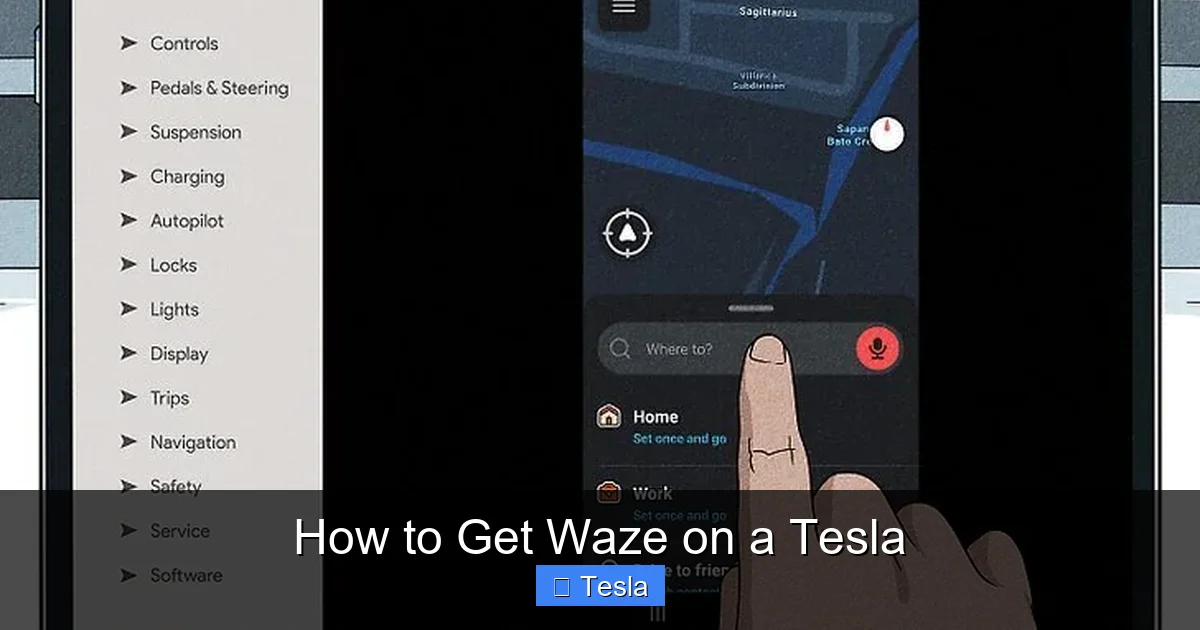
Visual guide about How to Get Waze on a Tesla
Image source: wikihow.com
Choosing the Right Phone Mount for Your Tesla
Not all phone mounts are created equal, and the unique shape of a Tesla’s dashboard and vents means you need one designed for it. You have two primary mounting locations:
- Vent Mounts: These clip onto your HVAC vents. They’re great because they don’t require adhesive and are easily removable. Look for mounts with strong, adjustable claws that won’t damage delicate vent fins. Brands like RAM Mount and ProClip make Tesla-specific vent mounts that are incredibly sturdy.
- Dashboard/Console Mounts: These use suction cups or adhesive pads to stick to a flat surface. They often have a longer arm, which can position the phone more centrally in your field of view. Be cautious with suction cups in hot Teslas, as extreme heat can degrade the seal. Adhesive pads (like those from iOttie or Spigen) can leave residue if not removed carefully.
Pro Tip: Whatever mount you choose, ensure it holds your phone rock-solid. You should be able to drive over a bumpy road and not see your phone wobble. A wobbly phone is a distracted driver and a potential projectile in a sudden stop.
Mounting Your Phone Safely and Effectively
Once you have your mount, installation is straightforward, but placement is key for safety and usability. You want the phone positioned so that:
- You can glance at it with minimal eye movement from the road.
- It does not obstruct your view of the Tesla’s own touchscreen or instrument cluster.
- It is within easy reach if you need to tap it (ideally, you’ll rely on voice commands).
- The charging cable (if used) routes cleanly and doesn’t dangle.
The most popular spot is the right-side air vent on the dash, just to the right of the steering wheel. This puts the phone in your peripheral vision, almost like a traditional head-up display. Test the position while the car is parked. Can you see the essential Waze info (next turn, large speed camera icon) at a glance?
Tips for Optimal Waze Usage on a Mounted Phone
Now that your phone is mounted, here’s how to make the experience seamless:
- Use Voice Commands: This is non-negotiable for safety. Set up Waze’s voice commands (“Okay Waze,” “Drive home”) and use them for all destination changes and reporting incidents. Your eyes stay on the road.
- Maximize Brightness: Your phone’s screen can get washed out in a bright Tesla. Crank the brightness to max and disable auto-brightness. Consider a matte screen protector to reduce glare.
- Manage Heat: A phone mounted directly in front of a vent on a hot day can overheat. Point a vent away from the phone or use a mount that holds it slightly off the vent surface. iPhones, in particular, will throttle performance if they get too hot.
- Keep It Charged: Running Waze with GPS and a bright screen drains battery fast. Use a high-quality USB-C cable plugged into one of Tesla’s front USB ports (the ones in the center console are usually the most powerful).
- Audio Routing: For the best experience, set your Tesla’s media source to “Phone” in the audio settings. This will route Waze’s voice prompts through the car’s excellent speakers, overriding other audio. You can adjust the prompt volume separately in the Waze app settings.
This method is so effective because it uses the devices exactly as their manufacturers intended. There’s no software hack, no beta program, no risk of a Tesla update breaking your setup. It just works. For a deeper dive into optimizing your in-car tech, you might even look at how other vehicles handle connectivity, such as how to delete a phone from Bluetooth on a Honda Civic, to understand the basics of pairing, though Tesla’s system is far more straightforward.
Method 2: Third-Party Apps and Solutions (The Screen-Mirroring Approach)
What if you *really* want Waze on the big Tesla screen? You’re not alone. This desire has fueled a small ecosystem of third-party developers who have created apps that essentially turn your Tesla’s browser into a remote display for your phone. The two main players are Turo and Tesla Display. They work on a similar principle: you install a companion app on your iPhone (Android support is limited or non-existent), and a web app on your Tesla’s browser. The two devices connect over Wi-Fi, and the Tesla browser displays a live, interactive feed of your phone’s screen.
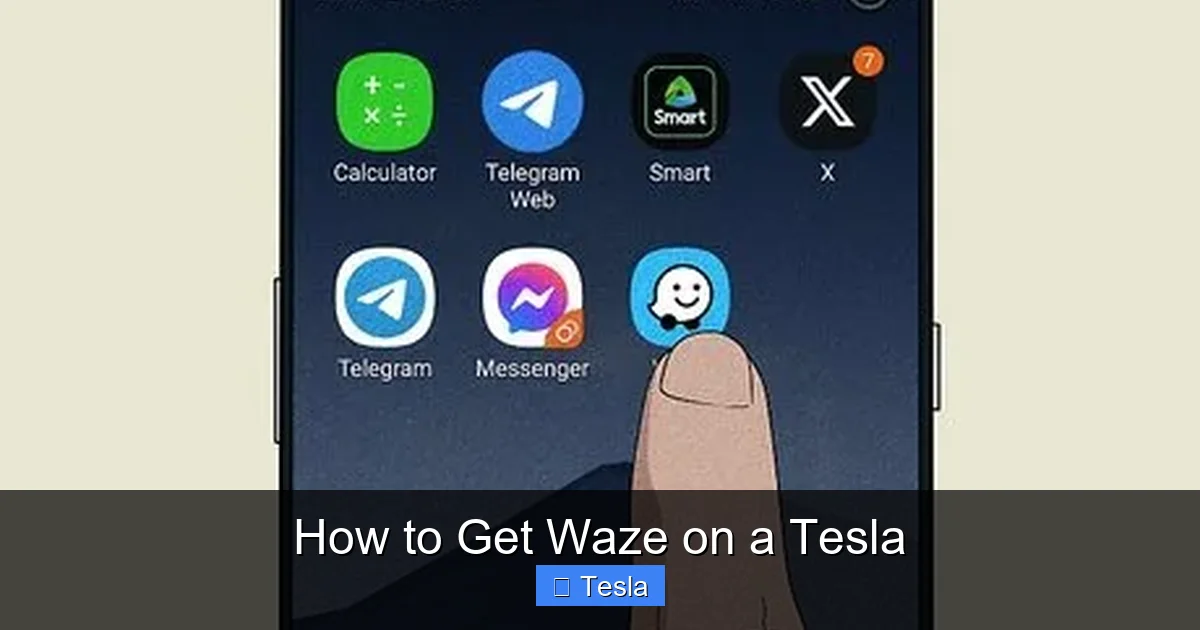
Visual guide about How to Get Waze on a Tesla
Image source: wikihow.com
Turo: The Most Popular Third-Party Option
Turo has been around the longest and has the most refined setup. Here’s how it works:
- Purchase and download the Turo app from the iOS App Store (it’s a paid app, typically around $10-$15).
- On your Tesla, open the browser and go to the Turo website (turo.com/display).
- Follow the on-screen instructions to pair your phone with the Tesla browser via a local Wi-Fi network. This often involves your phone creating a hotspot that the Tesla connects to.
- Once connected, the Tesla browser will show a mirror of your phone’s screen. You can then open the Waze app on your phone and control it from the Tesla screen.
Pros: Gets Waze on the big screen. Can also mirror other apps like YouTube or Spotify.
Cons: Setup can be finicky and may fail after a Tesla software update. The screen refresh rate is lower than native (can feel laggy). It uses a significant amount of your phone’s battery and data. It only works with iPhones. The Tesla browser may time out or ask for confirmation periodically, interrupting the experience.
Tesla Display: Another Contender
Tesla Display functions similarly to Turo but is often cited as having a slightly better connection stability and lower latency in some user reports. The setup process is analogous: download the iOS app, navigate to a specific URL in the Tesla browser, and pair. Pricing is similar. The choice between Turo and Tesla Display often comes down to which one happens to work more reliably with your specific Tesla’s software version and phone model. You may need to try both.
Setting Up and Using Third-Party Apps – The Reality
Expect a 10-15 minute setup process the first time. You’ll need both your phone and your Tesla on and connected to the same Wi-Fi network (your phone’s hotspot is usually the bridge). Be prepared for it to not work on the first try. Common fixes include restarting the Tesla browser, restarting your phone, and ensuring your Tesla’s “Browser” settings have “Allow external connections” enabled (this is on by default).
Once running, you control Waze by touching the Tesla screen, which sends touch events to your phone. It’s not as smooth as a native app. Scrolling or zooming the map can be sluggish. You are also entirely dependent on your phone’s signal and battery. If your phone dies or loses connection, your Waze session is over. This method is best for passenger-assisted use or for short trips where having the map on the big screen is a priority.
Method 3: Android Auto (The Ghost of Christmas Future)
For Android phone users, the dream is Android Auto. It’s the official Google standard for projecting your phone’s apps, including Waze and Google Maps, onto a car’s built-in screen. Many new cars have it built-in. Tesla does not. There is no official, supported way to run Android Auto on a Tesla.
Visual guide about How to Get Waze on a Tesla
Image source: wikihow.com
Current State of Android Auto on Teslas
There is no app, no hack, and no third-party solution that provides a true, full-featured Android Auto experience on a Tesla. The screen-mirroring apps mentioned above (Turo, Tesla Display) are not Android Auto; they are simple screen casts. They do not integrate with the Tesla’s native vehicle data (like speed, turn signals) and lack the deep, low-latency integration that true Android Auto provides in supported vehicles. If you are an Android user hoping for a native experience, your only real option is the phone mount. The third-party screen-mirroring apps are iPhone-centric and often don’t work with Android at all.
Potential Future Developments
There is a small, vocal subset of Tesla owners who petition Tesla to add Android Auto (and Apple CarPlay) support. Tesla’s CEO has stated in the past that it’s unlikely, as it would require them to cede control of the user interface to Google and Apple. However, with regulatory pressures in Europe and elsewhere regarding closed ecosystems, and as Tesla’s own navigation improves, the pressure for official smartphone projection is mounting. But for now, Android Auto on a Tesla remains a fantasy. For now, Android users should focus on a great phone mount and leveraging Waze’s excellent voice commands.
Limitations and Considerations of Each Method
No solution is perfect. Let’s break down the trade-offs you need to consider before deciding on your Waze-on-Tesla strategy.
Safety and Distraction Concerns
This is the most critical factor. The entire point of Waze is to enhance safety by alerting you to hazards. But if the method you choose forces you to look away from the road more than Tesla’s native navigation, you’ve defeated the purpose.
- Phone Mount: Can be very safe if the phone is positioned correctly and you use voice commands exclusively. The risk is the temptation to glance at the phone for details or, worse, to tap it while driving. Discipline is key.
- Third-Party Apps: This method is inherently more distracting. Touching the large Tesla screen to control Waze feels more natural, but your eyes are still moving from the road to a screen that is, technically, displaying a delayed feed from your phone. The cognitive load is higher. This method is best reserved for when you have a passenger who can act as a co-pilot, handling all screen interactions.
Remember, a core principle of safe driving is minimizing visual, manual, and cognitive distraction. Whichever method you choose, commit to using it in the safest way possible. This aligns with general vehicle safety practices, like ensuring your tire pressure is correct on any vehicle you drive, to maintain control and prevent accidents.
Impact on Tesla’s Warranty and System Integrity
Will using Turo or Tesla Display void your warranty? Almost certainly not. The Magnuson-Moss Warranty Act protects consumers from warranty denial due to aftermarket parts or software unless the dealer can prove the aftermarket product directly caused the failure. A third-party app running in the browser is highly unlikely to cause a failure of your powertrain or battery. However, if a Tesla software update causes the third-party app to stop working, that’s your problem, not Tesla’s. They will not help you troubleshoot it. You are also relying on a third-party developer to keep their app compatible with Tesla’s frequent updates, which can break functionality without warning.
Battery Drain and Data Usage
Running your phone’s screen at full brightness, with GPS and a data-hungry app like Waze, will drain its battery rapidly, even when connected to a charger. With the third-party screen-mirroring methods, your phone is doing double duty: running Waze and encoding a video stream to send to the Tesla. This will generate significant heat and battery drain. You must have your phone plugged into a reliable power source (the Tesla’s USB ports are fine, but a high-quality cable is essential). Also, Waze uses data for live traffic and map updates. If you have a limited data plan, monitor your usage, especially on long trips.
The Future: Will Tesla Ever Integrate Waze Natively?
This is the million-dollar question. The short answer is: probably not, but the gap is closing.
Rumors and Official Statements
Over the years, there have been periodic rumors and community petitions. Tesla has never officially commented on adding Waze specifically. Their public stance has been that they are focused on making their own navigation system the best it can be. They have added features over time: real-time traffic display, incident reporting by users, and even speed trap alerts in some regions. They are essentially building a Waze competitor using their own data and the contributions of their millions of drivers.
What Tesla’s Software Updates Mean for Navigation
Every Tesla over-the-air (OTA) update brings incremental improvements to the navigation system. We’ve seen better route calculation, more accurate traffic predictions, and the aforementioned user-reported hazards. It’s a slow, steady march toward feature parity with dedicated apps. The key advantage Tesla has is integration. Their navigation is baked into the car’s brain. It can automatically reroute you if a Supercharger is down, it can precondition the battery for optimal charging as you approach a station, and it can show you exactly where to park at your destination. Waze, for all its crowd-sourced glory, cannot do this. Tesla’s philosophy is that a deeply integrated, “good enough” system is superior to a best-in-class third-party app that lives in a silo. For most daily driving, Tesla’s navigation is now excellent. For the niche use case of wanting police trap alerts in a specific area, that’s where Waze still holds a slight edge, and where the phone mount remains the perfect solution.
Conclusion: The Verdict and Your Best Path Forward
So, how do you get Waze on a Tesla? The honest answer is that you don’t *put* it on the Tesla. You bring your phone to the Tesla. The tried-and-true, highly effective, and safest method is to invest in a high-quality, Tesla-specific phone mount, position it correctly, and use Waze on your phone with voice commands. It’s a $20-$50 solution that works flawlessly today and will work tomorrow, regardless of Tesla’s software updates. It respects the car’s design philosophy while giving you the app you want.
The third-party screen-mirroring apps are an interesting novelty and can be fun for passengers, but they are a fragile, battery-draining, and often frustrating compromise. They are not recommended for daily driver use. The dream of a native Waze app or Android Auto integration remains just that—a dream. Tesla’s incentives are aligned to keep you in their ecosystem.
Your Tesla is a fantastic piece of technology. Supplementing its built-in navigation with your phone via a secure mount is a smart, practical, and safe way to get the best of both worlds: the seamless integration of Tesla’s system with the hyper-local, crowd-powered alerts of Waze. Now, go mount that phone and drive safely.
Frequently Asked Questions
Can I download and install the Waze app directly on my Tesla’s touchscreen?
No. Tesla’s infotainment system does not have an app store and does not allow the installation of third-party applications like Waze. The only software that runs natively is what Tesla provides through its own updates.
What is the absolute easiest and most reliable way to use Waze in my Tesla?
The simplest and most reliable method is to use a secure phone mount attached to your Tesla’s vent or dashboard. Mount your smartphone, open the Waze app, and use it directly. Pair it with your Tesla’s Bluetooth for audio prompts through the car speakers, and use voice commands for hands-free operation.
Are the third-party apps like Turo safe to use? Will they damage my Tesla’s system?
Apps like Turo and Tesla Display are generally safe; they operate within the Tesla’s web browser and don’t modify the car’s core software. They are unlikely to cause physical damage. However, they can be unstable after Tesla updates, may drain your phone’s battery quickly, and introduce lag. They also require you to trust a third-party developer with network access to your devices.
Will using these Waze workarounds void my Tesla’s warranty?
It is highly unlikely. Using a phone mount or a web-based app in the browser does not alter the vehicle’s hardware or core software. Under the Magnuson-Moss Warranty Act, a dealer must prove that an aftermarket product directly caused a failure to deny warranty coverage. These methods are not known to cause such failures.
Does Waze work through Bluetooth audio if I just use my phone without a mount?
Yes. If you pair your phone via Bluetooth, Waze’s voice navigation prompts will play through your Tesla’s speakers. However, you will have no visual display of the map or alerts on any screen. You would have to look at your phone, which is unsafe and impractical while driving. A mount is essential for visual reference.
Is there any official word from Tesla about adding Waze or Apple CarPlay/Android Auto in the future?
There is no official indication that Tesla will add Apple CarPlay, Android Auto, or the Waze app natively. Tesla’s stated strategy is to continue improving its own built-in navigation system, which already uses Google Maps data and is adding more crowd-sourced features over time via over-the-air updates.







