
How to Exit Theater Mode in Tesla

Contents
- 1 Key Takeaways
- 2 📑 Table of Contents
- 3 What Exactly is Tesla Theater Mode?
- 4 Method 1: The Steering Wheel “Home” Button
- 5 Method 2: The Touchscreen “Back” Gesture
- 6 Method 3: The Soft Reboot (For When Things Get Glitchy)
- 7 Best Practices to Avoid Getting “Stuck”
- 8 What If I’m a Passenger and Don’t Know How?
- 9 A Note on Safety and Design Philosophy
- 10 Conclusion: You’re Always in Control
- 11 Frequently Asked Questions

Car Glass Cleaner

Windshield Cleaning Tool

Car Ambient Light Kit

Car Wax Polish
Getting stuck in Tesla’s Theater Mode is a common and easily solvable issue. You can almost always exit by simply tapping the “X” in the top-left corner of the screen or pressing the “Home” button on your steering wheel. If that fails, a scroll wheel press or a brief vehicle restart will reliably bring your touchscreen back to the driving display.
So, you’re sitting in your parked Tesla, enjoying a movie on the big, stunning touchscreen. The credits roll, or maybe you just need to get going. You reach out to tap the controls, but the screen is locked in this cinematic experience. Panic sets in for a split second. “How do I get out of here? Is my car stuck?” Take a deep breath. Exiting Theater Mode in a Tesla is one of the simplest and most intuitive actions you can perform in the vehicle. It’s designed to be foolproof. This guide will walk you through every method, from the obvious to the backup plan, ensuring you never feel trapped by your own entertainment system again.
First, let’s clear the air: you cannot activate Theater Mode while the car is in Drive. Tesla’s safety systems completely block this. Theater Mode is a parked-only feature. This fundamental design means that even if you get “stuck” on the entertainment screen, you are safely parked. The car is not going to start moving. The confusion usually stems from the screen’s immersive, full-screen nature, which hides the standard driving interface. Your goal is simply to make that interface reappear. We’ll start with the easiest, most direct method and progress to troubleshooting steps for the rare occasion when the software needs a gentle nudge.
Key Takeaways
- Theater Mode is a passive entertainment feature: It activates automatically when parked and a video source is playing, but it never overrides critical driving displays when the car is in Drive.
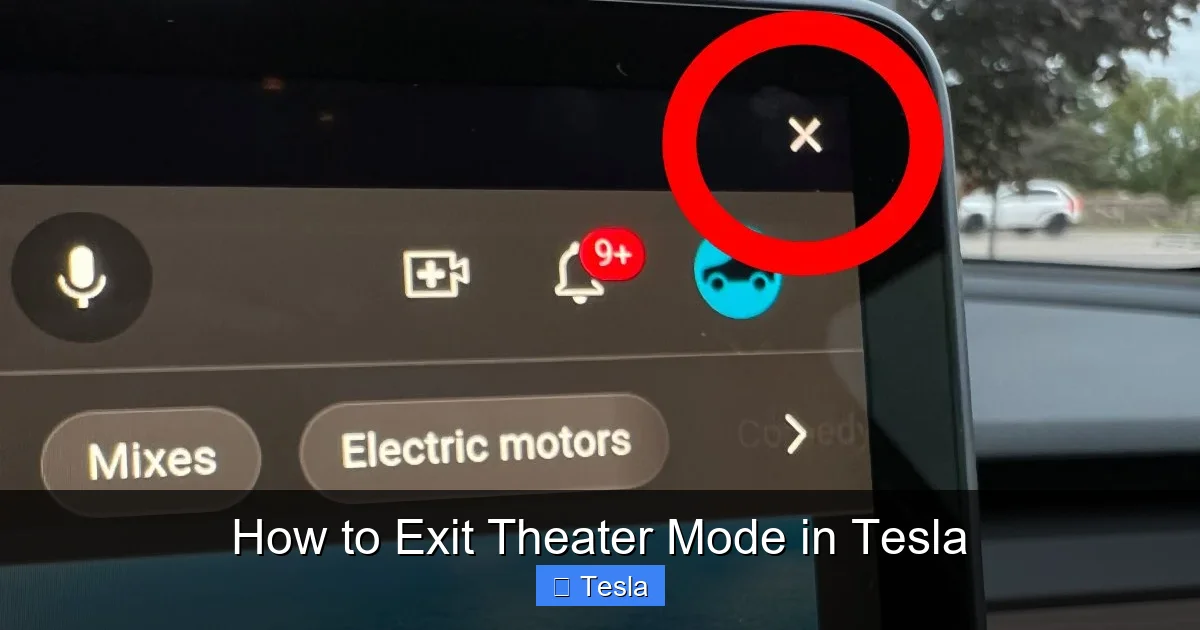
- The primary exit is always the “X” button: Look for the small “X” in the top-left corner of the Theater Mode interface; tapping it returns you to the main car controls.
- Your steering wheel’s “Home” button is your best friend: Pressing the scroll wheel (or dedicated Home button on newer models) on the left side of the steering wheel instantly exits any full-screen app, including Theater Mode.
- A scroll wheel press on the right side can also work: If the left button doesn’t respond, pressing and holding the right scroll wheel often acts as a universal “back/exit” command.
- For persistent glitches, a soft reboot is safe: Hold both steering wheel scroll buttons until the screen reboots; this fixes most software hiccups without affecting driving functions.
- Understanding the “why” prevents confusion: Theater Mode exists for passenger entertainment while parked and is designed to be non-intrusive and easy to leave.
📑 Table of Contents
- What Exactly is Tesla Theater Mode?
- Method 1: The Steering Wheel “Home” Button
- Method 2: The Touchscreen “Back” Gesture
- Method 3: The Soft Reboot (For When Things Get Glitchy)
- Best Practices to Avoid Getting “Stuck”
- What If I’m a Passenger and Don’t Know How?
- A Note on Safety and Design Philosophy
- Conclusion: You’re Always in Control
What Exactly is Tesla Theater Mode?
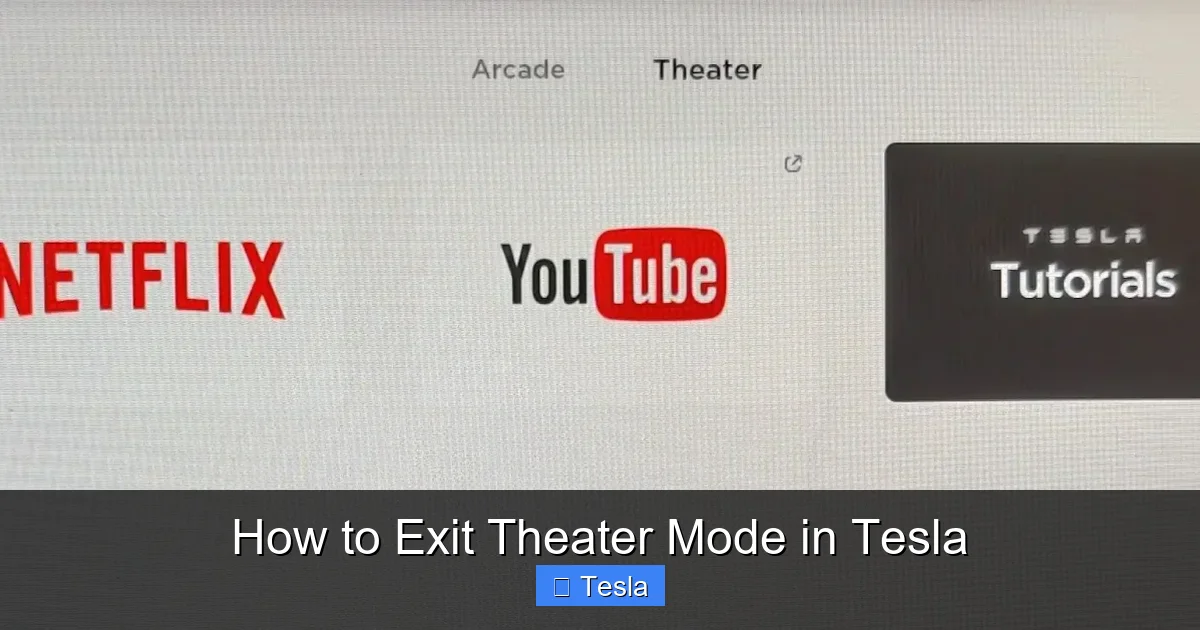
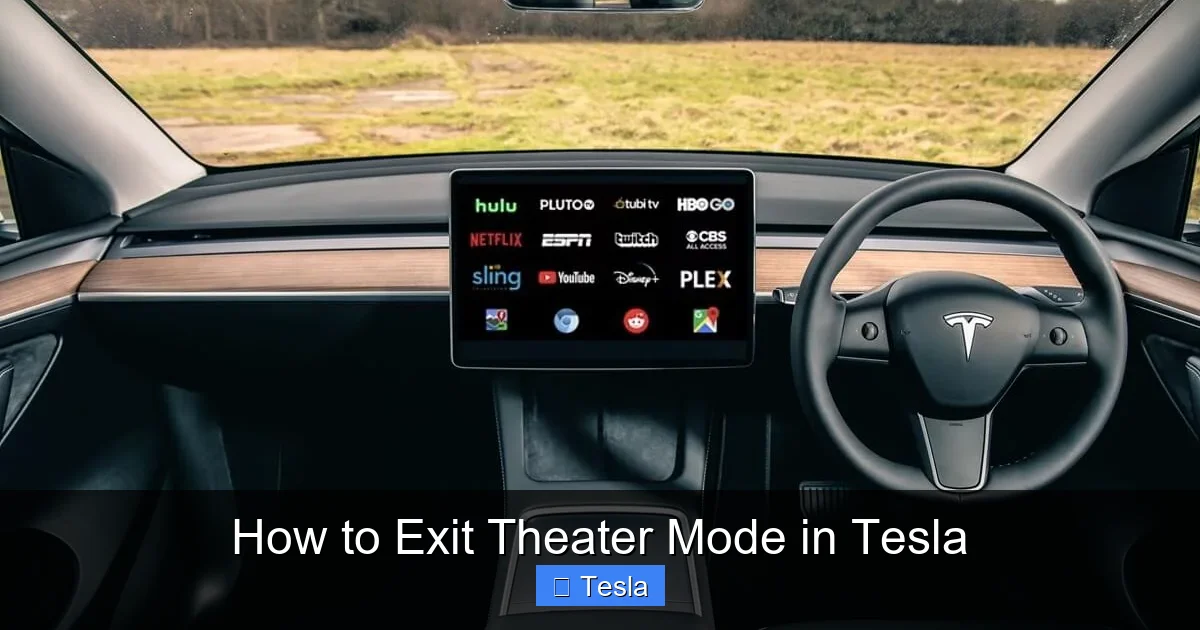
Before we dive into exits, it helps to understand what you’re exiting. Theater Mode is Tesla’s name for its dedicated, full-screen video playback environment. When you park, put the car in Park, and start a video from a source like Netflix, YouTube, or Hulu (with a premium connectivity subscription), the vehicle automatically or manually enters Theater Mode. The screen dims, the interface simplifies, and content takes center stage. It’s optimized for viewing from the driver’s seat or rear seats.
Key characteristics of Theater Mode include:
- Automatic Engagement: Often activates when a video starts playing while parked.
- Simplified UI: Minimal on-screen controls (play/pause, volume, a small settings gear).
- Hidden Car Controls: The usual battery meter, speedometer, and climate controls are tucked away.
- Passenger-Friendly: Designed so a passenger can control media without cluttering the view.
Its purpose is pure entertainment, and its design philosophy is “get out of the way.” Knowing this helps you remember that the exit mechanisms are always prioritized and accessible. It’s not a “mode” you have to cycle through like a traditional vehicle’s off-road setting; it’s a full-screen app state. This is a crucial difference from systems like Subaru’s X-Mode, which fundamentally alters the car’s all-wheel-drive and throttle response for terrain. You’re not changing the Tesla’s driving character; you’re just watching a show. If you’re interested in how other manufacturers handle unique driving modes, our guide on how to use X-Mode in Subaru explains a much more mechanically engaged system.
The Golden Rule: The “X” in the Corner
This is your primary and most reliable exit. When Theater Mode is active, look very carefully at the top-left corner of the screen. You will see a small, white “X” icon. It’s easy to miss because it’s unobtrusive, but it’s always there. A single, firm tap on this “X” will instantly close the video player and return your screen to the standard “Drive” view, showing your speed, range, and the familiar app launcher.
Pro Tip: If you’re using a phone as a remote (via the Tesla app), the screen layout might be slightly different, but the “X” remains in the same universal top-left position. Train your eye to find it immediately after starting a video. You can even tap it preemptively when the credits start rolling to avoid any last-minute scramble.
Method 1: The Steering Wheel “Home” Button
This is the fastest, most muscle-memory-friendly method and works from any full-screen app (including games, Spotify, or the browser). On the left side of your Tesla steering wheel, you have a scroll wheel. On most models (Model S and X with newer interiors, Model 3 and Y), pressing this scroll wheel inward acts as a “Home” or “Menu” button.

Visual guide about How to Exit Theater Mode in Tesla
Image source: i0.wp.com
When you press it from within Theater Mode:
- It immediately exits the full-screen video.
- It returns the display to the main car control screen (the one you see while driving).
- It’s a single, tactile action you don’t even need to look at the screen for.
This method is superior because it works even if the touchscreen is temporarily unresponsive to touch (a rare but possible software hiccup). The steering wheel controls have a separate, more direct communication line with the vehicle’s computer. For anyone coming from other brands, this is akin to pressing the “Source” or “Mode” button on a traditional car stereo to exit a deep menu. It’s a universal “get me back to the basics” command.
Model-Specific Note for Right-Side Controls
The right-side scroll wheel primarily controls audio volume and track selection. However, in many Tesla software versions, pressing and holding the right scroll wheel also functions as a “Back” or “Exit” command for certain apps. If your left wheel press doesn’t work for some reason, try a firm, short press-and-hold on the right wheel. It’s a good secondary option to know.
Method 2: The Touchscreen “Back” Gesture
If for some reason you can’t see or tap the “X,” Tesla has a built-in gesture system. From within Theater Mode (or any full-screen app), you can perform a swipe-down gesture from the very top of the screen. This pulls down a small status bar that contains, among other things, the time and connectivity icons. More importantly, it often reveals a back arrow (<) or the word "Back" in the top-left corner. Tapping this will also exit the app.
Visual guide about How to Exit Theater Mode in Tesla
Image source: i0.wp.com
This method is less reliable than the explicit “X” or steering wheel button because Tesla occasionally changes the gesture logic in over-the-air updates. Sometimes the swipe-down just shows the time and you still need to tap the “X” that appears. Therefore, we rank this as a tertiary method. It’s useful to know, but don’t rely on it as your first instinct. Practice finding the static “X” instead.
Method 3: The Soft Reboot (For When Things Get Glitchy)
What if the screen is frozen? The “X” doesn’t respond? The steering wheel button does nothing? Don’t worry, your car is fine. This is a rare software glitch, and the solution is a simple, safe soft reboot that is specifically designed to restart the touchscreen and its associated computer (the MCU or Media Control Unit) without affecting the vehicle’s driving systems.
Visual guide about How to Exit Theater Mode in Tesla
Image source: carstale.com
Here is the official, safe reboot procedure:
- Ensure the car is in Park and you are not pressing any pedals.
- Locate both scroll wheels on the steering wheel.
- Press and hold BOTH scroll wheels simultaneously.
- Hold them down for about 10-15 seconds.
- You will see the Tesla “T” logo appear on the screen, followed by a reboot sequence. The screen will go black and then restart.
- Once the Tesla logo and startup sequence complete, you will be greeted with the standard driving display. Theater Mode is gone.
CRITICAL SAFETY NOTE: This reboot ONLY affects the infotainment screen. The steering, braking, and drivetrain computers are completely separate and remain fully operational. You can safely perform this while parked. Do not attempt this while the car is in motion or in a traffic situation. For a deeper dive into resetting various Tesla systems, you might find parallels in our article on how to reset the radio in a Dodge Durango, though the Tesla process is simpler and safer.
Best Practices to Avoid Getting “Stuck”
An ounce of prevention is worth a pound of cure. Developing these simple habits will make Theater Mode a seamless, stress-free experience.
1. Tap the “X” Proactively
As soon as the movie ends or you decide to leave, tap the “X.” Don’t wait until you need to use the climate controls or see your range. Make it part of your “end of viewing” routine. It’s the single most effective habit.
2. Know Your Steering Wheel Controls Cold
Practice the left scroll wheel press while parked and on the main screen. Feel the click. Knowing that this button is your universal escape hatch builds confidence. It works from the map, from the music player, from the web browser, and from Theater Mode. It’s your go-to.
3. Understand What Theater Mode Is Not
It is not a “driving mode” like Sport or Chill. It does not change acceleration or steering feel. It is purely a media player UI state. Comparing it to something like Toyota Camry’s Sport Mode is misleading; one changes powertrain mapping, the other changes the screen layout. This mental separation prevents the anxiety of thinking you’ve somehow altered the car’s fundamental operation.
4. Keep Software Updated
Tesla constantly improves its user interface. Occasionally, an update might slightly change the location of the exit button or gesture. Keeping your vehicle’s software current ensures you have the latest, most intuitive interface. You can check for updates in the “Software” section of the settings menu.
What If I’m a Passenger and Don’t Know How?
This is a great question for social situations. If you hand your keys to a valet or a friend who isn’t familiar with Tesla, they might be confused by the big screen. The easiest instruction is: “Just press the round button on the left side of the steering wheel.” It’s a physical button, universally present, and it works instantly. You can also point out the “X” in the corner. A quick 5-second tutorial when you hand over the keys can save everyone awkwardness.
A Note on Safety and Design Philosophy
Tesla’s approach to infotainment is polarizing but consistent: one giant screen controls almost everything. The risk of getting “stuck” in a sub-menu is a trade-off for the flexibility and vastness of that interface. However, the designers are acutely aware of the need for instant reversion to driving-critical information. That’s why the steering wheel “Home” button exists and why the “X” is always present in full-screen apps. It’s a deliberate fail-safe.
Contrast this with some other manufacturers where exiting a deep menu can require multiple steps or even restarting the car. Tesla’s system, while occasionally complex, prioritizes a single-tap or single-press exit from any non-essential function. This philosophy extends to other areas; for instance, understanding how to turn off features like Honda Civic’s Lane Departure Warning involves a different set of button presses and menu dives, highlighting how varied in-car interface designs can be.
Conclusion: You’re Always in Control
Getting out of Tesla Theater Mode is not a puzzle; it’s a simple, built-in action. Your primary tools are the unmissable “X” in the top-left corner and the ever-reliable left steering wheel scroll wheel/button. Between these two, you have a 100% guaranteed exit strategy. The soft reboot is your nuclear option for the 0.1% of times when software has a minor brain freeze. By internalizing these steps—tap the X, press the Home button—you remove all anxiety and can fully enjoy your Tesla’s incredible entertainment system with the confidence that you are always just one touch or press away from the road ahead. So relax, watch your movie, and know that your escape route is clearly marked.
Frequently Asked Questions
Can Theater Mode turn on by itself while I’m driving?
No. It is impossible for Theater Mode to activate while the car is in Drive, Neutral, or Reverse. The system is software-locked to only function when the vehicle is in Park. This is a critical safety feature.
Will exiting Theater Mode erase my movie or stop it playing?
Yes. Exiting Theater Mode closes the video player app entirely. The video will stop. If you want to continue listening to the audio, you must switch to the music player app (like Spotify or Tidal) separately, as Theater Mode is video-focused.
What’s the difference between exiting Theater Mode and just minimizing the video?
In Tesla’s current software, there is no true “minimize” for Theater Mode. The video plays full-screen. Tapping the small “X” or pressing the Home button completely exits the video player and returns you to the main car interface. You cannot have the video play in a picture-in-picture window over the driving display.
My screen is frozen and I can’t tap the X or use the steering wheel button. Now what?
Perform a soft reboot: press and hold both steering wheel scroll buttons for 10-15 seconds until the screen goes black and restarts. This is safe to do while parked and will resolve the vast majority of screen freezes.
Does the process differ between Model S, 3, X, and Y?
The core methods are identical across all current models. The location of the “X” and the function of the left steering wheel scroll wheel as a “Home/Exit” button are consistent. The right scroll wheel’s press-and-hold “Back” function is also generally available on all models.
Can I disable Theater Mode entirely so it never activates?
No, you cannot permanently disable the Theater Mode feature. It is an integral part of the infotainment system. However, you can prevent it from auto-starting by simply not launching a video app (Netflix, YouTube, etc.) while parked. The car will not enter Theater Mode on its own.







