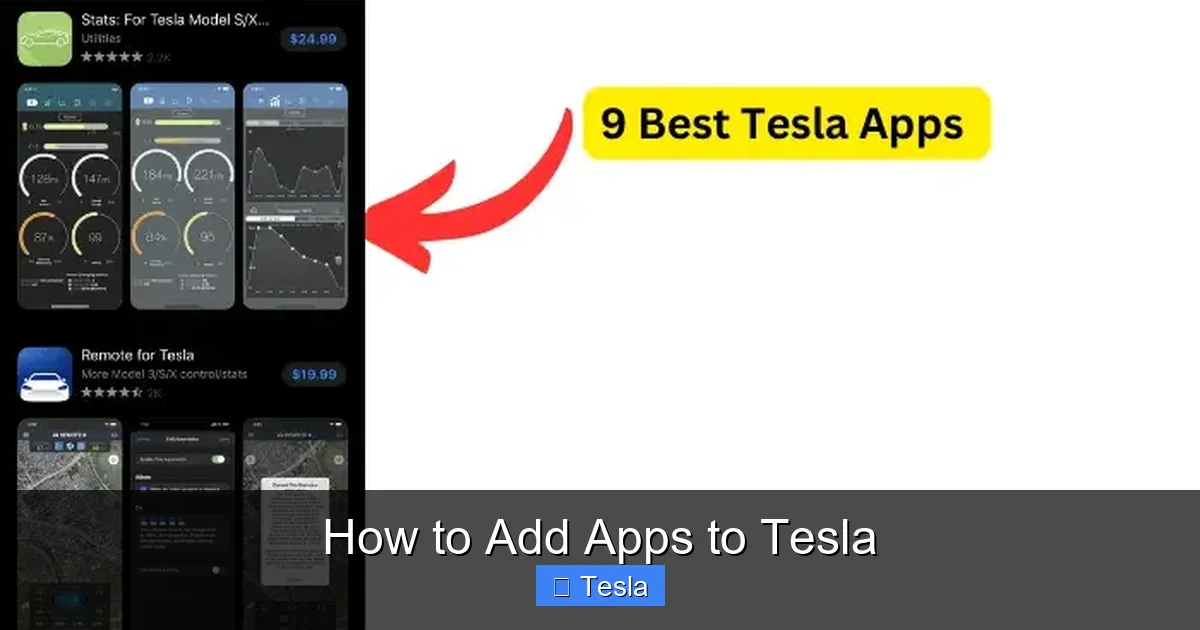
How to Add Apps to Tesla

Contents
- 1 Key Takeaways
- 2 📑 Table of Contents
- 3 Understanding Tesla’s Software Ecosystem: Why You Can’t Just “Install”
- 4 The Official Tesla App: Your First and Most Essential “Added” App
- 5 Third-Party Powerhouse Apps: Unlocking the True Potential
- 6 Step-by-Step: How to “Add” and Set Up These Apps
- 7 Important Considerations, Risks, and Best Practices
- 8 The Future: What’s Next for Tesla Apps?
- 9 Conclusion: Enhancing Your Tesla Experience, Not Modifying the Car
- 10 Frequently Asked Questions


Tesla’s built-in infotainment system doesn’t support adding third-party apps like a smartphone. However, you can significantly extend your Tesla’s capabilities by using official Tesla smartphone apps and trusted third-party services on your phone. These tools act as a bridge, giving you deeper control, real-time data, and automations that the car’s screen alone cannot provide. It’s about adding functionality to your *ownership experience*, not the car’s display.
So, you’ve just picked up your shiny new Tesla. You’re cruising down the road, marveling at the giant touchscreen, the silent powertrain, and the futuristic vibe. Then, a thought hits you: “Can I add apps to this thing? Can I get a better music player, a dedicated podcast app, or maybe a game that doesn’t require steering wheel touch? It’s basically a giant tablet on wheels!” It’s a logical question. In an age where we customize everything, why should our cars be any different?
The short, and slightly frustrating, answer is: you cannot add third-party applications directly to your Tesla’s main touchscreen in the way you would add an app to your iPhone or Android device. Tesla maintains a tightly controlled software environment for safety, security, and system stability. There is no “Tesla App Store” for installing Spotify, Waze, or a new game.
But before you feel defeated, let’s reframe the question. While you can’t modify the car’s primary interface, you can absolutely add powerful, feature-rich applications to your *Tesla ownership experience* via your smartphone. These apps act as a supercharged remote control and data dashboard, connecting to your car through Tesla’s official cloud-based API. They unlock a world of functionality, monitoring, and automation that the built-in screen simply doesn’t offer. This guide will walk you through exactly what’s possible, the best tools for the job, and how to get started safely and effectively.
Key Takeaways
- Tesla’s touchscreen is a closed system: You cannot download and install apps like Spotify or YouTube directly onto the car’s display from an app store. The software is curated and controlled by Tesla.
- The “Tesla” app is your primary tool: The official Tesla smartphone app is the single most important app you can “add” to your Tesla ecosystem, allowing for remote control, charging management, and location services.
- Third-party apps unlock advanced data and control: Services like Tessie and TeslaFi provide deep vehicle data, custom alerts, automated routines, and historical tracking that go far beyond the official app.
- No installation on the car is required: All these apps run on your iOS or Android device. They communicate with your Tesla via Tesla’s cloud servers, requiring no physical changes or software modifications to the car itself.
- Security and warranty are generally safe: Using reputable third-party apps that use Tesla’s official API is considered safe and does not void your vehicle’s warranty, as they do not alter the car’s firmware.
- Consider your primary goal: Choose an app based on your need—basic remote control (Tesla app), deep data & automations (Tessie/TeslaFi), or specific features like sentry mode clip management (TeslaCam Viewer).
📑 Table of Contents
- Understanding Tesla’s Software Ecosystem: Why You Can’t Just “Install”
- The Official Tesla App: Your First and Most Essential “Added” App
- Third-Party Powerhouse Apps: Unlocking the True Potential
- Step-by-Step: How to “Add” and Set Up These Apps
- Important Considerations, Risks, and Best Practices
- The Future: What’s Next for Tesla Apps?
- Conclusion: Enhancing Your Tesla Experience, Not Modifying the Car
Understanding Tesla’s Software Ecosystem: Why You Can’t Just “Install”
To grasp the solution, you first need to understand the problem. Tesla’s in-car system, often referred to as Linux-based MCU (Media Control Unit) software, is not an open platform. It’s a proprietary, embedded system designed for a specific set of tasks: vehicle control, navigation, media playback, and a curated set of Tesla-specific apps (like the browser, arcade games, and streaming services Tesla has partnered with).
The “Walled Garden” Approach
Think of it like an iPhone out of the box, but without the App Store. Apple controls every piece of software that runs on its devices to ensure a secure, consistent, and optimized user experience. Tesla does the same for its vehicles. This approach prevents:
- Malware and Security Risks: Unvetted code could theoretically compromise vehicle systems.
- System Instability: Poorly coded apps could crash the infotainment system, leading to a blank screen while driving—a major safety hazard.
- Driver Distraction: Tesla can vet apps for appropriate UI/UX that minimizes distraction.
- Support and Warranty: Tesla can guarantee support for a known, stable software stack.
This means no sideloading, no alternative app stores, and no installing a custom Android Auto or Apple CarPlay (though newer models have a limited, embedded version of Apple Music and Apple Podcasts). The functionality you see is what you get from Tesla’s over-the-air (OTA) updates.
The Official Tesla App: Your First and Most Essential “Added” App
Before we dive into the exciting world of third-party power tools, you must master the official Tesla app. This is not optional; it’s the foundational layer for all remote smartphone interaction. If you haven’t already, download it from your device’s app store and log in with your Tesla account credentials.
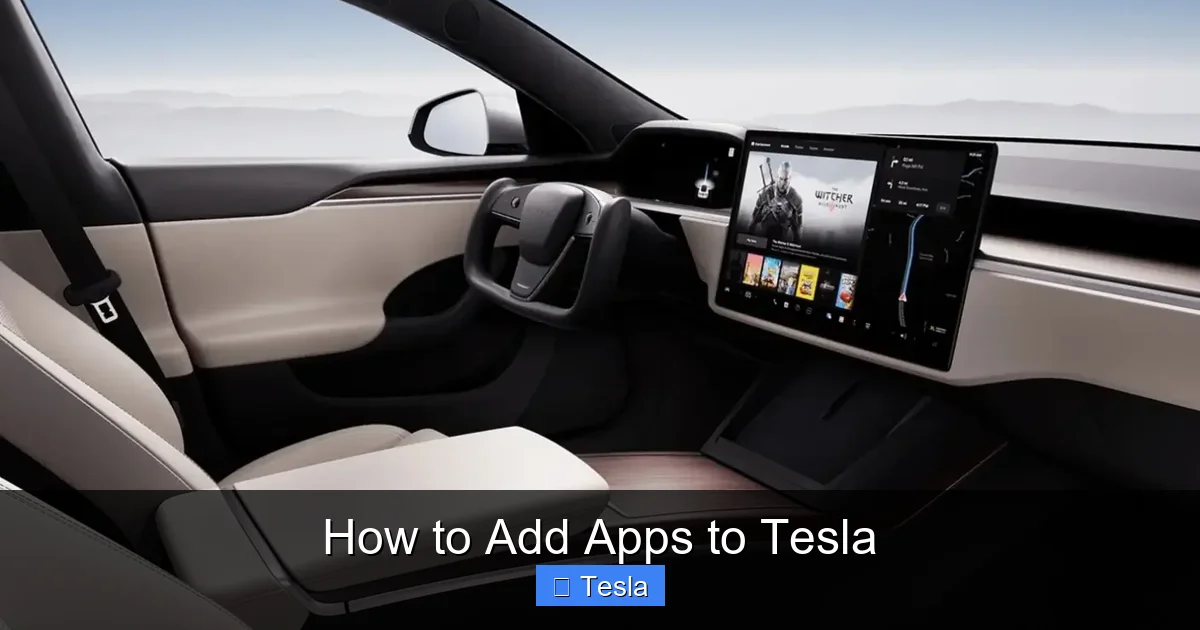
Visual guide about How to Add Apps to Tesla
Image source: sourceht.com
Core Functionalities of the Official App
The Tesla app is surprisingly powerful and is constantly updated by Tesla with new features. Here’s what you can do directly from your phone:
- Remote Control: Lock/unlock, honk horn, flash lights, open charge port, open frunk/trunk, and precondition (heat/cool) the cabin.
- Charging Management: Start/stop charging, set charge limits, view charging status and history. This is crucial for managing home charging costs. If you’re setting up your home charging, understanding the cost implications is key—check out our guide on how much it costs to install a Tesla charger.
- Location Services: See your car’s real-time location, set a destination from your phone and send it to the car, and find your car in a parking lot.
- Vehicle Status: Check battery level, tire pressures, odometer, and whether the car is locked.
- Sentry Mode & Security: Enable/disable Sentry Mode and view saved dashcam footage (on models with the feature).
- Service & Support: Schedule service appointments, view warranty status, and access vehicle information.
Pro Tip: Enable notifications in the app for charging, climate control, and security alerts. This turns your phone into a proactive security and management hub.
Third-Party Powerhouse Apps: Unlocking the True Potential
This is where the magic happens. Reputable third-party developers have created sophisticated applications that tap into Tesla’s official, public-facing API (Application Programming Interface). They don’t hack your car; they use the same secure data channels Tesla uses for its own app, but they present that data in more customizable, detailed, and actionable ways.
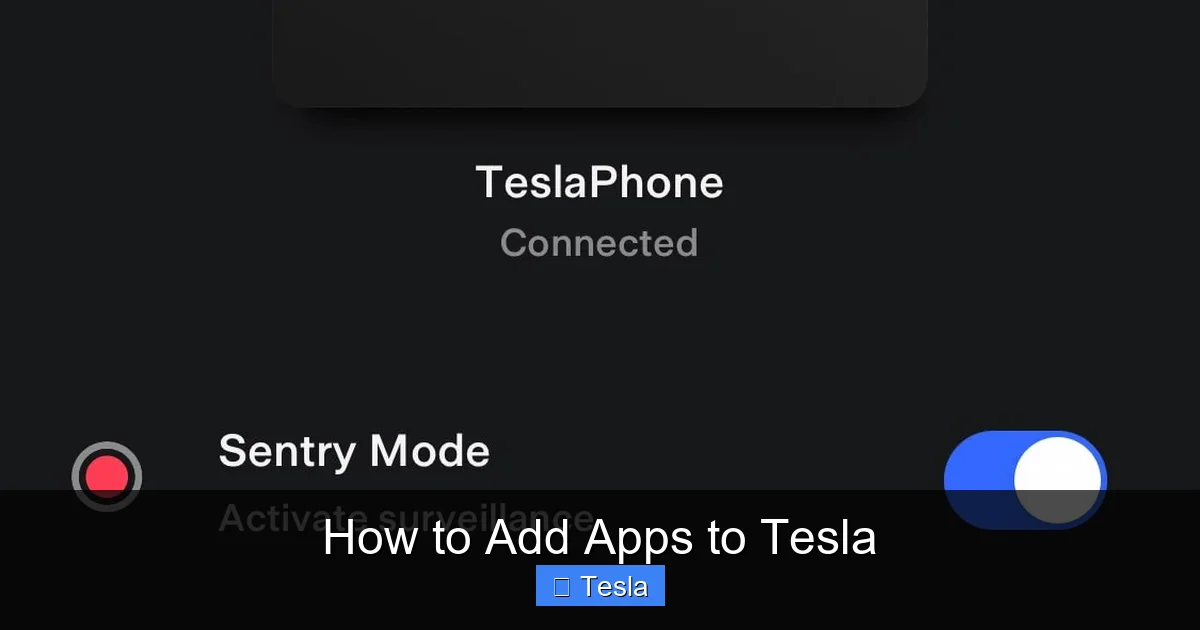
Visual guide about How to Add Apps to Tesla
Image source: cdn.hosted-assets.com
Top Contenders: Tessie and TeslaFi
Two names dominate this space, each with a slightly different philosophy and feature set. Both are subscription-based services (with free trials) and are considered the gold standard by Tesla enthusiasts.
- Tessie (The “Apple” of Tesla Apps): Known for its beautiful, user-friendly interface and powerful automation engine. Tessie excels at turning your Tesla data into smart home-style routines. Imagine your car automatically pre-heating the cabin at 7 AM on weekdays, or sending you a notification if your car is parked with a window slightly down during rain. It offers detailed trip logging, battery health metrics, and even integration with services like IFTTT (If This Then That). It’s about elegance and ease of use.
- TeslaFi (The “Swiss Army Knife”): Prized by data nerds and fleet managers, TeslaFi provides unparalleled depth of historical and real-time data. It logs every trip, charge, and idle period with extreme granularity. You can generate detailed reports on energy consumption, efficiency (Wh/mi), and costs. Its alert system is incredibly robust, allowing for custom notifications based on almost any vehicle parameter (e.g., “Alert me if the car is moved while Sentry Mode is off”).
Key Overlap Features: Both apps offer real-time GPS tracking, remote control (same as official app), charge monitoring, sentry mode status, and detailed vehicle health data.
Specialized Niche Apps
Beyond the all-in-one suites, some apps focus on specific pain points:
- TeslaCam / Sentry Mode Viewers: Apps like “TeslaCam Viewer” (iOS) or “Sentry Mode Viewer” make it much easier to review, save, and share your dashcam and sentry mode footage directly from your phone, bypassing the need to use the car’s screen or a USB drive.
- Navigation & Routing Enhancers: While you can’t install Waze, some apps can send more complex routes from your phone to the car or provide EV-specific routing data. For other brands, adding navigation can be a different process altogether—check out our guide on how to add navigation to a Nissan Pathfinder for a comparison.
Step-by-Step: How to “Add” and Set Up These Apps
The process is remarkably simple because nothing is installed on the car. Here’s your universal setup guide:
Visual guide about How to Add Apps to Tesla
Image source: teslastir.com
Step 1: Prerequisites
- A Tesla vehicle with a connected Tesla account.
- A smartphone (iOS or Android).
- Your Tesla account username and password.
- Two-factor authentication (2FA) enabled on your Tesla account (highly recommended for security).
Step 2: Choose and Download Your App
Decide if you want the all-in-one power of Tessie/TeslaFi or a specialized tool. Visit the official website or your app store, download the app, and create an account.
Step 3: Connect Your Tesla
This is the critical step. Within the third-party app, you will look for an option to “Add Vehicle” or “Connect Tesla.” You will be prompted to log in with your Tesla account credentials. The app uses this login to request an access token from Tesla’s servers, which it then uses to communicate with your car.
Security Note: Only enter your Tesla credentials into the official apps from Tessie or TeslaFi. They use secure, OAuth-style authentication. Your password is not stored by them; they hold a temporary token. Always check reviews and developer reputation.
Step 4: Grant Permissions and Configure
Once connected, the app will ask for various permissions (location, notifications). Grant them. Then, dive into the settings:
- Set your home and work locations for geofencing-based automations.
- Configure your preferred charge limits and alerts.
- Set up your first automation (e.g., “When I leave my home zone, send me a reminder to plug in if battery is below 50%”).
- Customize notification preferences to avoid alert fatigue.
Step 5: Enjoy and Explore
Place the app icon on your home screen. Use it daily. The value comes from consistent use and tuning the automations to your life. Start with one or two key automations and expand from there.
Important Considerations, Risks, and Best Practices
Adding these powerful tools to your ecosystem comes with a few important caveats. Being an informed user is key to a great experience.
Security and Privacy
You are granting a third-party company access to your vehicle’s data and some control functions. While Tessie and TeslaFi have excellent reputations and robust security, no system is 100% immune. Mitigate risks by:
- Using a strong, unique password for your Tesla account.
- Never sharing your Tesla login credentials with anyone.
- Enabling two-factor authentication on your Tesla account.
- Using the official apps from verified developers (Tessie, TeslaFi).
- Reviewing the app’s privacy policy to understand what data is collected.
Impact on Vehicle Range and Battery
The constant “heartbeat” polling these apps do (checking car status every few minutes) uses a tiny amount of the 12V battery’s power, which is recharged by the main high-voltage battery. The drain is negligible (often cited as less than 1% per day) and will not impact your driving range. However, if your car is parked for an extremely long time (weeks) without driving, any 12V drain is undesirable. The solution is to simply disable the app’s background refresh or uninstall it during very long vacations.
Warranty and Support
Using these third-party apps does not void your Tesla warranty. They do not modify the car’s firmware or software. They are simply another client connecting to Tesla’s public API. If you have a problem with your car, Tesla Support may ask you to disable third-party apps to rule them out as a cause, but the apps themselves are not a warranty issue.
Cost vs. Value
These are subscription services, typically costing $5-$10 per month or $50-$100 per year. Ask yourself: will the detailed trip logging save me money on my business taxes? Will the sentry alerts give me peace of mind? Will the automations save me time and hassle? For many, the answer is a resounding yes. For casual users, the free official app may be sufficient. Take advantage of free trials to test the value proposition.
The Future: What’s Next for Tesla Apps?
The landscape is always evolving. Tesla has been slowly opening up more API endpoints to developers, which means the capabilities of third-party apps will only grow. We may see:
- Starbucks Integration: Order your coffee from the car’s screen via an API.
- Smart Home Deep Links: Your Tesla arriving home could trigger your garage door, lights, and thermostat.
- Advanced Fleet Management: Tools for businesses with multiple Teslas, tracking costs, routes, and driver behavior.
- More Official Partnerships: Like the recent embedded Apple Music, we may see more media and service apps become native.
However, a fully open app store like Android Auto remains unlikely due to Tesla’s core philosophy of control and safety. The smartphone bridge model is here to stay.
Conclusion: Enhancing Your Tesla Experience, Not Modifying the Car
So, can you add apps to your Tesla’s touchscreen? No. Can you add a universe of powerful, intelligent, and personalized applications to your life as a Tesla owner? Absolutely. The journey starts with the official Tesla app, but the real transformation happens when you embrace the sophisticated third-party ecosystem. Tools like Tessie and TeslaFi turn your car from a brilliant machine into a connected, data-rich, and automated part of your digital life. They provide insights into your driving habits, automate tedious tasks, and offer peace of mind through hyper-localized security alerts. The process is safe, simple, and requires no mechanical work or software tinkering. By thoughtfully selecting and configuring these phone-based apps, you unlock the hidden potential of your Tesla, making it not just a car you drive, but a seamlessly integrated member of your connected world. Start with the official app, try a trial of a third-party service, and discover how much more your Tesla can do.
Frequently Asked Questions
Will adding third-party apps to my Tesla via my phone void my car’s warranty?
No. Using reputable third-party apps like Tessie or TeslaFi does not void your warranty. These apps communicate with your car through Tesla’s official, public API and do not alter the vehicle’s firmware or software in any way. They are considered external management tools, similar to using the official Tesla app.
Is it safe to give my Tesla login details to a third-party app?
It is safe only if you use well-known, reputable apps like Tessie or TeslaFi. These companies use secure OAuth authentication, meaning they do not store your actual password—they receive a limited-access token from Tesla. Always enable two-factor authentication on your Tesla account and never use obscure or unreviewed apps asking for your credentials.
Do these apps drain my Tesla’s battery?
The drain is negligible. The apps use the car’s cellular connection to send small status updates (a “heartbeat”) every few minutes. This uses a tiny fraction of the 12V battery’s power, which is constantly recharged by the main battery when the car is on or plugged in. The impact is far less than 1% per day and will not affect your driving range.
What’s the difference between Tessie and TeslaFi? Which one should I choose?
Tessie focuses on a beautiful user interface and powerful, easy-to-set-up automations (e.g., “if I leave home, send a reminder to plug in”). TeslaFi is a data powerhouse, offering incredibly detailed historical logs, trip analysis, and granular alerts for enthusiasts and fleet managers. Try both free trials: choose Tessie for simplicity and automations, TeslaFi for deep data and reporting.
Can I control my Tesla’s climate or charging from these third-party apps?
Yes. Both Tessie and TeslaFi replicate all the remote control functions of the official Tesla app. You can start/stop charging, set charge limits, precondition (heat or cool) the cabin, lock/unlock doors, and more—all from within their interfaces, often with more customization options.
Do I need to leave my phone near the car for these apps to work?
No. These apps communicate with your Tesla via the internet through Tesla’s cloud servers. As long as both your phone (with the app running in the background) and your Tesla have an active cellular or Wi-Fi connection, you can control and monitor your car from anywhere in the world.