
How to Set Home on Tesla

Setting your home on Tesla is essential for effortless navigation and personalized features. This guide walks you through the simple steps for all models, using touchscreen or voice commands. Avoid common pitfalls and unlock your Tesla’s full potential with a correctly configured home address.
Key Takeaways
- Home location enables automatic routing to your residence. Once set, you can navigate home with one tap or voice command, saving time and reducing distraction.
- Setup varies slightly between Model S/X and Model 3/Y. The menu paths are similar but interface differences exist; this guide covers all current models.
- Voice commands offer a hands-free alternative. You can set or navigate home while driving safely using Tesla’s advanced voice recognition.
- Ensure address accuracy to avoid navigation errors. Use precise addresses or drop pins; incorrect home settings can lead to routing mistakes.
- Home setting integrates with Autopilot and preconditioning. Your Tesla can automatically prepare the cabin or engage navigation based on your home location.
- You can save multiple key locations. Beyond home, set work, favorite destinations, and charging spots for quick access.
- Troubleshooting is straightforward. Common issues like address not found or saving failures have simple fixes covered in this article.
📑 Table of Contents
- Why Setting Your Home on Tesla Matters
- What Exactly Is a “Home” Location in Your Tesla?
- How to Set Home on Tesla: Step-by-Step for All Models
- Setting Home via Voice Command: The Hands-Free Way
- Troubleshooting Common Issues When Setting Home
- Maximizing Your Home Location: Tips and Tricks
- Conclusion: Your Home, Your Tesla
Why Setting Your Home on Tesla Matters
Imagine pulling out of your driveway and your Tesla already knows where you’re going. No fumbling with the touchscreen, no typing an address. That’s the magic of setting your home location. It’s one of the first things many new owners do, yet it’s often overlooked. Your home address is more than just a navigation shortcut. It’s a cornerstone of your Tesla’s personalized experience. When you set home on Tesla, you’re telling the car where your life begins and ends—literally. This simple step unlocks a suite of conveniences, from one-tap routing to intelligent cabin preconditioning. Think of it as programming your personal GPS anchor. Without it, you’re missing out on the seamless, intuitive flow that makes Tesla ownership special. Whether you commute daily or take occasional trips, having your home saved streamlines every journey. Plus, it’s a safety feature—less time looking at the screen means more eyes on the road. In this guide, we’ll walk through every detail, ensuring you get the most from this fundamental setup.
What Exactly Is a “Home” Location in Your Tesla?
Before we dive into steps, let’s clarify what “home” means in Tesla terms. It’s not just an address stored in the navigation system. It’s a designated point that your car associates with your residence. When you select “Home” as a destination, the car plots the optimal route using real-time traffic, Supercharger locations if needed, and even elevation data for efficiency. But it goes beyond that. Your Tesla uses your home location for:
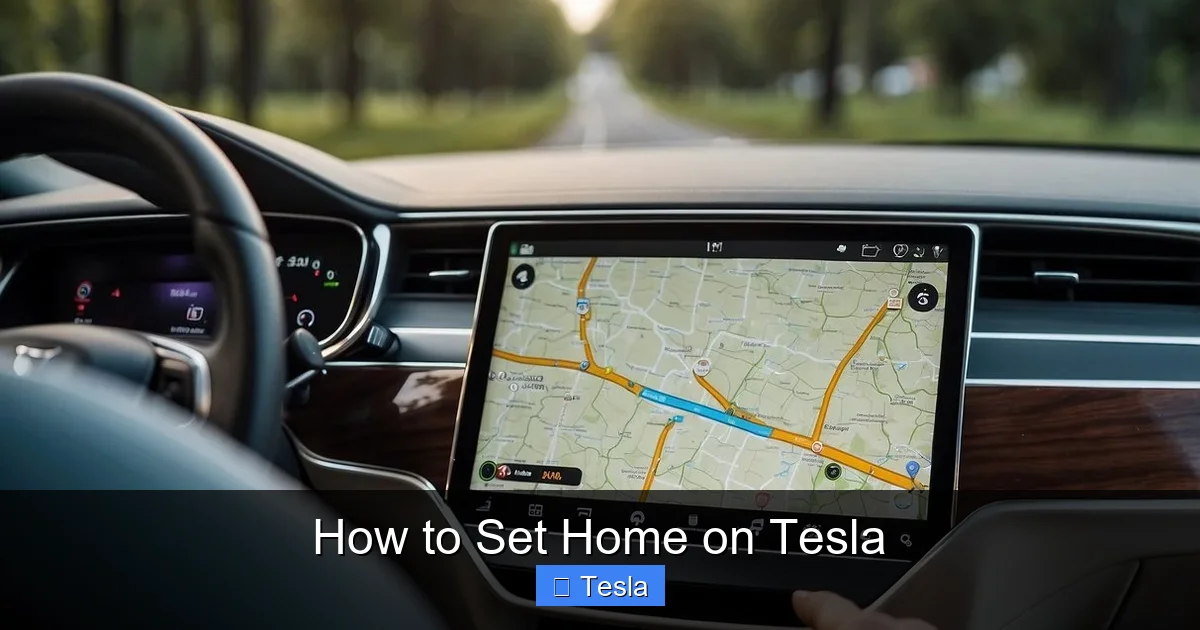
Visual guide about How to Set Home on Tesla
Image source: koala.sh
- Automatic routing: Say “Navigate Home” or tap the Home icon in the navigation bar.
- Preconditioning schedules: Set your car to heat or cool before you leave home (or return) based on your calendar or departure times.
- Smart Summon and Summon: While not directly navigating to home, these features use your location relative to your parked car, often at home.
- Energy calculations: The car estimates energy needed to get home, especially useful with battery-powered models.
- Geofencing for security: Some third-party apps use home location for alerts if the car moves when it’s supposed to be at home.
It’s a dynamic tool, not a static entry. That’s why setting it correctly matters. An inaccurate home address could send you to the wrong street or neighborhood, wasting time and energy. So take a moment to pinpoint the exact spot—your front door, garage, or driveway—not just the general street address. We’ll show you how.
How to Set Home on Tesla: Step-by-Step for All Models
The process is largely consistent across all Tesla models, but menu layouts differ slightly between the newer Model 3/Y and the older Model S/X with the older interface. Don’t worry—we’ve got you covered. Follow the steps for your specific vehicle. Remember: you can set home while parked or, for voice commands, while driving. But for touchscreen setup, it’s safest to be in park to avoid distractions.
Visual guide about How to Set Home on Tesla
Image source: mir-s3-cdn-cf.behance.net
For Model S and Model X (2012–Present, Including Plaid)
If you own a Model S or Model X, your touchscreen interface might be the older vertical layout (pre-2021 refresh) or the newer horizontal layout (2021+). Both follow similar logic.
Using the Touchscreen (Pre-2021 Refresh Models):
- Tap the “Controls” icon (car symbol) at the bottom center of the screen.
- Select “Navigation” from the list.
- You’ll see your current navigation map. Look for a home icon (a small house) usually in the top right or bottom right corner. Tap it.
- The screen will prompt: “Set Home” or “Change Home”. Tap that.
- Now you can search for your address using the keyboard, or drop a pin by long-pressing on the map to precisely locate your home.
- Once the pin is in the right spot, tap “Set as Home” or “Save”.
- You’ll get a confirmation: “Home saved”. Done!
Using the Touchscreen (2021+ Refresh Models with Horizontal Display):
- Tap the “Navigation” icon (map symbol) at the bottom of the screen.
- On the navigation map, look for the home icon in the upper right corner. Tap it.
- Select “Set Home” from the dropdown.
- Enter your address in the search bar, or manually position the pin by dragging the map.
- Tap “Save” when the pin is exactly where you want it.
- A toast message will confirm: “Home location saved”.
Pro Tip: If your address isn’t found in the search, try using cross streets or a nearby landmark. You can also zoom out, drop a pin on your actual roof or driveway, and then save that precise point. This is especially useful for rural addresses or new subdivisions not yet in Tesla’s map data. Unlike some other vehicles where you might struggle to set basic functions—like how to set the clock on a Dodge Ram 1500—Tesla’s pin-drop method is foolproof.
For Model 3 and Model Y
The Model 3 and Model Y share a nearly identical interface, making home setup a breeze. The steps are streamlined for the minimalist central display.
- While parked, tap the “Navigation” icon (the map) at the bottom of the screen.
- On the map view, locate the home icon in the top right corner. Tap it.
- Choose “Set Home” from the menu.
- You’ll see a search bar. Type your address or use voice dictation (tap the microphone) to say your address.
- If the search doesn’t find it, tap the “+” button on the map to manually place a pin. Drag the map to center the pin on your exact home location.
- Once satisfied, tap “Set as Home”.
- Confirmation appears: “Home saved” with a small house icon now visible on the map.
Quick Note: You can also set home directly from the “Settings” menu. Go to Settings > Navigation > Set Home. This path works on all models and is a reliable alternative if the map icon isn’t visible for some reason.
Setting Home via Voice Command: The Hands-Free Way
One of Tesla’s best features is its robust voice control. You can set your home without ever touching the screen. This is perfect for when you’re already driving or simply prefer speaking to tapping.
Visual guide about How to Set Home on Tesla
Image source: mir-s3-cdn-cf.behance.net
How to Use Voice Commands to Set Home:
- Press the voice command button on your steering wheel (or say “Hey Tesla” if you have voice activation enabled).
- When you hear the chime, clearly say: “Set home to” followed by your address. Example: “Set home to 123 Main Street, Anytown.”
- The car will process the command, display the address on the screen, and ask for confirmation. It might say: “Did you mean 123 Main Street?”
- Respond with “Yes” or press the “Set” button on the screen.
- You’ll hear: “Home saved”.
Voice Command Tips:
- Speak slowly and clearly, especially for street names that might be ambiguous.
- Include the state and zip code if the city is large or has similar street names.
- You can also say “Navigate home” immediately after setting it to test the route.
- If voice recognition fails, try rephrasing: “My home address is…” or “Save my home as…”
Voice commands in Tesla are incredibly versatile—you can also set work, favorites, and even change navigation settings. It’s a level of integration that rivals, if not surpasses, setting up Bluetooth on a Nissan Altima, but with natural language instead of menu diving.
Troubleshooting Common Issues When Setting Home
Most of the time, setting home on Tesla works flawlessly. But occasionally, you might hit a snag. Here are the most common issues and how to fix them.
Issue: “Address Not Found” in Search
This happens when Tesla’s map data doesn’t include your street or the address format is different.
Solutions:
- Use cross streets: Search for the nearest major intersection and then drop a pin.
- Zoom out and drop a pin manually: This is the most reliable method. Find your house on the map, long-press to place the pin, then save.
- Check spelling: Ensure “Street,” “Avenue,” “ Blvd” etc., are abbreviated correctly as Tesla expects. Try variations.
- Update maps: Make sure your Tesla has the latest software and map data. Go to Controls > Software > Check for Updates. Map updates often happen over Wi-Fi automatically.
Issue: Home Location Doesn’t Save or Reverts
If you set home but it disappears after a reboot or won’t change from the previous address.
Solutions:
- Be in park (P): Some settings require the car to be in park to save permanently. Always set home while parked.
- Restart the touchscreen: Hold down both scroll wheels on the steering wheel until the screen reboots. Then try again.
- Check for software glitches: Ensure you’re on the latest stable release. Beta versions might have bugs.
- Clear old data: Sometimes, deleting the existing home first (tap the home icon > “Delete Home”) and then setting a new one resolves conflicts.
Issue: Home Icon Missing from Navigation
The little house icon isn’t visible on the map screen.
Solutions:
- Go through Settings: Use the direct path: Settings > Navigation > Set Home. This always works.
- Ensure a home is set: If no home exists, the icon may not appear until you save one.
- Check map view: Switch between standard, satellite, and dark mode; sometimes the icon blends into the background.
Maximizing Your Home Location: Tips and Tricks
Once your home is set, you can leverage it in creative ways to enhance your Tesla experience.
Set Work and Other Frequent Destinations
Don’t stop at home. Save your workplace, gym, or parents’ house as “Work” or “Favorites”. In the navigation menu, tap the star icon to add favorites. Then, with one tap, you have instant routes to all your key spots. You can even organize them into categories like “Charging” or “Leisure.”
Use Home for Preconditioning Schedules
In Settings > Climate > Scheduled Departure, you can set your car to precondition (heat or cool) before you leave home. The system uses your home location as the starting point for departure time calculations. You can also set it to precondition when you’re returning home. This ensures the cabin is comfortable as soon as you arrive, saving energy and time.
Integrate with Calendar and Phone
If you sync your calendar via the Tesla app, events with addresses will appear on your navigation. If an event is at home, the car recognizes it and may suggest routing automatically. Similarly, if you use your phone’s calendar, ensure location data is included.
Home-Based Energy Management
When your battery is low and you’re near home, the car might suggest charging at home instead of finding a Supercharger. It knows your home charging setup (if installed) and can route you there efficiently. This is part of Tesla’s intelligent energy ecosystem.
Reset Home if You Move
Moving? Simply follow the same steps to change your home address. Delete the old one first to avoid confusion. Also, update your home location in the Tesla app on your phone for remote services like Smart Summon.
Conclusion: Your Home, Your Tesla
Setting your home on Tesla is a foundational task that pays dividends every time you drive. It’s a five-second action that transforms your car from a simple vehicle into a personalized assistant. With clear steps for every model, voice command options, and easy troubleshooting, there’s no excuse not to do it today. Take a moment now—park your Tesla, open the navigation, and save that house icon. Once it’s there, you’ll wonder how you ever drove without it. Your Tesla is ready to welcome you home, every single time. Now, go enjoy that effortless “Navigate Home” command on your next trip. And remember, if you ever need to adjust it, the process is just as simple. Happy driving!
Frequently Asked Questions
Can I set my home on Tesla while driving?
Yes, you can use voice commands to set or change your home while driving. However, for touchscreen setup, it’s required to be in park (P) for safety and to prevent distractions.
What if my exact address isn’t found in Tesla’s search?
Use the manual pin-drop method. Zoom out on the map, drag the pin to your precise location (like your driveway), and save that point. This bypasses address database limitations.
How do I change or delete my saved home address?
Tap the home icon in navigation, then select “Change Home” to update it, or “Delete Home” to remove it. You can also go to Settings > Navigation > Manage Locations to edit or delete.
Can I have more than one “home” saved, like a vacation home?
No, Tesla only allows one primary “Home” location. However, you can save additional places as “Favorites” or “Work” for quick access. Use those for secondary residences.
Does setting home affect Autopilot or Full Self-Driving?
Indirectly, yes. Autopilot uses your saved locations for navigation and routing. A correct home address ensures accurate map data and route planning, which can improve Autopilot’s performance on familiar roads.
Why isn’t my Tesla automatically routing to home when I get in?
The car doesn’t auto-navigate to home upon entry for safety reasons. You must manually select “Home” from the navigation bar or say “Navigate Home.” However, if you have a departure schedule set, it may pre-route based on time.
