
Why Is My Tesla Screen Black?

A black Tesla screen is usually caused by a software glitch, a faulty fuse, or a deeper electrical issue. Often, a simple system reboot can restore function, but persistent black screens may indicate a failing MCU (Media Control Unit) or a 12V battery problem. Always prioritize safety; if core driving functions are impaired, tow your vehicle to service.
You’re all set for your drive. You get in, press the brake, and… nothing. The big, beautiful central screen that defines your Tesla is just… black. A wave of confusion and frustration hits. Your car feels suddenly unfamiliar, like a smartphone with a dead screen. Don’t panic. A black Tesla screen is a surprisingly common issue, and while it’s unsettling, it’s often diagnosable and fixable. This guide will walk you through everything you need to know, from the simplest button-press fix to understanding the more serious underlying causes. We’ll talk in plain language, no complex engineering degree required.
Your Tesla’s screen isn’t just for navigation and music. It’s the command center for nearly every vehicle function—climate control, charging settings, camera feeds, and even some critical safety systems. When it goes black, it’s more than an inconvenience; it can feel like losing a primary sense. The good news is that Tesla designed these vehicles with redundancy and recovery in mind. Many causes are minor software hiccups. Others point to the car’s 12V electrical system, which is the unsung hero (and sometimes villain) in modern cars, Teslas included. Let’s break down the why and the how-to.
Key Takeaways
- Reboot First: A soft or hard reboot resolves many temporary software glitches causing a black screen.
- Check the 12V Battery: A weak or failing 12V auxiliary battery is a prime suspect for a black main screen.
- Fuse Failure is Common: Blown fuses, especially for the MCU, can cut power to the display entirely.
- MCU Hardware Failure: Persistent issues often point to a failing Media Control Unit requiring replacement.
- Safety First: If critical functions like braking or steering are affected, do not drive; arrange for a tow.
- Software Updates Can Help: Keeping your Tesla’s software current can patch bugs that cause display blackouts.
- Professional Diagnosis is Key: For non-resolving issues, a Tesla Service Center can run diagnostics to pinpoint the exact cause.
📑 Table of Contents
- The Most Common Culprits: Software and Power
- Fuse Fumbles: The Simple Electrical Break
- When the Hardware Itself Fails: MCU Issues
- Less Common, But Possible: Other Electrical Mysteries
- What To Do Right Now: A Step-by-Step Action Plan
- Prevention and Long-Term Health
- Conclusion: Knowledge is Power (and a Working Screen)
The Most Common Culprits: Software and Power
Before assuming the worst, you must understand the two most frequent categories of problems: software glitches and power delivery issues. Think of your Tesla’s main screen like a high-end computer monitor. It needs both a working signal (software/operating system) and a steady power supply to light up. A problem in either area results in a black screen.
The Magic Reboot: Your First and Best Tool
Just like your phone or laptop, your Tesla’s computer can freeze. The single most effective first step is performing a reboot. This clears the temporary memory (RAM) and restarts the Linux-based operating system running the MCU (Media Control Unit). There are two types of reboots:
- Soft Reboot (Hold Scroll Wheels): With the car parked and in ‘Park,’ press and hold both scroll wheels on the steering wheel for about 10-15 seconds. The screen should go black, show the Tesla logo, and then reload. This is the safe, first-line defense.
- Hard Reboot (Power Cycle): If the soft reboot does nothing, you need to cut power to the MCU completely. This is done by opening the hood, locating the 12V battery (or the main positive terminal if you have an older Model S/X), and carefully disconnecting the negative terminal for 2-3 minutes. Reconnect it firmly. This forces a full power cycle of the entire vehicle’s computer network. Note: Be extremely careful if attempting this; if you’re uncomfortable, skip to calling roadside assistance or Tesla Service.
A successful reboot often brings the screen back instantly. If it comes back but goes black again later, the issue is likely persistent and needs deeper investigation.
The Silent Killer: Your 12V Auxiliary Battery
This is the #1 hardware-related cause of a black main screen. While your Tesla’s massive high-voltage battery pack powers the drive motors, a small 12V battery (like in a conventional car) powers all the accessories: lights, wipers, locks, and critically, the MCU and its screen. When this 12V battery weakens or fails, it can’t provide enough stable voltage to keep the MCU running. The system may try to protect itself by shutting down non-essential components, starting with the power-hungry main display.
Symptoms often accompany a weak 12V battery: slower response to button presses, warning messages on the screen (if it’s still working) about “12V Battery Voltage Low,” or even difficulty unlocking the car with the key card. The 12V battery typically lasts 3-7 years and is a routine maintenance item. Testing it with a multimeter (should read ~12.6V when car is off) or having it load-tested at a service center is the definitive check. Replacement is a straightforward, though sometimes messy, procedure. Interestingly, electrical gremlins in other brands can stem from similar issues; for instance, a Subaru’s audio system failures can sometimes be traced back to its own 12V system.
Fuse Fumbles: The Simple Electrical Break
Every electrical circuit in your Tesla is protected by a fuse. If a fuse blows, it breaks the circuit and stops power from flowing. The MCU has its own dedicated fuse(s) in the fuse box (location varies by model). A blown MCU fuse will cause an instant, complete black screen with no response to any input.
Visual guide about Why Is My Tesla Screen Black?
Image source: images.squarespace-cdn.com
Finding and checking fuses requires consulting your owner’s manual for the exact fuse box location and the MCU fuse assignment. You’ll need a fuse puller (usually included in the fuse box cover) or needle-nose pliers. Pull the suspected fuse and inspect the metal strip inside. If it’s broken or melted, the fuse is blown. Replace it with a new fuse of the exact same amperage rating. Using a higher-amp fuse is dangerous and can cause a fire. If a new fuse blows immediately after replacement, there’s a short circuit in the wiring or the MCU itself, which requires professional diagnosis.
When the Hardware Itself Fails: MCU Issues
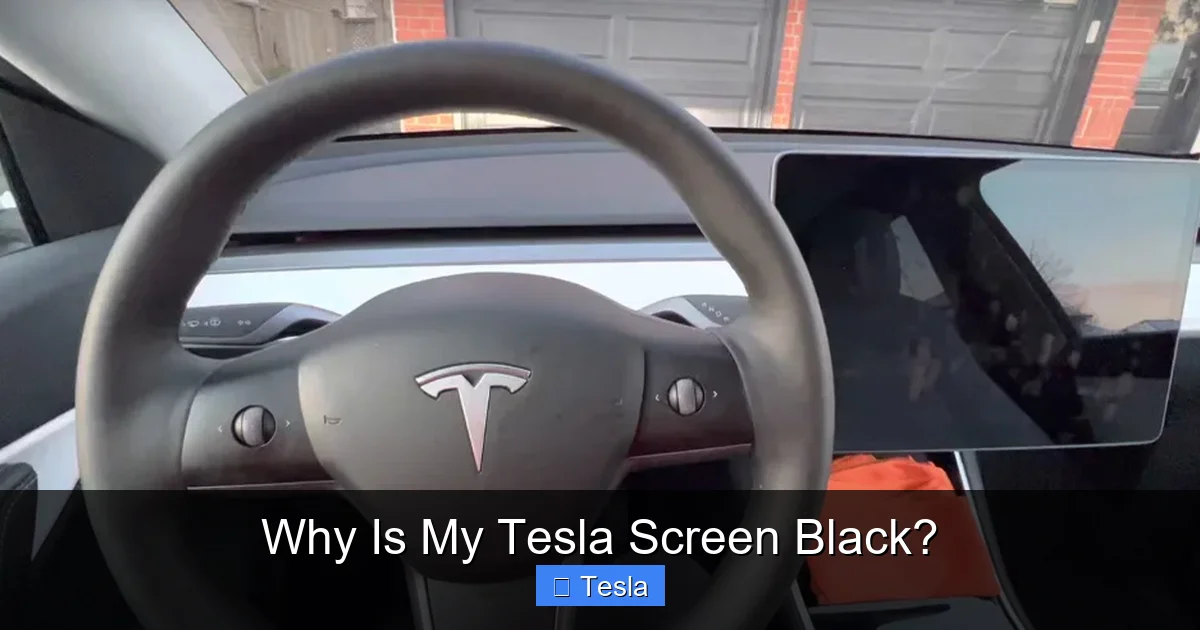
If you’ve rebooted, confirmed the 12V battery is healthy, and checked/replaced fuses, the problem likely lies within the MCU hardware itself. The MCU is the computer module that runs the screen and interface. Over time, especially in older Tesla models (pre-2018 refresh), the eMMC (embedded multimedia card) storage chip can fail due to excessive write cycles. This is a well-documented issue.
Visual guide about Why Is My Tesla Screen Black?
Image source: teslashooters.com
Symptoms of a failing MCU/eMMC include: the black screen, but also the screen freezing, becoming unresponsive to touch, showing graphical glitches (lines, missing icons), or taking an exceptionally long time to boot. The vehicle will usually still drive, but you lose all controls on the screen—no wipers, no climate control, no navigation. This is a definite “call Tesla Service” scenario. The fix is an MCU replacement or, in some cases, an eMMC chip replacement/upgrade. Tesla has issued service bulletins and extended warranties for this specific issue on affected vehicles.
Less Common, But Possible: Other Electrical Mysteries
While the above three causes (software, 12V battery, MCU) account for the vast majority of black screen issues, a few other possibilities exist:
Visual guide about Why Is My Tesla Screen Black?
Image source: teslashooters.com
- Loose or Corroded Connections: A loose ground strap or a corroded connector at the MCU or 12V battery terminal can interrupt power. This is more likely after an off-road adventure or in regions with heavy road salt.
- High-Voltage Battery Contactors: In rare cases, a fault in the main high-voltage battery system can cause the car to shut down auxiliary power as a safety measure, which would kill the 12V system and thus the screen. This would be accompanied by a host of other severe error messages and a car that won’t drive.
- Water Intrusion: If the MCU housing or wiring harnesses have been compromised by water (from a leaky windshield seal, for example), it can cause shorts and failure.
Diagnosing these requires professional scan tools and electrical multimeter testing to trace circuits, which is why visiting a Service Center is often the most efficient path at this stage.
What To Do Right Now: A Step-by-Step Action Plan
Facing a black screen? Don’t just stare at it. Follow this sequence:
- Assess Safety: Can you see your speed? Are the blinkers and wipers working? Are you in a safe location? If you cannot safely monitor your speed or use critical signals, do not attempt to drive. Use your phone for navigation if you must move, and proceed with extreme caution. Better to call for a tow.
- Attempt a Soft Reboot: Park the car, press and hold both steering wheel scroll wheels for 15 seconds. Wait a full minute for the system to restart completely.
- Check for 12V Warnings: If the screen flickers back on even briefly, look for any warning messages about the 12V battery or low voltage.
- Consider the 12V Battery Age: Has it been 4+ years? It’s likely on borrowed time. A jump start from another car’s 12V battery (using the jump post under the hood, NOT directly on the main battery) might temporarily revive it, confirming a 12V issue.
- Call Tesla Roadside or a Technician: If the reboot fails and you suspect a 12V or fuse issue, roadside assistance can often provide a jump or tow. For suspected MCU failure, you’ll need a Tesla Service Center appointment.
Remember, your Tesla is still a car with physical controls. The steering, braking, and acceleration are all independent of the main screen. You can safely stop and park the vehicle using these physical inputs if needed.
Prevention and Long-Term Health
While not all failures are preventable, you can reduce the odds:
- Keep Software Updated: Accept over-the-air updates promptly. They often include stability fixes for the MCU.
- Monitor 12V Health: Have your 12V battery tested annually after the 3-year mark. Proactive replacement is cheaper than an emergency tow.
- Gentle with the Screen: Avoid excessive force on the touchscreen. Use the provided stylus for precise inputs if needed.
- Be Aware of Extreme Temperatures: Both extreme cold and heat can stress the 12V battery and electronics. Ensure your car is plugged in and preconditioned in such conditions to maintain optimal battery health.
For other modern vehicles, electrical system health is equally crucial. Issues like a car overheating all of a sudden can sometimes be linked to electrical fan failures, showing how intertwined these systems are.
Conclusion: Knowledge is Power (and a Working Screen)
A black Tesla screen is a jarring experience, but it’s rarely a mystery without a solution. Start with the simplest, most powerful tool you have: the reboot. If that fails, your investigation logically moves to the power source—the 12V battery and its fuses. Only when those are ruled out does the focus shift to the more complex and costly MCU hardware. By understanding this hierarchy of causes, you can communicate clearly with roadside assistance or Tesla technicians, saving time and money. Your Tesla’s screen is its soul to the driving experience. Keeping it alive means respecting the car’s electrical foundations. Treat the 12V battery as a scheduled maintenance item, embrace software updates, and don’t ignore early warning signs. And remember, when in doubt, the experts at Tesla Service have the diagnostic tools to see what you cannot. Get it fixed, and get back to enjoying the drive.
Frequently Asked Questions
Will my Tesla still drive with a black screen?
Yes, absolutely. Critical driving functions like steering, acceleration, braking, and turn signals are all independent of the main touchscreen. You can safely operate the vehicle, but you will lose access to climate controls, media, navigation, and charging settings until the screen is restored.
Can I replace the Tesla MCU myself?
While technically possible for advanced DIYers with the right tools and a refurbished unit, it is not recommended. The process involves disconnecting the high-voltage battery (a major safety hazard), removing seats and trim, and handling sensitive electronics. Incorrect installation can cause damage or safety system failures. Professional installation is strongly advised.
How much does it cost to fix a black Tesla screen?
The cost varies dramatically by cause. A simple reboot costs nothing. A 12V battery replacement is typically $150-$300 installed. A fuse is under $10. However, if the MCU itself has failed, replacement can range from $1,500 to over $3,000, depending on the model and whether it’s an older or newer MCU. Always get a formal diagnosis and quote first.
Is a black screen covered under warranty?
It depends. If your vehicle is still under the original New Vehicle Limited Warranty (typically 4 years/50,000 miles), and the failure is due to a manufacturing defect, it should be covered. Tesla has also issued specific warranty extensions for the eMMC failure on certain older models. A 12V battery is usually considered a wear-and-tear item and is not covered after the first year. Tesla Service will determine warranty eligibility after diagnosis.
Can a dead 12V battery be jump-started?
Yes, but you must use the proper jump post located under the front hood (refer to your manual for exact location). Do not try to jump directly from the main high-voltage battery terminals. A successful jump will temporarily power the systems and may allow the screen to turn on, confirming the 12V battery as the culprit. However, a jump is a temporary fix; the battery will need replacement soon.
What if my screen is black but the car won’t even unlock?
This strongly points to a completely dead 12V battery. The 12V battery powers the door locks, key card readers, and low-voltage systems. With no power, none of these will work. You’ll need to gain access (possibly via a hidden manual key in the key fob) and then jump or replace the 12V battery to get any systems, including the screen, operational.
