
How to Turn Off Rainbow Road in Tesla

Rainbow Road is a fun, hidden easter egg in Tesla’s software that turns the road visualization on your center display into a vibrant rainbow. While entertaining, some drivers find it distracting or simply prefer the standard view. Turning it off is a quick process done entirely through the vehicle’s touchscreen settings menu, requiring no special tools or service visit. This feature is part of Tesla’s broader suite of customizable software options, allowing owners to personalize their driving experience.
Have you ever been driving your Tesla, glanced at the center screen, and seen the road ahead rendered not in a simple gray or beige, but in a brilliant, shimmering rainbow? If so, you’ve encountered “Rainbow Road.” It’s one of Tesla’s most charming and well-known software easter eggs—a hidden feature that transforms the standard map visualization into something straight out of a video game. While many owners love this quirky touch, others might find it a minor distraction or just prefer the clean, conventional look. The good news is that turning off Rainbow Road is incredibly simple. You don’t need to visit a service center, download any apps, or make complex adjustments. It’s just a few taps on your car’s touchscreen. In this complete guide, we’ll walk you through exactly what Rainbow Road is, why you might want to disable it, and provide foolproof, step-by-step instructions to revert your display to its default appearance. We’ll also cover some advanced tips and what to expect regarding future software updates.
Key Takeaways
- Rainbow Road is an optional software easter egg: It changes the road graphic on your Tesla’s touchscreen to a rainbow pattern and is not a safety or operational feature.
- Disabling it is done via the touchscreen: The process takes less than 30 seconds and is found within the “Controls” or “Display” settings menu.
- No permanent changes or risks: Turning off Rainbow Road does not affect Autopilot, Full Self-Driving, or any core vehicle functionality. It’s purely a visual change.
- It can be re-enabled at any time: The setting is toggleable, so you can switch back to Rainbow Road whenever you want for a bit of fun.
- Software updates may change its location: Tesla occasionally reorganizes settings menus, so the exact path might vary slightly depending on your vehicle’s software version.
- Customization is a Tesla hallmark: The ability to toggle such features reflects Tesla’s philosophy of over-the-air updates and user-customizable software, unlike many traditional cars where such settings are fixed.
- If you enjoy tweaking settings, explore other menus: Tesla offers deep customization for everything from drive modes to sound profiles, similar to how drivers of other brands might adjust features like lane departure warning in a Honda Civic or high beam assist in a Subaru.
📑 Table of Contents
- What Exactly is Tesla’s Rainbow Road?
- Why Would You Want to Turn Off Rainbow Road?
- How to Turn Off Rainbow Road: The Standard Method
- Advanced Methods: The Service Menu & Other Paths
- Software Updates, Version Changes, and the Future
- Tips for Customizing Your Tesla’s Display and Experience
- Conclusion: Your Tesla, Your Rules
What Exactly is Tesla’s Rainbow Road?
Before we dive into turning it off, let’s understand what we’re dealing with. Rainbow Road is not a driving mode, a performance setting, or a safety feature. It is 100% a visual easter egg—a playful piece of code hidden within Tesla’s Linux-based vehicle operating system. When activated, it replaces the standard, neutral-colored road graphic (which shows your car’s position relative to lanes and the road ahead) with a continuously shifting, psychedelic rainbow pattern. The effect is most noticeable when using the “Traffic Light and Stop Sign Control” visualization or when the car is actively showing lane markings and detected objects on the main display.
The History and Culture of Tesla Easter Eggs
Tesla has a long-standing culture of embedding hidden features, jokes, and references in its software. This tradition, championed by Elon Musk and the engineering team, is a way to reward curious owners and add personality to the vehicles. Rainbow Road is arguably the most famous of these. It’s believed to have been introduced around 2018-2019 as part of a broader software update that included other visual tweaks. Its name is a direct nod to the iconic, notoriously difficult final race track in the “Mario Kart” video game series. This pop-culture reference is classic Tesla, blending automotive tech with gaming nostalgia. Other famous easter eggs include the “Mars Mode” (which turns the Google Maps-style view into a Martian landscape) and the “Santa Mode” (which adds reindeer and a sleigh to your visualizations during the holidays). These features are activated through specific, often hidden, sequences in the service menu or via voice command, but Rainbow Road is unique because it’s one of the few that can be easily toggled on and off from the main settings menu, making it more of a user-facing option than a true secret.
Why Would You Want to Turn Off Rainbow Road?
For the majority of Tesla owners, Rainbow Road is a delightful surprise—a bit of fun that makes the car feel more like a piece of tech from the future. However, there are several perfectly valid reasons why you might prefer to switch it off.
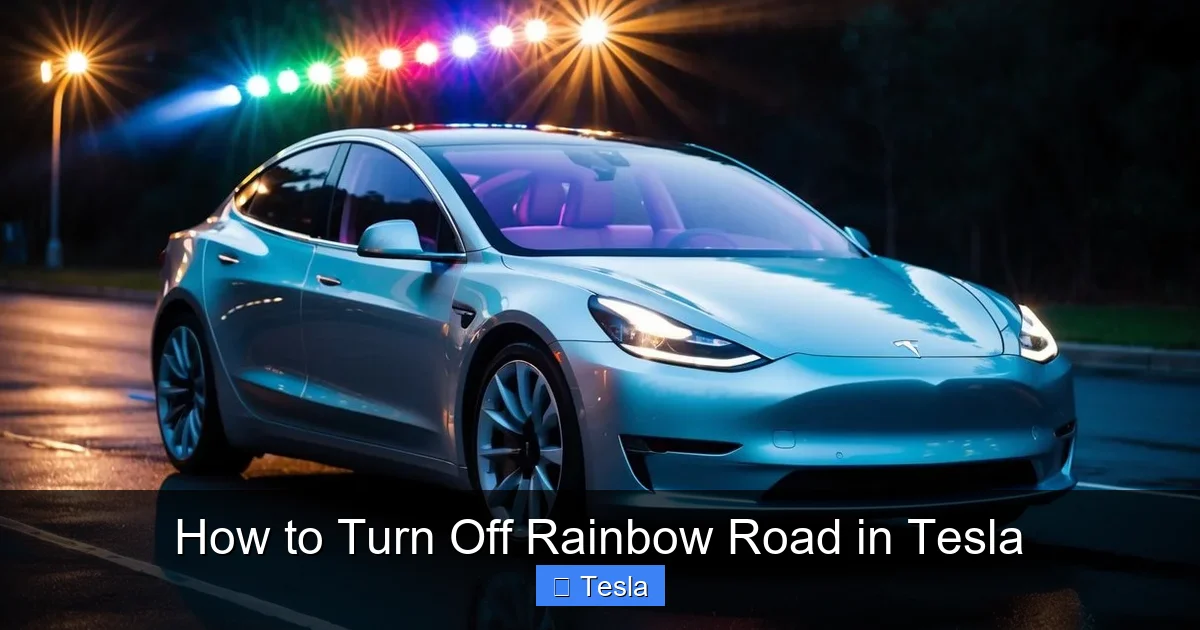
Visual guide about How to Turn Off Rainbow Road in Tesla
Image source: koala.sh
Distraction and Focus
The primary reason cited by drivers is distraction. While the rainbow effect is beautiful, its shifting colors and high contrast can be more visually stimulating than the subtle, single-tone road graphic. For some, this extra visual noise on an already information-dense screen can pull attention away from the road for a split second longer than necessary. In a vehicle where minimizing cognitive load is a safety plus, a simpler, more static display can be preferable. This is a personal preference, much like how some drivers of other vehicles might choose to disable steering assist in a Toyota Camry to feel more connected to the road, or turn off auto high beams in a Toyota to avoid dazzling others. It’s about tailoring the in-car experience to your individual comfort.
Professional or Formal Aesthetics
If you use your Tesla for business, client transport, or simply prefer a more understated, serious aesthetic, the rainbow road can feel out of place. The default display is clean, technical, and unobtrusive. Switching it off restores that professional look. Think of it like choosing a formal wallpaper for your computer desktop versus a vibrant, animated one—both are functional, but one sets a different tone.
Preference for Clarity
Some users report that the standard road graphic provides slightly better perceived clarity for reading lane markings, detected vehicles, and the car’s predicted path. The high-saturation colors of Rainbow Road, while cool, can sometimes make it marginally harder to distinguish between different overlay elements (like the blue path for Autopilot vs. red for stopped cars). For drivers who rely heavily on these visualizations, especially in complex traffic, the default view might offer a tiny edge in information processing speed.
It’s Just Not Your Thing
And honestly, the simplest reason is that you might just not like it! Taste is subjective. You may have activated it out of curiosity, shown it to friends, and now you’re ready to go back to normal. That’s perfectly okay. Your car, your preferences.
How to Turn Off Rainbow Road: The Standard Method
Now for the main event. Disabling Rainbow Road is designed to be straightforward. The setting lives within the main “Controls” menu on your touchscreen. The exact path has been consistent for several software versions, but Tesla does occasionally shuffle settings around. Here is the most common and reliable method.
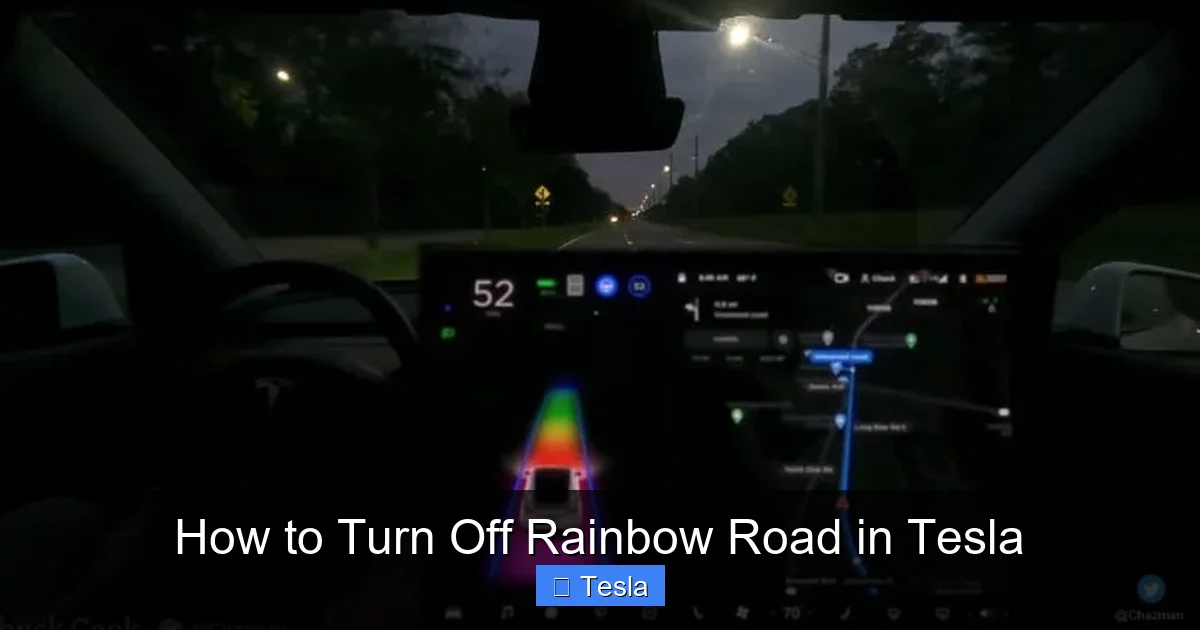
Visual guide about How to Turn Off Rainbow Road in Tesla
Image source: cdn.teslanorth.com
Step-by-Step Instructions
- Step 1: Park Safely. While you can navigate the menus while driving, it’s always safest to perform any setting changes when the vehicle is in “Park” and stationary.
- Step 2: Access the Main Menu. Tap the “Controls” icon (the car silhouette) located at the bottom center of your touchscreen.
- Step 3: Navigate to Display. In the Controls menu, you’ll see a column of icons on the left side (or a list, depending on your software version). Look for the icon that looks like a screen or the word “Display.” Tap it.
- Step 4: Find the Easter Egg Setting. Within the Display settings, scroll down. You are looking for a toggle switch labeled something like “Rainbow Road” or “Colorful Road”. It might also be grouped under a sub-header like “Visualizations” or “Map & Navigation.”
- Step 5: Toggle It Off. Simply tap the switch so it turns gray (off). The change should be immediate. The road graphic on your main display will revert to the standard single-color (usually a light gray or beige) visualization.
That’s it! You’ve successfully disabled Rainbow Road. The setting is stored in your driver profile, so if you have multiple drivers with separate profiles, each person’s preference will be saved. If you only use one profile, the change is global for the car.
What If I Can’t Find the Setting?
If you’ve followed the steps above and don’t see an explicit “Rainbow Road” toggle, don’t panic. There are a few possibilities. First, your vehicle’s software version might be older or newer than the range where this setting is exposed in the main menu. Tesla sometimes moves or renames features. Second, it’s possible the easter egg was never enabled on your specific vehicle’s software branch, though this is unlikely if you’ve seen the rainbow effect. Your best bet is to use the touchscreen’s search function. At the top of the Settings menu, there is often a magnifying glass icon. Tap it and type “rainbow.” If the setting exists in your current software, it should appear in the search results, taking you directly to it. This search function is a powerful tool for finding any setting, much like how you might search for how to reset a tire pressure light on a Honda Civic—the principle of using the vehicle’s built-in search is universal.
Advanced Methods: The Service Menu & Other Paths
While the standard method works for nearly everyone, there are a couple of other contexts where you might encounter or control Rainbow Road.
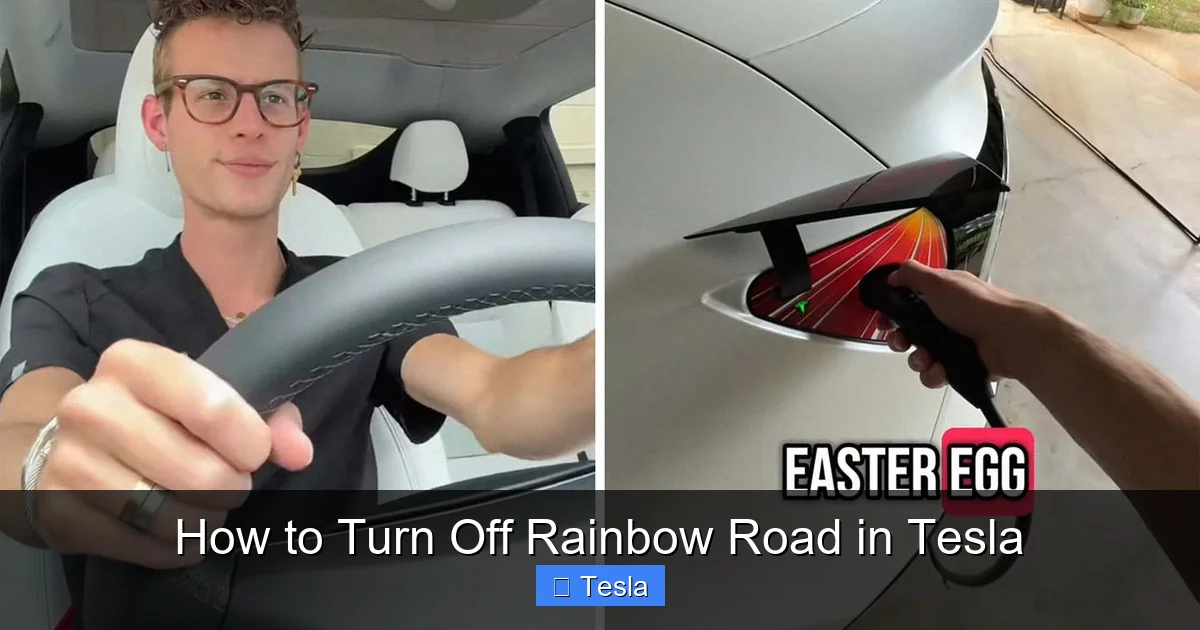
Visual guide about How to Turn Off Rainbow Road in Tesla
Image source: cdn.motor1.com
The Service Menu (Developer Mode)
Rainbow Road, like many easter eggs, was originally accessible only through Tesla’s hidden “Service Menu” or “Diagnostic Mode.” This is a special menu intended for technicians, which can be enabled by entering a specific code (usually by tapping the “About” section of the software version screen multiple times). In older software versions, you might have had to navigate this service menu to enable or disable Rainbow Road. However, for many model years and software updates, Tesla has graciously moved the toggle to the user-accessible Display settings. You should not need to access the service menu for this purpose anymore. Venturing into the service menu without specific guidance can be risky, as it contains settings that can affect vehicle operation. Stick to the main menu method described above.
Voice Commands?
As of now, there is no known voice command to directly toggle Rainbow Road on or off. Tesla’s voice commands are excellent for navigation, media, and climate control, but they don’t typically extend to toggling specific UI easter eggs. Your primary tool remains the touchscreen.
Software Updates, Version Changes, and the Future
One of the hallmarks of owning a Tesla is the regular stream of over-the-air (OTA) software updates. These updates bring new features, performance improvements, and sometimes, interface changes. This means the location or even the existence of the Rainbow Road toggle could change in a future update.
Should You Worry About Updates Removing the Option?
It’s highly unlikely Tesla would ever make Rainbow Road impossible to turn off. The entire philosophy of Tesla’s UI is user choice and customization. They’ve consistently provided toggles for their major easter eggs (Mars Mode, Rainbow Road, etc.). The worst-case scenario is that the setting gets moved to a different submenu. If you update your software and suddenly can’t find it, use the search function as your first troubleshooting step. You can also check online Tesla owner forums and communities like Reddit’s r/teslamotors, where users quickly document any interface changes after major updates.
The Relationship Between Easter Eggs and Core Features
It’s important to understand that Rainbow Road has zero impact on your vehicle’s core systems: Autopilot, Full Self-Driving (FSD) capability, battery management, braking, steering, or suspension. It is a purely cosmetic layer on the touchscreen’s graphics rendering. Disabling it is as safe and inconsequential as changing your wallpaper on a computer. You can toggle it on, drive on Autopilot, and toggle it off—the car’s behavior will be identical. This separates it from actual driver-assist features that you might need to understand deeply, such as the systems you would disable automatic emergency braking on a Nissan or turn off traction control in a Subaru Outback, which have direct safety implications.
Tips for Customizing Your Tesla’s Display and Experience
Since you’re already in the Display settings menu, why not explore some other customization options Tesla offers? Tailoring your in-car interface can significantly enhance your ownership experience.
Visualization Preferences
In the same Display settings area, you can control what information is shown on the road graphic. You can toggle on/off the display of:
- Lane markings (always helpful)
- Speed limit signs
- Traffic lights (for Traffic Light and Stop Sign Control)
- Pedestrians, bicycles, and other vehicles (the “objects” detection)
- Autopilot steering wheel visualizer
Experiment with these to find the balance of information that works for you. Less clutter can mean better focus.
Brightness and Color Themes
Also within Display settings, you’ll find options for screen brightness (which can be set to automatic or manual) and sometimes color theme preferences (e.g., “Light” or “Dark” mode). A darker theme at night can reduce glare and eye strain, a simple but effective customization. These are fundamental display tweaks found in nearly every modern car with a digital screen, from a Dodge Challenger’s interior lighting to a Subaru’s infotainment contrast.
Driver Profile Settings
Remember that many settings, including this one, are saved to your selected driver profile (the little person icon in the top bar). If you share your Tesla with another driver who has their own profile, they might have their own preference for Rainbow Road. Always check which profile is active when making changes. You can also adjust seat, mirror, and steering wheel settings per profile, creating a truly personalized vehicle for each user.
Conclusion: Your Tesla, Your Rules
Rainbow Road is a quintessential Tesla feature—a harmless, joyful easter egg that showcases the company’s software-first, playful approach to car manufacturing. It’s a conversation starter and a reminder that your vehicle is a computer on wheels, capable of receiving new tricks long after you drive it off the lot. However, personal preference is paramount. If the colorful road visualization doesn’t suit your taste, you now have the simple, definitive answer: go to Controls > Display > Rainbow Road toggle and switch it off. The process takes less time than reading this sentence. This ability to easily customize such a minor detail is part of the broader Tesla ownership experience, where you have unprecedented control over your car’s software behavior. So whether you keep the rainbow shining or opt for a more subdued road, know that the power is firmly in your hands—or rather, at your fingertips on that large, central touchscreen. Enjoy your drive, in whatever color you choose.
Frequently Asked Questions
Does turning off Rainbow Road affect Autopilot or Full Self-Driving?
No. Rainbow Road is purely a cosmetic visualization layer. Disabling it changes only the color of the road graphic on your screen. It has absolutely no effect on the underlying radar, camera, or ultrasonic sensor systems that power Autopilot and FSD. Your car’s safety and driver-assist features will function identically.
Can I re-enable Rainbow Road after turning it off?
Absolutely. The setting is a simple toggle. You can turn Rainbow Road off and on as often as you like. Just go back to Controls > Display and flip the switch back on. The change is immediate.
Why did my Rainbow Road setting disappear after a software update?
Tesla occasionally reorganizes settings menus during major updates. The toggle is still there, but it might be in a slightly different submenu. Use the search function (magnifying glass icon) in the Settings menu and search for “rainbow.” This will direct you to the correct setting regardless of its new location.
Is there any way to make Rainbow Road permanent or change its colors?
No. The easter egg is a fixed, preset visual effect. You cannot customize its color pattern, speed, or intensity. It is an all-or-nothing toggle. For more advanced display customization, you would need to explore third-party aftermarket modifications, which are not recommended and will void your warranty.
Does Rainbow Road drain the battery?
Negligibly, if at all. The touchscreen uses a small amount of power regardless of what it displays. Rendering a multicolored graphic versus a single-color graphic requires virtually the same amount of energy from the display panel. Any difference would be so minuscule it would be unmeasurable in terms of overall range impact.
I turned off Rainbow Road but it came back on after a restart. Why?
This is unusual but can happen if the setting wasn’t properly saved to your driver profile. First, ensure you are logged into the correct driver profile (check the top bar of the touchscreen). Then, turn the toggle off again. If the problem persists after multiple attempts and vehicle restarts, it may indicate a software bug. A simple power cycle (hold both scroll wheels on the steering wheel until the screen reboots) or a pending update might resolve it.
