
How to Turn on Headlights on Tesla Model Y

Turning on the headlights on a Tesla Model Y is primarily automatic, thanks to sophisticated light sensors. However, you have full manual control via the touchscreen or the left steering wheel stalk. Understanding these systems ensures optimal visibility and compliance with traffic laws, whether you’re using Auto High Beam or manually overriding the automatic settings for specific conditions. This guide covers every method, setting, and troubleshooting tip.
Key Takeaways
- Automatic by Default: The Model Y’s headlights turn on automatically based on ambient light sensors, requiring no driver input in most situations.
- Manual Override via Touchscreen: You can manually control headlights (Off, On, Auto) directly through the Vehicle Controls menu on the central touchscreen.
- Manual Override via Stalk: The left steering wheel stalk has a dedicated headlight button for quick manual toggling between Auto and On states.
- Auto High Beam is Separate: The automatic high beam feature (Auto High Beam) operates independently and must be enabled separately from the main headlight Auto setting.
- Settings are Persistent: Your chosen headlight setting (Auto or On) is remembered by the vehicle until you manually change it again, even after power cycles.
- Safety First: Always verify your headlights are functioning correctly before driving at night or in low-visibility conditions like tunnels or heavy rain.
- Software Updates Change Things: Tesla’s over-the-air updates can occasionally modify menu layouts or feature names, so this guide covers the current interface as of late 2023/early 2024.
📑 Table of Contents
- Introduction: Shedding Light on Tesla Model Y Headlight Operation
- The Foundation: Understanding “Auto” is the Default
- Method 1: Manual Control via the Touchscreen
- Method 2: The Quick-Access Stalk Control
- Method 3: Mastering Auto High Beam (Auto High Beam)
- Special Situations and Troubleshooting
- Safety, Best Practices, and Legal Considerations
- Conclusion: Confidence in Every Beam
Introduction: Shedding Light on Tesla Model Y Headlight Operation
Welcome to your definitive guide for figuring out how to turn on headlights on Tesla Model Y. If you’ve just stepped into the driver’s seat of this technologically advanced electric SUV, you might be looking for a traditional headlight switch on the dashboard or floor. You won’t find one. Tesla has embraced a minimalist interior philosophy, moving most controls to a large central touchscreen or integrating them into the steering wheel stalks. This can be disorienting at first, but once you learn the system, it’s incredibly intuitive and keeps your hands on the wheel.
Proper headlight usage isn’t just about seeing the road; it’s a critical legal and safety requirement. Driving without appropriate lighting in low-visibility conditions can result in tickets and, more importantly, dramatically increase your risk of an accident. The Tesla Model Y is equipped with a sophisticated lighting system that includes adaptive LED headlights, automatic high beams, and even fog lights. This article will walk you through every single method to activate and control your headlights, explain the difference between the automatic settings, and provide troubleshooting steps if your lights aren’t working as expected. By the end, you’ll have complete confidence in managing your Model Y’s illumination, day or night.
The Foundation: Understanding “Auto” is the Default
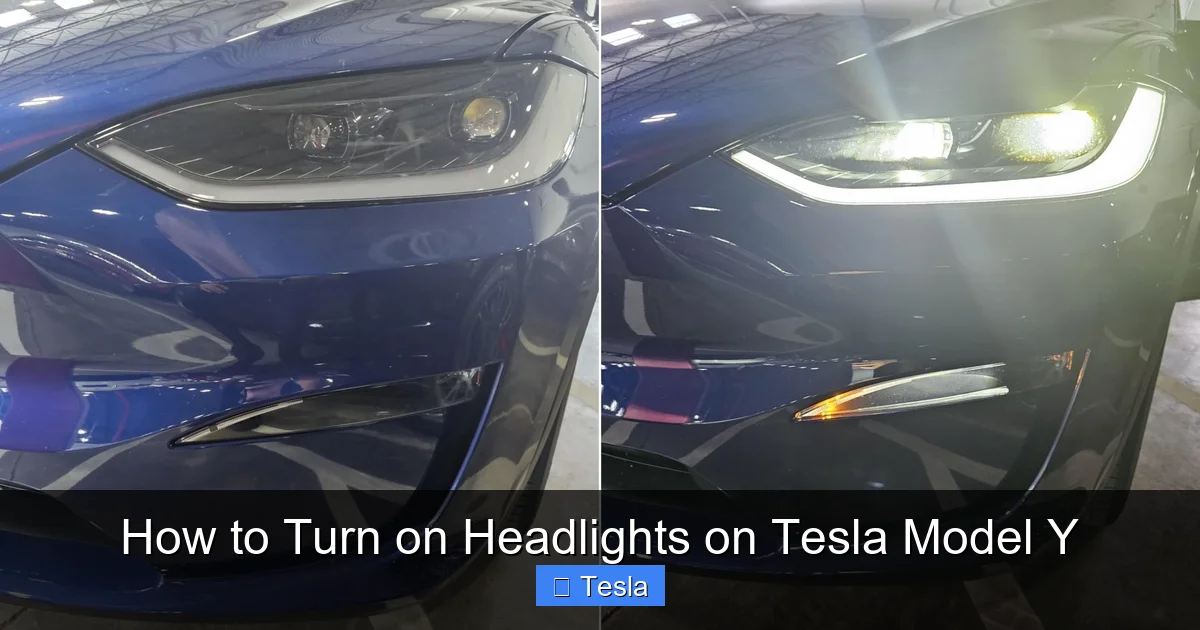
Before we discuss manual activation, it’s crucial to understand the default state of your Tesla Model Y. The vehicle is designed to be completely hands-off regarding headlight activation. When you first get your Model Y, and for the vast majority of your ownership, the headlights will be set to “Auto.” This means a network of light sensors (typically located on the dashboard near the windshield) constantly monitors the ambient light level outside the vehicle.
Visual guide about How to Turn on Headlights on Tesla Model Y
Image source: i0.wp.com
How the Automatic System Works
During the daytime, with sufficient sunlight, the sensors detect high light levels and keep the headlights off. As dusk approaches, or when you enter a dark tunnel, a parking garage, or encounter heavy overcast skies or rain, the sensors detect the drop in ambient light and automatically illuminate the headlights. This system is mandated by law in many regions and is a standard safety feature. You do not need to do anything to make this happen; it is the vehicle’s default and preferred behavior. The only time you would typically need to intervene is if you want to force the headlights on during the day for a specific reason (like increased visibility in a severe storm) or if you want to turn them off in a situation where the automatic system might not trigger (like a very overcast day where you feel you don’t need them, though this is generally not recommended).
Method 1: Manual Control via the Touchscreen
The most direct and comprehensive way to manually control your Model Y’s headlights is through the central 15-inch (or 17-inch on newer models) touchscreen display. This method gives you access to all lighting settings, including the main headlights, fog lights, and ambient lighting.
Visual guide about How to Turn on Headlights on Tesla Model Y
Image source: ic.carid.com
Step-by-Step Touchscreen Navigation
1. Ensure your vehicle is in “Park” (P) or powered on. You cannot change most vehicle settings while the car is off.
2. Tap the “Controls” icon, which looks like a car, located in the lower left corner of the screen.
3. A menu will appear on the left side of the screen. Scroll down and select “Lighting.”
4. The “Lighting” menu will display on the main screen. At the very top, you will see the primary headlight control. It will show your current setting, which is usually “Auto.”
5. Tap the headlight setting button. It will cycle through three options: Auto (default), On (manually forced on), and Off (manually forced off).
6. Select “On” if you wish to manually activate your headlights at any time, regardless of ambient light conditions. Select “Off” to disable them (use with extreme caution and only in well-lit areas).
7. The setting you choose is saved and becomes the new default until you change it again.
What You’ll See in the Lighting Menu
Beneath the main headlight toggle, you will find controls for:
- Headlight Mode: This controls the Auto High Beam feature. If you have Auto High Beam enabled (more on this later), your high beams will automatically turn on and off based on oncoming traffic and vehicles ahead. You can set this to “Auto” or “Off.”
- Fog Lights: These are separate from your main headlights. They are only available when your headlights are in the “On” or “Auto” position and your main headlights are on low beam. They are designed for use in fog, heavy rain, or snow to cut through precipitation without reflecting glare back at you.
- Ambient Lighting: This controls the soft interior glow lights in the cabin and on the door sills. It’s unrelated to external lighting but is grouped in this menu.
Pro Tip: If you’re customizing your Model Y’s appearance, consider professional window tinting or a full vehicle wrap. A Tesla Model Y wrap can dramatically change its look while protecting the original paint. Just remember that very dark tints can affect the accuracy of your cabin light sensors, potentially causing your headlights to activate more frequently.
Method 2: The Quick-Access Stalk Control
For moments when you don’t want to take your eyes off the road to touch the screen, Tesla provides a physical control on the steering wheel column. This is the fastest way to toggle your headlights between the “Auto” and “On” states.

Visual guide about How to Turn on Headlights on Tesla Model Y
Image source: evseekers.com
Locating and Using the Headlight Button
On the left steering wheel stalk, you will find a button with a headlight icon (it looks like a sideways headlight). This is your dedicated manual headlight control.
- Single Press: A single press of this button will cycle your headlights. If they are currently in “Auto” mode, a single press will force them to the “On” position (manual low beams). If they are already manually “On,” a single press will return them to “Auto” mode. This button does not have an “Off” function; it only toggles between automatic and manual-on.
- Indicator Feedback: You will see a small icon representing headlights appear on your driver’s instrument cluster (the screen directly behind the steering wheel) and on the main touchscreen. This icon will change to indicate whether your lights are in Auto or On mode.
- No “Off” Function: Importantly, this stalk button cannot turn your headlights completely off. To turn them off, you must use the touchscreen method described in the previous section. This is a deliberate safety design to prevent accidentally driving without headlights.
This stalk button is perfect for quickly turning your lights on to navigate a dark driveway or a poorly lit parking lot, and then letting them revert to automatic control once you’re back on a well-lit road.
Method 3: Mastering Auto High Beam (Auto High Beam)
This is a separate but related system that many new Tesla owners confuse with the main headlight “Auto” setting. Auto High Beam is a fantastic convenience feature that automatically switches between your low beams and high beams to maximize visibility without dazzling other drivers.
How to Enable and Use Auto High Beam
1. First, ensure your main headlights are set to “Auto” or “On” (your low beams must be on).
2. Navigate to Controls > Light > Headlight Mode on your touchscreen.
3. You will see an option for “Auto High Beam.” Toggle it to “On.”
4. Once enabled, when driving at night on a dark road with no oncoming traffic and no vehicles ahead, your Model Y will automatically raise the headlights to high beam mode. You’ll see a blue icon with lines pointing upward on your instrument cluster.
5. When the vehicle’s forward-facing camera detects an oncoming car or a vehicle in your lane ahead, it will immediately dip the beams back to low beam to avoid blinding the other driver. A white low-beam icon will appear on the cluster.
Manual Override for High Beams
You can always manually control your high beams using the same left steering wheel stalk:
- Pull the stalk toward you (towards the steering wheel) and release. This will manually turn the high beams on. Pulling it again will turn them off and return to low beams.
- Important: If Auto High Beam is enabled, a manual pull will override the system and turn on high beams. However, the system will still attempt to dip the beams automatically if it detects oncoming traffic, overriding your manual input for safety. To use high beams manually without automatic dipping, you must first turn “Auto High Beam” to “Off” in the settings menu.
Remember, Auto High Beam is a driver-assistance feature, not a replacement for attentive driving. You should always be prepared to manually intervene.
Special Situations and Troubleshooting
Even with a flawless system, you might encounter scenarios that require special attention or indicate a problem.
Scenario: “My headlights won’t turn on manually.”
First, check your main headlight setting on the touchscreen (Controls > Lighting). Is it set to “Off”? If so, change it to “Auto” or “On.” If it’s on “Auto,” use the stalk button to toggle to “On.” If the lights still don’t illuminate, check for any warning lights on your instrument cluster or touchscreen. A warning triangle or a specific headlight icon indicates a fault, such as a burned-out bulb (though LEDs rarely fail) or a sensor issue.
Scenario: “My headlights stay on during the day.”
This is likely because your setting is manually forced to “On.” Use the touchscreen to change it back to “Auto.” If it’s already on “Auto” but the lights are still on, your ambient light sensor might be obstructed (by a dashboard object, a very dark windshield tint, or dirt). Clean the area around the sensor, typically at the base of the windshield behind the rearview mirror. Professional window tinting installers know to avoid covering sensor areas.
Scenario: “Auto High Beam isn’t working.”
Ensure the feature is enabled (Controls > Light > Headlight Mode > Auto High Beam). Also, Auto High Beam typically only operates above a certain speed (usually around 25-30 mph) and only on dark roads. It may not activate in city streets with frequent streetlights. Ensure your windshield and forward-facing camera (behind the rearview mirror) are clean, as the system relies on that camera to see other vehicles.
Resetting the System
If you suspect a software glitch, a simple restart of the vehicle’s systems can often resolve minor issues. While the car is in “Park,” press and hold both scroll wheels on the steering wheel until the screen goes black and the Tesla logo reappears. This reboots the MCU (Media Control Unit) and can clear temporary faults. For persistent warnings, schedule a service appointment through your Tesla app.
Safety, Best Practices, and Legal Considerations
Understanding how to turn on your headlights is one thing; using them correctly is another. Here are essential practices for safe and legal driving.
When to Use Manual “On” vs. Relying on Auto
While “Auto” is excellent, there are times you should manually override it:
- Severe Weather: In daytime heavy rain, snow, or fog, your automatic system may not consider the reduced visibility sufficient to turn on lights. Manually turn them on to “On” to increase your vehicle’s visibility to others.
- Tunnels and Parking Garages: While the Auto system usually catches these, in some long, gradually lit tunnels, it might hesitate. Manually turning them on ensures immediate illumination.
- Twilight Glare: During sunset/sunrise, the angle of the sun can confuse light sensors, causing headlights to flicker on and off. Manually setting them to “On” or “Off” can prevent this distraction.
High Beam Etiquette
Auto High Beam is great, but know when to use manual high beams. Use them on completely dark rural roads with no oncoming traffic. Always dim them (by pulling the stalk or letting Auto High Beam do its job) when you see an oncoming vehicle within about 500 feet, or when following another vehicle within about 200-300 feet. Failing to do so is dangerous and illegal in most jurisdictions.
The Importance of Clean Lenses
Your LED headlights are powerful and precise. Over time, the plastic lenses can become hazed or yellowed due to UV exposure, drastically reducing their output and creating a dangerous glare for other drivers. If your headlights seem dim, consider a professional headlight restoration service. This is a common maintenance item for any vehicle, including Teslas. While you’re maintaining your car’s exterior, you might also explore the ultimate cost guide for wrapping a Tesla Model Y to explore paint protection and aesthetic options.
Conclusion: Confidence in Every Beam
Mastering your Tesla Model Y’s headlight system is a simple yet vital part of being a responsible and safe owner. The core principle is this: the “Auto” setting is your friend and the default for a reason. It works exceptionally well in 95% of daily driving scenarios, requiring no input from you. The power lies in your ability to easily override this automation when conditions demand it, using either the intuitive touchscreen menu or the conveniently placed stalk button for quick access. Remember that Auto High Beam is a separate, bonus feature that requires its own activation. By understanding these distinctions, you ensure you always have the right amount of light—enough to see clearly and be seen, without compromising the safety of others. Regularly check that your lights are functioning, keep the sensors and lenses clean, and don’t hesitate to use manual control during challenging weather. With this knowledge, you’re fully equipped to handle any lighting situation, making every journey in your Model Y a safer one.
Frequently Asked Questions
Are the Tesla Model Y headlights always on when I drive?
No, they are only on when needed. With the default “Auto” setting, they activate automatically at dusk, in tunnels, or in low-visibility weather. During the day with sufficient light, they remain off. You can manually force them on at any time.
Can I permanently turn off the automatic headlight feature?
Yes. You can manually set the headlights to “Off” via the touchscreen (Controls > Lighting). However, this is not recommended for regular driving as it is unsafe and illegal in low-light conditions. The setting will persist until you change it back to “Auto” or “On.”
Why won’t my Auto High Beam turn on?
Ensure the feature is enabled in Controls > Light > Headlight Mode. Auto High Beam only activates at higher speeds (typically above 25 mph) on very dark roads with no surrounding vehicles. It will not activate in well-lit areas or cities. Also, ensure your windshield and forward-facing camera are clean.
What’s the difference between the headlight “Auto” and the “Auto High Beam” settings?
Headlight “Auto” controls the basic on/off function of your low-beam headlights based on ambient light. “Auto High Beam” is a separate feature that, when enabled and when low beams are on, automatically switches between low and high beams based on traffic detection. You can have one without the other.
How do I turn on just the parking lights or side markers?
The Model Y does not have a separate “parking light” mode like some traditional cars. When you shift into “Park,” the tail lights and some marker lights stay on for a short period. For extended stationary lighting, you would typically leave the headlights in “Auto” (which might come on if it’s dark) or manually set them to “On.”
Is there a way to temporarily disable Auto High Beam without going into menus?
Yes. You can manually override Auto High Beam at any time by pulling the left steering wheel stalk toward you to activate high beams, or by pushing it away to deactivate them. The system will resume automatic control after you turn off the manual high beams or once the driving condition changes (e.g., oncoming traffic passes).
