
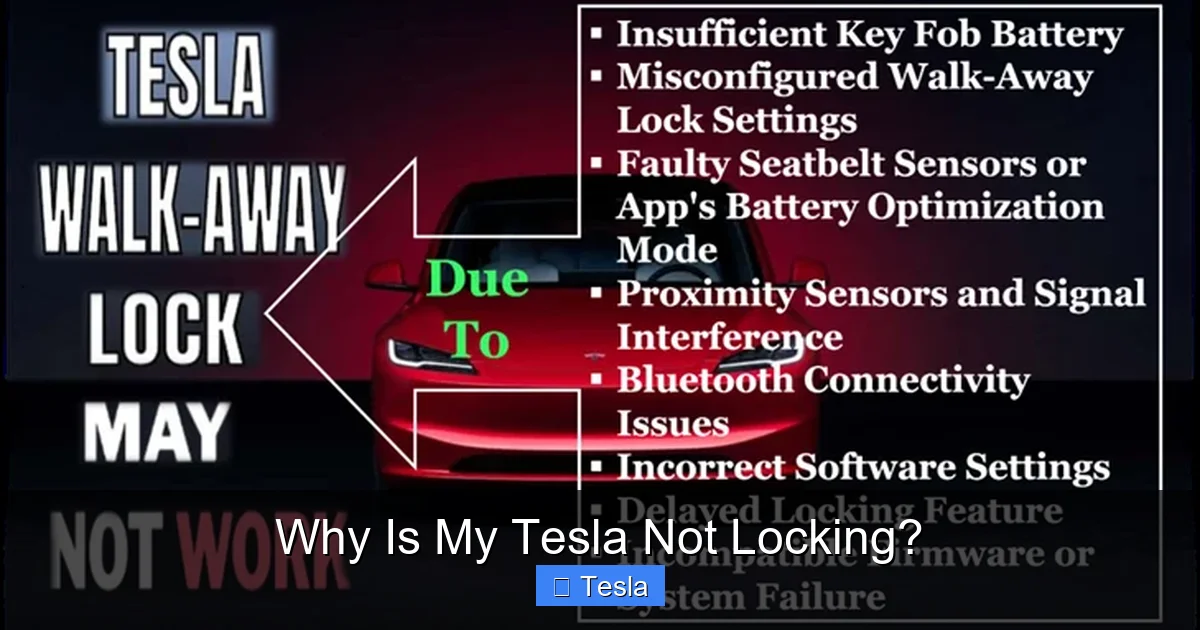
Why Is My Tesla Not Locking?

Contents
- 1 Key Takeaways
- 2 📑 Table of Contents
- 3 The Dominant Culprit: Phone Key Problems
- 4 Key Card Conundrums: The Forgotten Key
- 5 Software Gremlins in the Machine
- 6 The Obvious but Overlooked: Physical Obstructions
- 7 Environmental and External Interference
- 8 When All Else Fails: Diagnostics and Service
- 9 Practical Workarounds and Proactive Habits
- 10 Frequently Asked Questions

Diesel Fuel Additive

Car Armrest Cushion

Trunk Organizer

Solar Car Battery Maintainer
Is your Tesla refusing to lock? This is a surprisingly common issue, often caused by phone key connectivity problems, key card misreads, software glitches, or simple physical obstructions. The solution is usually found in systematic troubleshooting, starting with the basics like checking your phone’s location and Bluetooth before moving to system resets. Most locking problems are minor and can be resolved quickly without a service visit.
You walk away from your Tesla, phone in your pocket, expecting the familiar fold-in of the door handles and the quiet confirmation that your car is secure. But it doesn’t happen. You turn back, tap the handle—nothing. A moment of confusion, maybe even a little frustration, sets in. “Why is my Tesla not locking?” This is a more common question than you might think, and the answer is almost never that your car is fundamentally broken. Tesla’s keyless entry system, while revolutionary, relies on a delicate dance of Bluetooth, software, and sensors. When one step falters, the whole process can stop. This guide will walk you through every possible reason, from the embarrassingly simple to the more complex, and give you the exact steps to get your Tesla locking reliably again.
Key Takeaways
- Phone key is the #1 culprit: Bluetooth/Wi-Fi interference, dead phone battery, or incorrect phone placement are the most frequent reasons Teslas fail to lock automatically.
- Key card requires precise placement: The card must be tapped within the designated B-pillar reader zone; misalignment or a damaged card will cause failure.
- Software glitches happen: Temporary bugs in the vehicle’s operating system or the Tesla app can disrupt the locking mechanism, often fixed by a simple reboot.
- Physical obstructions are simple: A door, trunk, or frunk not fully closed, or a window slightly ajar, will prevent the car from securing.
- Environmental factors matter: Extreme temperatures, strong radio signals, or nearby electronic devices can interfere with key signals.
- Manual lock is always available: The physical lock button on the door handle and the Tesla app’s manual lock control are reliable backups.
- Service is for persistent issues: If all troubleshooting fails, a 12V battery issue or faulty lock actuator may require professional diagnosis.
[FEATURED_IMAGE_PLACEHOLDER]
📑 Table of Contents
The Dominant Culprit: Phone Key Problems
For the vast majority of Tesla owners, the phone is the primary key. This convenience is fantastic—until it isn’t. When your phone key fails, it feels personal, but it’s almost always a technical hiccup.
Bluetooth and Connectivity Chaos
The communication between your phone and your Tesla happens over Bluetooth Low Energy (BLE). This signal is powerful but not infallible. Interference is the most common disruptor. Think about your environment: Are you parked near a large transformer, a cluster of Wi-Fi routers, or other dense electronic equipment? Is there a metal shopping cart or a thick concrete pillar between you and the car? These can block or weaken the BLE signal.
On your phone, check these settings:
- Bluetooth must be ON: Sounds obvious, but it’s easily toggled off accidentally or by battery-saving modes.
- Location Services must be enabled for the Tesla app: The app needs precise location to know when you’ve walked away. Go to your phone’s settings > Tesla App > Location > set to “Always.”
- Background App Refresh: Ensure this is enabled for the Tesla app (iOS: Settings > General > Background App Refresh; Android: Settings > Apps > Tesla > Battery > Unrestricted).
A practical test: Unlock your car via the app while standing next to it. If that works over cellular data but the walk-away lock doesn’t, the problem is almost certainly the Bluetooth/Wi-Fi handoff zone or your phone’s BLE radio.
Phone Placement and “Pocket Physics”
Your body is a surprisingly effective signal shield. If your phone is in a back pocket, a thick wallet, or a metal-lined bag, the Bluetooth signal may not reach the car’s receivers as you walk away. The car thinks you’re still closer than you are. The fix is simple: hold your phone in your hand or place it in a front pocket for a test. You can also watch the Tesla app’s key icon as you walk away—if it shows a connected phone until you’re very far, that’s a sign of poor signal penetration from your storage method.
App and Software Glitches
The digital handshake involves both your phone’s OS and the Tesla app. An outdated app, a pending phone OS update, or a corrupted app cache can break the chain. First, force-close the Tesla app and reopen it. Then, check for app updates in the App Store or Google Play. If problems persist, try logging out of the Tesla app and logging back in. This refreshes your authentication token with Tesla’s servers. For a deeper reset, you can toggle your phone’s Bluetooth off and back on, or even restart your phone. This clears temporary network stack glitches that might be interfering.
Battery and Power State
A critically low phone battery (<5%) can cause the phone to aggressively conserve power, shutting down non-essential radios like Bluetooth prematurely. Charge your phone. Also, if your Tesla's 12V battery is weak, it can cause the vehicle's Body Controller (which manages locks) to behave erratically. A weak 12V battery often presents with other symptoms like random touchscreen warnings or difficulty waking the car from sleep. If you suspect this, check the 12V battery voltage via the service menu (if accessible) or have it tested.
Key Card Conundrums: The Forgotten Key
The physical key card is a reliable backup, but it has its own quirks. It uses RFID, not Bluetooth, requiring a very specific tap.
Visual guide about Why Is My Tesla Not Locking?
Image source: evseekers.com
The Art of the Tap
The key card reader is located on the driver’s side B-pillar (the vertical post between the front and rear doors). You must tap the card directly against the specific textured area. A common mistake is tapping the window pillar or the smooth metal part of the handle. The reader is sensitive to position and pressure. Tap firmly and hold for a second. If the car doesn’t respond, try the B-pillar on the passenger side as a test.
Card Damage and Wear
The card contains a small RFID chip and antenna. A cracked, bent, or water-damaged card will fail. Inspect your card for any physical damage. Also, the card’s effectiveness can degrade over many thousands of taps. If you’ve had your Tesla for years and the key card is your primary backup, consider ordering a replacement from Tesla (around $40). It’s a cheap insurance policy.
Paired but Unresponsive
If your key card is paired but suddenly stops working, it may have lost its pairing. You can re-pair it by going to Touchscreen > Safety & Security > Key Card > Delete Key Card and then following the on-screen prompts to add a new key card using the old one. You’ll need your other phone key or another paired key card to authorize this in the car.
Software Gremlins in the Machine
Tesla’s software is sophisticated, but like any computer, it can get into a weird state.
Visual guide about Why Is My Tesla Not Locking?
Image source: mechanicfreak.com
The Classic Touchscreen Reboot
This is the first and most effective step for any odd behavior, including locking issues. Press and hold both scroll wheels on the steering wheel until the touchscreen goes black and the Tesla logo reappears. This reboots the vehicle’s main computer (the MCU) without powering down the 12V system. It takes about 30-60 seconds. After reboot, test the lock function. This clears temporary memory leaks and resets background services.
Full Power Cycle (Like a “Sleep” Cycle)
If a scroll wheel reboot doesn’t work, you need a deeper reset. Put the car in Park, exit, and use the Tesla app to “Sleep” the vehicle or simply walk away and let it enter its deep sleep mode for 15-30 minutes. Ensure no one is in the car and all doors are closed. The car’s systems will power down more completely. After this period, approach the car and try unlocking/locking via the app and phone key. This can resolve deeper software conflicts.
Update Your Tesla
Occasionally, a specific bug in a software version can affect key functionality. Check your touchscreen under Software > Check for Updates. If an update is available, install it. Tesla frequently patches minor issues like these. Conversely, if the locking problem started immediately after a recent update, it might be a new bug. Check Tesla forums and the Tesla app’s release notes for reports from other owners. Sometimes, waiting for the next “point” update (e.g., 2024.14.1 to 2024.14.2) resolves it.
The Obvious but Overlooked: Physical Obstructions
Before diving deep into tech, always perform this physical check. The car’s safety logic will not lock if a closure is not fully secure.
Visual guide about Why Is My Tesla Not Locking?
Image source: driveteslacanada.ca
Doors, Trunk, and Frunk
Visually and physically inspect all four doors, the rear trunk, and the front trunk (frunk). Are they all flush with the body? Push on each one firmly. A door might appear closed but the latch didn’t fully engage. Listen for the distinct “thunk” of the latch. The touchscreen will also show a warning icon (an open door) if any are ajar, but double-check manually.
Windows and Sunroof
On Model 3 and Model Y, if the driver’s window is even slightly open (a common issue after a hard slam or if the window regulator is misaligned), the car will not lock. Roll the window up and down fully to reset its position. On Model S and X with a panoramic sunroof, ensure it is fully closed.
Charge Port and Other Openings
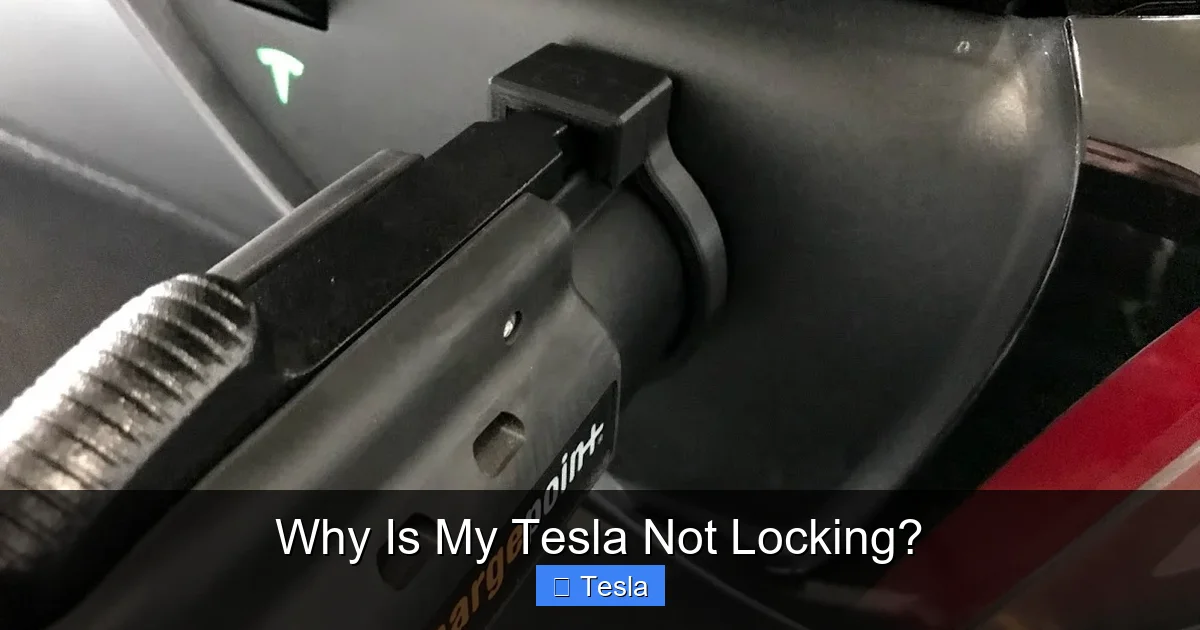
Is the charge port door open? On some models, an open charge port can inhibit auto-lock. Ensure it’s clicked shut. Also, check the rear trunk’s inner liner—sometimes cargo can prevent the trunk lid from closing fully.
Environmental and External Interference
Sometimes, the problem isn’t you or your car; it’s the world around you.
Extreme Temperatures
Very cold weather can affect the 12V battery’s performance and make electronic components sluggish. It can also cause door latch mechanisms to stiffen slightly. If it’s extremely hot or cold, try locking the car after it’s been parked in a more temperate garage for a while. The car’s systems operate more reliably within a normal temperature range.
Strong Radio Signals and “Jamming”
While rare, being parked near a powerful radio transmitter, a large commercial-grade Wi-Fi network, or certain types of military or government equipment can create electromagnetic interference that drowns out the car’s key signals. If you suspect this (e.g., the problem only happens in one specific parking spot), move the car to a different location and test.
Other Key Fobs and Devices
Do you have another car’s key fob on your keychain? A strong key fob signal from another vehicle (especially a traditional RF fob) can sometimes interfere when held close to the Tesla’s door handle. Try removing other fobs from your keychain and test again.
When All Else Fails: Diagnostics and Service
If you’ve methodically worked through every step above—rebooted, checked physical closures, verified phone settings, tried the key card, and moved locations—then it’s time to consider a hardware fault.
The 12V Battery Health Check
A failing 12V battery is the silent killer of Tesla’s 12V systems, including the locks. The car might show no other symptoms, or it might show subtle ones like occasional “12V Battery Needs Service” warnings (which can disappear) or slow response from the wipers or windows. You can check the 12V battery voltage yourself if you’re comfortable. Open the front trunk, locate the 12V battery (usually on the right side), and use a multimeter on the terminals with the car awake. A healthy voltage is around 12.6V. Anything consistently below 12.4V is weak. If you’re not comfortable, a Tesla Ranger or mobile app service request can test it.
Faulty Lock Actuator or Sensor
Individual door lock actuators can fail. You might notice the lock pin on the door not moving, or hear a faint clicking sound from inside the door when you command lock/unlock. A door handle sensor (which detects your hand) can also malfunction, preventing the manual tap from registering. These are mechanical/electrical failures that require a technician to diagnose and replace.
Schedule Service Through the App
When you’ve exhausted DIY options, use the Tesla app. Go to Service > Schedule Service. Describe the issue precisely: “Vehicle does not lock automatically via phone key or manually via door handle tap. Key card works intermittently. 12V battery tested at 12.2V.” Providing this detailed history helps the service center prepare and potentially diagnose remotely. They may push a diagnostic software update or schedule a physical inspection.
Practical Workarounds and Proactive Habits
While you troubleshoot, don’t leave your car vulnerable. Develop these habits:
- Use the Tesla App as your daily lock: Get in the habit of opening the app and tapping the lock icon as you walk away. It’s 100% reliable over cellular data and provides audible/visual confirmation.
- Carry the Key Card: Always keep the key card in your wallet or purse as a guaranteed physical backup. Practice the B-pillar tap.
- Enable “PIN to Drive”: This security feature requires a 4-digit PIN on the touchscreen before driving. It doesn’t help with locking, but it prevents unauthorized driving if someone somehow gets in.
- Check for DTCs: Occasionally, check your touchscreen under Safety & Security > Software > View Diagnostic Trouble Codes. Look for any codes related to “Body Controller,” “Doors,” or “Sensors.” Note these for your service appointment.
Remember, a Tesla not locking is almost always a minor, fixable issue. It’s a system with many points of failure, but also many layers of backup. By understanding the flow—from your phone’s Bluetooth to the car’s Body Controller to the physical latch—you can methodically isolate the problem. Start with the phone, reboot, check the obvious, and you’ll solve it 95% of the time yourself.
Frequently Asked Questions
My Tesla phone key works to unlock but doesn’t lock automatically when I walk away. Why?
This is typically a Bluetooth range issue. Your phone’s signal may not be reaching the car’s rear antenna as you walk away. Ensure Bluetooth and Location Services for the Tesla app are on, and try holding your phone in your hand instead of a pocket. A reboot of your phone and the car’s touchscreen often resolves this.
The key card tap sometimes works and sometimes doesn’t. What’s wrong?
Inconsistent key card performance usually points to a poor tap technique or a weakening card. Ensure you’re tapping the card firmly and directly on the textured area of the driver’s B-pillar. If the card is old or damaged, its RFID chip may be failing. Try re-pairing the card in the car’s settings or consider ordering a replacement.
I’ve rebooted the car and checked everything, but it still won’t lock. Is it a 12V battery?
It’s a strong possibility. A weak 12V battery causes all sorts of erratic 12V system behavior, including lock failures. Check the voltage if you can (should be ~12.6V), or schedule a mobile service appointment to have it tested. A failing 12V battery is a common root cause for strange, intermittent electrical issues.
Can other electronic devices interfere with my Tesla’s locking?
Yes, but it’s rare. Extremely strong electromagnetic fields from large radio transmitters or dense Wi-Fi networks can potentially interfere with the Bluetooth signal. Also, another vehicle’s powerful key fob on your keychain can sometimes cause interference when very close to the Tesla door handle. Try removing other fobs as a test.
Is there a way to lock my Tesla without using the phone or key card?
Yes. You can manually lock the car by pressing the lock button on the physical door handle (the small button with the lock icon). You can also use the Tesla app’s lock button from anywhere with cellular connection. The app is the most reliable manual method.
Should I be worried about security if my car isn’t locking properly?
Yes, you should treat it seriously until resolved. Always verify the car is locked by checking the Tesla app or ensuring the door handles are retracted. Enable “PIN to Drive” in the car’s settings to prevent unauthorized driving even if someone gains entry. Do not rely on the auto-lock feature until the issue is diagnosed and fixed.







