Why Does My Toyota Say Navigation App Is Not Installed?

Contents
- 1 Key Takeaways
- 2 📑 Table of Contents
- 3 Introduction: That Frustrating Message Explained
- 4 Understanding Your Toyota’s Infotainment & Navigation System
- 5 Most Common Causes: Why the Message Appears
- 6 Step-by-Step Troubleshooting Guide (Start Here!)
- 7 Special Case: Connected Navigation (Scout® GPS Link) & Smartphone Integration
- 8 Prevention & Maintenance Tips
- 9 Frequently Asked Questions

Brake Cleaner Spray

Tool Roll Bag

Car Storage Net

Car Battery Charger
Seeing “Navigation App Is Not Installed” on your Toyota’s screen is a common but fixable infotainment system glitch. It usually means your vehicle’s software can’t locate or access the navigation module, often due to a failed update, corrupted data, or an account sync issue. You can resolve this most of the time by performing a simple system reboot, checking your Toyota account connection, or reinstalling the app via the dealership’s software. Don’t panic—your navigation hardware is likely fine.
Key Takeaways
- The message is a software/access issue, not a broken GPS: Your car’s physical navigation hardware (antenna, module) is probably intact. The infotainment computer simply isn’t loading the app correctly.
- A system reboot is the first and most effective fix: A full power cycle of the infotainment system clears temporary glitches and memory errors that cause this message.
- Your Toyota Owner’s account is key: The navigation app is tied to your paid subscription and account. If your account is lapsed, unlinked, or has an error, the system will deny access.
- Software updates can cause or cure the problem: An interrupted update corrupts files. Conversely, installing the latest official update from Toyota can replace missing or damaged files.
- Not all Toyota models have built-in navigation: Some models only offer “Connected Navigation” via a smartphone (Toyota app/Apple CarPlay/Android Auto). The message may appear if your phone isn’t connected.
- Dealership intervention is the last resort: If all else fails, a dealer can use proprietary software to reflash the navigation module or verify a hardware fault.
📑 Table of Contents
- Introduction: That Frustrating Message Explained
- Understanding Your Toyota’s Infotainment & Navigation System
- Most Common Causes: Why the Message Appears
- Step-by-Step Troubleshooting Guide (Start Here!)
- Special Case: Connected Navigation (Scout® GPS Link) & Smartphone Integration
- Prevention & Maintenance Tips
Introduction: That Frustrating Message Explained
You slide into your Toyota, ready to hit the road. You press the “Navigation” button on your touchscreen, and instead of the familiar map, a stark message appears: “Navigation App Is Not Installed.” Your heart sinks. Did the navigation just… disappear? Was it a costly feature you never actually owned?
Take a deep breath. This is one of the most common infotainment system errors in modern Toyotas, and it’s almost never a sign of a dead, expensive hardware failure. It’s a software and communication error. Think of it like your smartphone saying an app is missing when, in fact, the app is on the phone but the operating system can’t find it due to a glitch. Your Toyota’s built-in navigation system consists of two main parts: the physical hardware (the GPS antenna, the navigation computer module) and the software app that runs on your infotainment screen. This message means the software layer has lost its connection to, or cannot verify, the licensed navigation application.
This guide will walk you through exactly why this happens, from simple fixes you can do at home to when you absolutely need to call the dealer. We’ll demystify the tech so you can get your turn-by-turn directions back with minimal hassle and cost.
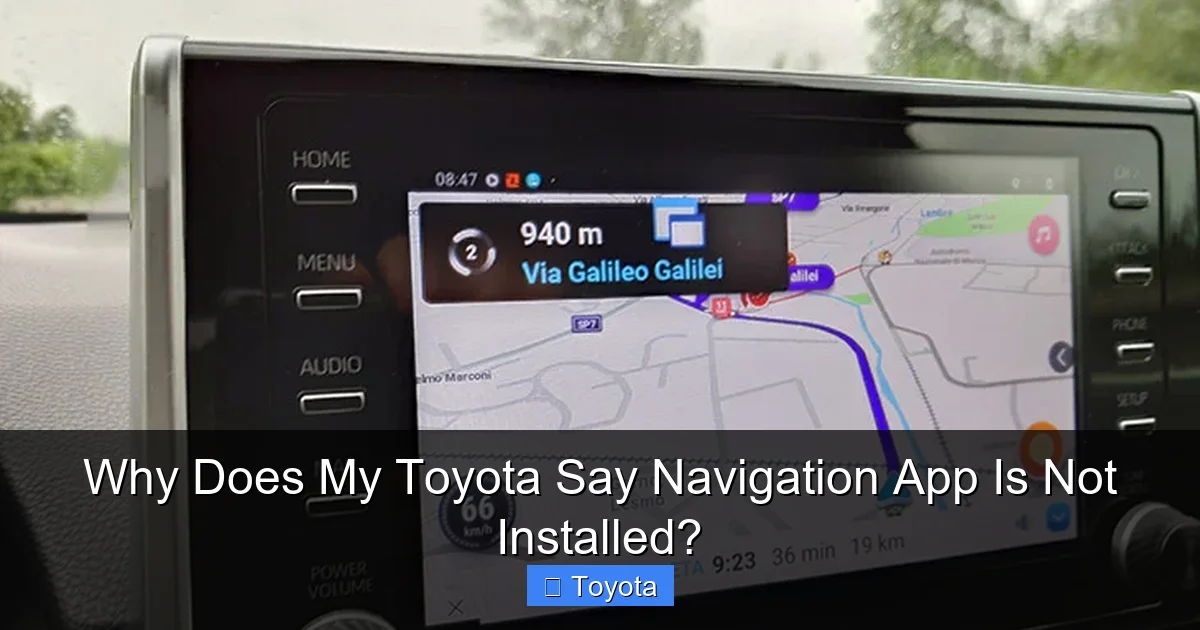
Before we troubleshoot, it helps to know what you’re talking to. Toyota uses a few different navigation setups across its model years and trims.
Visual guide about Why Does My Toyota Say Navigation App Is Not Installed?
Image source: bryansgarage.com
The Two Main Types of “Navigation” in Your Toyota
1. Embedded/Offline Navigation: This is the true “built-in” system. The map data is stored on a hard drive or solid-state storage within your vehicle’s infotainment system (like Toyota’s Entune™ 3.0 or newer systems). It works without a phone signal or data connection. This is a paid, often subscription-based, feature that comes with higher trims (like Limited or Platinum) or is purchased as an upgrade.
2. Connected/Scout® GPS Link (or Apple CarPlay/Android Auto): Many Toyotas use a “connected” navigation app. The *Scout® GPS Link* app is downloaded from your phone’s app store and streams map data to your car’s screen via a USB or Bluetooth connection. The car itself doesn’t store maps. The message “Navigation App Is Not Installed” can appear here if the phone isn’t connected or the app isn’t running.
Why This Matters: The troubleshooting steps differ slightly. For embedded nav, we’re dealing with the car’s internal software. For connected nav, we’re dealing with your phone and its connection to the car. This article focuses primarily on the embedded/offline system, as that’s where the “not installed” message is most prevalent and confusing.
Most Common Causes: Why the Message Appears
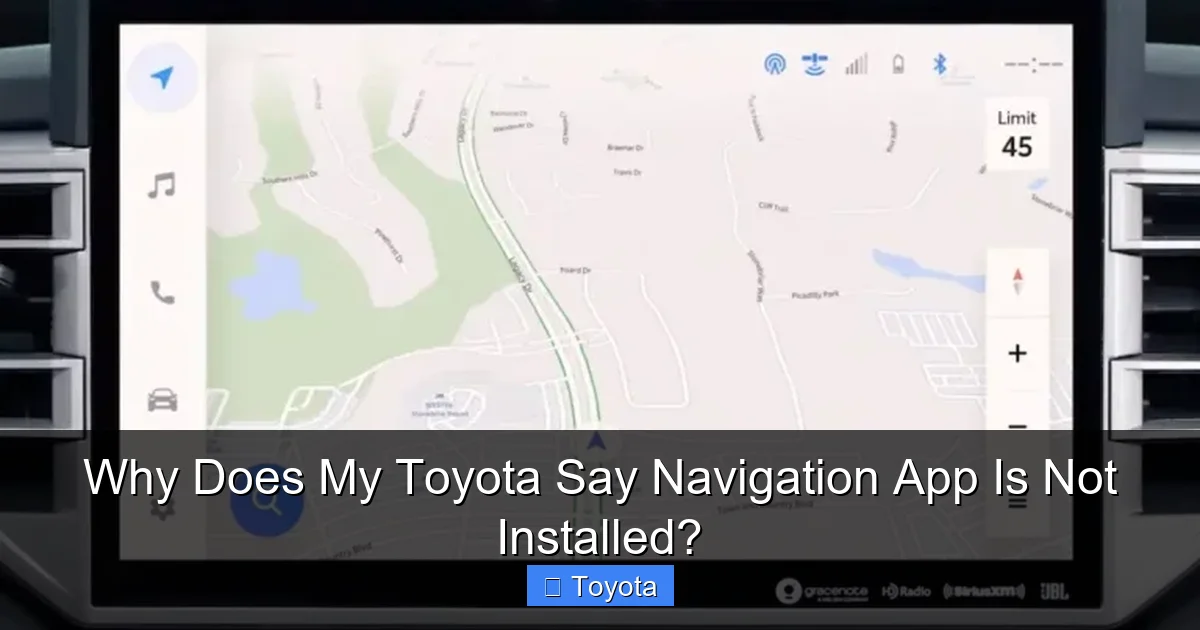
So, what exactly triggers this digital “File Not Found” error? Here are the top culprits, in order of likelihood.
Visual guide about Why Does My Toyota Say Navigation App Is Not Installed?
Image source: cartipsdaily.com
1. Software Glitch & Corrupted Cache
Your infotainment system is a small computer. Like any computer, it can have temporary memory (RAM) errors or corrupted cache files that prevent apps from launching correctly. A simple reboot often clears this. This is the #1 cause and the easiest fix.
2. Failed or Interrupted Software Update
Toyota periodically releases updates for its infotainment system to add features, fix bugs, and update map data. If an update is interrupted—due to a dead battery, turning off the car, or a network error—the new files can be left in a half-installed state. The system then can’t find the complete navigation app package, triggering the error.
3. Account & Subscription Sync Failure
Your embedded navigation is a licensed service tied to your Toyota Owner account. If your subscription has lapsed, if there’s a billing issue, or if the car hasn’t successfully communicated with Toyota’s servers to verify your active status, it will block access. The system interprets this as the app not being authorized, often displaying a “not installed” or “unavailable” message.
4. Incorrect System Settings or Profile
Sometimes, a setting gets changed. The navigation app might be disabled in a hidden menu, or your user profile (if your Toyota has multiple profiles) might not have navigation permissions enabled. A factory reset of the infotainment system can resolve this.
5. Rare: Hardware Failure
While uncommon, it’s possible the navigation module itself (a separate computer) has failed. This is the last thing to suspect after all software solutions are exhausted. Symptoms might include the message persisting after multiple resets and updates, along with other odd system behaviors.
Step-by-Step Troubleshooting Guide (Start Here!)
Follow these steps in order. Most users are fixed by Step 1 or 2.
Visual guide about Why Does My Toyota Say Navigation App Is Not Installed?
Image source: knowvehicles.com
Step 1: The Master Reboot (Infotainment Power Cycle)
This is not just turning the car off and on. You need to perform a full, deep power cycle of the infotainment system.
- Turn off the engine. Remove the key or press the stop button.
- Open the driver’s door. This is crucial for many models, as it triggers a full system shutdown after a few minutes.
- Wait 5-10 minutes. Let the system fully power down. You should see the screen go completely black. If it doesn’t, locate the INFOTAINMENT FUSE in your fuse box (see owner’s manual), pull it for 2 minutes, then reinsert. This guarantees a power cut.
- Start the car. Turn the ignition on (do not start engine, just “ON” position) and wait for the system to boot up completely (1-2 minutes). Then start the car.
- Test Navigation. Press the Nav button. Does it work?
Pro Tip: This simple step resolves a huge percentage of these errors. It clears volatile memory and restarts all system services.
Step 2: Check Your Toyota Owner Account & Subscription
If the reboot didn’t work, your account is the next suspect.
- Log into your Toyota Owner account online or via the Toyota app on your phone.
- Check your subscription status. Look for “Connected Services,” “Navigation,” or “Safety Connect” subscriptions. Is it active? Has it expired? Is there a payment issue?
- Verify your VIN is linked correctly. Ensure the account is associated with your specific vehicle’s VIN.
- In the car: Go to Settings > Toyota Connected Services > Account. Is it logged in? Try logging out and back in. This forces a fresh handshake with Toyota’s servers.
- If your subscription expired, you will need to renew it. The system will not re-activate until payment is processed and the account syncs with the car (which may require the car to be parked with a good signal and a reboot).
Step 3: Perform a System Reset (Settings Menu)
Warning: This will erase your personal settings (radio presets, Bluetooth pairings, seat memory, etc.). Write down what you need first.
- Go to Settings > General > Reset (or “Initialize” or “Default”).
- Look for an option like “Reset All Settings” or “Reset Infotainment System.”
- Confirm and let the system reboot. This restores all software to a clean, factory state.
- After the reset, you will need to re-pair your phone, set radio stations, etc. Then, test navigation.
If this works, you can slowly re-enter your settings. If the problem returns after a few days, it points to a deeper software corruption or update issue.
Step 4: Check for and Install Software Updates
An update can patch the bug causing this error.
- Over-the-Air (OTA) Update: Ensure your car is parked with a strong Wi-Fi signal (or a good cellular connection if your model supports it). Go to Settings > General > System Updates. Check for and install any available updates. Do not interrupt this process. Keep the car in “ACC” or “ON” mode with the engine running if needed, and ensure the battery is charged.
- USB Update: If your model doesn’t do OTA, you may need to download the update file from the Toyota owner’s website onto a blank USB drive and install it in the car. Follow the instructions on the website exactly.
After a successful update, reboot the system (Step 1) and test.
Step 5: The Nuclear Option – Dealer/Service Center
If you’ve exhausted the above, it’s time for professional tools.
- Call your dealer’s service department. Explain the issue and the steps you’ve already taken (reboot, reset, update). This saves them diagnostic time.
- They will connect a proprietary Toyota diagnostic computer (Techstream) to your vehicle’s OBD-II port.
- They can reflash the navigation module, which is a complete reinstall of the navigation software and map data. This is the definitive fix for software corruption.
- They will also run a diagnostic check on the navigation module hardware to ensure it’s functioning. If the hardware is faulty, they can replace it (this is rare and costly, but covered under warranty if applicable).
Cost Note: If your car is under the original 3-year/36,000-mile basic warranty, this may be covered. If your navigation subscription is active and the issue is software, they should fix it. Always ask for an estimate first if out of warranty.
If your Toyota doesn’t have the premium embedded navigation, you might be using the Scout® app or Apple CarPlay/Android Auto. The message can still appear.
For Scout® GPS Link Users:
- Ensure the Toyota app and Scout® app are installed and updated on your smartphone.
- Bluetooth must be ON and your phone must be paired with the car.
- USB connection is often required for initial setup and map data transfer. Use a high-quality, data-capable USB cable (not just a charging cable).
- Open the Scout® app on your phone before selecting Navigation on the car screen.
- Delete the phone from the car’s Bluetooth settings and re-pair from scratch.
For Apple CarPlay / Android Auto Users:
- These systems project your phone’s *own* navigation apps (Google Maps, Waze, Apple Maps). The “Navigation App Is Not Installed” message shouldn’t appear if using these.
- If it does, it means the car is trying to launch its *internal* nav app instead. Go to Settings > Apple CarPlay / Android Auto and ensure the Navigation app is set to launch from your phone, or simply select the CarPlay/AA icon on your home screen instead of the generic “Navigation” button.
Related Tip: Issues with smartphone connectivity can sometimes stem from broader infotainment glitches. If your Bluetooth is also dropping or audio is cutting out, a full system reboot (Step 1) is especially likely to help. Problems with key fobs and remote start can also be linked to low 12V battery voltage, which affects all vehicle computers. If your Toyota key fob is blinking red, it’s a sign the fob battery is low, which is a separate but equally important maintenance item.
Prevention & Maintenance Tips
Keep your navigation running smoothly with these habits.
- Keep your software updated. Periodically check for infotainment updates. Enable automatic updates if your model supports them.
- Maintain your 12V battery. A weak or failing battery can cause all sorts of computer glitches during start-up and shutdown, corrupting data. Have it tested annually, especially if your car is over 3 years old.
- Don’t interrupt updates. Let an OTA or USB update run its full course. Don’t turn off the car or open the door until it’s 100% complete.
- Keep your Toyota account active and your contact info current. Ensure your email and payment methods are up-to-date to avoid subscription lapses.
- Use a quality USB cable. For connected features and updates, a cheap, frayed cable can cause data errors.
Frequently Asked Questions
Will disconnecting my car battery reset the navigation?
Yes, disconnecting the negative terminal for 10-15 minutes will perform a full power cycle, similar to our Step 1. However, it will also reset *all* vehicle systems (radio, clock, engine computer adaptations), so you may need to recalibrate some systems. It’s a more drastic step than just pulling the infotainment fuse.
Is this message covered under warranty?
It depends. If your vehicle is still under the original New Vehicle Warranty (typically 3 years/36,000 miles) and the issue is a software defect, Toyota will likely fix it at no cost. If your navigation subscription is active and the problem is a server/account sync issue, they should resolve it. If the warranty has expired and the fix is a software reflash, there may be a diagnostic and/or labor fee. Always call your dealer for a specific quote.
My Toyota never came with built-in navigation. Why am I seeing this message?
>This can happen if your vehicle is equipped with the hardware for navigation (the module and antenna) but the software feature was never enabled by the dealer or purchased. The system may have a placeholder app. You would need to purchase and activate the navigation feature through a dealer or potentially via an online account if your model supports it.
Can I install the navigation software myself from a USB?
For update files, yes, if your model uses the USB method. You download the official file from the Toyota owner’s portal and follow instructions. However, you cannot “install” the base navigation application from scratch yourself if it’s missing—that requires the dealer’s proprietary software and authorization tied to your VIN.
Does a “Navigation App Not Installed” error mean my GPS antenna is broken?
Almost certainly not. A broken antenna would cause a “GPS signal lost” or “no satellite” message while the app is running. The “not installed” message is a software-level error about the app’s presence or license, not about receiving signals. The hardware is likely fine.
My navigation worked yesterday. What could have changed?
This is classic for a software glitch or failed update. Did your car install an update overnight while parked? Did the battery get jumped or go dead? Did you change user profiles? Did your navigation subscription renew (or fail to renew)? These events can trigger the system to re-verify the app’s license and fail, causing the message to appear suddenly.