How to Reset the Ford F-150 Screen

Contents
- 1 Key Takeaways
- 2 📑 Table of Contents
- 3 Understanding Your Ford F-150’s Infotainment System
- 4 When to Reset Your Screen: Recognizing the Symptoms
- 5 The Soft Reset: Your First Line of Defense
- 6 The Hard Reset: The Power Cycle
- 7 Model Year Considerations: Why Your F-150 Might Be Different
- 8 Troubleshooting: What to Do When Resets Don’t Work
- 9 Prevention and Best Practices
- 10 Frequently Asked Questions



Is your Ford F-150’s infotainment screen frozen, glitchy, or unresponsive? A reset is often the quickest fix. You can usually perform a soft reset (like a reboot) by holding specific buttons or using the settings menu. For persistent issues, a hard reset (power cycle) may be needed, which can erase personalized settings. Always try the soft method first. This guide covers all reset methods for different F-150 model years and SYNC generations.
Few things are more frustrating than jumping into your Ford F-150, ready to hit the road, only to find the infotainment screen frozen on a menu, unresponsive to touch, or stuck on a loading icon. That big, beautiful display is your command center for navigation, music, climate controls, and phone calls. When it misbehaves, it brings your whole truck’s tech to a halt. Before you panic and head to the dealer—which can cost you time and money—you should know how to reset the Ford F-150 screen yourself. It’s often the fastest, most effective solution for common software hiccups.
Resetting your F-150’s screen is not one single action. It’s a spectrum of solutions, from a simple software reboot to a more involved electrical reset. The right method depends on your specific problem and your truck’s model year and infotainment system (SYNC 3, SYNC 4, etc.). This guide will walk you through every method, step-by-step. We’ll help you diagnose the issue, choose the correct reset, and get your SYNC system back to its responsive self. Think of it as giving your truck’s brain a quick nap to clear out the clutter.
Key Takeaways
- Soft vs. Hard Reset: A soft reset reboots the software without losing data. A hard reset (or power cycle) cuts all power to the module, which can clear deeper glitches but may erase presets and paired devices.
- Model Year Matters: The exact reset procedure depends heavily on your F-150’s model year and whether it has SYNC 3, SYNC 4, or the newer SYNC 4A system. Always identify your system first.
- Start Simple: Always begin with the softest reset method—a system reboot from the menu or a button hold—before escalating to more invasive procedures that require fuse removal.
- Data Loss is Possible: A full power cycle reset will typically delete saved radio stations, Bluetooth pairings, navigation favorites, and some voice command profiles. Have your info ready to re-enter.
- Not All Issues Are Software: If resets don’t work, the problem could be a faulty screen, loose wiring, a failing USB port causing boot errors, or a deeper module failure requiring a dealer.
- Consult Your Manual: Your owner’s manual is the definitive source for your specific vehicle’s reset procedures and warnings. Procedures can change mid-generation.
- Patience is Key: After any reset, especially a hard power cycle, the system may take 2-5 minutes to fully reboot and reinitialize all modules. Don’t panic if it’s slow to come back.
📑 Table of Contents
- Understanding Your Ford F-150’s Infotainment System
- When to Reset Your Screen: Recognizing the Symptoms
- The Soft Reset: Your First Line of Defense
- The Hard Reset: The Power Cycle
- Model Year Considerations: Why Your F-150 Might Be Different
- Troubleshooting: What to Do When Resets Don’t Work
- Prevention and Best Practices
Understanding Your Ford F-150’s Infotainment System
Before we start pushing buttons, it’s crucial to understand what we’re resetting. The screen you see and touch is just the user interface. The real brains are in the Infotainment Control Module (sometimes called the Accessory Protocol Interface Module, or APIM). This computer runs the SYNC software. When we talk about “resetting the screen,” we’re almost always trying to force this module to restart its software. The methods differ based on which generation of SYNC your truck has.
Identifying Your SYNC System
The easiest way to identify your system is to look at the home screen layout and features. Here’s a quick guide:
- SYNC 3 (2016-2020 models primarily): Features a tile-based home screen with large, colorful icons for Audio, Phone, Navigation (if equipped), and Apps. It has a capacitive touchscreen (no physical buttons on the bezel) and supports Apple CarPlay/Android Auto.
- SYNC 4 (2021-2023 models): A more refined, faster interface with a cleaner look. It often includes a cloud-based navigation system (with live traffic) and over-the-air update capability. The layout is more card-based.
- SYNC 4A (2024+ models): The latest system, featuring a massive 12-inch or 15-inch vertical or horizontal touchscreen, depending on trim. It has even more processing power, enhanced voice commands, and a highly customizable home screen.
You can also find your system type in the Settings > General > About SYNC menu, if you can access it. Knowing this is the first step to a successful reset, as button combinations differ.
When to Reset Your Screen: Recognizing the Symptoms
Not every screen issue requires a full reset. Sometimes it’s a single app misbehaving. But a system-wide reset is the go-to solution for a cluster of problems. You should consider a reset if you experience:

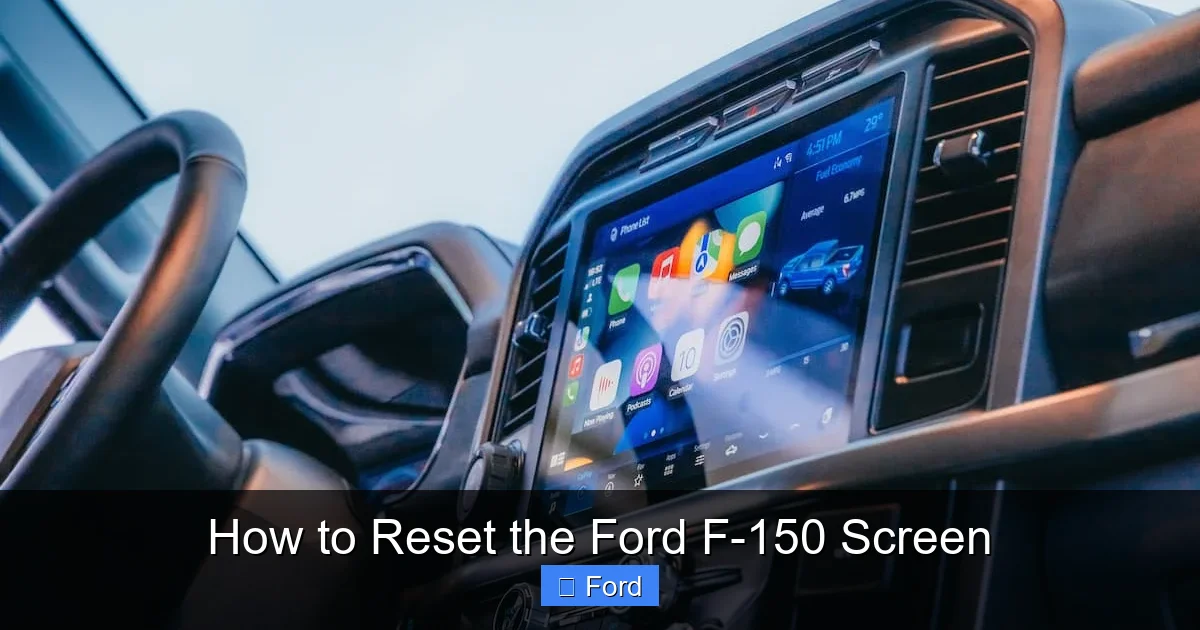
Visual guide about How to Reset the Ford F-150 Screen
Image source: carglassadvisor.com
Common Signs of a Needed Reset
- Complete Freeze: The screen is black, or stuck on the Ford logo, a splash screen, or a single menu with no response to touch or physical buttons (except maybe volume).
- Unresponsive Touch: Parts of the screen work, but other zones don’t. Or, it registers touches in the wrong places (ghost touches).
- Extreme Lag: Everything is slow. Taps take seconds to register, menus crawl, and typing is a chore.
- App Crashes & Reboots: Navigation, radio, or other apps randomly close or cause the whole system to reboot on their own.
- Audio Loss with Screen On: The screen is active and shows you’re playing music or radio, but there’s no sound. Sometimes a reset restores the audio path.
- Bluetooth Chaos: The system won’t pair, keeps disconnecting, or shows phantom paired devices that won’t delete.
If your issue is isolated—like just the radio having no sound, or just the backup camera not working—a screen reset might not fix it. Those could be separate module or hardware issues. But for any general software sluggishness or lock-up, start here.
The Soft Reset: Your First Line of Defense
A soft reset is the equivalent of restarting your computer. It closes all running processes and restarts the SYNC operating system. This is the safest, first method to try. It rarely erases user data (like paired phones or radio presets), but it’s not 100% guaranteed. It’s fast and non-invasive.
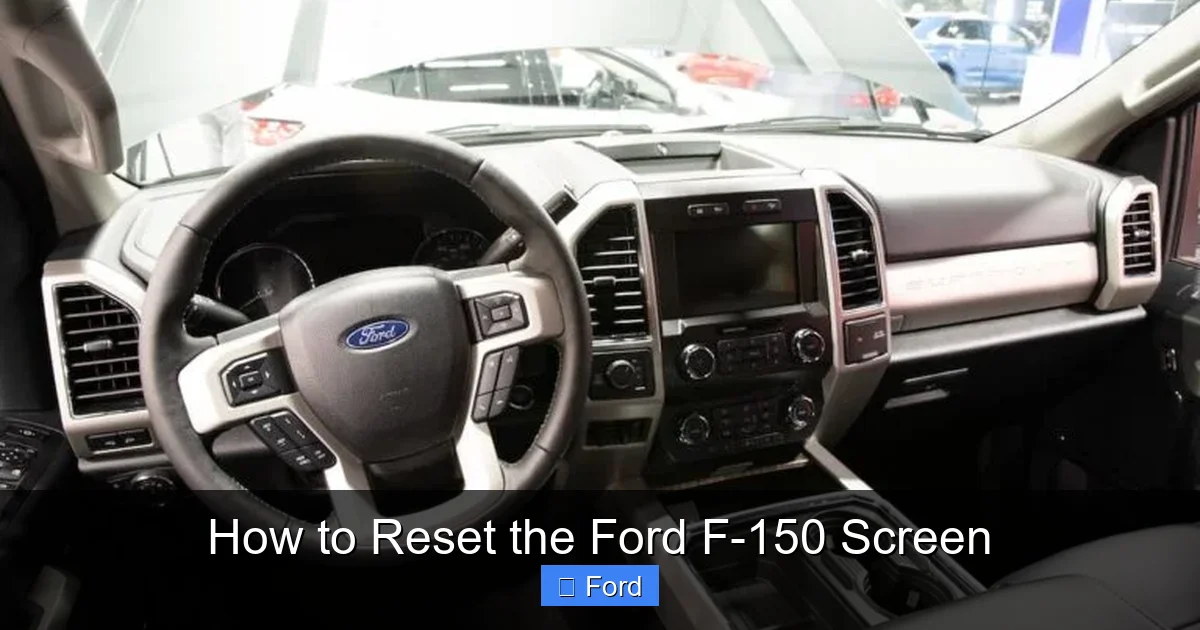
Visual guide about How to Reset the Ford F-150 Screen
Image source: vehiclewisdom.com
Method 1: The Settings Menu Reboot (Easiest)
If your screen is *mostly* responsive, this is the best way. The path varies slightly by SYNC generation:
- From the home screen, tap Settings (the gear icon).
- Scroll down and select General.
- Look for Master Reset or System Reset or Reboot System. (On some SYNC 4/4A models, it’s under System > Reboot).
- A warning may pop up about losing certain settings. Confirm Reboot or Yes.
- The screen will go black, display the Ford logo, and then reload the home screen. This can take 1-3 minutes.
Pro Tip: If you can’t find “Reboot,” look for Factory Reset or Master Reset in the same menu. Be extremely cautious with these. A “Factory Reset” will usually wipe all personal data, Bluetooth pairings, and navigation history. Only use that if you’re selling the truck or have exhausted all other options. The “Reboot” option is what you want.
Method 2: The Button Hold (For Frozen Screens)
When your screen is completely frozen and you can’t navigate the menus, you need a physical button combination. This forces a software restart via the system’s hardware controls. The combo depends on your SYNC version:
- For SYNC 3 (2016-2020): Press and hold the Volume Down button (on the steering wheel or center stack) and the Voice Recognition button (on the steering wheel) simultaneously for about 10-15 seconds. Keep holding until you see the screen go black and the Ford logo reappear. Release the buttons.
- For SYNC 4 & 4A (2021+): Press and hold the Volume Down button and the Seek Down/Previous Track button (often on the steering wheel) for about 10 seconds. The screen will cycle through a black screen and reboot. You may also hear a chime.
Important: On some newer models, the physical “Home” or “Power” button on the bezel might also work. Consult your owner’s manual for the exact “System Reset” procedure for your specific year and trim. If the button hold does nothing, the system may be too locked up, and you’ll need to move to a hard reset.
The Hard Reset: The Power Cycle
When a soft reset fails, it’s time for the hard reset, also known as a “power cycle.” This method completely cuts power to the infotainment module by removing its fuse. It’s more thorough and can clear deeper software conflicts or memory leaks that a simple reboot can’t touch. However, it comes with a significant caveat: it will almost certainly erase all personalized settings.

Visual guide about How to Reset the Ford F-150 Screen
Image source: cardeeply.com
What Gets Erased?
Be prepared to re-pair your phone, re-enter radio station presets, and set up your navigation favorites again. Specifically, you will lose:
- All Bluetooth pairings (phones and media devices).
- Saved radio stations (AM/FM/SiriusXM).
- Navigation system destinations, routes, and home/work addresses.
- Some voice command profiles may need to be retrained.
- Settings for apps like Pandora or Spotify (if used through the native app).
- Some vehicle-specific settings like “Auto-On” for heated seats/steering wheel might revert to default (check your manual).
Your SYNC software version, map data, and truck’s overall settings (like tire pressure monitor resets or oil life) are NOT affected. Those are stored in other vehicle modules. Only the infotainment module’s user data is wiped.
Step-by-Step Hard Reset Procedure
Disclaimer: While this is a standard procedure, always refer to your owner’s manual for the exact fuse location and safety procedures for your specific model year. The following is a general guide.
- Turn Off the Vehicle: Park safely, set the parking brake, and turn the ignition to OFF. Remove the key fob from the vehicle if possible (especially for keyless models). Wait 5 minutes for all modules to power down fully.
- Locate the Fuse Box: You need the fuse panel inside the passenger compartment (usually on the lower right side of the dashboard, behind a plastic panel you pry off with a screwdriver or your finger). Do NOT use the engine bay fuse box. The infotainment fuse is in the interior panel.
- Find the Correct Fuse: Consult the fuse box diagram on the inside of the panel cover. Look for a fuse labeled “SYNC,” “Infotainment,” “Info,” “Audio,” or “RADIO.” It is typically a 10-amp or 15-amp blade-style fuse. If the diagram is unclear, you may need to check online forums for your specific model year (e.g., “2018 F-150 infotainment fuse location”).
- Remove the Fuse: Using a fuse puller (often provided in the fuse box) or needle-nose pliers, carefully pull the fuse straight out.
- Wait and Replace: Let the fuse sit out for at least 5 minutes. This ensures the capacitor in the module drains, fully clearing its memory. Then, firmly push the same fuse back into its slot.
- Reconnect Power: Reinstall the fuse box cover.
- Start the Truck: Insert your key (or press the start button with your foot on the brake). The infotainment system will now power up from a completely dead state. It will take longer than usual—often 3-5 minutes—to boot fully, as it runs system checks and initializes. Do not interrupt this process.
After the boot, you will be greeted with the initial setup screens (language, time zone, etc.) and will need to pair your phone again from scratch.
Model Year Considerations: Why Your F-150 Might Be Different
The Ford F-150 has undergone multiple infotainment updates over the last decade. A reset for a 2017 is different from a 2023. Here’s a breakdown by major generation to help you pinpoint your exact steps.
Pre-2016 (SYNC with MyFord Touch)
These older systems have a resistive touchscreen with physical “hard” buttons on the bezel (Home, Seek, etc.). The reset is often a specific button combo: Press and hold the “Audio” and “Phone” buttons simultaneously for about 10 seconds until the screen goes black. The system will reboot. A hard reset via fuse is also effective and follows the same general procedure.
2016-2020 (SYNC 3)
This is the most common system still on the road. It’s fast and responsive when working. The button hold for a soft reset uses the Volume Down and Voice buttons on the steering wheel. The settings menu reboot is under Settings > General > Master Reset > Reboot. The hard fuse reset is identical to the general procedure described above.
2021-2023 (SYNC 4)
SYNC 4 introduced cloud-connected navigation and a smoother UI. The button hold combo changed to Volume Down and Seek Down. The reboot option is usually found under Settings > System > Reboot. Due to its more integrated nature, a hard reset might take slightly longer to fully come back online, as it re-establishes cloud connections.
2024+ (SYNC 4A with Large Screens)
The new giant screens (12″ or 15″) run SYNC 4A. The principles are the same, but the user interface is different. Look for the reboot option deep in Settings > System. The physical button hold is the same as SYNC 4 (Vol Down + Seek Down). Because of the screen size and complexity, a hard reset is a bigger decision—be prepared for a lengthy (5+ minute) startup sequence where you see the Ford logo, a progress bar, and various splash screens.
Troubleshooting: What to Do When Resets Don’t Work
You’ve tried a soft reset. You’ve pulled the fuse. The screen is still dead, frozen, or glitching. Now what? It’s time to move beyond simple resets and consider other causes.
Check for Physical Damage or Loose Connections
Inspect the screen for any visible cracks or deep scratches. Sometimes physical damage can cause internal display issues. Also, if you’ve recently had work done in the dash (like a stereo install or dash cam wiring), a connector to the screen or the APIM module may have been loosened. This requires a professional to reseat.
The “Black Screen of Death”
If the screen is completely black but the truck starts and other lights work, it could be:
- Failed Backlight: The screen is on, but the backlight is dead. Shine a bright flashlight at an angle on the screen. If you can faintly see the Ford logo or menu, the backlight has failed and the screen assembly needs replacement.
- Failed APIM Module: The infotainment computer itself has died. This is less common but possible. A dealer scan tool can confirm if the module is communicating.
- Blown Fuse (Again): The infotainment fuse you pulled may have blown again, indicating a short in the circuit. This needs electrical diagnosis.
Software Corruption or Update Failure
If the system froze during an over-the-air (OTA) update or a USB update, it can brick the module. In this case, a standard reset may not work. The system might need to be “re-flashed” with the correct software using professional Ford diagnostic tools (like the Ford IDS or J2534 pass-thru device). This is a dealer or advanced specialist job.
When to Call a Professional
Seek professional help if:
- All reset methods fail completely.
- You have a black screen with no backlight.
- The problem returns immediately after a successful reset.
- You suspect a hardware failure (no power to the module, constant fuse blowing).
- Your truck is under warranty—let the dealer handle it to keep the warranty intact.
For issues like a persistent check engine light that won’t reset after a repair, the process is entirely different and involves the vehicle’s main computer (PCM). You can learn about that process for other vehicles like a Dodge Ram 1500 or a Nissan Altima to understand the distinction. That’s a separate system from your infotainment screen.
Prevention and Best Practices
While software glitches can happen to any complex system, you can minimize your chances of a frozen screen.
Keep Your Software Updated
Ford periodically releases updates for SYNC to fix bugs and improve performance. When your truck prompts you for an update (usually over Wi-Fi or a USB drive), install it. A stable, current software version is your best defense against crashes. Connect your truck to a stable Wi-Fi network at home to check for updates automatically in Settings > General > Software Update.
Mind Your USB Ports and Drives
A common cause of boot failures is a faulty or incompatible USB drive left plugged in. Always use high-quality, small-capacity (8-16GB) FAT32-formatted drives for updates. And get in the habit of removing USB drives when you’re not actively using them for updates or music. A corrupted file on a USB can cause the system to hang during boot.
Clean Your Screen Properly
Use only a soft, lint-free microfiber cloth. Never use household cleaners, ammonia, or alcohol directly on the screen. These can damage the anti-glare coating and, in extreme cases, cause touch sensor issues. A slightly damp microfiber cloth with distilled water is safest.
Know Your Reset Hierarchy
Memorize the order: 1. Settings Menu Reboot > 2. Button Hold Soft Reset > 3. Fuse Hard Reset. Exhaust the simpler, less invasive options first before going for the nuclear fuse option that erases your data. This approach saves you time and hassle in the long run.
Resetting the Ford F-150 screen is a fundamental troubleshooting skill for any owner. It empowers you to solve the most common—and annoying—infotainment issues without a dealership appointment. By understanding your system, recognizing the symptoms, and following the correct procedure for your model year, you can restore your truck’s command center to full function. Remember, patience is key. After a hard reset, give the system the time it needs to fully come back online. If the problem persists despite your best efforts, don’t hesitate to seek professional diagnosis, as the root cause may be hardware-related.
Frequently Asked Questions
Will a hard reset erase my truck’s overall settings like tire pressure or oil life?
No. A hard reset of the infotainment system only affects the SYNC module. It will erase radio presets, Bluetooth pairings, and navigation data. However, it will not touch the Powertrain Control Module (PCM) data, which stores tire pressure monitor resets, oil life monitors, or transmission adaptation values. Those are separate systems.
My screen is black but I hear the chime when I press buttons. Is this a reset issue?
This is a classic symptom of a failed backlight. The screen and system are likely powered on (hence the chime feedback), but the LED backlight has burned out. A reset will not fix this. You need to have the screen assembly inspected and likely replaced by a professional.
How often is it safe to perform a hard fuse reset?
There’s no set “limit,” but it’s not a daily maintenance task. Frequent need for hard resets indicates an underlying software bug (unfixed by updates) or a failing hardware component (like a bad USB port causing boot errors). If you need to do it more than once a month, investigate the root cause with a dealer scan.
Can I reset the screen while the truck is running?
For the soft reset via button hold, yes, the truck can be on or in accessory mode. For the hard fuse reset, you must turn the vehicle completely OFF and remove the key/fob. Removing a fuse with the truck running can cause electrical spikes and potentially damage modules.
The system reboots but gets stuck on the Ford logo. What now?
This means the software is corrupted or failing to load completely. Try the hard reset (fuse pull) again, ensuring you wait the full 5 minutes. If it still hangs on the logo, the system likely needs to be re-flashed with fresh software using professional diagnostic tools at a dealership or specialty shop.
Is there a way to reset just the radio or navigation without affecting other settings?
Not typically. The infotainment module runs as a single system. The “Reboot” option from the settings menu is the closest to this, as it restarts the software but often preserves user data. However, there is no isolated “reset radio only” function. A full power cycle will reset everything in the module. For comparison, resetting a Nissan Rogue’s radio might have different, more isolated procedures depending on the model.