
How to Read Text Messages on a Tesla Model 3

Contents
- 1 Key Takeaways
- 2 📑 Table of Contents
- 3 How Tesla’s Text Message Integration Actually Works
- 4 Step-by-Step: Setting Up Your Phone for Text Messaging
- 5 Reading and Responding to Texts While Driving
- 6 Troubleshooting: Why Isn’t My Text Message Working?
- 7 Privacy, Notifications, and Customization
- 8 The Future of In-Car Messaging and Final Thoughts
- 9 Frequently Asked Questions


Reading text messages on a Tesla Model 3 is a seamless, safety-focused feature that integrates your smartphone with the car’s infotainment system. By pairing your phone via Bluetooth and configuring a few settings, you can have incoming texts read aloud and respond using voice commands, minimizing distractions. This guide walks you through the entire process, from initial setup to troubleshooting common issues and managing privacy.
Hey there! Let’s talk about one of the coolest, most useful features in your Tesla Model 3: reading text messages. Imagine you’re cruising down the highway, and a important text comes in. Instead of fumbling for your phone—a big no-no—you simply hear it read aloud through the car’s speakers and can reply with a quick voice command. It’s not just convenient; it’s a game-changer for staying connected safely. But how exactly does it work, and what steps do you need to take to set it up? Don’t worry, it’s easier than you think. In this complete guide, we’ll walk through everything, from the initial Bluetooth handshake to tweaking privacy settings and fixing those occasional glitches. By the end, you’ll be a pro at using your Tesla Model 3’s messaging system, making every drive more informed and less stressful.
First, a quick note on safety. Tesla designs its interface with driver attention in mind. While the system is incredibly capable, it’s built to minimize visual distraction. The core experience is audio: you hear the message, and you speak your reply. The visual display of the text on the center screen is a secondary feature, often available only when the vehicle is in Park. This philosophy extends to other cabin technologies; for instance, many owners enhance their driving environment with cosmetic modifications. If you’re considering personalizing your Model 3’s interior or reducing screen glare, you might explore options like a custom window tint or a dashboard wrap for a unique look and improved visibility. But for now, let’s get your texts talking.
Key Takeaways
- Seamless Integration: The Tesla Model 3 supports text message reading for both iPhone and Android phones via Bluetooth pairing and, for Android, the Tesla app.
- Voice-First Safety: The system is designed for hands-free use; texts are read aloud, and you reply using voice commands, keeping your eyes on the road.
- Simple Setup: Pairing is done through the car’s touchscreen under Settings > Phone, followed by granting notification permissions on your smartphone.
- Privacy Controls: You can choose to hide message content on the screen and manage which notifications appear, protecting your privacy.
- Troubleshooting is Straightforward: Common issues like failed pairing or missing notifications are usually resolved by re-pairing, checking phone permissions, or restarting the system.
- OTA Updates Enhance Features: Tesla continuously improves its software via over-the-air updates, so the text messaging functionality can get better over time.
- Works Best When Parked: While voice commands work while driving, the visual display of message content is typically restricted to when the car is in Park for safety.
📑 Table of Contents
How Tesla’s Text Message Integration Actually Works
Before we dive into button presses, it helps to understand the wizardry behind the curtain. Your Tesla Model 3 isn’t magically connected to your cellular plan. Instead, it uses your smartphone as a bridge. The car’s infotainment system establishes a Bluetooth connection with your phone, similar to how a wireless headset works. Once paired, a special link is created that allows the car to access your phone’s notification system.
The Role of Bluetooth and Phone Notifications
Bluetooth is the fundamental communication protocol here. It’s low-power, reliable, and standard in all modern phones and the Model 3. When you pair, you’re essentially telling the two devices to trust each other. The Tesla system then requests permission to access your phone’s “notification stream.” This is a critical step. On your phone, you must explicitly grant the Tesla app (on Android) or the Bluetooth connection (on iPhone) permission to see your text messages. Without this permission, the car will remain blissfully unaware of your incoming chats. Think of it like giving your car a secure, limited-access key to your phone’s messaging apps—it can see there’s a new notification and read the content, but it can’t browse your entire message history or send texts on its own without your voice command.
iPhone vs. Android: A Slight Difference
The experience is largely the same for both major phone platforms, but there’s one key difference for Android users. Due to how Android handles background data and battery optimization, Tesla recommends installing the official “Tesla” app from the Google Play Store. The app helps maintain a more reliable, persistent connection and ensures notifications are passed to the car seamlessly. For iPhone users, the native Bluetooth integration with iOS is typically robust enough that the separate app isn’t strictly necessary for basic texting, though the Tesla app is still useful for other vehicle controls. So, if you have an Android, consider that app a mandatory first step. It’s a small download that pays off in reliability, much like how a proper paint protection film is a smart investment for preserving your car’s finish against the elements.
Step-by-Step: Setting Up Your Phone for Text Messaging
Alright, hands on the wheel (or rather, on the touchscreen). Setting this up takes about 5 minutes. The process starts in your car, but you’ll need to complete a step on your phone. Let’s break it down.
Visual guide about How to Read Text Messages on a Tesla Model 3
Image source: evseekers.com
1. Initiate Pairing from the Tesla Model 3
Get in your car, ensure it’s on (or awake by pressing the brake pedal), and tap the ‘Car’ icon on the bottom center screen, then go to Settings > Phone > Add Phone. The car will now be in “discovery mode,” searching for nearby Bluetooth devices. On your phone, go to Settings > Bluetooth and make sure Bluetooth is turned on. You should see “Tesla Model 3” or a similar name appear in the list of available devices. Tap it to pair.
2. Grant Notification Permissions on Your Phone
This is the step people miss. After pairing, your phone will likely pop up a prompt asking for permission to share notifications with the Tesla. On an iPhone, it might say “Tesla would like to access your notifications.” You must tap “Allow.” On an Android, the permission is often granted within the Tesla app itself. Open the Tesla app, go to your vehicle settings, and look for “Notifications” or “Bluetooth” permissions. You’ll need to enable access to “SMS” and “Notifications.” Without this, the car will connect for music and calls but will remain silent on texts. Double-check this if things aren’t working.
3. Configure Tesla Display Settings
Once paired and permissions are granted, head back to your car’s Settings > Phone. You should see your phone listed and connected. Tap on your phone’s name. Here, you can toggle options like “Sync Contacts” (so you see names instead of numbers) and “Sync Calendar”. More importantly, look for the notification settings. You can often choose which apps’ notifications are forwarded to the car. Ensure “Messages” or your default texting app is enabled. You might also find a setting for “Show Previews”. For privacy, you may want to set this to “Show Without Content” so only that a text arrived is shown, not the first few words.
Reading and Responding to Texts While Driving
Setup is done. Now for the fun part. Here’s how the daily experience unfolds.
Visual guide about How to Read Text Messages on a Tesla Model 3
Image source: evseekers.com
The Incoming Text Alert
When a text arrives, you’ll hear a gentle chime through your car’s speakers (the volume is tied to your media volume, so adjust that as needed). At the same time, a notification banner will appear briefly at the top of your center screen, showing the sender’s name (if contacts are synced) and possibly a snippet of the message, depending on your privacy settings. If you’re driving, the visual banner may be minimized or not appear at all, depending on your settings and whether the car is in Drive. The audio alert is your primary cue.
Having the Message Read Aloud
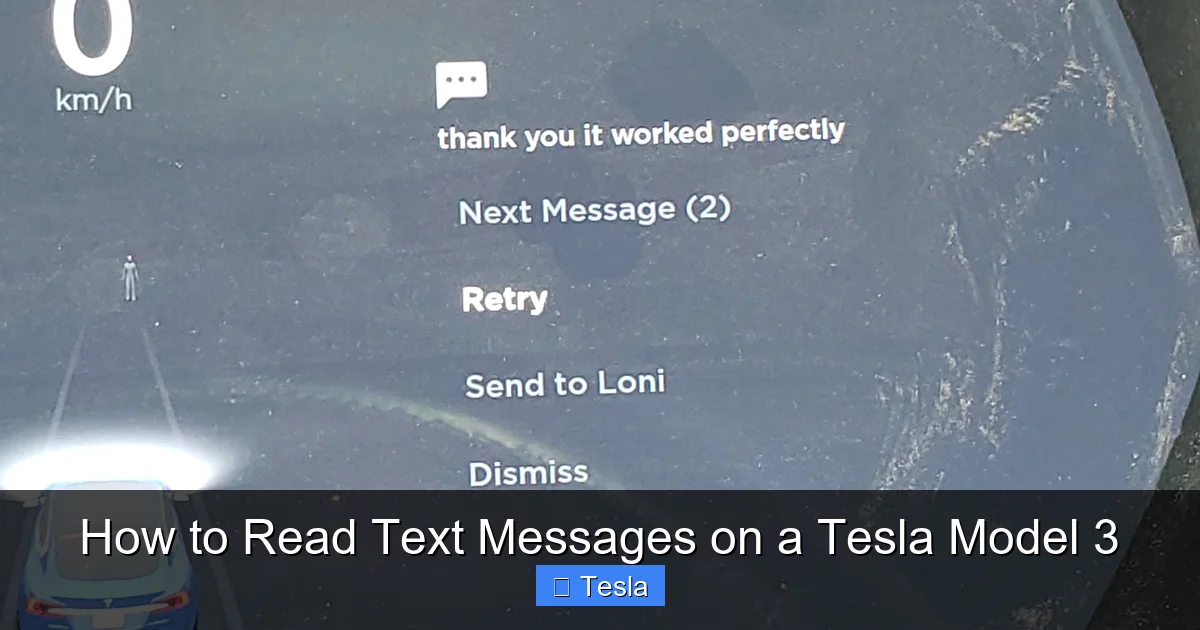
To hear the full message, you have two simple options. First, you can press the scroll wheel button on the right side of the steering wheel. A voice command prompt will appear on the screen. Say, “Read my last text message” or “Read the message from [Sender Name]”. The car will audibly read the entire text. The second method is even easier: if you have the notification banner visible (usually when parked), you can simply tap on it with a finger, and the car will begin reading it immediately. The text-to-speech voice is clear and surprisingly natural.
Replying with Your Voice
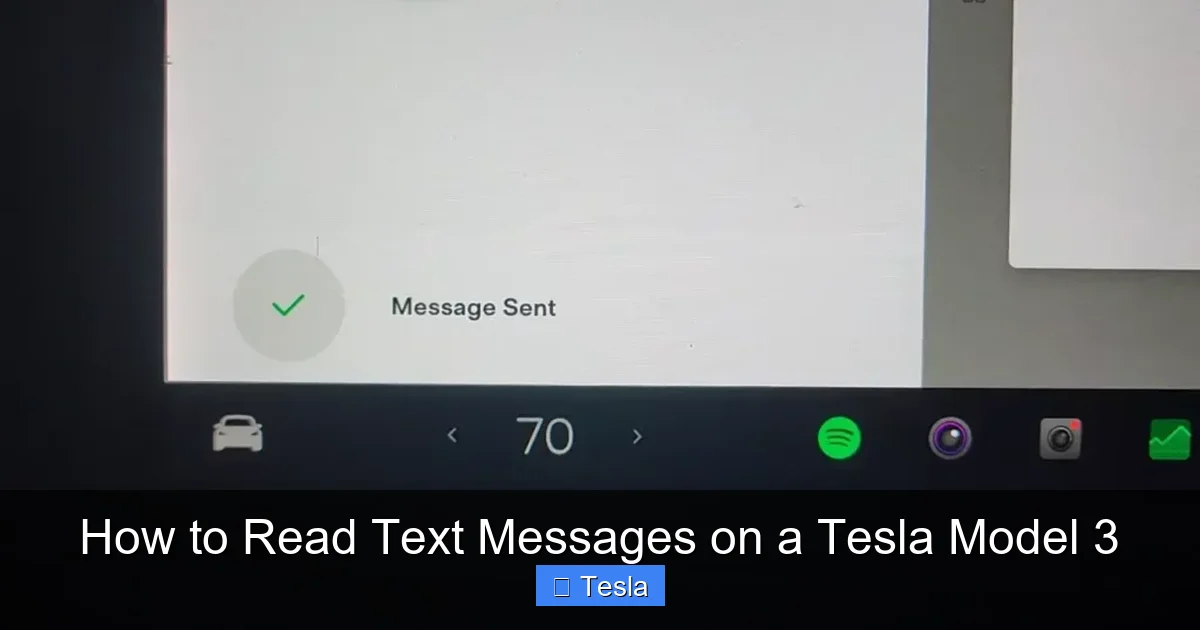
Once the message is read, the system will automatically prompt you: “Would you like to reply?”. Say “Yes”. It will then ask, “What is your message?”. Speak your reply naturally. The system will transcribe your words and display them on the screen for confirmation. You can then say “Send” or “Cancel”. If you make a mistake, you can say “Edit” to try again. For quick replies, you can also use pre-set responses like “On my way” or “Can’t talk now,” which you can select by tapping the screen if it’s available. This entire process keeps your hands on the wheel and eyes forward.
Troubleshooting: Why Isn’t My Text Message Working?
Even with perfect setup, hiccups happen. Here are the most common issues and their fixes.
Visual guide about How to Read Text Messages on a Tesla Model 3
Image source: conversationworks.ca
Problem: No Sound or Notification When a Text Arrives
Solution: Start with the basics. Is your phone’s Bluetooth on and connected to the Tesla? Check your phone’s Bluetooth settings. Is the Tesla app (if Android) running and not force-closed? Sometimes Android’s aggressive battery saver kills the app. Disable battery optimization for the Tesla app in your phone’s settings. Next, re-check notification permissions on your phone—this is the #1 culprit. Go to your phone’s settings, find the Tesla app or Bluetooth connection, and ensure “Notifications” and “SMS” are allowed. Finally, try a simple re-pair: forget the Tesla on your phone, forget your phone in the car’s Bluetooth menu, and start the pairing process fresh.
Problem: Text Appears on Screen But Isn’t Read Aloud
Solution: The audio playback is controlled by your car’s media volume, not the ringtone volume. Use the scroll wheel on the steering wheel to increase the media volume while a text notification is active. Also, check your sound settings in the car (Settings > Sound) to ensure the “Notifications” audio source isn’t muted or turned down separately.
Problem: Only Shows “Message” Without Sender’s Name
Solution: This usually means your contacts aren’t syncing. In your car, go to Settings > Phone > [Your Phone’s Name] and ensure “Sync Contacts” is toggled on. On your phone, you must also grant the Tesla access to your contacts. On iPhone, this is part of the initial Bluetooth permission pop-up. On Android, it’s in the Tesla app’s permissions. You may need to manually trigger a sync by turning Sync Contacts off and on again.
Privacy, Notifications, and Customization
Your text messages are personal. Tesla gives you control over what information is displayed and when.
Hiding Message Content on Screen
As mentioned, you can set your phone or the Tesla system to show only that a message arrived, not the content. On the Tesla screen, when a notification banner appears, you can often swipe it away or tap a ‘hide’ icon. More permanently, the setting is usually on your phone. On iPhone, go to Settings > Notifications > Messages > Show Previews and select “When Unlocked” or “Never.” On Android, within the Tesla app’s notification settings, look for an option to hide content. This way, if someone glances at your screen while you’re parked, they won’t see your private conversation. For broader cabin privacy, consider window tinting to limit outside visibility into your vehicle.
Managing Which Notifications You Get
Do you really need your car to alert you about every WhatsApp message, Facebook notification, and game invite? Probably not. In your phone’s notification settings for the Tesla Bluetooth connection or app, you can granularly control which apps send notifications to the car. Turn off everything except your primary SMS/MMS app (Messages, Google Messages, etc.). This reduces clutter and ensures you only hear about truly important texts. You can also adjust the “Do Not Disturb” mode in your Tesla (Settings > Safety & Security > Cabin > Do Not Disturb) to silence all notifications during certain hours or while driving.
The Future of In-Car Messaging and Final Thoughts
Tesla’s approach is minimalist and voice-centric today, but it’s evolving. Future software updates could bring deeper integration, like support for more messaging platforms (WhatsApp, Telegram) directly through the Tesla interface, richer voice command understanding, or even predictive replies based on context. The foundation is solid, and Tesla’s over-the-air update model means the feature you have today could be significantly better tomorrow.
In conclusion, reading text messages on your Tesla Model 3 is a brilliant blend of convenience and safety. It requires a one-time setup of about five minutes, primarily involving Bluetooth pairing and granting notification permissions. Once done, you’ll wonder how you ever drove without it. Remember to use the voice commands as your primary interaction method, configure your privacy settings to your comfort level, and don’t hesitate to re-pair if things go stale. This feature is a perfect example of how modern electric vehicles like the Model 3 leverage technology to reduce distraction, not add to it. So go ahead, set it up, and enjoy a more connected, safer ride. And if you’re looking to further personalize your Tesla experience, from aesthetic wraps to functional upgrades, there’s a whole world of customization options out there for your Model 3.
Frequently Asked Questions
Can I read text messages on a Tesla Model 3 with any phone?
Yes, the system works with both iPhone and Android smartphones. For Android, installing the official Tesla app is recommended for the most reliable notification delivery. The core requirement is a Bluetooth-capable phone with SMS permissions granted to the Tesla connection.
Is it safe to look at the text on the screen while driving?
No, it is not safe. The Tesla Model 3 is designed to prioritize audio interaction. While the message text may briefly appear on the screen when the car is in Park, the intended safe usage is to have messages read aloud and reply via voice commands while the vehicle is moving. Always keep your eyes on the road.
How do I reply to a text if I don’t want to use voice?
The primary reply method is voice command. However, if your car is in Park and the text notification is visible on the screen, you can tap it to expand and then tap a pre-set quick reply like “On my way.” For custom messages, voice dictation is the only hands-on method while the car is in Drive.
Why did my text messaging suddenly stop working?
This is usually due to a lost Bluetooth connection or revoked phone permissions. First, check that your phone’s Bluetooth is on and connected to the Tesla. Second, go to your phone’s settings and verify that the Tesla app/Bluetooth device still has permission to access your notifications and SMS. Re-pairing the devices often resolves the issue.
Can I prevent the message content from showing on the Tesla screen?
Yes. You can configure your phone’s notification settings to hide message previews when connected to the car. On iPhone, adjust this in Settings > Notifications > Messages. On Android, find the setting within the Tesla app’s notification controls. The car will still alert you audibly, but the screen will only show that a message arrived, not its content.
Will Tesla add support for other messaging apps like WhatsApp?
It’s possible. Tesla frequently updates its software over the air. While native support for third-party apps hasn’t been announced, the company is always improving its infotainment system. Keep your vehicle’s software updated to the latest version to access any new messaging features as they become available.







