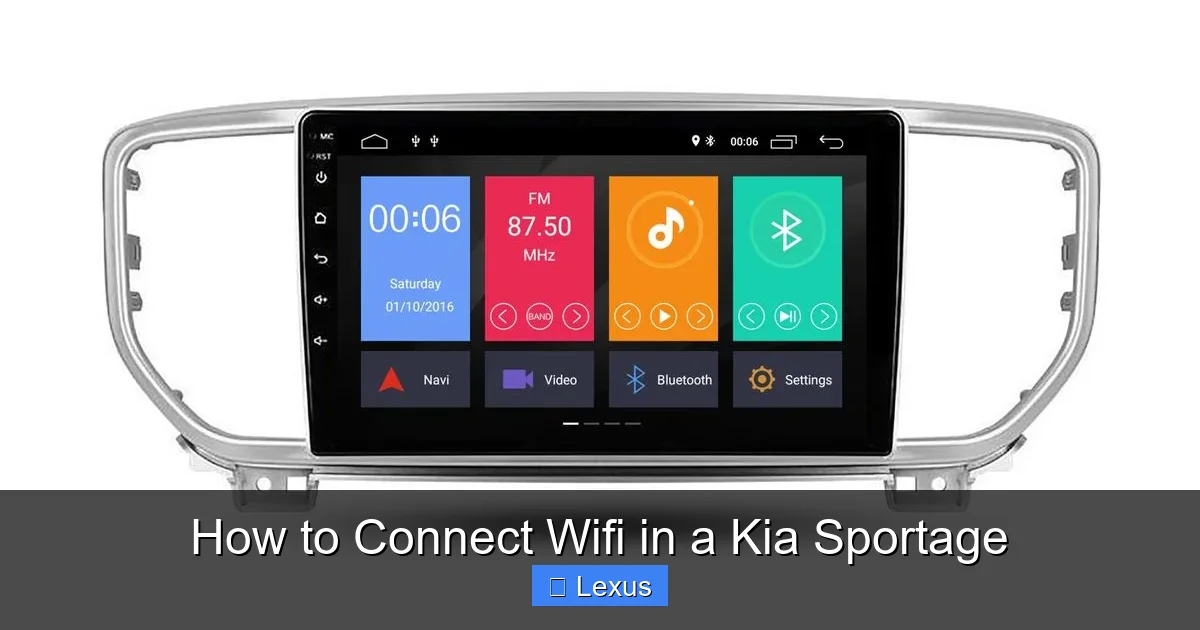
How to Connect Wifi in a Kia Sportage

Contents
- 1 Key Takeaways
- 2 📑 Table of Contents
- 3 Why Connecting WiFi in Your Kia Sportage Matters
- 4 Understanding Your Kia Sportage’s Connectivity Options
- 5 Step-by-Step Guide: Setting Up Built-in Wi-Fi in Your Kia Sportage
- 6 Using Smartphone Tethering as an Alternative
- 7 Troubleshooting Common Wi-Fi Connection Issues
- 8 Maximizing Your In-Car Wi-Fi Experience
- 9 Final Thoughts: Stay Connected, Stay Safe
- 10 Frequently Asked Questions




Connecting WiFi in a Kia Sportage is simple and enhances your driving experience with real-time navigation, streaming, and passenger entertainment. This guide walks you through built-in hotspot setup, smartphone tethering, and troubleshooting tips to keep you connected on every journey.
Key Takeaways
- Use the Built-in UVO Link Hotspot: Newer Kia Sportage models come with an integrated 4G LTE Wi-Fi hotspot powered by the UVO Link system, allowing up to 5 devices to connect simultaneously.
- Activate Through the Touchscreen: Access the Wi-Fi settings directly from the infotainment screen by navigating to Settings > Connectivity > Wi-Fi Hotspot.
- Subscribe to a Data Plan: A paid data subscription through Kia Connect (formerly UVO) is required to use the built-in hotspot—check your owner’s manual or contact Kia for plan options.
- Enable Smartphone Tethering as Backup: If the built-in hotspot isn’t available, use your phone’s mobile hotspot feature and connect via USB or Bluetooth for internet access.
- Ensure Strong Signal Reception: Wi-Fi performance depends on cellular coverage—avoid rural or underground areas where signal strength may drop.
- Keep Software Updated: Regularly update your Sportage’s infotainment system via Kia’s official portal to maintain compatibility and security.
- Troubleshoot Common Issues: Restart the system, re-enter credentials, or reset network settings if connection fails.
📑 Table of Contents
- Why Connecting WiFi in Your Kia Sportage Matters
- Understanding Your Kia Sportage’s Connectivity Options
- Step-by-Step Guide: Setting Up Built-in Wi-Fi in Your Kia Sportage
- Using Smartphone Tethering as an Alternative
- Troubleshooting Common Wi-Fi Connection Issues
- Maximizing Your In-Car Wi-Fi Experience
- Final Thoughts: Stay Connected, Stay Safe
Why Connecting WiFi in Your Kia Sportage Matters
In today’s fast-paced world, staying connected isn’t just a luxury—it’s a necessity. Whether you’re commuting to work, road-tripping with family, or running errands around town, having reliable internet access in your vehicle can make all the difference. The Kia Sportage, known for its blend of style, comfort, and advanced technology, offers built-in Wi-Fi capabilities that transform your SUV into a mobile hotspot. This means passengers can stream music, check emails, navigate with real-time traffic updates, or even join video calls while on the go.
But how exactly do you tap into this feature? Many Kia Sportage owners are unaware that their vehicle comes equipped with a built-in 4G LTE Wi-Fi hotspot, especially in models from 2017 onward. This isn’t just about convenience—it’s about safety and efficiency too. With live traffic data, you can avoid congestion and arrive faster. Parents can keep kids entertained during long drives, and remote workers can stay productive during travel. Plus, with the rise of over-the-air software updates, a stable internet connection ensures your Sportage’s systems stay current and secure.
Understanding Your Kia Sportage’s Connectivity Options
Before diving into the setup process, it’s important to understand the different ways your Kia Sportage can connect to the internet. Not all models are created equal—some rely solely on smartphone tethering, while others boast a factory-installed hotspot. Knowing which option applies to your vehicle will save you time and frustration.
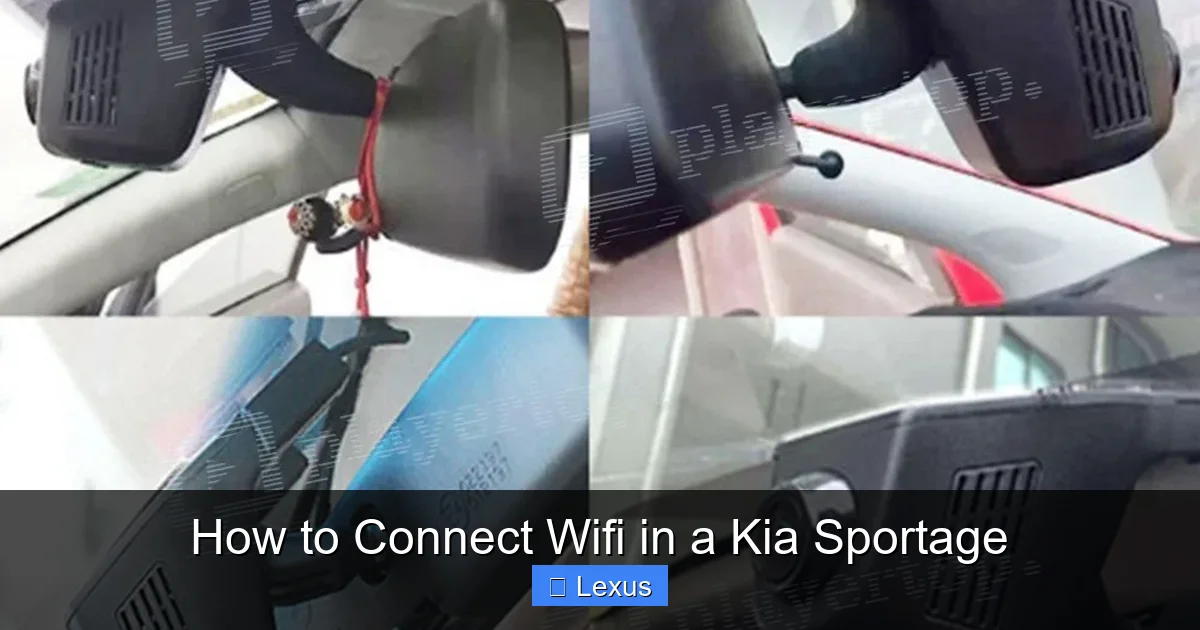
Visual guide about How to Connect Wifi in a Kia Sportage
Image source: player-top.fr
Built-in UVO Link Wi-Fi Hotspot
Starting with select 2017 models and standard in most 2020 and newer Kia Sportage trims, the UVO Link system includes an embedded modem that provides 4G LTE connectivity. This built-in hotspot allows up to five devices—like smartphones, tablets, or laptops—to connect simultaneously. Unlike tethering, this feature works independently of your phone, so you don’t drain your mobile data or battery.
To use this feature, you’ll need an active subscription to Kia Connect services. These plans typically range from $10 to $30 per month, depending on data limits and features. Some dealerships even offer a complimentary trial period (usually 3–6 months) when you purchase a new Sportage. Check your owner’s manual or visit the Kia Connect website to explore available plans.
Smartphone Tethering (USB or Bluetooth)
If your Sportage doesn’t have a built-in hotspot—or if you prefer using your own data plan—you can still get online by tethering your smartphone. This method uses your phone’s cellular connection and shares it with the vehicle’s infotainment system.
There are two main ways to tether: via USB cable or Bluetooth. USB tethering tends to be more stable and faster, especially for navigation and streaming. Simply plug your phone into the USB port (usually located in the center console), enable “USB Tethering” in your phone’s settings, and your Sportage should detect the connection automatically.
Bluetooth tethering is wireless but generally slower and less reliable for data-heavy tasks. It’s best suited for light browsing or checking email. To set it up, pair your phone with the Sportage via Bluetooth (Settings > Phone > Add Device), then enable “Bluetooth Tethering” in your phone’s network settings.
Aftermarket Wi-Fi Solutions
For older Sportage models without built-in connectivity, aftermarket solutions like Verizon Jetpack, Netgear Nighthawk, or even a mobile hotspot device can be used. These plug into the 12V power outlet (cigarette lighter) and broadcast their own Wi-Fi signal. While effective, they require separate data plans and add clutter to your cabin. They’re ideal for occasional use but may not integrate as seamlessly with the vehicle’s interface.
Step-by-Step Guide: Setting Up Built-in Wi-Fi in Your Kia Sportage
Now that you understand your options, let’s walk through the most common scenario: activating the built-in Wi-Fi hotspot in a modern Kia Sportage. Follow these steps carefully to ensure a smooth setup.
Visual guide about How to Connect Wifi in a Kia Sportage
Image source: player-top.fr
Step 1: Power On the Vehicle
Start your Kia Sportage and wait for the infotainment system to fully boot up. This usually takes 30–60 seconds. Avoid rushing—the system needs time to initialize all connectivity modules.
Step 2: Access the Settings Menu
On the central touchscreen, tap the “Settings” icon (often represented by a gear or wrench symbol). Navigate to the “Connectivity” or “Network” section. In newer models, this might be labeled “UVO” or “Kia Connect.”
Step 3: Enable the Wi-Fi Hotspot
Look for an option called “Wi-Fi Hotspot,” “Mobile Hotspot,” or “In-Vehicle Wi-Fi.” Tap it to open the configuration menu. Toggle the switch to “On.” You’ll see a notification confirming the hotspot is active.
Step 4: Customize Network Name and Password
For security, change the default network name (SSID) and password. Choose something unique but easy to remember—avoid personal info like your address or birthday. A strong password should include a mix of letters, numbers, and symbols (e.g., “KiaRide2024!”).
Step 5: Connect Your Devices
On your smartphone, tablet, or laptop, open the Wi-Fi settings and search for available networks. Select your Sportage’s network name, enter the password, and connect. You’re now online!
Pro Tip: Save the network on all family devices so they auto-connect in the future. Also, consider enabling “Auto-Connect” in the Sportage’s Wi-Fi settings for hassle-free access every time you start the car.
Using Smartphone Tethering as an Alternative
If your Sportage lacks a built-in hotspot or your subscription has lapsed, smartphone tethering is a reliable fallback. Here’s how to do it properly.
Visual guide about How to Connect Wifi in a Kia Sportage
Image source: player-top.fr
USB Tethering Setup
First, ensure your phone supports USB tethering (most Android and iOS devices do). Connect your phone to the Sportage’s USB port using the original charging cable. On your phone:
- Android: Go to Settings > Network & Internet > Hotspot & Tethering > USB Tethering (toggle on).
- iPhone: Go to Settings > Personal Hotspot > Allow Others to Join (toggle on). Then connect via USB and trust the device when prompted.
Within seconds, the Sportage’s screen should display a notification like “Internet Connected via USB.” You can now browse, stream, or navigate freely.
Bluetooth Tethering Setup
Pair your phone with the Sportage first (if not already done). Then:
- Android: Settings > Network & Internet > Hotspot & Tethering > Bluetooth Tethering (toggle on).
- iPhone: Bluetooth tethering isn’t natively supported—use USB or Personal Hotspot over Wi-Fi instead.
Note: Bluetooth tethering is slower and may disconnect intermittently. Use it only for light tasks.
Managing Data Usage
Tethering uses your phone’s cellular data, so monitor usage to avoid overage fees. Most carriers offer 5–20GB of hotspot data per month. Consider downloading maps or playlists offline before long trips to conserve bandwidth.
Troubleshooting Common Wi-Fi Connection Issues
Even with perfect setup, connectivity hiccups can happen. Here’s how to resolve the most frequent problems.
No Internet After Connecting
If devices show “Connected” but can’t load websites:
- Check if your Kia Connect subscription is active (log in to your Kia account online).
- Restart the infotainment system by turning the car off, waiting 2 minutes, then restarting.
- Verify cellular signal strength—look for the signal bars on the top of your screen. Weak signal = slow or no internet.
Devices Can’t Find the Network
If your phone doesn’t detect the Sportage’s Wi-Fi:
- Ensure the hotspot is enabled in Settings > Connectivity.
- Move closer to the vehicle (some devices have weak Wi-Fi receivers).
- Forget the network on your device and reconnect with the correct password.
Slow or Intermittent Connection
Buffering videos or laggy maps? Try these fixes:
- Limit connected devices to 2–3 (more devices = slower speeds).
- Close background apps on connected devices.
- Update your Sportage’s software via Kia’s official portal (Settings > System > Software Update).
Forgotten Password or Network Name
Don’t panic! Reset the hotspot settings:
- Go to Settings > Connectivity > Wi-Fi Hotspot > Reset to Default.
- Reconfigure the SSID and password as described earlier.
Maximizing Your In-Car Wi-Fi Experience
Once connected, make the most of your Sportage’s internet capabilities with these smart tips.
Use Real-Time Navigation
Apps like Google Maps or Waze leverage live traffic data to suggest faster routes. Enable “Traffic” layers and allow location access for the best results. This is especially useful during rush hour or construction zones.
Stream Music and Podcasts
Services like Spotify, Apple Music, or Pandora work flawlessly over the hotspot. Create playlists ahead of time or use voice commands (“Hey Google, play my road trip mix”) for hands-free control.
Keep Passengers Entertained
Kids bored on a long drive? Let them watch YouTube, play educational games, or video-call grandparents. Just set screen-time limits to avoid distractions for the driver.
Stay Updated and Secure
Enable automatic software updates for your Sportage’s system. This ensures bug fixes, security patches, and new features are installed promptly. Also, never share your Wi-Fi password with strangers—treat it like your home network.
Final Thoughts: Stay Connected, Stay Safe
Connecting Wi-Fi in your Kia Sportage opens up a world of possibilities—from smarter navigation to happier passengers. Whether you’re using the built-in UVO Link hotspot or tethering your smartphone, the process is straightforward once you know the steps. Remember to keep your data plan active, update your software, and monitor usage to avoid surprises.
Ultimately, in-car Wi-Fi isn’t just about entertainment—it’s about enhancing safety, efficiency, and peace of mind. With your Sportage online, every journey becomes smoother, smarter, and more enjoyable. So next time you hop in your SUV, take a moment to enable that hotspot. Your future self (and your passengers) will thank you.
Frequently Asked Questions
Does every Kia Sportage have built-in Wi-Fi?
No, only models from 2017 onward with the UVO Link or Kia Connect system include a built-in 4G LTE hotspot. Older models require smartphone tethering or aftermarket devices.
How much does Kia Connect Wi-Fi cost?
Kia Connect data plans typically range from $10 to $30 per month, depending on data allowance and features. Some new vehicles include a free trial period (3–6 months).
Can I use my phone’s data instead of Kia’s hotspot?
Yes! You can tether your smartphone via USB or Bluetooth. This uses your phone’s cellular data but doesn’t require a separate Kia subscription.
Why won’t my devices connect to the Sportage’s Wi-Fi?
Common causes include an inactive subscription, weak cellular signal, incorrect password, or outdated software. Try restarting the system or resetting network settings.
How many devices can connect to the Sportage’s hotspot?
The built-in UVO Link hotspot supports up to five devices simultaneously. For best performance, limit connections to 2–3 devices.
Is it safe to use public Wi-Fi through my Sportage?
Your Sportage’s hotspot creates a private network, so it’s secure. However, avoid accessing sensitive accounts (like banking) on public networks outside the vehicle.