

How to Change Home Address on Tesla

Contents
- 1 Key Takeaways
- 2 📑 Table of Contents
- 3 Why Your Tesla’s Home Address Is More Important Than You Think
- 4 Method 1: Changing Your Home Address via the Tesla Mobile App
- 5 Method 2: Changing Your Home Address from the Touchscreen
- 6 Troubleshooting: When the Address Won’t Change or Save
- 7 Advanced Features and Best Practices for Location Management
- 8 Conclusion: A Simple Step for a Smarter Drive
- 9 Frequently Asked Questions

Microfiber Car Cleaning Cloth

Reflective Stickers

Rear View Camera

Digital Tire Pressure Gauge
Updating your Tesla’s home address is a simple but crucial task. You can do it easily through the Tesla mobile app or directly on the car’s touchscreen. This ensures accurate navigation, optimized Autopilot routing, and a personalized driving experience. Always verify the address after moving or if your location-based features seem off.
So, you’ve just moved into a new home. The boxes are (mostly) unpacked, and you’re finally getting settled. You jump into your Tesla, ready to use the intuitive navigation to find the nearest grocery store or coffee shop. But wait—the car keeps routing you back to your old address. Sound familiar? Your Tesla’s “Home” address is a foundational setting that powers many of its smartest features, and changing it is a must-do after any relocation. But how exactly do you do it? Don’t worry, it’s far simpler than changing your windshield wipers or handling transmission fluid. This guide will walk you through every step, method, and tip you need to know to update your Tesla’s home address seamlessly.
We’ll cover both primary methods: using the Tesla app on your smartphone and navigating the touchscreen inside your vehicle. We’ll also dive into why this little setting matters so much for your daily driving experience, troubleshoot common hiccups, and share best practices to keep your location data accurate. Think of this as your complete owner’s manual for one of Tesla’s most important, yet often overlooked, digital settings.
Key Takeaways
- Two Primary Methods: Change your home address using the Tesla mobile app for convenience or the vehicle’s touchscreen for immediate updates.
- Critical for Navigation & Autopilot: An accurate home address is essential for precise route planning, traffic predictions, and smart Summon/Autopark functions.
- Update After Any Move: You must manually change your home address whenever you relocate; Tesla does not automatically detect your new residence.
- Use Exact, Verified Addresses: Always enter the complete, correct address as recognized by mapping services to avoid navigation errors.
- Ensure Location Services Are Active: Both your phone (for app use) and the vehicle’s GPS must be enabled for the address change to process correctly.
- Troubleshooting is Often Simple: Common issues like an address not saving usually involve connectivity problems, app glitches, or needing a vehicle restart.
- It’s a Digital, Not Mechanical, Process: Unlike traditional car maintenance like changing an air filter, this is a software setting update.
📑 Table of Contents
- Why Your Tesla’s Home Address Is More Important Than You Think
- Method 1: Changing Your Home Address via the Tesla Mobile App
- Method 2: Changing Your Home Address from the Touchscreen
- Troubleshooting: When the Address Won’t Change or Save
- Advanced Features and Best Practices for Location Management
- Conclusion: A Simple Step for a Smarter Drive
Why Your Tesla’s Home Address Is More Important Than You Think
Before we jump into the “how,” let’s talk about the “why.” Your Tesla’s home address isn’t just a static label. It’s a dynamic piece of data that actively informs the vehicle’s software. Getting it right directly impacts the convenience and intelligence you expect from your car.
The Navigation System’s North Star
At its most basic, your home address is the default destination for one-touch navigation. Tap the “Home” icon on your touchscreen or in the app, and your Tesla will plot the quickest route back. But it goes deeper. The navigation system uses your home location as an anchor point for predicting traffic patterns, estimating commute times, and offering proactive routing suggestions. If your home address is wrong, all these predictions become useless or even misleading. It’s like having a GPS with a faulty starting point—every destination calculation will be skewed.
Autopilot, Traffic-Aware Cruise Control, and Smart Summon
This is where things get really interesting. Tesla’s advanced driver-assistance systems (ADAS) leverage your home address for smarter behavior. For example, Traffic-Aware Cruise Control and Autosteer learn from your regular routes. If your daily commute from your (old) home to work is consistently congested at 5 PM, the system might automatically adjust following distances or suggest lane changes based on that historical data. An incorrect home address means the car is learning from the wrong patterns.
Smart Summon, which allows you to call your car to you from a parking spot, also benefits. While it uses your phone’s GPS for the final pull-up, having the correct home address saved helps the car understand its “base” location, which can influence its initial movement logic in complex parking lots. It’s all about context.
Personalization and “Welcome Home” Features
Your Tesla aims to personalize your experience. Some software updates have introduced features that trigger based on location. While not as elaborate as a home thermostat, the concept is similar. Having the correct home address allows Tesla’s software to potentially offer location-based reminders or automations in the future. More immediately, it ensures that any “favorite” locations you set relative to your home (like “My Gym” or “Kids’ School”) are calculated from the right starting point.
Method 1: Changing Your Home Address via the Tesla Mobile App
This is often the quickest and most convenient method, especially if you’re not near your car. The Tesla app is a powerful companion to your vehicle, and address management is one of its core functions.
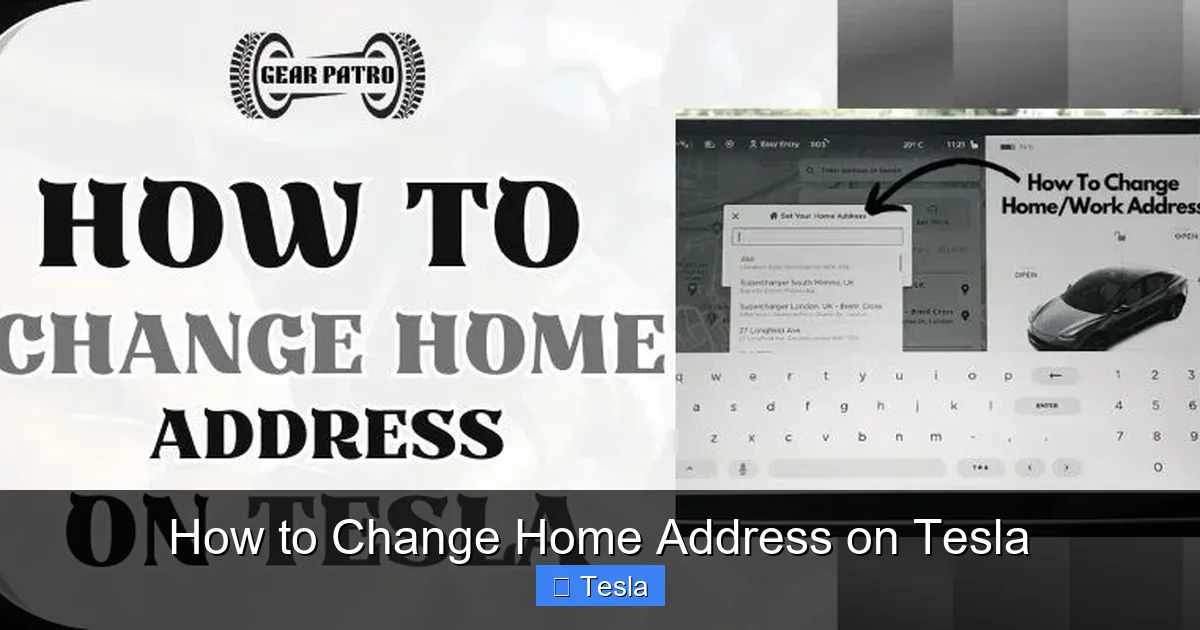
Visual guide about How to Change Home Address on Tesla
Image source: gearpatro.com
Step-by-Step Guide for the Mobile App
Prerequisite: Ensure your smartphone has an active internet connection (Wi-Fi or cellular data) and that you are logged into the Tesla app with the same account linked to your vehicle. Your car must also have a network connection (cellular or Wi-Fi).
- Open the Tesla App: Launch the application on your iPhone or Android device.
- Select Your Vehicle: If you have multiple Teslas linked to your account, ensure you have the correct one selected at the bottom of the screen.
- Navigate to ‘Controls’: Tap the large “Controls” button, typically represented by a car icon or the letter “C”.
- Find ‘Location’ Settings: Scroll down through the control panels. Look for the section labeled “Location” or sometimes “Navigation.” You might see a map preview with your current saved home address.
- Tap ‘Home’ or ‘Set Home’: Tap on the existing home address or the “+” button next to “Home.” This will open a new address entry screen.
- Enter the New Address: Carefully type in your new, complete street address. As you type, the app will suggest completions from its mapping database. Pro Tip: Select the suggestion from the dropdown list rather than hitting enter. This ensures the address is in the exact format Tesla’s navigation system recognizes. You can also use your voice dictation to enter it hands-free.
- Save: Once the full, correct address appears, tap “Save” or “Set as Home.” You should see a brief confirmation message like “Home address updated.”
That’s it! The change is sent wirelessly to your Tesla. The next time you get in the car, it will already know its new home base. The sync is nearly instantaneous.
Tips for a Flawless App Update
- Use the App’s Autocomplete: Always select from the suggested addresses. Manually typing “123 Main St” might not link to the correct geographic coordinates that the car’s GPS uses.
- Check for App Updates: An outdated Tesla app can sometimes cause syncing issues. Ensure you have the latest version from the App Store or Google Play.
- Vehicle Connectivity is Key: Your car needs to be awake and connected to the Tesla network for the update to push through. If your car is in a deep sleep or a parking garage with no signal, the update will queue and deliver once connectivity is restored.
Method 2: Changing Your Home Address from the Touchscreen
If you’re already in your car—perhaps you just pulled into the driveway of your new home—changing the address directly on the touchscreen is just as easy. This method doesn’t rely on your phone’s connection.

Visual guide about How to Change Home Address on Tesla
Image source: gearfixup.com
Navigating the Touchscreen Menu
Prerequisite: Your Tesla must be in “Park” and powered on (touchscreen active).
- Enter ‘Settings’: Tap the “Controls” icon (the car) on the bottom center bar of your touchscreen, then tap the “Settings” gear icon on the right side of the panel that appears.
- Go to ‘Navigation’: In the Settings menu, scroll down and select “Navigation.”
- Locate ‘Home’: You’ll see fields for “Home,” “Work,” and other saved locations. Tap on the current “Home” address.
- Edit Address: You’ll be presented with a map view and an address search bar at the top. You can either:
- Drag the Pin: Manually move the map pin to your exact house location. This is useful if the address search is slightly off.
- Search: Tap the search bar and type your new address. Again, select from the suggested completions for best results.
- Save: Once the pin is on your correct house or the address appears correctly in the search bar, tap “Save” or “Done.” The system will confirm the update.
Saving and Verifying the New Address
After saving, it’s a great habit to verify. Exit the settings and return to the main “Navigation” map (tap the “Navigation” icon on the bottom bar). Tap the “Home” shortcut. The route should now calculate from your new address. You can also start a route to your old address to see that it’s no longer set as “Home.”
Troubleshooting: When the Address Won’t Change or Save
It’s rare, but you might encounter a snag. Here’s how to handle the most common issues without needing a service visit.
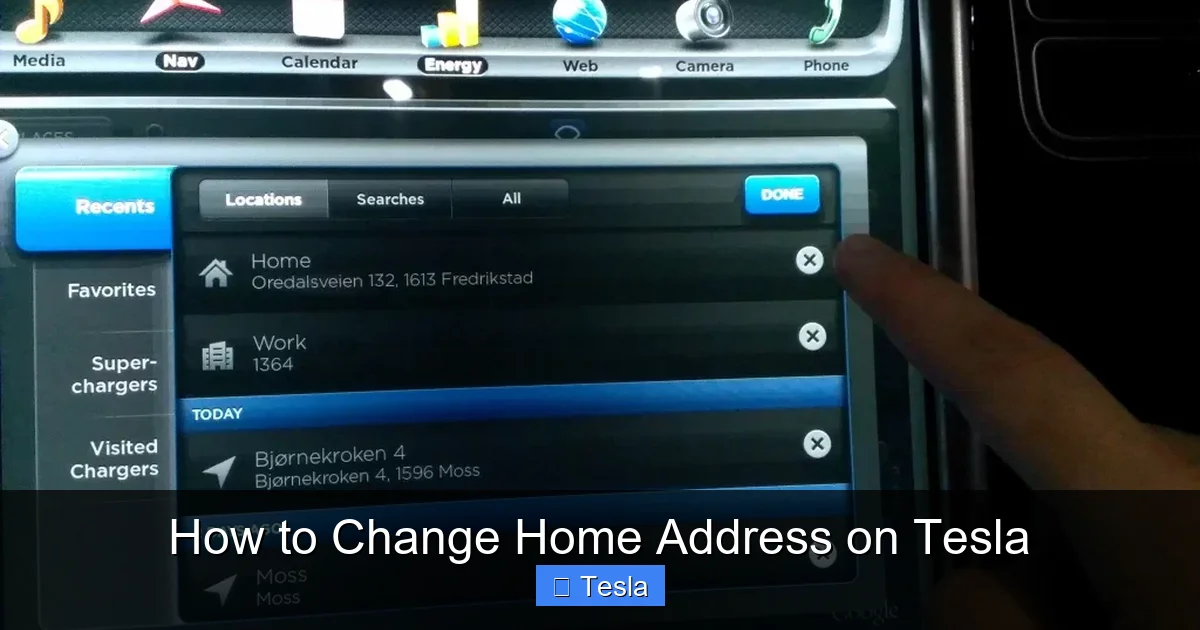
Visual guide about How to Change Home Address on Tesla
Image source: gearfixup.com
“Address Not Saving” or “Cannot Connect” Errors
This usually points to a connectivity issue.
- For App Method: Check your phone’s internet. Toggle Airplane mode on and off. Restart the Tesla app completely (remove it from recent apps and reopen). Ensure your car is within cellular range and awake (try opening a door or using the app to honk the horn to wake it).
- For Touchscreen Method: If the touchscreen itself is unresponsive or slow, a reboot is the first step. Hold down both scroll wheels on the steering wheel until the screen goes black and the Tesla “T” logo reappears (about 30-60 seconds). After the reboot, try setting the address again.
The Saved Address Keeps Reverting
If the address changes but later reverts to the old one, there might be a sync conflict between your app account and the car’s internal profile.
- Log out of the Tesla app and log back in.
- On the touchscreen, go to “Safety & Security” > “Sign Out.” Then sign back in with your Tesla account credentials. This forces a fresh sync.
- As a last resort, you can remove the saved “Home” address entirely from both the app and touchscreen, then re-add it from scratch using the new address.
When to Contact Tesla Support
If you’ve tried rebooting the car, restarting the app, checking connections, and even power cycling your vehicle (by putting it in “Park,” exiting, and waiting 15 minutes for a full sleep cycle), the issue may be deeper. Use the “Help” section in the Tesla app to submit a service request. Describe the steps you’ve taken. It could be a rare software bug that needs a patch from Tesla’s over-the-air update system, which is fundamentally different from resetting an oil change light on a Dodge Grand Caravan.
Advanced Features and Best Practices for Location Management
Once your home address is set correctly, you can leverage other location features and adopt habits to avoid future headaches.
Setting Multiple Key Locations (Work, Favorite Chargers)
Don’t stop at “Home” and “Work.” Use the same “Navigation” settings menu to save any location you visit frequently: a parent’s house, a favorite vacation spot, or your regular Supercharger. These become one-tap destinations. For Superchargers, you can even set them as “Home” or “Work” if that’s your primary charging location, making route planning to them automatic.
Keeping Your Address Updated Proactively
- Update Immediately After Moving: Make changing the home address part of your “new home” checklist, alongside changing cabin air filters in other vehicles or updating your mailing address with the post office.
- Verify After Major Road Changes: If a new highway, roundabout, or street is built near you, your “shortest route” to home might change. While the address itself doesn’t need updating, be aware that navigation algorithms may adjust over time.
- Use Different Profiles for Different Drivers: If multiple people drive the Tesla, each can have their own driver profile with their own saved “Home” address. Ensure the correct profile is selected when driving.
The Difference Between “Home” and “Default Navigation Start”
Be aware of a subtle point: your “Home” address is a saved location. The navigation system’s default start point is usually your car’s current GPS location. If you manually set a destination while away from home, the route will calculate from where you are, not from your saved “Home.” The “Home” button is simply a shortcut to route to that saved point. This is why it’s vital for the saved point itself to be accurate.
Conclusion: A Simple Step for a Smarter Drive
Changing your home address on a Tesla is one of the easiest yet most impactful adjustments you can make. It takes less than 60 seconds via the app or touchscreen, but it pays dividends every single time you use navigation, engage Autopilot, or summon your car. Unlike complex mechanical maintenance tasks, this is a pure digital setting—no tools, no under-hood work, just a few taps.
Remember the core steps: open the app or settings, find the “Home” field, enter the precise new address using autocomplete, and save. If you hit a snag, a simple reboot of the car or app solves 95% of problems. Make it a habit to review your saved locations periodically, especially after a move. By keeping this foundational piece of data current, you ensure your Tesla remains the intelligent, personalized driving machine it was designed to be, always ready to guide you accurately to the place you call home.
Frequently Asked Questions
Can I change my Tesla’s home address without an internet connection?
No. Both the mobile app and touchscreen methods require an active internet connection to sync the new address to Tesla’s servers and your vehicle’s profile. The touchscreen method needs the car to have a cellular or Wi-Fi connection.
What if I enter my new address but the navigation pin lands on the wrong house or street?
Always use the autocomplete suggestions from Tesla’s mapping service as you type. If the pin is still off, use the manual pin-drag feature on the touchscreen to nudge it to your exact roof location. Save that precise position.
Do I need to change my home address in both the app and the car?
No. Changing it in one location (app or touchscreen) automatically syncs to the other. They are simply two different interfaces to the same underlying account setting.
Will changing my home address affect my saved “Work” address or other favorite locations?
No. Each saved location (Home, Work, Favorites) is stored independently. Changing your Home address will not alter your Work address or any other saved points.
My Tesla is a loaner or rental. Should I change the home address?
It’s generally not recommended. The home address is tied to the primary owner’s account. If you need navigation to your own home, simply search for and navigate to it as a one-time destination without saving it as “Home.”
Is there a limit to how many times I can change my home address?
There is no practical limit. You can update it as frequently as needed. The system is designed for this kind of dynamic personalization, unlike older vehicles where settings might be harder-coded.







