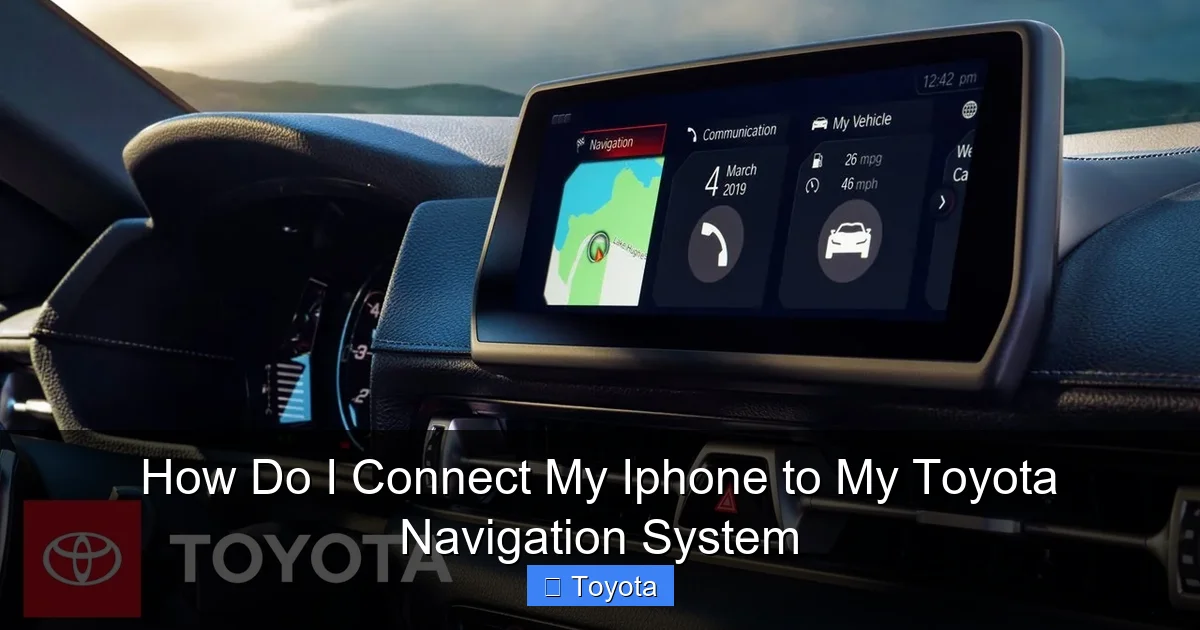
How Do I Connect My Iphone to My Toyota Navigation System

Contents
- 1 Key Takeaways
- 2 📑 Table of Contents
- 3 Let’s Get You Connected: Introduction
- 4 Understanding Your Toyota’s Infotainment System
- 5 Method 1: The Wired Connection (USB Apple CarPlay)
- 6 Method 2: Going Cord-Free with Wireless Apple CarPlay
- 7 Method 3: Bluetooth Pairing (For Audio and Calls Only)
- 8 Troubleshooting: Why Won’t My iPhone Connect?
- 9 Beyond the Basics: Tips and Advanced Notes
- 10 Conclusion: Your Journey, Simplified
- 11 Frequently Asked Questions

Car Emergency Roadside Kit

Car Wax Polish

Waterless Car Wash Spray

Car Scratch Remover
Connecting your iPhone to your Toyota’s navigation system is straightforward using Apple CarPlay or Bluetooth. Most Toyotas from 2017 onward support Apple CarPlay, which mirrors your iPhone’s apps, including Google Maps and Apple Maps, onto the factory touchscreen. You can connect via USB for a wired connection or use wireless CarPlay if your vehicle supports it. For basic audio and calls, a simple Bluetooth pairing works. This guide walks you through every method, step-by-step.
Key Takeaways
- Check Compatibility First: Apple CarPlay is standard on most Toyota models from 2017 onward. Verify your specific model and year in the vehicle settings or owner’s manual.
- USB is the Most Reliable Method: A wired connection using a high-quality USB cable provides a stable link for Apple CarPlay and often charges your phone simultaneously.
- Wireless CarPlay Requires Specific Models: Only certain newer Toyota models (like some 2020+ RAV4, Camry, Highlander) support wireless Apple CarPlay, which eliminates the cable after the initial setup.
- Bluetooth is for Audio/Calls Only: You cannot navigate using your iPhone’s maps through Bluetooth. It only streams music and handles phone calls.
- Troubleshooting Often Involves Simple Steps: Restarting your phone, updating your Toyota’s software, or trying a different USB port/cable resolves most connection issues.
- Your Phone’s Settings Matter: Ensure “CarPlay” is enabled in your iPhone’s Settings > General, and that screenTime restrictions aren’t blocking the connection.
[FEATURED_IMAGE_PLACEHOLDER]
📑 Table of Contents
- Let’s Get You Connected: Introduction
- Understanding Your Toyota’s Infotainment System
- Method 1: The Wired Connection (USB Apple CarPlay)
- Method 2: Going Cord-Free with Wireless Apple CarPlay
- Method 3: Bluetooth Pairing (For Audio and Calls Only)
- Troubleshooting: Why Won’t My iPhone Connect?
- Beyond the Basics: Tips and Advanced Notes
- Conclusion: Your Journey, Simplified
Let’s Get You Connected: Introduction
There’s nothing quite like the frustration of pulling out your phone to look up a destination while driving, only to fumble with mounts and cables. The good news is that your Toyota is designed to work seamlessly with your iPhone, bringing your favorite apps and navigation directly to your dashboard. Connecting your iPhone to your Toyota’s navigation system isn’t just about convenience; it’s about safety and making the most of your vehicle’s technology.
The primary way to do this is through Apple CarPlay, Apple’s smart interface that projects your iPhone’s core functions onto your car’s built-in screen. For many drivers, this means saying goodbye to the clunky, built-in Toyota navigation system and using the superior, always-updated Google Maps or Apple Maps instead. This guide will cover every method, from the simple plug-and-play USB connection to the cable-free magic of wireless CarPlay, and even the more limited Bluetooth option. We’ll break it down for every Toyota model, so you can get back to the road with confidence.
Understanding Your Toyota’s Infotainment System
Before we dive into cables and settings, it helps to know what system you’re talking to. Toyota uses a few different names for its dashboard computer, but they all serve the same purpose. The most common is Toyota Entune, which was the standard for years. Newer models use the Toyota Audio Multimedia system, which is faster and more feature-rich. Both systems are the gateway for connecting your iPhone.
Visual guide about How Do I Connect My Iphone to My Toyota Navigation System
Image source: i.ytimg.com
What is Apple CarPlay?
Apple CarPlay is the star of the show. It’s a standardized interface developed by Apple that allows your iPhone to take over the infotainment screen in a safe, driver-focused way. You’ll see familiar app icons for Maps, Messages, Music, Podcasts, and compatible third-party apps like Spotify or Audible. You control it via the car’s touchscreen, voice commands with Siri, or sometimes physical knobs and buttons. The navigation you use is your iPhone’s Maps or Google Maps app, which is almost always more current and intuitive than the factory-installed Toyota navigation system that might be stored on a hard drive or SD card.
How to Check if Your Toyota Has Apple CarPlay
Model Year is Your First Clue: Apple CarPlay became widely available as a standard or optional feature on most Toyota models starting in the 2017 model year. Some 2016 models had it as an option. If you have a 2015 or older vehicle, you likely do not have factory Apple CarPlay support without an aftermarket head unit.
Look for the Logo: The easiest way is to look at your vehicle’s infotainment screen or center console. You should see a small white Apple CarPlay logo (a Car icon inside a smartphone outline) on a sticker or screen during startup. You can also usually find a “CarPlay” icon on the home screen of your infotainment system.
Check Your Settings: Go to your Toyota’s infotainment settings menu. Look for sections like “Apple CarPlay,” “Smartphone Link,” or “Device Connections.” If the option is there, your vehicle supports it. If you’re still unsure, your Toyota dealer can look up your VIN and tell you definitively what features your specific vehicle was built with.
Method 1: The Wired Connection (USB Apple CarPlay)
This is the most universally compatible and reliable method. If your Toyota supports Apple CarPlay, it almost certainly supports it via a USB connection. This method is perfect for everyone, from tech beginners to enthusiasts who want a stable connection.

Visual guide about How Do I Connect My Iphone to My Toyota Navigation System
Image source: diycarexpert.com
Step-by-Step Wired Setup
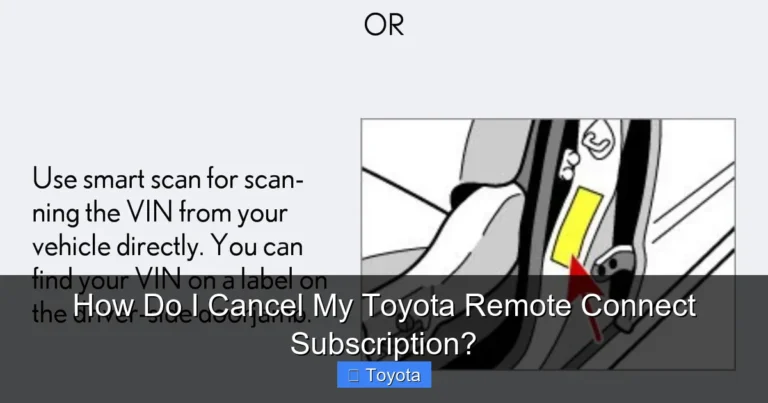
Step 1: Locate the Correct USB Port. This is the most critical step. Not all USB ports in your Toyota are for data. Many are “charge-only” ports meant just for power. You need the port specifically labeled for Apple CarPlay or Data. It’s often found in the center console, below the climate controls, or in the dashboard storage bin. It may have a small smartphone or CarPlay icon next to it. If you’re unsure, try each USB port—the correct one will usually trigger a prompt on your screen when you plug in your iPhone.
Step 2: Use a High-Quality Cable. Avoid cheap, no-name cables. Use an Apple-certified MFi cable or a reputable brand like Anker or Belkin. A damaged or low-quality cable is the #1 cause of failed connections. Make sure the cable fits snugly in both the phone and the car’s port.
Step 3: Connect and Accept. With your Toyota’s ignition in the ON or ACC position (engine doesn’t need to be running), plug your iPhone into the correct USB port. Your Toyota’s screen should go black for a second, then light up with the Apple CarPlay logo and interface. On your iPhone, you may see a prompt asking to allow CarPlay while locked—tap “Allow.” You might also be asked to enable “CarPlay” in your iPhone’s Settings if it’s your first time.
Step 4: Launch and Navigate. Once connected, the CarPlay home screen appears. Tap the Maps icon (or your preferred navigation app like Google Maps if you have it installed) to start navigating. You can use Siri by holding the voice command button on your steering wheel or saying “Hey Siri” if your iPhone is set up for it.
Which Toyota Models Support Wired CarPlay?
Virtually all Toyota models with Apple CarPlay support the wired USB method. This includes popular models like the Camry, Corolla, RAV4, Highlander, Tacoma, Tundra, Sienna, and Prius from 2017 onward. For specific model-year details, your owner’s manual is the best resource.
Pro Tip: The Charge-and-Play Advantage
The wired connection’s biggest perk is that it keeps your iPhone charged, especially on long trips. No more worrying about a dying phone battery mid-journey. Just remember to use a good cable, as a frayed cable can interrupt both power and data transfer.
Method 2: Going Cord-Free with Wireless Apple CarPlay
Wireless Apple CarPlay is the ultimate convenience. Once the initial Bluetooth pairing is done, your iPhone connects automatically every time you start your car—no cable required. However, this feature is not available on all Toyota models.

Visual guide about How Do I Connect My Iphone to My Toyota Navigation System
Image source: image6.slideserve.com
Do You Have Wireless CarPlay?
Wireless CarPlay became available on select Toyota models starting around 2020-2021. It’s typically found on higher trims. Models known to offer it include:
- 2020 and newer RAV4 (on certain trims like Limited or Prime)
- 2020 and newer Camry
- 2020 and newer Highlander
- 2022 and newer Tundra
- Some Lexus models (which share technology with Toyota)
The easiest way to confirm is to see if your infotainment system has a “Wireless Apple CarPlay” option in the smartphone connection settings menu, or if you see a small wireless signal icon next to the CarPlay logo.
How to Set Up Wireless CarPlay
The setup requires a one-time USB connection to establish the trust between your phone and car.
- First, Connect via USB: Follow the exact steps in Method 1. Plug your iPhone into the correct USB port and allow CarPlay when prompted.
- Enable Wireless Option: Once the wired CarPlay session is active, go to your Toyota’s infotainment settings. Navigate to the Apple CarPlay or smartphone connection menu. You should see an option like “Connect Wirelessly” or “Wireless Connection”. Turn this ON.
- Disconnect the Cable: Unplug your iPhone. Your car’s screen may go blank for 10-20 seconds as it searches for your phone via Bluetooth and Wi-Fi.
- Automatic Reconnection: If successful, the CarPlay interface should reappear. From now on, whenever you start your Toyota and your iPhone’s Bluetooth and Wi-Fi are on, it should connect automatically. The first connection after startup can take 15-30 seconds.
Requirements and Limitations
For wireless CarPlay to work, your iPhone must have iOS 9 or later (all modern iPhones do). Both your car and phone need to have Bluetooth and Wi-Fi enabled. Note that wireless CarPlay uses your car’s Wi-Fi to create a direct, high-speed link with your phone. This does not use your cellular data plan. However, using navigation apps like Google Maps or Apple Maps will still consume data from your cellular plan for map tiles and traffic info.
Important: If your Toyota does not have an official wireless CarPlay option, do not try to “hack” it by enabling Bluetooth first. The system is designed to initiate the connection via USB. Third-party adapters that claim to add wireless CarPlay exist but can be unreliable and may void warranties.
Method 3: Bluetooth Pairing (For Audio and Calls Only)
This is the oldest method of phone integration and is often confused with full navigation integration. Bluetooth pairing does NOT allow you to use your iPhone’s navigation apps on your Toyota’s screen. It only streams audio (music, podcasts, audiobooks) and handles hands-free phone calls. You will still have to look at your iPhone’s screen for turn-by-turn directions, which is not recommended and often illegal while driving.
When to Use Bluetooth
Use Bluetooth if:
- Your Toyota is too old to have Apple CarPlay (pre-2017).
- You only care about music and calls and use the built-in Toyota navigation system (which you input destinations to manually).
- You are troubleshooting and need to disconnect CarPlay temporarily.
How to Pair Your iPhone via Bluetooth
- On Your Toyota: Go to the infotainment settings menu. Find “Bluetooth,” “Bluetooth Settings,” or “Add Device.” Select “Add New Device” or a similar option. The system will become discoverable and may show a PIN.
- On Your iPhone: Go to Settings > Bluetooth. Make sure Bluetooth is ON. Your Toyota should appear in the list of “Other Devices” (it might be named something like “Toyota” or your vehicle’s model year). Tap it.
- Confirm PIN: If a PIN is shown on both screens, confirm they match and accept/pair on both devices.
- Set as Primary: Your iPhone may ask if you want to set the Toyota as a “Favorite” or “Primary” device for auto-connection. Say yes.
Once paired, you can select your Toyota as the audio output source in your iPhone’s Control Center or in apps like Music or Podcasts. For calls, you can answer/hang up using steering wheel buttons.
Troubleshooting: Why Won’t My iPhone Connect?
Even with the right equipment, connection gremlins happen. Here’s a systematic approach to fix the most common issues.
“No Signal” or “CarPlay Not Available” on Screen
Solution: This is almost always a USB port or cable issue. First, ensure you are using the correct data USB port (see Method 1, Step 1). Try a different, known-good Apple-certified cable. Try a different USB port if available. Restart your iPhone and restart your Toyota’s infotainment system (hold the power/audio button for 10+ seconds, or consult manual for a soft reset).
CarPlay Connects But Cuts In and Out
Solution: A failing cable is the prime suspect. Replace the cable. If using wireless CarPlay, ensure your iPhone’s Bluetooth and Wi-Fi are both ON (Wi-Fi must be on, even if not connected to a network). There can also be interference. Try moving your iPhone away from the infotainment screen or other electronics. A software update for your Toyota’s system can also fix wireless stability bugs—check with your dealer.
iPhone Prompts “Allow CarPlay” But Nothing Happens After Tapping Allow
Solution: This is often a settings issue on the iPhone. Go to Settings > General > CarPlay. Under “My Cars,” you should see your Toyota listed. Tap it and make sure “Connect to Car” is toggled ON. You can also remove the car from this list, reconnect via USB, and re-pair from scratch.
Bluetooth Pairing Fails
Solution: “Forget” the Toyota device on your iPhone (Settings > Bluetooth > tap the “i” next to Toyota > Forget This Device). Also, delete your iPhone from the Toyota’s Bluetooth memory list (in the car’s settings). Then, restart both devices and try pairing again from step one.
General Reset Steps
If all else fails:
- Restart your iPhone. A simple reboot clears temporary glitches.
- Update Everything: Make sure your iPhone is running the latest iOS version (Settings > General > Software Update). Check if your Toyota has a pending software update for its infotainment system. Dealer updates may be required for some models.
- Check for Restrictions: If your iPhone has Screen Time restrictions enabled, they might block CarPlay. Go to Settings > Screen Time > Content & Privacy Restrictions > Allowed Apps and ensure CarPlay is allowed.
Beyond the Basics: Tips and Advanced Notes
Using Google Maps or Waze
Once Apple CarPlay is connected, you can use any navigation app that supports CarPlay. Google Maps and Waze are both excellent, free options that often have more up-to-date traffic and road info than Apple Maps. Simply install the app on your iPhone, and its icon will appear on your CarPlay home screen. For a deep dive into specifically using Google Maps with your Toyota system, you can refer to our dedicated guide on connecting Google Maps to Toyota navigation.
Model-Specific Considerations
While the core process is the same, button layouts and menu names can vary. For example, connecting an iPhone to a Toyota Sienna with its rear seat entertainment system might involve extra steps for rear passenger streaming. Similarly, the process in a rugged Tacoma might have the USB port in a different location than a sleek Camry. If you drive a Highlander and run into model-specific quirks, our article on how to connect an iPhone to a Toyota Highlander addresses those particularities.
Safety First
Never try to set up or adjust your CarPlay connection while the vehicle is moving. Pull over safely. Once set up, use voice commands with Siri (“Hey Siri, get directions to 123 Main Street”) to minimize distractions. The system is designed to keep your eyes on the road.
Conclusion: Your Journey, Simplified
Connecting your iPhone to your Toyota’s navigation system via Apple CarPlay is one of the best upgrades you can make to your daily drive. It transforms your car’s dashboard into a powerful, personalized command center with maps, music, and messaging at your fingertips. Start with the simple, reliable USB method. If your vehicle supports it, enjoy the freedom of wireless CarPlay. Remember, Bluetooth is just for audio and calls—for true navigation on the big screen, you need Apple CarPlay.
With a compatible vehicle, a good cable, and a few minutes of setup, you’ll be navigating with the power of your iPhone in no time. If you hit a snag, work through the troubleshooting steps methodically. And always prioritize safety: set your destination before you shift into drive, and let your voice be your co-pilot. Safe travels!
Frequently Asked Questions
Do I need an adapter or special cable to connect my iPhone to my Toyota?
No adapter is needed for Apple CarPlay. You only need a standard USB-A to Lightning cable (or USB-C to USB-C if your car has a USB-C port). For wireless CarPlay, no cable is needed after the initial one-time USB setup. Bluetooth pairing uses no cable at all.
Why does my iPhone say “CarPlay Not Available” when I plug it in?
This is usually due to using the wrong USB port (it must be a data port), a faulty cable, or a software glitch. First, try a different, high-quality Apple-certified cable in the port specifically labeled for CarPlay or data. Restart both your iPhone and your car’s infotainment system.
Can I use Google Maps on my Toyota’s screen?
Yes, absolutely! Once Apple CarPlay is connected, you can launch the Google Maps app directly from your car’s touchscreen. It works just like Apple Maps, with turn-by-turn directions, traffic, and search. Just make sure the Google Maps app is installed on your iPhone.
My Toyota is from 2015. Can I still get Apple CarPlay?
Unfortunately, factory-installed Apple CarPlay was not available on 2015 Toyota models. Your options are to use Bluetooth for audio/calls and rely on the built-in navigation system, or to install an aftermarket head unit from companies like Pioneer or Kenwood that supports Apple CarPlay.
Is wireless CarPlay better than the wired connection?
Wireless CarPlay is more convenient because you don’t need to plug in every time. However, the wired connection is often more stable and charges your phone. If your vehicle supports both, choose based on your preference: convenience (wireless) or guaranteed stability/charging (wired).
How do I update the software on my Toyota’s navigation/infotainment system?
Updates are typically done via USB drive using files downloaded from the Toyota owner’s portal, or sometimes over Wi-Fi if your vehicle supports it. Some newer models can update directly via a cellular connection. The process varies by model year. The most reliable method is to check your owner’s manual or consult with your Toyota dealer, who can perform the update for you or provide precise instructions.