
How to Connect Iphone to Toyota Highlander

Connecting your iPhone to a Toyota Highlander is simple and enhances your driving experience with hands-free calls, music streaming, and navigation. Whether you use Bluetooth, Apple CarPlay, or a USB cable, this guide walks you through every method with clear, easy-to-follow steps.
Key Takeaways
- Multiple connection options: You can connect your iPhone to a Toyota Highlander using Bluetooth, Apple CarPlay, or a USB cable—each offering different features and convenience levels.
- Bluetooth is great for calls and music: Pairing via Bluetooth allows wireless audio streaming and hands-free calling without needing to plug in your phone.
- Apple CarPlay offers the best experience: For full access to Maps, Messages, Music, and apps, Apple CarPlay provides a smartphone-like interface on your Highlander’s display.
- USB connection ensures stability: Using a Lightning or USB-C cable delivers reliable connectivity, faster charging, and better performance for CarPlay.
- Compatibility matters: Most Toyota Highlander models from 2014 onward support Bluetooth, while Apple CarPlay is available on 2019 and newer models with compatible infotainment systems.
- Troubleshooting is easy: Common issues like failed pairing or audio dropouts can often be fixed by restarting devices, updating software, or re-pairing.
- Safety first: Always connect your iPhone before driving and use voice commands or steering wheel controls to stay focused on the road.
📑 Table of Contents
- Introduction: Why Connecting Your iPhone to Your Toyota Highlander Matters
- Understanding Your Toyota Highlander’s Connectivity Options
- How to Connect iPhone to Toyota Highlander via Bluetooth
- How to Connect iPhone to Toyota Highlander Using Apple CarPlay
- Troubleshooting Common Connection Issues
- Tips for a Smarter, Safer Driving Experience
- Conclusion: Enjoy a Seamless Connection Every Time
Introduction: Why Connecting Your iPhone to Your Toyota Highlander Matters
Imagine you’re heading out on a road trip—your favorite playlist is queued up, your destination is set in Maps, and you’re ready to cruise. But then you realize your phone isn’t connected to your Toyota Highlander. No music, no navigation on the big screen, and no hands-free calling. Frustrating, right?
That’s why knowing how to connect iPhone to Toyota Highlander is more than just a convenience—it’s a game-changer for your daily drives and long journeys alike. Whether you’re commuting to work, picking up the kids, or exploring new places, seamless integration between your iPhone and your Highlander makes everything easier, safer, and more enjoyable.
The good news? Toyota has made this process straightforward across most recent Highlander models. With built-in Bluetooth, support for Apple CarPlay, and USB connectivity, your iPhone can become an extension of your vehicle’s infotainment system. In this guide, we’ll walk you through every method—step by step—so you can get connected quickly and confidently.
Understanding Your Toyota Highlander’s Connectivity Options
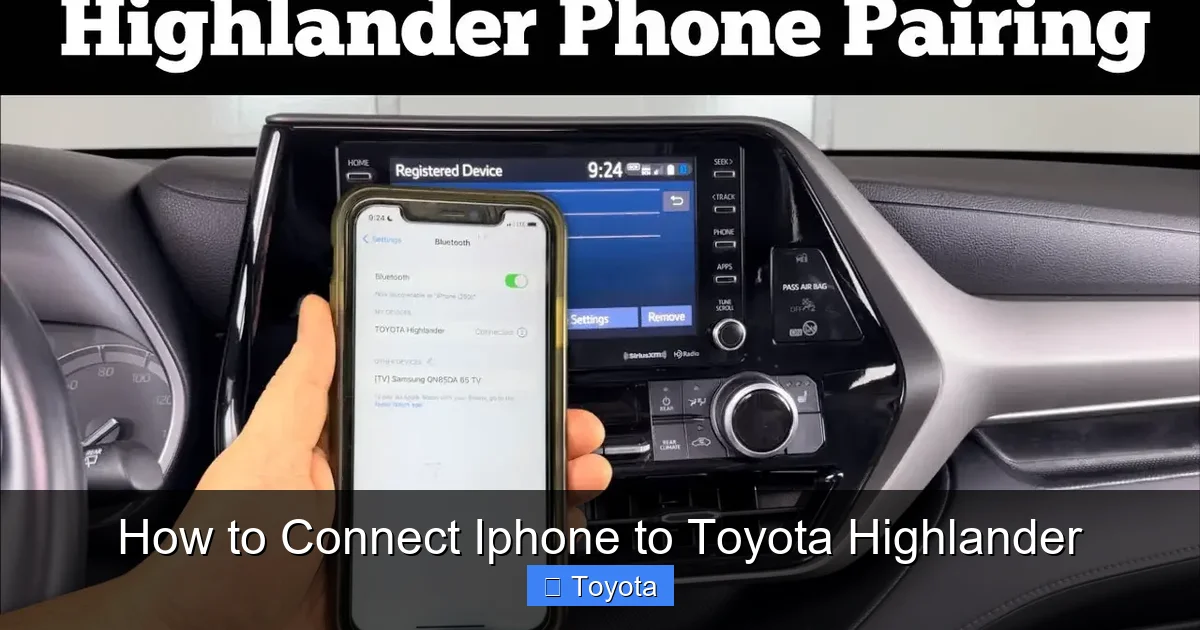
Visual guide about How to Connect Iphone to Toyota Highlander
Image source: diycarexpert.com
Before diving into the how-to, it’s important to understand what your Toyota Highlander offers. Not all models are created equal when it comes to smartphone integration, so let’s break down the key features you might have.
Bluetooth Connectivity
Bluetooth is the most basic and widely available option. It allows your iPhone to wirelessly connect to the Highlander’s audio system for hands-free calling and music streaming. Most Highlander models from 2014 onward include Bluetooth, making it a reliable fallback even on older trims.
With Bluetooth, you can:
– Make and receive calls using the car’s speakers and microphone
– Stream music from apps like Apple Music, Spotify, or Pandora
– Use voice commands via Siri (if enabled)
However, Bluetooth has limitations. It doesn’t support navigation apps on the car screen, and some users report occasional audio dropouts or pairing issues.
Apple CarPlay
Apple CarPlay is the gold standard for iPhone integration. Available on Toyota Highlander models from 2019 onward (and some 2018 models with updated software), CarPlay mirrors key iPhone functions on the vehicle’s touchscreen.
With CarPlay, you can:
– Use Apple Maps or Google Maps for turn-by-turn navigation
– Send and receive text messages via Siri
– Control music, podcasts, and audiobooks
– Access compatible third-party apps like WhatsApp, Spotify, and Audible
CarPlay works over both USB and wirelessly (on select 2021+ models), offering flexibility and a more immersive experience than Bluetooth alone.
USB Connection
A physical USB connection—using a Lightning cable (for iPhones before iPhone 15) or USB-C (for iPhone 15 and newer)—provides the most stable and feature-rich link between your iPhone and Highlander.
Benefits include:
– Reliable CarPlay performance
– Faster charging than wireless methods
– Better audio quality for music and calls
– Access to full app functionality on the car screen
Even if your Highlander supports wireless CarPlay, using a cable is recommended for long drives or when you need consistent performance.
Model Year and Trim Considerations
Not every Highlander comes with the same tech. Here’s a quick breakdown:
– **2014–2018 models:** Typically support Bluetooth and USB audio, but not Apple CarPlay unless retrofitted or updated.
– **2019–2020 models:** Include Apple CarPlay via USB (wireless not available).
– **2021–2024 models:** Support both wired and wireless Apple CarPlay (depending on trim and infotainment system).
Always check your owner’s manual or Toyota’s official website to confirm your specific model’s capabilities.
How to Connect iPhone to Toyota Highlander via Bluetooth
Visual guide about How to Connect Iphone to Toyota Highlander
Image source: m.media-amazon.com
Bluetooth is the easiest way to get started, especially if you’re in an older Highlander or just want basic functionality. Here’s how to pair your iPhone using Bluetooth.
Step 1: Prepare Your Devices
Before you begin, make sure:
– Your iPhone is charged and unlocked.
– Your Highlander is turned on (or in accessory mode).
– Bluetooth is enabled on your iPhone (go to Settings > Bluetooth and toggle it on).
Step 2: Access the Highlander’s Bluetooth Menu
On your Highlander’s infotainment screen:
1. Tap the “Menu” or “Setup” button.
2. Select “Bluetooth” or “Phone.”
3. Choose “Add New Device” or “Pair Device.”
The system will begin searching for nearby Bluetooth devices.
Step 3: Pair Your iPhone
On your iPhone:
1. Go to Settings > Bluetooth.
2. Wait for your Highlander to appear in the list (e.g., “Toyota Highlander” or “My Highlander”).
3. Tap on it to initiate pairing.
A PIN or passkey may appear on both screens (usually “0000” or “1234”). Confirm that the codes match and tap “Pair” or “Connect” on both devices.
Step 4: Test the Connection
Once paired:
– Make a test call to ensure the microphone and speakers work.
– Play music from your iPhone to confirm audio streaming.
– Try using Siri by holding the voice command button on your steering wheel.
Tips for Better Bluetooth Performance
– Keep your iPhone within 3 feet of the car’s Bluetooth antenna (usually near the center console).
– Avoid placing your phone in a metal case or wallet, which can interfere with the signal.
– If audio cuts out, try turning Bluetooth off and on again on both devices.
– Update your iPhone and Highlander’s software regularly for compatibility improvements.
How to Connect iPhone to Toyota Highlander Using Apple CarPlay
Visual guide about How to Connect Iphone to Toyota Highlander
Image source: m.media-amazon.com
If your Highlander supports Apple CarPlay, this is the best way to integrate your iPhone. CarPlay gives you a safer, more intuitive way to use your phone while driving.
Step 1: Check Compatibility
Confirm your Highlander model supports CarPlay:
– 2019 and newer models generally do.
– Look for the CarPlay logo on the USB port or in the infotainment menu.
– Visit Toyota’s official CarPlay compatibility page and enter your VIN for confirmation.
Step 2: Use a High-Quality USB Cable
For wired CarPlay, use an Apple-certified Lightning or USB-C cable. Cheap or damaged cables can cause connection issues or slow charging.
Plug one end into your iPhone and the other into the USB port labeled “CarPlay” or “Media” (usually in the center console or dashboard).
Step 3: Enable CarPlay on Your iPhone
On your iPhone:
1. Go to Settings > General > CarPlay.
2. If this is your first time, tap “Add Car” and follow the prompts.
3. Select your Highlander from the list (it should appear automatically when connected).
You can customize CarPlay settings here, such as:
– Default navigation app (Apple Maps or Google Maps)
– Whether to allow CarPlay while locked
– Audio and display preferences
Step 4: Launch CarPlay on the Highlander
Once connected:
– The CarPlay interface should appear on your Highlander’s screen.
– If not, tap the “CarPlay” or “Phone” icon on the home screen.
– Use the touchscreen, voice commands, or steering wheel controls to navigate.
Using Wireless CarPlay (2021+ Models)
If your Highlander supports wireless CarPlay:
1. Ensure both your iPhone and car are on the same Wi-Fi network (the car creates its own hotspot).
2. Go to Settings > General > CarPlay on your iPhone.
3. Tap your Highlander and enable “Wireless” pairing.
4. Follow the on-screen prompts to complete setup.
Note: Wireless CarPlay may drain your battery faster and can be less stable than wired. Use a cable for long trips.
Maximizing Your CarPlay Experience
– Use Siri to send messages: “Hey Siri, text Mom I’ll be there in 10 minutes.”
– Set your destination before driving: “Hey Siri, navigate to the nearest gas station.”
– Customize your CarPlay home screen by rearranging app icons in Settings > General > CarPlay.
– Enable “Do Not Disturb While Driving” on your iPhone to minimize distractions.
Troubleshooting Common Connection Issues
Even with the best setup, you might run into problems. Here’s how to fix the most common issues when connecting your iPhone to your Toyota Highlander.
iPhone Not Showing Up in Bluetooth List
Possible causes:
– Bluetooth is off on the iPhone.
– The car is already connected to another device.
– The iPhone is out of range.
Solutions:
– Turn Bluetooth off and on again on both devices.
– Forget the Highlander from your iPhone’s Bluetooth list and re-pair.
– Restart both the iPhone and the car’s infotainment system.
CarPlay Not Launching
If CarPlay doesn’t start when you plug in:
– Check the USB cable—try a different one.
– Ensure the USB port is clean and undamaged.
– Restart your iPhone and the car.
– Update your iPhone to the latest iOS version.
– Reset the infotainment system by holding the power button for 10 seconds.
Audio Not Working or Cutting Out
Try these fixes:
– Switch the audio source to “Bluetooth” or “CarPlay” on the Highlander.
– Turn off Wi-Fi on your iPhone (it can interfere with Bluetooth).
– Disable any VPN or ad-blocking apps that may disrupt connectivity.
– Move your iPhone closer to the car’s antenna.
Siri Not Responding
Ensure:
– Siri is enabled on your iPhone (Settings > Siri & Search).
– The microphone isn’t blocked (check the car’s mic location).
– You’re using the correct voice command button on the steering wheel.
– Background noise isn’t too loud.
Phone Charging Slowly or Not at All
This is often due to:
– A low-quality or damaged cable.
– A USB port not designed for charging (some ports only support data).
– High power usage from CarPlay and navigation.
Solution: Use the USB port labeled for media or CarPlay, and invest in a high-wattage charging cable.
Tips for a Smarter, Safer Driving Experience
Connecting your iPhone is just the first step. Use these tips to get the most out of your Highlander’s tech while staying safe.
Use Voice Commands Whenever Possible
Instead of touching your phone or screen:
– Say “Hey Siri” to make calls, send texts, or play music.
– Use the voice button on your steering wheel to activate commands.
– Set up frequently used destinations in Siri Shortcuts.
Keep Your Software Updated
– Update your iPhone regularly (Settings > General > Software Update).
– Check for Toyota infotainment updates at your dealership or via Toyota’s website.
– Updated software improves compatibility, security, and performance.
Organize Your Apps for Easy Access
In CarPlay:
– Place frequently used apps (Maps, Music, Phone) at the front.
– Hide unused apps to reduce clutter.
– Use folders to group similar apps (e.g., “Navigation,” “Entertainment”).
Enable Do Not Disturb While Driving
On your iPhone:
1. Go to Settings > Do Not Disturb.
2. Turn on “Activate” and select “When Connected to Car Bluetooth.”
3. Choose who can reach you (e.g., favorites only).
This minimizes distractions and helps you focus on the road.
Secure Your Phone While Driving
Use a phone mount or place your iPhone in a secure spot (like the center console) to prevent it from sliding or becoming a distraction.
Conclusion: Enjoy a Seamless Connection Every Time
Connecting your iPhone to your Toyota Highlander doesn’t have to be complicated. Whether you’re using Bluetooth for hands-free calls, USB for reliable CarPlay, or wireless for convenience, the process is designed to be user-friendly and intuitive.
By following the steps in this guide, you’ll be able to enjoy your favorite music, navigate with confidence, and stay connected—all while keeping your hands on the wheel and your eyes on the road.
Remember, the key to a great experience is preparation: use quality cables, keep your software updated, and take advantage of voice commands. And if you ever run into issues, don’t panic—most problems have simple fixes.
So go ahead, plug in, pair up, and hit the road with your iPhone and Toyota Highlander working together like a well-oiled machine. Your next adventure is just a connection away.
Frequently Asked Questions
Can I connect my iPhone to a 2017 Toyota Highlander?
Yes, you can connect your iPhone to a 2017 Toyota Highlander via Bluetooth for hands-free calling and music streaming. However, Apple CarPlay is not supported on this model unless the infotainment system has been upgraded.
Does the Toyota Highlander support wireless Apple CarPlay?
Wireless Apple CarPlay is available on select 2021 and newer Toyota Highlander models, depending on the trim and infotainment system. Most 2019–2020 models only support wired CarPlay via USB.
Why won’t my iPhone connect to CarPlay in my Highlander?
Common reasons include a faulty USB cable, outdated software, or a dirty USB port. Try using a different Apple-certified cable, updating your iPhone and car software, and restarting both devices.
Can I use Google Maps on my Toyota Highlander with my iPhone?
Yes, if your Highlander supports Apple CarPlay, you can use Google Maps instead of Apple Maps. Just set Google Maps as your default navigation app in iPhone Settings > General > CarPlay.
How do I disconnect my iPhone from my Toyota Highlander?
To disconnect, unplug the USB cable or turn off Bluetooth on your iPhone. You can also “Forget This Car” in iPhone Settings > General > CarPlay or remove the device from the Highlander’s Bluetooth menu.
Is it safe to use my iPhone while driving in the Highlander?
It’s safest to use voice commands, steering wheel controls, or CarPlay’s interface while driving. Avoid touching your phone directly. Enable “Do Not Disturb While Driving” to minimize distractions.
