
Where Is Usb in Tesla Model 3

Finding the USB ports in a Tesla Model 3 can be surprisingly tricky due to its minimalist interior design. They are strategically hidden in the front center console, rear center console, and sometimes the trunk, with locations and types changing across model years. These ports serve dual purposes for charging devices and data transfer (like for a dashcam), but their functionality and availability have evolved. Understanding their exact placement, power output, and how to troubleshoot common issues is essential for every owner to maximize the car’s tech capabilities.
Key Takeaways
- Multiple Hidden Locations: USB ports are found in the front center console (under a sliding cover), the rear center console (behind a flip-up cover), and in some models, the trunk.
- Port Types Evolved: Early models used USB-A, while newer ones (post-2021 refresh) primarily use faster USB-C. Some models have a mix of both.
- Dual Functionality: Ports provide power for charging and data connectivity, crucial for features like Tesla’s dashcam (Sentry Mode) and music playback.
- Power Output Varies: Not all ports are equal. Front ports typically offer higher amperage (up to 3A/15W) for faster phone charging than rear ports.
- Model Year Matters: The 2021 “Refresh” and 2023 “Highland” update significantly changed port locations, types, and the removal of the 12V socket in some cases.
- Troubleshooting is Key: Many “faulty” port issues are due to software glitches, blown fuses, or incompatible cables, not hardware failure.
- Accessory Potential: These ports power a wide ecosystem of accessories, from phone mounts and dashcams to tire inflators and heated seat cushions.
📑 Table of Contents
- Introduction: The Hunt for USB in a Minimalist Masterpiece
- The Grand Tour: Mapping Every USB Port in Your Model 3
- Charging Capabilities and Specifications: More Than Just a Plug
- Common Issues and Troubleshooting: When Ports Misbehave
- The Evolution of USB Ports in Tesla Model 3: A Timeline
- Tips for Maximizing Your USB Ports: Pro Owner Advice
- Conclusion: Empowerment Through Knowledge
Introduction: The Hunt for USB in a Minimalist Masterpiece
You’ve just stepped into a Tesla Model 3 for the first time, or maybe you’ve owned it for a while and suddenly need to charge your phone. You look around the stunning, spartan interior—a single large screen, no buttons, a smooth dashboard. Where are the USB ports? This is a common moment of confusion for new and even veteran Tesla owners. The Tesla Model 3’s design philosophy prioritizes clean lines and an uncluttered cabin, which means it hides its utility ports masterfully. Knowing the location and capability of these ports isn’t just about convenience; it’s about unlocking the car’s full potential for connectivity, entertainment, and safety features like Sentry Mode.
This guide will leave no stone unturned. We will explore every nook and cranny of the Model 3’s interior to map out every USB port, explain what each one does, trace how they’ve changed over the years, and arm you with practical tips to keep your devices powered and your data flowing. Whether you have a 2017 first-generation model or a brand-new 2024 Highland, you’ll know exactly where to plug in.
The Grand Tour: Mapping Every USB Port in Your Model 3
Let’s take a physical tour of the cabin. The locations are consistent within model year ranges but differ between the pre-2021, post-2021 refresh, and post-2023 Highland versions. We’ll break it down by area.
Visual guide about Where Is Usb in Tesla Model 3
Image source: talsem.com
Front Center Console: The Primary Hub
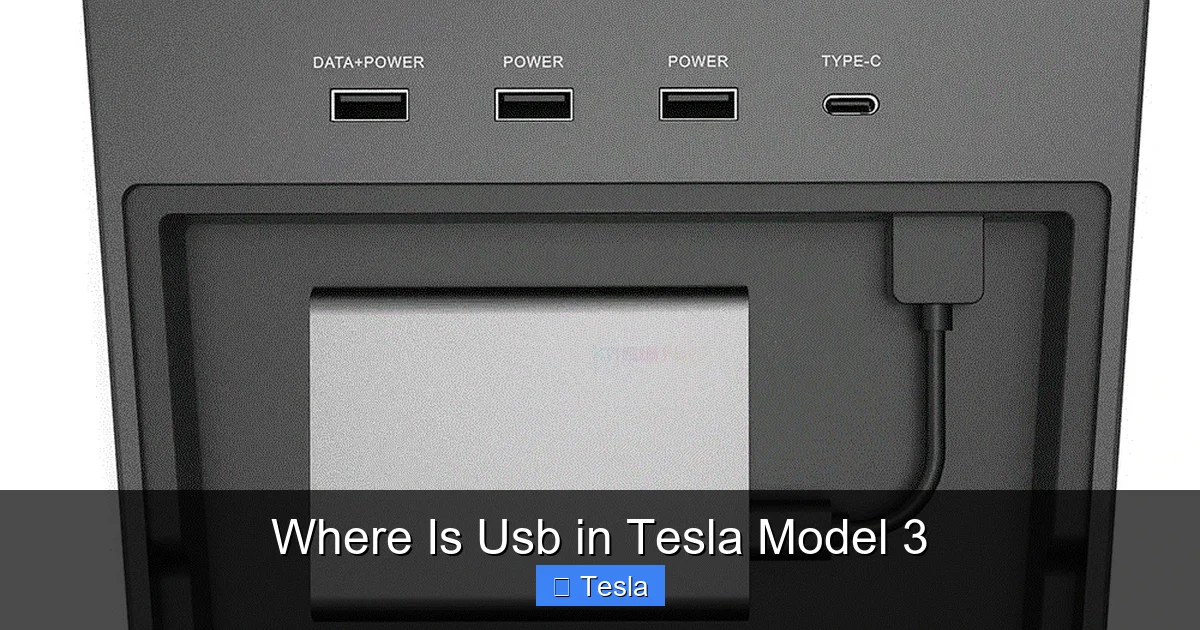
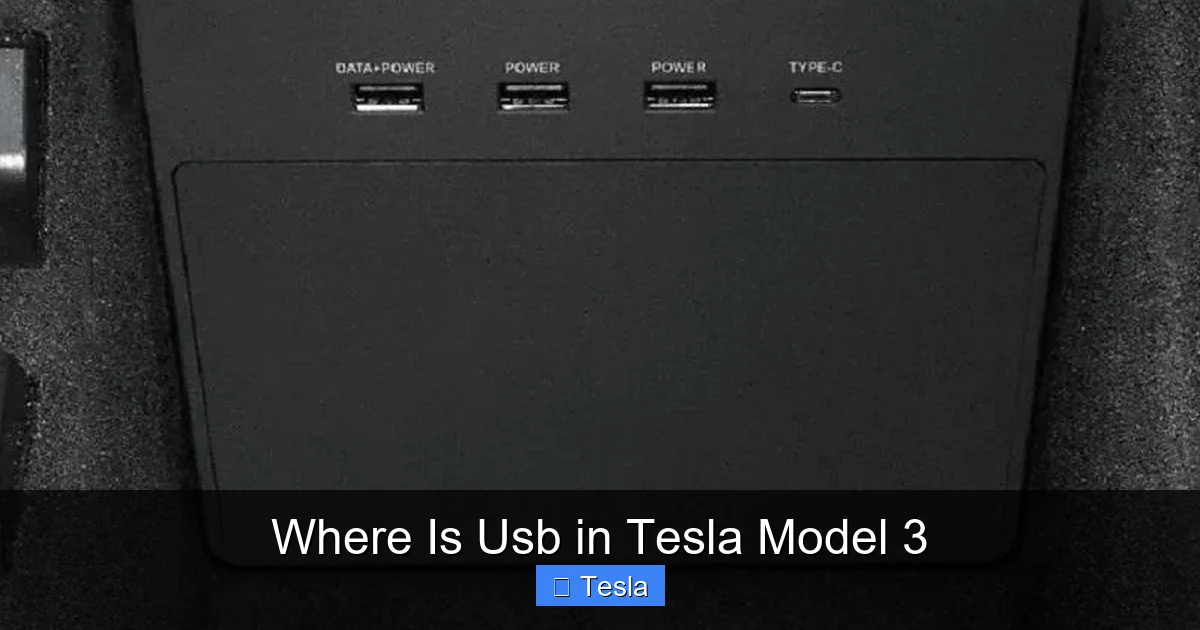
The main charging station for the driver and front passenger is in the center console, between the two seats. On most Model 3s, you’ll find a small, sliding plastic cover on the forward edge of the console storage bin. Slide it open to reveal two USB ports. This is your go-to spot for daily phone charging.
- Pre-2021 Models: Typically feature two USB-A ports (the classic rectangular shape).
- 2021+ Refresh & Highland: Usually feature two USB-C ports (the smaller, oval shape). Some early 2021 refresh models may have one USB-A and one USB-C.
Pro Tip: The cover can be stiff at first. Use your fingernail or a plastic pry tool to slide it gently. If it breaks, replacement covers are available online, but many owners simply leave it open permanently for easy access.
Rear Center Console: Keeping Backseat Passengers Powered
For rear-seat passengers, Tesla provides a charging point in the back. Look at the center of the rear seat, at the base of the front seatbacks. There is a small, hinged plastic flap. Flip it up to access a USB port (or sometimes two).
- Pre-2021 Models: Often had one USB-A port here.
- 2021+ Refresh: Upgraded to two USB-C ports, offering faster charging for rear passengers.
- Highland (2023+): Continues with two USB-C ports in this location.
This is perfect for charging tablets or phones on long trips. Remember, these rear ports often have a lower power output than the front ones, so charging might be slower for high-drain devices.
The Trunk: A Hidden Bonus (On Some Models)
This is the most variable location. Not all Model 3s have a USB port in the trunk, but many do, especially those built with the intention of powering accessories.
- Location: Check inside the trunk, typically on the left side panel (driver’s side in left-hand drive markets) near the rear of the cargo area. It may be under a small rubber flap or inside a shallow compartment.
- Function: This port is usually powered only when the car is awake/on (i.e., not when the car is “asleep” or parked). It’s ideal for powering a tire inflator, a portable fridge, or other gear you store in the trunk. It is not intended for permanent Sentry Mode power, as the car’s sleep cycle will cut power.
- Model Year: More common on Performance and Long Range models. Some Standard Range models may lack it. The Highland update reportedly removed this port in some markets, replacing it with a 12V socket, so always check your specific vehicle.
The elusive 12V Socket: A Related Power Source
While not a USB port, the 12V auxiliary socket is a crucial power source often asked about alongside USBs. Its location has also changed:
- Pre-2021 & 2021 Refresh: Located in the front center console, under a separate cover near the USB ports.
- Highland (2023+): Moved to the trunk, on the same side panel where the USB port used to be. This shift means you need an adapter (cigarette lighter to USB) to get USB power from the 12V socket in the trunk for accessories.
If you can’t find a USB port, the 12V socket with a quality adapter is your reliable fallback for high-power devices.
Charging Capabilities and Specifications: More Than Just a Plug
Not all USB ports are created equal. Understanding the specs helps you choose the right cable and manage expectations for charging speed.
Visual guide about Where Is Usb in Tesla Model 3
Image source: talsem.com
USB-A vs. USB-C: The Connector Conundrum
The type of port dictates the cable you need and the potential charging speed.
- USB-A: The older, wider, rectangular port. It supports USB 2.0/3.0 data speeds and charging protocols like Qualcomm Quick Charge (if the car’s controller supports it, which is debated). It’s robust but slower than modern standards.
- USB-C: The newer, reversible, oval port. It supports USB 3.1/3.2 Gen 1/Gen 2 for faster data transfer (important for dashcam footage) and higher power delivery (up to 100W theoretically, though Tesla limits it). USB-C is the present and future.
Practical Impact: If you have a modern Android phone or newer laptop, a USB-C to USB-C cable will charge significantly faster from a Model 3’s USB-C port than a USB-A to USB-C cable would. For an iPhone, using a USB-C to Lightning cable (or USB-C to USB-C with a Lightning to USB-C adapter) is faster than the old USB-A to Lightning cable.
Power Output: How Fast Will It Charge?
Tesla doesn’t publish official amperage specs for each port, but community testing and owner reports show clear trends:
- Front USB-C Ports (2021+): Typically deliver up to 3A (15W) at 5V. This is sufficient for fast phone charging but not for laptops that may need 45W+.
- Rear USB-C Ports: Usually limited to 1.5A – 2.1A (7.5W – 10.5W). Perfect for slower charging or powering a tablet, but a phone will charge more slowly than in the front.
- USB-A Ports (Pre-2021): Generally max out around 2.1A (10.5W).
Example: Plugging a Samsung Galaxy S23 into a front USB-C port might charge from 0-50% in about 45 minutes. The same phone in a rear port might take over an hour for the same gain. For a MacBook Pro, these ports will charge it, but very slowly—it’s not a replacement for your wall charger.
Data Transfer: The Dashcam Lifeline
A critical function of the front USB ports (usually the left one) is to store video from Tesla’s built-in dashcam and Sentry Mode. For this, you need:
- A USB flash drive (or SSD) that is explicitly formatted by the Tesla (FAT32 for drives under 32GB, exFAT for larger). The car will format it automatically on first use.
- A drive with sufficient write speed (recommended: USB 3.0, read/write speeds of at least 30 MB/s). Slow drives cause dropped frames and errors.
- Enough storage. A 256GB drive is a sweet spot, recording many hours of 360-degree footage.
Note: The rear and trunk ports are often charge-only and do not support data transfer. Always use a front port for your dashcam drive.
Common Issues and Troubleshooting: When Ports Misbehave
Even with perfect locations, problems arise. Here’s a systematic guide to fix the most common USB woes in a Model 3.
Visual guide about Where Is Usb in Tesla Model 3
Image source: wonderfulengineering.com
“My USB Port Isn’t Charging Anything!”
Before panicking, follow these steps:
- Check the Cable: This is the #1 culprit. Use a known-good cable. Cheap, damaged, or power-only cables (without data lines) won’t work for all devices. Try a different cable you know works.
- Check the Device: Try a different phone or device. Is it the port or the phone?
- Power Cycle: Put the car in “Park,” exit, lock the car with your key/phone, wait 2 minutes, and unlock/re-enter. This forces the car’s computer (MCU) to reboot and often restores USB functionality.
- Factory Reset: If a reboot doesn’t work, go to Controls > Safety & Security > Power Off. Wait 5 minutes, then press the brake pedal to wake the car. This is a deeper reset.
- Check for Fuse Issues: In extreme cases, a blown fuse can disable ports. This requires service center intervention or a skilled owner to check the fuse box (located behind the front trunk). Refer to your owner’s manual fuse diagram.
“Charging Is Very Slow”
If it’s charging but at a snail’s pace:
- Verify Port Location: Are you using a rear port? That’s likely the reason.
- Check Cable Gauge: Thin, long cables have higher resistance and deliver less power. Use a short, thick (low-gauge) cable for best results, especially for high-drain devices.
- Device Negotiation: Some devices (like older phones) don’t “ask” for higher power from the port. The port will default to a low 0.5A trickle charge. A different cable or device might charge faster.
- Multiple Devices: Plugging two phones into the front ports may split the available power, slowing both down.
Physical Damage and Maintenance
The small plastic covers and port housings are vulnerable:
- Stuck/Broken Covers: Lubricate with a tiny dab of silicone grease if stiff. If broken, a custom wrap or interior trim piece might cover the area aesthetically, but replacement covers are the fix.
- Debris in Ports: Use compressed air to gently blow out lint, dust, or crumbs. Never use a metal object.
- Wear and Tear: The USB-C port’s internal connector can wear out after thousands of insertions. If the connection feels loose and devices disconnect easily, the port assembly may need replacement by Tesla Service.
The Evolution of USB Ports in Tesla Model 3: A Timeline
Your USB experience depends heavily on your car’s production date. Here’s how they’ve changed.
2017-2019: The Original Launch
The first Model 3s were extremely minimalist.
- Front: Two USB-A ports under a sliding cover in the center console.
- Rear: One USB-A port behind a flip-up cover on the rear center console.
- Trunk: Often included a single USB-A port on the left side panel.
- 12V Socket: Located in the front center console, separate from the USB cluster.
- Capability: USB 2.0 speeds for data. Adequate for charging, but no fast-charging protocols like USB-C PD.
2020-2021: The “Refresh” Over-the-Air Update
In late 2020, Tesla began shipping cars with physical updates, and offered retrofit kits for older cars. This was a major upgrade.
- Front: Switched to two USB-C ports (supporting USB 3.1 Gen 1 for faster data). This was a huge win for dashcam users.
- Rear: Upgraded to two USB-C ports.
- Trunk: The USB-A port was often replaced with a 12V socket on some trims, or remained. Inconsistent.
- 12V Socket: Remained in the front center console.
- Other: Added a wireless phone charger pad in the center console (on some trims) and a redesigned console with a different storage layout.
2023 Highland Update: The Latest Iteration
The 2023+ Model 3 Highland brought another interior redesign.
- Front: Two USB-C ports remain, but the center console design changed. The ports are now on a vertical panel at the rear of the console storage bin, sometimes under a different style of cover.
- Rear: Two USB-C ports persist in the same general location.
- Trunk: The USB port is reportedly removed in many markets. The 12V socket is now in the trunk (on the left panel). This means for trunk accessories, you must use a 12V-to-USB adapter.
- Ambient Lighting & Other: New ambient lighting strips run through the cabin, but don’t affect USB locations.
How to Check Yours: The best way is to physically inspect. You can also check your vehicle’s software version (under Controls > Software > Additional Vehicle Information). A version starting with “2021.” indicates a refresh model; “2023.” or later suggests Highland features.
Tips for Maximizing Your USB Ports: Pro Owner Advice
Now that you know where they are and what they do, here’s how to use them like a pro.
Use Hubs and Adapters Wisely
The front has two ports. That’s often not enough for a driver (phone), passenger (phone), and dashcam (USB drive).
- Powered USB Hub: Get a small, high-quality powered USB hub. Plug the hub into one front port. Connect your dashcam drive and one phone to the hub. Use the other front port for the second phone. The hub’s own power adapter (plugged into the 12V socket) ensures everything gets enough juice without overloading the car’s port.
- USB-C to USB-A Adapter: If you have old USB-A cables, a simple adapter lets you use them with the newer USB-C ports.
- For the Trunk: If your Highland has only a 12V socket in the trunk, a reliable 12V-to-USB-C adapter (rated for at least 3A) is essential for powering a portable compressor or fridge.
Organize Cables for a Clean Cabin
Spaghetti cables ruin the minimalist aesthetic.
- Adhesive Cable Clips: Stick small clips along the edge of the center console or dashboard to route cables neatly from the front ports to your phone mount.
- Braided Sleeves: Bundle multiple cables (like for a dashcam and phone) in a fabric sleeve to keep them together.
- Short Cables: Use 6-inch or 1-foot cables for devices that stay plugged in (like a dashcam). They reduce clutter and strain on the port.
Power Management for Road Trips and Accessories
Don’t overload the system.
- Prioritize: The front ports have the most power. Use them for devices that need fastest charging (phones, tablets). Use rear/trunk ports for low-power accessories (LED lights, fan).
- Monitor Battery Impact: While the car’s 12V battery is robust, powering many high-draw devices (like a large fridge and multiple fast chargers) for days while parked can drain it. The car will warn you if the 12V battery is low.
- For Heavy-Duty Tasks: If you’re running a tire inflator or dual-screen dashcam system from the trunk port regularly, consider a dedicated portable power station (Jackery, EcoFlow) that you can charge from the car when driving and use independently when parked.
Conclusion: Empowerment Through Knowledge
The location of the USB ports in a Tesla Model 3 is a perfect microcosm of the ownership experience: incredibly logical once you know the secret, but initially hidden by a focus on sleek design. From the sliding cover of the front console to the flip-up flap in the rear, Tesla has provided ample, if sometimes cryptic, access points for our always-connected lives. The evolution from USB-A to USB-C mirrors the industry’s shift toward faster data and power delivery, and understanding these changes helps you buy the right cables and adapters.
Remember, these ports are more than just chargers; they are the lifelines for your car’s sentinel features and your personal entertainment. By troubleshooting common issues proactively, using hubs to expand capacity, and organizing cables to preserve that beautiful interior, you ensure your Model 3’s tech works seamlessly with your digital life. So go ahead, slide open that console cover, plug in, and enjoy the fully powered, connected drive that Tesla intended. You’ve earned it.
Frequently Asked Questions
Do all Tesla Model 3s have USB ports in the trunk?
No. The presence of a trunk USB port varies by model year and trim. Pre-2021 and some 2021 refresh models often had one. Many 2023+ Highland models replaced it with a 12V socket. Always check your specific vehicle by inspecting the left side panel of the trunk interior.
Why is my Tesla Model 3’s USB port not charging my phone?
First, try a different, high-quality cable. A faulty or power-only cable is the most common cause. Second, power cycle the car by locking it and waiting two minutes. If that fails, perform a full power cycle via the Controls > Safety & Security > Power Off menu. If problems persist, a blown fuse or failed port may require service.
Can I use the USB ports to charge a laptop?
Yes, but slowly. The front USB-C ports output up to 15W (3A at 5V). Most laptops require 45W-100W for meaningful charging. It will charge a laptop, but very slowly and may not keep up with heavy use like video editing or gaming. For efficient laptop charging, use the car’s 12V socket with a high-wattage (60W+) USB-C PD car charger.
What’s the difference between the front and rear USB ports?
>The front ports are higher power (up to 15W) and support data transfer for the dashcam. The rear ports are lower power (often 7.5W-10.5W) and typically charge-only. Always use a front port for your dashcam’s USB drive.
How do I format a USB drive for Tesla dashcam/Sentry Mode?
Insert a blank or data-only USB drive (or SSD) into a front USB port. The Tesla screen will automatically prompt you to format it for “Dashcam.” Select that option. The car will format it to the correct file system (FAT32 or exFAT). Do not pre-format it on your computer, as Tesla has specific requirements.
Will a USB hub work in my Tesla’s USB port?
Yes, a powered USB hub is an excellent solution to expand your ports. Plug the hub into one front port, then connect your dashcam drive and multiple phones to the hub. Ensure the hub has its own power adapter plugged into the 12V socket to avoid overloading the car’s USB port and ensure all devices charge adequately.
