
How to See Mileage on a Tesla Model X

Quick Summary
Checking the mileage on your Tesla Model X is straightforward and can be done in multiple ways. The primary method is through the vehicle’s central touchscreen, where you can view the total odometer and reset trip meters. For convenience, the Tesla mobile app also displays mileage and trip data synced from the car. Additionally, you can access this information via your Tesla account on a web browser. Understanding these methods helps you monitor efficiency, plan maintenance, and track your journeys effectively.
Key Takeaways
- Multiple Access Points: You can check mileage via the Model X touchscreen, Tesla mobile app, or Tesla website account.
- Touchscreen is Primary: The central display shows the odometer, trip meters (A/B), and energy consumption metrics.
- App Offers Remote Viewing: The Tesla app syncs data in near real-time, allowing you to check mileage from your phone without being near the car.
- Trip Meters vs. Odometer: The odometer shows total lifetime miles, while trip meters track individual journeys and can be reset.
- Energy Display is Key: The Model X also shows energy usage in Wh/mi or kWh/100km, which is more useful than mileage for range estimation.
- Regular Monitoring Aids Efficiency: Tracking mileage and energy helps you optimize driving habits and battery health over time.
[FEATURED_IMAGE_PLACEHOLDER]
📑 Table of Contents
- Introduction: Why Knowing Your Model X’s Mileage Matters
- How to Check Mileage on the Tesla Model X Touchscreen
- Using the Tesla Mobile App for Mileage Tracking
- Accessing Mileage Via Your Tesla Account (Website)
- Trip Meters and Energy Displays: Understanding the Numbers
- Pro Tips for Monitoring Your Model X’s Mileage
- Conclusion: Your Model X, Your Data
Introduction: Why Knowing Your Model X’s Mileage Matters
So, you’ve got a Tesla Model X—a fantastic electric SUV that’s turning heads and silently gliding down the road. It’s a tech powerhouse on wheels. But even with all its futuristic features, one fundamental piece of information remains as crucial as ever: how many miles has it driven? Knowing your vehicle’s mileage isn’t just about satisfying curiosity. It’s a key part of responsible ownership. It helps you schedule maintenance, understand your energy efficiency, plan for long trips, and even assess your car’s resale value down the line.
Unlike a traditional gas car with a simple analog odometer, your Model X stores and displays mileage information in a few different digital places. This might seem confusing at first, but it’s actually a feature, not a bug. It gives you flexibility. You can check your miles from the driver’s seat, from your couch via your phone, or even from a computer at your office. This guide will walk you through every single method, step by step. We’ll explain not just how to see the numbers, but what each number means and how you can use them to become a more informed and efficient Tesla owner. By the end, you’ll be a pro at tracking your Model X’s journeys.
How to Check Mileage on the Tesla Model X Touchscreen
The most direct and common way to see your Model X’s mileage is through the massive central touchscreen that dominates the interior. This is the car’s command center, and all the critical driving data lives here. The process is intuitive once you know where to look.
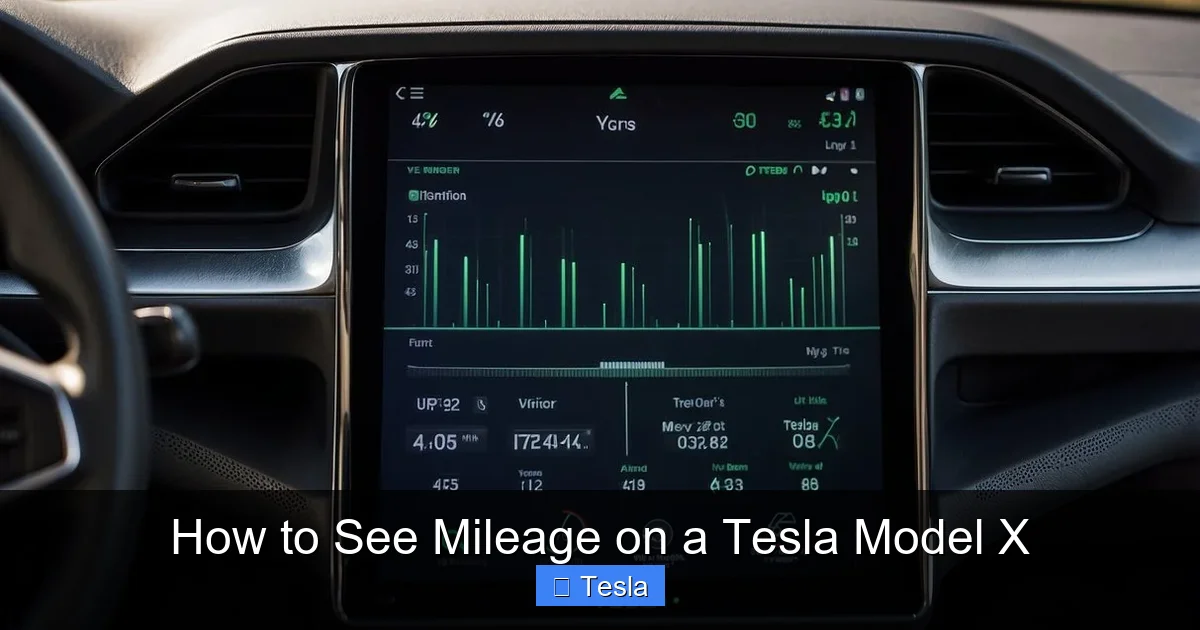
Visual guide about How to See Mileage on a Tesla Model X
Image source: koala.sh
Finding the Odometer and Trip Information
From the main home screen (the one with the car visualization and speedometer), you’ll see a bar at the very bottom of the display. This is the “dock” or “quick controls” area. Look for a small icon that looks like a car with a number inside it, or simply a number. This is your trip meter display. By default, it usually shows the current trip distance (Trip A) since your last reset. But this is just the tip of the iceberg.
To see the full suite of mileage data, you need to access the “Controls” menu. Tap the car icon on the bottom dock or the “Controls” button on the top bar. This opens the main settings panel. Scroll down through the list of categories until you find “Service” or “Vehicle Info” (the exact label can vary slightly with software updates). Tap on it.
Inside this menu, you’ll find a clear readout of your Odometer—the total number of miles (or kilometers, depending on your region settings) the vehicle has driven since it was first put on the road. This is the big, lifetime number. Right below it, you’ll see the values for Trip A and Trip B. These are independent trip meters you can set to zero at any time. They’re perfect for measuring the distance of a specific commute, a road trip segment, or even to track how many miles you’ve put on the car since your last service.
Resetting Your Trip Meters
Using trip meters is one of the best ways to monitor specific journeys. To reset Trip A or Trip B, go to the same Service/Vehicle Info screen. Next to each trip meter’s value, you’ll see a small circular arrow icon or a “Reset” button. Tap it, confirm if prompted, and that meter will zero out, ready to start counting from that exact moment. You can have both trip meters running simultaneously for different purposes—say, Trip A for your daily drive and Trip B for a longer vacation trip.
Viewing Energy Consumption Alongside Mileage
Here’s where it gets uniquely Tesla. On that same bottom dock of the main screen, you can often customize what information is displayed. Tap and hold on the trip meter number itself. A menu should pop up allowing you to choose what data shows there. Common options include:
- Distance: Simple trip miles.
- Energy: Shows average energy consumption in Watt-hours per mile (Wh/mi) or kilowatt-hours per 100 kilometers (kWh/100km). This is arguably more important than raw mileage for an EV, as it directly correlates to your battery’s range.
- Duration: Length of the current trip in hours/minutes.
Switching to the “Energy” readout gives you instant feedback on how efficiently you’re driving. A lower Wh/mi number means you’re getting more range out of your battery. You can also find detailed energy graphs and trip energy usage by navigating to the “Energy” app on the touchscreen (swipe right from the home screen or find it in the app launcher). This shows you a beautiful graph of consumption over time and even estimates your remaining range based on recent usage.
Using the Tesla Mobile App for Mileage Tracking
What if you’re not in the car? Maybe you’re at work wondering about the morning commute’s distance, or you’re planning a trip and want to confirm your current odometer reading before you leave. The Tesla mobile app is your remote window into the car’s data.

Visual guide about How to See Mileage on a Tesla Model X
Image source: i0.wp.com
Setting Up and Syncing
First, ensure your phone has the Tesla app installed and is properly paired with your Model X. The car must be powered on (or in “Sleep” mode with connectivity active) and have a cellular or Wi-Fi connection for the app to fetch the latest data. Open the app and select your Model X from the vehicle selector at the bottom.
Where to Find Mileage Data in the App
The app’s home screen typically displays a summary card for your car. Here, you’ll often see the current odometer reading prominently displayed. It might be under a heading like “Car” or “Status.” To find trip data, look for a section called “Trips” or “Journey“. This feature tracks trips automatically once you start driving, logging start/end points, distance, duration, and average energy consumption. You can view a history of recent trips here. The app also allows you to manually start and stop a trip tracking session, similar to the in-car trip meters.
The beauty of the app is convenience. You can check your total miles from anywhere. It also provides alerts and notifications, so you can be mindful of your driving patterns without needing to be in the vehicle. Keep in mind that the app data syncs periodically, so there might be a slight delay (a few minutes) between the car’s actual state and what the app shows.
Accessing Mileage Via Your Tesla Account (Website)
For those who prefer a desktop or laptop experience, or who need to access data from a shared computer, your Tesla account on the web is a full-featured alternative.

Visual guide about How to See Mileage on a Tesla Model X
Image source: motortrend.com
Logging In and Navigating
Go to tesla.com and log in with your Tesla account credentials (the same email/password you use for the app). Once logged in, select your Model X from your list of vehicles. You’ll be taken to a dashboard with various controls and information panels.
Finding Odometer and Trip Data Online
The website interface is similar in logic to the app but laid out for a larger screen. Look for a section labeled “Vehicle Info” or “Details“. This will display your car’s VIN, software version, and crucially, the current odometer reading. The web interface may not always have the real-time trip meter functionality that the touchscreen and app offer, but it’s perfectly reliable for checking the total lifetime mileage of your vehicle. It’s an excellent tool for when you’re filling out paperwork, checking for service intervals, or verifying the car’s status remotely.
Trip Meters and Energy Displays: Understanding the Numbers
Now that you know where to find the numbers, let’s clarify what they all mean. Confusing the odometer with a trip meter is easy, but they serve very different purposes.
Odometer: The Big Number
The odometer is the single, un-resettable counter that records the total distance your Model X has traveled since it rolled off the production line. This is the number that matters for warranty calculations (battery and drive unit warranties are based on mileage in some regions), for understanding the overall wear and tear on the vehicle, and for its ultimate resale value. You cannot and should not reset this number.
Trip Meters (A & B): Your Flexible Friends
Trip meters are like little counters you can start and stop at will. They are designed to measure the distance of a specific journey or period. You might reset Trip A every morning to see the distance of your commute. You might set Trip B at the start of a long road trip and check it at each charging stop. They help you answer questions like, “How far did I drive today?” or “What’s the average distance per charge on this trip?” They are completely under your control and reset to zero on demand.
Energy Consumption: The EV’s Heartbeat
For an electric vehicle like the Model X, energy consumption is arguably a more vital metric than simple mileage. It tells you how efficiently you’re using your battery. You’ll see it displayed as Wh/mi (Watt-hours per mile) or kWh/100km (kilowatt-hours per 100 kilometers). Think of it like miles per gallon (MPG) for a gas car, but reversed and more precise. A lower number is better—it means you’re using less energy to go the same distance, resulting in more range. This number fluctuates based on your speed, terrain, climate control use, and driving style. Monitoring it helps you adapt your driving to maximize range. The touchscreen’s Energy app visualizes this beautifully over time.
Pro Tips for Monitoring Your Model X’s Mileage
You’re now a master of finding the numbers. Let’s level up with some practical advice on how to use this information proactively.
1. Make Trip Meters a Habit: Get in the habit of resetting at least one trip meter (Trip A) every time you charge or first start your day. This creates a clean “per charge” or “per day” distance metric that’s incredibly useful for tracking your real-world range against Tesla’s estimates.
2. Correlate Energy with Distance: Don’t just look at miles driven; look at the energy used for those miles. If your 50-mile trip used 20 kWh, your efficiency is 400 Wh/mi (or 40 kWh/100km). If the next 50-mile trip uses 25 kWh, you know something changed—maybe it was colder, you used more heat, or you drove faster. This helps you diagnose range loss.
3. Use the App for Post-Trip Analysis: After a drive, open the Tesla app. The “Trips” section will have automatically logged your journey with a map, distance, and average Wh/mi. This is great for record-keeping or sharing with friends.
4. Monitor for Anomalies: If your trip meter distance for a familiar route suddenly spikes without a corresponding increase in energy consumption, it might indicate a tire pressure issue or a need for alignment. Conversely, if energy consumption jumps but distance is normal, check your climate settings or driving habits.
5. Pair Mileage Checks with General Maintenance: While you’re regularly checking your mileage, it’s a perfect mental trigger to glance over other aspects of your Model X’s health. A well-maintained Tesla retains its value and performance. Many owners also explore aesthetic customization to protect their investment. If you’ve ever wondered about the cost to wrap a Tesla Model X to preserve the original paint or change its look, resources are available that break down material and labor expenses. A full wrap can range significantly based on the finish and coverage, so understanding the investment is wise. Similarly, if you’re considering a partial wrap or accent graphics, the pricing structure differs, which is covered in more detail in specific guides on Model X wrapping costs. And for owners of other Tesla models, like the popular Model Y, the cost to wrap a Tesla Model Y follows similar principles but with its own pricing tiers, often outlined in an ultimate cost guide for that model.
6. Leverage Data for Warranty and Service: Keep a simple log (or use your trip meters) of mileage when you bring your car in for service. It helps you and the service center track intervals. While Tesla’s maintenance is minimal compared to gas cars, certain components like the cabin air filter have recommended replacement intervals based on time or mileage.
Conclusion: Your Model X, Your Data
Your Tesla Model X gives you unprecedented access to its operational data. Seeing the mileage is just the beginning. By routinely checking the odometer, using trip meters for specific journeys, and analyzing energy consumption, you gain a deeper understanding of your vehicle’s performance and efficiency. Whether you prefer the immediacy of the touchscreen, the convenience of the mobile app, or the formality of the web account, the information is always at your fingertips. Make it a habit to glance at these numbers. They tell the story of your adventures, help you drive smarter, and ensure you get the most out of your extraordinary electric SUV. Now go enjoy the ride—and the data!
Frequently Asked Questions
Where is the odometer located on a Tesla Model X?
The primary odometer display is found on the central touchscreen. Go to Controls > Service (or Vehicle Info). The total mileage is listed at the top. A smaller trip meter display is always visible in the bottom dock of the main screen.
How do I reset the trip meter on my Model X?
Navigate to Controls > Service (or Vehicle Info). Next to the Trip A or Trip B value, tap the circular reset arrow icon. Confirm if prompted, and that trip meter will zero out. You can also reset trip meters from the Energy app screen on some software versions.
Can I check my Model X mileage without being in the car?
Yes, absolutely. The Tesla mobile app displays the current odometer reading and trip history as long as the car has a cellular or Wi-Fi connection. You can also log into your Tesla account on a web browser to see the total odometer.
Does the Tesla app show real-time mileage updates while driving?
The app updates periodically, typically every few minutes when the car is awake and connected. It’s not a true live, second-by-second feed like the in-car display, but it provides a very recent snapshot of your odometer and trip data.
What’s the difference between the mileage number and the energy consumption number?
The mileage number (miles/km) tells you distance traveled. The energy consumption number (Wh/mi or kWh/100km) tells you how much battery power you used to travel that distance. For an EV, energy consumption is a more critical metric for understanding your real-world range and driving efficiency.
Will frequently checking the mileage or using the app drain the Model X battery?
No. Checking the touchscreen or using the app has a negligible impact on the 12V battery, which is charged by the main high-voltage battery. The energy used by the computer and displays is tiny compared to what powers the motors. You should not worry about battery drain from viewing these screens.
