
Why Does My Tesla App Say Disconnected?

Seeing “Disconnected” on your Tesla app is a common but fixable issue. It usually stems from Bluetooth hiccups, Wi-Fi problems, phone glitches, or rare Tesla server outages. Most of the time, you can solve it yourself with simple steps like restarting your phone or car. Knowing the exact cause helps you troubleshoot efficiently and get back to controlling your Tesla remotely.
Key Takeaways
- Bluetooth is the #1 culprit: Since your phone acts as the key, Bluetooth interference or range issues are the most frequent reason for disconnection.
- It’s rarely a car problem: The issue is almost always with your phone, the app, or your local network, not a fault in the Tesla itself.
- Server outages are temporary: Tesla’s servers occasionally go down for maintenance, causing global app disconnections that resolve on their own.
- Simple resets work wonders: Restarting your phone, toggling Bluetooth/Airplane Mode, or rebooting your Tesla’s touchscreen fixes 80% of cases.
- Phone software matters: Outdated iOS/Android or Tesla app versions are a common source of connectivity bugs.
- Network congestion plays a role: A weak or overloaded Wi-Fi/cellular network at your location can disrupt the app’s connection to Tesla’s servers.
- Persistent issues need deeper checks: If basics fail, check for phone battery saver settings, VPNs, or a faulty vehicle GPS module.
📑 Table of Contents
- Why Does My Tesla App Say Disconnected? The Complete Breakdown
- 1. The Usual Suspects: Bluetooth & Proximity
- 2. Wi-Fi, Cellular, and Network Woes
- 3. Tesla Server Outages: It’s Not Always You
- 4. Phone & App Software Issues
- 5. Vehicle-Side Glitches & Hardware
- 6. Advanced Troubleshooting Checklist
- The Bottom Line: Patience and Process
Why Does My Tesla App Say Disconnected? The Complete Breakdown
You tap open your Tesla app, ready to preheat the cabin or check the charge level, and there it is: the dreaded “Disconnected” message. Your heart sinks a little. That feeling of seamless, high-tech control you bought your Tesla for just… vanished. Don’t panic. This is one of the most common Tesla owner experiences, and it’s almost never a sign of a broken car. Think of it like your smartphone losing signal in an elevator—annoying, but usually temporary and fixable.
The Tesla app connects to your car through a complex chain: your phone’s Bluetooth talks to the car, the car uses its built-in LTE (or your Wi-Fi) to reach Tesla’s servers, and the app talks to those same servers. A “Disconnected” status means one link in that chain is broken. Our job is to find which link and mend it. We’ll walk through every possible reason, from the simple to the complex, so you can diagnose and solve this yourself.
Understanding the Two Types of “Disconnected”
First, it helps to know what you’re looking at. There are two main flavors of the disconnected alert:
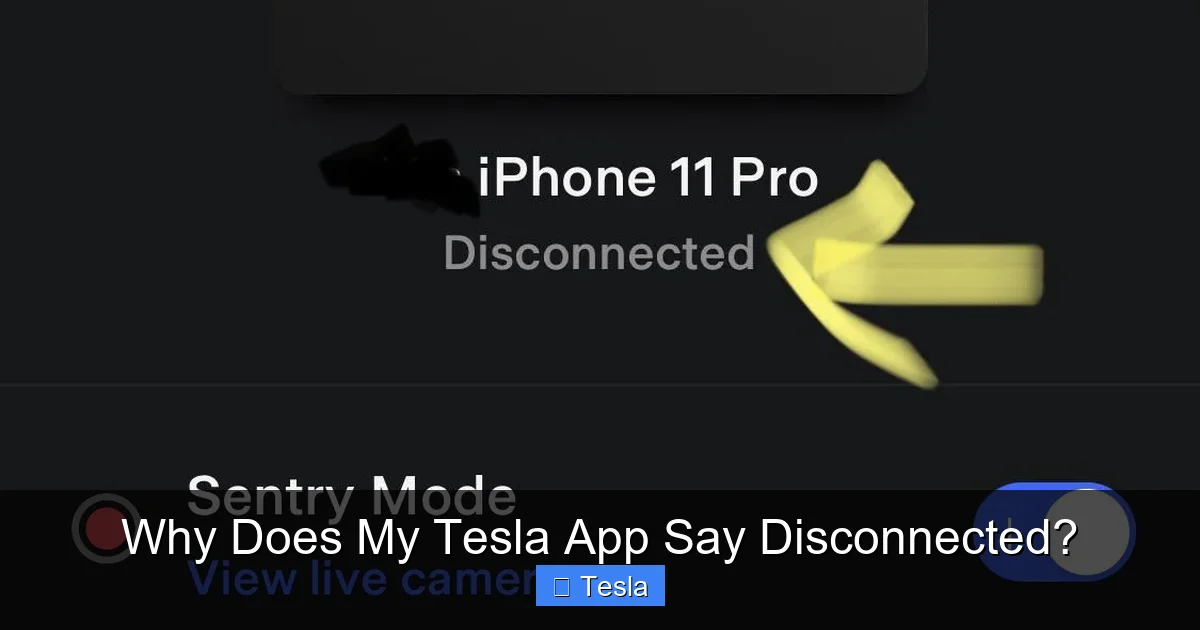
- Bluetooth Disconnection: Your phone has lost its direct, short-range connection to the car. The app might say “Connecting…” or “Disconnected” but still show some data if it last fetched info via the cloud. This happens when you walk away, or there’s interference.
- Cloud/Server Disconnection: Your phone can’t reach Tesla’s servers. This means the car is also offline, or your internet is down. The app will show a generic “Disconnected” and often won’t show the car’s location, charge, or allow commands.
Most troubleshooting steps address both, but knowing the difference can save you time.
1. The Usual Suspects: Bluetooth & Proximity
Since your Tesla phone key works via Bluetooth Low Energy (BLE), this is the foundation of all app connectivity. If Bluetooth fails, the app can’t “see” the car locally, and often can’t wake it up to talk to the cloud either.
Visual guide about Why Does My Tesla App Say Disconnected?
Image source: i.redd.it
How Bluetooth Works with Your Tesla
Your phone and your Tesla are constantly whispering to each other via BLE. This is how the car knows you’re approaching to unlock and start it. The app uses this same link for quick commands (like flashing lights or honking) and to wake the car from sleep to communicate with Tesla’s servers. The effective range is typically 30-80 feet, but walls, metal, and interference can shrink that dramatically.
Common Bluetooth Interference & Fixes
Ever notice the app disconnects when you’re in a specific spot in your house? That’s interference. Culprits include:
- Building Materials: Concrete, metal siding, and certain insulation are Bluetooth kryptonite. If your car is in a garage behind a thick wall, the signal may not reach your phone inside the house.
- Other Electronics: Microwaves, cordless phones (old ones), and even some LED lights operate on the 2.4GHz band and can jam Bluetooth signals.
- Phone Case: Thick, metal-backed cases can attenuate the signal. Try removing the case temporarily.
Quick Fix: Walk closer to the car. If you’re at home and the app shows disconnected, go stand near the vehicle. Does it reconnect? If yes, you’ve found the issue: range/interference. You might need to position your phone differently or consider a Wi-Fi hotspot in the garage for more reliable connectivity.
The Phone’s Bluetooth Stack Can Glitch
Sometimes, your phone’s Bluetooth software just has a minor hiccup. A simple reset often clears it.
Action Step: Turn Bluetooth off on your phone, wait 10 seconds, turn it back on. If that fails, toggle Airplane Mode on for 15 seconds, then off. This forces a full radio reset. On an iPhone, you can also go to Settings > Bluetooth, tap the “i” next to your Tesla, and select “Forget This Device.” Then re-pair by opening the Tesla app and following the prompts (you’ll need your key card handy inside the car).
2. Wi-Fi, Cellular, and Network Woes
Your Tesla uses its own LTE modem (provided by a carrier like AT&T in the US) to connect to Tesla’s servers. If you have a Model 3/Y with standard connectivity, it’s always on. If you have a Model S/X or a Model 3/Y with Premium Connectivity, you might also connect to a home Wi-Fi network for software updates. Network problems here cause cloud disconnections.
Visual guide about Why Does My Tesla App Say Disconnected?
Image source: automotivesimple.com
Is Your Car Getting a Signal?
Check the signal bars on your car’s touchscreen. Go to Controls > Connectivity. You should see an LTE icon with bars. If it’s searching or has no bars, your car is in a coverage dead zone—a tunnel, a deep parking garage, or a rural area. The app will show disconnected because the car can’t reach Tesla’s servers.
Example: You park in an underground lot at work. The app says disconnected. This is normal and expected. The car has no cellular signal. When you drive to an area with coverage, it will reconnect automatically. There’s nothing to fix.
Home Wi-Fi Problems (For Updates & Streaming)
If your car is connected to your home Wi-Fi, a problem with your router can also disrupt the app’s cloud connection, though less commonly. Ensure your Wi-Fi is working on other devices. If your router has a “client isolation” or “AP isolation” feature enabled (for security), it can prevent devices on your network from communicating—this can sometimes interfere with Tesla’s ability to maintain a stable session. Disable that feature if you’re tech-savvy.
Network Congestion & VPNs
Are you on a crowded public Wi-Fi (like an apartment building or coffee shop)? These networks often have firewalls or captive portals that block the persistent connection the Tesla app needs. Similarly, if you use a VPN on your phone, it might route your traffic in a way that Tesla’s servers don’t like, causing frequent disconnects. Try turning off the VPN to test.
3. Tesla Server Outages: It’s Not Always You
Yes, Tesla has a cloud platform, and like any internet service, it can have hiccups. A server outage or maintenance event will cause the app to show “Disconnected” for everyone, not just you.
Visual guide about Why Does My Tesla App Say Disconnected?
Image source: koala.sh
How to Check If It’s a Tesla Problem
Before you restart everything, do a quick sanity check:
- Visit the Tesla Fleet Status page (just search “Tesla Fleet Status” online). This official page shows the real-time health of Tesla’s vehicle, app, and payment services. If there’s a red or yellow bar, it’s on them.
- Check Twitter/X for hashtags like #TeslaDown or #TeslaApp. Other owners will be complaining in real-time.
- Ask a friend or family member with a Tesla if their app is working.
If it’s a widespread outage, your only move is to wait. These are usually resolved within minutes to a few hours. You can still use your physical key card to unlock and drive.
Scheduled Maintenance
Tesla occasionally performs backend maintenance, sometimes announced in the app’s notifications. During these windows, app functionality may be limited. It’s not a bug; it’s by design.
4. Phone & App Software Issues
Your phone is the remote control. If the control software (the Tesla app) or the phone’s operating system is buggy or outdated, the connection will suffer.
Outdated Tesla App
This is a classic. An old app version might have a bug that causes disconnections or be incompatible with a newer car firmware update.
Fix: Go to your phone’s app store (Google Play or Apple App Store), search for “Tesla,” and update the app to the latest version. Enable automatic updates to avoid this in the future.
Phone OS Bugs & Background Restrictions
A recent iOS or Android update can introduce unexpected bugs. Conversely, an old OS might not support the newest Tesla app features.
- Update Your Phone: Ensure your iPhone or Android is running a recent, stable version of its OS.
- Check Battery Saver/Power Saving Modes: These modes aggressively kill background app activity to save power. The Tesla app needs to run in the background to maintain its connection. On iPhone, go to Settings > General > Background App Refresh and ensure it’s on for Tesla. On Android, go to Settings > Apps > Tesla > Battery and set to “Unrestricted” or disable battery optimization for the app.
App Cache & Data Corruption
Over time, an app’s temporary files (cache) can get corrupted, causing strange behavior.
Fix: On Android, go to Settings > Apps > Tesla > Storage, and tap “Clear Cache.” On iPhone, the easiest way is to delete the Tesla app and reinstall it. (Don’t worry, your login credentials are stored on Tesla’s servers; you’ll just need to log back in and re-add your car. Have your key card ready).
5. Vehicle-Side Glitches & Hardware
While less common, sometimes the car’s own modules can have a temporary fault. A simple reboot often clears these up.
Reboot the Touchscreen (MCU)
The car’s main computer (MCU) controls connectivity. If it’s frozen or in a weird state, rebooting it can restore normal function.
How to Reboot: While parked, press and hold both scroll wheels on the steering wheel until the screen goes black and the Tesla logo reappears (about 10-20 seconds). This is a soft reboot. For a harder reset, you can also power down the car via the touchscreen (Controls > Safety > Power Off), wait 2 minutes, then press the brake pedal to wake it.
GPS Module or LTE Modem Fault
If your car consistently has no LTE signal bars (not just occasionally), there could be a hardware issue with the cellular modem or its antenna. This is rare but possible, especially after an accident or if water has gotten into the antenna area. This requires a service appointment.
Sign: The “LTE” icon in the car’s status bar is permanently gray or says “Searching” in multiple locations with known good coverage.
6. Advanced Troubleshooting Checklist
If you’ve tried the basics and the app is still stubbornly disconnected, work through this list methodically.
Step-by-Step Deep Dive
- Forget and Re-Pair Everything: On your phone, “Forget” the Tesla Bluetooth device. In the car, go to Controls > Safety > Security & Drivers > Delete Phone Key, and remove your phone. Then, start over: add the phone as a key using the Tesla app (you’ll need your key card to authenticate). This clears any corrupted pairing data.
- Test on a Different Phone/Network: Does the problem happen on a friend’s phone or a family member’s phone with their Tesla account? Does it happen on cellular data instead of your home Wi-Fi? This isolates whether the issue is with your specific phone, your Tesla account, or your home network.
- Check for App-Specific Conflicts: Do you have other car apps (like for a different vehicle) or VPNs running? Disable them temporarily.
- Contact Tesla Support: If all else fails, use the Tesla app’s “Help” section or call roadside assistance. They can remotely check your car’s connectivity status, see if it’s registered on the network, and sometimes push a remote reboot to the vehicle’s modules.
When to Worry About Security
A persistent “Disconnected” status, especially if paired with an inability to use your phone as a key, could indicate a deeper issue. While unlikely, it’s wise to ensure your Tesla account password is strong and two-factor authentication is enabled. If you suspect unauthorized access, change your Tesla account password immediately and remove all phone keys from the car via the touchscreen, then re-add only yours.
The Bottom Line: Patience and Process
Your Tesla app saying “Disconnected” is almost always a minor, temporary glitch in the communication chain between your phone and Tesla’s servers. Start with the simplest fixes: restart your phone, walk closer to the car, and toggle Bluetooth/Airplane Mode. If that fails, update your app and phone OS, and reboot the car’s screen. Remember, you always have your key card as a physical backup—the car is not “bricked.”
The beauty of Tesla’s connectivity is its convenience, but it relies on the same finicky wireless technology that makes our Zoom calls drop. By understanding the common failure points—Bluetooth range, network health, and software updates—you can diagnose 95% of these disconnections in under two minutes. Save the service center visits for real hardware problems. Now, go see if your app reconnected!
Frequently Asked Questions
Why does my Tesla app say disconnected even when I’m next to the car?
If you’re right next to the car and it still shows disconnected, the issue is likely not Bluetooth range. It’s probably a cloud/server connection problem. Check your phone’s internet connection (cellular or Wi-Fi) and visit the Tesla Fleet Status page to see if there’s a known outage. Also, ensure your phone’s Bluetooth is turned on and the Tesla app has permission to run in the background.
How do I force my Tesla app to reconnect?
The most effective force-reconnect method is a two-step reboot: first, force-close the Tesla app on your phone and restart your phone. Second, reboot your Tesla’s touchscreen by holding both steering wheel scroll buttons until the screen restarts. After both devices are back on, open the app. This resets both ends of the connection chain.
Is a disconnected Tesla app a security risk?
Not inherently. A disconnected app simply means communication is lost. However, if you consistently cannot connect *and* your phone key fails to unlock the car, it could indicate a pairing issue or, very rarely, a security setting. Ensure your Tesla account password is strong and 2FA is on. If you lost your phone, use the Tesla mobile app on another device to immediately revoke its access as a key.
Can a weak phone battery cause the Tesla app to disconnect?
Indirectly, yes. When your phone’s battery is critically low (below 5-10%), iOS and Android activate extreme power-saving modes that can kill background app activity and Bluetooth polling. This will cause the Tesla app to lose its connection. Charge your phone to see if the connection returns.
Why does my Tesla app disconnect only at home?
This points to a local network issue. Your home Wi-Fi might be overloaded, have a faulty router, or use a VPN that interferes. Try switching your phone to cellular data while at home. If the app stays connected on cellular, the problem is your Wi-Fi. Reboot your router and ensure it’s not using any security features that block device-to-device communication.
Will a Tesla software update fix disconnection issues?
Sometimes, yes. Tesla frequently releases updates that improve connectivity stability, Bluetooth handoffs, and server communication. If your car is due for an update, installing it might resolve the issue. Similarly, updating the Tesla app on your phone is crucial, as app updates often contain fixes for known disconnection bugs.
