
Where Is the Usb Port in a Tesla Model 3?

Finding the USB ports in a Tesla Model 3 is straightforward once you know where to look. The locations have evolved over the years, with the most common spots being the center console bin, the rear of the center console, and inside the glovebox. Knowing these locations is crucial for charging devices, connecting a dashcam, or setting up a USB drive for Sentry Mode or media playback. This guide details every port location for every Model 3 variant, ensuring you can plug in with confidence.
Key Takeaways
- Primary Locations: USB ports are found in the center console storage bin, on the rear of the center console (for rear passengers), and inside the glovebox.
- Model Year Matters: Pre-2021 models have USB-A ports, while late 2021+ models (especially after the 2022 refresh) feature USB-C ports, sometimes in different quantities.
- Port Functions Vary: Not all ports are equal; some are for data (Sentry Mode, music), some for charging only, and some for both. The glovebox port is typically charge-only.
- Wireless Charging is Separate: The built-in Qi wireless chargers are located on the center console pad, not in the USB ports themselves.
- Power Limitations: The total USB system power is limited (~120W). Plugging in too many high-draw devices can cause slower charging or ports to disable temporarily.
- Accessory Integration: Knowing port locations helps when installing accessories like phone mounts or dashcams, which often draw power from these sources.
- Troubleshooting: If a port isn’t working, check the vehicle’s 12V battery health, try a different cable/device, and ensure the port isn’t physically obstructed or damaged.
📑 Table of Contents
Introduction: Why Knowing Your USB Ports Matters
So, you’ve just stepped into your sleek new Tesla Model 3. The minimalist interior is stunning, but where do you plug in your phone? Where does the dashcam go? This isn’t just about convenience; it’s about fully utilizing your vehicle’s tech ecosystem. Tesla designed the Model 3’s USB system to be clean and integrated, but that sometimes means the ports aren’t immediately obvious like they are in a traditional car with a giant center stack. Understanding exactly where every single port is located—and what it’s capable of—saves you from fumbling, protects your equipment, and unlocks features like Sentry Mode and Tesla’s Arcade games. Whether you have a 2017 launch edition or a 2024 refresh, this guide will map it all out for you.
The Core USB Port Locations: A Spatial Guide
Let’s start with the fundamentals. Across all Model 3 variants and years, you’ll find USB ports in three primary physical zones. Think of your car’s interior in three horizontal slices: the front driver/passenger area, the center console tunnel, and the rear passenger area.

Visual guide about Where Is the Usb Port in a Tesla Model 3?
Image source: teslathunder.com
The Center Console Storage Bin (Front Row)
This is your most frequently used port location. Lift the lid of the large, rectangular storage bin between the driver and passenger seats. Inside, you’ll typically find one or two USB ports. In pre-2021 models, these were USB-A ports (the classic rectangular shape). In most 2021 and newer models, Tesla switched to USB-C (the smaller, oval reversible shape). The exact number changed: early Model 3s had two USB-A ports here, while many post-refresh models have only one USB-C port in this bin. This port is your go-to for charging your phone while it’s stowed away, connecting a USB drive for music, or powering a small accessory. It usually provides both power and data connectivity.
The Rear of the Center Console (For Rear Passengers)
This is a critical location for families. On the back of the center console, facing the rear seats, you’ll find another set of USB ports. Their configuration has also changed. Earlier models (2017-2020) often had two USB-A ports here. Later models (2021+) frequently have two USB-C ports. Some very early rear-wheel-drive models might have had none, but this became standard quickly. These ports are primarily for rear-seat passengers to charge their devices. They are almost always power-only, meaning they charge but don’t support data transfer for things like a rear dashcam. Their power output can be lower than the front ports, so don’t expect the fastest charging speeds back here.
Inside the Glovebox
This is the “hidden” port, and its purpose is very specific. Open the glovebox, and on the left side (near the hinge), you’ll find a single USB port. This port has been consistent across model years in its location but has evolved in type. Older models have a USB-A port; newer ones have a USB-C. Its primary, official function is for charging your key fob (if you have one) and connecting a USB drive for Dashcam and Sentry Mode footage. Tesla specifically recommends using this port for the “TeslaCam” USB drive because it’s less prone to accidental unplugging and is a dedicated circuit. It is almost always a charge-only port for general devices. Do not expect to play music from a USB drive plugged in here; the media player reads from drives connected to the front center console ports.
Evolution by Model Year: What Changed and When?
Understanding the timeline is key to knowing what your specific car has. Tesla made significant hardware changes, especially during the 2021-2022 refresh period.

Visual guide about Where Is the Usb Port in a Tesla Model 3?
Image source: teslarati.com
Pre-2021 (Early Production) Models
These cars, often called “Shadow Mode” or pre-refresh, are defined by their USB-A ports. You would find two USB-A ports in the front center console bin and two USB-A ports on the rear of the center console. The glovebox contained a USB-A port. This was a simple, consistent, and widely compatible standard. The total system was capable of powering multiple devices, but the ports themselves were the older, non-reversible type.
The 2021-2022 Transition Period
This is where it gets messy, as Tesla phased in new hardware. Many 2021 and early 2022 Model 3s received the “Intel” based MCU (Media Control Unit) which brought the switch to USB-C. However, the rollout was not uniform. Some cars got two USB-C ports in the front bin and two on the rear console. Others got one in the front bin and two in the rear. The glovebox port switched to USB-C. The key identifier is the physical port shape. If your car has the newer, smaller oval ports, it’s part of this transition or later.
Post-2022 Refresh (Highland & Later)
The major 2023+ refresh (sometimes called “Highland” for the Model 3) brought another subtle shift. The most common configuration now is: one USB-C port in the front center console bin, two USB-C ports on the rear of the center console, and one USB-C port inside the glovebox. The front console bin port is the primary data/charge port for the driver. Tesla also introduced a new, brighter ambient light strip and changed the steering wheel, but the USB port layout remained largely consistent with the late-2021+ design. Always verify by looking, but this is the standard for the newest cars.
What Can You Actually Do With These Ports? Functionality Deep Dive
Not all ports are created equal. Their capabilities dictate how you use them.
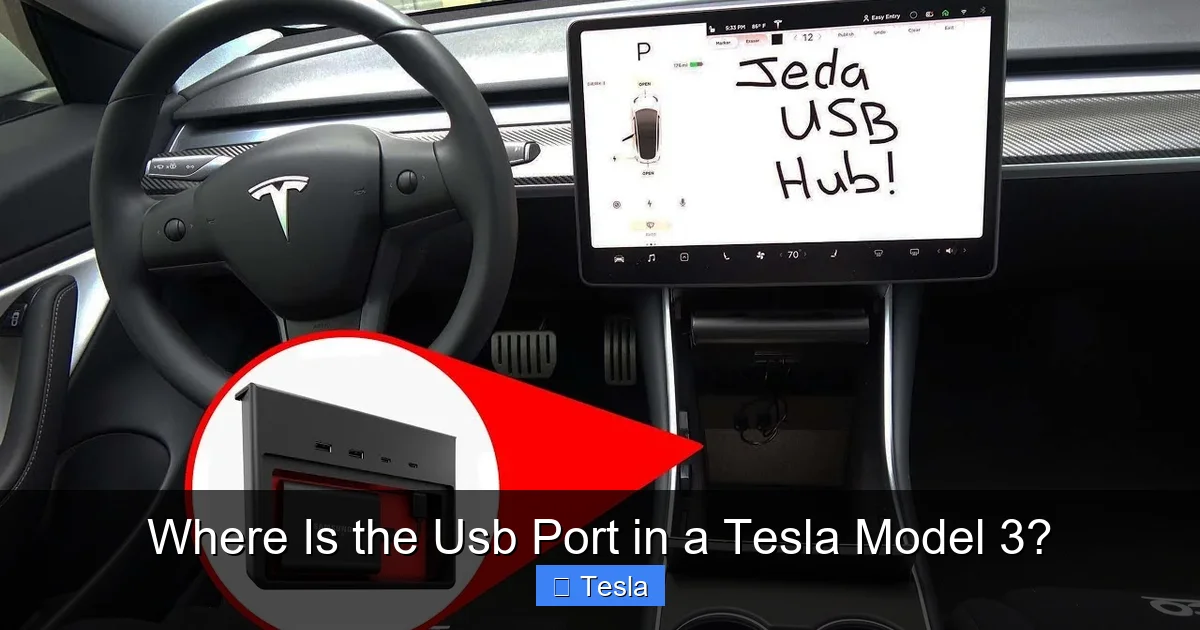
Visual guide about Where Is the Usb Port in a Tesla Model 3?
Image source: i.ytimg.com
Data Ports vs. Charge-Only Ports
The front center console bin port is your main data port. Plug in a USB drive formatted correctly (exFAT or FAT32), and the car’s media player will see it for music, movies, and videos. This is also the recommended port for a dashcam’s USB drive if you want it to also power the dashcam, though Tesla’s guide prefers the glovebox port for Dashcam footage to avoid issues. The glovebox port is officially designated for the Dashcam/Sentry Mode USB drive and key fob charging. While it may power other devices, it’s not intended for media playback. The rear console ports are almost universally charge-only. They will power phones and tablets but will not be recognized by the car’s system for media or as a dashcam source.
Power Delivery and Wattage Limits
A common point of frustration is slow charging. The Model 3’s USB system has a total power budget, estimated around 120 watts. This is shared among all active ports. If you have two phones fast-charging in the front and a tablet in the rear, you might notice all devices charging more slowly. The system dynamically manages power. For the fastest charging, use a single high-quality USB-C PD (Power Delivery) cable and charger in the primary front port. Avoid cheap, no-name cables that can’t negotiate proper power levels. Also, remember that the built-in wireless charging pad on the center console (if equipped) draws power from a separate circuit but still impacts the vehicle’s overall 12V system load.
Setting Up Dashcam & Sentry Mode
This is a critical use case. You need a USB drive (or SSD with a USB-C adapter) with sufficient speed (recommended: USB 3.0, read/write speeds > 5 MB/s). Format it on a computer to exFAT. Create a folder named “TeslaCam” at the root level. Plug it into the glovebox port for the most reliable operation. Once inserted, go to Controls > Safety & Security > Dashcam and set it to “Auto” or “On.” For Sentry Mode, you must enable it separately in that same menu. The car will then continuously record 360-degree footage. When you return, the footage is saved in dated folders on the drive. Pro Tip: Use a high-endurance microSD card in a USB-C adapter for best results, as these drives are constantly being written to. You can find more about protecting your car’s tech in our guide on how much a Tesla Model 3 wrap costs, as wraps often involve moving or protecting side cameras.
Common Issues, Troubleshooting, and Pro Tips
Even with perfect knowledge, things can go wrong. Here’s how to handle it.
“My USB Port Isn’t Working!”
First, don’t panic. Start with the simplest fixes: try a different, known-good cable (for data ports, ensure it’s a data-capable cable, not just a charging cable). Try a different device. Check if the port is physically blocked by debris or a loose cover. If only one port is dead, it may be a hardware fault. If all ports are dead, the issue is likely with the vehicle’s 12V battery or the central USB hub module. A soft reboot of the car (hold both scroll wheels on the steering wheel until the screen goes black and reboots) often resolves temporary glitches. If the problem persists after a reboot, it’s time for a service appointment.
Can I Use a USB Hub?
Technically, yes, but with major caveats. Plugging a powered USB hub into the front data port *can* work for connecting multiple low-power devices like a flash drive and a phone. However, you are still constrained by the total 120W system limit. A hub will not increase available power. For high-power devices, a hub is a bad idea and can cause instability. For dashcam setups requiring a constant power feed, a dedicated, high-quality powered hub *might* be necessary, but it’s not officially supported and can cause issues with the car’s recognition of the storage device. It’s generally safer to use the ports as intended, one device per port.
Optimizing for Road Trips and Families
Plan ahead! For a family road trip, know that the rear passengers rely on the rear console ports. Bring high-quality, short USB-C cables for them. The driver should use the front bin port for their primary phone (for navigation and music), keeping it out of sight. If you need to connect a media drive *and* charge your phone simultaneously, you’ll need one of the rare models with two front ports, or you must use a splitter/hub (see the warning above). A better solution for media is to use Tesla’s built-in streaming services (if you have Premium Connectivity) or Bluetooth audio from your phone, freeing up the data port solely for charging.
Looking Ahead and Final Thoughts
Tesla’s approach to USB ports reflects its philosophy: clean, minimalist, and software-defined. As we move toward an all-wireless future, will physical ports disappear? Possibly, but for now, they are essential. The shift to USB-C was a necessary upgrade, offering faster data speeds and reversible plugs. Future updates might include higher-wattage charging or more sophisticated power management. For now, knowing the exact locations—front bin, rear console, glovebox—and understanding their roles (data vs. charge) is the cornerstone of a seamless Tesla ownership experience. It’s one of those small details that, once mastered, makes your car feel truly intuitive and tailored to your digital life.
Frequently Asked Questions
How many USB ports does a Tesla Model 3 have?
The number varies by model year. Most post-2021 Model 3s have four: one in the front center console bin, two on the rear of the center console, and one inside the glovebox. Pre-2021 models often had five (two front, two rear, one glovebox), all USB-A type.
Can I charge my laptop from the USB ports?
You can, but with limitations. The ports output a maximum of ~18-27W combined depending on the model year and what else is plugged in. Most modern laptops require 45W-100W for reasonable charging speeds, so expect very slow charging or it may not charge at all if the laptop is under heavy load. It’s best for phones, tablets, and small accessories.
Why isn’t my phone fast charging in the Tesla?
Fast charging requires a compatible USB-C PD (Power Delivery) cable and charger, and the device must negotiate a higher power contract. Ensure you’re using a high-quality cable that supports data and PD. Also, other devices plugged into the car share the total USB power budget, which can limit the wattage available to any single port.
Where is the wireless charging pad located?
The built-in Qi wireless charging pad is a flat surface on top of the center console, just behind the screen and in front of the storage bin. It’s a separate system from the USB ports and can charge two phones simultaneously, provided they are compatible with Qi wireless charging.
What USB drive do I need for Sentry Mode and Dashcam?
You need a high-speed USB 3.0 (or higher) flash drive or SSD with a USB-C connector (or USB-A adapter for older cars). It should have fast read/write speeds (ideally > 50 MB/s write) and high endurance, as it will be constantly written to. A 128GB or larger drive is recommended. Format it to exFAT and create a folder named “TeslaCam” at the root.
Can I play music from a USB drive?
Yes, but only from a drive plugged into the front center console bin port. The glovebox and rear ports do not support media playback. The drive must be formatted to FAT32 (for files under 4GB) or exFAT (for larger files). The car supports common formats like MP3, FLAC, and AAC. The media player will automatically detect the drive under “USB” in the media menu.
