
How to Tell If a Tesla Is Locked on the App

You can easily check your Tesla’s lock status through the Tesla mobile app, which provides real-time, accurate information directly from the vehicle. The app displays a clear lock icon, color changes, and sometimes animations to confirm the status. This remote verification is more reliable than guessing and integrates with other security features like Pin to Drive and Sentry Mode for peace of mind.
Key Takeaways
- The Tesla app is the most reliable source for lock status: It communicates directly with your car’s computer, providing a real-time, accurate reading that overrides any assumptions based on physical key fob or phone key behavior.
- Look for the definitive lock icon and its color: A solid blue padlock means “Locked,” while a solid red unlocked padlock means “Unlocked.” Animated feedback (like the car locking on screen) provides additional confirmation.
- Security features are intertwined with lock status: Features like Pin to Drive and Speed Limit Mode will only activate when the car is locked and in “Park,” making app verification crucial for these safeguards to function.
- Connectivity is key: The app requires an active internet connection (cellular on the car, Wi-Fi/data on your phone). If the car is offline, the app cannot show the current status, and you must check physically.
- App refresh can be forced: If the status seems stale, pull down on the app’s main screen to force a refresh and request the latest data from the vehicle.
- Notifications provide proactive alerts: Enable push notifications for “Car Locked” and “Car Unlocked” events. You’ll get an instant alert if the car’s state changes without your knowledge, which is a powerful security tool.
- Physical checks have limitations: Door handles and windows can be deceptive. A door handle that doesn’t pop out *usually* means locked, but it’s not 100% foolproof. The app is the only certain method.
📑 Table of Contents
- Introduction: The Modern Car Lock Dilemma
- Understanding the Tesla App’s Lock Interface
- Visual Confirmation Methods Beyond the Icon
- Security Features and Their Relationship to Lock Status
- Troubleshooting: When the App Lies (Or You’re Confused)
- Best Practices for Reliable Lock Verification
- Conclusion: Your Connected Co-Pilot for Car Security
Introduction: The Modern Car Lock Dilemma
Gone are the days of the simple clunk of a locking door and the reassuring click of a physical key. With a Tesla, your car keys are your smartphone, and the concept of “locked” becomes a digital state you can verify from anywhere. But this convenience also introduces a new kind of uncertainty. Did that app command actually go through? Is my car secure right now? What if my phone’s battery died? Learning how to definitively tell if your Tesla is locked using the app isn’t just a neat trick—it’s an essential part of owning a connected vehicle and ensuring your peace of mind.
This guide will walk you through every aspect of using the Tesla app as your ultimate lock status oracle. We’ll cover the visual cues, understand what the status *really* means, troubleshoot when things seem off, and integrate this knowledge with Tesla’s broader security ecosystem. By the end, you’ll never have to wonder about your car’s security status again.
Understanding the Tesla App’s Lock Interface
The Tesla mobile app is your direct line to your vehicle’s brain. The home screen, often called the “Climate & Charge” screen, is where you’ll find the primary lock status indicator. It’s designed to be glanceable and unambiguous, but understanding its nuances is key.
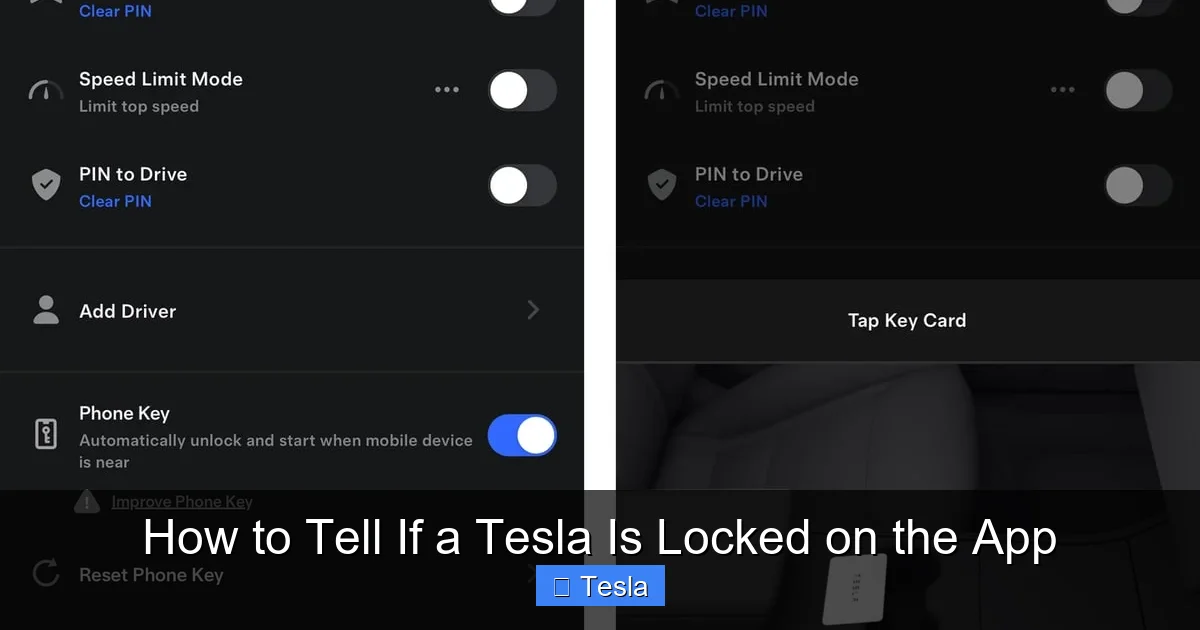
Visual guide about How to Tell If a Tesla Is Locked on the App
Image source: notateslaapp.com
The Primary Lock Icon: Your Digital Padlock
Right near the top of the app screen, typically next to the climate controls and odometer, resides a small padlock icon. This is your star player. Its appearance and color tell the entire story:
- Solid Blue Padlock: This is the “All Secure” signal. Your Tesla is locked. All doors, the frunk, and the trunk are secured. The vehicle is in “Park” and ready to remain undisturbed.
- Solid Red Unlocked Padlock: This means the vehicle is unlocked. At least one door or storage compartment is unsecured. The car is likely in “Park” or “Neutral.”
- No Icon or Grayed-Out Icon: This is your first red flag. It usually means the app cannot communicate with the car. The car may be asleep, out of cellular range, or you have a poor data connection on your phone. In this state, you cannot know the lock status remotely.
Pro Tip: The icon updates in near real-time. If you lock the car via the app, you should see the icon switch from red to blue within a few seconds, often accompanied by a small animation of the car’s silhouette with locking door handles.
Lock/Unlock Button: Action and Confirmation
Directly below the lock icon, you’ll see a large button that says either “Lock” or “Unlock.” This is your manual control. Tapping it sends a command. But its state *after* you tap it is also a confirmation. If you tap “Lock” and the button changes to “Unlock” (and the icon turns blue), the command was successful. If it reverts or shows an error, the command failed, and the car’s status hasn’t changed. This two-part system—icon *and* button state—provides robust confirmation.
Visual Confirmation Methods Beyond the Icon
While the app icon is the primary source, Tesla provides other layers of visual confirmation, especially useful if you’re near the vehicle but can’t see the handles clearly.
Visual guide about How to Tell If a Tesla Is Locked on the App
Image source: wikihow.com
The “Car Locking” Animation
When you successfully lock the car via the app, watch the main screen closely. You’ll often see a subtle animation: a small outline of your Tesla model will appear, and its door handles will retract (or “flush”) just as they do when you walk away with a phone key. This animation is a direct visual translation of the physical action happening on the car, confirming the lock command was executed.
The Frunk and Trunk Status
In the app’s main screen, you’ll also see buttons for “Front Trunk” and “Rear Trunk.” Their status is part of the overall “locked” state. If either trunk is open, the main padlock icon will show as “unlocked” (red), even if all doors are secure. This is an important detail—a car is not fully secure if its storage compartments are ajar. You must close the trunk/frunk first, then lock the doors for the blue padlock to appear.
Connection Status: The Silent Gatekeeper
Look at the very top of your Tesla app screen. You’ll see a small status indicator like “Online” or “Asleep.” This tells you the communication state. “Online” means the car’s cellular modem is awake and talking to Tesla’s servers, and your phone has a data connection. This is when you can trust the lock icon. “Asleep” means the car is in a deep sleep state to save power; it won’t respond to app commands or update its status until it wakes up (which happens automatically when you approach or via a “Wake Up” button in the app). If you see “Offline” or “No Connection,” you must physically check the car.
Security Features and Their Relationship to Lock Status
Knowing the lock status isn’t just about preventing theft; it’s the gateway to Tesla’s advanced security suite. These features are designed to be active *only* when the car is properly locked and in “Park.”
Visual guide about How to Tell If a Tesla Is Locked on the App
Image source: cdn.teslanorth.com
Pin to Drive: The First Line of Defense
Pin to Drive requires a 4-digit PIN to be entered on the touchscreen before the car can be driven. Crucially, this feature is only available and enforceable when the vehicle is locked. If the car is unlocked, you can simply press the brake and drive away—the PIN is bypassed. Therefore, confirming the blue padlock in the app is the first step in ensuring your Pin to Drive is active. For maximum security, always verify the lock status after enabling Pin to Drive. This is similar to how you’d check other security systems on your car; for instance, if you’re troubleshooting a green key light on a Honda Civic, you’re verifying the immobilizer system is engaged.
Sentry Mode: The Watchful Eye
Sentry Mode uses the car’s cameras to monitor its surroundings when parked. It activates automatically when you lock the car and leave it. You can tell Sentry Mode is on by the red “T” icon on the touchscreen and by a notification in your Tesla app. If your app shows the car is locked (blue padlock) but you don’t see the Sentry Mode icon active, it might be turned off in settings. The lock status is the prerequisite for Sentry Mode to function. If the app shows the car is unlocked, Sentry Mode will not be running.
Speed Limit Mode: Parental Control
This feature limits the car’s maximum speed. Like Pin to Drive, it is only enforced when the car is locked and in “Park.” The system essentially “arms” the limit when you lock the car. If you check the app and see an unlocked status, you can be certain that any set speed limit is not currently active, and the car can be driven at full speed.
Troubleshooting: When the App Lies (Or You’re Confused)
The Tesla app is incredibly reliable, but no system is perfect. Here’s what to do when the status doesn’t make sense.
Scenario 1: The App Shows “Locked” But a Door Handle Pops Out
This is a classic and can be alarming. First, don’t panic. The most common cause is that a door was *closed but not fully latched* when you locked the car. The car’s computer thought it was secure and sent the “locked” signal. However, the door’s internal latch eventually settled into the fully open position, causing the handle to pop. The car is technically still “locked” (the electronic lock is engaged), but the door is ajar. Solution: Physically check the door. Manually close it firmly until you hear a solid thunk. Then, lock the car again via the app and watch for the animation. The handle should stay flush.
Scenario 2: The App Shows “Offline” or “Asleep”
As mentioned, this means no communication. The car’s last known state in the Tesla cloud is what you’re seeing, which could be hours old. Solution: Tap the “Wake Up” button in the app (if available). Wait 30-60 seconds for the car to power up its cellular modem. The status should update. If it doesn’t, your car may be in a location with no cellular service (like a deep parking garage). You must perform a physical check. This is a good reminder that for absolute certainty, especially when far from the car, you might need to rely on the last known status and consider if the car could have been accessed since then.
Scenario 3: The App Is Stuck on “Unlocked” After You Locked It
First, force-close the Tesla app on your phone and reopen it. Pull down to refresh the screen. If it’s still stuck, the lock command likely failed. This can happen due to a temporary loss of connectivity between your phone and Tesla’s servers, or between the car and the cellular network. Solution: Try locking again. If it still fails, your car may need to be woken up. If you are near the car, use your physical key card or phone key (if it’s paired as a backup) to lock it manually, then check the app again once it reconnects.
Best Practices for Reliable Lock Verification
To make this process seamless and trustworthy, incorporate these habits into your routine.
Always Refresh for Critical Checks
Never trust a stale screen. If you’re about to walk away from your car in a public place, or if you’re checking it from home before bed, make it a habit to pull down on the app screen to force a refresh. This ensures you have the very latest data from the vehicle. Think of it like checking your bank balance—you want the current number, not the one from five minutes ago.
Enable All Relevant Notifications
Go to your Tesla app’s notification settings (usually in your phone’s Settings app, under Notifications). Turn on notifications for “Car Locked” and “Car Unlocked.” This is your automated security guard. If your car locks or unlocks without you initiating it, you’ll get an immediate alert. This is invaluable for detecting unauthorized access or simply reminding you that you forgot to lock it. Forgetting to lock your car is a common issue across all vehicles; for example, people often ask how to open the gas tank on a 2022 Honda Civic after locking the keys inside, a problem easily avoided with a quick app check.
Understand the “Last Known State”
The Tesla app shows the *last reported state* from the car. If your car has been asleep for 12 hours, the app is showing you what was true 12 hours ago. The blue padlock from last night does not guarantee the car is locked right now. Context is everything. If you just parked it 5 minutes ago and locked it, you can be confident. If you haven’t seen the car in a day, you cannot rely on the app status alone.
Use the App as Part of a Pre-Departure Checklist
Build a mental or physical checklist: Phone? Keys? Wallet? *Check Tesla app lock status.* Making it a habit eliminates doubt. As you walk away, glance at the app. See the blue padlock? You’re good. See red? Tap lock and watch for the confirmation. This small ritual adds a major layer of security.
Conclusion: Your Connected Co-Pilot for Car Security
The Tesla app transforms the simple act of locking your car from a physical, momentary action into a continuously verifiable state of security. By understanding the clear iconography, recognizing the connection status, and knowing how to troubleshoot anomalies, you unlock the full potential of this feature. The app isn’t just a remote control; it’s your real-time security dashboard. It provides certainty in a way no traditional key ever could, allowing you to confirm your vehicle’s locked status from your couch, your office, or a thousand miles away. Embrace this digital certainty, enable those proactive notifications, and enjoy the unparalleled peace of mind that comes with knowing exactly how secure your Tesla is, at any given moment. It’s the future of car ownership, and it’s already here in the palm of your hand.
Frequently Asked Questions
What does it mean if the Tesla app shows a gray or missing lock icon?
This means the app cannot currently communicate with your car. The car is likely asleep, out of cellular range, or your phone has no internet connection. The status shown is the last known state from when the car was last online. You must physically check the car or try to “wake” it via the app to get a current reading.
Can the Tesla app show “Locked” if a door is actually slightly ajar?
Yes, this can happen. If a door was closed but not fully latched when you locked the car, the electronic lock may engage, and the app will show “Locked” (blue padlock). However, the door might pop open later as it settles. The car is electronically locked but physically insecure. Always ensure doors are fully closed before locking.
Is the app’s lock status more reliable than checking the door handles?
Absolutely. Door handles on Teslas are electronic and can sometimes fail to retract due to software glitches or a weak 12V battery, giving a false “unlocked” indication. The app reads the true state from the vehicle’s computer, making it the definitive source. Physical handle checks are a good habit but not 100% reliable.
Why would my Tesla unlock itself after I locked it via the app?
> This is rare but possible. It could be due to a temporary software glitch, a fault with a door latch sensor telling the car a door is open, or if you have a paired phone key that automatically unlocks the car when you approach it (if the “Unlock on Approach” setting is on). Check your phone key’s proximity and review recent alerts in the app.
Does the car need to be in Park for the app to show the correct lock status?
Yes, the lock status is primarily meaningful when the vehicle is in “Park.” If the car is in “Drive” or “Neutral,” the electronic door locks are typically disabled to allow egress, so the app will correctly show an “Unlocked” status even if you used the app to “lock” it while moving (which is usually prevented by the system).
How can I be absolutely sure my Tesla is locked if I’m far away and the app is offline?
If the app shows “Offline” or “Asleep,” you cannot get a real-time status. Your options are: 1) Wait and try to wake the car later, 2) Rely on your memory of the last time you secured it, or 3) If feasible, have someone physically check it. For critical security, you should not rely on an offline app status. Consider enabling notifications so you are alerted immediately if the car unlocks itself while you’re away, providing an extra layer of awareness even without active checking.
