
How to Change Home Address in Tesla

Updating your home address in a Tesla is a quick digital process done via the mobile app or vehicle touchscreen. This ensures accurate navigation, Autopilot functionality, service scheduling, and charging recommendations. Follow our guide to update in minutes and avoid location-based issues.
Welcome to your comprehensive guide on managing one of the most important settings in your Tesla: your home address. If you’ve recently moved or simply need to correct an old address, you’re in the right place. Unlike traditional vehicles where such updates might require a paperwork-filled trip to the dealership, Tesla has streamlined the process. You can change your home address in just a few taps, whether you’re at home or on the go. This article will walk you through every step, explain why this small detail matters so much, and give you pro tips to keep your Tesla’s location intelligence sharp. Let’s get started.
First, a quick reality check. Your Tesla’s home address isn’t just a static piece of data. It’s a dynamic input that powers a suite of intelligent features. From the moment you set it correctly, your car begins using that information to make your life easier. Get it wrong, and you might find yourself mysteriously rerouted, missing service appointments, or driving past convenient Superchargers. Don’t worry; fixing it is straightforward. We’ll cover both the mobile app method and the in-car touchscreen method in detail. By the end, you’ll be a pro at managing your Tesla’s digital home base.
Key Takeaways
- Two Methods: Change your home address instantly using the Tesla mobile app or directly through the vehicle’s touchscreen interface.
- Critical Impact: Your home address affects navigation routing, Autopilot safety features, service center scheduling, and Supercharger recommendations.
- Immediate Action: Update your address as soon as you move to prevent misrouted trips, incorrect service alerts, and charging inconvenience.
- No Dealer Visit: Unlike many traditional cars that require a dealership for address updates, Tesla handles everything remotely over-the-air.
- Verification is Key: Always confirm the change in both the app and the car’s settings to ensure synchronization across all systems.
- Multiple Vehicles: If you own more than one Tesla, you must update the home address individually for each vehicle in your account.
- Troubleshooting Steps: If the address doesn’t update, try restarting the app, rebooting the car’s touchscreen, or contacting Tesla Support.
📑 Table of Contents
- Why Your Tesla Home Address is the linchpin of your driving experience
- Two Primary Paths to Update Your Tesla Home Address
- Step-by-Step: Changing Your Home Address via the Tesla Mobile App
- Step-by-Step: Changing Your Home Address via the Vehicle Touchscreen
- Troubleshooting: When Your Tesla Home Address Won’t Update
- Best Practices for Flawless Address Management
- Conclusion: Your Digital Home, Simplified
Why Your Tesla Home Address is the linchpin of your driving experience
Before we dive into the “how,” let’s talk about the “why.” Understanding the ripple effect of this single setting will make you appreciate the importance of keeping it current. Your Tesla’s home address is the anchor point for its location-aware ecosystem. Think of it as the “default” location for a host of calculations and automations.
Navigation and Routing Accuracy
The most obvious impact is on your navigation. When you ask your Tesla to take you “Home,” it needs to know where that is. But it goes beyond simple “Home” and “Work” shortcuts. The system uses your home address as a reference point for estimating trip times, suggesting routes, and providing real-time traffic updates for your local area. An incorrect home address means every “drive home” starts with manual input, and local traffic predictions will be for the wrong area. It’s the first step in a chain of location-based services.
Autopilot and Safety Feature Calibration
This is a critical, often overlooked aspect. While Autopilot’s core functionality doesn’t rely on your street address, many associated safety and convenience features do. For instance, Speed Assist uses known speed limits for your area, which are tied to your location. If your home address is in a different city or state, your car might misapply speed limit data until it recalibrates on the road. Similarly, features like Green Light Chime and Stop Light Warning depend on precise geographic data. Keeping your address correct ensures these systems work with the right local rules from the start.
Service and Maintenance Scheduling
When your Tesla needs service, the system automatically suggests the nearest Service Center based on your vehicle’s location. This location is heavily influenced by your registered home address. An old address could route service appointment requests to a center hundreds of miles away, causing major delays and inconvenience. Furthermore, for mobile service (where a technician comes to you), your address is the primary dispatch point. An error here means a technician might show up at your previous home! It’s also worth noting that while Teslas don’t require traditional oil changes, they still need periodic maintenance like cabin filter replacements and brake inspections. The system uses your location to predict when these services are due based on local driving conditions.
Charging Recommendations and the Tesla Network
This is huge for EV ownership. Your Tesla’s navigation system suggests Superchargers along your route and at your destination. It prioritizes stations near your home and frequent destinations. If your home address is wrong, you’ll get recommendations for chargers in the wrong neighborhood or city. The Tesla mobile app’s “Charge” tab, which shows nearby Superchargers and their real-time availability, also defaults to your home location. For owners with home charging, the “Off-Peak Charging” scheduling feature in the app uses your home address’s time zone to calculate the cheapest charging hours. An incorrect address could mean you’re charging at peak rates without realizing it.
Insurance and Account Security
Your Tesla account is linked to your vehicle’s VIN and, by extension, your address. Insurance providers often require proof of residency for policy adjustments. Having the correct address on file with Tesla simplifies any insurance-related verification. It’s also a layer of account security; mismatched addresses can trigger fraud alerts or complicate ownership transfers.
Two Primary Paths to Update Your Tesla Home Address
Now for the good stuff. Tesla gives you two reliable ways to change your home address, both designed for convenience. You can use the Tesla mobile app on your smartphone or the large touchscreen inside your car. Which one you choose depends on your situation. Let’s break down both.
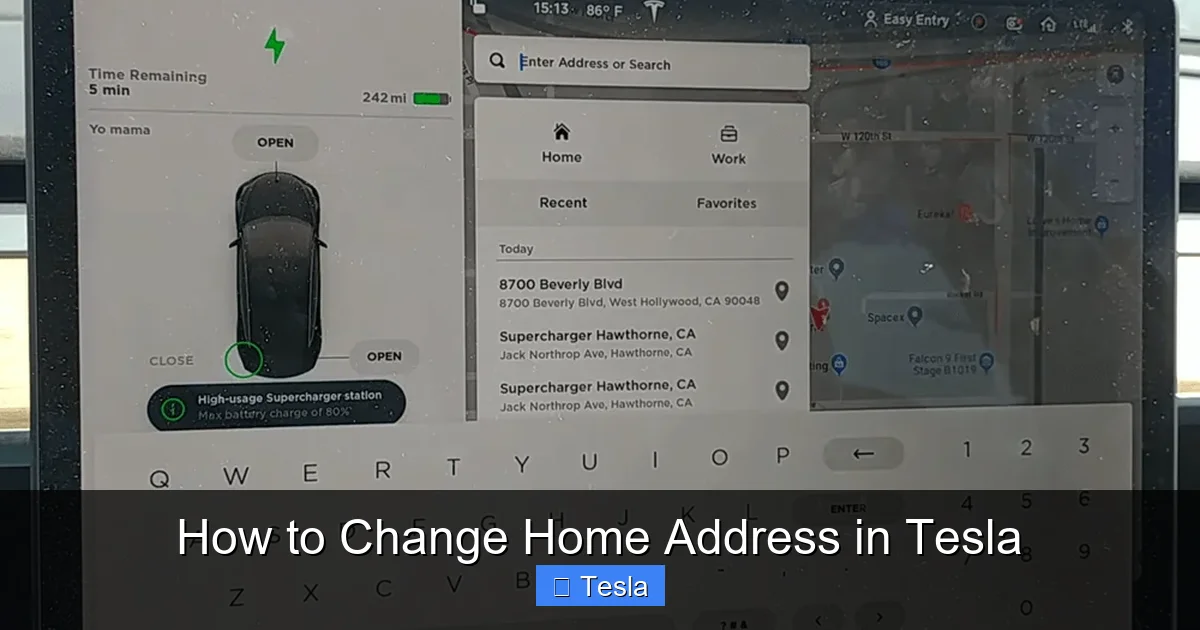
Visual guide about How to Change Home Address in Tesla
Image source: carstale.com
Method 1: The Tesla Mobile App (The Remote Champion)
This is the most flexible method. You can update your address from anywhere in the world, as long as your phone has an internet connection and your Tesla is connected to Tesla’s servers (which it almost always is). It’s perfect if you’re finalizing a move and haven’t picked up your car yet, or if you’re already at your new home and your car is in the garage. The changes sync to your vehicle the next time it connects to the network, usually within minutes.
Method 2: The Vehicle Touchscreen (The Direct Approach)
Using the car’s own interface is equally simple and provides immediate confirmation. You need to be inside the vehicle with the touchscreen powered on and connected to the internet (via Wi-Fi or LTE). This method is ideal if you’re already in the car, perhaps just arrived at your new driveway, and want to verify the change instantly. The update is applied almost in real-time to the car’s systems.
Which one should you use? Honestly, it’s a matter of preference. The app is great for doing it ahead of time. The touchscreen method gives you that instant gratification of seeing the new address pop up on your navigation screen. We recommend using the app for the initial change, then verifying it on the touchscreen once you’re in the car. This two-step confirmation ensures everything is synced perfectly.
Step-by-Step: Changing Your Home Address via the Tesla Mobile App
Ready to update? Grab your phone. Make sure you’re logged into the Tesla app with the same account that’s associated with your vehicle. Here is the exact process:
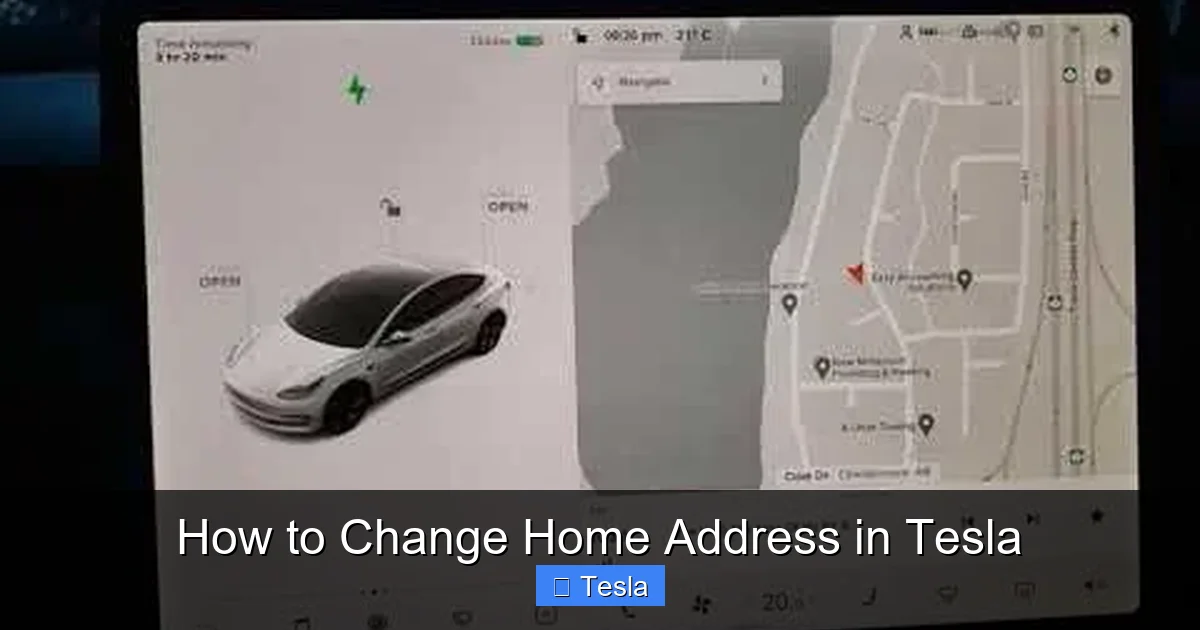
Visual guide about How to Change Home Address in Tesla
Image source: gearpatro.com
- Open the Tesla App: Launch the application on your iOS or Android device. Ensure you see your vehicle’s image and current status (like “Parked” or “Charging”).
- Navigate to Settings: Tap on the “Controls” menu (often represented by a car icon or three horizontal lines, depending on app version). Then, look for and select “Settings.”
- Find the Location Section: Within Settings, scroll down until you find the “Location” or “Address” section. The exact label might vary slightly by app update, but it’s clearly about your home and work addresses.
- Edit Your Home Address: Tap on “Home” or “Home Address.” You’ll see your current address displayed. Tap the pencil/edit icon or the address field itself.
- Enter the New Address: A keypad or full keyboard will appear. Start typing your new street address. The app uses Google Maps (or a similar service) for autocomplete. Pro Tip: Begin with the street number and name. Select the correct suggestion from the dropdown list to ensure the system captures the precise geographic coordinates, not just a text string. This is crucial for accurate navigation and charging suggestions.
- Save the Change: Once the full, correct address appears, tap “Save” or “Done.” You should see a brief confirmation message like “Address updated.”
- Sync and Verify: The app will now send the update to your car. This happens over-the-air. To verify, you can either wait a few minutes and check the “Home” address in the car’s touchscreen (see next section), or you can sometimes see a sync icon in the app. The change is not instantaneous in the car; it requires the vehicle to wake up and connect to the network.
Important App-Specific Notes: Ensure your app is updated to the latest version from the App Store or Google Play. An outdated app might have a different menu structure. Also, your phone must have a stable internet connection (Wi-Fi or cellular data). If you have multiple Teslas on your account, make sure you have selected the correct vehicle in the app before changing the address, as the setting is vehicle-specific. You can switch vehicles by tapping the car icon/name at the top of the main screen.
Step-by-Step: Changing Your Home Address via the Vehicle Touchscreen
Prefer to do it from the driver’s seat? The touchscreen process is just as intuitive. Here’s how:
Visual guide about How to Change Home Address in Tesla
Image source: gearpatro.com
- Power On and Connect: Get into your Tesla and ensure the touchscreen is on (it usually wakes when you approach or press a button). The car must have an internet connection. If you’re at home, connect to your Wi-Fi network for a faster, more reliable update (tap the Wi-Fi icon in the top status bar).
- Access the Main Menu: Tap the “Controls” icon (the car symbol) on the bottom center of the screen.
- Navigate to Software Settings: In the Controls menu, scroll down the left-hand sidebar until you find “Software” and tap it. (On some models/software versions, the address setting might be under “Settings” > “Vehicle” or directly in the main Controls menu. Look for “Home” or “Address.”)
- Locate the Address Setting: Within the Software or Settings menu, look for a section labeled “Location,” “Address,” or “Navigation.” You should see fields for “Home” and “Work.” Tap on “Home.”
- Input the New Address: A keyboard will appear on the screen. Start typing your new street address. Like the app, the system uses an autocomplete feature. Critical Step: Select the correct address from the dropdown list that appears. This ensures the system geocodes it properly. Typing it manually without selection might result in an address that looks right but is mislocated on the map.
- Save and Exit: Once the full address is displayed correctly, tap “Save” or “Enter.” You’ll often see a small checkmark or the address field will update immediately.
- Immediate Verification: The change is applied to the car’s systems almost instantly. To test, tap the navigation bar (the search/address field at the top of the touchscreen), type “Home,” and select it. The map should center on your new neighborhood. You can also say “Drive home” if you have voice commands enabled.
Touchscreen-Specific Tips: If the keyboard is slow to respond, a simple touchscreen reboot can help (hold down both scroll wheel buttons on the steering wheel until the screen goes black and reboots). Also, if you’re using a mobile hotspot for internet, ensure it’s stable. A weak connection can cause the save operation to fail silently.
Troubleshooting: When Your Tesla Home Address Won’t Update
It’s rare, but sometimes the digital handshake fails. Here’s what to do if you’ve saved the new address but your car still thinks you live at the old place.
First, Confirm the Save
Double-check that you actually saved the change. In the app, re-open the address edit screen. In the car, go back to the setting. Sometimes we tap “Save” but an error message flashes too quickly to see. Make sure the new address is clearly displayed in the edit field after you attempt to save.
Sync Patience and Power Cycle
Over-the-air updates aren’t always instant. Wait 10-15 minutes. Then, try a soft reboot of the car’s systems. While parked, press and hold both the steering wheel scroll wheel buttons until the touchscreen turns off and back on (about 30-60 seconds). This refreshes the network connection and software modules. After reboot, check the Home address again in the navigation search.
Check Your Connection
Your car must be online. Look at the top status bar of the touchscreen. Do you see a Wi-Fi symbol or LTE bars? If it says “No Network” or shows a satellite icon with a line through it (meaning no GPS/network), the car cannot receive the update. Move the car to an area with better cellular reception or connect to a strong Wi-Fi network.
App-Side Troubleshooting
If using the app, force-close it and reopen. Log out and log back in. Ensure your phone’s date and time are set to automatic. A significant time mismatch can cause authentication issues with Tesla’s servers. Also, check for any pending app updates.
The Nuclear Option: Clear Location Data
In the car’s touchscreen, go to Controls > Safety & Security > Clear Location Data. This will delete all saved addresses (Home, Work, favorites) and recent destinations. Warning: This is a fresh start. After clearing, you must re-enter your Home and Work addresses from scratch. Often, this resolves stubborn syncing bugs.
When to Contact Tesla Support
If you’ve tried all the above and the address still shows incorrectly in the navigation search (even after typing the new address manually and selecting it), it’s time to escalate. Use the “Help” section in the Tesla app or the touchscreen (Controls > Service > Request Support). Be specific: “I changed my home address in the app/touchscreen on [date], but the navigation ‘Home’ destination still points to the old location at [old address]. I have performed a touchscreen reboot and cleared location data.” Providing these details speeds up the diagnosis. Sometimes, a backend account sync issue requires a Tesla technician to push a manual refresh from their end.
Best Practices for Flawless Address Management
Now that you know how to change it, here’s how to manage your Tesla’s address like a pro.
Update The Moment You Move
Don’t wait. The day you get your keys at the new house, update the address before you even unload the moving truck. This prevents a cascade of small errors—from a misrouted first trip to the grocery store to an incorrect “time to charge” estimate. Set a calendar reminder for yourself: “Change Tesla address.”
Use “Work” for Your Commute
Don’t just set “Home.” Also set “Work” in the same address menu. This gives you a second, equally powerful shortcut. You can say “Drive to work” or tap the Work icon for instant routing. It also helps the car learn your weekly pattern for predictive features like pre-conditioning (heating or cooling the cabin before you leave).
Mind the Multiple-Vehicle Trap
If you share your Tesla account with a family member who has their own Tesla, or if you have a second Tesla yourself, remember: the address is set per vehicle, not per account. Changing it on your Model 3 does nothing for your spouse’s Model Y. You must log into the app, select each vehicle individually from the fleet selector, and change the address for each one. It’s a common oversight.
Privacy and Geofencing Considerations
Your Tesla uses your home address for geofencing features like “Keep Climate On” when you’re away (it knows you’re “home” or not). If you’re privacy-conscious, note that this address is stored in Tesla’s cloud systems linked to your account. It’s used for the services described above. You can’t make the car “forget” its home without clearing all location data, as mentioned in troubleshooting.
Leverage It for Trip Planning
With the correct home address, the “Trip Planner” feature in the navigation becomes more powerful. When planning a long trip, it will automatically factor in your starting point (home) and suggest optimal charging stops. It knows your local traffic patterns and typical departure times better.
Seasonal and Secondary Addresses
If you have a seasonal home (like a summer cabin) or frequently stay at a family member’s house, you can temporarily change your “Home” address or save that location as a favorite. However, constantly switching can confuse the learning algorithms. A better practice is to keep your primary, permanent residence as “Home” and use “Favorites” for secondary locations.
Connection to Other Vehicle Systems
An accurate address also ensures your car’s calendar (if you sync it) and phone contacts with addresses work seamlessly with the navigation. If you have a meeting saved in your phone’s calendar with an address, your Tesla can navigate there directly. Having your home address correct helps the system interpret relative locations (e.g., “the meeting is 5 miles from my house”).
Conclusion: Your Digital Home, Simplified
Changing your home address in a Tesla is one of those small tasks that yields an outsized return in daily convenience and system intelligence. It’s a testament to Tesla’s software-first approach that a setting which, in a gasoline car, might involve paperwork and a dealer visit, is here reduced to a 60-second tap on your phone. Remember the two key methods: the mobile app for remote flexibility, and the touchscreen for in-car immediacy. Always verify the change, and don’t hesitate to perform a touchscreen reboot or clear location data if things seem stuck. By keeping this fundamental piece of information current, you ensure that every feature built around location—from the simple “Drive Home” command to the sophisticated Autopilot speed assist—works exactly as intended. So, after your next move, take five minutes, update that address, and let your Tesla seamlessly adapt to your new life.
Frequently Asked Questions
How long does it take for the home address change to take effect in my Tesla?
When changed via the mobile app, the update is sent over-the-air and typically takes effect within 5-15 minutes, once your car connects to the network. When changed via the touchscreen, it’s usually instantaneous. If it doesn’t update, a touchscreen reboot often resolves the delay.
Will changing my home address affect my Autopilot or Full Self-Driving capabilities?
It won’t affect the core Autopilot or FSD software, but it can influence related features. Speed Assist uses local speed limit data tied to your location. Changing your address to a new state or city may require the car to download new map data for accurate speed limits. Other features like Green Light Chime also rely on geographic rules.
Can I change my Tesla home address if the car is not connected to the internet?
No. Both the mobile app and touchscreen methods require an active internet connection to communicate with Tesla’s servers or download map data. You must have either a cellular connection (LTE) in the car or a Wi-Fi connection to complete and sync the change.
Does changing my home address reset my saved favorites or other navigation data?
No. Changing your Home address is a separate setting. Your saved destinations, recent routes, and other navigation favorites remain intact. Only if you perform the “Clear Location Data” function (found in Safety & Security settings) will all addresses and history be wiped.
What if I have a leased or financed Tesla? Can I still change the address?
Absolutely. The home address setting is for your personal use and convenience. It does not change the legal ownership or mailing address for the lease/finance contract, which is handled separately through Tesla Finance or your bank. You should update your personal address with the financing company directly as well.
My new address is very new and not on all maps yet. Will navigation still work?
Yes, but with a caveat. Tesla’s navigation uses a combination of map data sources. If your new street or subdivision isn’t in their primary database, you might need to manually select the address from a list or use the “Drop Pin” feature to set the exact location. The “Home” shortcut will still work once you’ve successfully set and saved the address once via the edit screen, as it stores the precise GPS coordinates, not just the text.
