
How to Connect an Xbox Controller to Tesla Model 3

Connecting an Xbox controller to a Tesla Model 3 is a straightforward process that unlocks a world of in-car entertainment. You’ll primarily use the controller’s Bluetooth functionality to pair it with the Tesla’s infotainment system. Once connected, you can play games from the Tesla Arcade or other compatible apps, making road trips and charging sessions much more enjoyable for passengers. This guide covers everything from preparation to troubleshooting.
Key Takeaways
- Compatible Controllers: Only Xbox Wireless controllers with Bluetooth (model 1708 or newer) and Xbox Elite Series 2 controllers work. Older Xbox One S controllers without Bluetooth will not connect.
- Primary Method is Bluetooth: The standard and most reliable way to connect is via the Tesla’s built-in Bluetooth settings, treating the controller like any other Bluetooth device.
- Third-Party Apps Expand Options: Apps like “Xbox Cloud Gaming” (Beta) or “Steam Link” can be installed on the Tesla’s browser, allowing you to stream games and use the controller, but this requires a stable internet connection.
- Safety First: Gaming is only available when the car is in PARK. The system will not allow controller pairing or game launching while the vehicle is moving for safety reasons.
- Latency May Occur: While Bluetooth gaming is generally smooth, you might experience minor input lag compared to a console, especially with cloud streaming. A wired connection is not supported natively.
- Controller Updates Matter: Ensure your Xbox controller has the latest firmware from an Xbox console or Windows PC before attempting to pair it with the Tesla for the best compatibility.
- One Controller at a Time: The Tesla’s infotainment system typically supports one game controller connection at a time. You’ll need to re-pair if switching between multiple controllers.
📑 Table of Contents
- Unlock In-Car Gaming: Connecting Your Xbox Controller to a Tesla Model 3
- Why Connect an Xbox Controller? The Perks of Console Gaming in Your Tesla
- Prerequisites: Is Your Xbox Controller Compatible?
- Step-by-Step: Pairing the Xbox Controller via Tesla Bluetooth
- Beyond Bluetooth: Using Cloud Gaming Apps
- Troubleshooting: What to Do When It Won’t Connect
- Safety, Limitations, and Important Considerations
- Conclusion: Your Tesla is Now a Mobile Entertainment Hub
Unlock In-Car Gaming: Connecting Your Xbox Controller to a Tesla Model 3
Imagine this: you’re at a Supercharger station, your Tesla Model 3 is sipping electrons, and instead of just scrolling through your phone, you can dive into a full-fledged video game right on the car’s massive central touchscreen. It’s not science fiction; it’s a feature Tesla calls “Tesla Arcade.” But to make the experience truly console-like, you’ll want to ditch the touchscreen controls and use a proper gamepad. That’s where your trusty Xbox controller comes in. Connecting an Xbox controller to your Tesla Model 3 transforms the cabin into a mobile gaming den, perfect for keeping passengers entertained during long journeys or wait times. This guide will walk you through every single step, from checking your controller’s compatibility to mastering the connection process and troubleshooting any hiccups along the way.
First, a crucial point: this functionality is purely for passenger entertainment. Tesla has designed its gaming system to be accessible only when the vehicle is in PARK. The car will not allow you to start a game or pair a controller while driving, ensuring the driver’s focus remains on the road. So, think of this as your secret weapon for makingcharging stops or tailgating at a destination far more fun for everyone except the person behind the wheel. The process relies on standard Bluetooth technology, meaning you don’t need any special dongles or complex wiring. It’s all about wireless simplicity, just like your Xbox console at home.
Why Connect an Xbox Controller? The Perks of Console Gaming in Your Tesla
You might be wondering, why go through the trouble? The Tesla’s built-in games like Beach Buggy Racing 2 and Solitaire are fun with touch controls, but they don’t offer the precision, comfort, or immersive experience of a physical controller. Using an Xbox controller brings several tangible benefits that elevate the entire in-car entertainment setup.
Visual guide about How to Connect an Xbox Controller to Tesla Model 3
Image source: wikihow.com
Superior Control and Immersion
Touchscreens are great for menus, but they are terrible for nuanced driving or action game controls. An Xbox controller provides analog sticks for precise steering, responsive triggers for acceleration and braking, and a familiar ergonomic layout that your brain already knows how to use. This makes games like Beach Buggy Racing 2 feel like a proper arcade racer instead of a frustrating exercise in finger-sliding. The tactile feedback of buttons and triggers adds a layer of immersion that a flat glass screen simply cannot replicate. For passengers, especially kids or younger teens, this familiar interface is much more intuitive and enjoyable.
A Vast Library of Potential Games
While Tesla Arcade has a curated selection of games, connecting a controller opens the door to more. By using the Tesla’s web browser, you can access cloud gaming services like Xbox Cloud Gaming (part of Xbox Game Pass Ultimate) or NVIDIA GeForce NOW. These services stream AAA titles from powerful remote servers directly to your car’s screen. With your Xbox controller paired, you can play games like Halo Infinite, Forza Horizon 5, or Fortnite without needing a console or powerful PC. This effectively turns your Tesla’s infotainment system into a window to a vast gaming library, limited only by your internet connection and subscription services.
Perfect for Passengers and Kids
Keeping passengers, especially children, quietly occupied during a long drive or while waiting is a universal parenting challenge. A connected Xbox controller and a good game is a powerful solution. It keeps them engaged in a fun activity that feels special and “grown-up” because it’s happening in the car. It can make a 30-minute charge at a Supercharger feel like 5 minutes. Furthermore, it’s a fantastic way to bond over a quick multiplayer session in games that support local split-screen or shared-screen play, turning a mundane stop into a memorable family moment.
Prerequisites: Is Your Xbox Controller Compatible?
Before you start tapping through menus, you must verify your controller can actually communicate with the Tesla. Not all Xbox controllers are created equal, and Bluetooth capability is the key differentiator. Tesla’s system uses standard Bluetooth Low Energy (BLE) to pair with input devices, so your controller must have that built-in.
Visual guide about How to Connect an Xbox Controller to Tesla Model 3
Image source: lightcheckup.com
Identifying a Bluetooth-Enabled Xbox Controller
The easiest way to tell is by looking at the controller itself. If it’s an original Xbox One controller (the very first models released with the console in 2013), it likely does not have Bluetooth. These used a proprietary wireless protocol. The first Bluetooth-enabled Xbox controller was released alongside the Xbox One S in 2016. Here are the clear identifiers:
- Model Number: Look for the model number on the back of the controller inside the battery compartment. The Bluetooth model is 1708. The non-Bluetooth model is 1537.
- Physical Look: Bluetooth controllers (1708) have a small, glossy plastic surround around the Xbox button. Non-Bluetooth controllers (1537) have a matte, ribbed plastic surround around the button.
- Connection Button: Bluetooth controllers have a small, circular pairing button on the top edge, between the bumpers. Non-Bluetooth controllers have a rectangular button.
The Xbox Wireless Controller that ships with Xbox Series X|S consoles is also Bluetooth-compatible. The premium Xbox Elite Wireless Controller Series 2 is Bluetooth compatible. If you’re unsure, the safest bet is to check the model number. Using a non-Bluetooth controller will result in it not appearing in the Tesla’s Bluetooth pairing list.
Preparing Your Controller for Pairing
Once you have a compatible controller, you need to put it into pairing mode. This is a simple process:
- Make sure the controller has batteries or is charged. A low battery can cause pairing failures.
- Turn on the controller by pressing the Xbox button in the center. It will light up.
- Locate the small pairing button on the top of the controller, near the LB bumper button. It’s a circular button.
- Press and hold this pairing button for about 3-5 seconds. The Xbox button on the front will start blinking rapidly, indicating the controller is now discoverable by nearby Bluetooth devices. You have about 20 seconds to pair it before it times out.
It’s also a good practice, though not always strictly necessary, to ensure your controller’s firmware is up to date. You can do this by connecting it to an Xbox console or a Windows 10/11 PC via USB and checking for updates in the Xbox Accessories app. Outdated firmware can sometimes cause minor connectivity quirks.
Step-by-Step: Pairing the Xbox Controller via Tesla Bluetooth
This is the main event. Pairing your Xbox controller to the Tesla Model 3’s infotainment system is designed to be as simple as pairing a phone or headphones. Follow these steps carefully while your vehicle is safely in PARK.
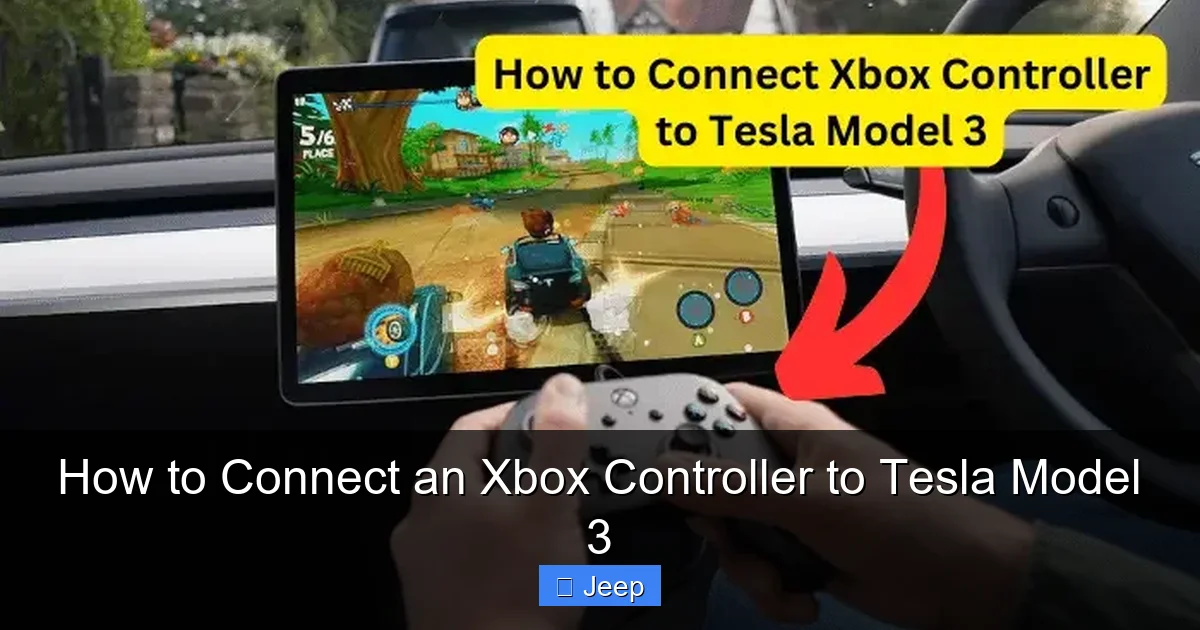
Visual guide about How to Connect an Xbox Controller to Tesla Model 3
Image source: teslord.com
Navigating to the Bluetooth Settings
First, wake up the car’s touchscreen by pressing the brake pedal or tapping the screen. Then:
- Tap the Car Controls icon (the car silhouette) in the bottom left corner of the screen, or swipe down from the top right to open the quick controls.
- Navigate to Settings (the gear icon).
- In the Settings menu, select Bluetooth.
- Ensure the “Bluetooth” toggle at the top is switched ON.
- Under the “My Devices” or “Available Devices” section, you should see a list of previously paired devices and any new ones it detects.
Initiating the Pairing Process
With your Xbox controller in pairing mode (Xbox button blinking rapidly):
- Look at your Tesla’s Bluetooth screen. After a few seconds, a device named something like “Xbox Wireless Controller” or “Xbox Elite Series 2” should appear in the list of available devices.
- Tap on the controller’s name.
- The screen will show a pairing request, often with a PIN or just a “Pair” button. Tap Pair or Connect.
- The controller’s Xbox button will stop blinking rapidly and become a solid, steady light. This indicates a successful connection.
- On the Tesla screen, the controller should now appear in the “My Devices” list, showing as “Connected.”
That’s it! Your controller is now paired. You can now exit the Bluetooth settings and launch a game. The controller should work immediately. The Tesla will remember this pairing, so you typically won’t need to go through this process every time. Just turn on the controller, and it should reconnect automatically when you enter the car and the infotainment system boots up.
Beyond Bluetooth: Using Cloud Gaming Apps
While the native Bluetooth connection is perfect for Tesla Arcade games, the real power for gaming enthusiasts comes from streaming services. By using the Tesla’s web browser, you can access platforms that turn your car into a portal for a near-infinite game library. This method requires a solid and fast internet connection, either via a strong Wi-Fi network (like at home or a café) or, more practically, through your phone’s hotspot or a dedicated mobile hotspot device in the car.
Setting Up Xbox Cloud Gaming (Beta)
This is the most seamless experience if you have an Xbox Game Pass Ultimate subscription.
- On your Tesla’s touchscreen, open the Browser app.
- Navigate to xbox.com/play.
- Sign in with your Microsoft account (the same one linked to your Game Pass Ultimate subscription).
- The browser-based version of Xbox Cloud Gaming should load. You’ll be prompted to connect a controller. Since you already paired your Xbox controller via Bluetooth, it should be recognized automatically. If not, the browser will guide you to pair it.
- Once connected, you can browse the cloud gaming library and launch any available title directly. The game will stream to your Tesla’s screen, with all inputs sent from your controller through the cloud.
Pro Tip: For the best performance, use a 5GHz Wi-Fi network or a 5G/LTE hotspot. The Tesla’s browser is capable, but cloud gaming is demanding. If you experience lag, try moving closer to your Wi-Fi router or hotspot.
Exploring Other Streaming Options
Other services like Steam Link or Moonlight (for NVIDIA GameStream) are also possibilities. These require you to have a gaming PC or NVIDIA Shield TV running at home that is powered on and on the same network. You then use the Tesla browser to connect to the Steam or Moonlight web interface. This setup is more complex but can give you access to your entire PC game library from your car. However, for most users, Xbox Cloud Gaming offers the best balance of simplicity and game selection.
Troubleshooting: What to Do When It Won’t Connect
Technology doesn’t always cooperate. If your Xbox controller refuses to pair with your Tesla Model 3, don’t panic. Most issues have simple fixes. Let’s walk through the most common problems and their solutions.
Controller Not Appearing in the Bluetooth List
This is the most frequent issue. If your Tesla screen shows no new devices while your controller’s Xbox button is blinking:
- Re-enter Pairing Mode: Make sure you held the pairing button long enough (3-5 seconds) and that the Xbox button is blinking rapidly, not just glowing steadily. A steady light means it’s on but not in discoverable mode.
- Restart the Controller: Turn the controller off by holding the Xbox button for 6 seconds. Wait 10 seconds, then turn it back on and immediately re-enter pairing mode.
- Restart the Tesla Infotainment: A soft reboot can clear Bluetooth glitches. Park the car, press and hold both scroll wheels on the steering wheel until the screen goes black and the Tesla logo reappears (about 10-15 seconds). This reboots the car’s computer without affecting driving systems.
- Check Controller Battery: Replace the batteries or ensure the rechargeable pack is sufficiently charged. Low power can prevent discovery.
- Forget Old Pairings: If the controller was previously paired to another device (like an Xbox console) very recently, it might not be discoverable. Turn off that other device or put it out of range. You can also try “forgetting” the controller in the Tesla’s Bluetooth settings (tap the ‘i’ icon next to its name and select ‘Forget This Device’), then try pairing fresh.
Connected but Not Responding in Games
The controller shows as “Connected” in Bluetooth settings, but games don’t recognize it:
- Game Compatibility: Not all games in Tesla Arcade support external controllers. Beach Buggy Racing 2 does, but some simpler games may not. Check the game’s description or settings menu for controller support.
- Controller Priority: If you have multiple Bluetooth devices (like a phone) connected, try disconnecting other input devices temporarily to ensure the controller is the primary gamepad.
- Re-pair Within the Game: Some cloud gaming apps have their own controller pairing process. If using Xbox Cloud Gaming in the browser and the controller doesn’t work, look for a “Connect Controller” button within the web app itself.
- Try a Different USB Port (Wired Fallback): While the Model 3 doesn’t natively support wired controller input for gaming, plugging the controller into a USB port in the car (using a USB-A to Micro-USB cable) will charge it and can sometimes force a more stable connection. However, the primary method remains wireless Bluetooth.
Frequent Disconnections or Lag
If the connection drops or you notice input lag:
- Signal Interference: The 2.4GHz Bluetooth band is crowded. Other devices like Wi-Fi routers, cordless phones, or even other people’s controllers can interfere. Move other electronic devices away from the center console.
- Physical Obstruction: The Bluetooth antenna in the Model 3 is located near the front of the cabin, often around the rearview mirror or dash. Make sure your body or a passenger isn’t blocking the line-of-sight between the controller and this area. Holding the controller too low, near the center console, might weaken the signal.
- Controller Battery: Again, low battery can cause unstable connections. Use fresh batteries or a full charge.
- Software Updates: Ensure your Tesla’s vehicle software is up to date. Tesla periodically improves Bluetooth stack performance and device compatibility through over-the-air updates. Go to Settings > Software to check.
Safety, Limitations, and Important Considerations
While connecting a controller is a fantastic feature, it’s essential to understand its boundaries and use it responsibly. Tesla has built-in safeguards, but as a user, you must adhere to them.
The PARK Lock is Absolute
This cannot be stressed enough. The Tesla’s gaming system, including controller use, is completely disabled while the vehicle is in any drive gear (Drive, Reverse, Neutral). You cannot even navigate to the Bluetooth settings to pair a controller while the car is “on” and not in Park. The system checks the gear selector state constantly. This is a non-negotiable safety feature from Tesla to prevent driver distraction. All gaming must happen when the car is stationary and parked. Attempting to bypass this is not possible and would be incredibly dangerous.
No Native Wired Connection
Unlike some aftermarket Android Auto head units, the Tesla infotainment system does not recognize USB-connected gamepads as input devices for games. Plugging in an Xbox controller via USB will only charge it. All controller input must be wireless via Bluetooth. This means controller battery life becomes a consideration. Keep a set of spare AA batteries or a charged battery pack in the glove compartment for long trips.
Impact on Vehicle Systems and Customization
Using the car for gaming puts a significant drain on the 12-volt battery, especially if you’re doing it for an extended period while the main high-voltage battery is not actively charging. It’s generally safe, but avoid marathon gaming sessions with the car off and parked for days on end. The good news is that the Tesla’s large touchscreen is perfect for gaming. However, if you’re concerned about glare or want a more immersive cockpit feel, you might consider a professional window tint. A high-quality tint can reduce screen glare significantly, making gaming in sunny conditions much more comfortable. You can research the cost to tint a Tesla Model 3 to see if it fits your budget for enhancing your in-car experience.
Furthermore, if you’re really customizing your Tesla’s interior for a dedicated gaming setup, you might look into protective wraps for the screen or surfaces around the center console to prevent scratches from controller use or accidental bumps. Exploring options like a Tesla Model 3 wrap for interior components can offer a durable, cleanable surface that withstands heavy use.
Conclusion: Your Tesla is Now a Mobile Entertainment Hub
Connecting an Xbox controller to your Tesla Model 3 is one of the simplest and most rewarding hacks you can do to enhance your ownership experience. It takes a feature that might have been a novelty—the built-in games—and elevates it to a genuinely fun, console-quality pastime. The process is entirely plug-and-play via Bluetooth, requiring no technical expertise or permanent modifications. Once paired, your controller will likely reconnect automatically, making it a true set-and-forget upgrade.
Remember to use a Bluetooth-compatible controller (model 1708 or newer), always operate the system only when parked, and ensure you have a good internet connection if venturing into cloud gaming. With this knowledge, you’re ready to transform every charging stop and parked moment from a waiting game into an adventure. So grab your controller, put the car in Park, and start playing. The road ahead just got a lot more entertaining.
Frequently Asked Questions
Can I use an Xbox controller while driving?
No. Tesla’s gaming system, including the use of external controllers, is completely disabled when the vehicle is in any drive gear. You can only pair controllers and play games when the car is in PARK for safety reasons.
My Xbox controller won’t show up in the Bluetooth list. What’s wrong?
First, ensure your controller is a Bluetooth model (look for model 1708 on the back). Then, make sure you held the pairing button until the Xbox button blinks rapidly. Try restarting both the controller and the Tesla’s infotainment system by holding both steering wheel scroll wheels.
Will this work with a PlayStation DualSense controller?
No, this guide specifically covers Xbox controllers. While some third-party universal controllers may work, the Tesla’s Bluetooth implementation is optimized for the Xbox controller profile. A PlayStation DualSense or DualShock 4 is not officially supported and will likely not pair correctly.
Is there any noticeable lag when playing games?
For native Tesla Arcade games like Beach Buggy Racing 2, the Bluetooth connection is usually very responsive with minimal lag. For cloud gaming services like Xbox Cloud Gaming, lag depends almost entirely on your internet speed and signal strength. A weak connection will cause noticeable input delay.
Can I connect multiple Xbox controllers for multiplayer?
The Tesla’s infotainment system typically only supports one game controller connection at a time for gaming. You cannot pair two Xbox controllers simultaneously for local multiplayer in most games. You would need to re-pair to switch controllers.
Do I need to pair the controller every single time I get in the car?
No. Once successfully paired, the Tesla will remember the controller. When you turn on the controller inside the car, it should automatically reconnect to the infotainment system within a few seconds, just like it would with an Xbox console. You only need to pair manually if you “forget” the device or if the connection fails repeatedly.
