
Why Won’t Apple Carplay Work in My Subaru

If Apple CarPlay won’t work in your Subaru, it’s often due to outdated software, USB connection issues, or incorrect settings. This guide walks you through step-by-step solutions to get your infotainment system back on track and your iPhone connected seamlessly.
Key Takeaways
- Check your USB cable and port: A damaged or low-quality cable is the #1 reason CarPlay fails—use Apple-certified cables and clean the port regularly.
- Update your Subaru’s infotainment system: Outdated firmware can block CarPlay functionality—visit your dealer or use Subaru’s online update tool.
- Ensure your iPhone is updated: CarPlay requires iOS 7.1 or later, but newer Subaru models need iOS 13+ for full compatibility.
- Enable CarPlay in iPhone settings: Go to Settings > General > CarPlay and make sure your vehicle is listed and enabled.
- Restart both devices: A simple reboot of your iPhone and Subaru’s head unit often resolves temporary glitches.
- Try a different USB port: Some Subaru models have multiple ports—only one may support data transfer for CarPlay.
- Visit a Subaru dealer if problems persist: Hardware issues like a faulty head unit may require professional diagnosis and repair.
📑 Table of Contents
- Why Won’t Apple CarPlay Work in My Subaru? A Complete Troubleshooting Guide
- Understanding Apple CarPlay and Subaru Compatibility
- Common Reasons Apple CarPlay Fails in Subaru Vehicles
- Step-by-Step Troubleshooting: How to Fix Apple CarPlay in Your Subaru
- Preventing Future Apple CarPlay Issues in Your Subaru
- When to Seek Professional Help
- Conclusion: Getting Apple CarPlay Back on Track in Your Subaru
Why Won’t Apple CarPlay Work in My Subaru? A Complete Troubleshooting Guide
So you’ve just hopped into your Subaru, plugged in your iPhone, and… nothing. No Apple CarPlay screen. No Siri voice. Just silence and frustration. You’re not alone. Thousands of Subaru owners face this exact issue every week—especially after software updates, long road trips, or even just switching phones.
Apple CarPlay is supposed to make driving safer and more convenient. It lets you use Maps, send messages, play music, and control apps—all through your car’s touchscreen or voice commands. But when it doesn’t work, it feels like you’re driving a fancy paperweight. The good news? Most CarPlay problems in Subaru vehicles are fixable with a few simple steps.
In this guide, we’ll walk you through every common reason Apple CarPlay might not be working in your Subaru—from faulty cables to software glitches—and show you exactly how to fix them. Whether you drive a 2017 Outback, a 2022 Forester, or a 2024 Crosstrek, these tips apply across most Subaru models with compatible infotainment systems.
Understanding Apple CarPlay and Subaru Compatibility
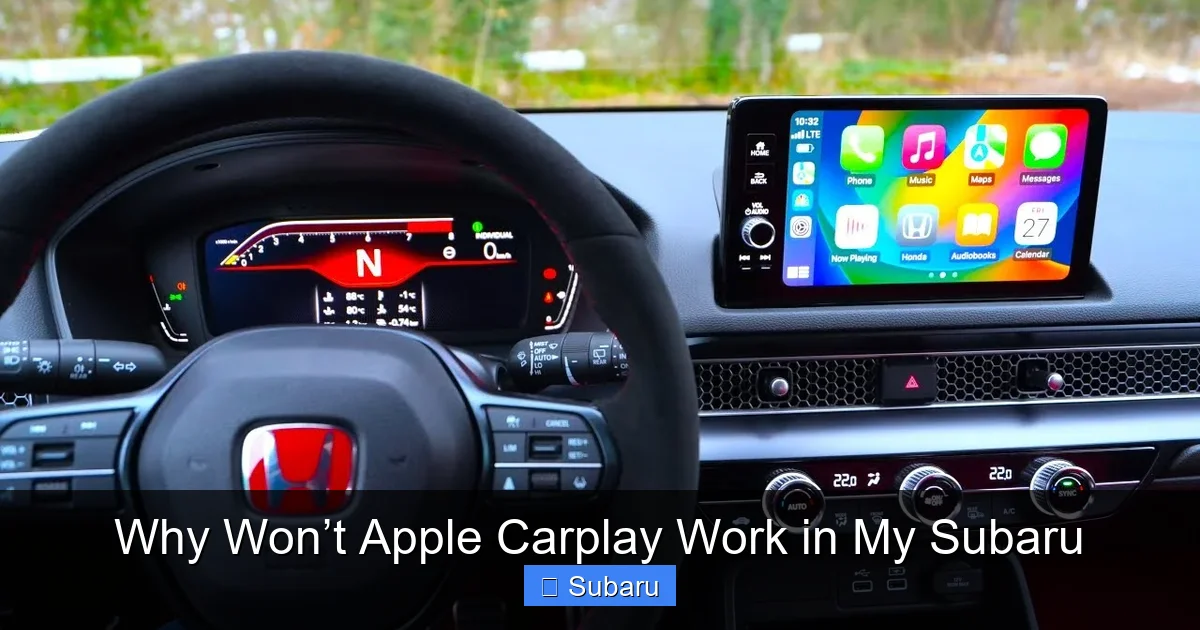
Visual guide about Why Won’t Apple Carplay Work in My Subaru
Image source: i.ytimg.com
Before diving into fixes, it helps to understand how Apple CarPlay works with Subaru vehicles. CarPlay isn’t built into your car—it’s a projection system that mirrors your iPhone’s interface onto your Subaru’s display. That means both your phone and your car’s system need to be set up correctly for it to function.
Subaru began offering Apple CarPlay support in 2016 on select models like the Legacy and Outback. Since then, it’s become standard on nearly all new Subarus, including the Impreza, Crosstrek, Forester, and Ascent. However, not all trim levels include it—some base models still lack CarPlay capability. Always check your owner’s manual or Subaru’s official website to confirm your vehicle supports it.
CarPlay connects via a USB cable (not Bluetooth), which means a stable physical connection is essential. Unlike Android Auto, which can sometimes work wirelessly on newer models, Apple CarPlay in Subarus is almost always wired—at least for now. That’s why the quality of your cable and the condition of your USB port matter so much.
Also, keep in mind that CarPlay only works when your iPhone is unlocked and running a compatible version of iOS. If your phone is locked, in low-power mode, or running an outdated operating system, CarPlay won’t launch—even if everything else is perfect.
Which Subaru Models Support Apple CarPlay?
Most Subaru vehicles from 2017 onward support Apple CarPlay, but there are exceptions. Here’s a quick breakdown:
– 2017–2019 Legacy & Outback: Available on Premium trim and above.
– 2018–2020 Forester: Standard on all trims except the base model.
– 2019–2024 Crosstrek: Standard on all trims with the 6.5-inch or 8-inch STARLINK display.
– 2020–2024 Ascent: Standard on all trims.
– 2021–2024 Impreza: Available on Sport and Limited trims.
If your Subaru has the STARLINK Multimedia Plus or STARLINK Multimedia with Navigation system, it likely supports CarPlay. Look for a “CarPlay” or “Smartphone Integration” option in the main menu. If you don’t see it, your vehicle may not be equipped—or the feature might be disabled.
How Apple CarPlay Connects in Subaru Vehicles
When you plug your iPhone into your Subaru’s USB port, the car’s infotainment system detects the device and asks if you want to enable CarPlay. If you’ve used it before, it should launch automatically. But if it doesn’t, the system may not recognize the phone, the connection may be too weak, or a setting might be blocking it.
The connection relies on three key components:
1. A working USB cable (preferably Apple-certified).
2. A clean, undamaged USB port in your Subaru.
3. Proper settings on both your iPhone and the car’s head unit.
If any of these fail, CarPlay won’t start. And because Subaru’s system doesn’t always give clear error messages, it can be hard to pinpoint the issue without methodical troubleshooting.
Common Reasons Apple CarPlay Fails in Subaru Vehicles
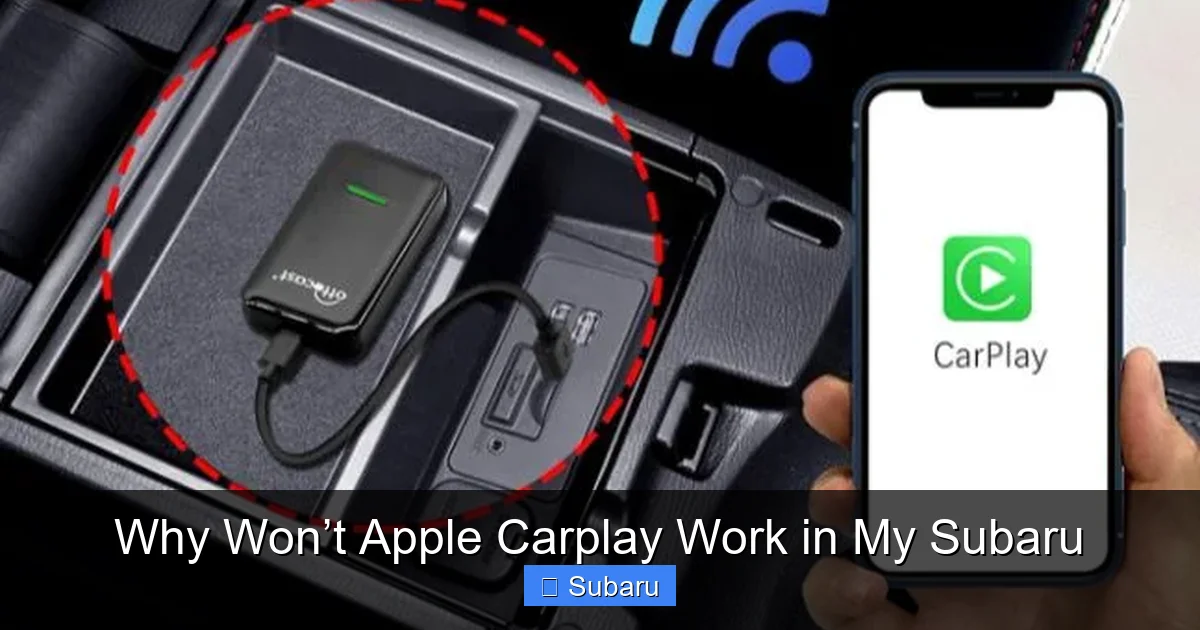
Visual guide about Why Won’t Apple Carplay Work in My Subaru
Image source: nerdtechy.com
Now that you know how CarPlay works with Subaru, let’s look at the most common reasons it stops working. Many of these issues are easy to fix—once you know what to look for.
1. Faulty or Low-Quality USB Cable
This is the #1 culprit. A damaged, frayed, or non-Apple-certified USB cable can’t transmit the data needed for CarPlay. Even if your phone charges, that doesn’t mean the cable supports data transfer—some cheap cables only handle power.
Example: You plug in your iPhone and see the battery icon light up, but CarPlay doesn’t appear. That’s a red flag. Charging ≠ data connection.
Always use an Apple-certified Lightning to USB cable (or USB-C if you have an iPhone 15 or newer). Avoid third-party cables labeled “for charging only.” If your cable is over a year old or shows wear, replace it.
2. Dirty or Damaged USB Port
Dust, lint, and debris can build up inside your Subaru’s USB port, blocking the connection. Over time, the port itself can wear out or become loose, especially if you frequently plug and unplug your phone.
Tip: Use a can of compressed air to gently blow out the port. Avoid using metal objects like paperclips—they can damage the pins.
If the port feels loose or your phone wobbles when plugged in, it may need repair. Visit a Subaru service center for inspection.
3. Outdated Infotainment Software
Subaru regularly releases software updates for its STARLINK system. These updates fix bugs, improve performance, and ensure compatibility with newer iPhones and iOS versions. If your head unit hasn’t been updated in years, CarPlay may stop working—especially after an iPhone update.
Example: You updated your iPhone to iOS 17, but your 2020 Forester still runs STARLINK version 2.0. The older software doesn’t recognize the new iOS, so CarPlay fails to launch.
Check your system version by going to Settings > System Information on your Subaru’s screen. Compare it to the latest version on Subaru’s official support site. If it’s outdated, schedule an update at your dealership or use Subaru’s online update tool (if available for your model).
4. iPhone Software or Settings Issues
Your iPhone plays a big role in CarPlay functionality. If it’s running an old iOS version, has restrictions enabled, or has CarPlay turned off, it won’t connect—even with a perfect cable and port.
Make sure:
– Your iPhone is running iOS 13 or later (iOS 16+ recommended for newer Subarus).
– CarPlay is enabled in Settings > General > CarPlay.
– Your vehicle is listed under “My Cars” and set to “Allow.”
– Restrictions (Screen Time) aren’t blocking CarPlay.
Also, if your iPhone is in Low Power Mode, CarPlay may not activate. Disable it temporarily to test.
5. Incorrect USB Port Usage
Some Subaru models have multiple USB ports—but only one supports data transfer for CarPlay. For example, the front console may have two ports: one for charging passengers’ devices and one for connecting your phone to the infotainment system.
Tip: Look for a port labeled “Smartphone” or “Data.” On many Subarus, it’s the one closest to the gear shift or marked with a phone icon. The other port may only charge devices.
If you’ve been using the wrong port, switch to the correct one and try again.
6. Temporary Software Glitches
Sometimes, CarPlay fails due to a temporary bug—like a frozen head unit or a stuck connection. These issues often resolve with a simple restart.
Try:
– Restarting your iPhone (hold power + volume button until the slider appears).
– Turning your Subaru off completely (not just accessory mode) for 30 seconds, then restarting.
– Unplugging and replugging the USB cable while the car is on.
This resets the connection and clears minor software hiccups.
Step-by-Step Troubleshooting: How to Fix Apple CarPlay in Your Subaru
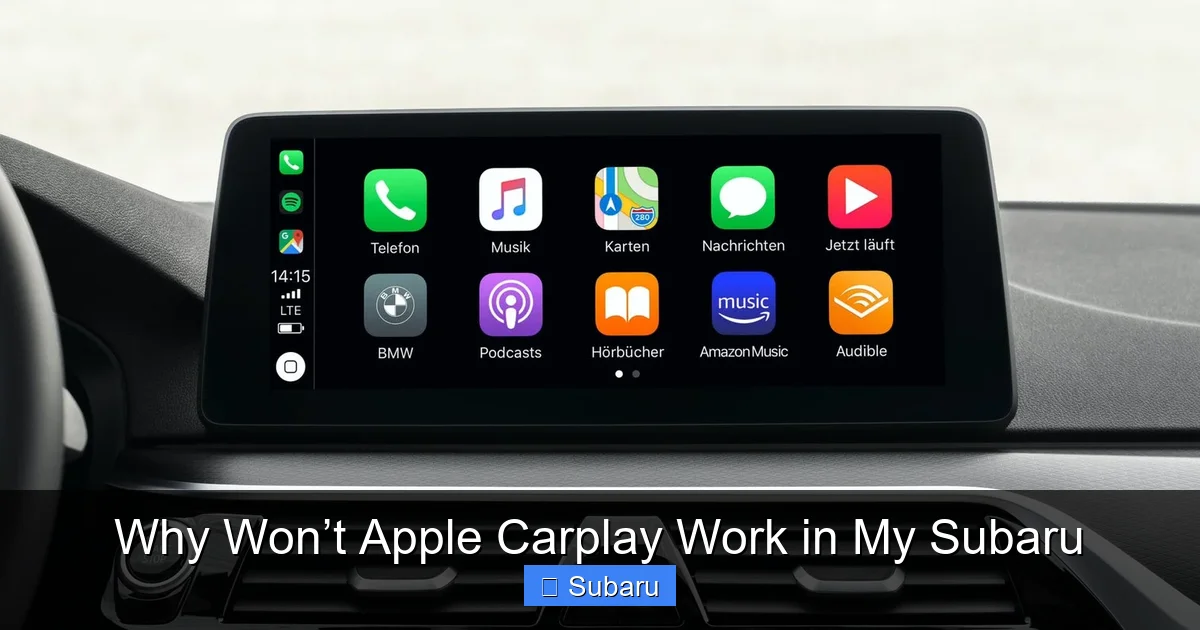
Visual guide about Why Won’t Apple Carplay Work in My Subaru
Image source: cdn.carsome.id
Now that you know the common causes, let’s walk through a proven troubleshooting process. Follow these steps in order—they’re designed to catch the most frequent issues first.
Step 1: Check Your USB Cable and Port
Start with the basics. Grab your iPhone and a known-good Apple-certified cable. Plug it into the correct USB port (the one labeled for smartphones).
– Does your phone charge? → Good.
– Does CarPlay appear? → Great! If not, move to Step 2.
If your phone charges but CarPlay doesn’t launch, the cable may only support power. Try a different cable—preferably one that came with your iPhone or a certified replacement.
Also, inspect the USB port. Is it clean? Does the cable fit snugly? If not, clean it with compressed air and try again.
Step 2: Restart Your iPhone and Subaru
Turn off your Subaru completely—don’t just put it in accessory mode. Wait 30 seconds, then restart.
Next, restart your iPhone:
– iPhone X and newer: Press and hold the side button and either volume button until the power slider appears. Drag it, then wait 30 seconds before turning back on.
– iPhone 8 and older: Hold the side (or top) button until the slider appears.
After both devices restart, plug in your phone and see if CarPlay works.
Step 3: Verify CarPlay Settings on Your iPhone
Go to Settings > General > CarPlay on your iPhone.
– Is your Subaru listed under “My Cars”?
– Is it set to “Allow”?
– Is “Automatically Show CarPlay” turned on?
If your car isn’t listed, tap “Add Car” and follow the prompts. If it’s listed but disabled, toggle it on.
Also, check Settings > Screen Time > Content & Privacy Restrictions > Allowed Apps. Make sure CarPlay isn’t blocked.
Step 4: Update Your iPhone and Subaru Software
On your iPhone:
– Go to Settings > General > Software Update.
– Install any available updates.
In your Subaru:
– Go to Settings > System Information.
– Note the software version.
– Visit Subaru’s official support site or contact your dealer to check for updates.
If an update is available, schedule it at a service center. Some models allow over-the-air updates via Wi-Fi—check your owner’s manual.
Step 5: Try a Different USB Port or Cable
If you have multiple USB ports, test each one. Only the data-capable port will work with CarPlay.
Also, borrow a friend’s Apple-certified cable to rule out cable issues. If CarPlay works with their cable, yours is the problem.
Step 6: Reset Network Settings on Your iPhone
Sometimes, network settings interfere with CarPlay. Resetting them can help—but note: this will erase saved Wi-Fi passwords.
Go to Settings > General > Transfer or Reset iPhone > Reset > Reset Network Settings. Enter your passcode and confirm.
After the reset, reconnect to Wi-Fi and try CarPlay again.
Step 7: Visit a Subaru Dealer
If none of the above steps work, there may be a hardware issue—like a faulty head unit, damaged USB port, or internal software corruption.
Subaru dealers have diagnostic tools that can pinpoint the exact problem. They can also perform firmware updates that aren’t available to consumers.
Don’t wait too long—hardware issues can worsen over time.
Preventing Future Apple CarPlay Issues in Your Subaru
Once you get CarPlay working, you’ll want to keep it that way. Here are some proactive tips to avoid future problems.
Use High-Quality Cables
Invest in at least two Apple-certified USB cables—one for your car and one for home. Avoid cheap knockoffs. They may save you $5 now but cost you hours of frustration later.
Store your car cable in a safe place (like the glove box) to prevent damage.
Keep Software Updated
Check for iPhone updates monthly. For your Subaru, ask your dealer about software updates during routine service visits.
Enable automatic updates on your iPhone to stay current.
Clean Your USB Port Regularly
Every few months, use compressed air to blow out dust from your USB port. This prevents buildup that can block connections.
Avoid Extreme Temperatures
Leaving your iPhone in a hot car can damage the battery and affect performance. Use a sunshade and avoid prolonged exposure to heat or cold.
Don’t Force the Cable
Always plug and unplug your cable gently. Forcing it can bend pins or damage the port.
When to Seek Professional Help
Most CarPlay issues are DIY-friendly. But if you’ve tried everything and CarPlay still won’t work, it’s time to visit a Subaru service center.
Signs you need professional help:
– The USB port is physically damaged.
– The head unit freezes or reboots constantly.
– CarPlay worked before but stopped after a software update.
– Multiple cables and phones fail to connect.
Dealers can run diagnostics, replace faulty components, and ensure your system is running the latest firmware.
Don’t assume it’s “just a glitch”—persistent issues often point to hardware problems that worsen over time.
Conclusion: Getting Apple CarPlay Back on Track in Your Subaru
Apple CarPlay not working in your Subaru is frustrating—but rarely permanent. In most cases, the issue stems from a simple fix: a bad cable, outdated software, or incorrect settings. By following the steps in this guide, you can diagnose and resolve the problem quickly.
Start with the basics: check your cable, restart your devices, and verify your settings. If that doesn’t work, update your software and try a different port. And if all else fails, don’t hesitate to visit your Subaru dealer.
Remember, CarPlay is designed to make driving safer and more enjoyable. Once it’s working, you’ll wonder how you ever drove without it. So don’t give up—your Subaru and your iPhone are meant to work together. With a little patience and the right troubleshooting, you’ll be back to navigating, calling, and streaming in no time.
Frequently Asked Questions
Why won’t Apple CarPlay work in my Subaru even though my phone charges?
Charging only requires power transfer, but CarPlay needs data transfer. A damaged or low-quality cable may charge your phone but fail to send data. Use an Apple-certified cable and ensure you’re using the correct USB port.
Can I use wireless Apple CarPlay in my Subaru?
As of 2024, most Subaru models only support wired Apple CarPlay. Wireless CarPlay is not available on current Subaru vehicles, though future models may include it. Always connect via USB.
Does Apple CarPlay work with all iPhone models?
CarPlay works with iPhone 5 and newer, but Subaru systems typically require iOS 13 or later for full compatibility. Older iPhones may not function properly with newer infotainment systems.
How do I update my Subaru’s infotainment system?
Visit your Subaru dealer for a software update, or check Subaru’s official support website for over-the-air update options. Some models allow updates via USB drive—consult your owner’s manual.
Why did CarPlay stop working after I updated my iPhone?
iOS updates can sometimes break compatibility with older car software. Check if your Subaru’s system needs an update. If not, restart both devices and re-enable CarPlay in your iPhone settings.
Can a dirty USB port really prevent CarPlay from working?
Yes. Dust and debris can block the connection between your cable and the port. Use compressed air to clean it gently. Avoid using sharp objects that could damage the internal pins.
